We all know that Windows 10 can be used with local account or Microsoft account or work/school account. The local account we create is local only to the machine and not part of any organization. This local account is same as we have created it on earlier Windows operating systems, such as on Windows 7.
If your system is connected to the Internet, and you opt to create a new account, newer versions of Windows 10 will always go for Microsoft account. You will not be presented with an option to create a local account. The reason is simple that Microsoft account gives you much better experience to use Windows 10. When you are on local account, you might have to sign apps individually. Certain features won’t work with local account. Due to these reasons, Microsoft wants you to use Microsoft account natively.
With Windows 10 Version 2004, Microsoft has removed the option to set up local account while installing the Windows. But if you desperately need a local account due to some anonymous reason, this article is for you.
Page Contents
Setup Windows 10 Version 2004 With Local Account
Method 1 – Use Limited Setup Option
After installing Windows 10 Version 2004, you can apply the below mentioned workaround to set up local account.
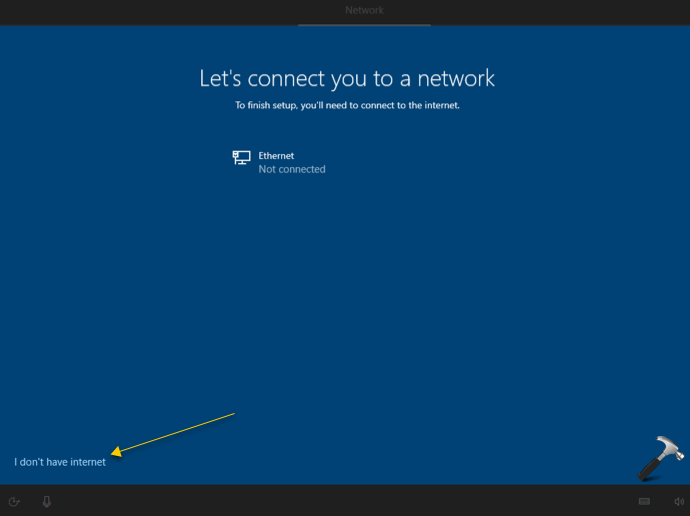
1. After the region and locale setup, temporarily disconnect your system from network. On the Network setup tab, click I don’t have internet link.
2. In the next screen, click on Continue with limited setup option.
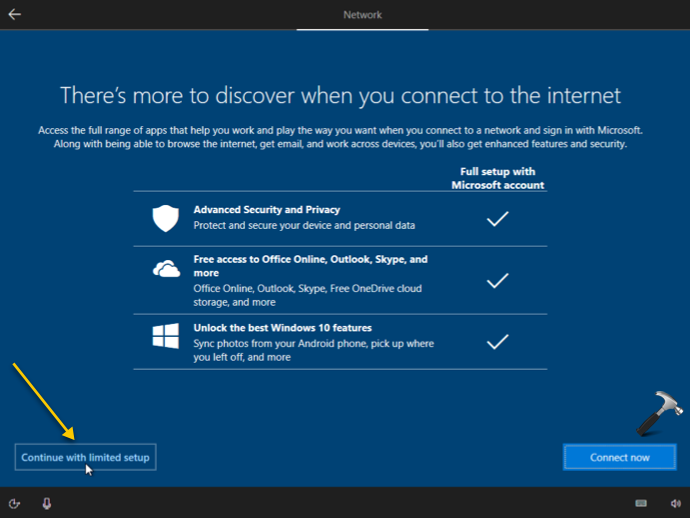
3. Now setup should automatically allow you to create a local account. So fill in the details and continue to setup your local account.

Note that you can switch to Microsoft account from the local account anytime later when you want.
If this method doesn’t work for you, try Method 2 mentioned next.
Method 2 – Switch To Local Account After Setup
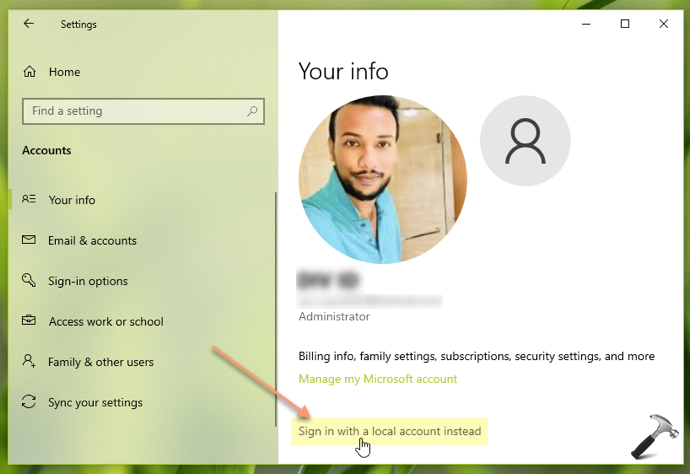
You can still convert your Microsoft account to local account anytime after setting up Version 2004. Just go to Settings > Accounts > Your info and click on Sign in with a local account instead link to setup a local account.
That’s it!