Recovering a deleted user account in Windows 11 is a little stressful. But you dont have to worry. The good news is that Windows offers several ways to restore a deleted user profile. It all depends on what caused the issue; you can recover the account without reinstalling Windows.
Page Contents
Recover Deleted User Account In Windows 11
Option 1: Restore User Profile Using System Restore
System Restore can restore your PC to a previous working state. It restores system settings, profiles, and installed apps. Here are the steps to use System Restore:
1. Press the Windows button , then search for “Create a restore point”
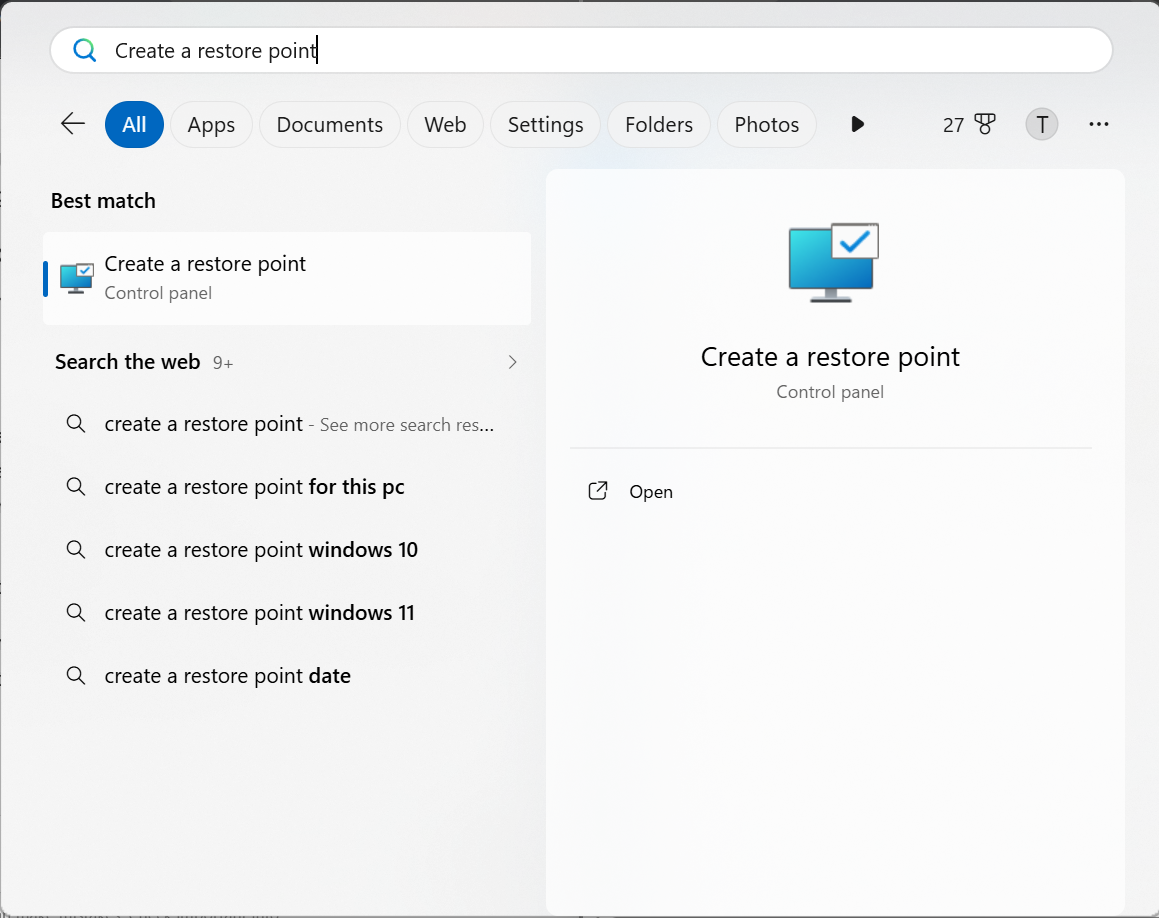
2. Open it and go to the System Protection tab.
3. Click System Restore.
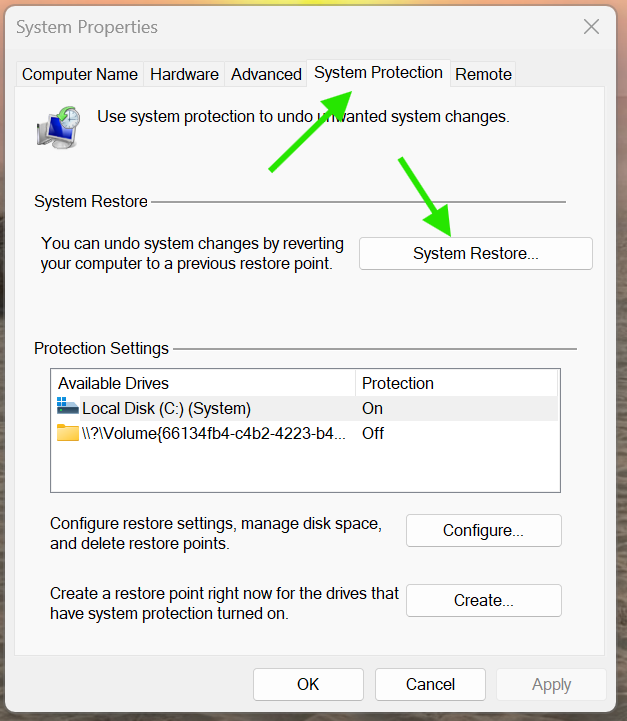
4. Choose a restore point created before the account was deleted.
5. Click Next and then Finish.
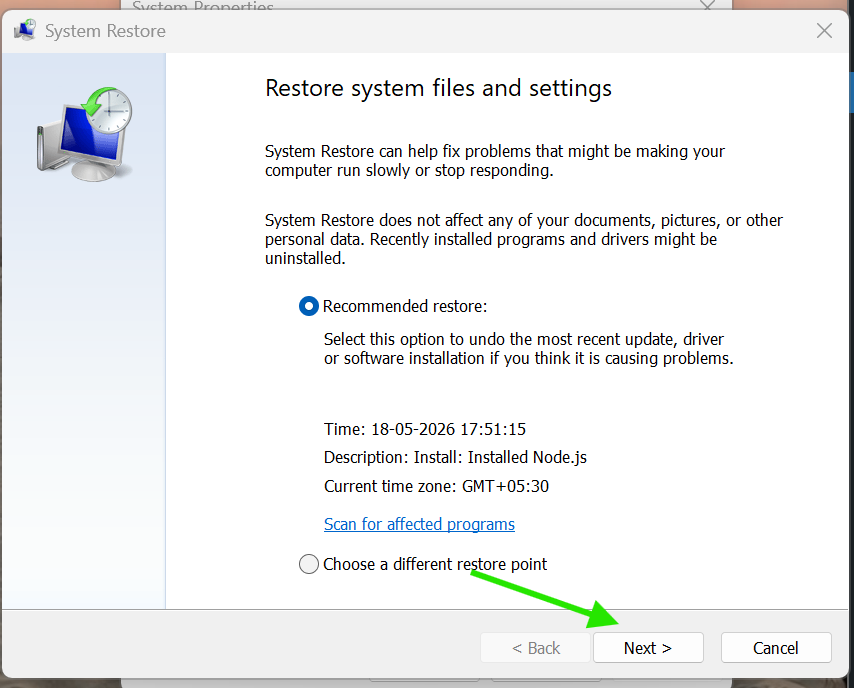
6. Restart the PC after the process completes.
Windows will roll back the system settings. And it will restore the deleted user account.
Option 2: Recover Deleted User Profile From Registry
If the account still exists but the profile is corrupted or missing, editing the Registry may help.
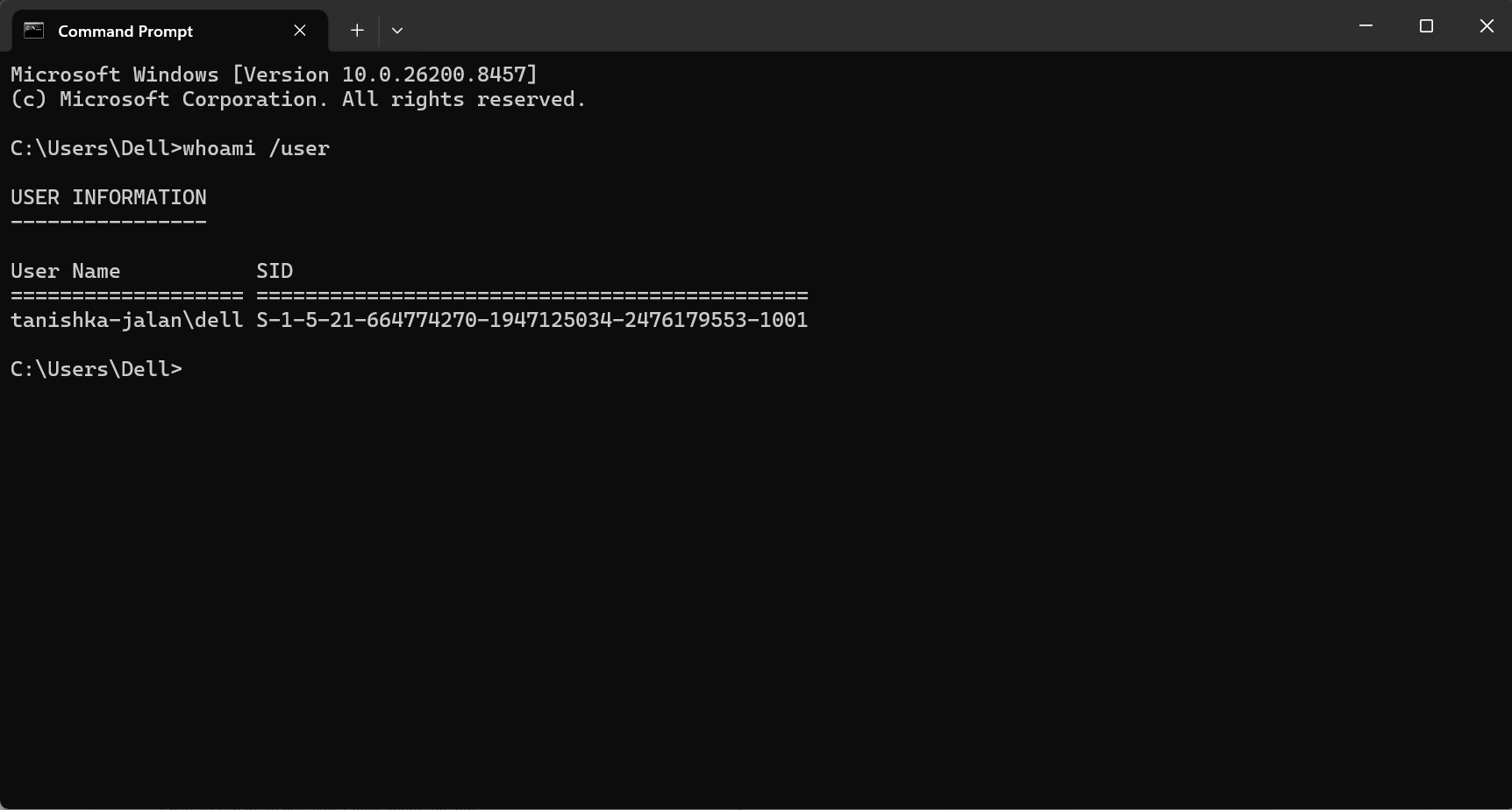
Find the SID
1. Open Command Prompt as administrator.
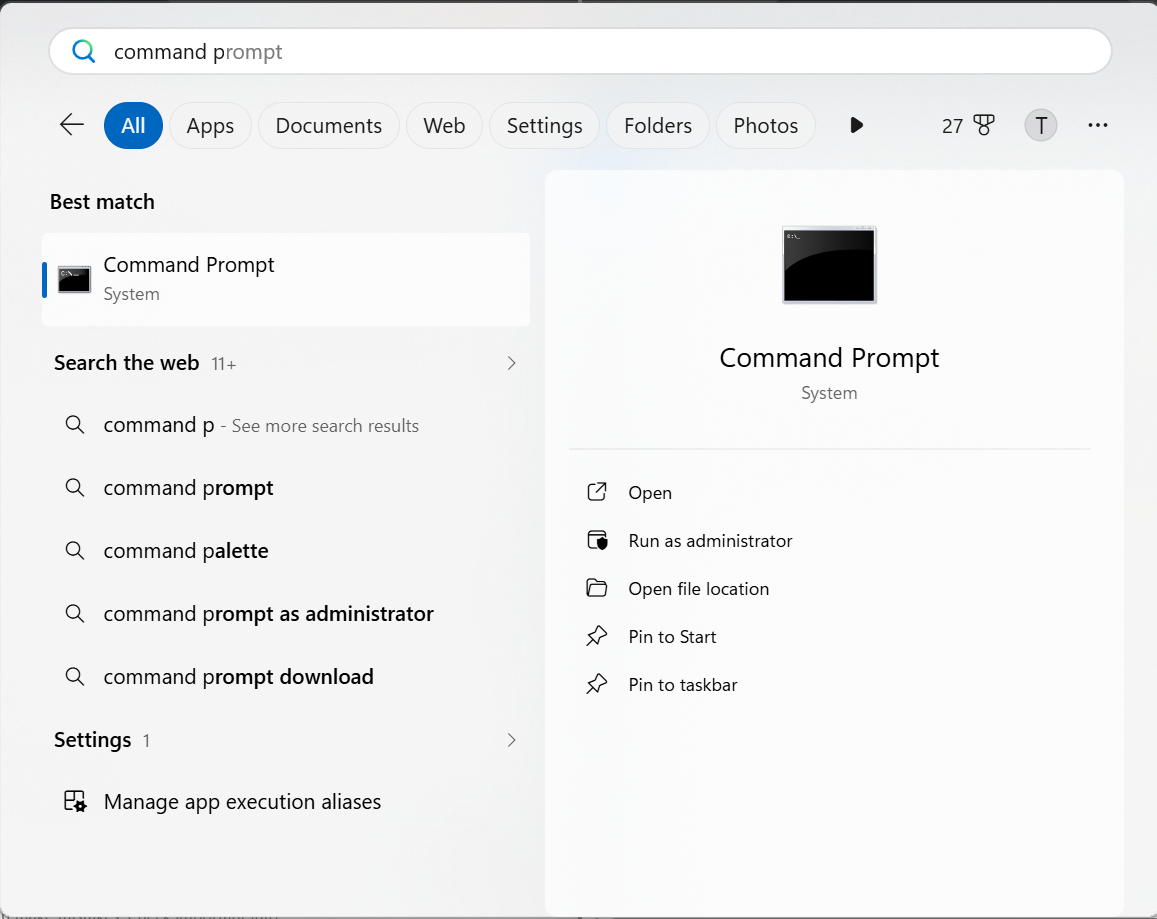
2. Type:
whoami /user
3. Press Enter and note the SID value.
Fix the Profile Entry
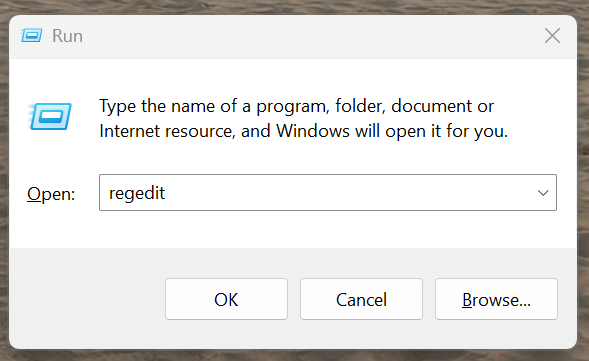
1. Press Windows + R, type regedit, and press Enter.
2. Go to:
HKEY_LOCAL_MACHINE\SOFTWARE\Microsoft\Windows NT\CurrentVersion\ProfileList
3. Look for folders with the same SID, especially ones ending in .bak.
4. Delete the duplicate SID without .bak.
5. Rename the .bak folder by removing .bak.
Correct the Profile Path
1. Open ProfileImagePath and set the correct user folder path.
2. Double-click State and change the value to 0.
3. Restart your computer and sign in again.
Option 3: Restore From Windows Backup
If you use Windows Backup or third-party backup software, restoring a previous backup is often the easiest method. Here are the steps to restore the backup:
1. Open Settings > System > Recovery.
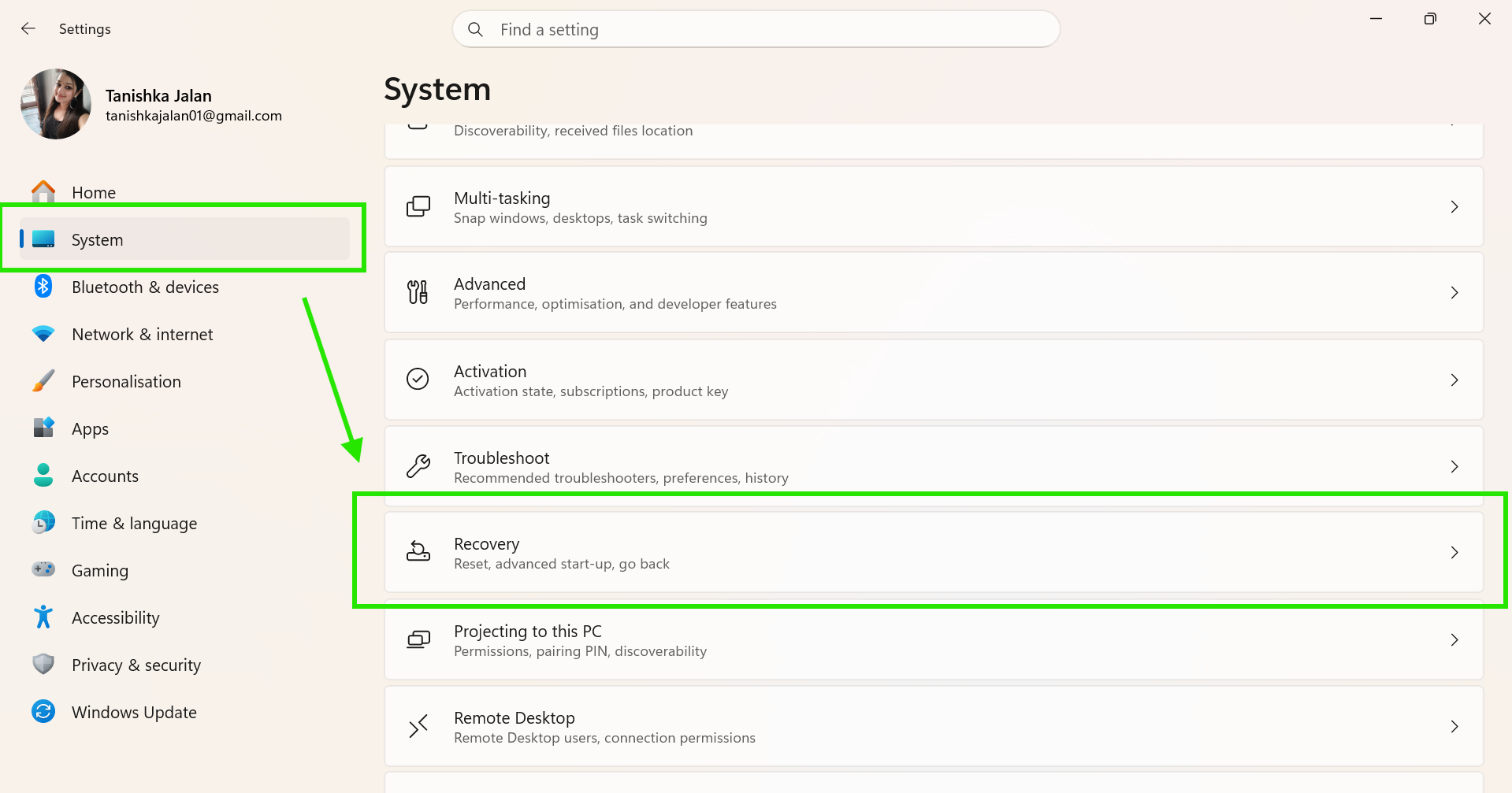
2. Access your backup tool or recovery options.
3. Select a backup created before the account was removed.
4. Start the restore process and restart the PC.
This method can recover the deleted account along with personal files and settings.
If none of these methods works, enable the built-in administrator account. And then create a new admin profile instead of resetting Windows completely.
Video fix
You can check out the following video fix for more information on this:
That’s it!