When you are typing something, typing suggestions will help you to quickly complete your task. Especially, if you have to type some long spellings, typing suggestions are specifically helpful in those scenarios. In other cases, if you do not know the correct spelling of something you want to type, typing suggestions are equally helpful in that case as well. In this article, we will see how you can enable or disable typing suggestions in Windows 11.
When typing suggestions are enabled, you can see how they are shown in your Windows 11, in below screenshot:
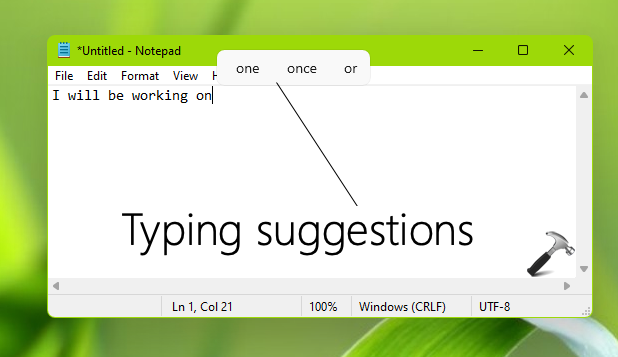
Typing suggestions are not supported on all of the languages. So if you enable them and they’re not shown, it might be possible that the language you are using on the system may not support typing suggestions. However, I believe they are supported for most of the languages. When you have typing suggestions enabled, whenever you type in any of the app, you have typing suggestions available.
To enable or disable typing suggestions, you can try either of the methods mentioned below. The steps are illustrated on Windows 11 build 22000.51.
Page Contents
Enable/disable typing suggestions in Windows 11
Method 1 – Using Settings App
Press  + X keys and select Settings to open the app.
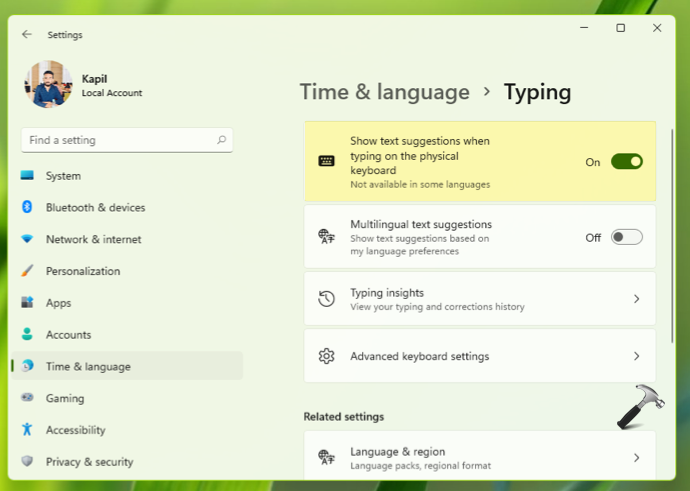
In the Settings app, go to Time & language > Typing.
In Typing section, turn On or Off the Show text suggestions when typing on the physical keyboard option to enable or disable typing suggestions, respectively.
If this method doesn’t works for you, try the registry method mentioned next here.
Method 2 – Using Registry
1. Run regedit command to open Registry Editor.
2. In Registry Editor window, go to:
HKEY_CURRENT_USER\Software\Microsoft\Input\Settings
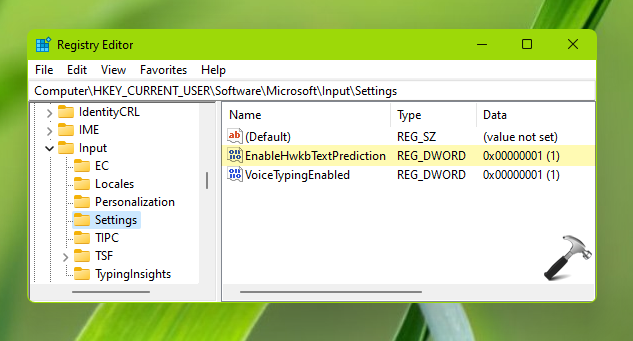
3. In the right pane, you’ll find EnableHwkbTextPrediction named registry DWORD (REG_DWORD). Set it to 0 for enabling typing suggestions or 1 to disable typing suggestions.
4. Close Registry Editor, and sign out and sign in back to make changes effective.
That’s it!
Read next: How to move taskbar to top in Windows 11.