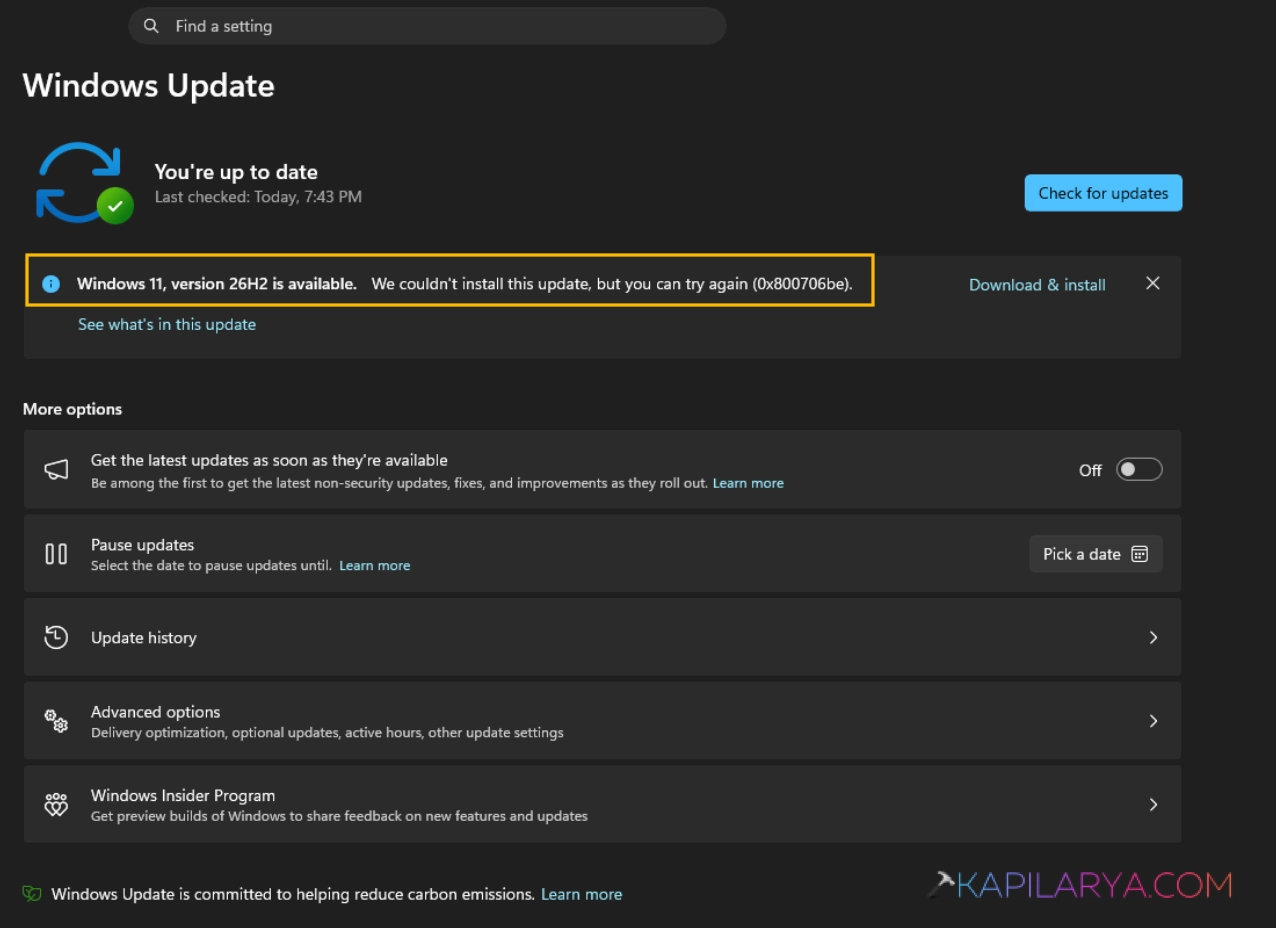
We all know that Microsoft has recently released Windows 11 version 26H2. The newer version is successor of version 25H2 to released last year. If you are on Windows 11 version 24H2 or 25H2, you can upgrade to Windows 11 version 26H2 using enablement package. The update can be installed directly in Windows Update. However, if Windows 11 version 26H2 failed to install, this article can help you.
Page Contents
Fix: Windows 11 Version 26H2 (2026 Update) failed to install
As soon as the Windows 11 version 26H2 released, I see a surge in volume of queries in forums and users are troubled with installing the update. Some says the update doesn’t appears, while others says the update failed to install. Rest assured, I would try my best to help you in both the cases.
Option 1: If Windows 11 26H2 Update is missing
Windows 11 version 26H2 update may not appear if there is a safeguard hold for your device. If the update is still missing for you, it is the high time you must check the known-issues for Windows 11 version 26H2. They’re documented here. Additionally, try the below mentioned the steps:
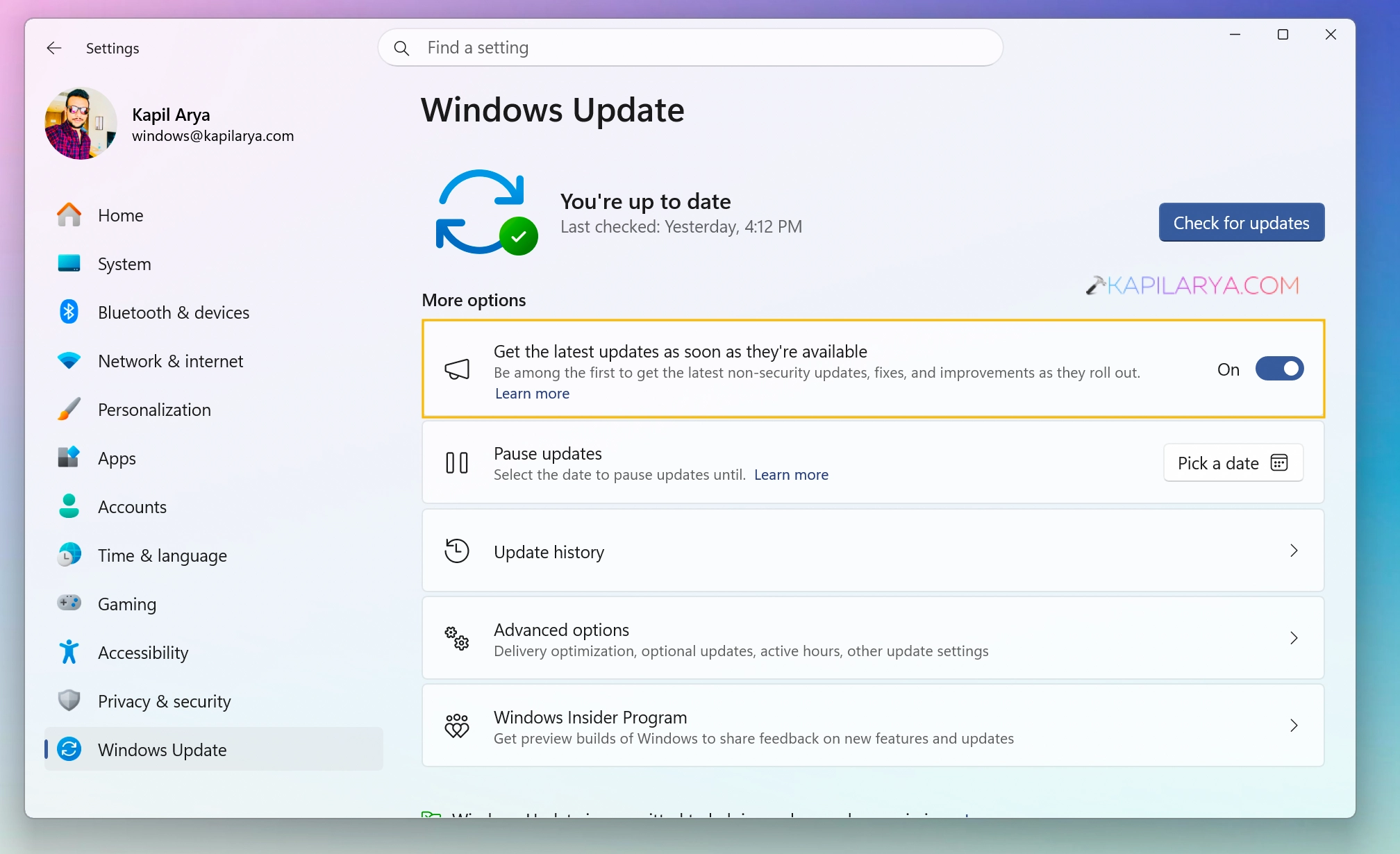
1. Open the Settings app.
2. Navigate to Windows Update section.
3. Make sure you have here, Get the latest updates as soon as they are available option turned On.
Option 2: Try alternate methods to upgrade
If the Windows Update is failing for you, give a try to alternative methods such as upgrading via ISO file, using Installation Assistant or Media Creation Tool.
Upgrade to Windows 11 26H2 using ISO file
1. Download the Windows 11 26H2 ISO file using the Microsoft’s official website. You can refer this guide for detailed instructions.
2. Once you download the ISO file, simply double click on it to mount it. It would be mounted to a virtual DVD drive, even if your device doesn’t support optical drives.
3. Simply go to the mounted DVD drive and double click on the setup.exe file.
4. Follow the on screen instructions to complete the upgrade.
Upgrade to Windows 11 26H2 using Installation Assistant
1. Go to the Microsoft website here.
2. Locate the Windows 11 Installation Assistant heading.
3. Click on the Download now button. The Windows 11 Installation Assistant would be downloaded then.
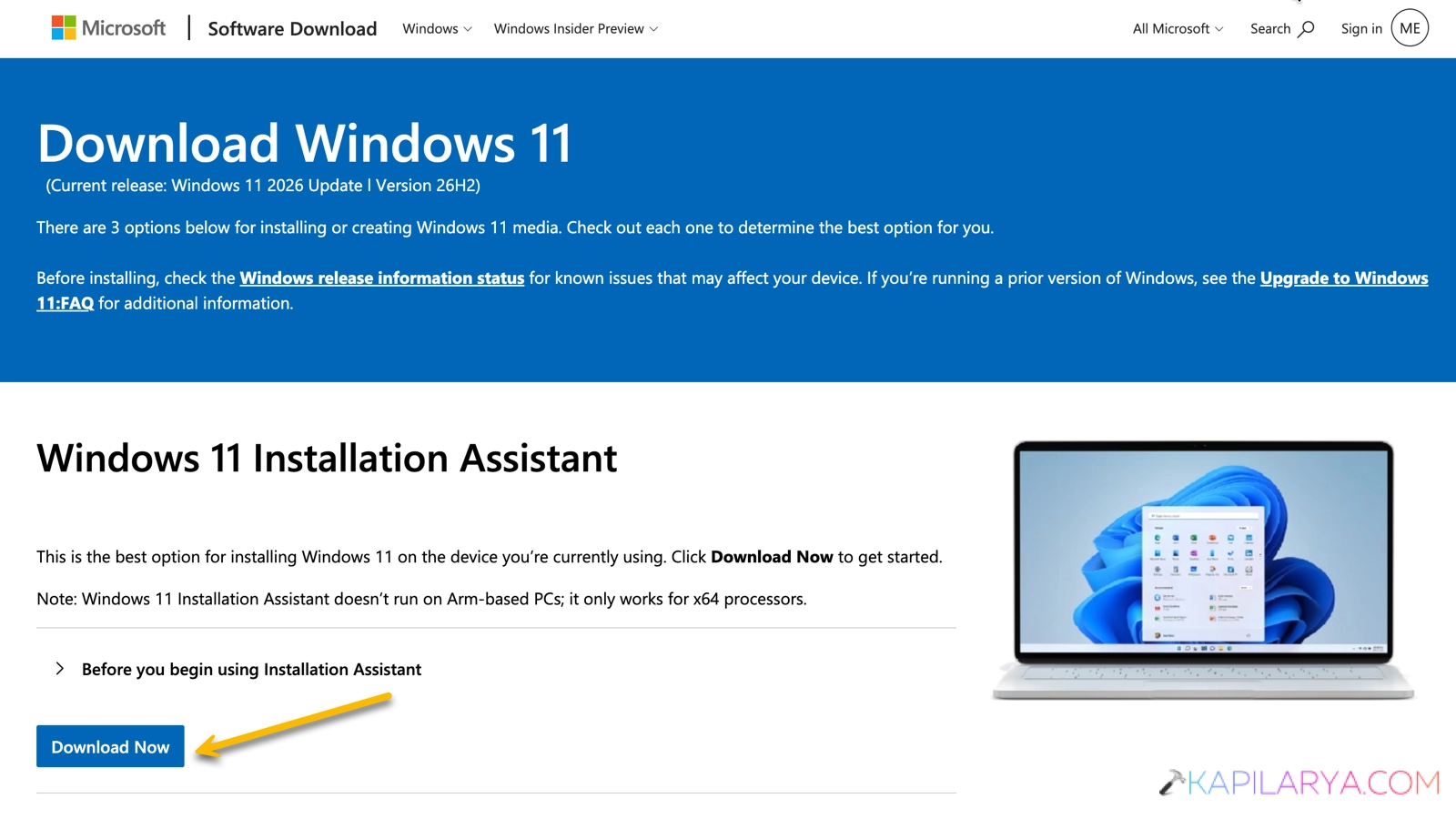
4. Now run the Windows 11 Installation Assistant and follow on screen instructions to complete upgrade. This tool will automatically download the latest updates, even if you are on the older version of Windows 11 or Windows 10 (if your system meets requirements for Windows 11).
That’s it!