

Back in 2015, Microsoft released Windows 10. Now, this year on October 14, 2025, Microsoft is ending support for Windows 10. This means no new updates will be available to Windows 10 users once support ends. Windows 11 is already available as latest operating system, and is successor of Windows 10. You can upgrade to Windows 11 as free upgrade. But Windows 11 requires your system to meet specific requirements. If your Windows 10 system doesn’t meet Windows 11 requirements, you might be planning to continue with Windows 10. In this guide, you’ll learn how you can enroll Windows 10 in Extended Security Updates (ESU) to continue receiving updates even after official support ends.
Extended Security Updates provides you security updates for 1-year from date of end of support for Windows 10.
You must have Windows 10 Version 22H2 installed along with KB5046613 (Windows 10 build 19045.5131 or later), in order to enroll into ESU.
Page Contents
How to enroll Windows 10 in Extended Security Updates
Windows 10 ESU primary requirements
- Devices need to be running Windows 10 Version 22H2 Home, Professional, Pro Education, or Workstations edition.
- Devices need to have the latest Windows Update installed.
- The Microsoft account used to sign in to the device must be an administrator account. The ESU license will be associated with the Microsoft account used to enroll.
- You may be prompted to sign in with a Microsoft account, if you typically sign into Windows with a local account.
- The signed Microsoft account can’t be a child account.
Manual steps
1. Open Settings app and go to Update & Security > Windows Update. There you’ll see Windows 10 support ends in October 2025 heading. Click on Enroll now link below it.

2. Next, in Enroll in Extended Security Updates, click on Next button.
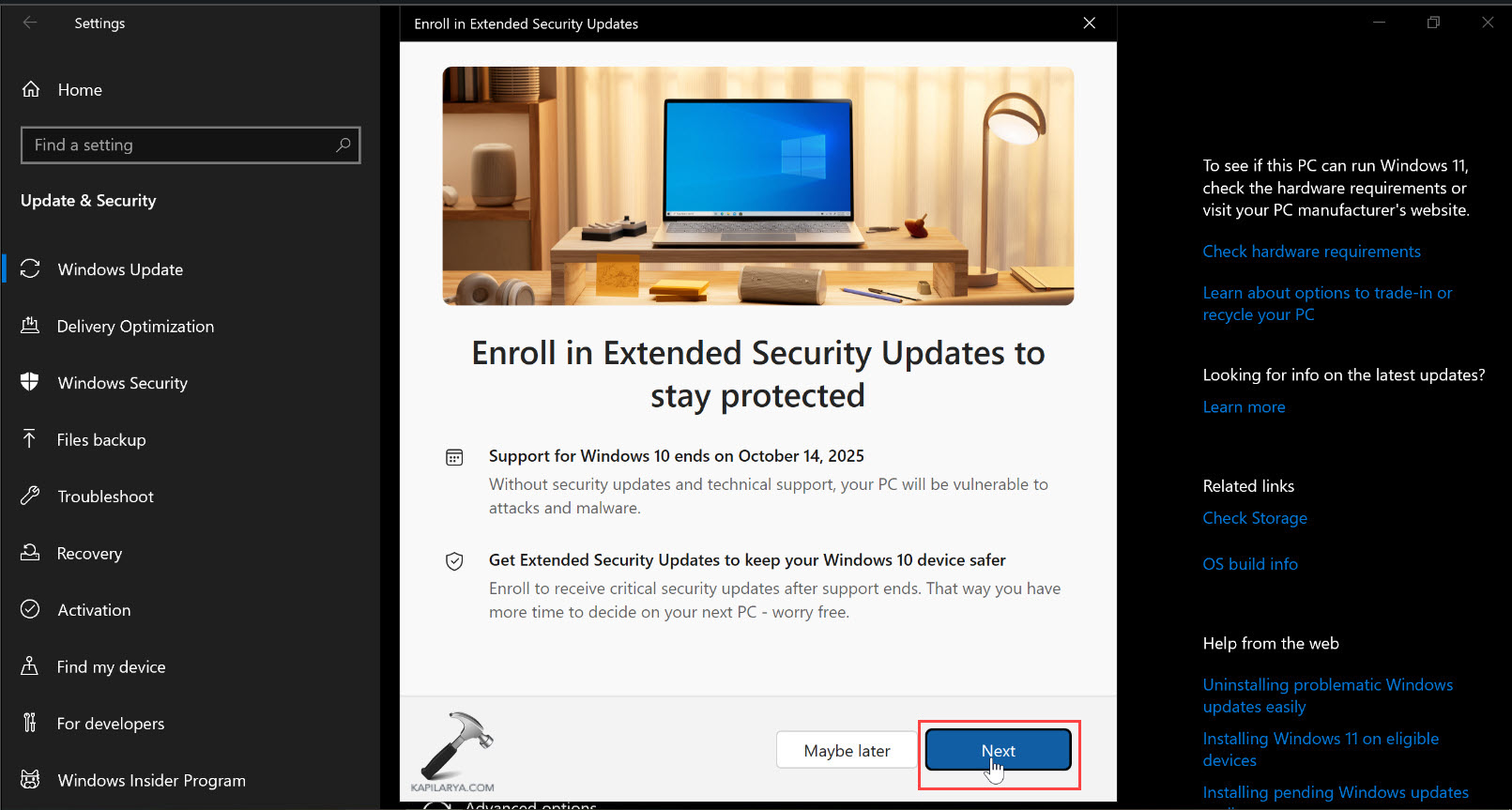
3. In the next screen, you will see You are eligible to enroll in Extended Security Updates at no extra cost. Click on the Enroll button there. Add this stage, you can also redeem Microsoft rewards point to enroll into the Extended Security Updates for the. For this, you would need at least 1000 Microsoft reward points.

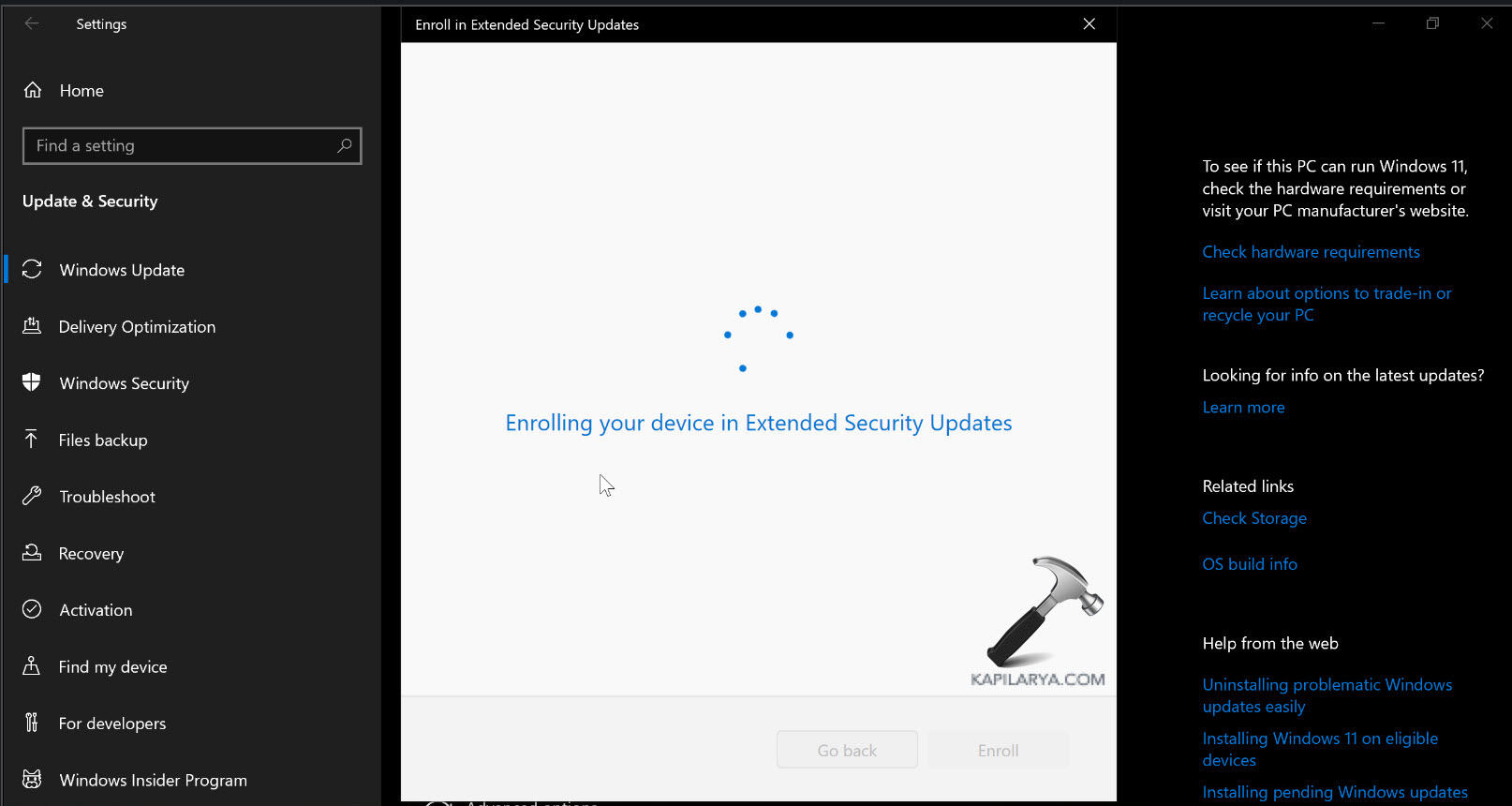
4. In few moments your Windows 10 will be enrolled to Extended Security Updates. Make sure you remain connected to Internet while doing this.
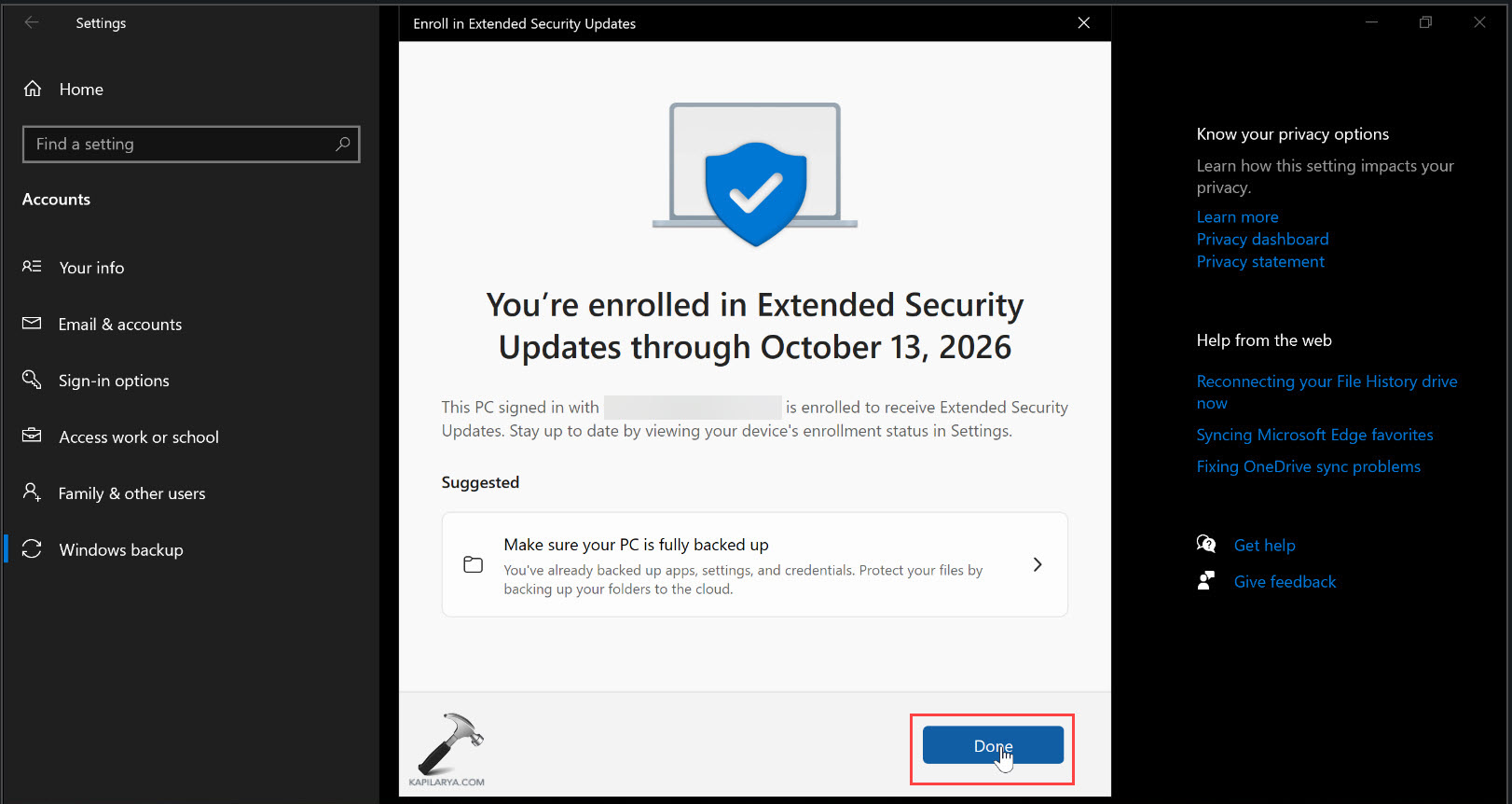
5. And then you will receive the confirmation that you have successfully enrolled into Extended Security Updates. These security updates will be provided for one year from the date of end of support for Windows 10. Click on Done button. Here, you will be advised to keep your system fully backed up.
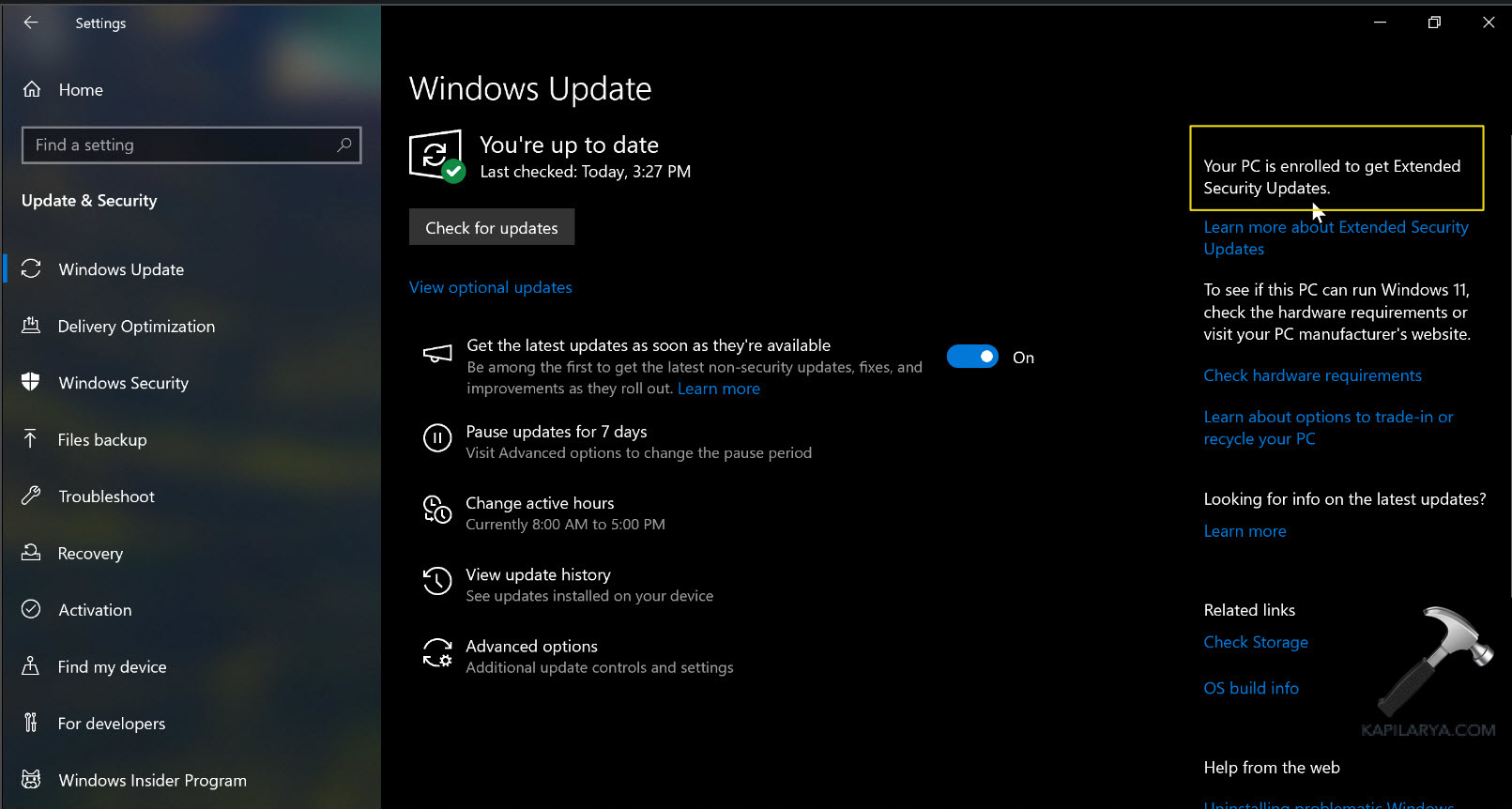
6. On the Windows Update page of the Settings app, you can always check that whether you are enrolled to Windows 10 Extended Security Updates or not.
Video guide
You can checkout following video guide for better assistance:
That’s it!





I have a licensed, up-to-date Windows 10 Home installation on a PC that does not meet Windows 11 hardware requirements. I am still not seeing the ESU Enroll now link in Windows update. I am logged in to a Microsoft account. What’s going wrong, and how to I get the enrollment link to appear. I greatly appreciate your help to resolve this problem.
^^ The option is being rolled out in a phased manner. It will appear to your system within few days.
Thank you