Whenever your smartphone screen freezes out of nowhere, it can interrupt something important and disturb you. Many users experience this problem because of diverse reasons, including outdated apps or system errors.
At this point, using reliable iOS system repair tools or following easy manual methods can restore your device’s performance quickly. Thus, this article will help you discover some effortless methods to fix it, followed by preventive tips for smoother usage.

Page Contents
How to Fix an iPhone Frozen Screen Problem
Part 1. How to Fix an iPhone Frozen Screen Problem: Dr.Fone – System Repair (iOS)
Among the available solutions, Dr.Fone – System Repair (iOS) is the best way to fix an iPhone frozen screen problem quickly at home. It allows you to repair 150+ iOS system issues without losing any data, which makes it reliable for everyone. Besides, you can unfreeze your iPhone instantly while keeping all your important files intact. Dr.Fone also fixes devices stuck on the Apple logo, bringing them back to normal easily.
The dedicated program basically enables you to choose your preferred iOS firmware compatible with your device. Besides that, it even gives you the ability to downgrade your iOS to whatever you want without iTunes. The tool offers a Standard Mode, which repairs common iOS issues without affecting your personal files or settings. Using this iOS system repair software, you can also try upcoming iOS versions and test new features safely.
Key features:
- Repair Error 1110: It can also safely fix full-disk or 1110 errors to restore normal iPhone operation instantly.
- Repair iTunes Errors: Dr.Fone can even fix over 200 iTunes synchronization errors, ensuring smooth device and iTunes operation.
- Quick Repair: The tool completes most repairs within minutes, saving time while maintaining system stability and integrity.
Guide to Fix an iPhone Frozen Screen Problem – Dr.Fone – System Repair (iOS)
Follow the quick steps to use this dedicated iOS system repair tool and resolve the iPhone frozen screen problem:
Step 1. Access the System Repair Tool to Fix Frozen Screen
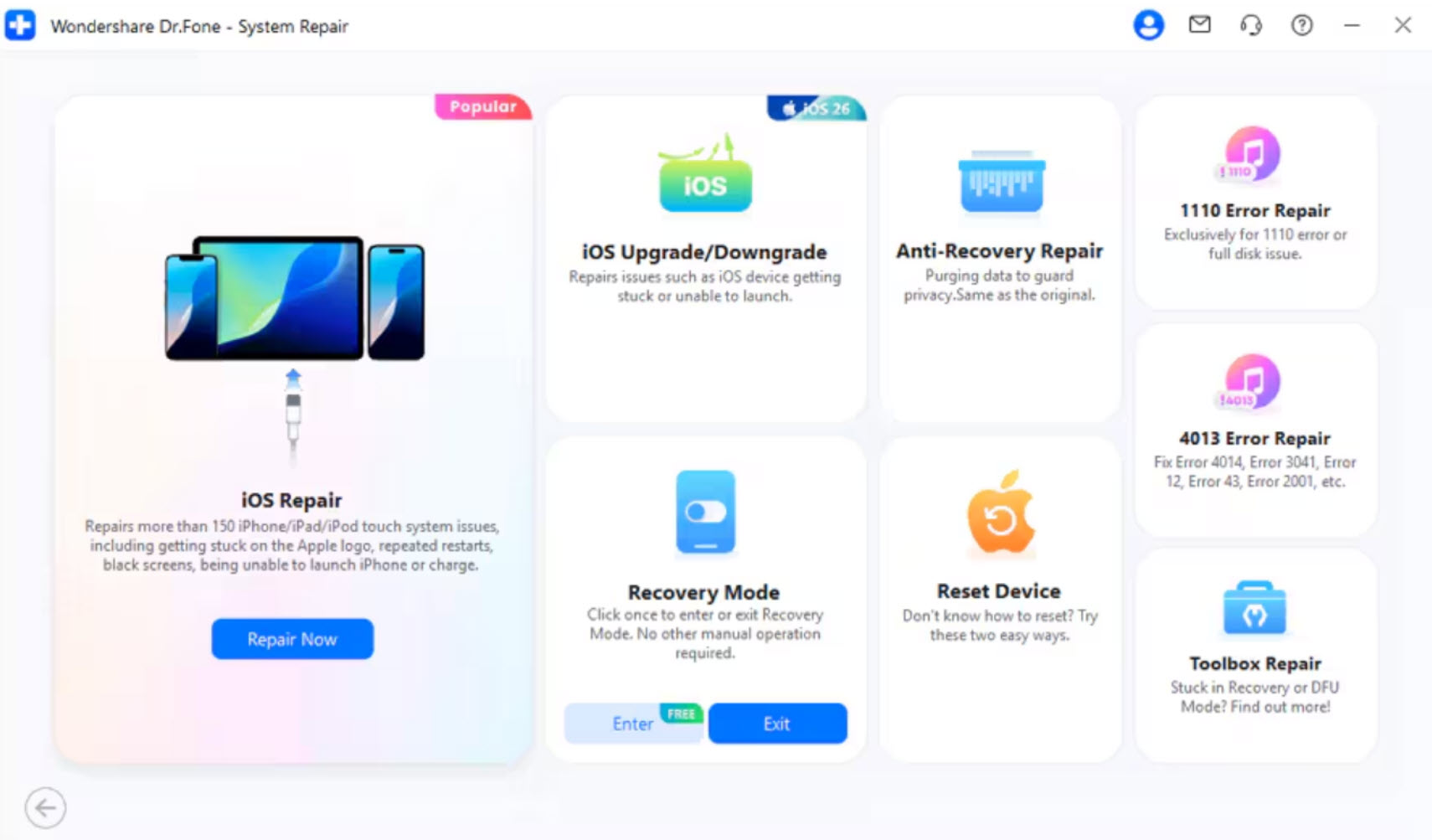
When you head to the “Toolbox” section, click the “System Repair” tool and select the model of “iPhone.” Next, press the button labeled “Repair Now” in the “iOS Repair” section.
Step 2. Choose the iOS Firmware to Repair Frozen Screen
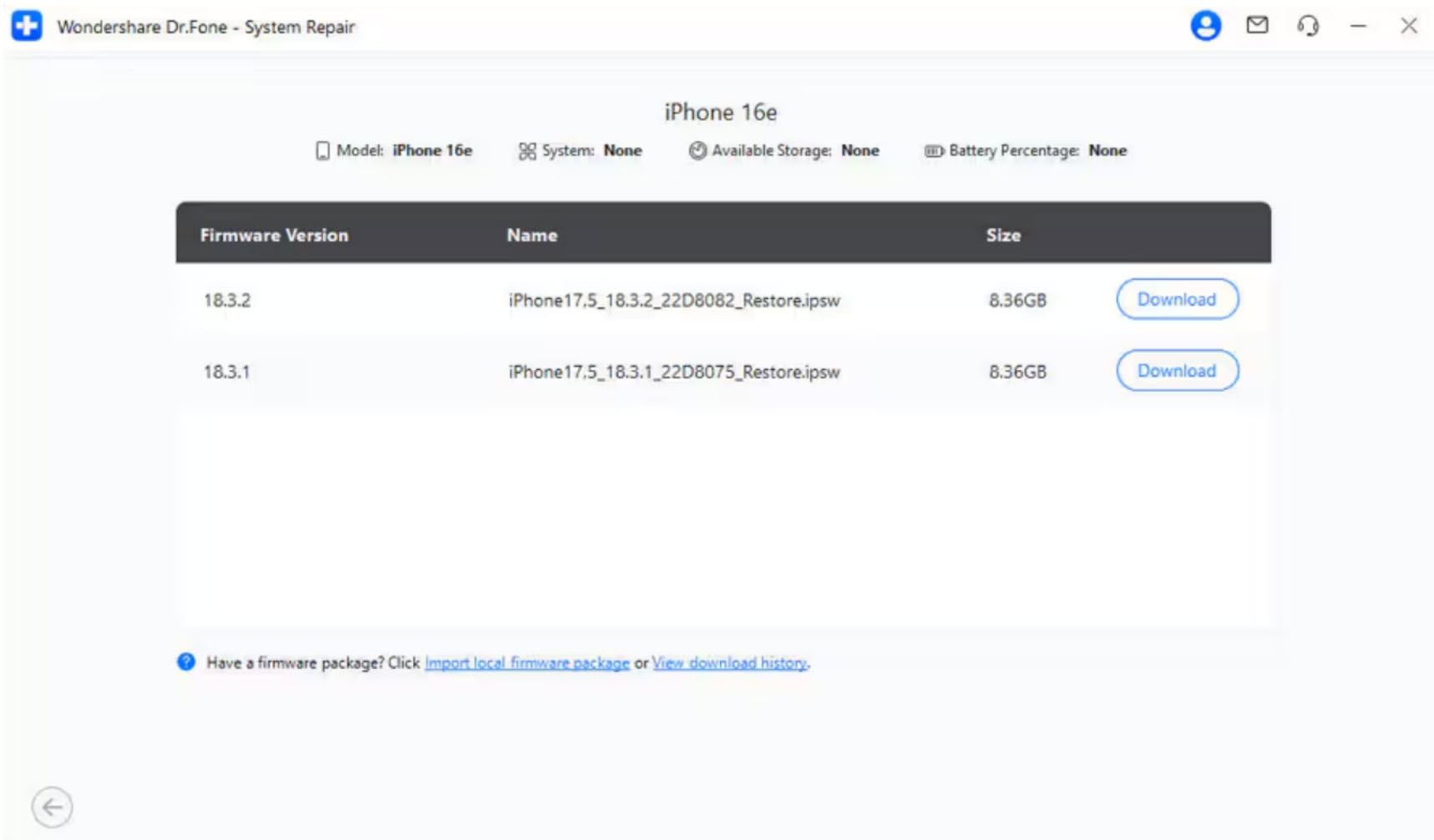
On the following screen, select the “Standard Repair” option and get into the “Recovery Mode” when your iPhone is connected. Then, press the “Enter Recovery Mode” button and click the “Download” button on the iOS firmware of your choice.
Step 3. Complete Fixing the Frozen Screen Issue
Upon downloading the firmware, click on the “Repair Now” button to start fixing the frozen screen problem.

Part 2. Force Restart Your iPhone to Fix Frozen Screen Problem [For iOS 26]
Force restarting your iPhone is also a quick way to fix temporary freezes without using any tools. While not as advanced as iOS system repair methods, it clears minor glitches and helps your device respond again. So, follow the steps below to find out how you can force restart your iPhone when your screen freezes:
Instruction: Press and release the “Volume Up” button and repeat the same with the “Volume Down” button. Afterward, continue pressing the power button until the Apple logo appears, and restart your device after a while.

Part 3. Force Quit Background Running Apps to Fix Frozen Screen Problem
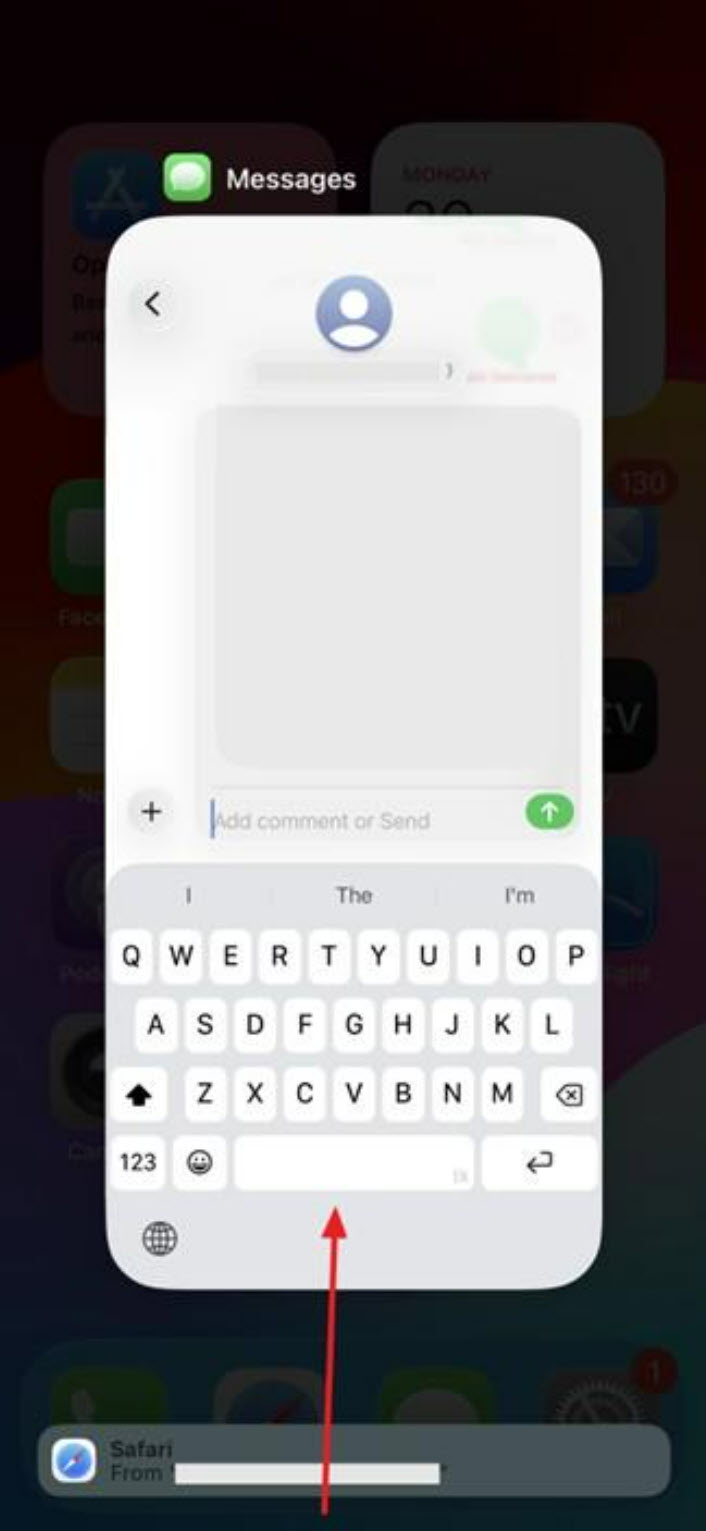
Force-quitting background-running apps can free up memory and reduce pressure on your iPhone’s system. It helps stop unresponsive apps from affecting overall performance and prevents screen freezes caused by software conflicts. Since it’s not as powerful as iOS system repair software, take guidance from the steps below to perform this task:
Instruction: To open the “App Drawer,” swipe up from the bottom to the middle of the screen. Then, swipe up all the background running apps in order to force close them.
Part 4. Tips to Prevent iPhone Frozen Screen Problem
Apart from the solutions, you can also follow the preventive tips to keep your iPhone running smoothly and avoid issues:
- You must always install the latest iOS updates to fix bugs and improve system performance.
- It is also important to keep enough free space on your iPhone, as low storage can cause lag and freezing.
- Outdated apps may cause crashes, so update them often through the App Store for stability.
- Regularly close apps you are not using to free memory and prevent screen freezing.
- When wondering “what does it mean when it says update requested” while frozen screen, it’s a pending update waiting to download.
Conclusion
In conclusion, resolving an iPhone frozen screen is simple if you know the right steps and follow preventive habits. From force restarting to clearing background apps, small actions can keep your device responsive. However, when the issue is caused by deeper system errors, using a trusted iOS system repair tool is the safest choice. For quick, reliable, and data-safe results, we recommend Dr.Fone – System Repair (iOS).