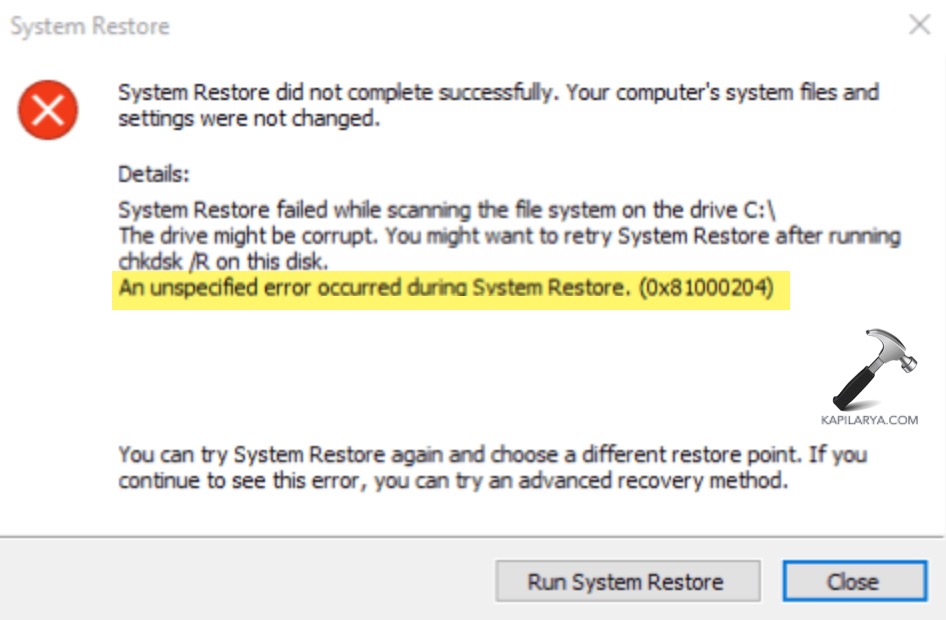
System Restore failed with error 0x81000204 may occur at the most unexpected time. This mistake normally occurs when Windows fails to find important system files or the restore environment is damaged. This is the guide that will make you not spend hours searching to find answers. Make sure to go through each of them, and your Windows 11 system should be back online.
Page Contents
Common Causes of System Restore Error 0x81000204
System Restore is a very crucial tool which depends on healthy system files. It is critical to know why the System Restore did not work on Windows 11 with error 0x81000204. These are the most frequent and successful causes of this mistake.
- In case of file corruption of Windows following a crash, power cut, update error, or malware, restoration cannot be achieved, and it will provide the error of 0x81000204.
- System Restore may result in failure in the first validation attempt, in case of misconfigured or insufficient storage space of System Protection is on.
- In case the restore point is corrupted, incomplete, or created in a state of the system, Windows will fail to use it.
- System Restore requires space to retrieve and implement restore point files. In case of a full disk C: drive, the operation can just crash.
Fix System Restore failed with error 0x81000204 on Windows 11
Fix 1: Run an SFC Scan (System File Checker Repair)
The SFC tool automatically repairs the key system files which are corrupt or missing.
1. Press “Win + S”, type “cmd”. Right-Click Command Prompt and select Run as administrator.

2. Enter the following command and press Enter.
sfc /scannow

Allow the scan to be carried out, and then restart your PC.
Fix 2: Reset System Restore Settings on Windows 11
The internal configuration glitches can usually be solved by resetting the System Protection settings.
1. Press “Win + R”, type in this, and press Enter.
sysdm.cpl

2. Click on the tab System Protection. Click Configure on your system drive.

3. Shut System Protection Off > click Apply.
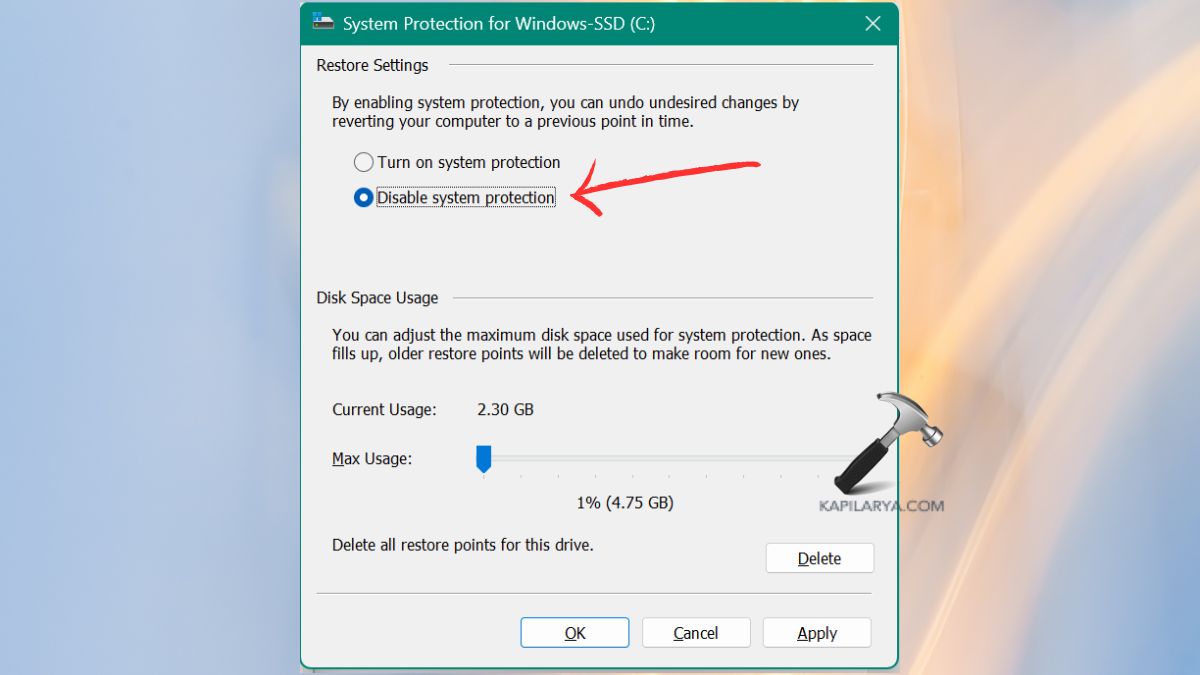
4. Turn System Protection On. Once again > click OK.

Now try System Restore again.
Fix 3: Perform a DISM Scan (Fix Windows Image Corruption)
DISM also fixes system corruption that cannot be fixed by SFC.
1. Open Command Prompt (Admin).
2. Run these commands one by one.
DISM /Online /Cleanup-Image /CheckHealth
DISM /Online /Cleanup-Image /ScanHealth
DISM /Online /Cleanup-Image /RestoreHealth

After the scan is done, restart your PC. Again, run System Restore to verify whether the problem has been eliminated.
Fix 4: Run CHKDSK to Fix Disk Errors
When your disk contains file system problems, System Restore will not run with the error 0x81000204.
1. Again, open Command Prompt as admin.
2. Enter the following command, followed by hitting the Enter button. Press “Y” on the question of scheduling the scan.
chkdsk C: /f /r

Reboot your PC to enable CHKDSK to execute.
Still facing the 0x81000204 error? We shall proceed to a more robust fix that will address the problems that Windows Restore is based on.
Fix 5: Reset the System Restore Repository
In case of a corrupted restore repository, the System Restore will never work. The system restore relies on the WMI repository, which will be reset by these steps.
1. Open Command Prompt (Admin).
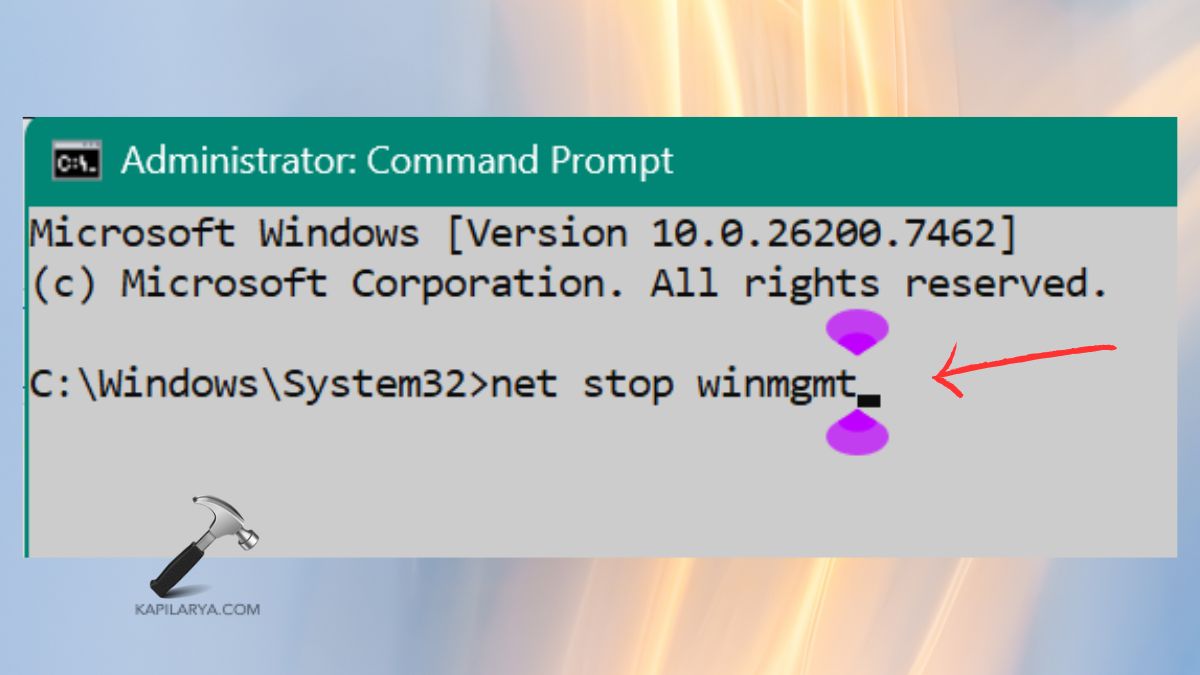
2. Run the following commands.
net stop winmgmt
Restart your PC.
Fix 6: Run System Restore in Safe Mode (or Clean Boot)
There are apps or services which make System Restore to not run. Safe Mode can start with only the necessary components. Steps to boot into Safe Mode.
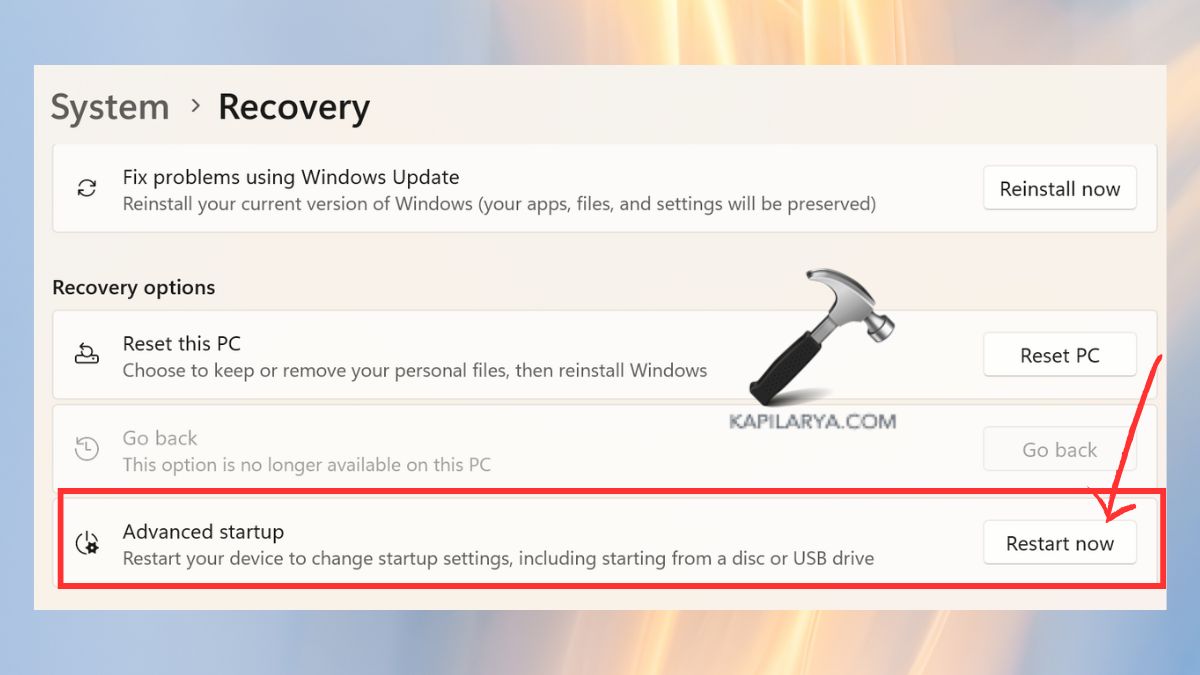
1. Press “Win + I” > System > Recovery.

2. In Recovery options > next to Advanced Startup, click Restart now.
3. Press “4” to enter Safe Mode. Then, Restart System Restore again. In this case, it normally should not fail.
Fix 7: Perform “Reset This PC” or Cloud Reset
Back up to the wall, rebooting Windows will solve some deep system-level problems.
1. Open Settings > System > Recovery.
2. Click Reset this PC.
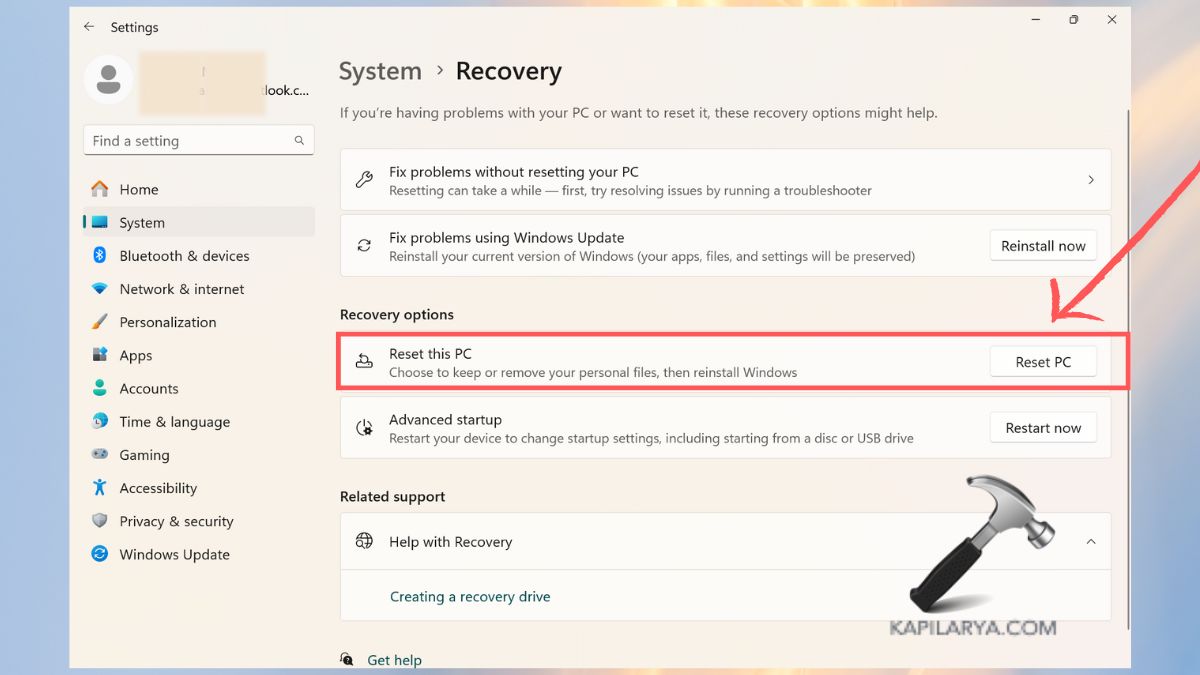
3. The next action to take is to select “Keep My Files (recommended)”.

4. Select Cloud Download or Local Reinstall.

System restore usually performs well after the reset.
Frequently Asked Questions (FAQs)
What causes System Restore error 0x81000204 on Windows 11?
It is brought about by corrupted system files, a broken restore repository, disk errors, bad settings, or third-party interference with the system.
Is System Restore still reliable on Windows 11?
Yes, however, sometimes it cannot work because the restore points are corrupted. The problem normally gets resolved by running of SFC, DISM, or rebooting the repository.
Will resetting my PC remove all files?
No. Windows has an option of Keep My Files that allows saving your personal information and still reinstalls the OS.
Can I fix this error without losing data?
Yes, the first seven techniques are totally safe and do not destroy data. The last thing to do is to reset the PC.
That’s it!