You open Windows 11 Settings to enable the Point-in-Time Restore option, but it is greyed out. And now you cannot turn it on or change its settings. A simple setting or system requirement often causes it. Try the fixes we have compiled below, to make the option available again to get this issue resolved.

Page Contents
Solved: Point-In-Time Restore Option Greyed Out In Windows 11
Let’s give you the solutions to fix it:
1. Turn On the feature Manually
The main toggle controls the feature. Some settings also depend on it being enabled. Here are the steps you need to follow:
Note: Only local administrators can view or change these settings.
1. Press Windows + I.

2. Go to System > Recovery.

3. Select Point-in-time restore.
4. Click View or Edit.

5. Select Yes if User Account Control appears.
6. Turn the feature On.

2. Check Your C: Drive Size
Windows enables the feature by default when the OS drive is 200 GB or larger. You can still enable the feature manually on a smaller drive.
1. Press Windows + E.

2. Open This PC.

3. Right-click C:.
4. Select Properties.

5. Check the total capacity.

3. Configure Shadow Storage
You can manage VSS storage from an elevated Command Prompt. Follow these steps:
1. Search for Command Prompt.
2. Select Run as administrator.

3. Type following command. This sets the VSS maximum storage limit to 5%.
vssadmin resize shadowstorage /for=C: /on=C: /maxsize=5%

4. Press Enter.
4. Update Windows
If you use a personal PC and the main option still does not work:
1. Open Settings > Windows Update.

2. Install pending updates.

3. Restart your PC.
4. Check the setting again.
5. Check Which Settings Are Restricted
Some greyed-out options are normal. You can configure restore point frequency and retention only on Enterprise editions. The maximum usage limit is available on Home, Pro, and Enterprise.
6. Check A Work Or School PC
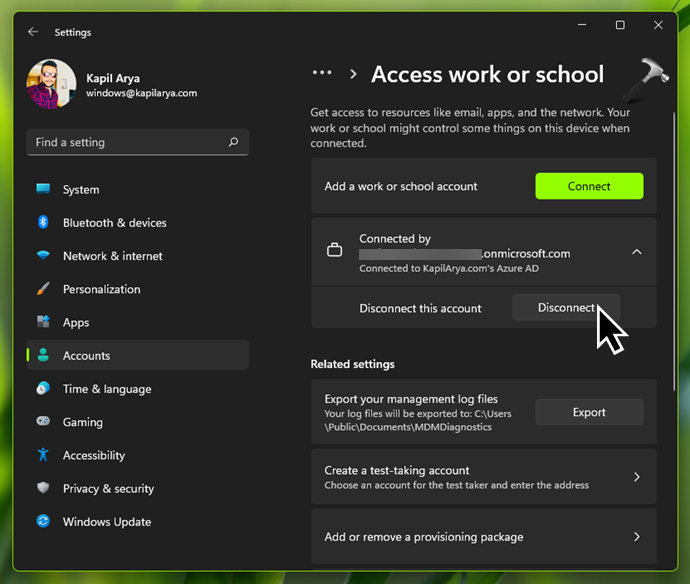
Managed devices may have the feature controlled by an organisation. If the entire section is unavailable, contact your IT administrator. Management policies can control the feature. Or you may disconnect from work or school account.
So, that’s how you can solve the issue by applying these simple fixes. And if the issue remains, drop us a comment, we’ll help you.