Enable Point-in-time restore in Windows 11 is one of the best methods to save your PC against accidental modifications, system errors, application malfunctions, or undesirable updates. This is an effective Windows recovery tool that enables you to wind the clock back before your system goes bad, as much as turning back time. Here, we are going to show you the process of enabling Point-in-Time Restore in Windows 11, including the instances of its importance and two simple ways to enable it.
Page Contents
Advantages of Enabling Point-in-time restore in Windows 11
The benefits to enable Point-in-time restore in Windows 11 are:-
- Quick Remedy to System Malfunctions. Recover your PC within minutes, you do not have to install Windows or find complex solutions.
- Just in case any malware program touches on your settings with a system, you can put it all back in place.
- Avoids the Risk of Data Loss. System Restore leaves documents, images, videos, and personal files undamaged.
- Easy to use because you are not required to be technical. Everything in Windows is automatic.
- Conserves Time and Enhances Stability. Rather than wasting time with diagnostics, it is possible to restore a problem and fix a number of issues in a single restore.
How to Enable Point-in-time restore in Windows 11
This feature can be enabled with the help of two easy ways. Both these methods are equally perfect, and you can select the one that is easier to achieve.
Method 1: Using the Settings App
The given method is the simplest and should be used by beginners.
1. Open Settings by pressing keys “Win + I”. Click on “System” under the left panel.
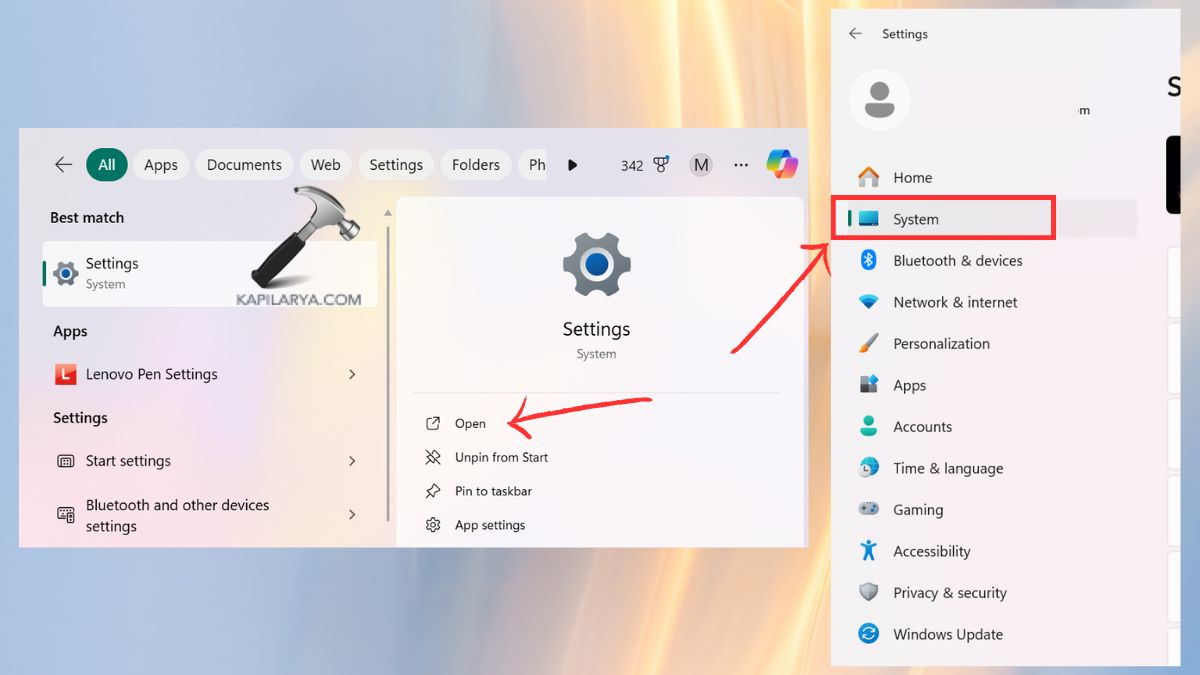
2. Scroll down and click on “Recovery”.

3. To proceed further, you should select Point-in-time. Then, toggle on the Point-in-time restore option.
Tweak the slider of Max Usage (2 to 5% is a good way).
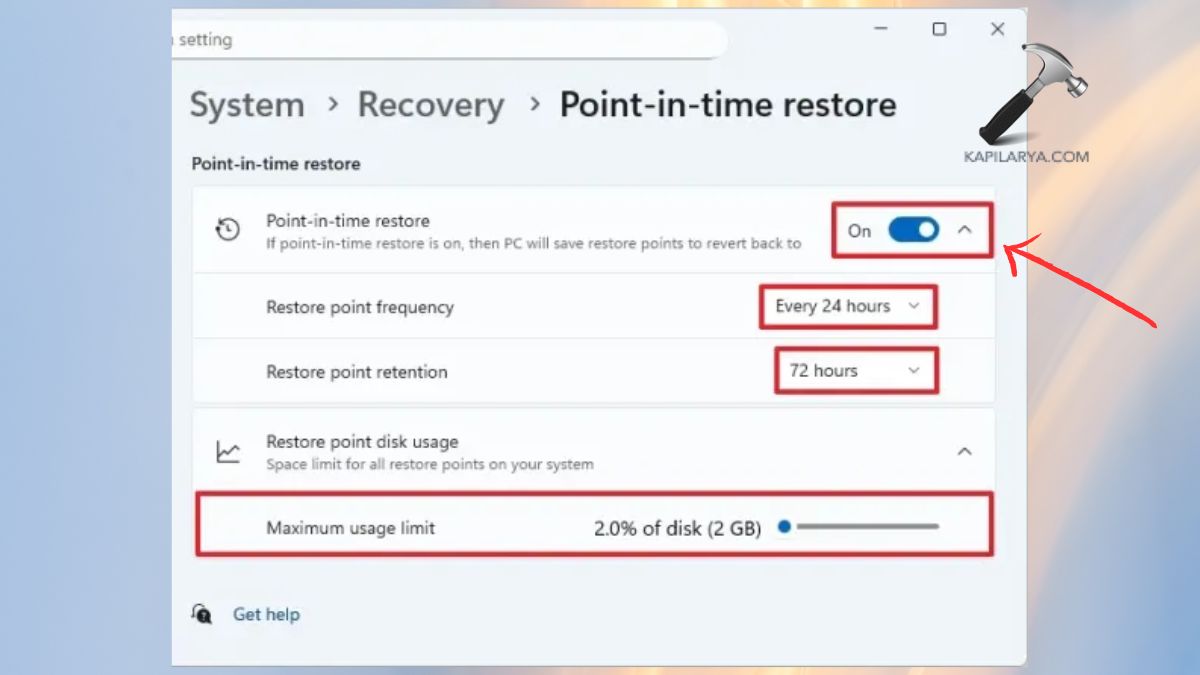
Now, you have enabled point-in-time restore on Windows settings successfully!
Method 2: Using Registry Editor
Experts or users who are more advanced can also enable it via the Registry to gain more control.
Caution: A mistaken intervention on the registry may alter the stability of the system. Follow the steps carefully.
1. Open Registry Editor on the search menu. The UAC dialog will ask whether you want to do it, click Yes.

2. Go to the following path.
Computer\HKEY_LOCAL_MACHINE\SOFTWARE\Microsoft\Windows\CurrentVersion\Setup\Recovery\PITR\Settings
The values called Active_UX and MaxGlobalSize_UX are found in the right panel.
3. Should “Active_UX” exist with value as “1”, this means it is already enabled. For “MaxGlobalSize_UX” value, change the Value data field to “2048”. This enables 2GB of space for PITR restore points. Also, select “Decimal” under base options.

Upon restarting Windows 11, system restore opens automatically.
Video guide
You can also refer this video guide to enable the feature:
How Point-in-Time Restore Protects Your Windows 11 PC
This feature is set to generate these restore points automatically once it is activated:
- Before driver updates.
- Before Windows Updates.
- Prior to big installations of apps.
- When system changes occur.
- When performing some background processes.
They contain these restore points:
- Registry settings.
- System configurations.
- Driver versions.
- Installed apps.
- Critical system files.
Thus, in case of failure, you do not lose personal data; you just reverse changes at the system level. This renders it as one of the least risky and most valid recovery methods.
Frequently Asked Questions (FAQs)
What is Point-in-Time Restore in Windows 11?
It is a recovery feature, by which you are able to roll your PC back to an old working state by the use of restore points. It aids you to rectify the updates, system breakdowns, and software problems.
Why is System Restore disabled by default in Windows 11?
Windows prohibits it from saving some storage, since most of its users are cloud backup dependent. Nevertheless, its enabling is highly encouraged to protect against it.
Does enabling Point-in-Time Restore slow down my PC?
No. It consumes very little disk space; it operates without making noise in the background and does not interfere with performance.
How often should I create restore points?
One can be done at the end of each significant update or the installation of the software. Windows also makes automatic restore points.
That’s it!