

The error Your device ran into a problem and couldn’t be repaired usually appears in the Windows Recovery Environment (WinRE) when Startup Repair fails. This detailed guide will help you to get this issue resolved with few close working solutions.

Page Contents
Solved: Your Device Ran Into a Problem and Couldn’t Be Repaired
This means Windows cannot automatically fix boot issues due to corrupted system files, disk errors, driver conflicts, or hardware problems. Below are the most effective methods to fix this issue and restore your Windows 11 system.
Fix 1: Run Startup Repair Again (Properly)
Sometimes the repair fails on the first attempt.
1. Force shut down your PC 3 times to enter recovery mode.
2. Go to Troubleshoot and then Advanced options. Choose Startup Repair.
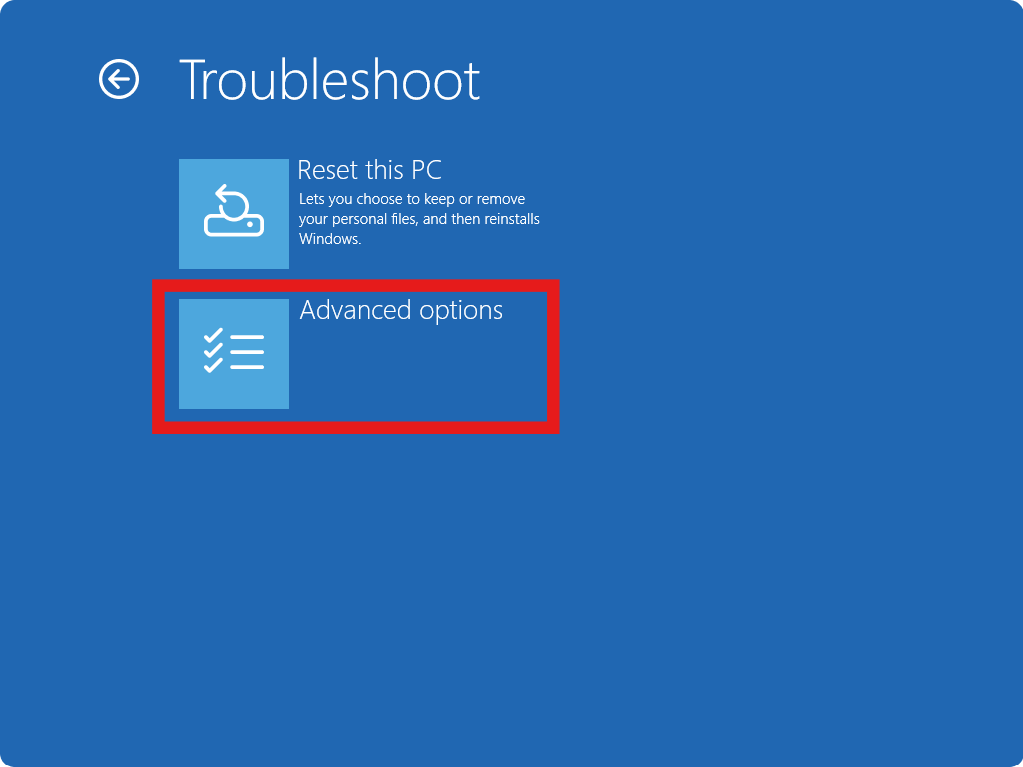
3. Let Windows scan and fix issues.
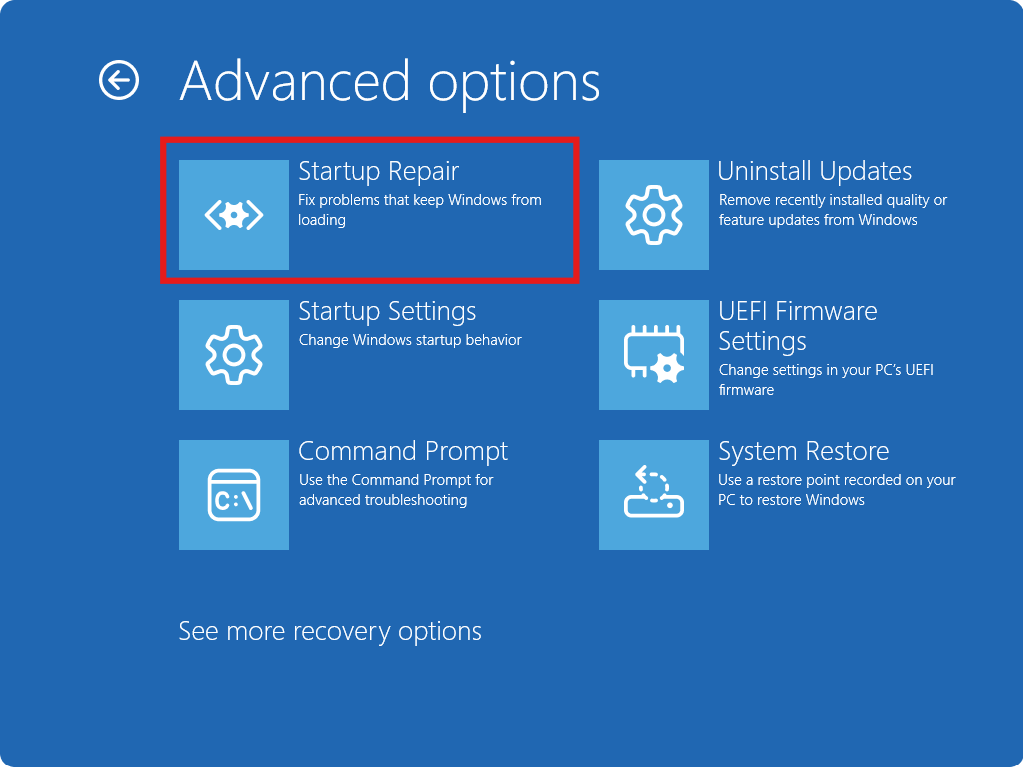
Startup Repair can automatically resolve boot problems, preventing Windows from loading.
Fix 2: Run CHKDSK to Fix Disk Errors
Disk corruption is a major cause of this error.
1. Open Command Prompt from Advanced options.
2. Run:
chkdsk C: /f /r
3. Wait for the scan to complete and restart.
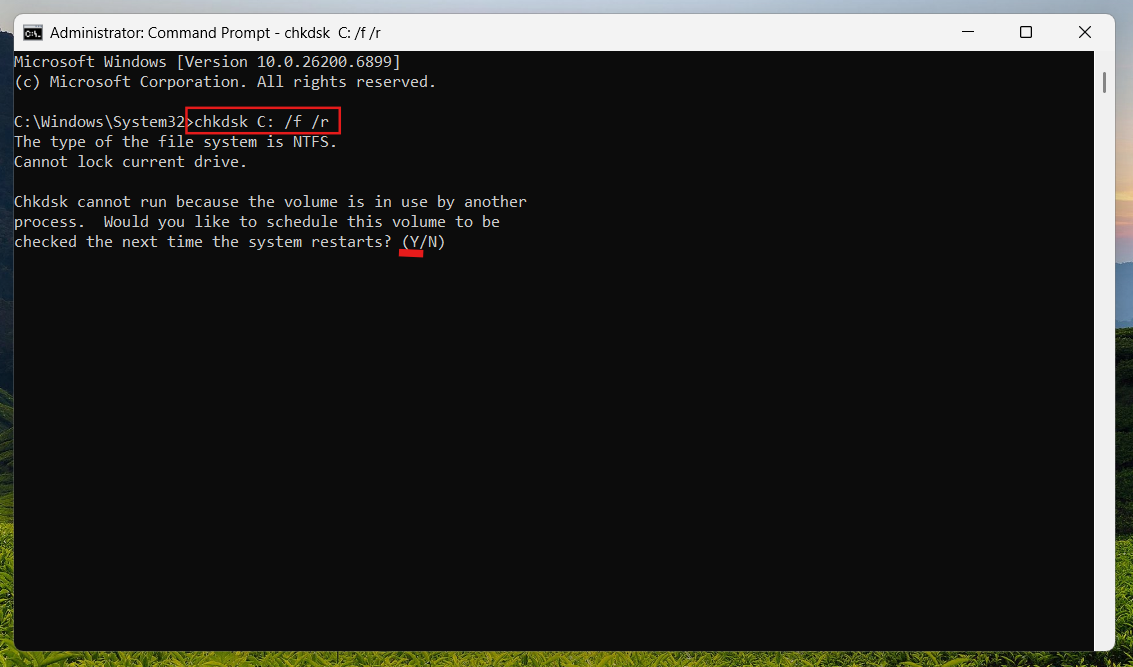
This checks for bad sectors and repairs file system errors blocking startup.
Note: In the Recovery Environment, your Windows drive might not be C:. If chkdsk C: /f /r doesn’t work, try chkdsk D: /f /r.
Fix 3: Repair System Files (SFC)
Corrupted system files can break Windows recovery.
1. In Command Prompt (WinRE), run:
sfc /scannow
2. Restart your PC after completion.
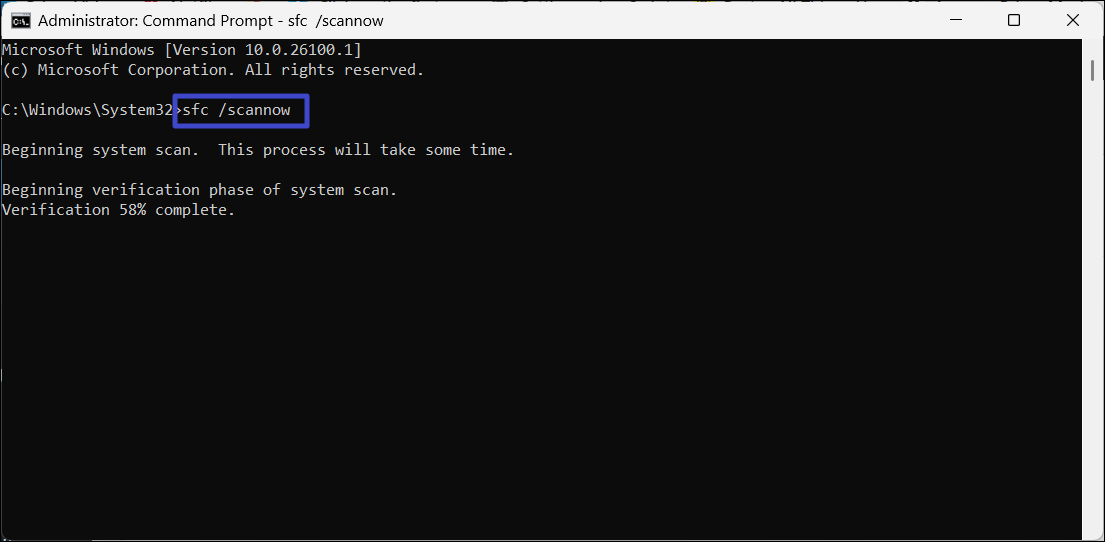
This scans and restores damaged Windows files required for booting.
Fix 4: Use System Restore
If the issue started recently, revert to a working state:
1. Go to Troubleshoot and then Advanced options in recovery mode. Choose System Restore.
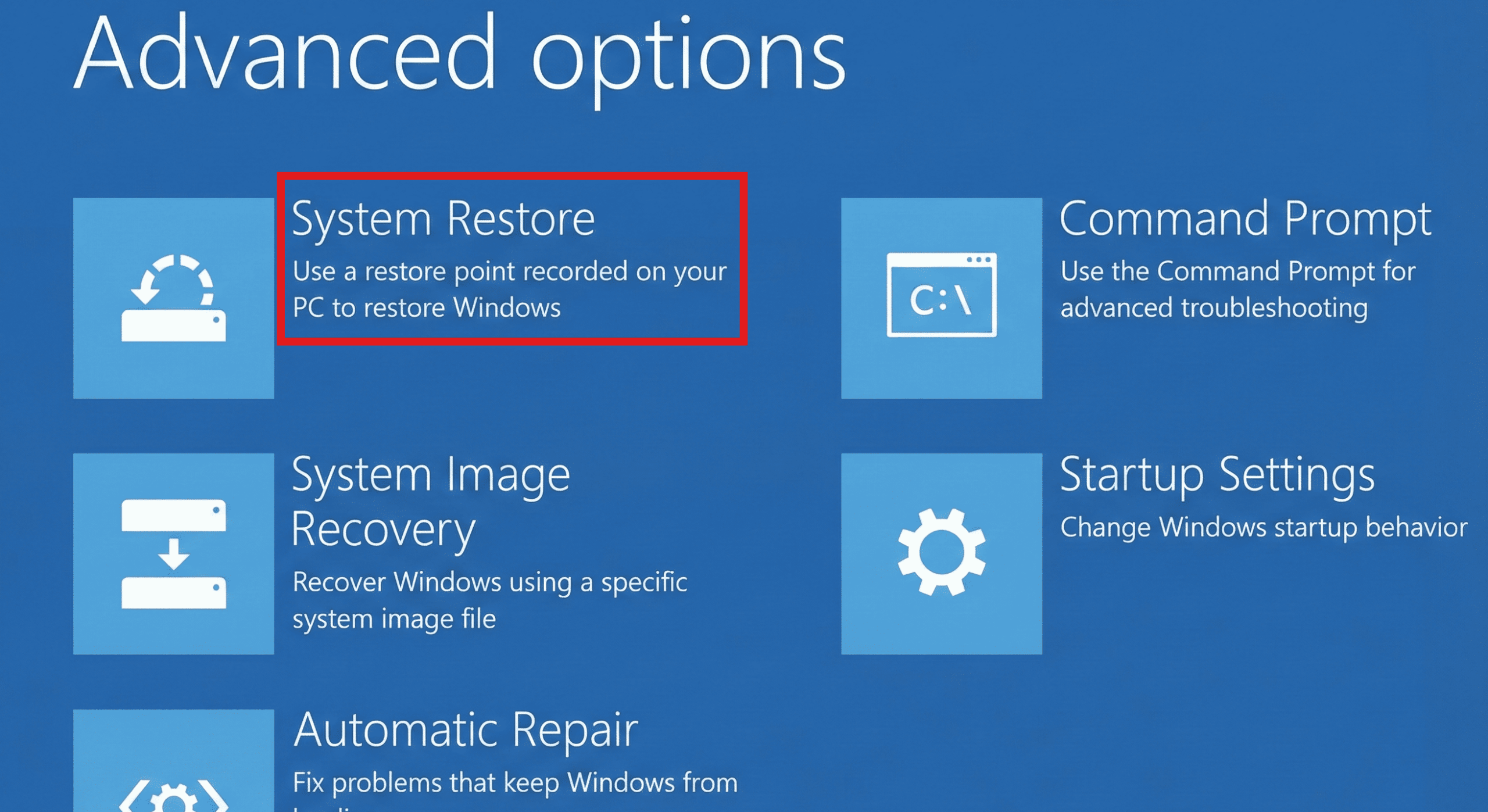
2. Select a restore point before the issue.

3. Follow the instructions.
This undoes system changes without affecting personal files.
Fix 5: Boot into Safe Mode and Update Drivers
Driver issues can cause repair failures.
1. Go to Advanced options and then Startup Settings and choose Restart.
2. Choose Safe Mode.
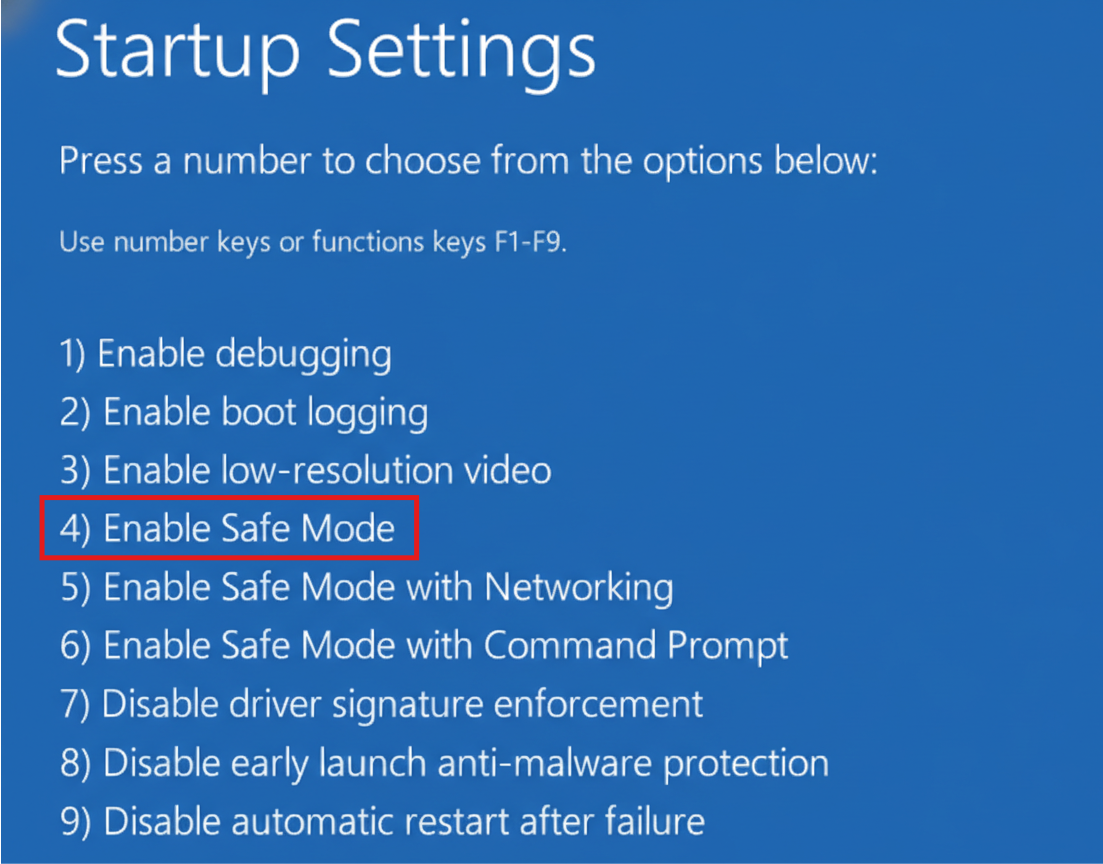
3. Open Device Manager and update drivers.
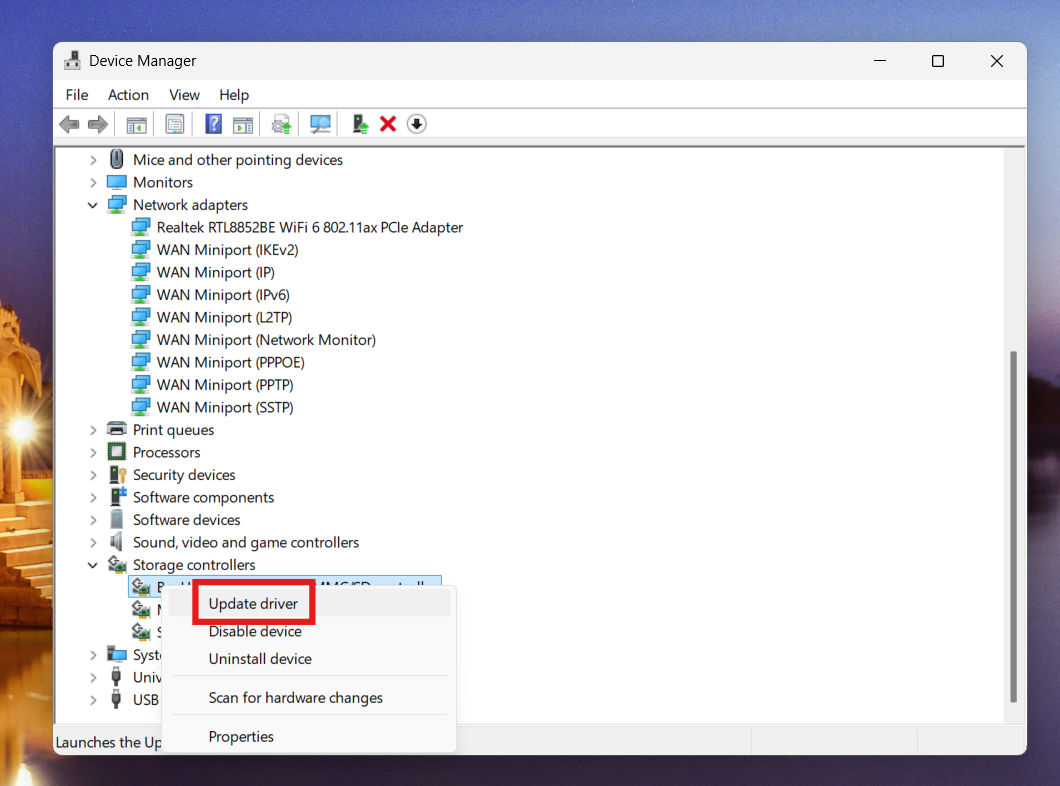
Outdated or faulty drivers (especially GPU/chipset) can trigger boot errors.
Fix 6: Disconnect External Devices
Hardware conflicts can interrupt startup.
1. Remove USB drives, external HDDs, printers, etc.
2. Restart your PC.
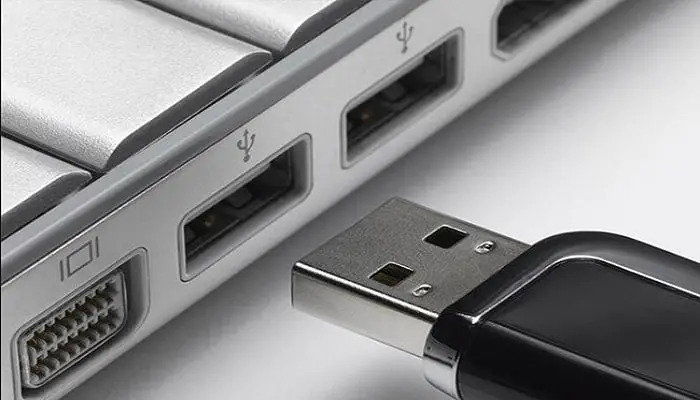
New or faulty hardware can cause boot failures.
Fix 7: Reset or Reinstall Windows
If nothing works, reset Windows:
1. Go to Troubleshoot and choose Reset this PC.
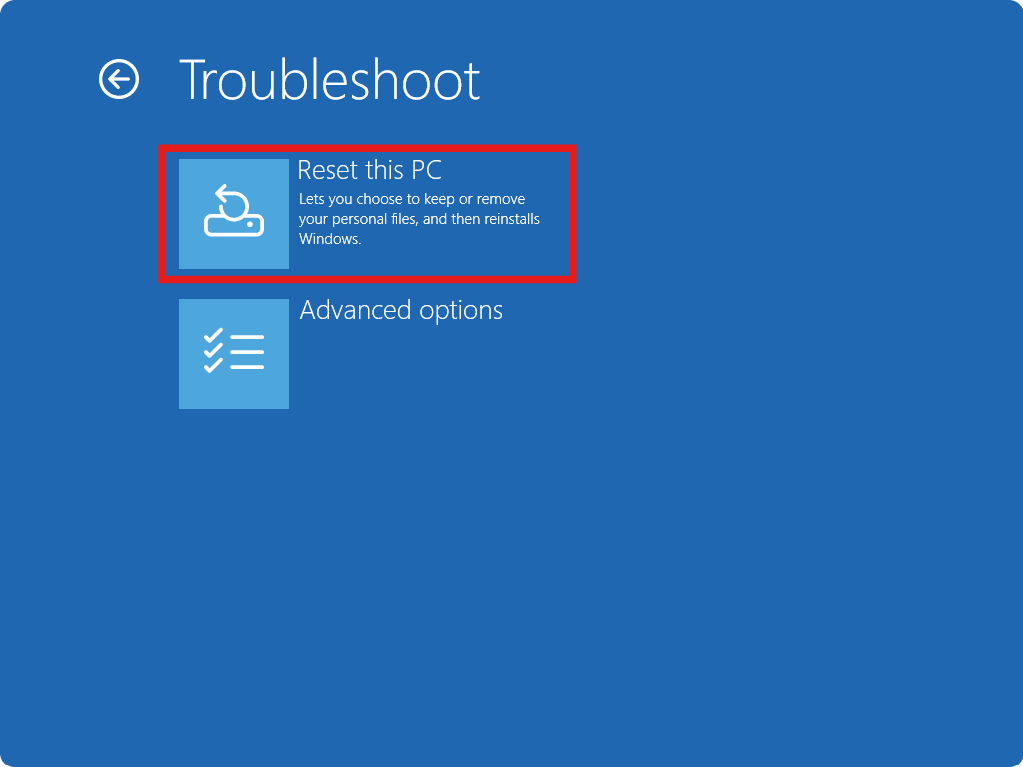
2. Choose Keep my files or Remove everything.

This reinstalls Windows and resolves deep system corruption.
Summary
The error: Your device couldn’t be repaired occurs when Windows fails to fix startup issues automatically. Running Startup Repair, CHKDSK, SFC scans, System Restore, and Safe Mode troubleshooting are the most effective solutions. If the issue persists, resetting Windows is the final reliable fix.




