When you attempt to open Microsoft Edge on your Windows 11 computer, and it just won’t open, it hangs on the logo, or closes as soon as it opens, you are not alone. This problem can manifest itself in thousands of users after updating the system or antivirus software, or even due to some random software bugs. Microsoft Edge uses a number of background services, system files and user profiles. When any of these is broken or malfunctioning, the browser will not be launched.
Page Contents
Fix Microsoft Edge won’t open in Windows 11
Just follow the nine step-by-step solutions and your Microsoft Edge will be working again in minutes.
Fix 1: Scan Your Device for Malware
Microsoft Edge fails to start because of malware or adware. A full scan can be used to detect virus files.
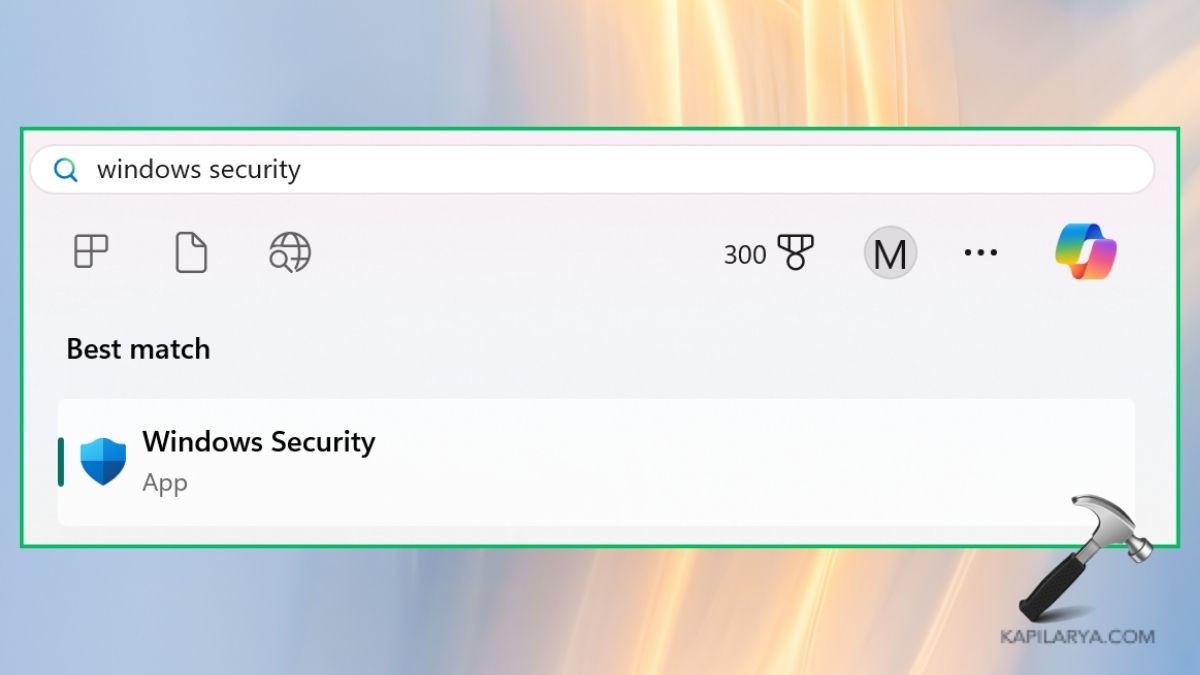
1. Click Start > open Windows Security.
2. Go to the Virus & threat protection section.

3. Click Scan options.

4. Select Full Scan > click on Scan now.

Allow the scan to run and eliminate all threats. In the case of malware, Edge should now start as usual.
Fix 2: Restart Microsoft Edge Completely Using a Script
Edge is also sometimes installed, but is run in the background.
1. Press Win + X > choose Terminal (Admin).

2. Type in the following script. Press Enter.
taskkill /F /IM msedge.exe
start msedge.exe
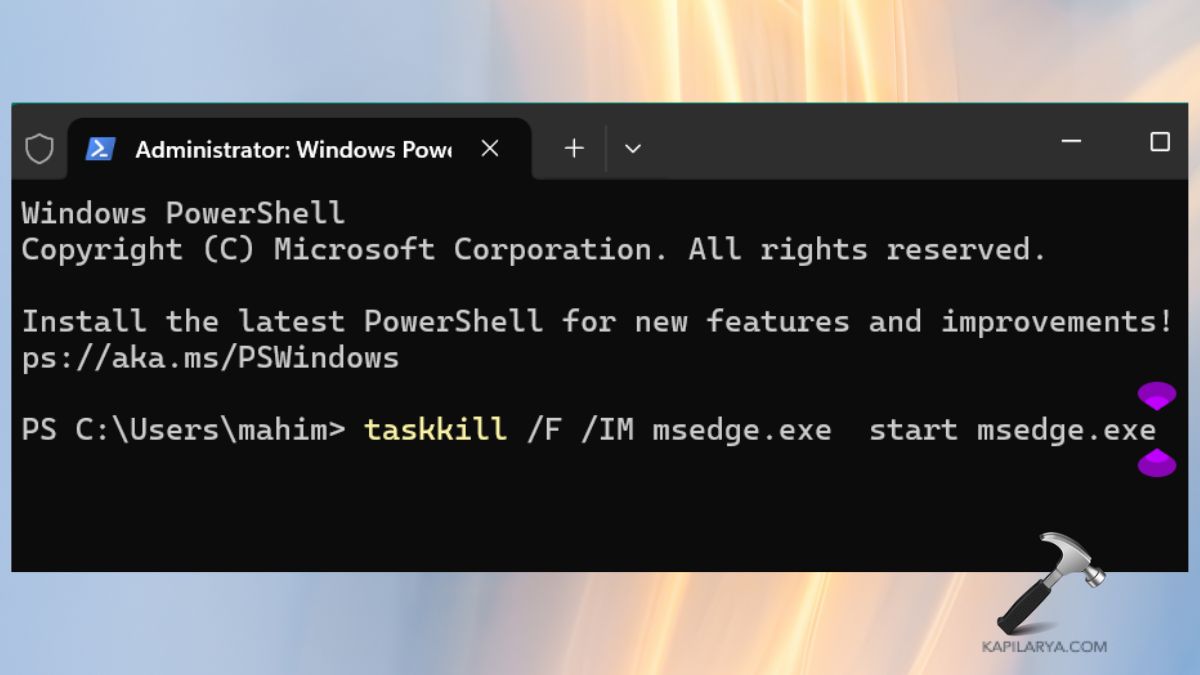
The script slaughters the hanging Edge process and creates a new one.
Fix 3: Repair Microsoft Edge
In case system files in Edge are corrupted, it is easiest to fix the problem with the help of Settings.
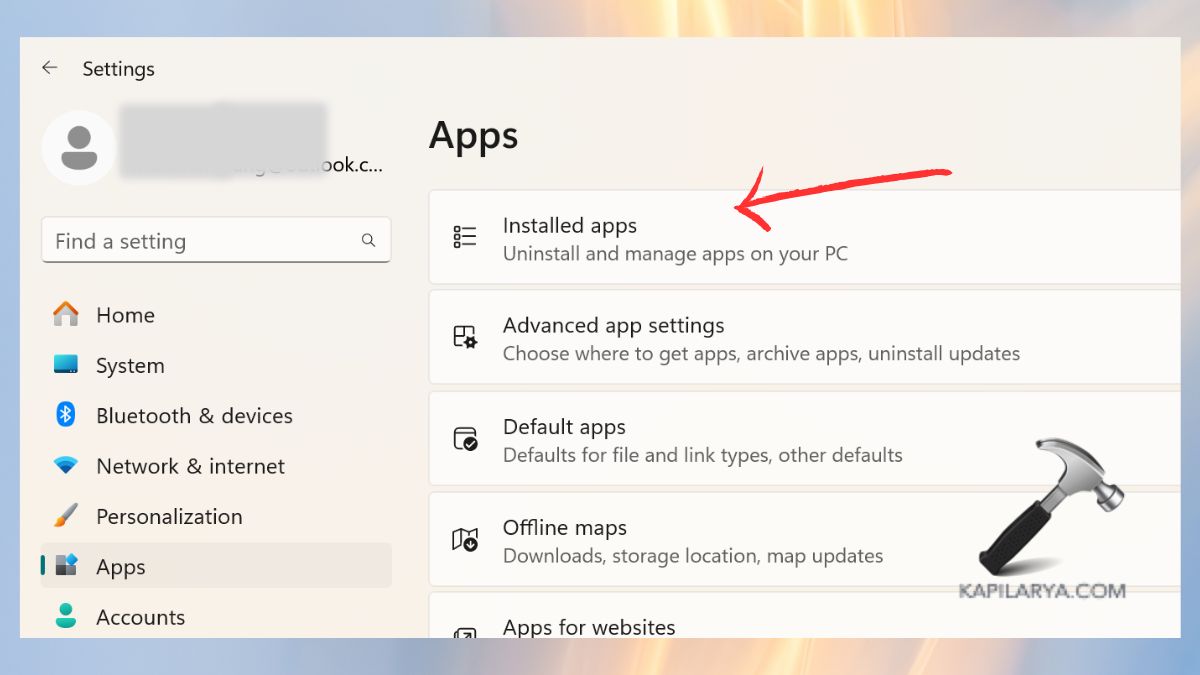
1. Open Settings > Apps > Installed apps.
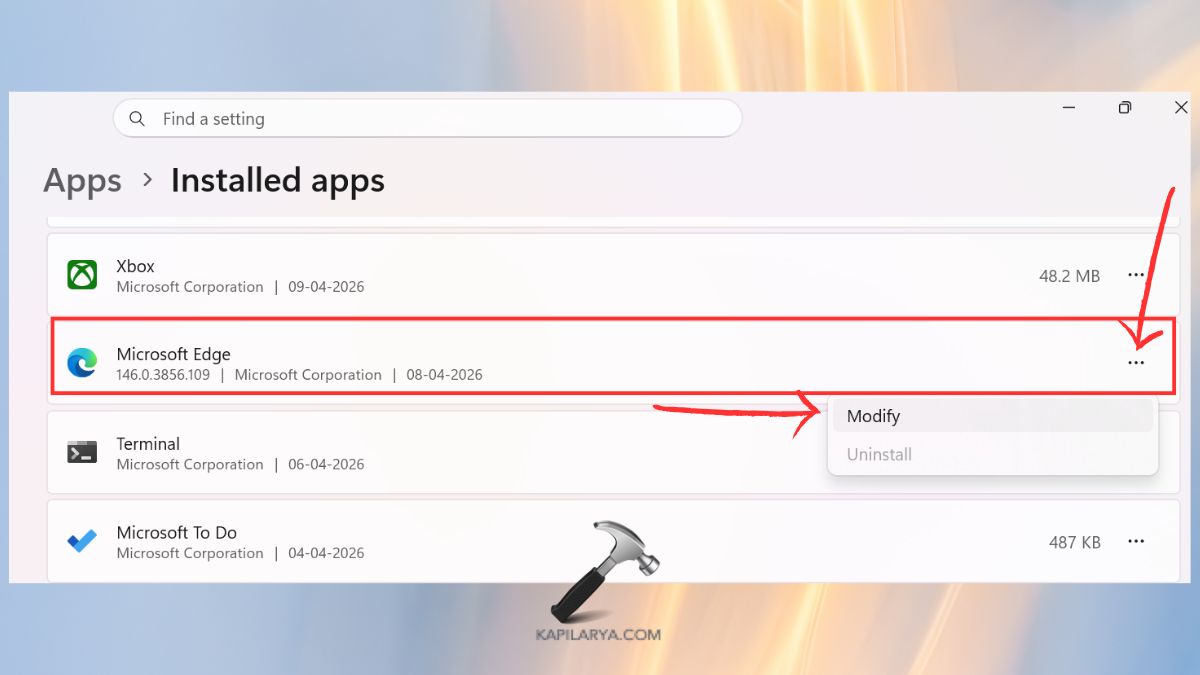
2. Search for Microsoft Edge. Click the three dots > select Modify.
3. Select Repair.
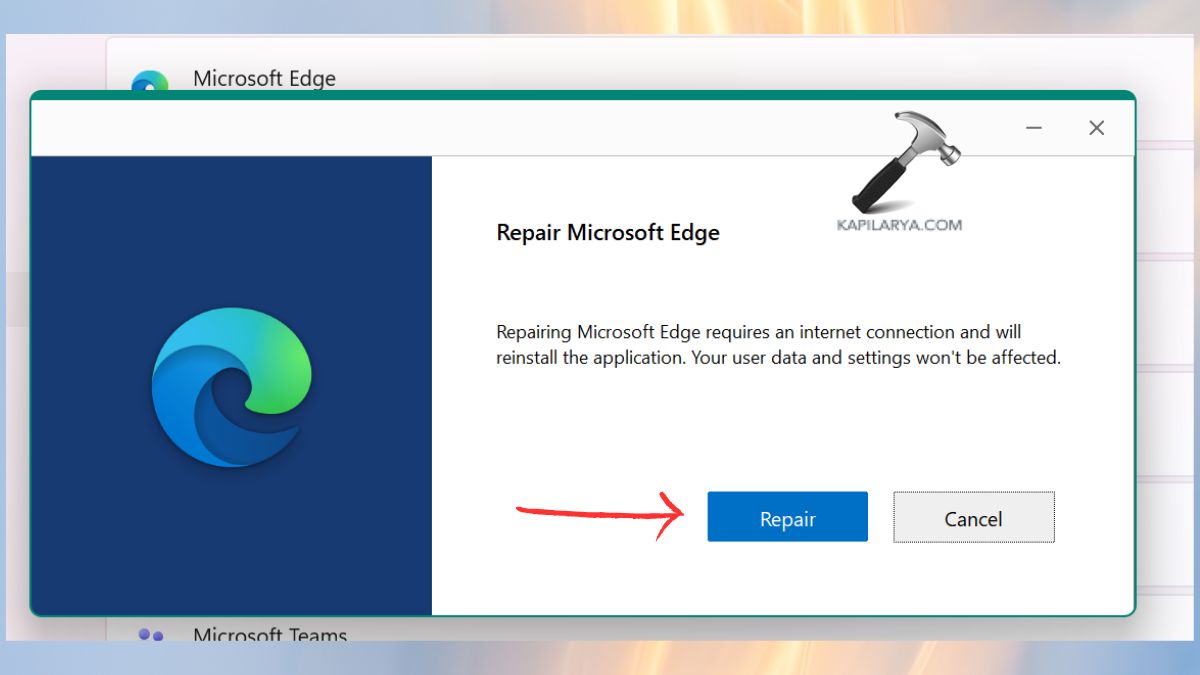
To recover Edge on Windows, no data will be deleted. In case Repair fails, then Reinstall Edge using the official Microsoft installer.
Fix 4: Update Windows to the Latest Version
Windows versions that are out of date frequently make Microsoft Edge malfunction.
1. Click on the Settings icon and then open Windows Update.
2. Tap on the Check for updates button.

Update all the available system updates. Restart the PC. This is so that Edge will remain compatible with the operating system.
Fix 5: Delete Corrupted Microsoft Edge Files
Edge will not open in the event of corrupt cache or profile files.
1. Hit keys Win + R > enter the following. Press Enter.
%localappdata%\Microsoft\Edge\User Data
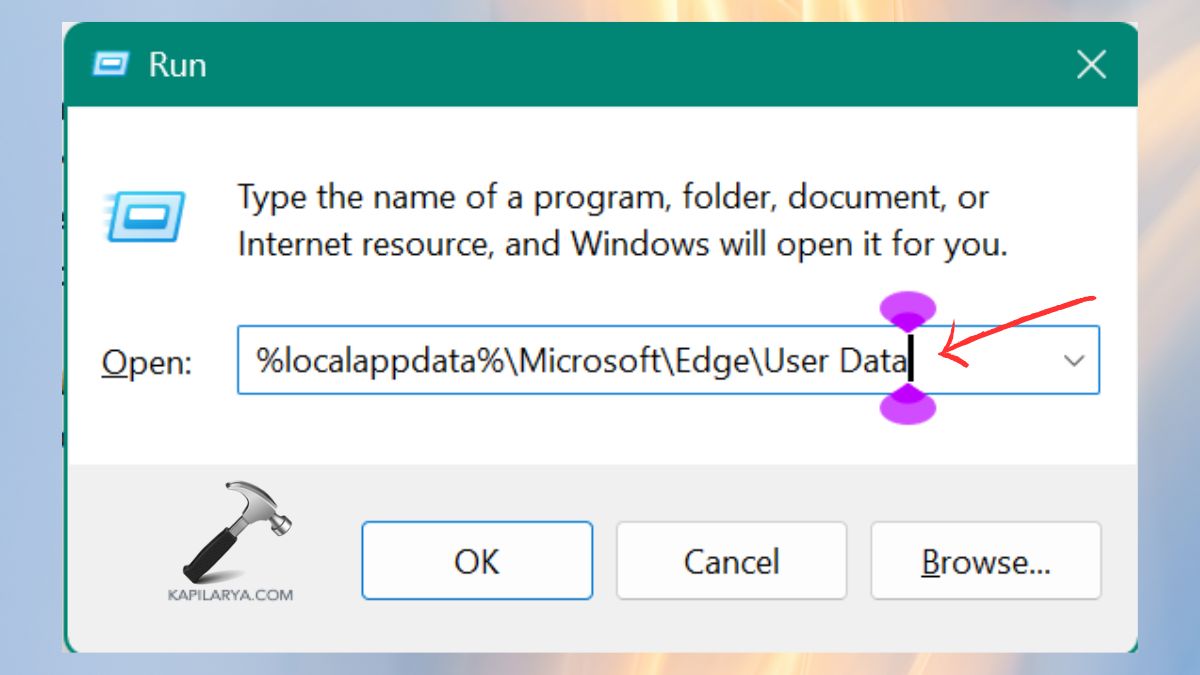
2. Erase the folder called Default or change its name to Default.old.
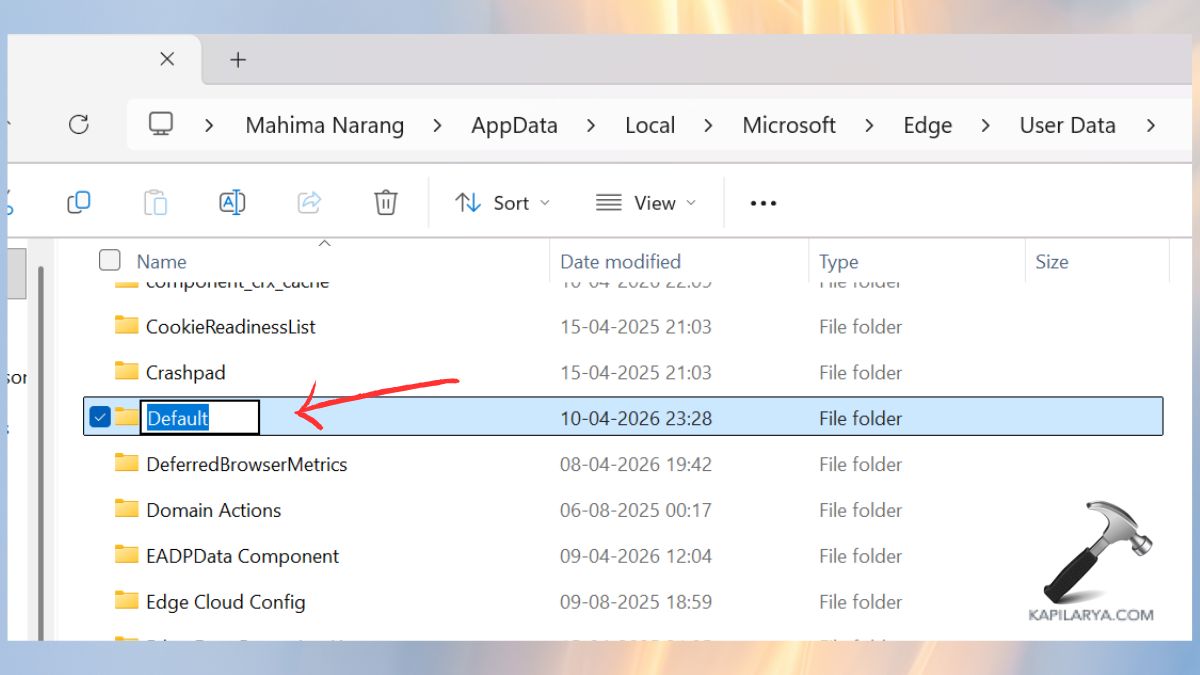
Reboot and go to Edge once more. This restores the user profile of the Edge app without interfering with the bookmarks that are synced to your Microsoft account.
Fix 6: Temporarily Disable Your Antivirus App
The third-party antivirus software also prevents the launch of Edge.
1. Right-click the antivirus icon in the system tray.
2. Select Pause protecting or Disable temporarily.
3. Make an attempt to open Microsoft Edge. Edge is open, and it is your antivirus to blame. You have to change its security options.
Fix 7: Update Third-Party Antivirus Software
The old-fashioned antivirus software wrongly recognizes Edge as a threat.
1. Open the antivirus dashboard.
2. Click on Updates > Check for updates or Database update. Install the most current update of the engine.
Restart the PC. When it is updated, attempt to open Edge again.
Fix 8: Run a PowerShell Command to Fix Edge
This command re-registers the Microsoft Edge with Windows.
1. Press Start > type PowerShell > right-click > Run as administrator.

2. Paste the following command. Enter and wait till the process is completed.
Get-AppXPackage -Name Microsoft.MicrosoftEdge | Foreach {Add-AppxPackage -DisableDevelopmentMode -Register "$($_.InstallLocation)\AppXManifest.xml"}
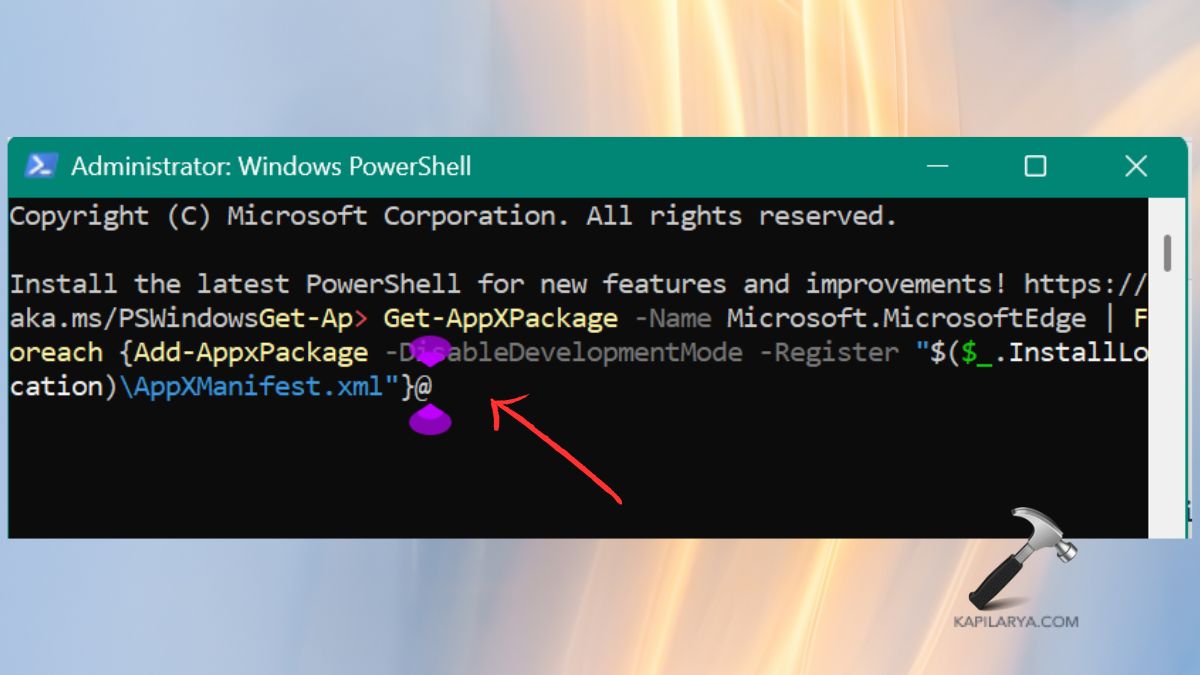
Restart the PC.
Fix 9: Restart Your Computer
Rebooting will clear temporary glitches and reload system services.
1. Click Start > Power. Select Restart.
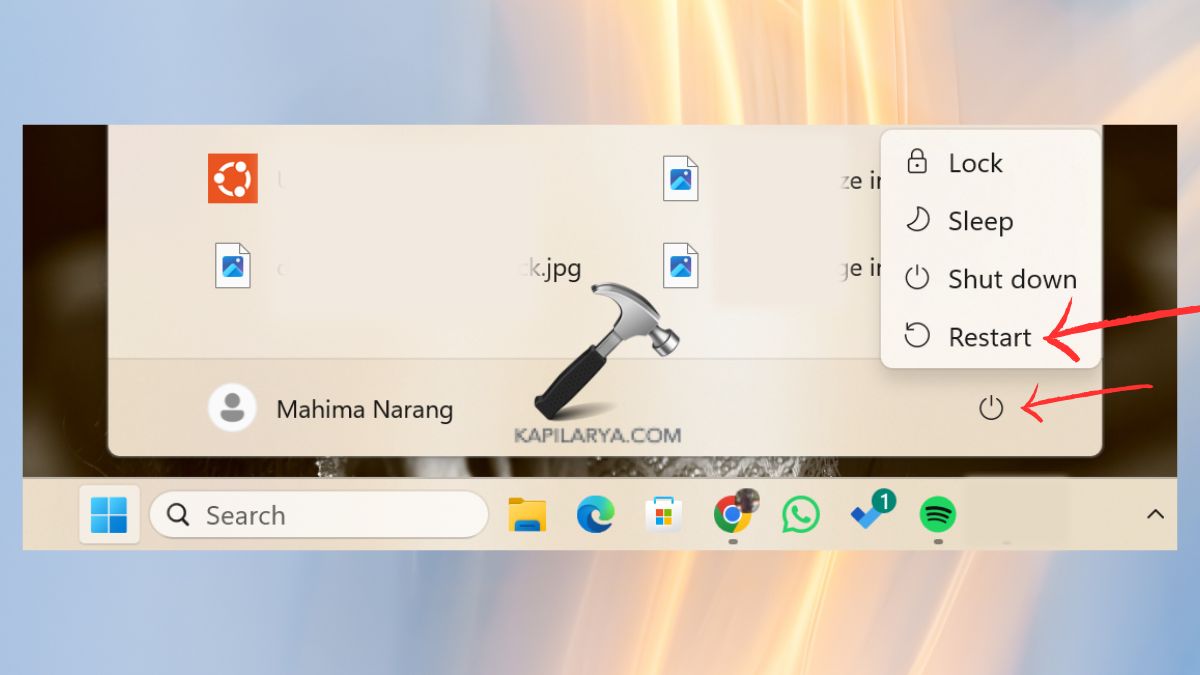
2. Wait till Windows loads once more. Try launching Microsoft Edge. This fix usually resolves the problem of Edge being hung following updates.
Frequently Asked Questions (FAQs)
Why is Microsoft Edge not opening on Windows 11?
Some of the most common causes are corrupted files, antivirus interference, malware, old Windows updates or damaged user profiles.
Can I uninstall Microsoft Edge permanently?
No, Edge is an essential component of Windows 11. You can fix it or reset it, but not completely uninstall it.
Will repairing Microsoft Edge delete my data?
No, repairing saves your bookmarks, passwords and browsing history.
What is the fastest way to fix Edge not opening?
The quickest fixes are restarting your PC, running the PowerShell repair command, or repairing Edge via Settings.
That’s it!