

If you see the message: Your version of Windows 11 has reached end of service, it means your current version is no longer receiving updates.
Page Contents
Fix: Windows 11 Version Reached End of Service
For users targeting Windows 11 version 25H2, the fix is not complex. Microsoft now delivers this update using a small enablement package, making upgrades faster and easier than full OS reinstalls. Below are 5 effective ways to fix this issue and move to Windows 11 25H2.
Fix 1: Update via Windows Update (Recommended)
The easiest way to resolve the end-of-service warning:
1. Open Settings and then Windows Update.
2. Click Check for updates.
3. Install Windows 11, version 25H2, if available.
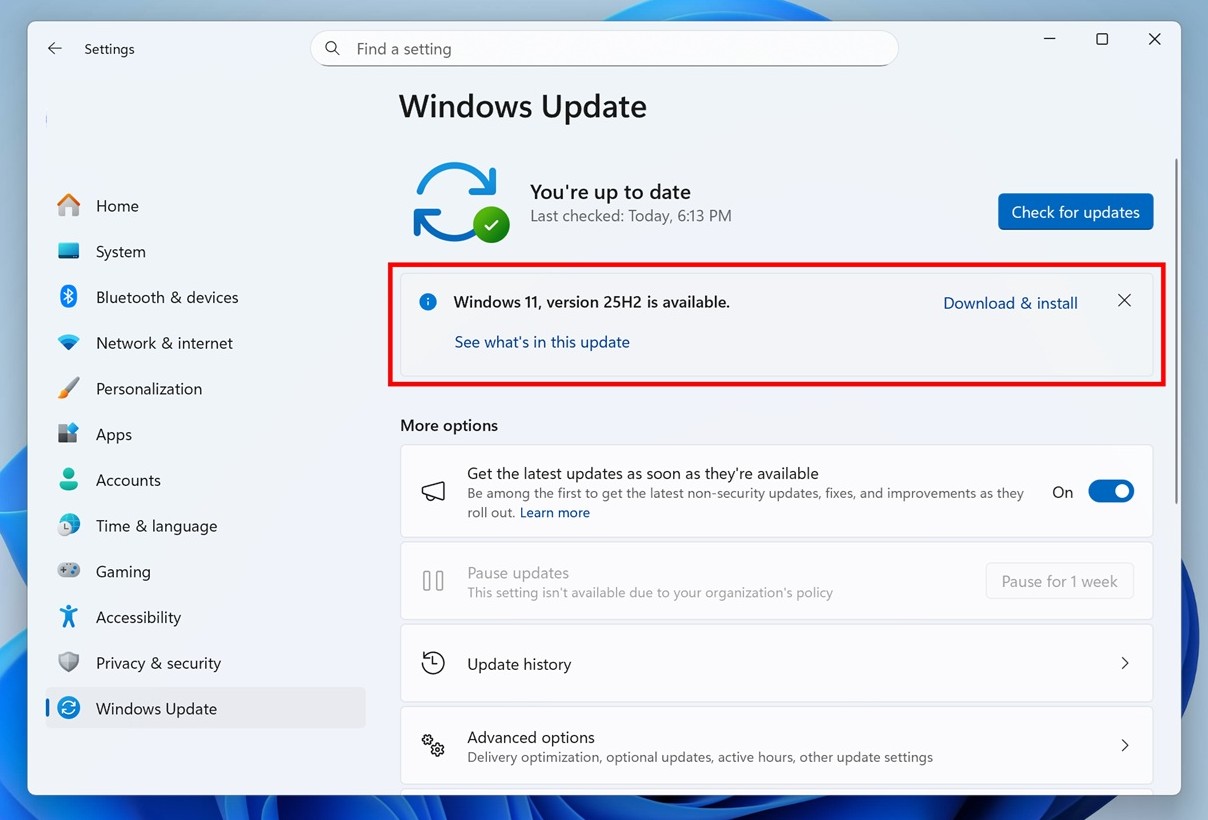
If your device is eligible, the update will appear automatically.
Fix 2: Install the 25H2 Enablement Package (Fastest Method)
If you’re already on Windows 11 24H2, you can upgrade instantly using the enablement package (eKB). This is a small update that activates features already present in your system. It installs quickly and usually requires just one restart.
1. Download the 25H2 enablement package (KB update file).
2. Double-click the file.
3. Follow the installer and restart.
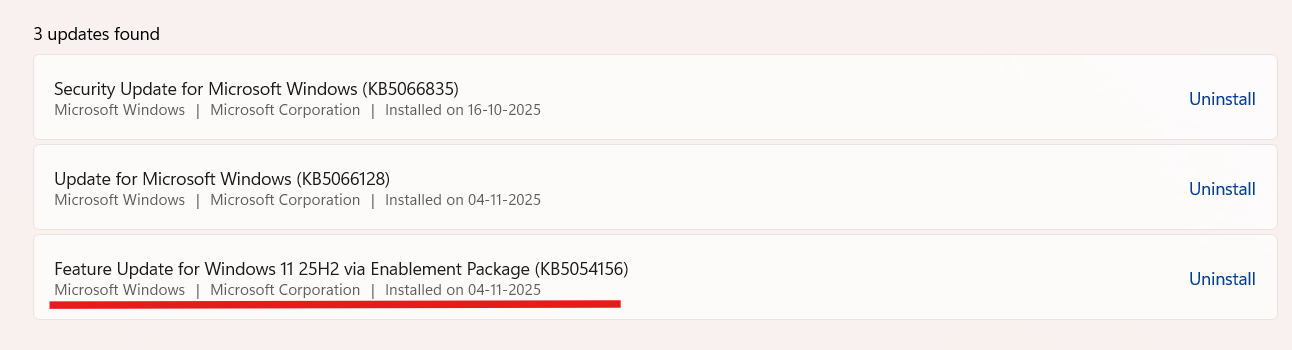
This is the fastest way to fix the end-of-service issue.
Fix 3: Manually install latest version via ISO File
If Windows Update doesn’t show 25H2:
1. Download the Windows 11 ISO.
2. Right-click and then choose Mount.
3. Run setup.exe.
4. During the setup configuration, choose Keep personal files and apps.
You can refer detailed steps in this guide.
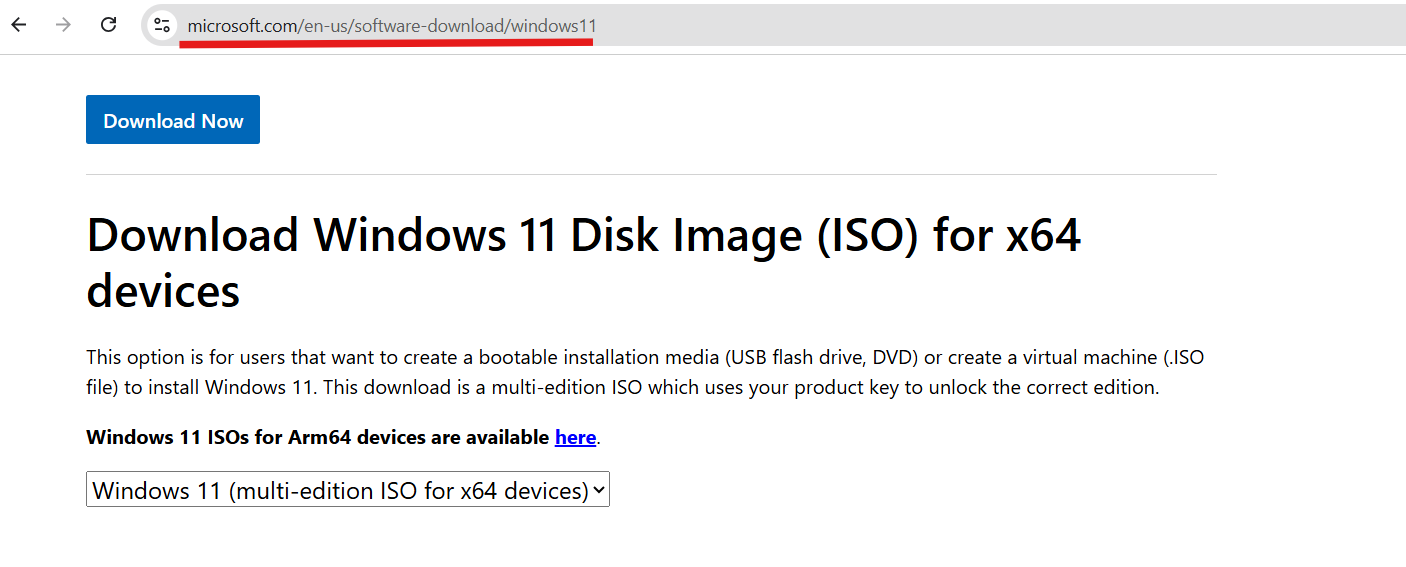
This performs an in-place upgrade to 25H2.
Fix 4: Check for Safeguard Holds
Sometimes updates are blocked due to compatibility issues.
1. Go to Windows Update and then View update history.
2. Look for messages about: Safeguard hold.
3. Update drivers or uninstall incompatible apps.
Microsoft may delay updates if your device has known issues.
Fix 5: Ensure You’re on Version 24H2 First
The 25H2 enablement package only works if you’re already on Windows 11 24H2.
If you’re on 23H2 or older, you must upgrade to 24H2 first, then install 25H2.

This is because both versions share the same core system base.
Video guide
Here’s a video guide to help you more on this:
Why Windows 11 25H2 Is Different?
- Delivered as a small enablement package (not a full reinstall).
- Installs quickly like a regular update.
- Extends support lifecycle for your PC.
Summary
The end-of-service warning in Windows 11 is fixed by upgrading to version 25H2. The best approach is to use Windows Update or the enablement package, which upgrades your system in minutes. If blocked, use ISO installation or resolve compatibility issues to complete the upgrade.




