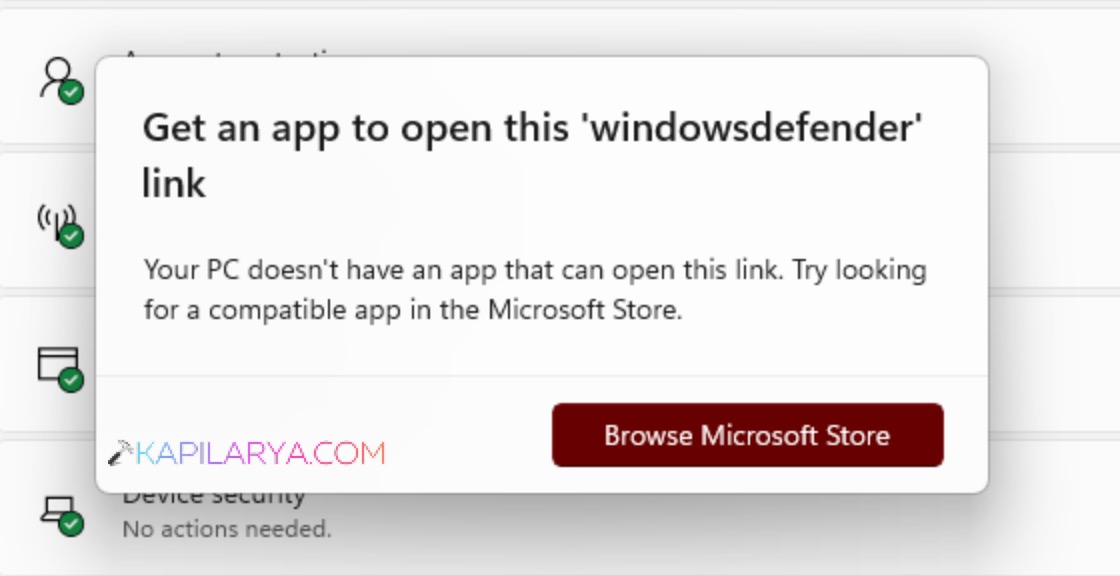
Windows Security is primary antivirus available in Windows 11. When it is present, you usually need no other antivirus as it is enough to safeguard your system. Windows Security can provide you vast protection against security threats such as virus, trojan and malware. If you’re unable to open certain areas of Windows Security and you see Get an app to open this ‘windowsdefender’ link, this article will help you to fix.
Page Contents
Get an app to open this ‘windowsdefender’ link
While you’re getting this, the windowsdefender:// protocol is handled by the built‑in Windows Security app. Getting the “Get an app to open this ‘windowsdefender’ link”, indicates you need to repair Windows Security app or fix it’s core security settings.
You can use either of the methods mentioned below to fix this problem:
Fix 1: Open Windows Security directly
Sometimes using the windowsdefender:// protocol may not work and you’ve to open it Windows Security using alternative method.
1. Click on search icon on Taskbar and search for Windows Security.
2. Launch it from the Start Menu instead of using the windowsdefender:// link.
3. If Windows Security opens, you can use this method to open the app
Fix 2: Use Windows Security troubleshooter
It is highly recommended to run the Windows Security Troubleshooter to re‑enable and repair security features. The troubleshooter is so designed that it can handle these kind of issues and rectify them.
Download the troubleshooter below:
Once it is downloaded, just double click on the downloaded file to run the troubleshooter.
Follow the on-screen instructions to run the troubleshooter and let it detect and fix problems.
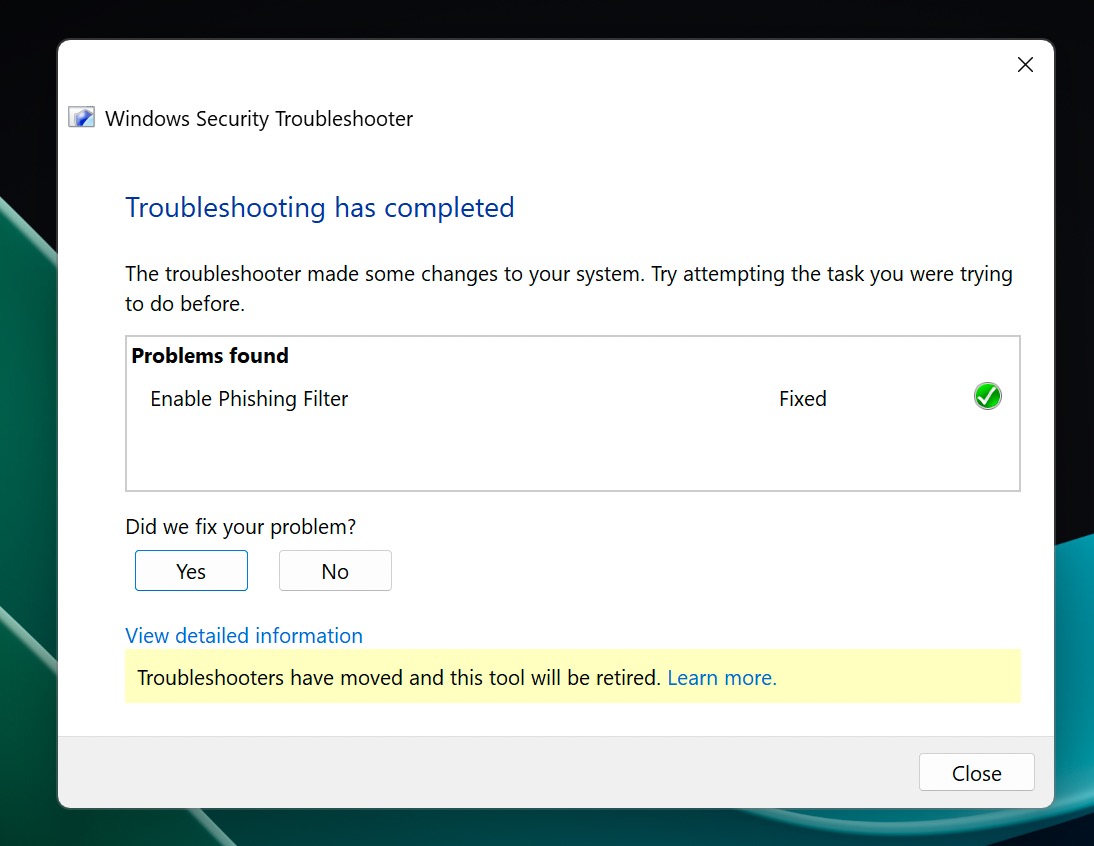
Make sure Windows Security is active.
After the troubleshooter concludes, you can open re-open Windows Security.
Confirm that protection areas (Virus & threat protection, Firewall & network protection, etc.) are now opening without throwing the ‘windowsdefender’ error.
Fix 3: Re-register Windows Security app
You can re-register the Windows Security app using Windows PowerShell. From past experience, it has been observed that this solution has worked for many having this same problem. It’s super easy to register the app using a single command.
Open the Terminal (Admin) app and make sure the tab is Windows PowerShell.
Paste the following command in the Windows PowerShell tab and press the enter key:
Get-AppxPackage Microsoft.SecHealthUI -AllUsers | Reset-AppxPackage
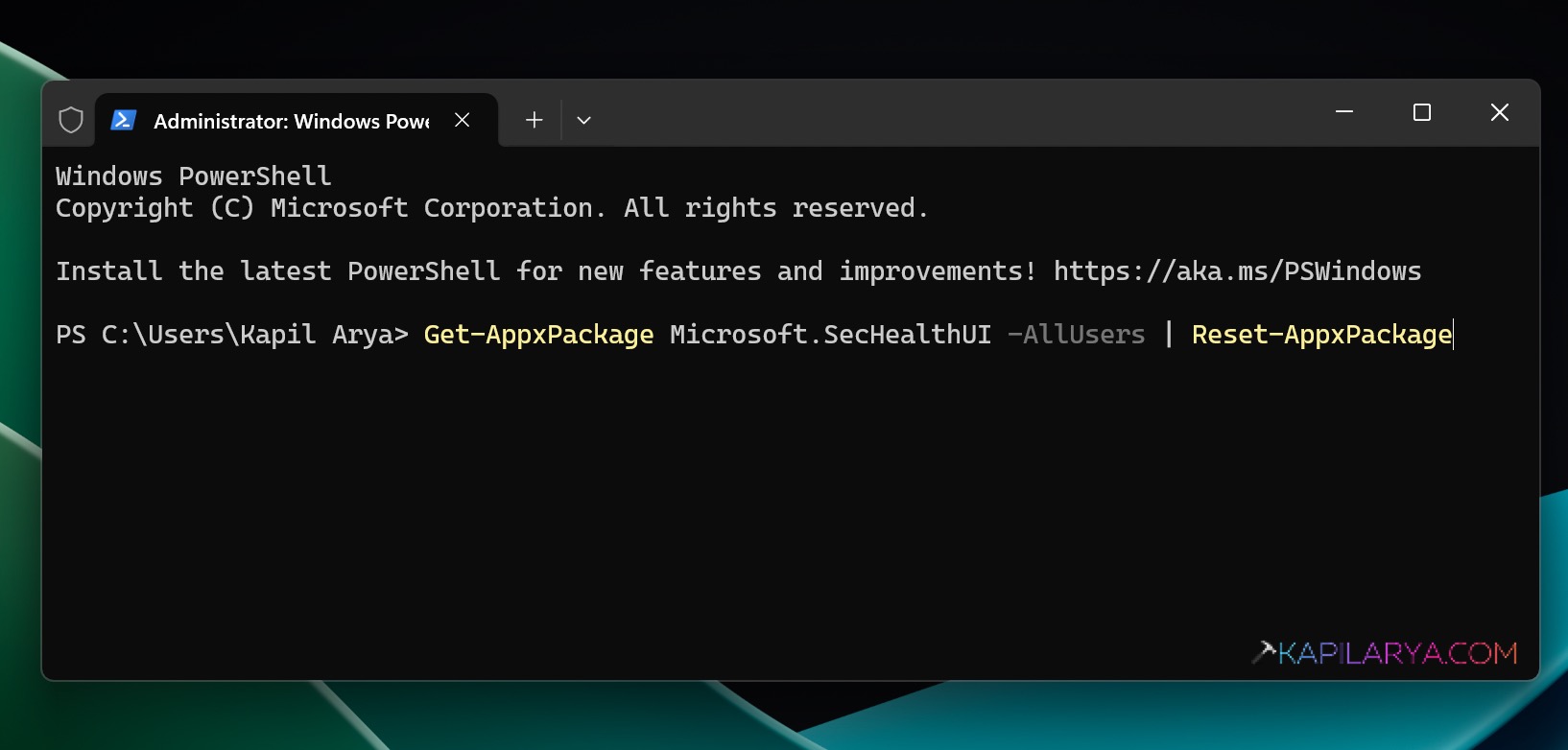
Once the command has been executed successfully, you can close the terminal app.
Check the status of the problem and it should be now resolved.
Fix 4: Avoid conflict from third-party antivirus
Usually if a third-party antivirus is installed on Windows 11 device, Windows security would automatically deactivate itself in order to avoid the conflict.
Sometimes using a third-party antivirus can cause issues with Windows Security. In some cases these two security suites are conflicting each other. To avoid this, you need to make sure that if you uninstall the third-party antivirus, it should be uninstalled from the root. There should be no traces of it’s installation left.
Once you ensure that third-party antivirus has been completely in uninstalled from the device without leaving any traces, you should be good to go with Windows Security.
That’s it!