And in case your monitor suddenly appears blurred, instead of the correct resolution, or Windows 11 cannot recognize your monitor, then you are likely experiencing the Generic PnP Monitor driver issue in Windows 11. It is also among the most frequent display issues that are experienced by Windows users, and the good news is that this can be fixed.
Below is an elaborate guide that will offer you the reasons why the Generic PnP Monitor driver problem occurs, the step-by-step solutions, and how to avoid the recurrence of the problem. The article includes eight effective techniques, which have been described in a manner that beginners and professionals can understand.
Page Contents
What Is the Generic PnP Monitor Issue on Windows 11?
This issue typically occurs when Windows fails to recognize your display properly. It assigns instead of installing the official monitor driver the default Generic PnP Monitor driver. This may lead to:
- Blurry screen.
- Wrong screen resolution.
- Monitor not detected.
- Flickering screen.
- Multiple monitor issues.
Some common causes are wrong drivers, cable, old Windows updates, and broken system files.
Fix Generic PnP Monitor driver issue on Windows 11
The best results are possible through these eight methods, one at a time.
Fix 1: Check Your Cable Connections
There are also basic fixes that you should check before attempting sophisticated fixes. The first option is to check the connection of your display cable. A broken or loose cable bewilders windows and causes the Generic PnP Monitor detection issue. In case it is fixed by reconnecting, then you are done!
1. Close your computer and switch off the screen.
2. Disconnect the HDMI, VGA, DisplayPort or USBc display cable.
3. Check the cable with regard to bends, frayed ends or broken pins.
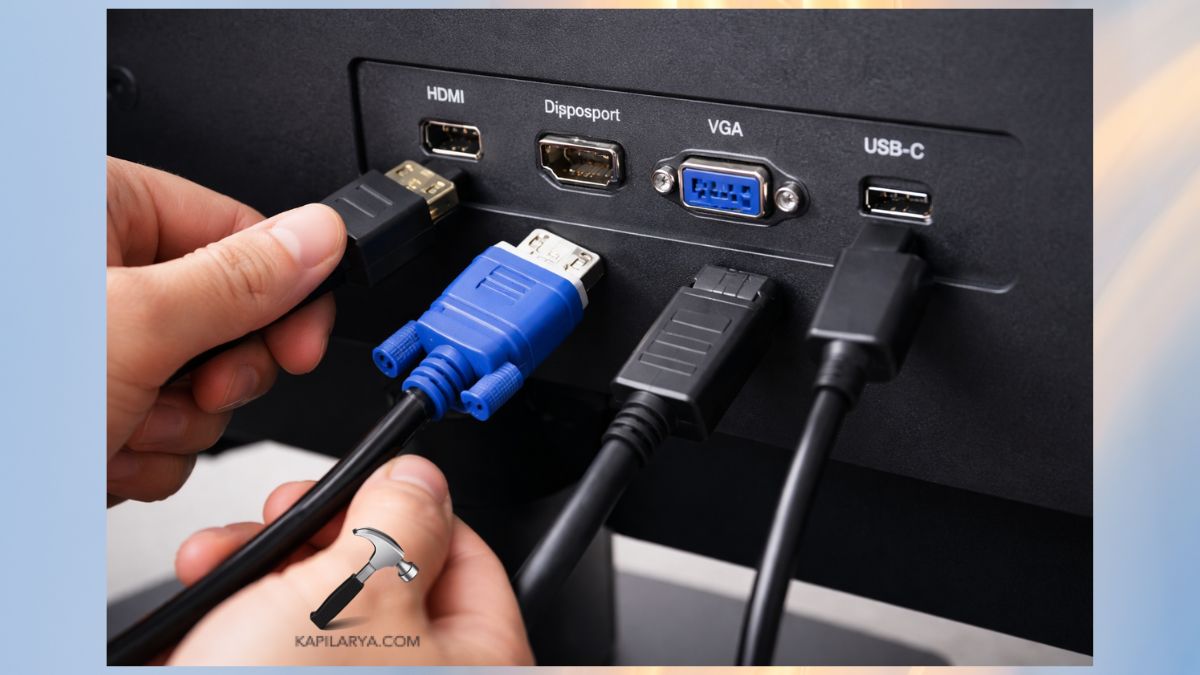
4. Carefully reattach it to the monitor and the PC.
5. Attempt to switch the port with your GPU (where possible).
6. Test a new cable, in case possible.
Fix 2: Update Your Graphics Driver
The graphics driver is of critical importance to your display. Should your graphics driver be obsolete or damaged, then Windows can experience problems communicating with your display device. Try these steps to update graphics driver.
1. Click Win + X > select Device Manager.

2. Expand Display adapters. Click the graphics card with your right button. Tap on Select Update driver > Search automatically.
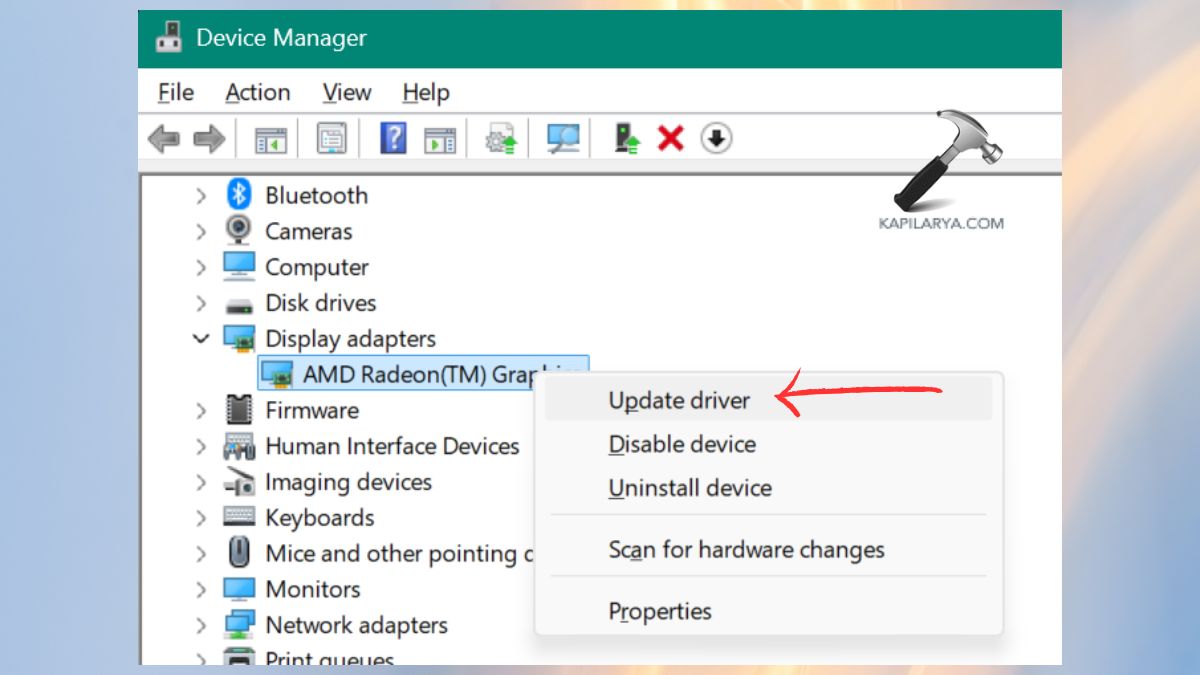
3. Restart your PC. To achieve optimal results, download direct through the company of your GPU manufacturer:-
- NVIDIA: GeForce Experience
- AMD: Adrenalin Software
- Intel: Driver and support assistant.
Most of the monitor problems can be fixed immediately by a new GPU driver.
Fix 3: Uninstall Generic PnP Monitor Driver & Scan for Hardware Changes
It is among the best fixes. To fix this, you should remove the broken Generic PnP driver, then restart Windows so that it can install the appropriate driver.
1. Again, open Device Manager.
2. Expand Monitors. Right-click the Generic PnP Monitor. Click Uninstall device.
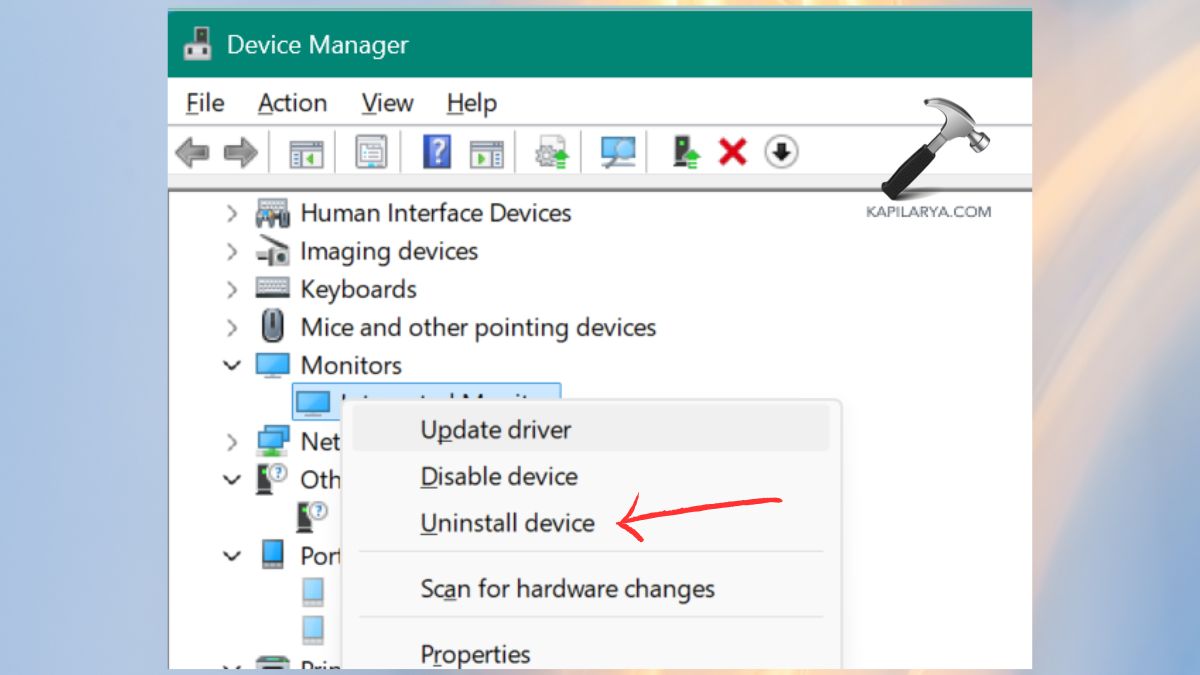
3. Click on the upper menu, Action > Scan hardware changes.

Restart your PC. The windows will now reset a new monitor driver, which frequently resolves the locate problem.
Fix 4: Update Generic PnP Monitor Driver Manually
The next thing to do, in case uninstalling did not fix the problem, was to update the Generic PnP Monitor driver.
1. Open Device Manager. Expand Monitors section.
2. Right-Click Generic PnP monitor > Update driver.
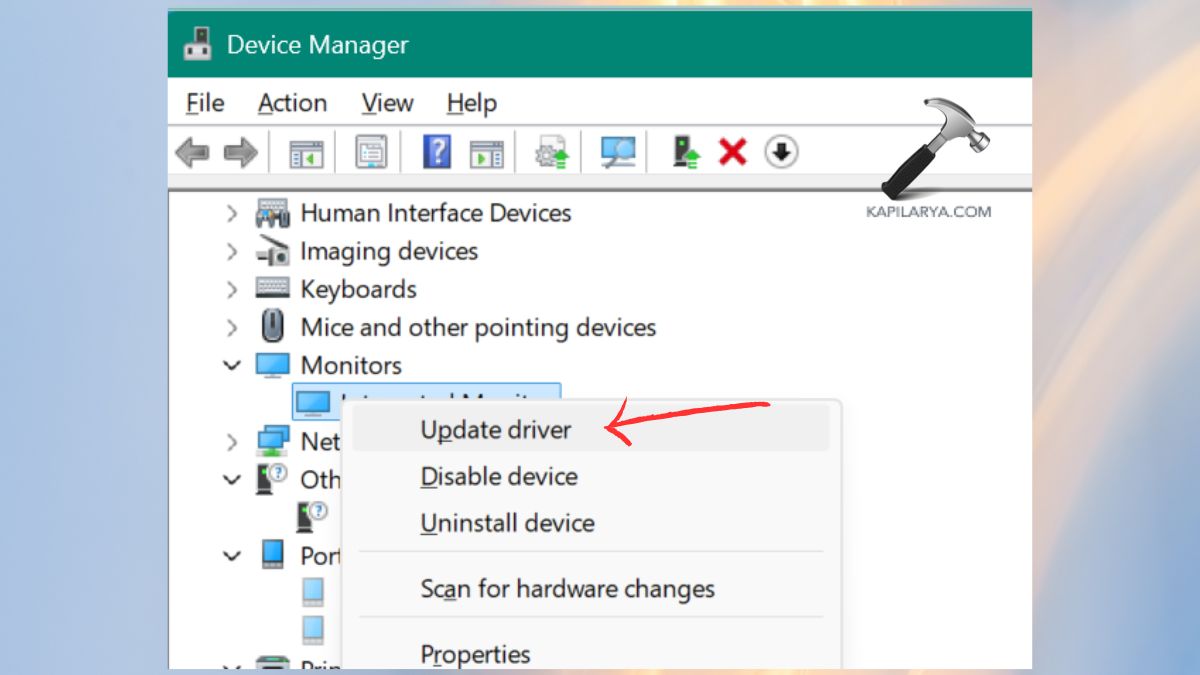
3. Auto-select search of drivers. Windows will automatically install a driver should it locate an appropriate driver.
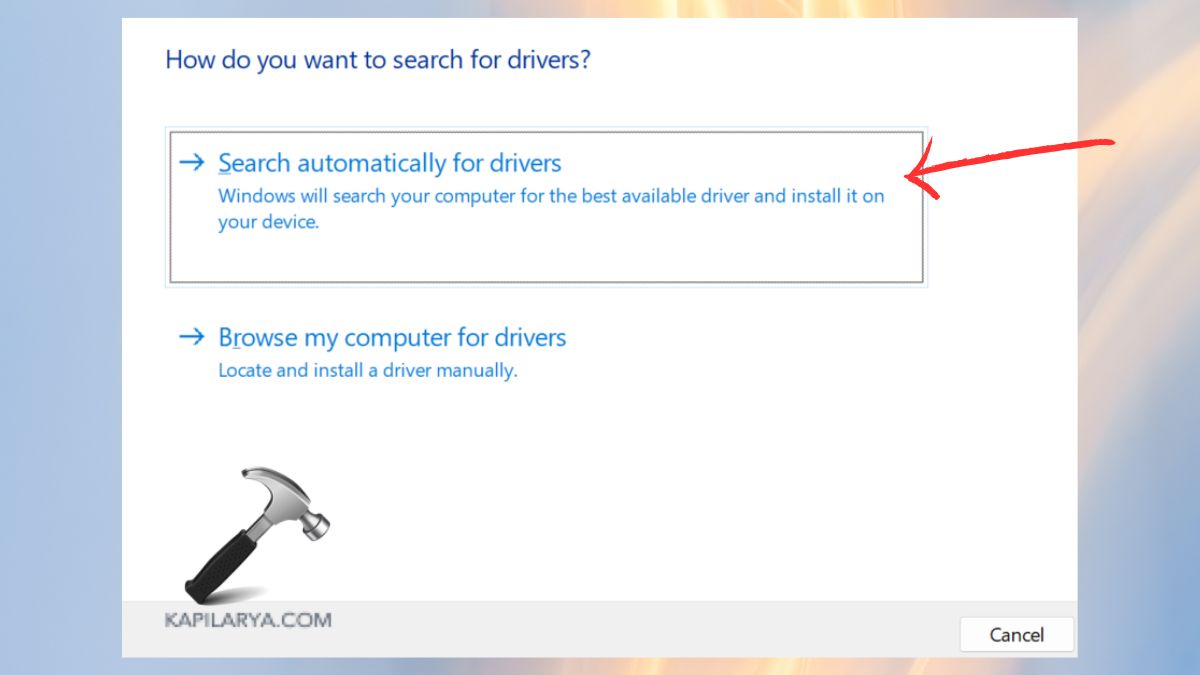
Fix 5: Check for Windows Updates
Display driver improvements and bug fixes are many times found in Windows Update.
1. Press Win + I to open Settings. Go to Windows Update.
2. Click Check for updates.

Install updates as required. Restart your PC. With the update in place, Windows can identify your monitor, and this will be the replacement of the Generic PnP driver.
Fix 6: Run SFC Scan & Hardware Troubleshooter
Generic PnP Monitor problem can be presented in case of corrupted system files. These files are fixed with running SFC (System File Checker).
1. Search CMD in the Start Menu. Right-click run as administrator.

2. Type the command. Press Enter and wait.
sfc /scannow

3. Press Win + R, type this command. Hit Enter.
msdt.exe -id DeviceDiagnostic
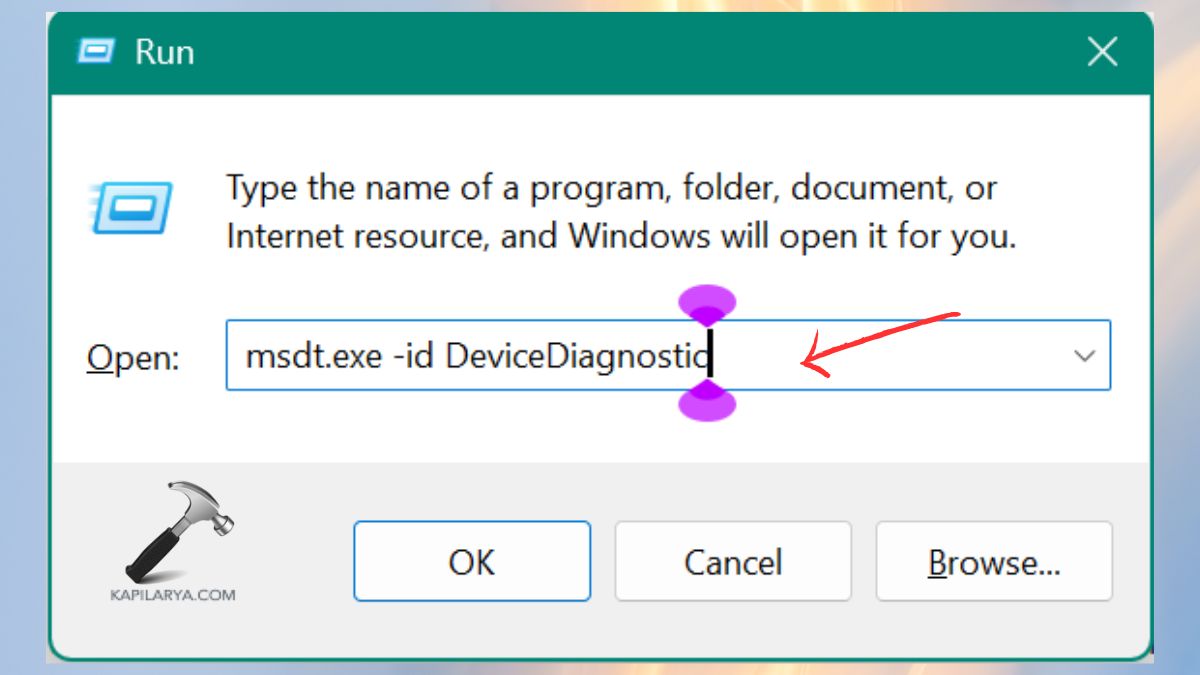
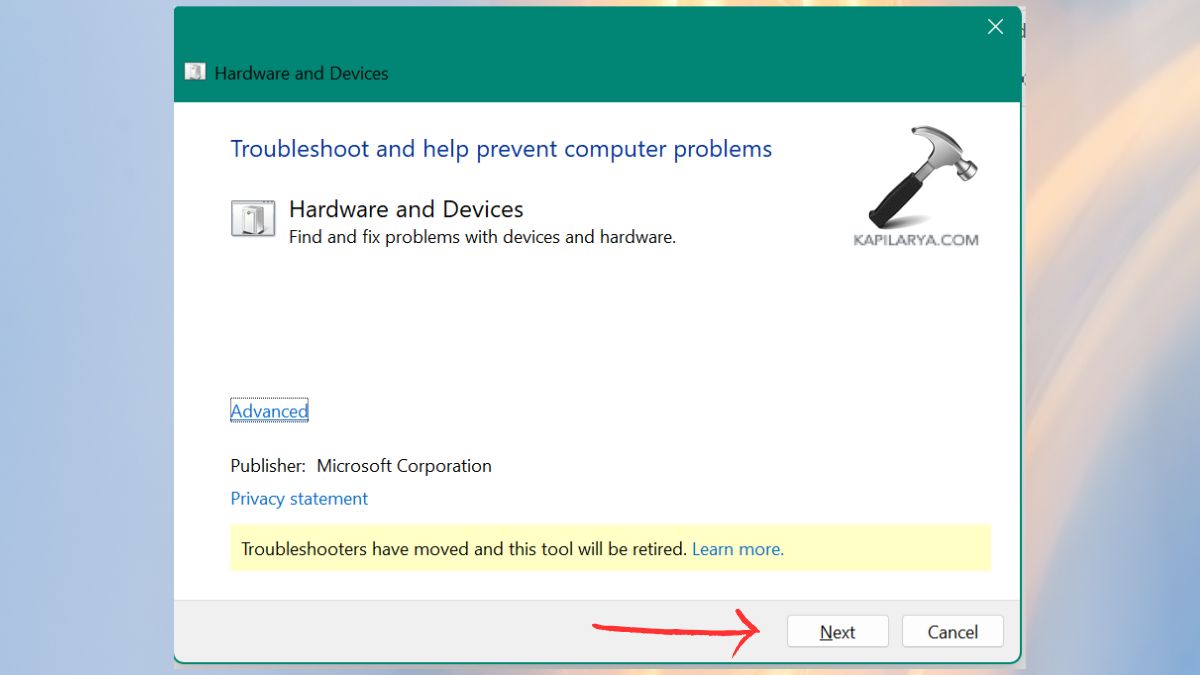
4. Activate the troubleshooter and do as indicated. This aids in correcting system-related problems, such as broken drivers.
Fix 7: Update or Roll Back Your Display Card Driver
There is always a problem with updating your GPU driver. In case the Generic PnP problem has been occurring since a new update has been made, then rolling down the driver could be the answer.
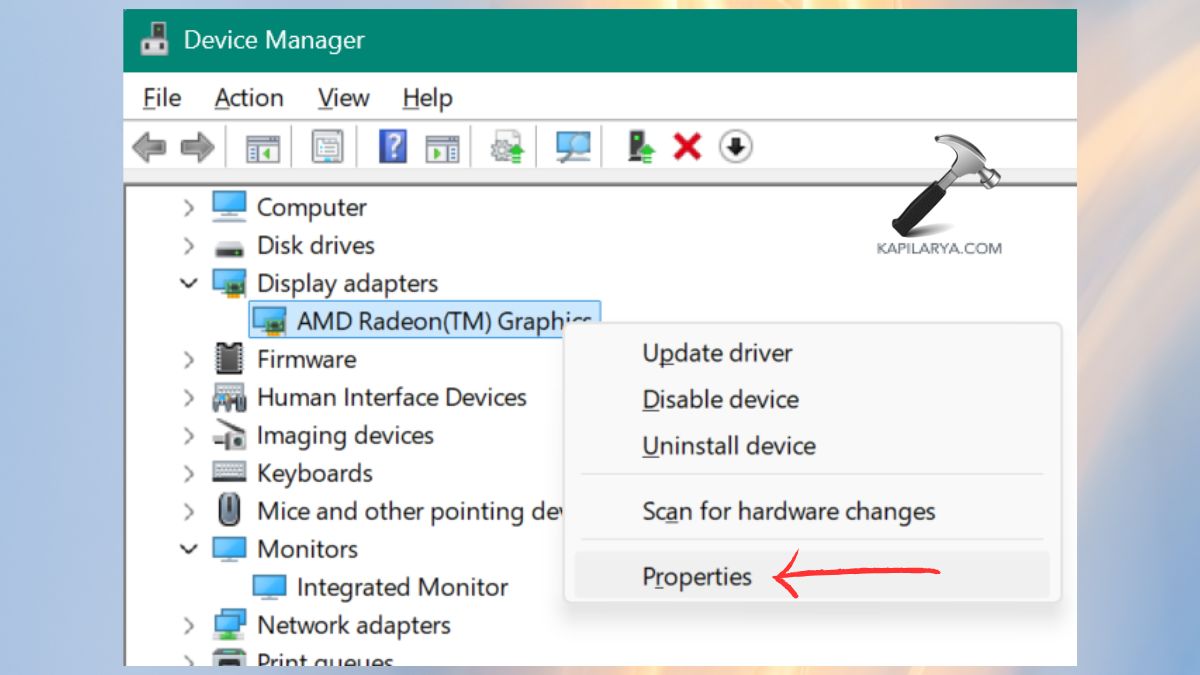
1. Open Device Manager. Expand Display adapters.
2. Right-click the GPU > go to Properties.
3. Go to the Driver tab. Click rollback driver if not greyed out (where applicable). In case this is disabled, then you can get an older version manually on the site of your GPU manufacturer.
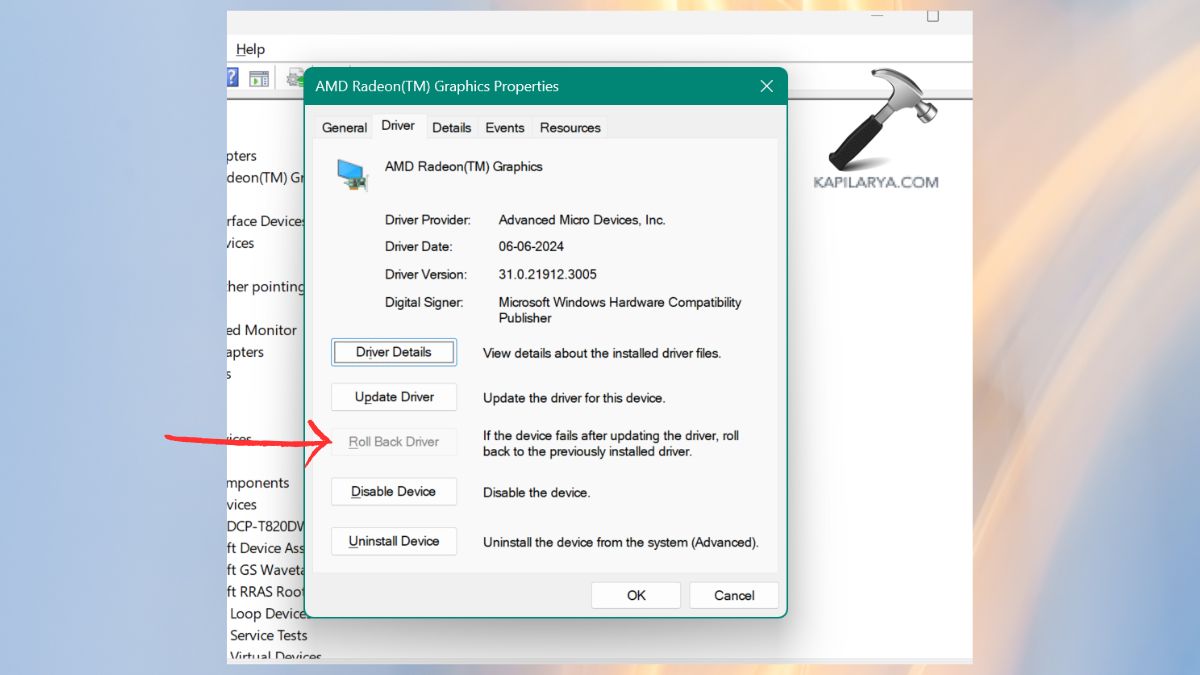
Rollback is usually a quick, popular fix to recognition issues.
Fix 8: Install Official Monitor Driver From Manufacturer Website
In case all the methods above fail, this is most likely because your monitor brand has an automatic driver that Windows is not loading.
1. Go to the official support site of your brands (Dell, LG, Samsung, Acer, HP, etc.). Any monitor model you are interested in.
2. Download monitor driver/.INF file. Install the driver.
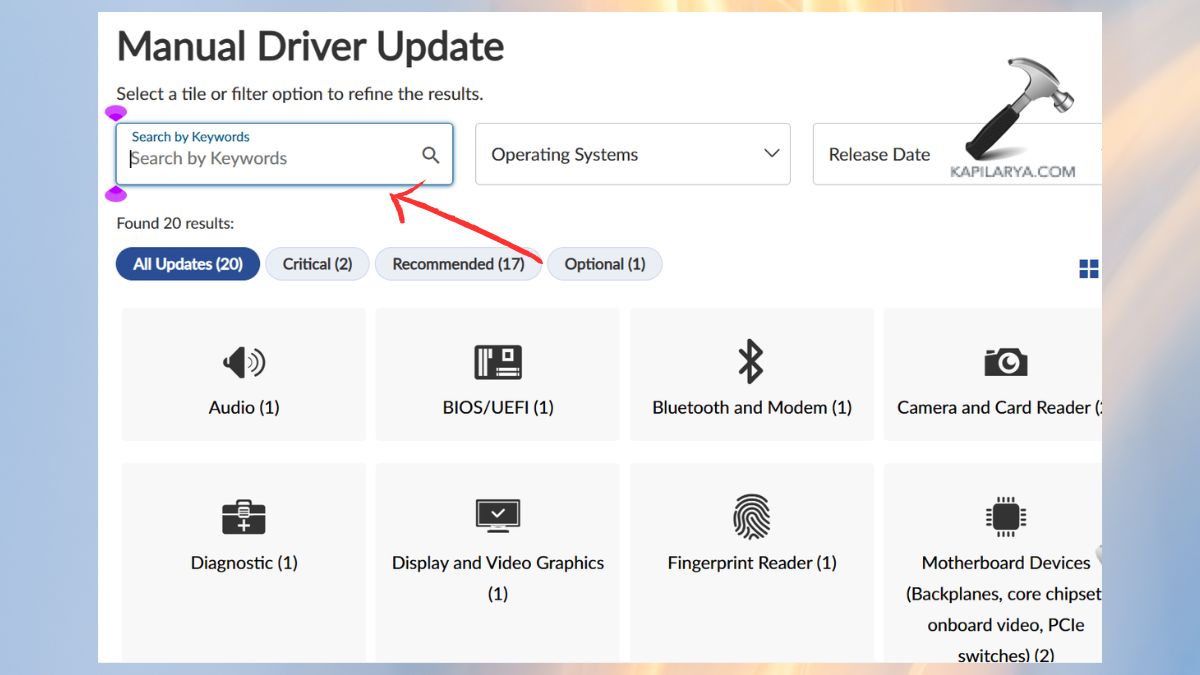
Then, restart your PC. This will overwrite the Generic PnP driver with the actual one, restoring the functionality to full.
Frequently Asked Questions (FAQs)
Is Generic PnP Monitor harmful?
No. It is a default driver, although it restricts display functionality, like resolution, refresh rate and accuracy of colour.
Why is my monitor showing Generic PnP Monitor?
Windows were unable to recognize your display properly, normally by either lacking or outdated drivers, or a loose or closed cable to the display.
Should I uninstall Generic PnP Monitor?
Yes, if it’s causing issues. Removal will automatically make Windows install the correct driver.
How do I permanently fix the issue?
A combination of:
- Correct GPU drivers.
- Official monitor drivers.
- Windows updates.
The issue can be resolved by the use of good-quality display cables.
That’s it!