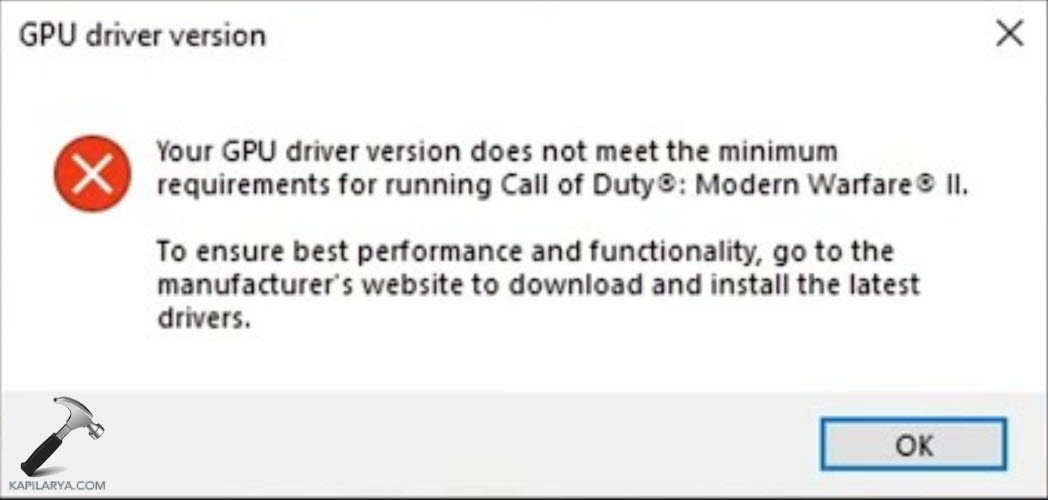
The users of Windows 11 might at times come across the issue of the error message, ‘Your GPU driver version does not meet the minimum requirements’ appearing on their PC screen while trying to launch a PC game such as Call of Duty, Fortnite, etc. This issue might occur when the GPU or Graphics Processing Unit of the PC is incompatible with the game or does not meet the requirement to launch the game. However, this issue does have some solutions which the users can try to solve the issue of GPU not meeting requirements.
Page Contents
Your GPU driver version does not meet the minimum requirements
The error message of Your GPU driver version does not meet the minimum requirements can occur due to several reasons, such as outdated version of graphics, the system not meeting the minimum requirements, etc. Now, let us look at all the fixes to solve the issue easily and quickly.
Fix 1: Downloading beta GPU driver version
Downloading a beta or experimental GPU driver version from a manufacturer’s website might aid in solving the issue of GPU driver version not meeting the minimum requirements. However, users must also be cautious while downloading the beta driver version of GPU.

Fix 2: Clearance of cache of graphics card
Clearing the cache of graphics card of the PC can also aid in solving the issue of GPU driver not meeting the minimum requirements. The steps to clear both the graphics card of NVIDIA and AMD are given below.
NVIDIA
Step 1- Firstly, type Windows + R and open the run dialog box. Next, copy and paste the environment variable given below and press Enter.
%localappdata%

Step 2- Here, search and open the folder of NVIDIA.

Step 3- Next, open the folders of GLCache and DXCache delete all files from both of the folders.

Step 4- Again, visit folder of %localappdata% and open the folder of NVIDIA Corporation.
Step 5- There, look for the folder of NV_Cache and open it. Thereafter, empty the folder.


Step 6- Lastly, close File Explorer and restart the PC.
AMD
Step 1- Primarily, go to the AMD Radeon Software and open the Settings menu.
Step 2- Next, go to Graphics > Advanced > Reset Shader Cache.

Step 3- Lastly, select Perform Reset and close the AMD Radeon Software after completion of all the steps.
Fix 3: Updating graphics driver
Updating the graphics driver too help in fixing the issue of GPU driver not meeting the minimum requirements. Hence, let us take a look at the steps to do that.
Step 1- At first, go to Device Manager > Display Adapters.
Step 2- Next, right-click on the graphics driver and open Properties.

Step 3- Now, visit Driver and select Update Driver.

Step 4- Further, select Search Automatically for Drivers. Thereafter, look for any graphic driver that needs update and install it.


Step 5- Lastly, restart the PC.
Fix 4: Disabling and Enabling Integrated Graphics adapter
The installation of both the integrated and dedicated graphics card in the PC and the enabling of the integrated graphics card may also lead to the occurrence of the aforementioned issue. Hence, turning off the integrated graphics with Device Manager can help in solving the problem. However, when only the integrated graphics card exists in the PC, then turning off the graphics adapter and turning it on gain can too fix the issue.

Fix 5: Checking if DirectX is up to date
DirectX is a set of Application Programming Interfaces (APIs) used for multimedia purposes. It is essential for having an updated version of DirectX for proper operation of PC games. Therefore, let us see the steps for verifying DirectX is updated.
Step 1- Firstly, type Windows + R and open the Run dialog box.

Step 2- Now, write the command given below and click Enter. It will open the DirectX Diagnostic Tool.
dxdiag
 Step 3- Next, verify if DirectX is updated. However, if it is an outdated version, download the updated version.

Fix 6: Checking minimum requirements of system
For forbidding the error text of ‘Your GPU driver version does not meet the minimum requirements’, it is essential for making sure that the PC system is meeting the minimum requirements needed for the game. The absence of these requirements will surely lead to the occurrence of this error.

Fix 7: Usage of System Restore
System Restore helps in restoring the PC to an earlier created point before the appearance of an issue. The steps for restoring the PC to a previous point are as follows-
Step 1- Firstly, visit the Start menu and search for Create a Restore point. Select the first result.

Step 2- Next, navigate to System Protection > System Restore > Next.

Step 3- Now, from the restore points, choose the desired one for restoring the PC to and press Next.


Step 4- Lastly, follow any prompt appearing on the screen for successfully restoring the PC.

Thus, following all the above fixes will allow the users to get rid of the issue of GPU driver not meeting the minimum requirements.