

The system administrator has set policies to prevent this installation in Windows 11/10 is not merely a pop-up; but is a direct indication that what your computer is currently doing is blocking the installation/updating of a program.
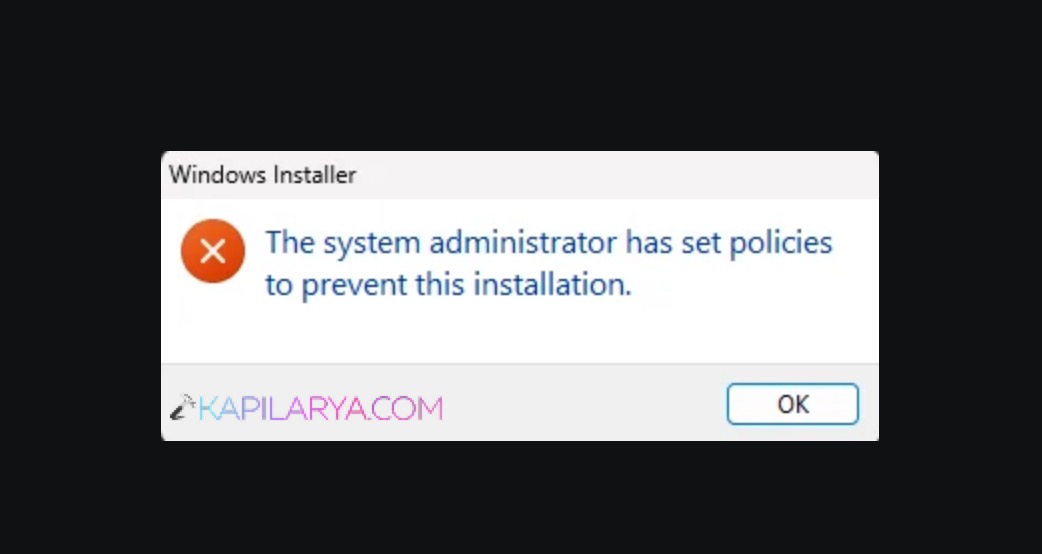
This is the most common error that occurs when attempting to install programs using MSI packages or EXE installation programs and this error occurs due to the fact that windows has certain software-restriction policies configured. Such policies tend to be designed to stop the unwanted and unsafe programs being installed and are occasionally triggered even with trusted programs.
Page Contents
Fix The system administrator has set policies to prevent this installation error
The following is the step-by-step explanation of how to fix “The system administrator has set policies to prevent this installation” error in Windows 11/10.
Quick Workarounds for Admin Users
In case you are already an administrator that has access to this PC, you might be able to get around the error fast. Succeeding in installing software despite blocking has regular occurrences in real life, as shown below.
For EXE Installers
Right-click the file. Choose Run as administrator. Permission should be allowed when requested. Installers with many privileges simply require the use of elevated privileges to run.

For MSI Packages
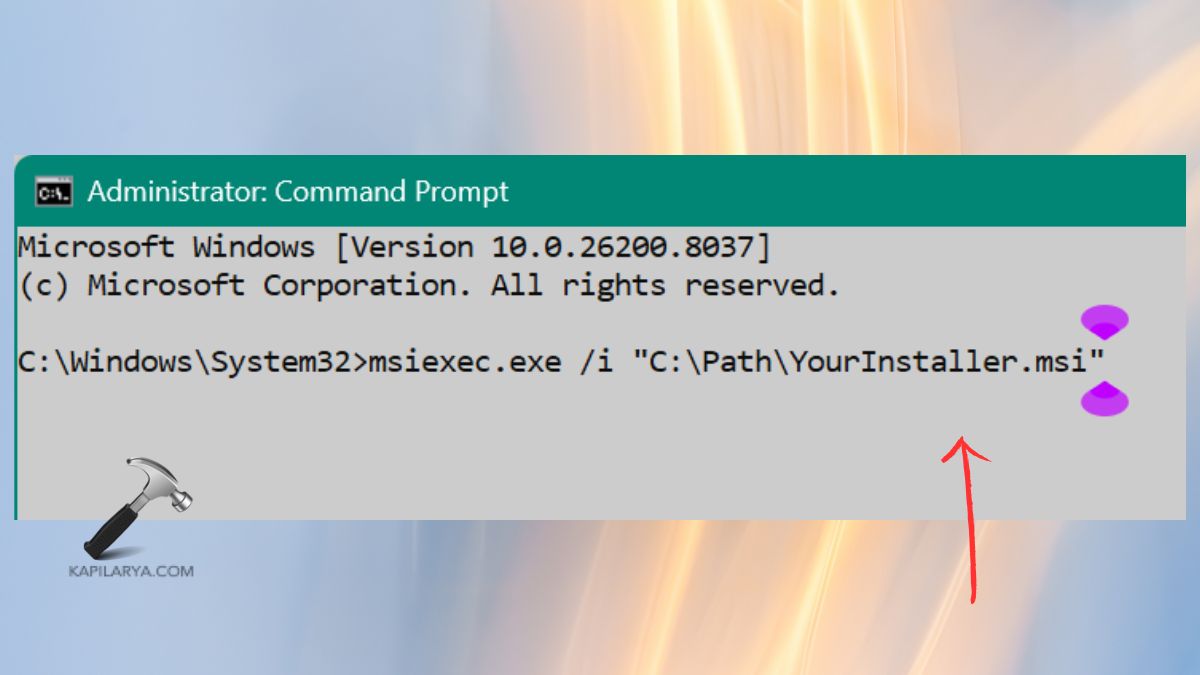
Other installers of MSI are privileged. This usually works by administrator privileges through the Command Prompt in such situations.
1. Open the Command Prompt as admin from the Start menu.

2. An execution of this command causes the MSI engine to run with access being high.
msiexec.exe /i "C:\Path\YourInstaller.msi"
Interestingly, Windows server systems are not after the same rules of installation. The default settings usually limit the possibility of updating already-installed applications except in the case of a local administrator account.
This blocks application installations such as design packages, accounting packages or business tools unless the installation policy is changed or the installer is executed with elevated permissions.
Fix 1: Run the Software Setup File as an Administrator
This is the easiest and most frequently working fix to the error of policy restrictions set by the system administrator to avoid this installation.
1. Find the installer setup file (.exe or .msi). Right-click the setup file. Click Run as administrator.
2. Allowing permission when required by UAC. In case the installer requires higher privileges, then this would be the only solution to the problem.
Fix 2: Enable the Built-in Windows Administrator Account
The issue is that sometimes, there is no installation privilege in your current account. These restrictions can be circumvented by enabling the admin built-in account, that is the default administrative account.
1. Press Win + S and type “cmd”. Right-Click Command Prompt > Run as administrator.
2. Enter the following command.
net user administrator /active:yes
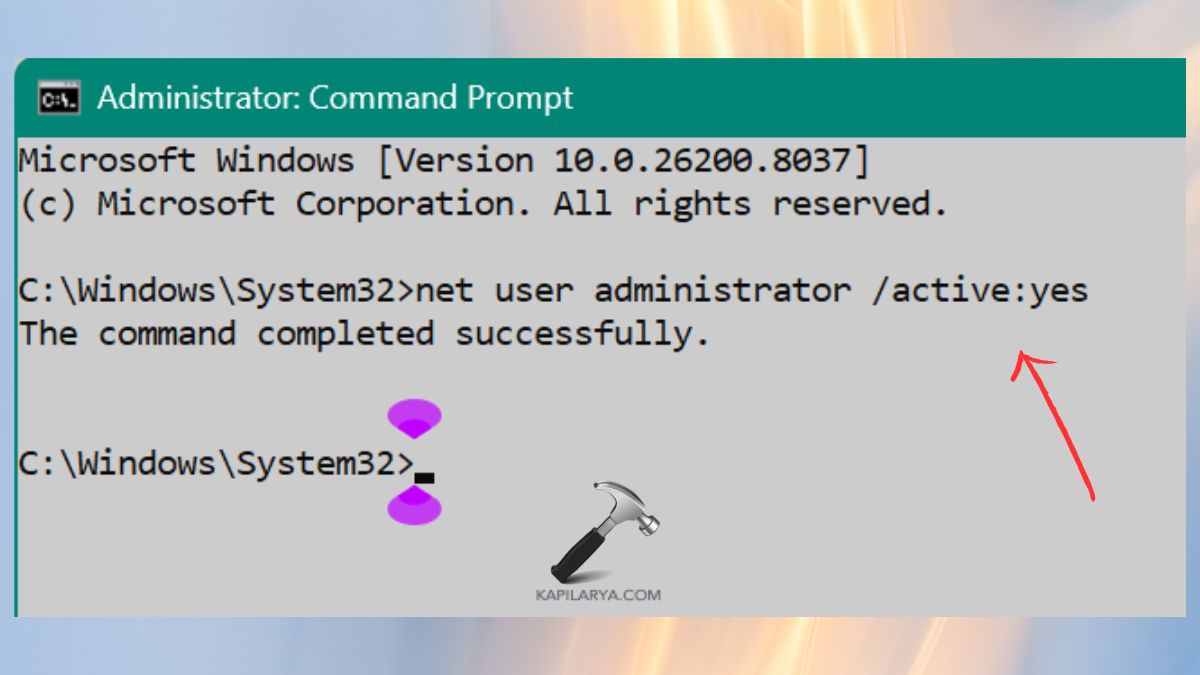
3. Restart the system. Install your software by logging in with the Administrator account.
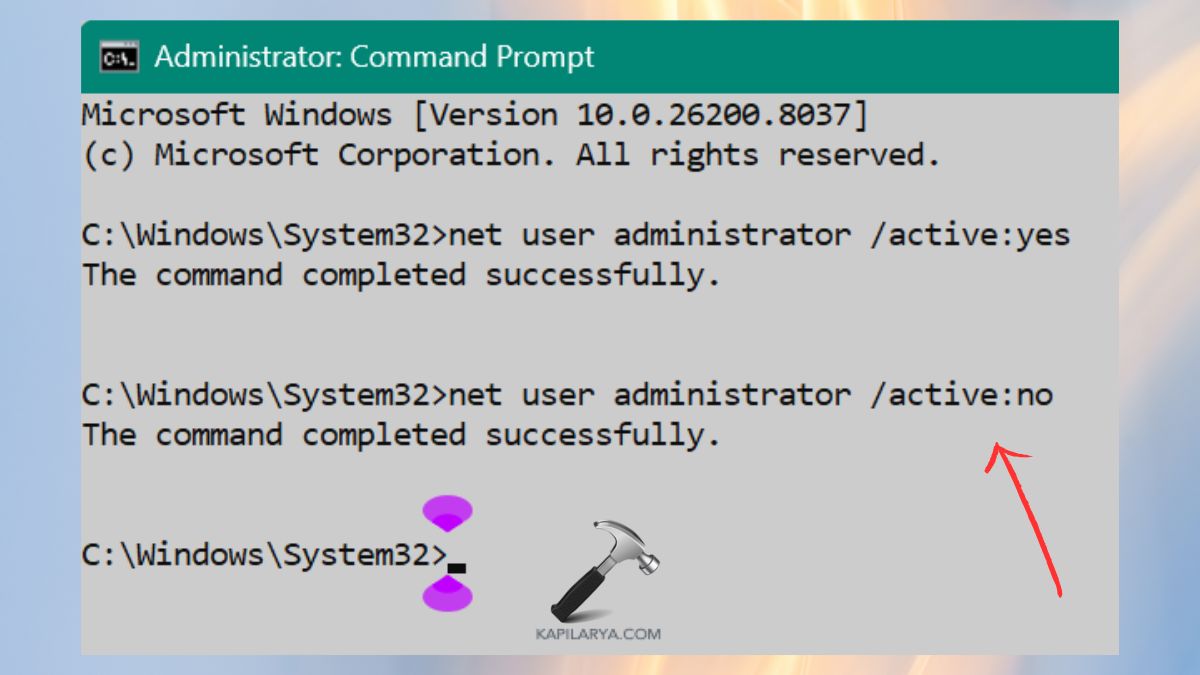
4. This command will disable this feature in the future:-
net user administrator /active:no
Fix 3: Turn Off UAC (User Account Control) Temporarily
UAC safeguards your system, although there are certain occasions when it blocks installations like they have no need of them.
1. Press Win + S and type “UAC”. Click Change User Account Control Settings.

2. Select the slider to notify Never. Click on Ok and restart your system.
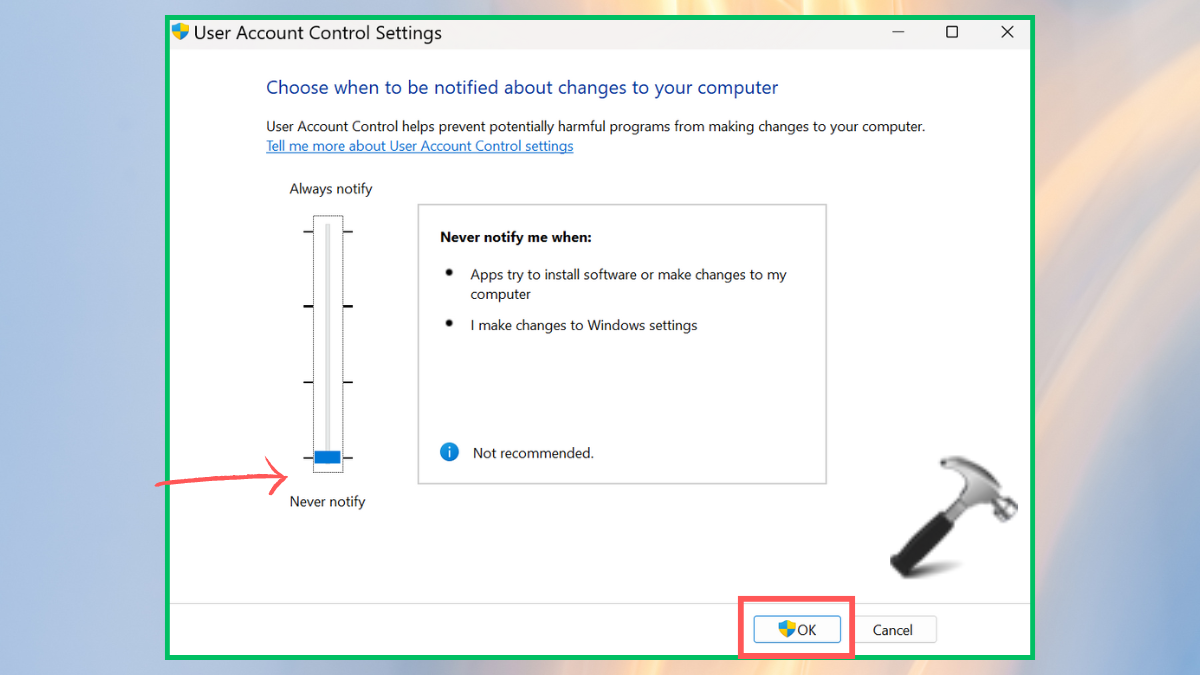
Attempt re-installation of the software. When it is installed, slide it back to be safe.
Fix 4: Restart or Enable the Windows Installer Service
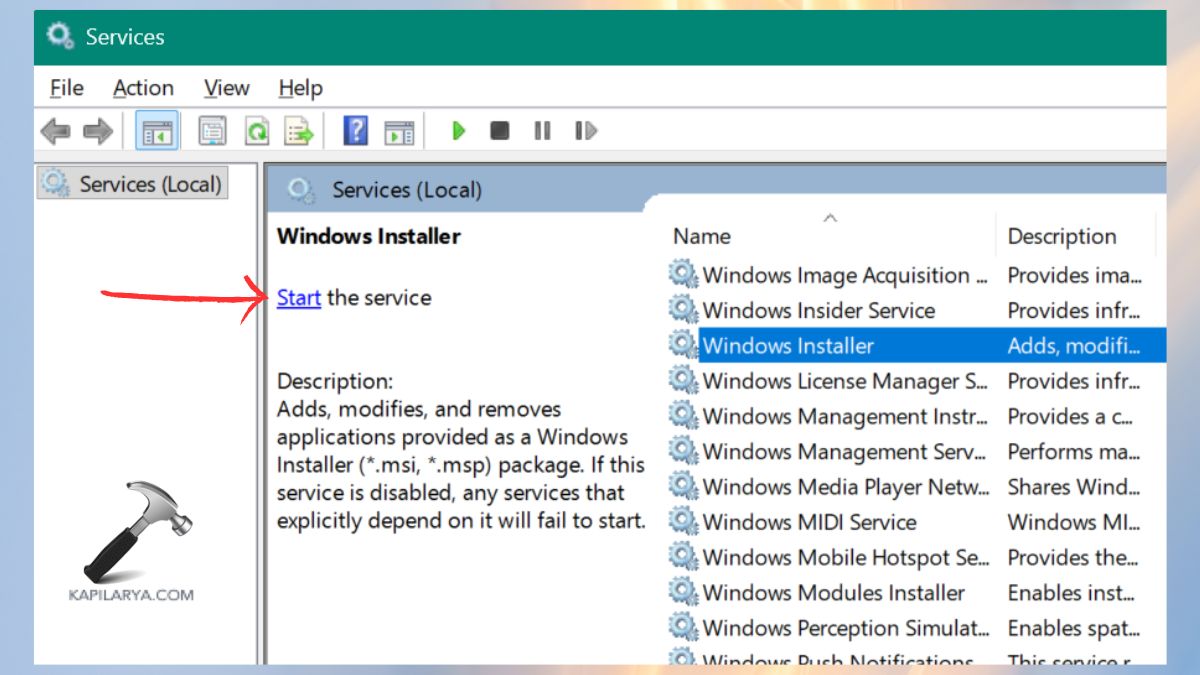
Unless the Windows Installer service is running, disabled or even hung, the permission to install will not be granted.
1. Go to Services in the Start menu and open it.
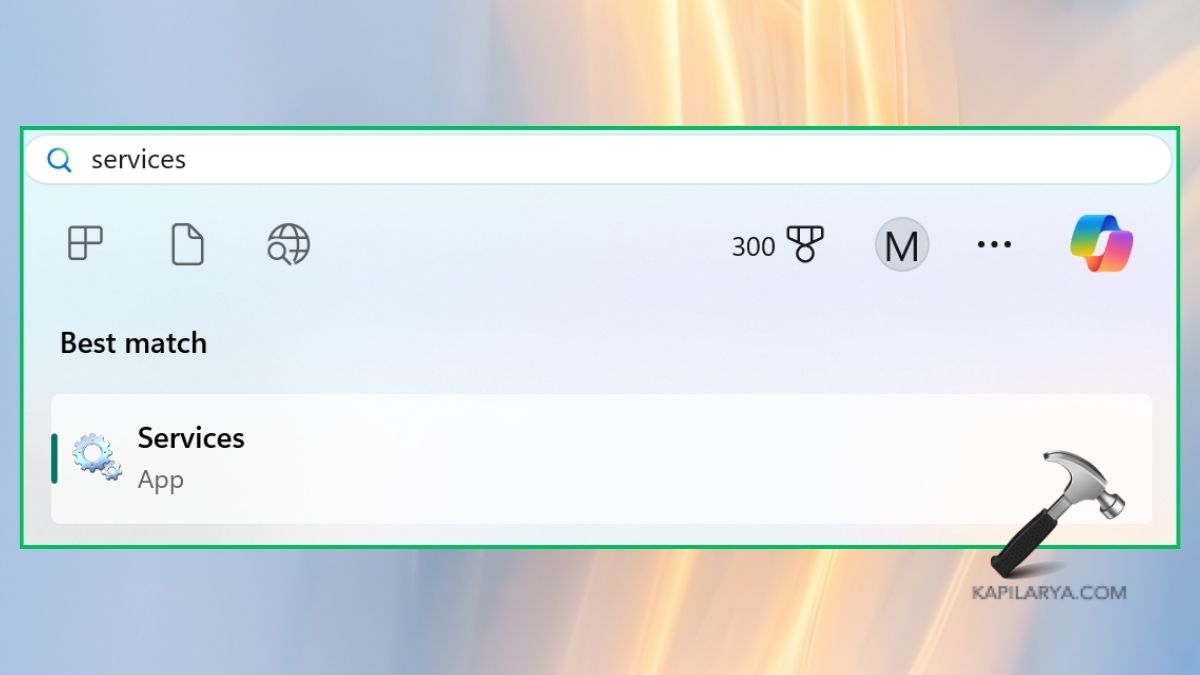
2. Scroll and locate the Windows Installer. Right click > Start (or Restart wherein one is running). Set Start Up Type to Manual or Automatic. After the service starts, it is time to run your installer again.
Fix 5: Change Group Policy Settings
This will particularly help when your Windows PC has got strict rules on what apps it allows to be installed. These limitations may be imposed either accidentally, by outdated program, or by company policies.
1. Press Win + R on your keyboard. Type this into the Run box. Pressing the button OK results into the Local Group Policy Editor.
gpedit.msc

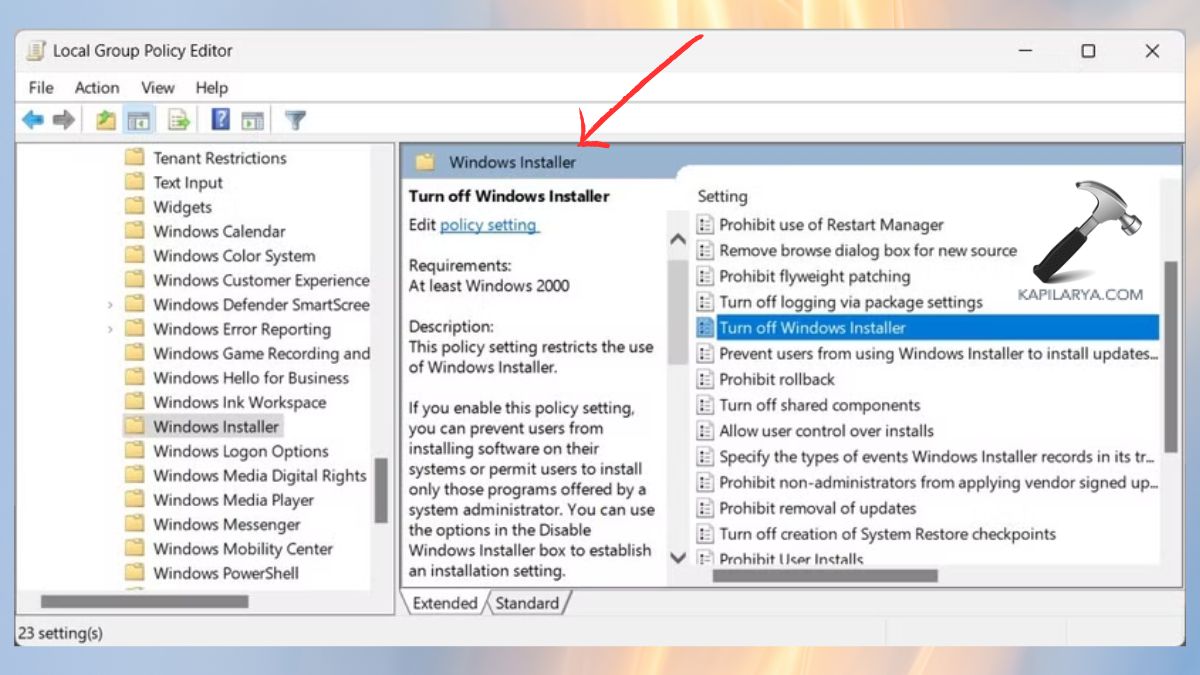
2. Under Computer setup in the left sidebar of Group Policy editor, under Computer Configuration, expand it. Click on Administrative templates, then scroll down and open Windows components. Click Windows installer.
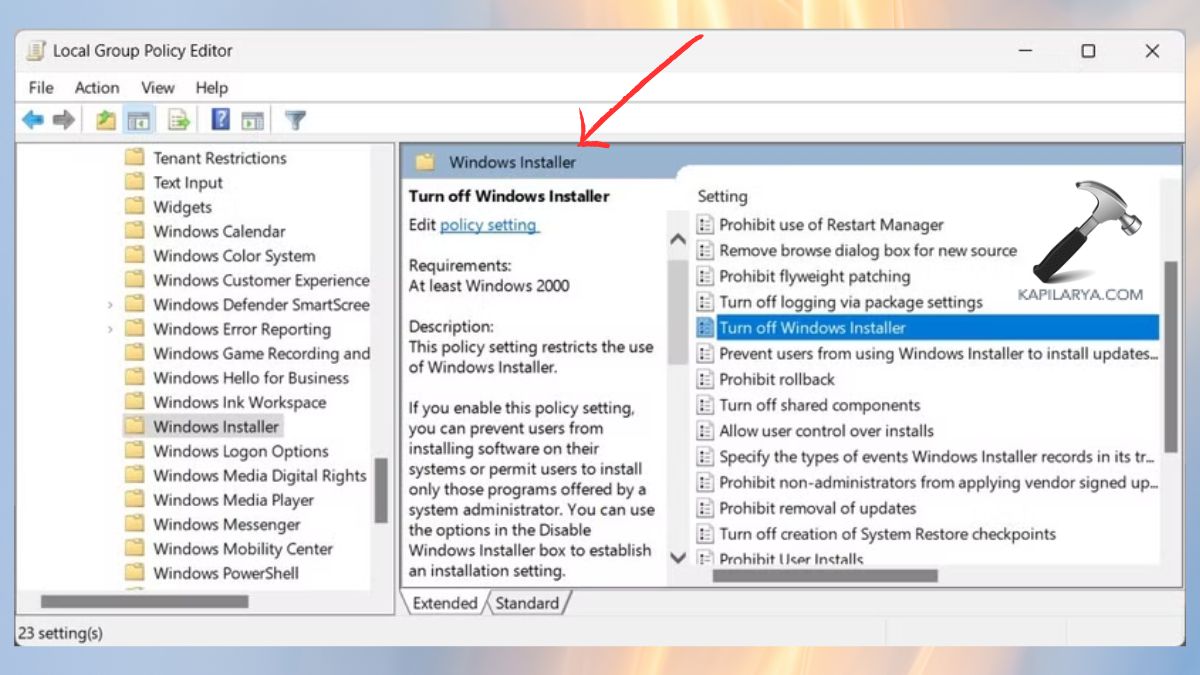
All the policies that have the ability of permitting or blocking software installations on windows are contained in this section.
3. In the right-hand side, there is a policy – Turn off Windows Installer. The option can be opened by clicking twice. Choose Enabled. Click Apply, then OK.
4. On the left sidebar, go to: Computer Configuration > Windows Settings > Security Settings.
Locate Software restriction policies. Right-click it, then get the Delete Software Restriction Policies. Click Yes to confirm.
5. Once the changes are made, make modifications to windows policies to ensure that the new policies are automatically put to use by the system.
6. Press Win + S, type cmd. Right-click Command Prompt > Run as administrator.
7. Enter the following command. Press Enter.
gpupdate /force
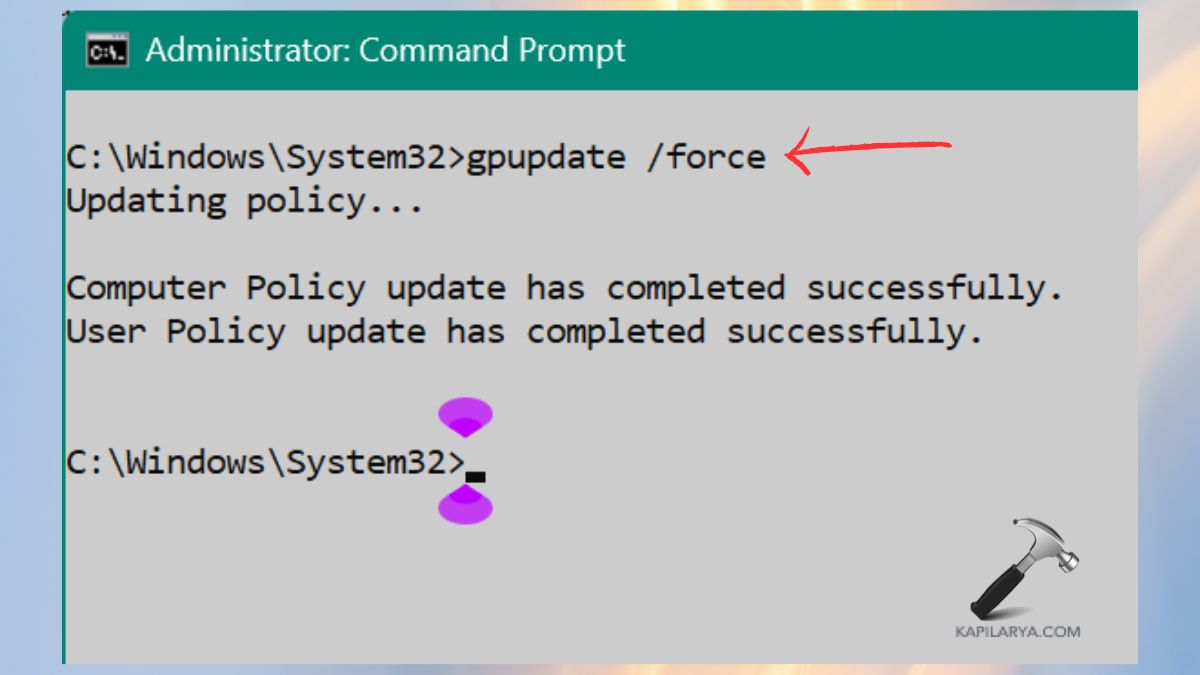
Once the update is finished you should restart your computer. This does a refresh of all Group Policies and your changes become immediately effective.
Fix 6: Edit the Installer Registry Key
In case the installer values are corrupt or restrictive, a solution to the problem is to edit the registry.
Caution: When editing the registry, take caution, improper editing may cause problems in the system.
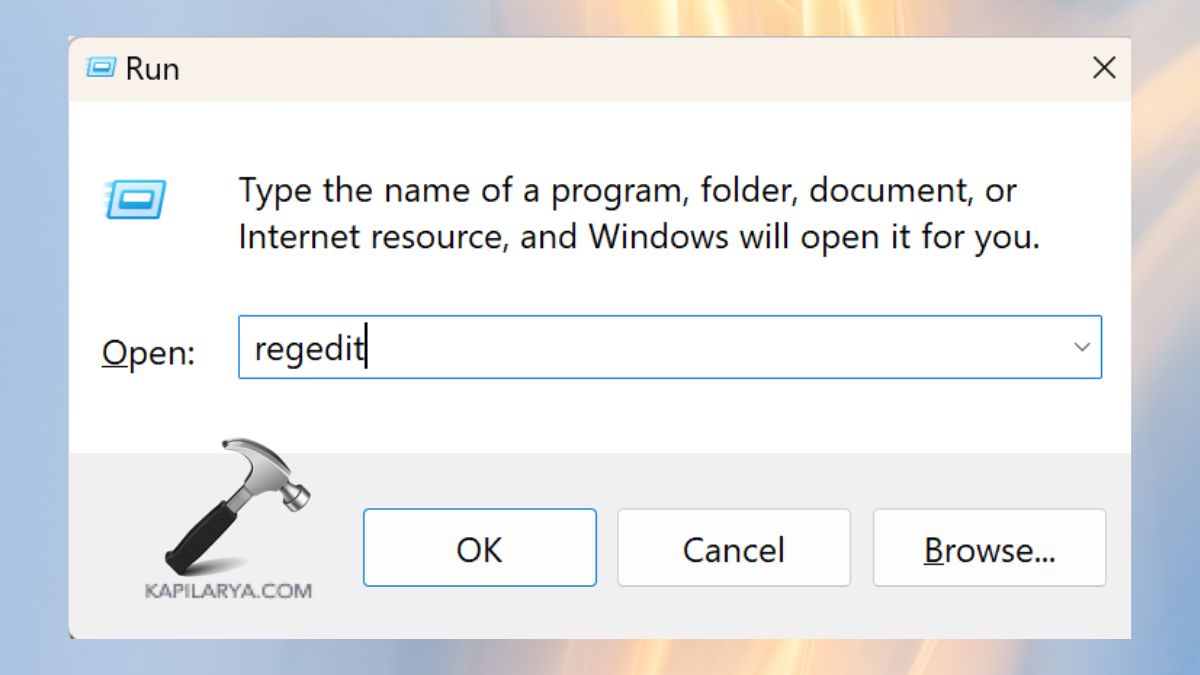
1. Press Win + R, copy-paste in this, and press Enter.
regedit
2. Navigate to this path:-
HKEY_LOCAL_MACHINE\Software\Policies\Microsoft\Windows\Installer
Look for keys like these:-
- DisableMSI
- Logging
- SafeForScripting
3. Double-click DisableMSI (unless not there). Set the value to “0”.
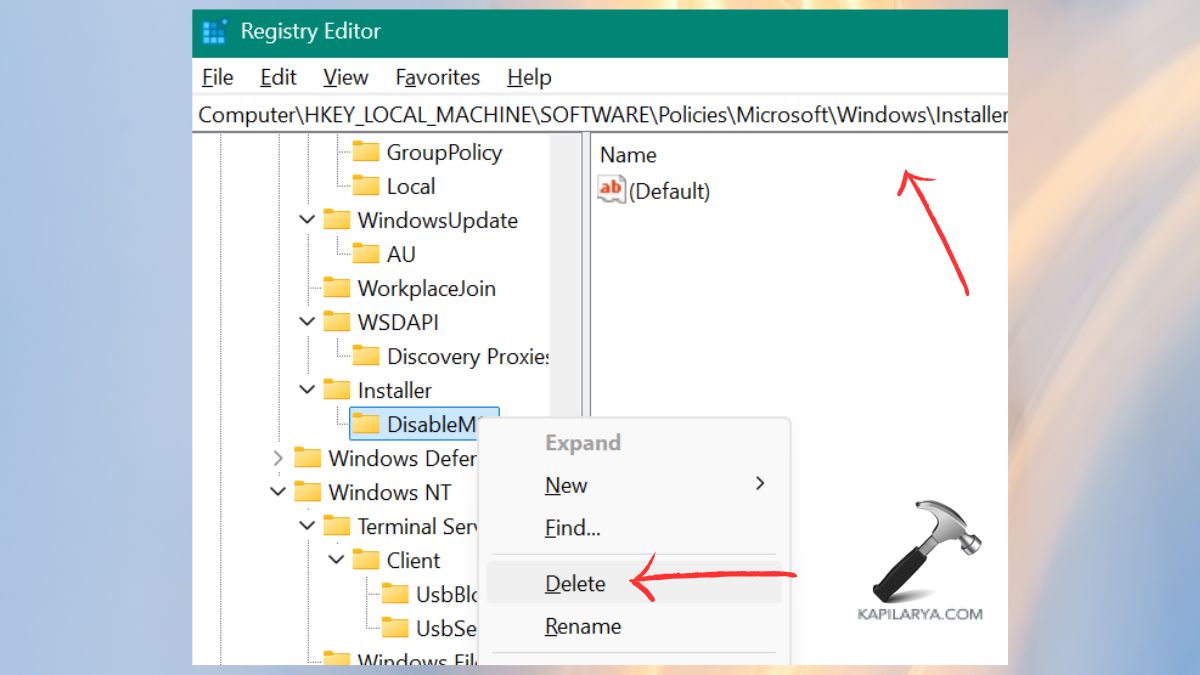
Exit the Registry Editor and reboot your system. This eliminates registry level restrictions on installations.
Frequently Asked Questions (FAQs)
Why does Windows say the administrator has set policies?
New software installations are being blocked by Group Policy, UAC or Windows Installer rules.
Is it safe to change Group Policy settings?
Yes, in case you act on the instructions of people you trust. Simply do not change other unrelated policies.
Will disabling UAC harm my PC?
Only if kept off permanently. Switch it back on after it has been installed.
Do I need admin access to fix this error?
Yes. The majority of fixes have administrator privileges to change system level settings.
That’s it!

![[FIX] ‘This Installation Package Could Not Be Opened’ In Windows 10/8/7](https://www.kapilarya.com/assets/settings_icon_windows_10_1705413498-768x432.jpg)

