Do you also have some Windows 11 version 26H2 problems? Maybe your computer has been running slower, some of the applications aren’t working, or there are driver/ compatibility problems. So, if you’re looking to uninstall or downgrade Windows 11 version 26H2, then this is for you.
Luckily, Windows 11 comes with a built-in rollback feature to repair the feature update. This is an option, though, for a limited time. This guide will show you how to rollback Windows 11 update, downgrade Windows 11 26H2, and how to handle if you don’t find the rollback option.
Page Contents
Things to Know Before Downgrading Windows 11 26H2
Here are some things to bear in mind before you begin:
- Normally, Windows 11 will allow you 10 days to go back to the previous version.
- The Windows.old and $Windows.~BT folders should still exist.
- Personal files don’t get deleted during the built-in rollback, and apps, drivers, and settings installed after the upgrade could be deleted.
- Make a backup copy of important files before continuing! Make an important file backup before continuing!
- If the previous Windows installation is deleted, you will no longer be able to roll back.
How to Downgrade Windows 11 26H2
If you have upgraded to Windows 11 26H2 and wish to revert to your previous version of Windows, then try the following approaches. Use the built-in rollback feature, which is the most simple method of downgrading without reinstalling the Windows operating system.
Method 1: Roll Back Windows 11 26H2 Using Settings
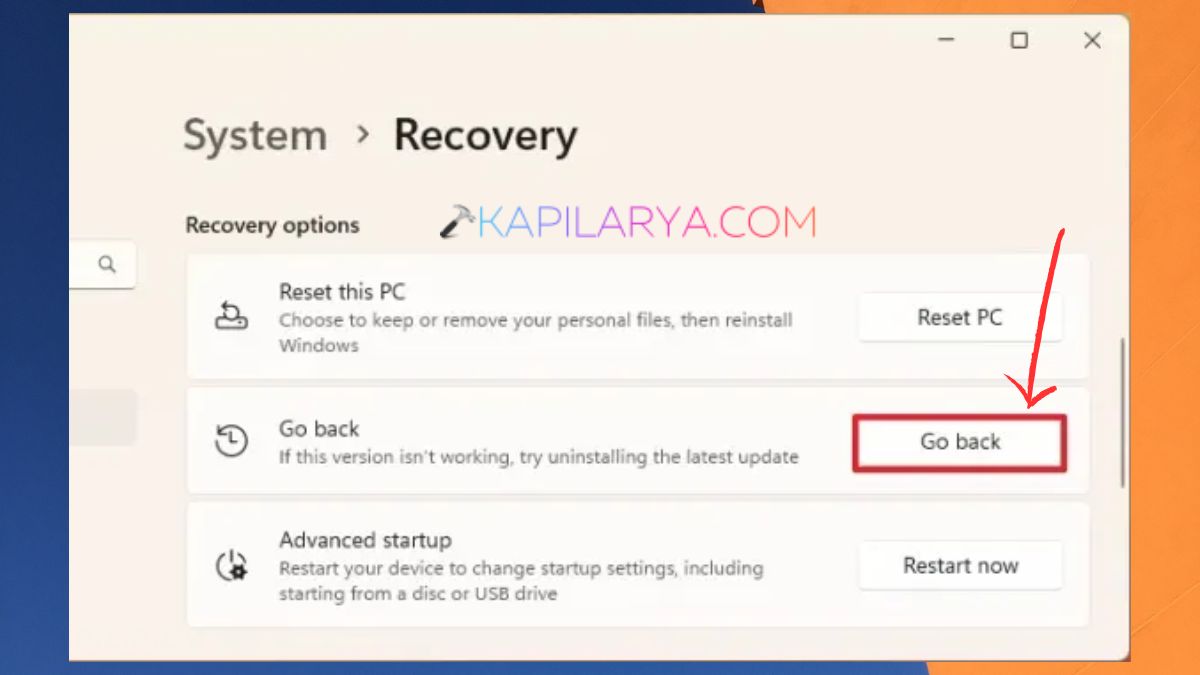
Windows 11 comes with an inbuilt Go back option, which allows you to switch back to the previous version of Windows. This is usually provided for 10 days following the upgrade.
Note: With the upgrade, your personal files are typically intact. But any applications, drivers or settings that have been installed since the upgrade may be deleted.
Follow these steps:
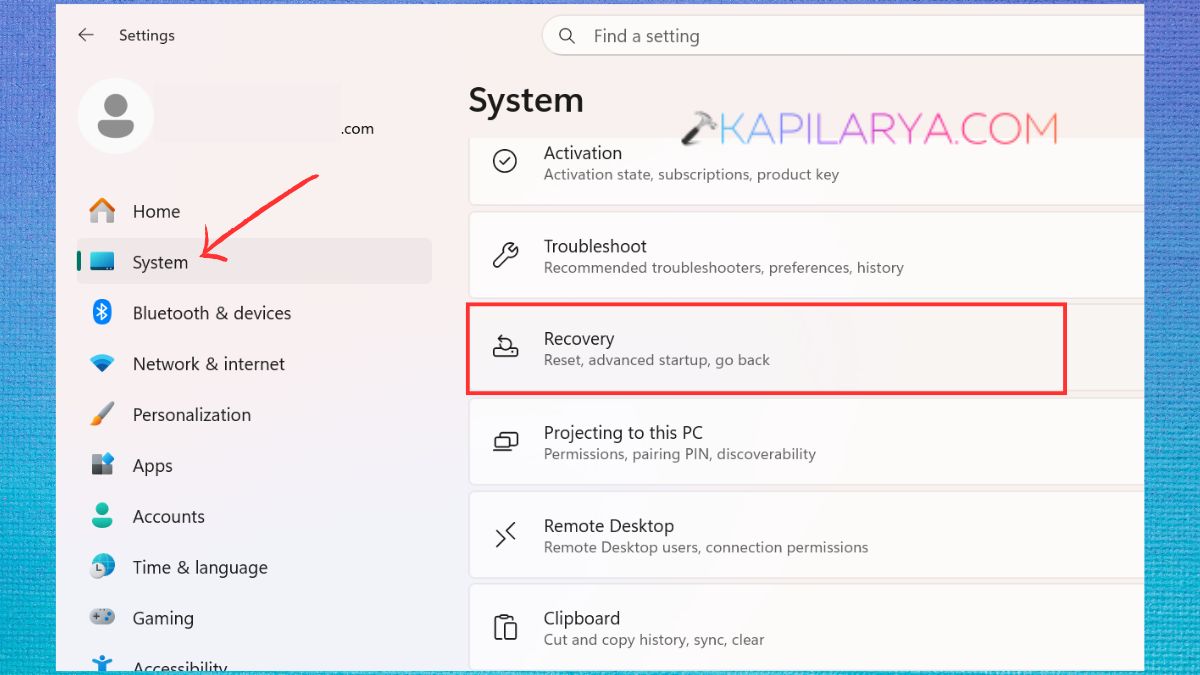
1. To open Settings, press Win+I. Select System > Recovery.
2. In the Recovery options, look for Go back. Click Go back.
3. Pick a reason for the downgrade and click Next. Now, follow the directions on the screen.
4. Click Back to the previous build if prompted to do so. Your computer will boot back up, and the old Windows operating system will be restored.
Method 2: Downgrade Windows 11 26H2 Using Advanced Startup
If you’re not in the normal Windows desktop, you may want to determine if the recovery environment includes an option to uninstall the most recent feature update.
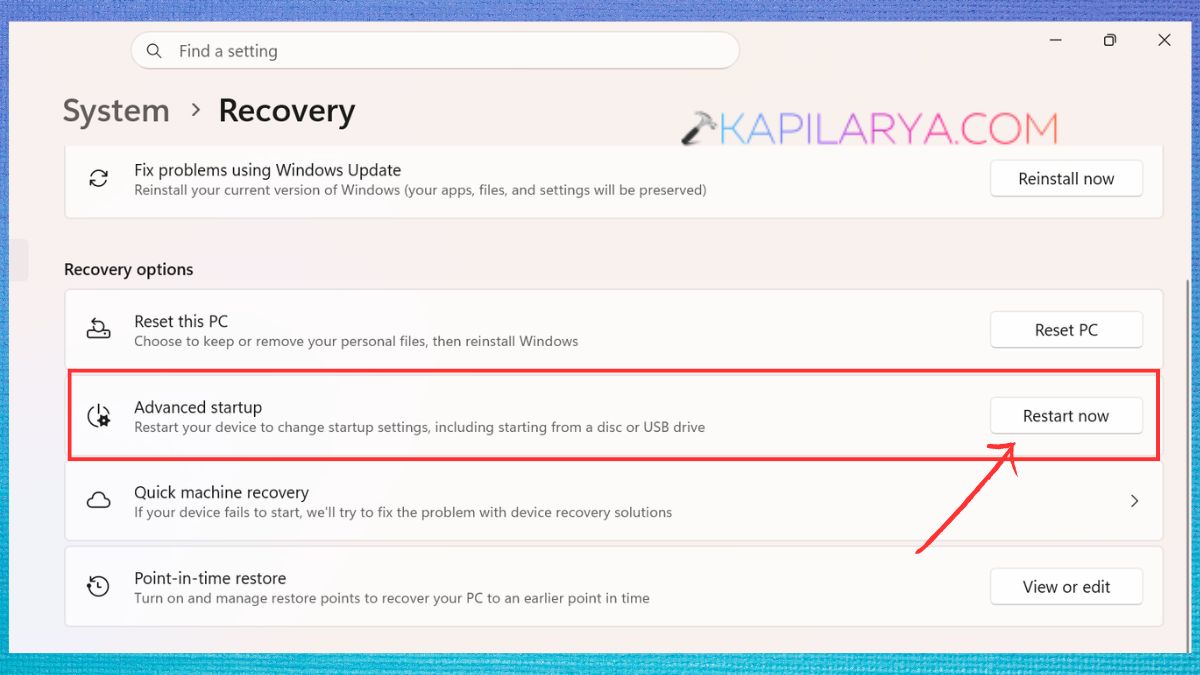
1. Again, go to Windows 11 26H2 Settings > System > Recovery.
2. Click on Advanced startup, and then select ‘Restart now’.
3. Tap on Troubleshoot > Advanced options. Choose Uninstall Updates. Determine if Uninstall latest feature update is available.
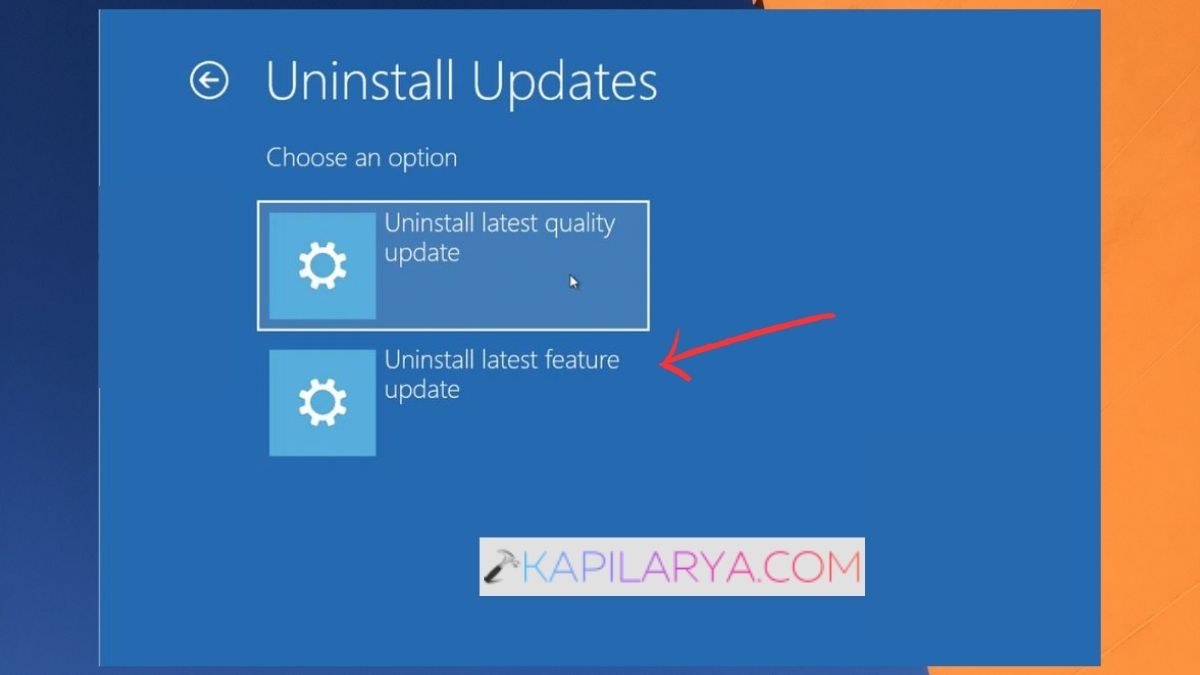
4. Follow the instructions in order to complete the process.
Note: Depending on your Windows installation and recovery environment, different types of uninstalls are available. If you are uninstalling the feature upgrade, be sure to choose Uninstall latest quality update; otherwise, you are removing only the newest quality update.
Method 3: Use DISM to Roll Back Windows 11 26H2
The Deployment Image Servicing and Management (DISM) tool can also be used to see how long the rollback will last and to start the rollback process. Hence, we will use it here.
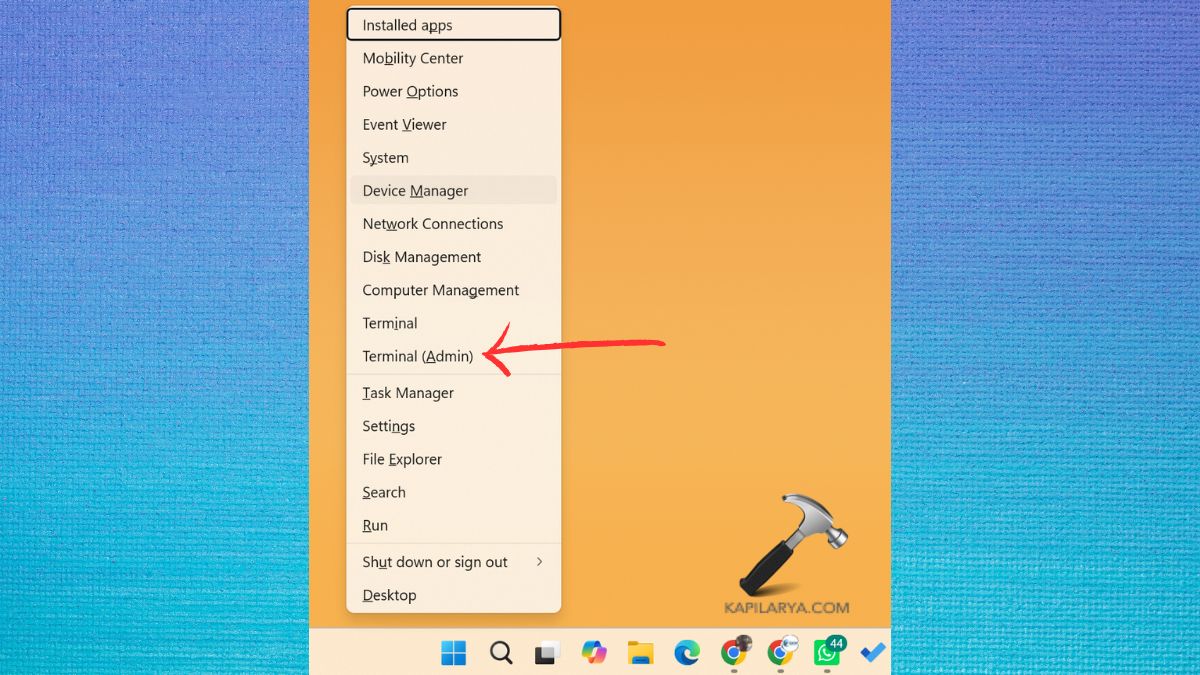
1. Right-click on Start and click Terminal (Admin).
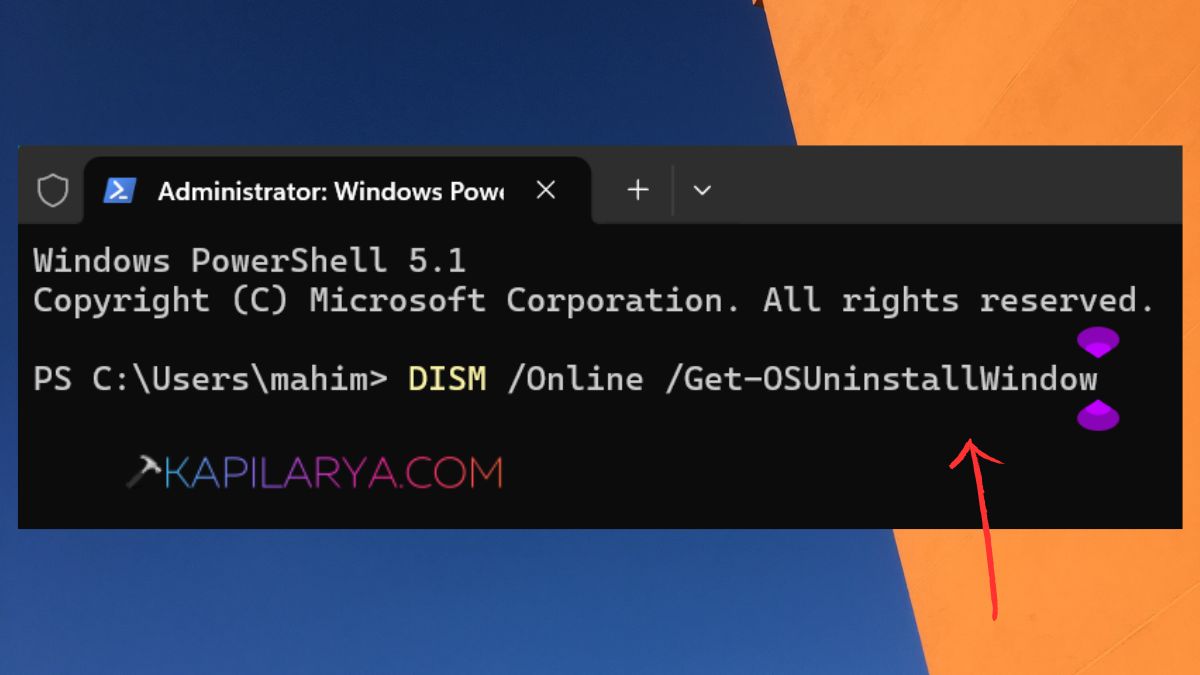
2. Run the following command:
DISM /Online /Get-OSUninstallWindow
To see the set rollback period, press Enter.
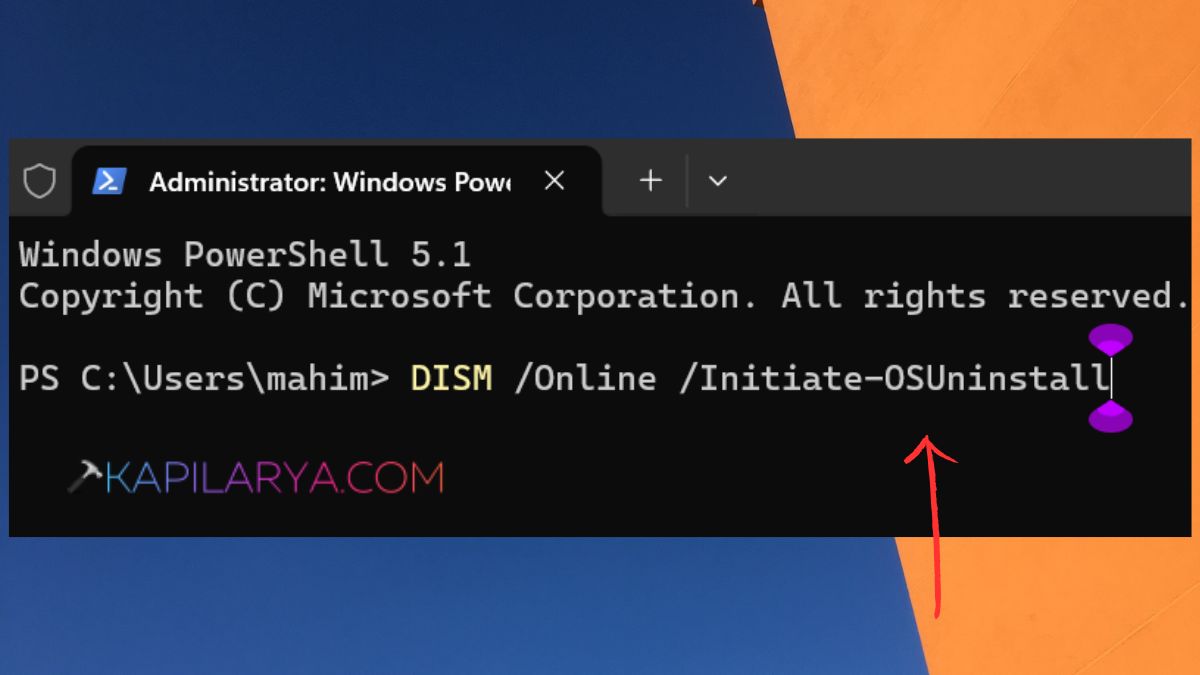
3. To initiate the rollback, type in the following command:
DISM /Online /Initiate-OSUninstall
If you are prompted to restart your computer, do so and then follow the recovery instructions.
This approach will need administrator privileges. Only works when a previous Windows installation is present.
Method 4: Extend the 10-Day Rollback Limit
Windows 11 allows you to roll back to the previous version, typically for 10 days. If you do make the change before the end of the rollback period, then it can be extended to a maximum of 60 days.
1. Open Terminal (Admin). Type in the following command:
DISM /Online /Set-OSUninstallWindow /Value:60
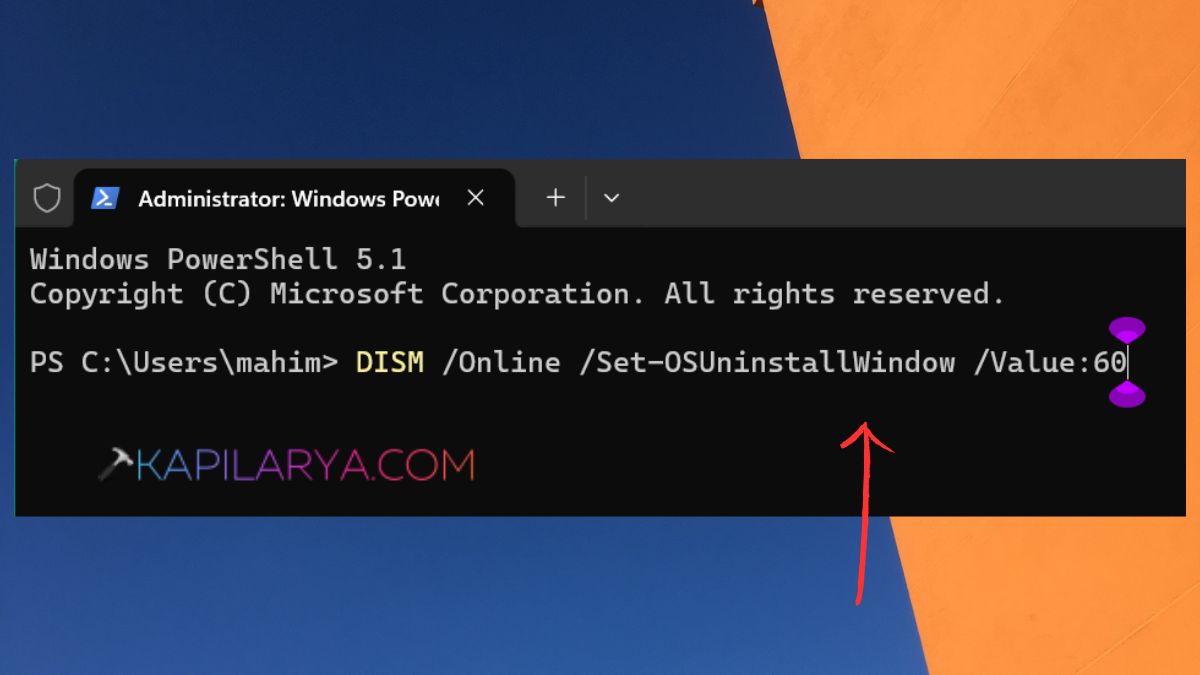
2. Use this to check the new rollback period. If it is successful, Windows will use the extended rollback period.
DISM /Online /Get-OSUninstallWindow
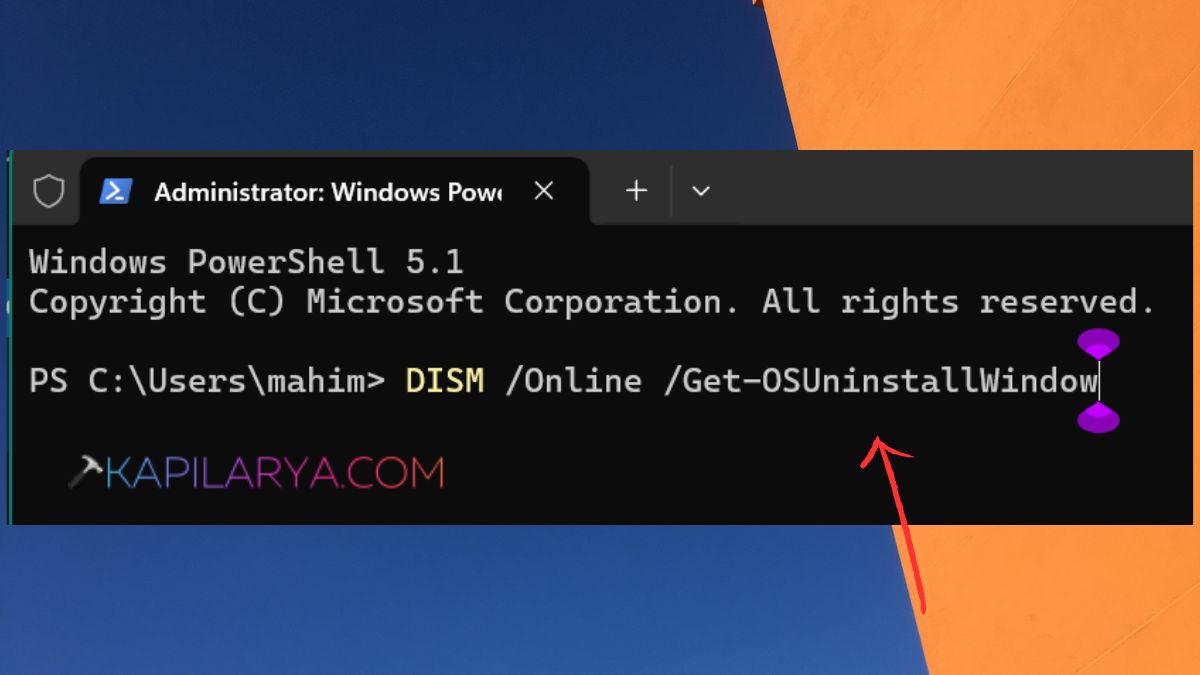
Note: Extending the time does not recover deleted installation files. You can’t use this method to restore the previous version of Windows if Windows.old has been deleted.
How to Uninstall Windows 11 26H2 Updates
But if you don’t want to downgrade the Windows version, you can uninstall a troublesome Windows Update. This can be helpful, if Windows 11 26H2 is functioning fine, but a new cumulative or security update has been installed, causing problems.
Method 1: Uninstall Recent Windows Updates Using Settings
You can uninstall some recently installed updates via Settings in Windows 11. Follow these steps:
1. To open Settings, press Win+I. Click on Windows Update > Update history.
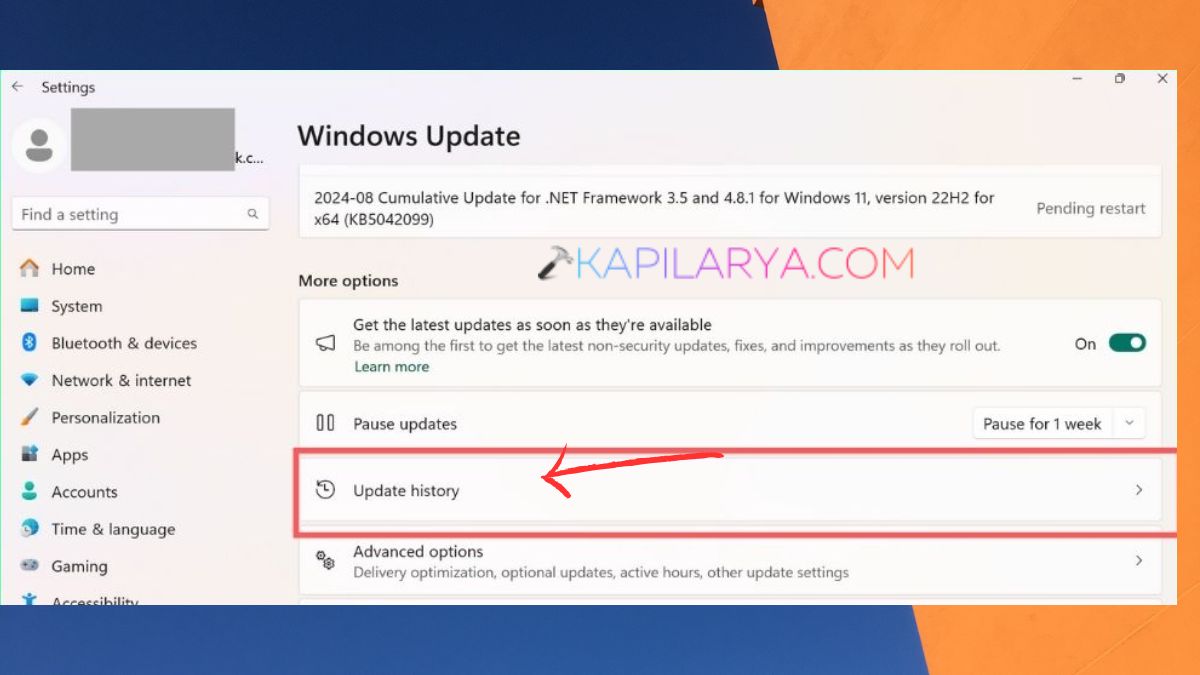
2. Click on Uninstall updates at the bottom. Locate the update you would like to uninstall. Confirm the selection and restart your computer, if necessary.

Frequently Asked Questions (FAQs)
How long do I have to downgrade Windows 11 26H2?
Windows 11 normally allows you to return to the previous version within 10 days of upgrading. This can be extended to 60 days with DISM if the previous installation files are available.
Can I downgrade Windows 11 without losing data?
Yes, the Go back option preserves personal files. But applications, drivers and settings added or modified since the upgrade could be deleted.
How do I downgrade Windows 11 after 10 days?
The “built-in rollback” option is typically gone after 10 days. Reinstalling an earlier version of Windows will be required, and the installation media must be compatible.
Will uninstalling Windows 11 26H2 remove my applications?
Built-in rollback can uninstall applications and drivers added after the upgrade. Your personal files are normally retained.
Can I uninstall Windows 11 26H2 using Control Panel?
There is no direct way to uninstall a complete Windows feature upgrade from Control Panel. Instead, use Settings > System > Recovery.
That’s it!