

The DRIVER_VERIFIER_DMA_VIOLATION error (stop code 0xE6) in Windows 11 is a Blue Screen of Death that occurs when a driver performs an invalid memory operation.
Page Contents
Fix DRIVER VERIFIER DMA VIOLATION BSOD in Windows 11
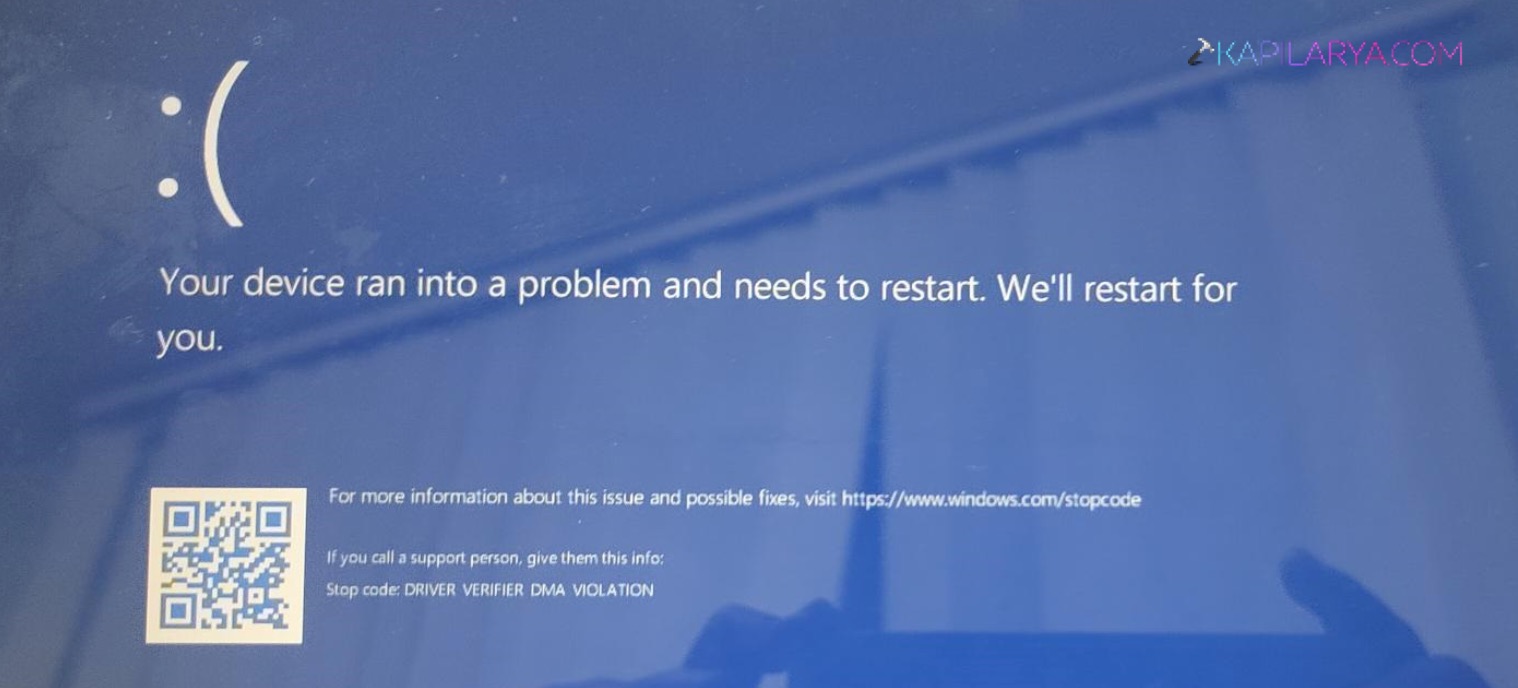
It’s usually caused by faulty, outdated, or incompatible drivers, but can also be triggered by hardware issues or firmware problems. Below are the most effective fixes to resolve this BSOD in Windows 11.
Fix 1: Disable Driver Verifier
If Driver Verifier is enabled, it can itself trigger this BSOD while testing drivers.
1. Press Win + R, type verifier, and press Enter.
2. Select Delete existing settings.
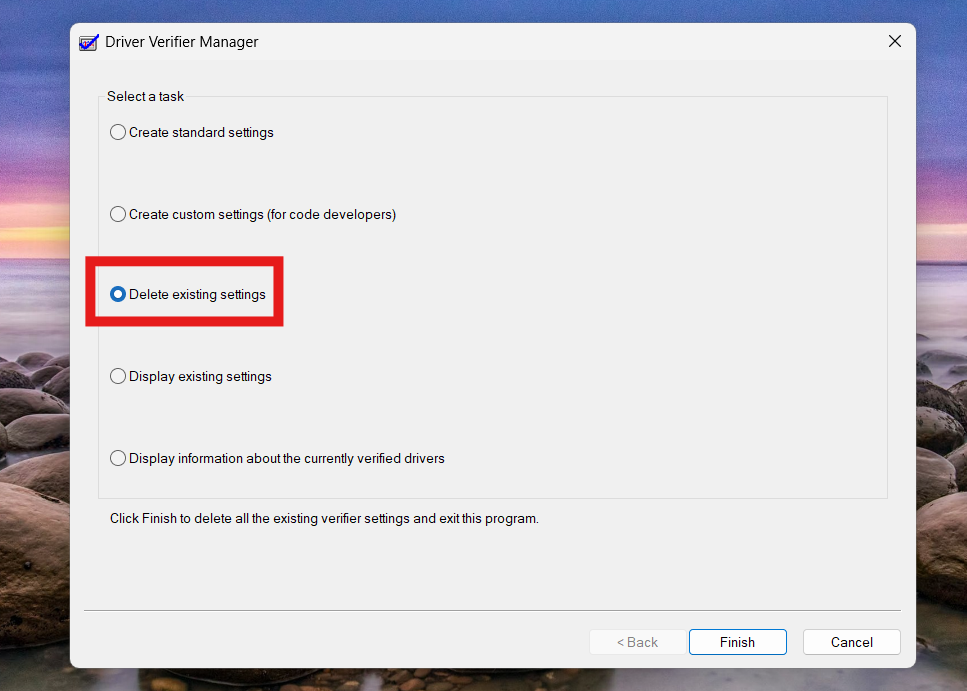
3. Click Finish and restart your PC.
4. Alternatively, run this in Command Prompt (Admin):
verifier /reset
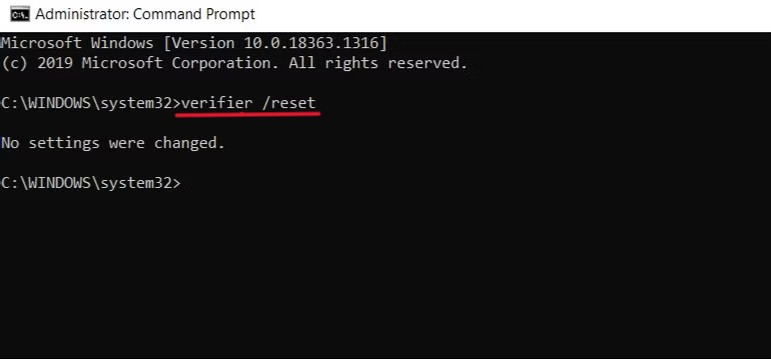
This stops Driver Verifier and often immediately resolves the crash.
Fix 2: Update or Roll Back Drivers
Problematic drivers are the most common cause.
1. Open Device Manager.
2. Look for devices with a warning icon.
3. Right-click and then click on Update driver. Select Search automatically.
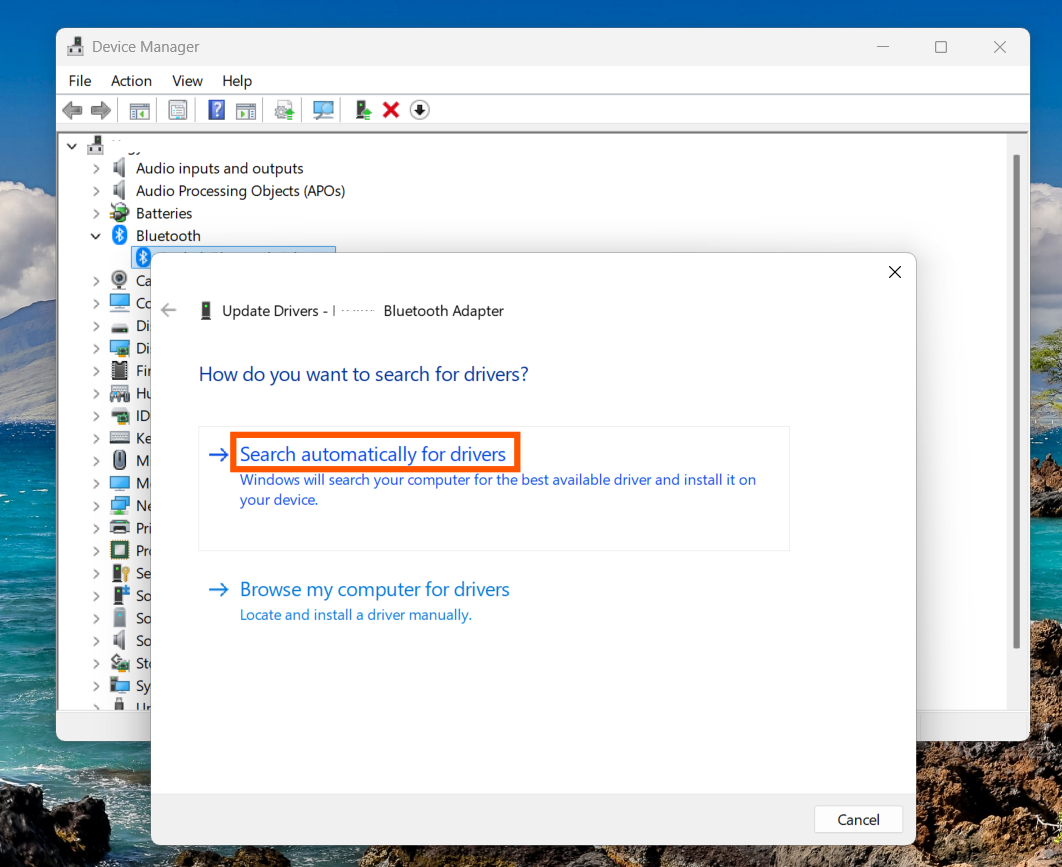
4. If the issue started after an update, choose Roll Back Driver instead by going to properties.
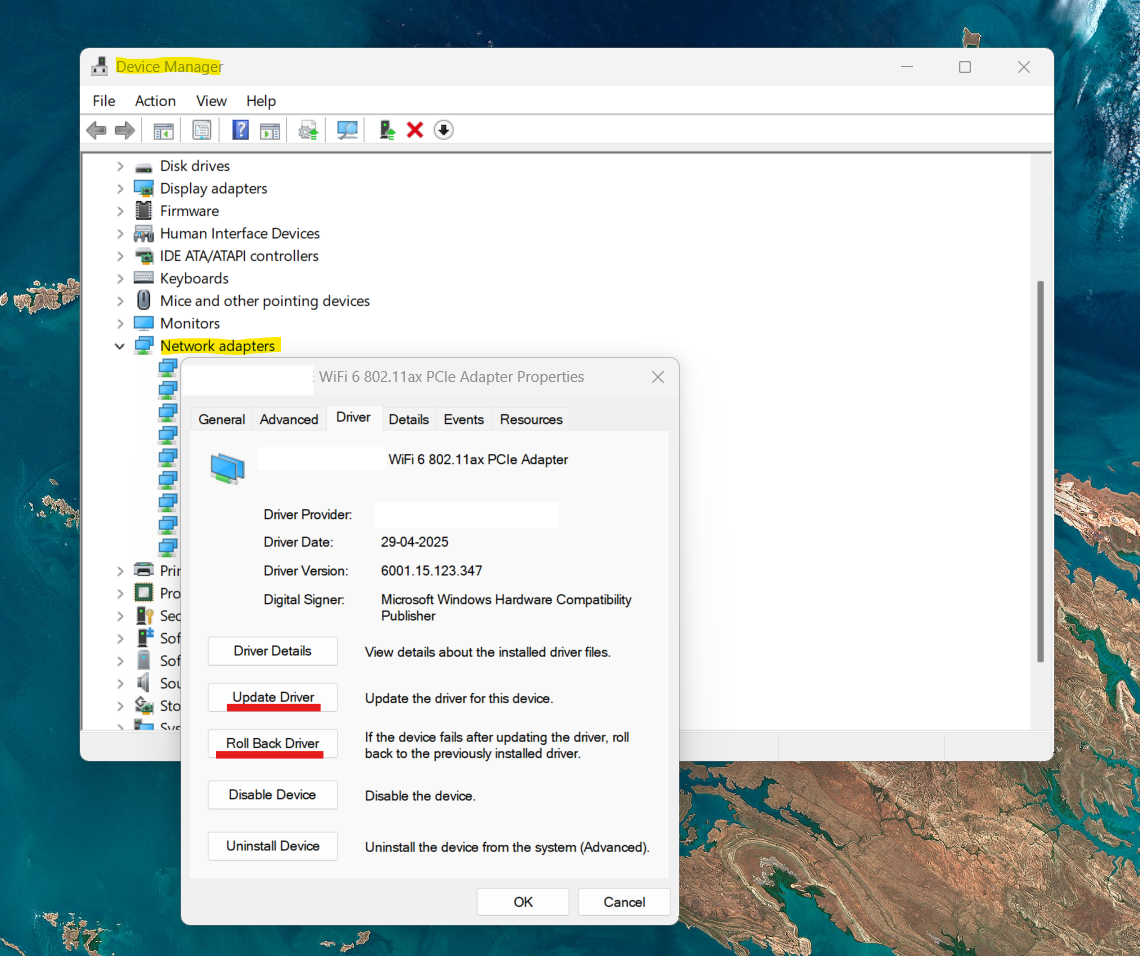
Keeping drivers updated prevents DMA conflicts and system instability.
Fix 3: Run SFC and DISM
Corrupted system files can also trigger BSOD errors.
1. Open Command Prompt (Admin).
2. Run:
sfc /scannow
3. Then run:
DISM /Online /Cleanup-Image /RestoreHealth
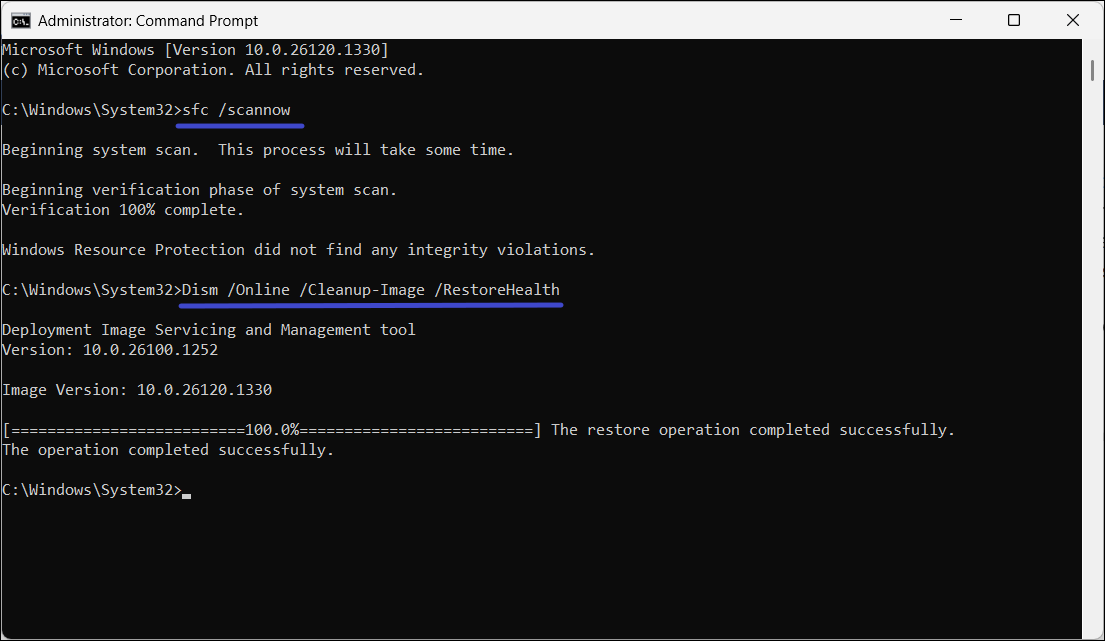
These tools repair damaged Windows files and restore system stability.
Fix 4: Check for Faulty Hardware
Hardware issues (especially RAM or motherboard) can cause DMA violations.
1. Run Windows Memory Diagnostic.
2. Check cables and connected devices.
3. Disconnect newly added hardware.
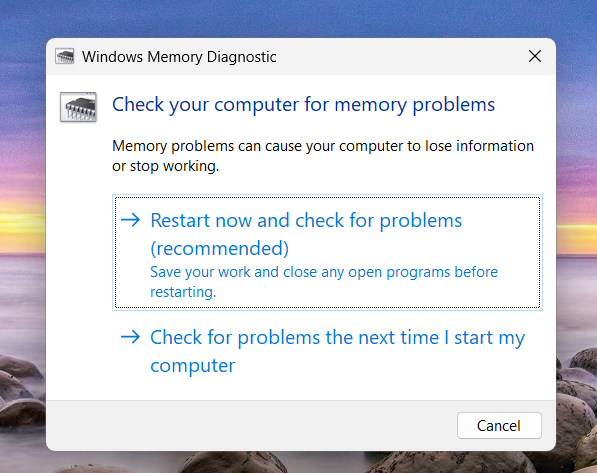
Faulty or incompatible hardware is a known trigger for this error.
Fix 5: Update BIOS and SSD Firmware
Outdated firmware can cause compatibility issues with drivers.
1. Visit your PC manufacturer’s website.
2. Download the latest BIOS/UEFI update.
3. Update SSD firmware if applicable.
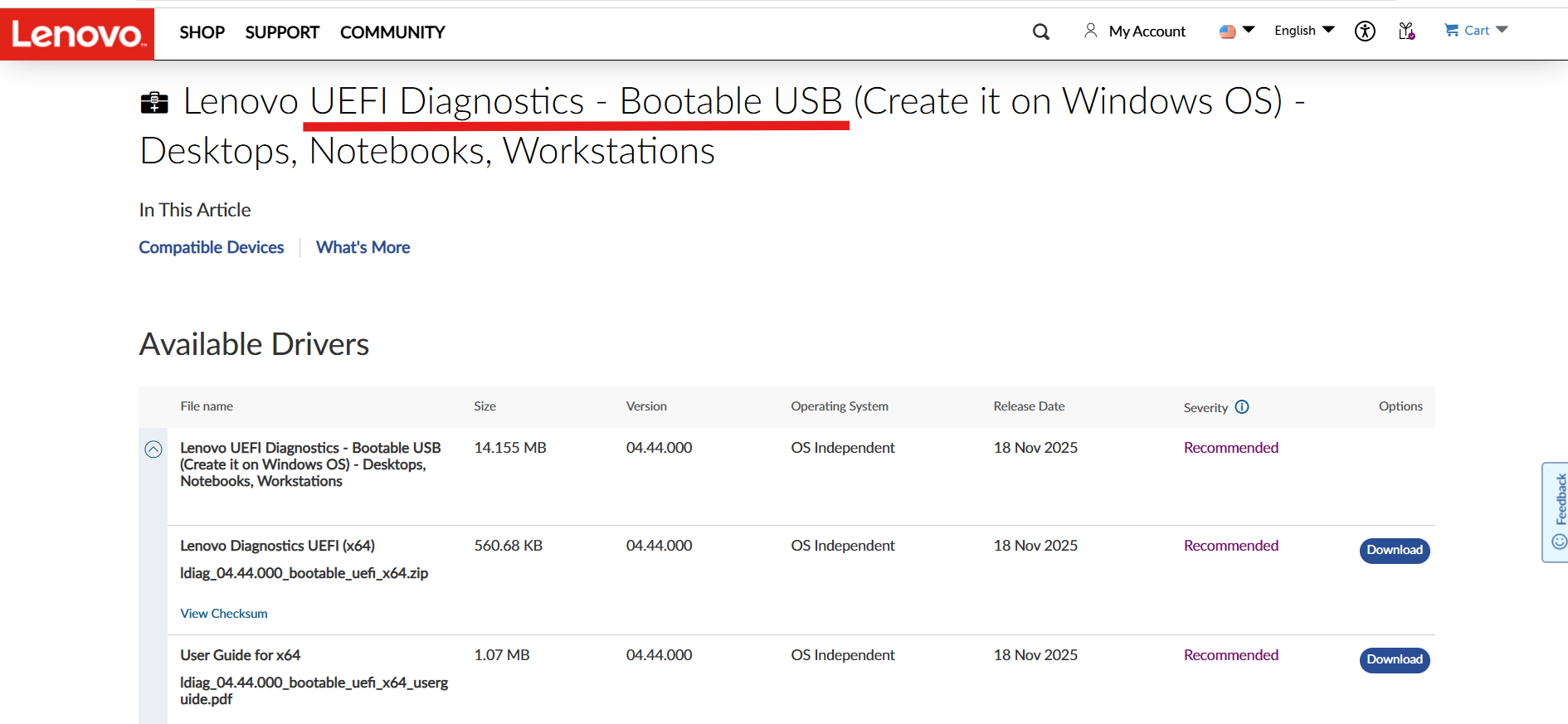
Be careful during BIOS updates, as interruptions can damage your system.
Fix 6: Use System Restore
If the error started recently:
1. Press Win + R, type rstrui, and press Enter.
2. Choose a restore point before the issue began.
3. Follow the prompts.
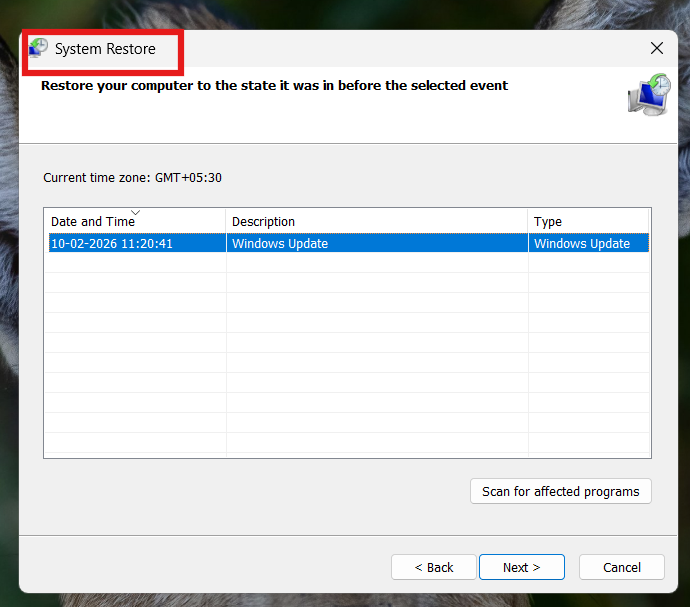
This rolls back system changes that may have caused the BSOD.
Fix 7: Boot into Safe Mode (If System Keeps Crashing)
If you can’t access Windows normally:
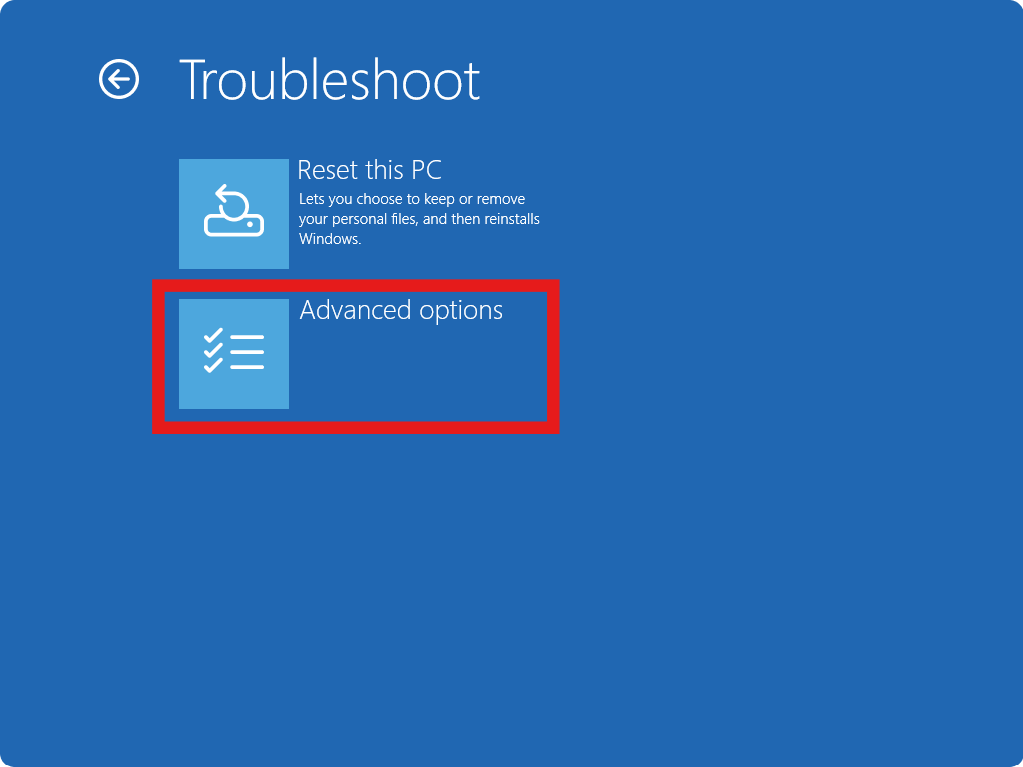
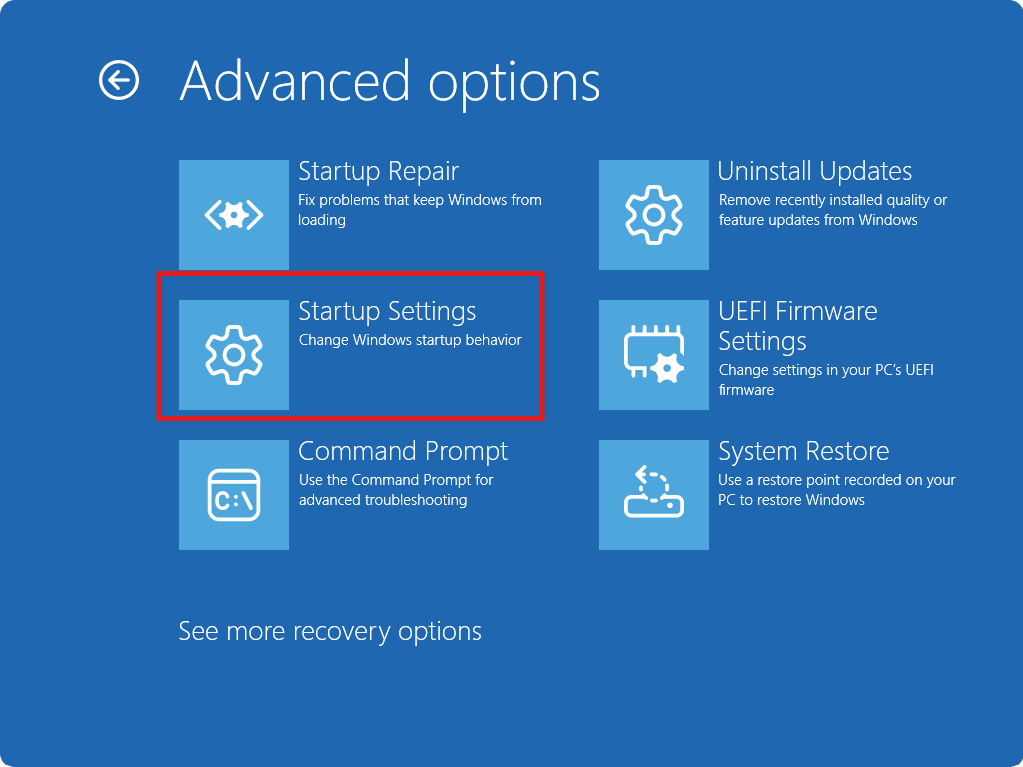
1. Force shut down your PC 3 times to enter recovery mode.
2. Go to Troubleshoot and choose Advanced options and then Startup Settings.
3. Boot into Safe Mode.
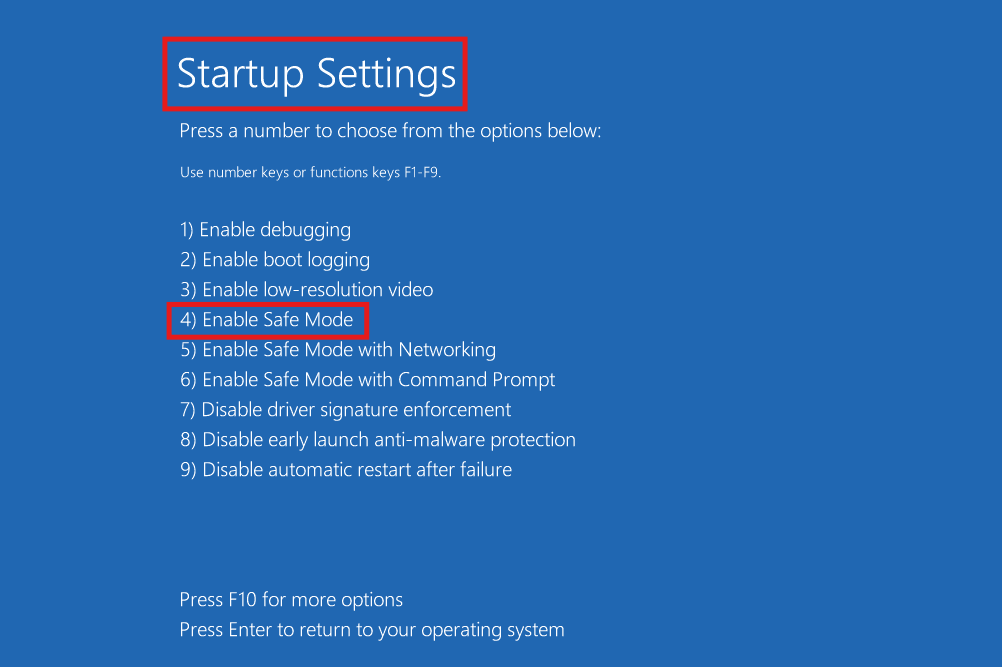
Safe Mode allows you to fix drivers without crashes.
Summary
The DRIVER VERIFIER DMA VIOLATION BSOD is typically caused by driver conflicts, corrupted system files, or hardware issues. Disabling Driver Verifier, updating drivers, running SFC/DISM scans, and checking hardware are the most effective fixes. If the issue persists, updating the BIOS or restoring your system can help resolve deeper compatibility problems.


