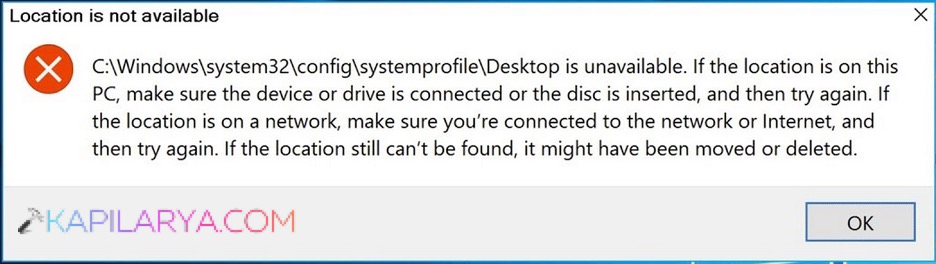
You chose to save a file or an application to the desktop, and got the error because the desktop location is not available in Windows 11. This problem tends to be seen when Windows cannot find the desk folder, and so the taskbar, work icons and files all vanish or act like they are not there.
However, there is nothing to fret about since this detailed guide would assist you in troubleshooting the issue step-by-step in a manner that would be friendlier and easier to take in.
Page Contents
What Causes the “Desktop Location Is Not Available” Error?
Prior to running towards fixes, will you mind having a few rough causes of this follies?
- The Desktop folder has been deleted or relocated by chance.
- Corrupted user profile.
- Incorrect Registry entries.
- Configuration error in RPC (Remote Procedure Call).
- Windows Explorer stops functioning.
- Under System Profile, there are problems with the system folder path.
Fix: Desktop location is not available error in Windows 11
Despite losing your Desktop folder, deleting it, moving, corruption, and being unable to access because of user profile problems, the solutions given below will assist you in restoring all the contents in a safe manner.
Fix 1: Restore the Desktop Folder if It Was Deleted or Moved
Provided Windows is unable to locate your Desktop folder, you will immediately get the error, promptly stating that the Desktop location is not available. Here’s how to restore it.
1. Open File Explorer.

2. Navigate to this path in it:-
C:\Users\
Look at whether the Desktop folder exists or not. In case the folder has been lost, search in the Recycle Bin and restore it. Otherwise, search Desktop in the search box of the File Explorer.
3. In case you discover the folder in a different place, right-click on the folder and Cut it. Paste it back in this path.
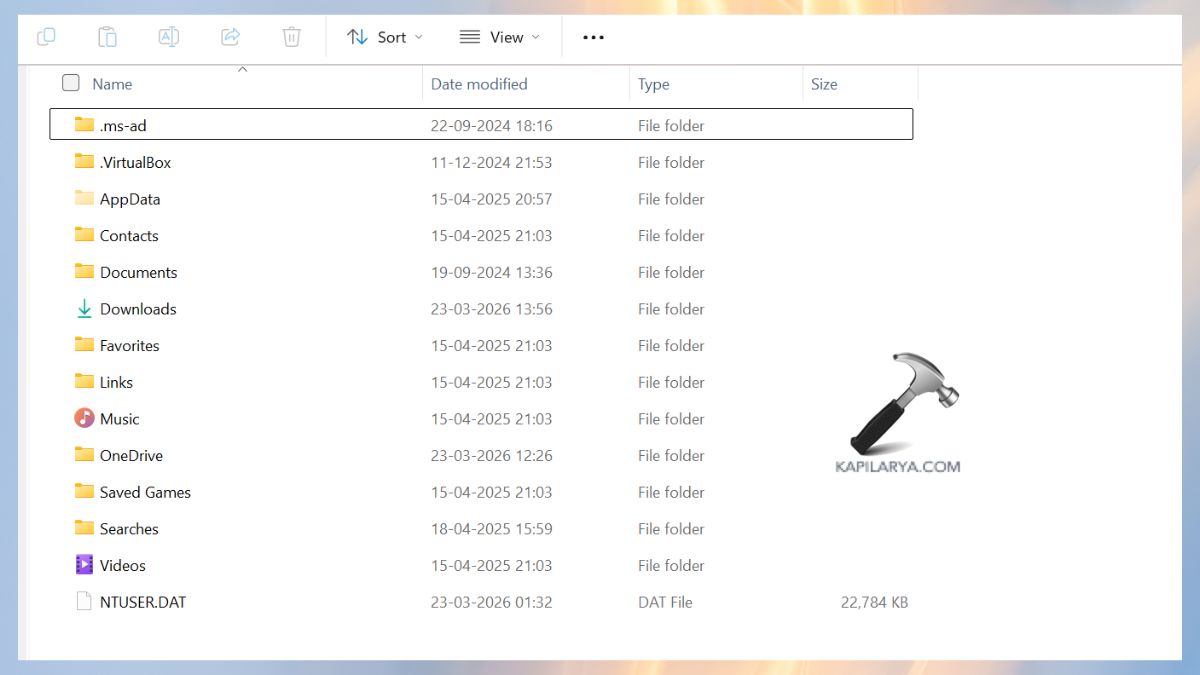
This is what will solve the mistake of the majority of users.
Fix 2: Restart Windows Explorer
In many cases, Windows Explorer does not load system folders properly. It is possible to restart it to refresh the Desktop interface.
1. Right-click, or press Ctrl + Shift + Esc or Command key, it will open the Task Manager. Or open it by clicking on the Start menu.
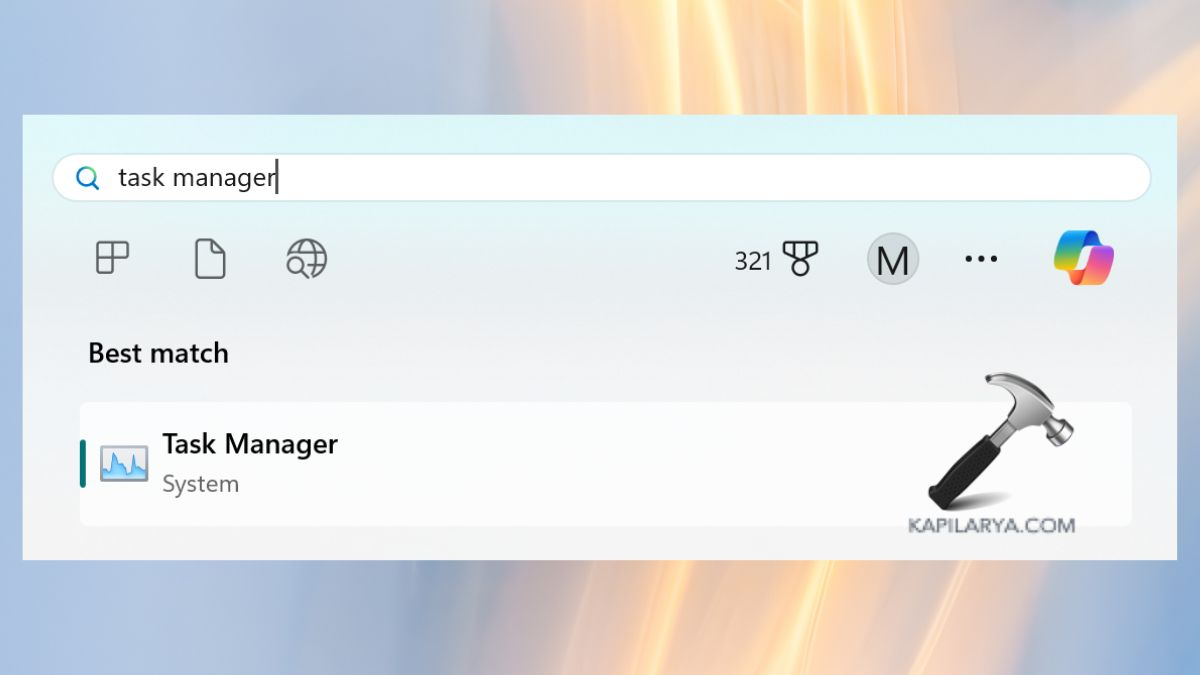
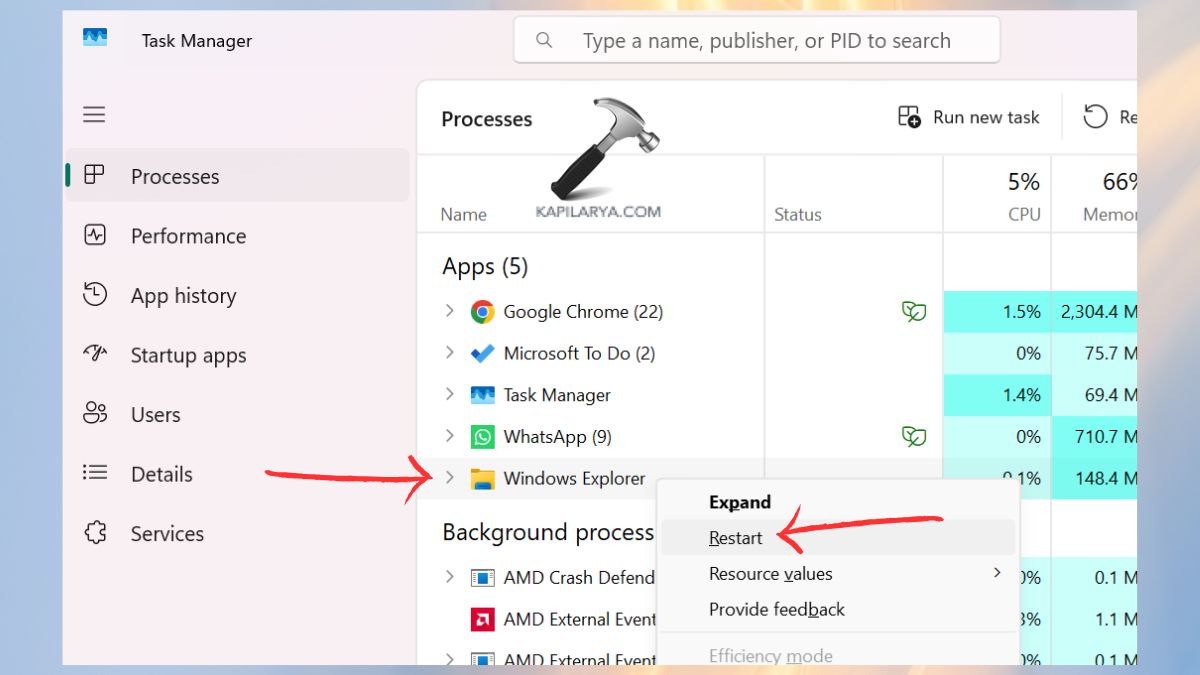
2. Locate Windows Explorer on the list. Right-click > Restart. When the screen flickers once and the Desktop returns to its normal presentation, then the problem is resolved.
Fix 3: Add the Desktop Location Through Registry Editor
In case the registry path of the Desktop folder is wrong, Windows will not know the location of your desktop.
Note: Make sure you save your registry first.
1. First, press the Win key, search Registry Editor, and open it.

2. Navigate to this path:-
HKEY_CURRENT_USER\Software\Microsoft\Windows\CurrentVersion\Explorer\User Shell Folders
Find the key named “Desktop”. Clicking it twice and then it can be configured to either of these:-
- %USERPROFILE%\Desktop
- C:\Users\%USERNAME%\Desktop
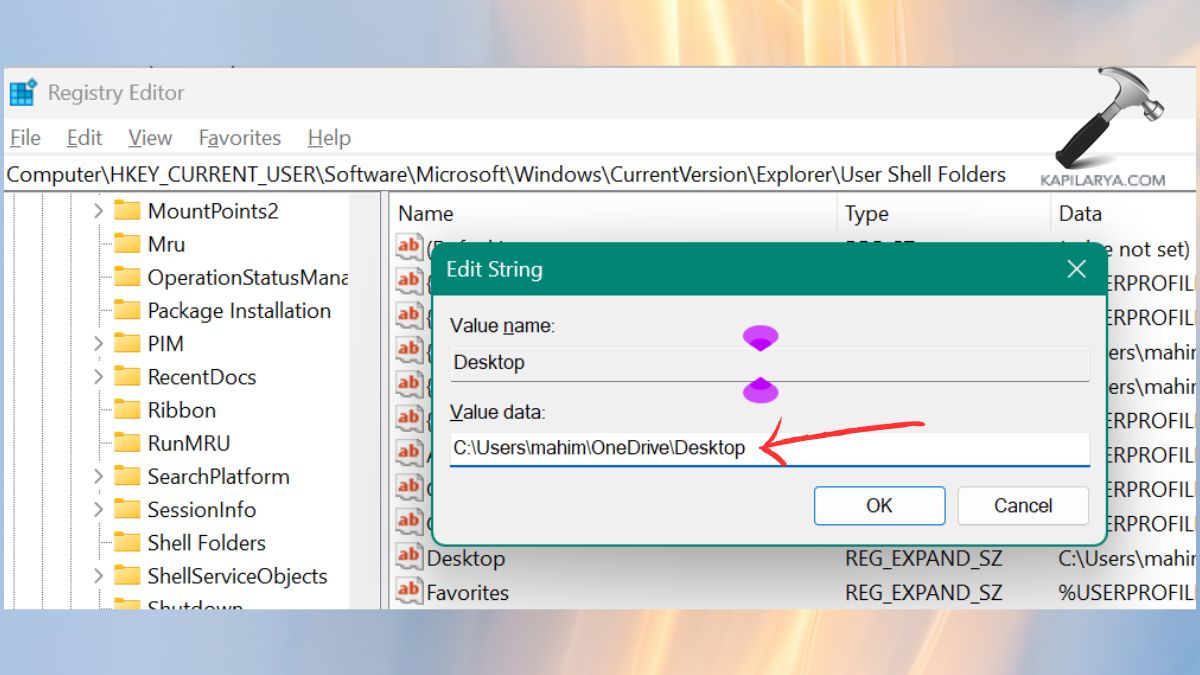
Close down Registry Editor > Shut down PC. That is so that Windows will refer to the right Desktop.
Fix 4: Manually Copy the Desktop Folder to the System Profile
The System32 folder contains the Desktop folder which sometimes becomes corrupted or misplaced.
1. Open the way to File Explorer and enter this path:-
C:\Windows\System32\config\systemprofile\
Determine whether there is a Desktop folder. In case they are missing, navigate to your user folder and copy the Desktop folder.
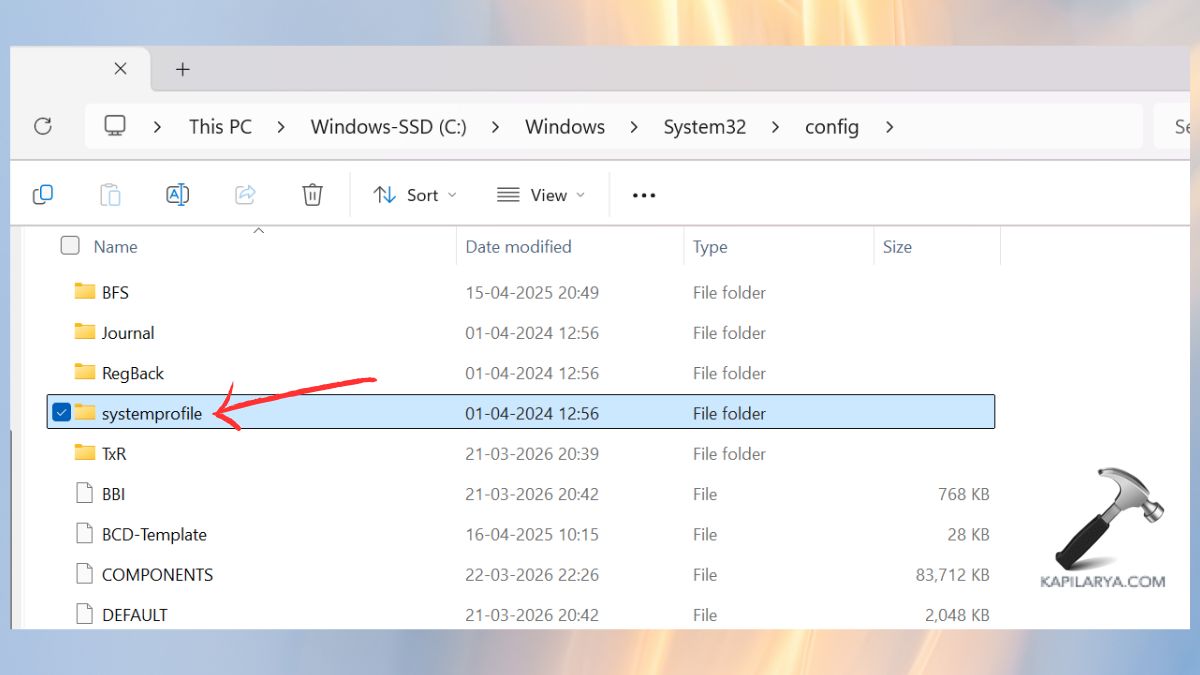
2. Copy it to the directory of system profiles. It is a well-known solution to the users who have lost access following the update.
Fix 5: Update RPC (Remote Procedure Call) Settings
The wrong RPC settings may prevent Windows from loading the system folders that are user-specific such as Desktop.
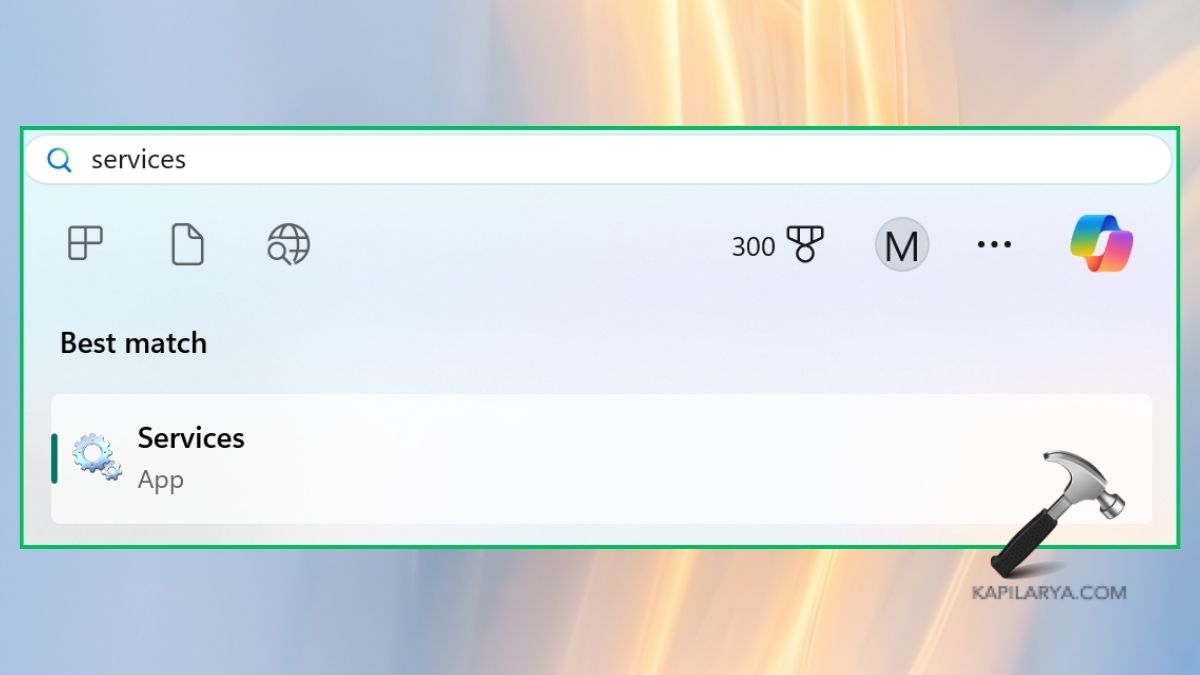
1. Press the Win key, type Services in search, and open it from results.
2. Locate these three services:
- RPC Endpoint Mapper
- Remote Procedure Call (RPC)
- DCOM Server Process Launcher
3. Click on each > Set to Auto Startup or Startup type as “Automatic”. Click Apply > OK. Start up your PC again and make sure that the Desktop is loading.
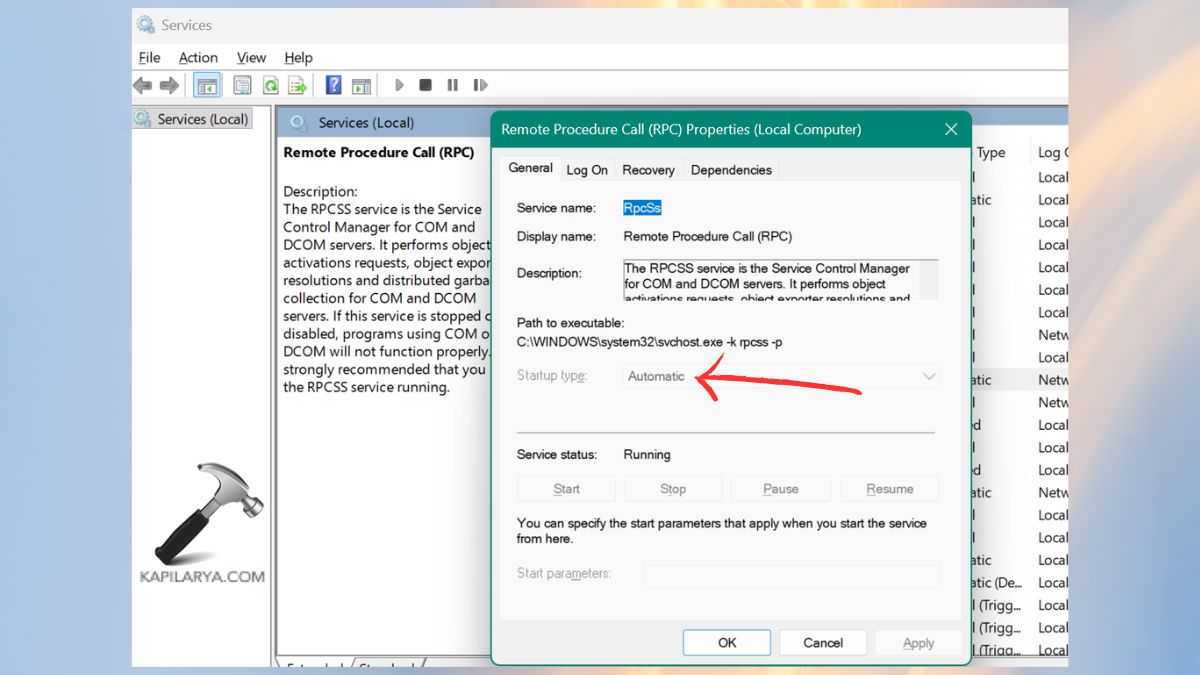
Fix 6: Your User Profile Might Be Corrupt
A corrupted Windows user profile may result in an error of Desktop location not available as it will destroy the path of folders.
1. Open Settings > Accounts. Click on Other users.

2. Click the option Add account > Add a user without a Microsoft account.

3. Find a new username and password. Log in to the new account. Determine whether the Desktop is operating properly. In case it works in a new account, you have corrupted your old profile.

Frequently Asked Questions (FAQs)
Why does my PC say “Desktop location is not available” in Windows 11?
This occurs when Windows fails to locate the Desktop folder as a result of deletion, corruption, overly wrong path, or a collapsed user profile.
Is it safe to edit the Registry to fix this error?
Yes, if done correctly. Registry: Before performing any changes, make sure that you back up your registry.
My Desktop icon and taskbar disappeared. Is it related to this error?
Yes, when the Desktop path is lost or corrupted, Windows Explorer does not load any icons and taskbar objects.
Will updating Windows fix this error?
Sometimes, the system folders can be restored by updating its system, repairing the bugs in the Registry or the system files, which may be corrupted.
That’s it!