Page Contents
Introduction
Your important files from the iPhone were accidentally deleted? Don’t worry. There is still a good chance you can recover them through Recently Deleted, iCloud, or backup.
If those options do not work, iOS data recovery software may help you find supported data that is still available. In this guide, we’ll cover what to do right after deletion, where to look first, and how to scan and recover your files safely.
Part 1. What to Do Immediately After Accidental Data Loss
Deleting a file by mistake does not always mean it is gone for good. What you do next can affect what remains available.
Limit unnecessary use of your iPhone: Stop using your phone. Be careful and do not take new photos and avoid large downloads or app installations to avoid overwriting.
Recently Deleted: Before trying recovery software, check the app where the file was deleted. Photos, Files, and Messages can have their own Recently Deleted options on supported iOS versions. If the missing item is still there, you may be able to restore it directly.
Look at iCloud and your backups: If the item has already been deleted from Recently Deleted, think about iCloud or your backups as alternatives. Do not erase or reset the iPhone just to try a recovery method.
Avoid using random iOS recovery programs: When it comes to picking recovery software, look into these points: supported sources and data types, system compatibility, limitations on the trial version, what formats you can export your lost files to, and if you can preview before you activate.
Part 2. Check Recently Deleted and Existing Backups
Before resorting to recovery software, give Apple’s built-in recovery tools a try first. Photos and videos stay in Recently Deleted folder for 30 days, whereas Files deleted from iCloud Drive or On My iPhone can be restored within 30 days. Notes, also, are kept up to 30 days for recovery. Deleted messages can be recovered for up to 30-40 days depending on iOS versions.
If you no longer see the file within Recently Deleted, it’s safe to check if you have an iCloud Backup or if you previously backed up the file to a computer. Make sure the backup contains the missing data before restoring it. Don’t erase or restore your iPhone only to try a recovery tool as this can get replaced by a full backup restore.
Part 3. When iOS Recovery Software May Be Useful
If your lost data isn’t in Recently Deleted and you have no other suitable backups, perhaps you’ll get your data back using iOS recovery software in case a working iPhone or backup source is still available. It can scan supported data, let you preview the results, and help you select files to recover.
Prior to performing the recovery, preview the files. This is important because during preview you can see which data is recoverable, although some of the permanently deleted data might be completely gone. Available data types and recovery options vary by source, mode, device, and iOS version.
Part 4. How to Scan and Preview Available iPhone Data
If other methods fail, Dr.Fone – Data Recovery (iOS) can be used to scan an iPhone or a backup file for recoverable data. The Standard Recovery option gives away an initial scan and preview of available data, so you can preview files before making your recovery decisions.
The tool supports 35+ data categories such as photos, videos, messages, contacts, notes, app data and iCloud Drive files. Availability depends on the recovery source, mode, device, and iOS version.
Dr.Fone offers Social Media Recovery for the supported apps i.e., WhatsApp, WhatsApp Business, LINE, Viber, Kik, and Snapchat. This feature requires a separate purchase and is subjected to certain compatibility conditions.
The software is designed for read-only local scanning, which helps avoid overwriting existing data during the scan.
How to restore data via Dr.Fone
Step 1: Connect your iPhone
Launch Dr.Fone then navigate to Toolbox > Data Recovery. After choosing iOS option, then Recover Data from an iOS device. Connect iPhone with the PC.
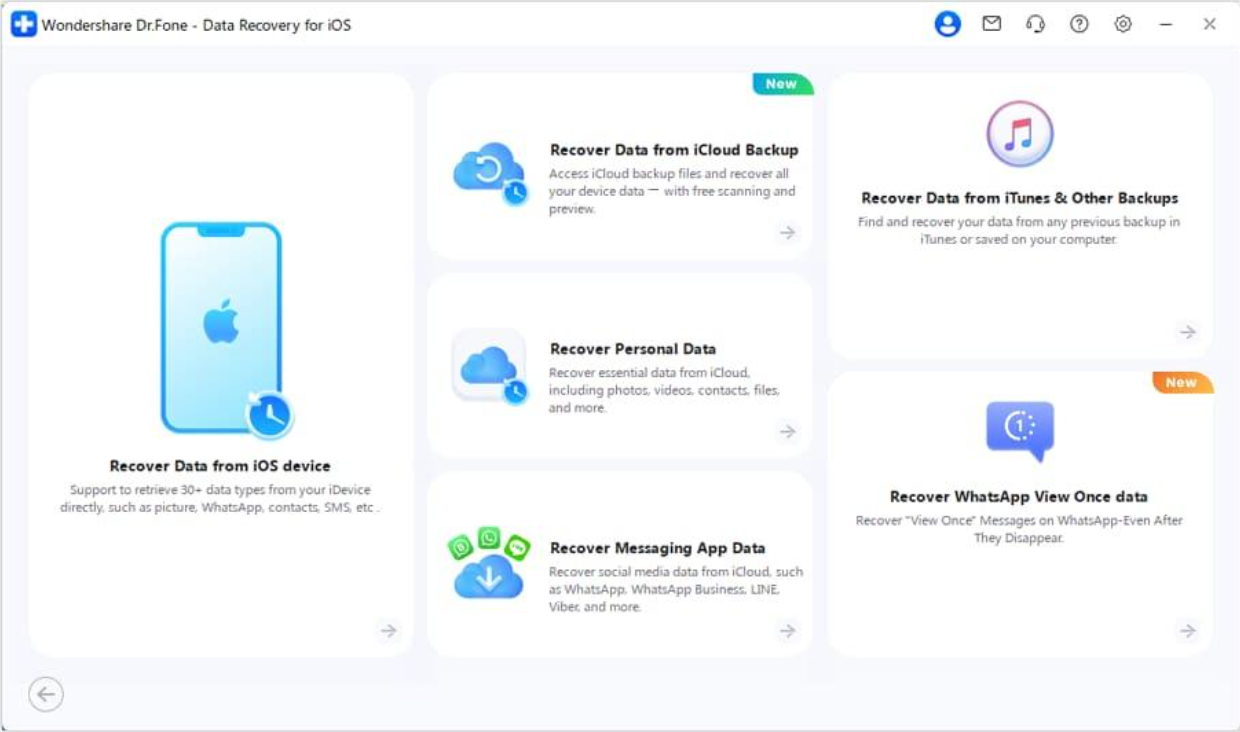
Step 2: Choose recovery mode
Select Standard Recovery mode from the menu. Standard Mode offers a free scan and preview, and activation is required to recover, or export found data and restore a backup to a device.
Advanced Recovery Compatibility: Advanced Recovery supports iPhone 16 series and earlier models running iOS 17.0–18.7.1 or iOS 26.0–26.0.1.
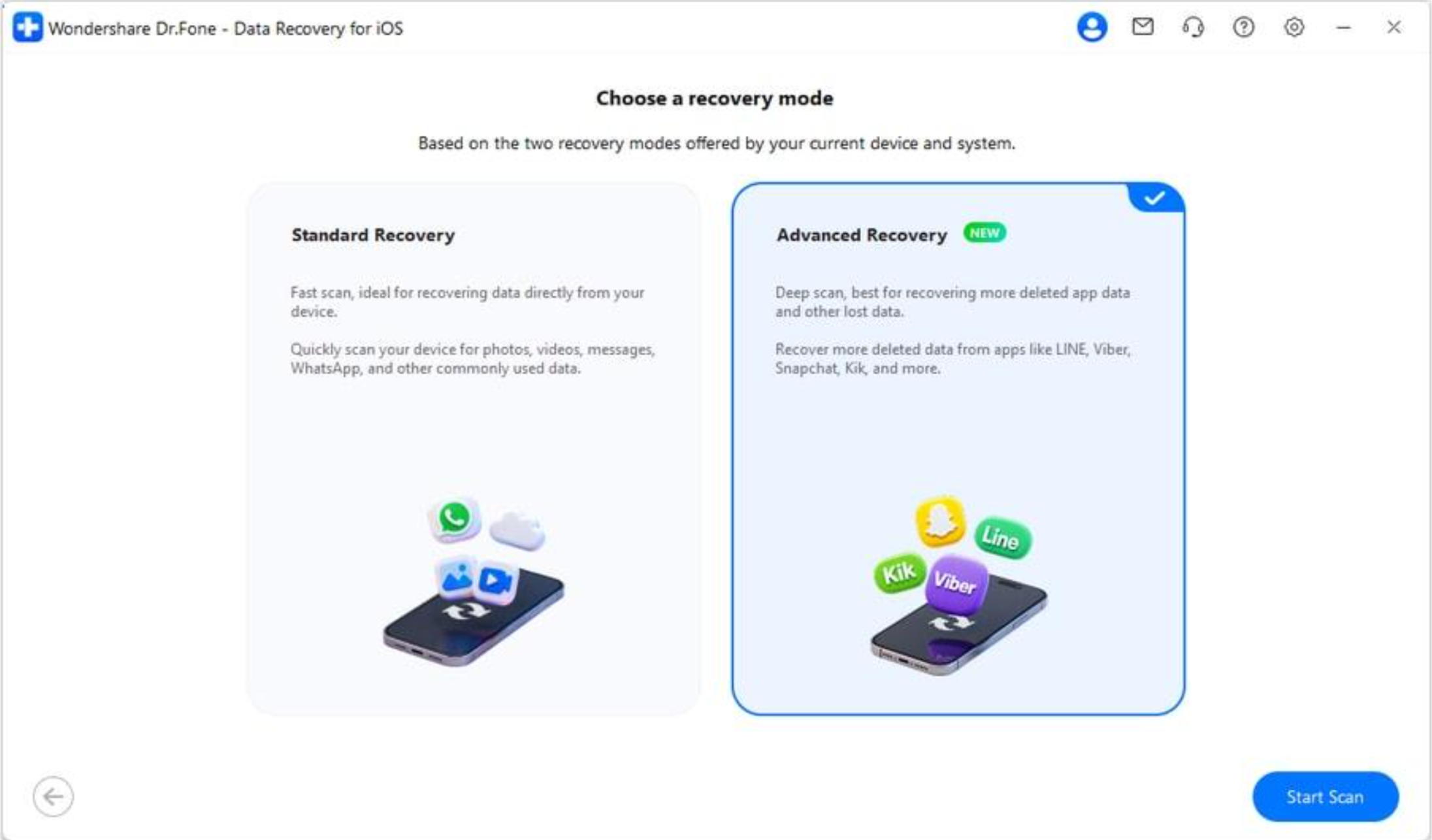
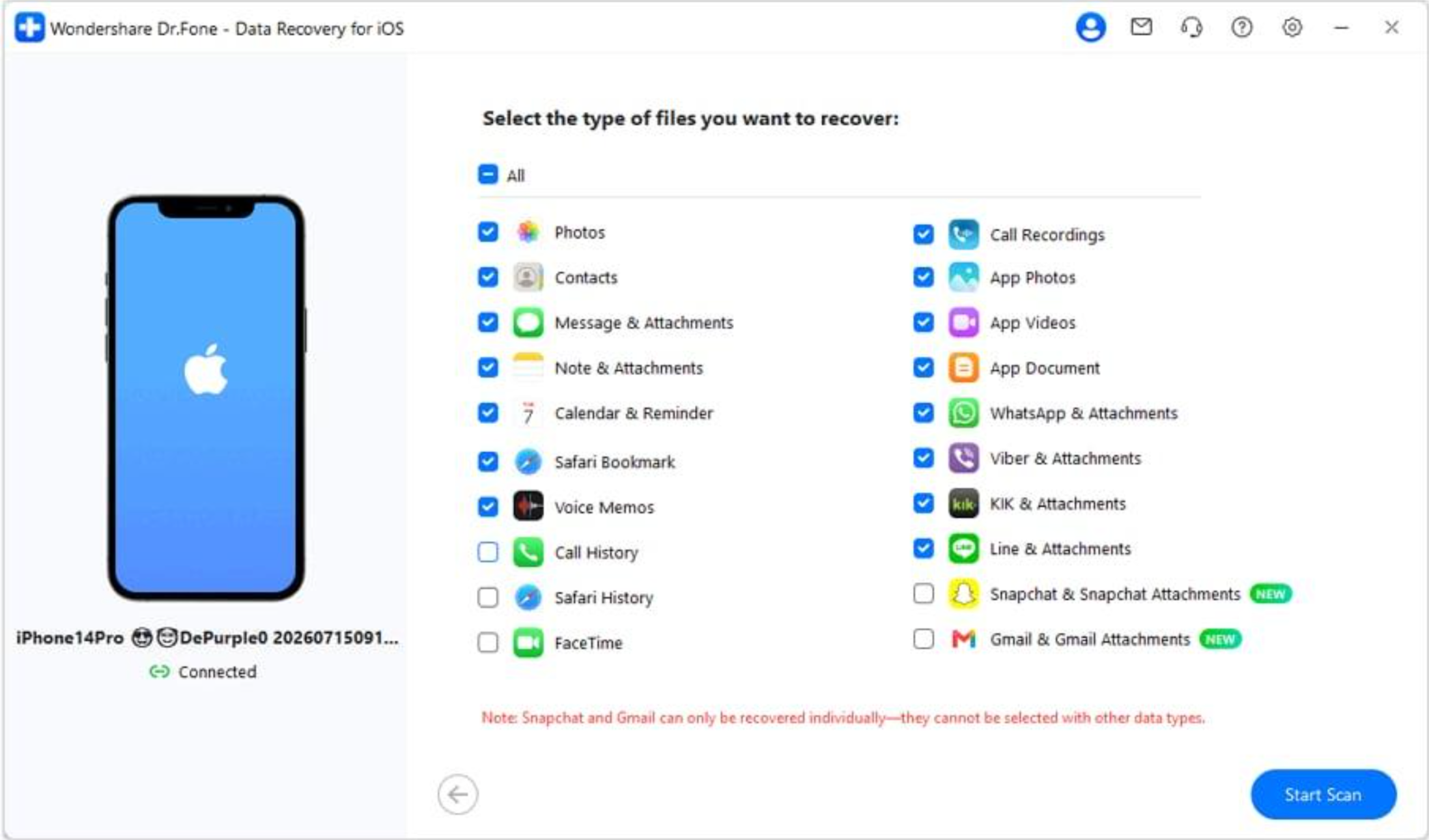
Step 3: Select data types
Choose the data you want to scan and click Start Scan. Available data types depend on the recovery mode, device, and iOS version.
Step 4: Scan and preview
Keep your iPhone connected while the scan runs. Then preview the results and filter them by All Data, Existing Data, or Deleted Data.
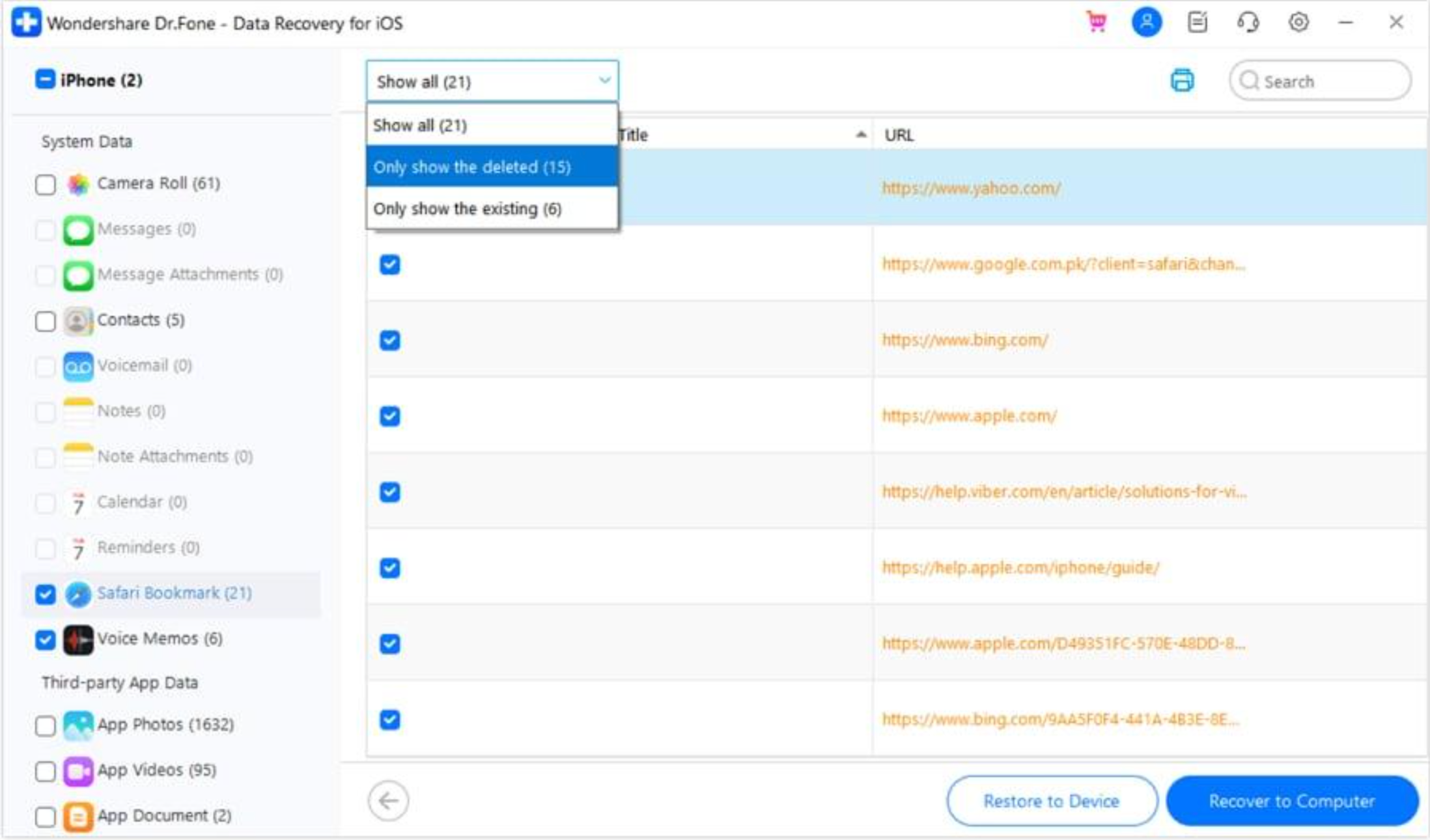
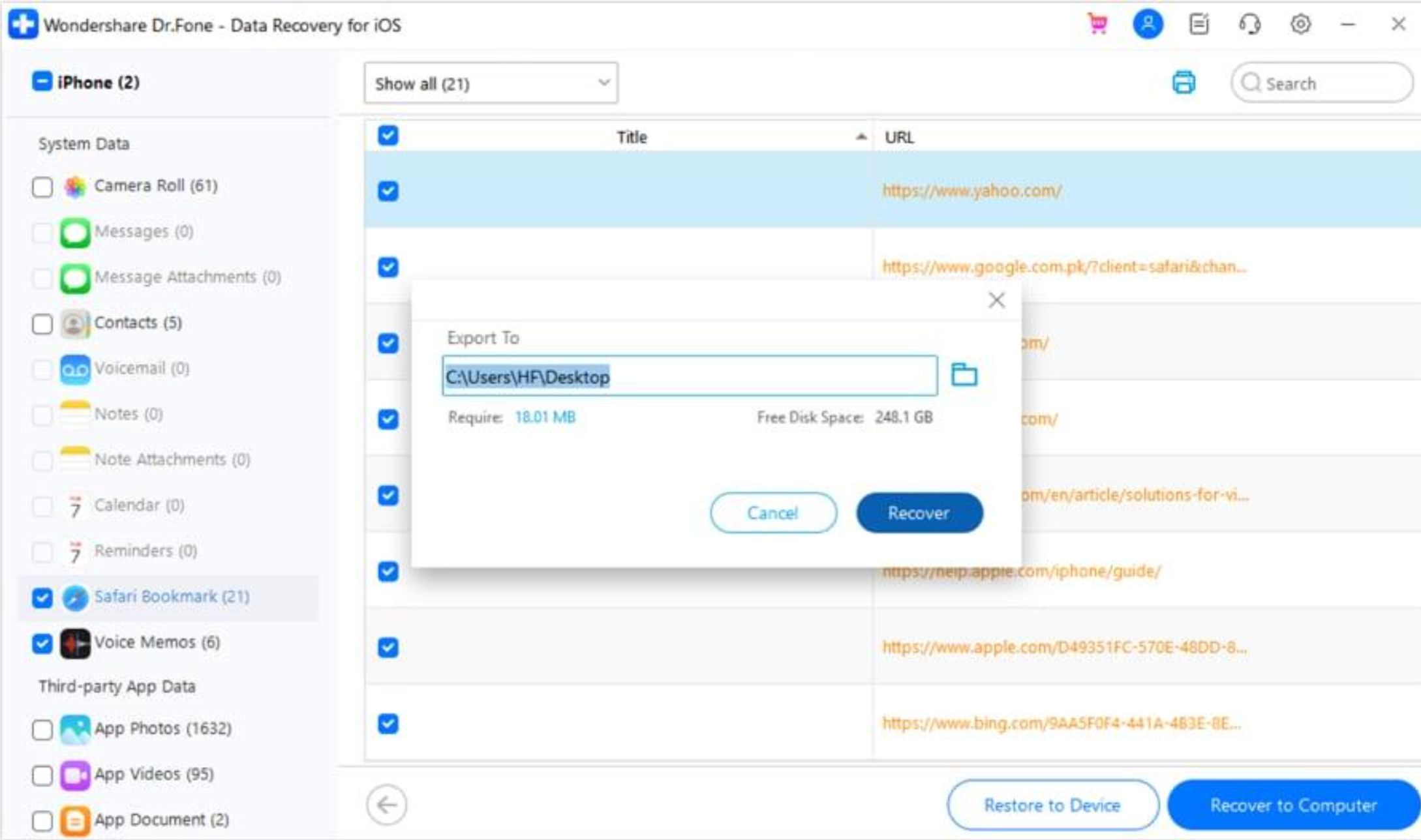
Step 5: Recover selected files
Select the files you need and click Recover to Computer to save them locally. If supported, you can also choose Restore to Device.
Part 5. Recovery Tips & Limitations
- Refrain from using your iPhone: Avoid downloading new files or installing apps after deletion.
- Go over other backup sources first: Check the Recent Deleted on your device, iCloud, and any backups.
- Do a preview before saving: Make sure your missing file looks right before you save or export it.
- Select the files you want only: Rather than a full recovery, choose only what you need.
- Leave your iPhone connected: Make sure your device remains connected during scanning or recovery.
- Be aware of limitations: Recovery of your data is contingent upon the original source, device, model of iOS, and data availability. A preview or scan of a file, however, does not always lead to a successful recovery of that file.
Conclusion
If you’ve accidentally deleted something from your iPhone, it doesn’t necessarily mean your data is permanently gone. First, take a look at the Recently Deleted, iCloud, and backups sections. If the files you need are missing from there too, then data recovery tools may get them back for you, provided the file type and location are compatible with those of the software.
Before proceeding with any recovery, review the results and choose only the relevant files. Remember that data availability is a function of data origin, device, iOS version, and whether or not the data is still present now.