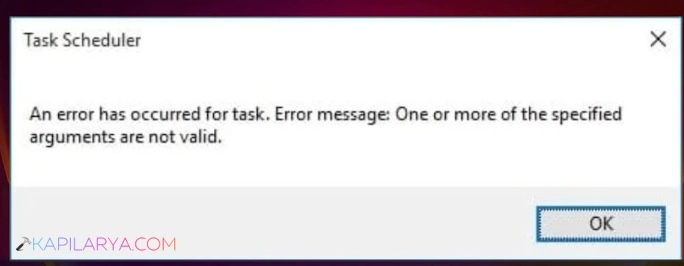
If Task Scheduler shows the error “One or more of the specified arguments are not valid” in Windows 11, it means that one of the task settings has an incorrect value. The issue may be with the program path, arguments, trigger, or user account. Try these eight methods to find and fix the problem.
Page Contents
Solved: One or More of the Specified Arguments are not valid
Method 1: Correct the Program Path and Arguments
Incorrect program paths, misplaced arguments, or quotation marks in the Start in field can cause this error. Check and correct the entries in the Actions tab.
1. Open Run command and type taskschd.msc.
2. Select Task Scheduler Library and find the affected task.
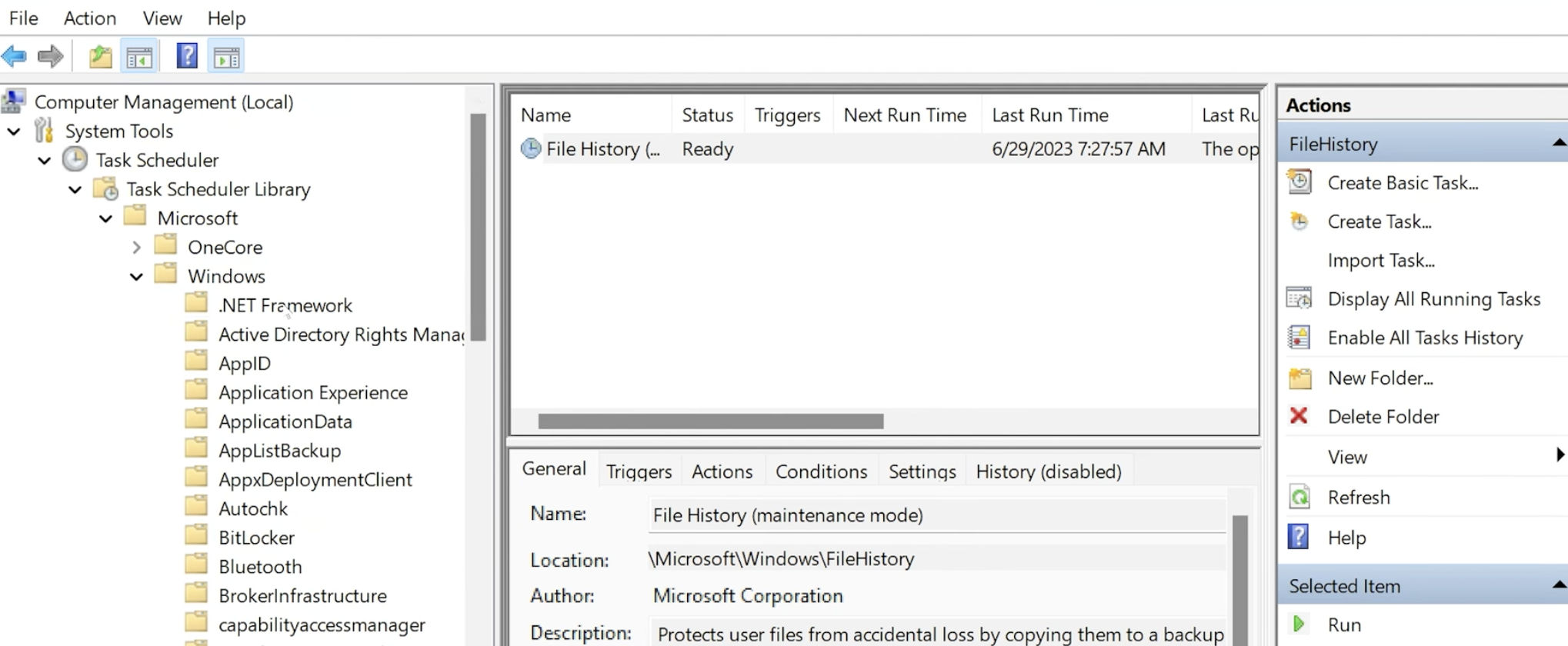
3. Right-click the task and select Properties.
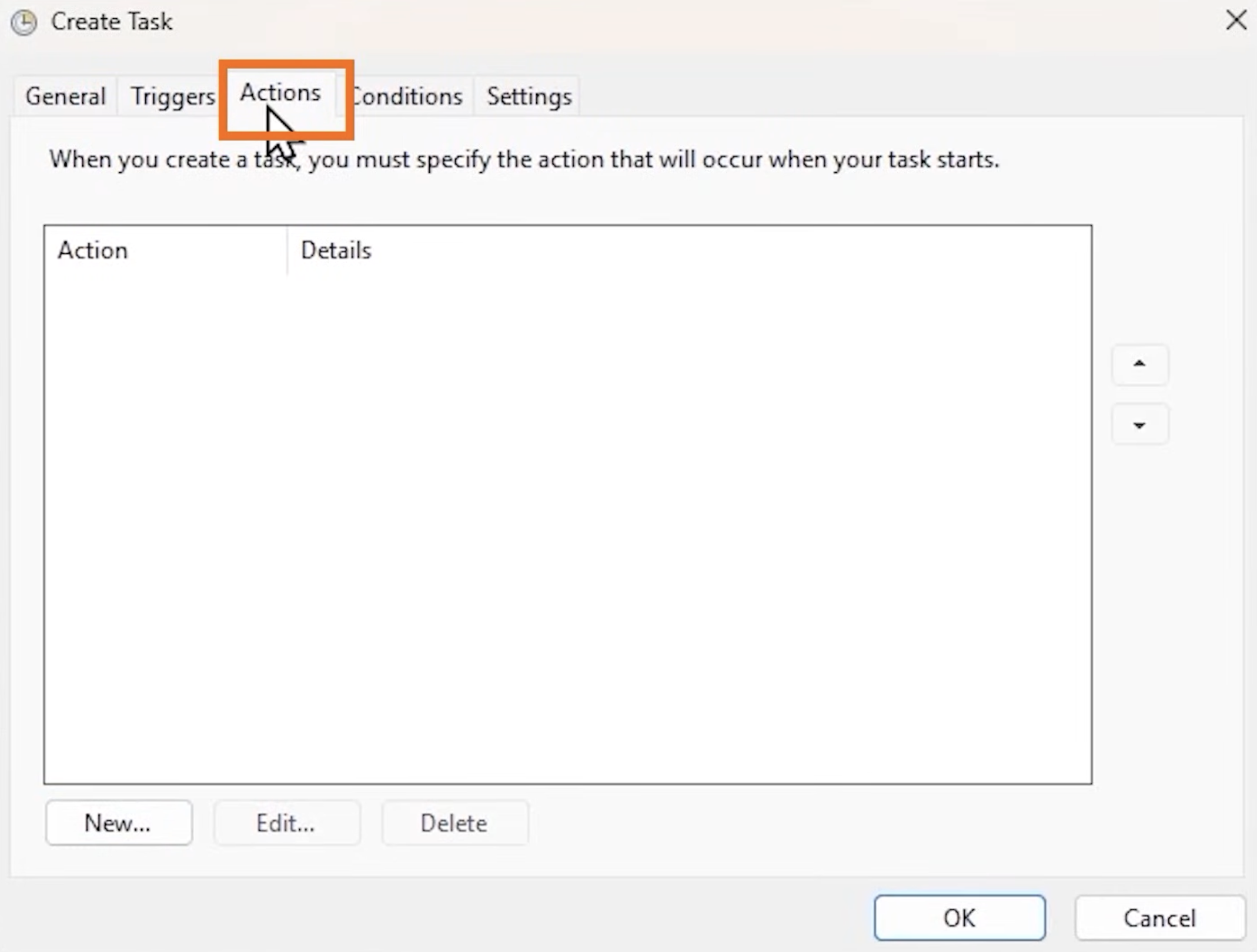
4. Now, go to Actions tab, select the action, and click Edit.
5. Under , click Browse and select the correct program file.
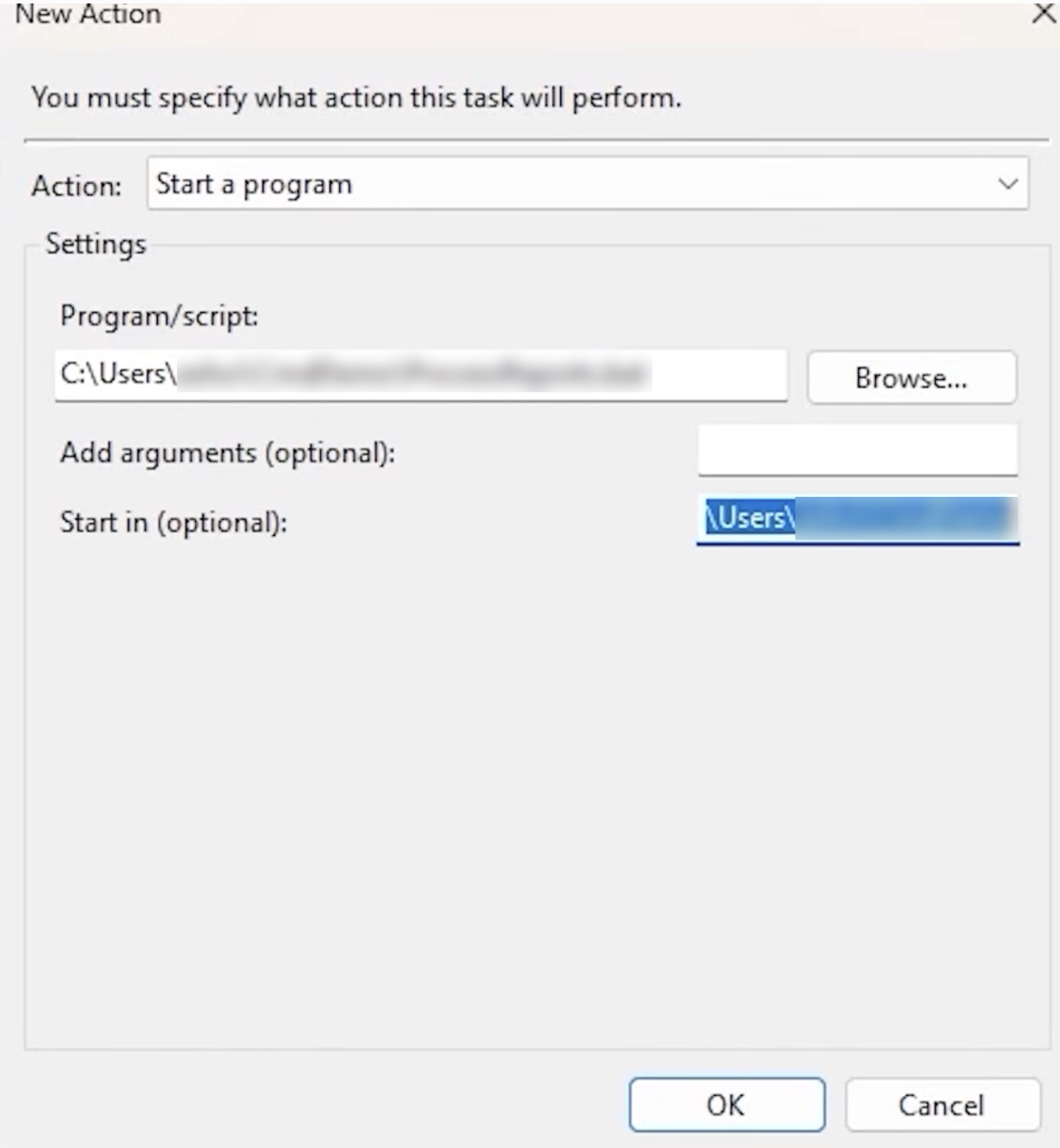
Once done, save the changes.
Method 2: Check the Trigger Settings
To check the trigger settings, follow the below mentioned steps:
1. Follow the steps up to Step 3 in Method 1.
2. Open the Triggers tab.
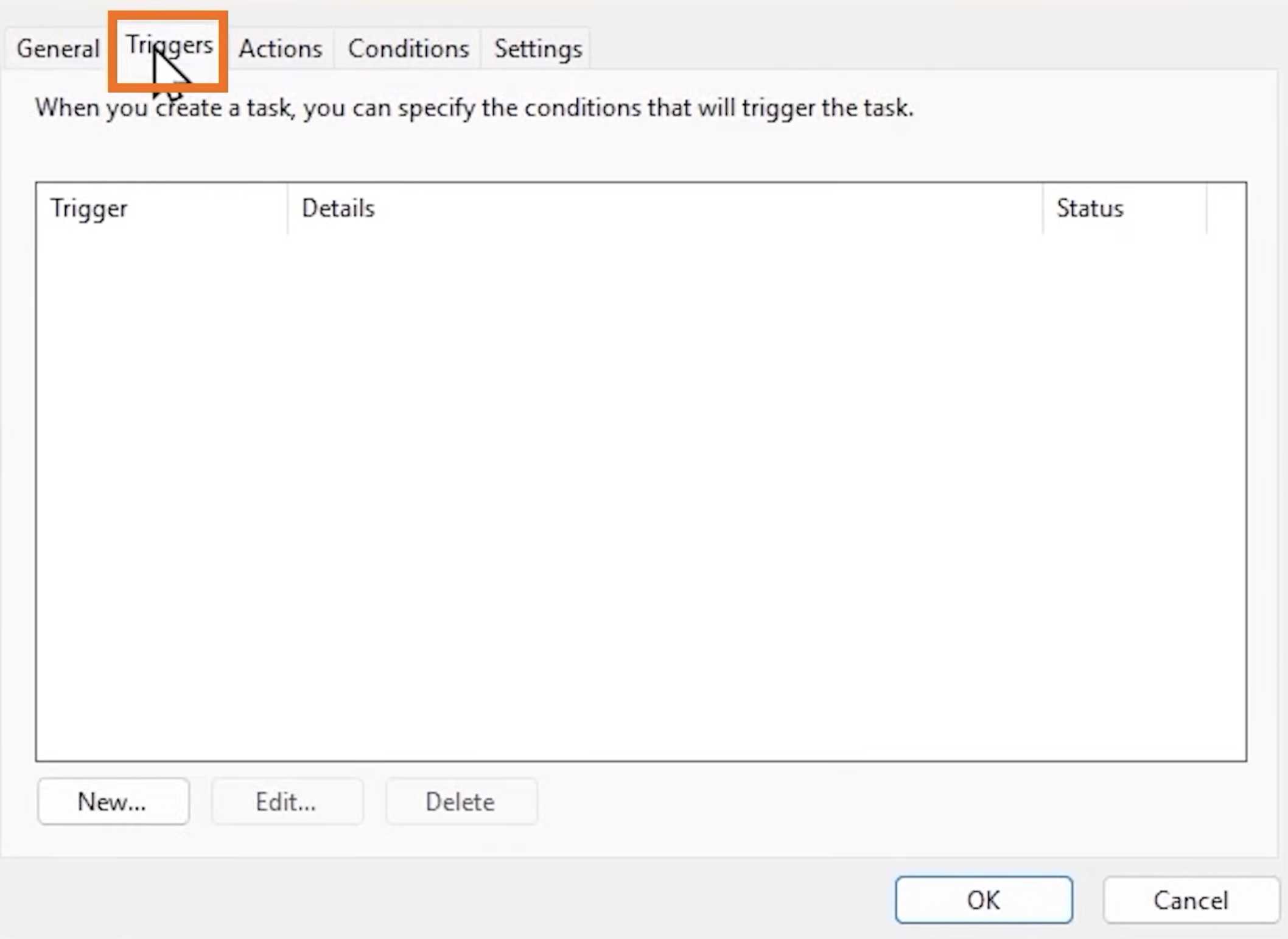
3. Select the trigger and click Edit.
4. Check the start date and time. .
5. Under Advanced settings, enable the checkbox for Repeat task every interval and for a duration of values.
6. Temporarily disable options such as Delay task for and stop task if it runs longer than. Enable them again one at a time if the task saves successfully.
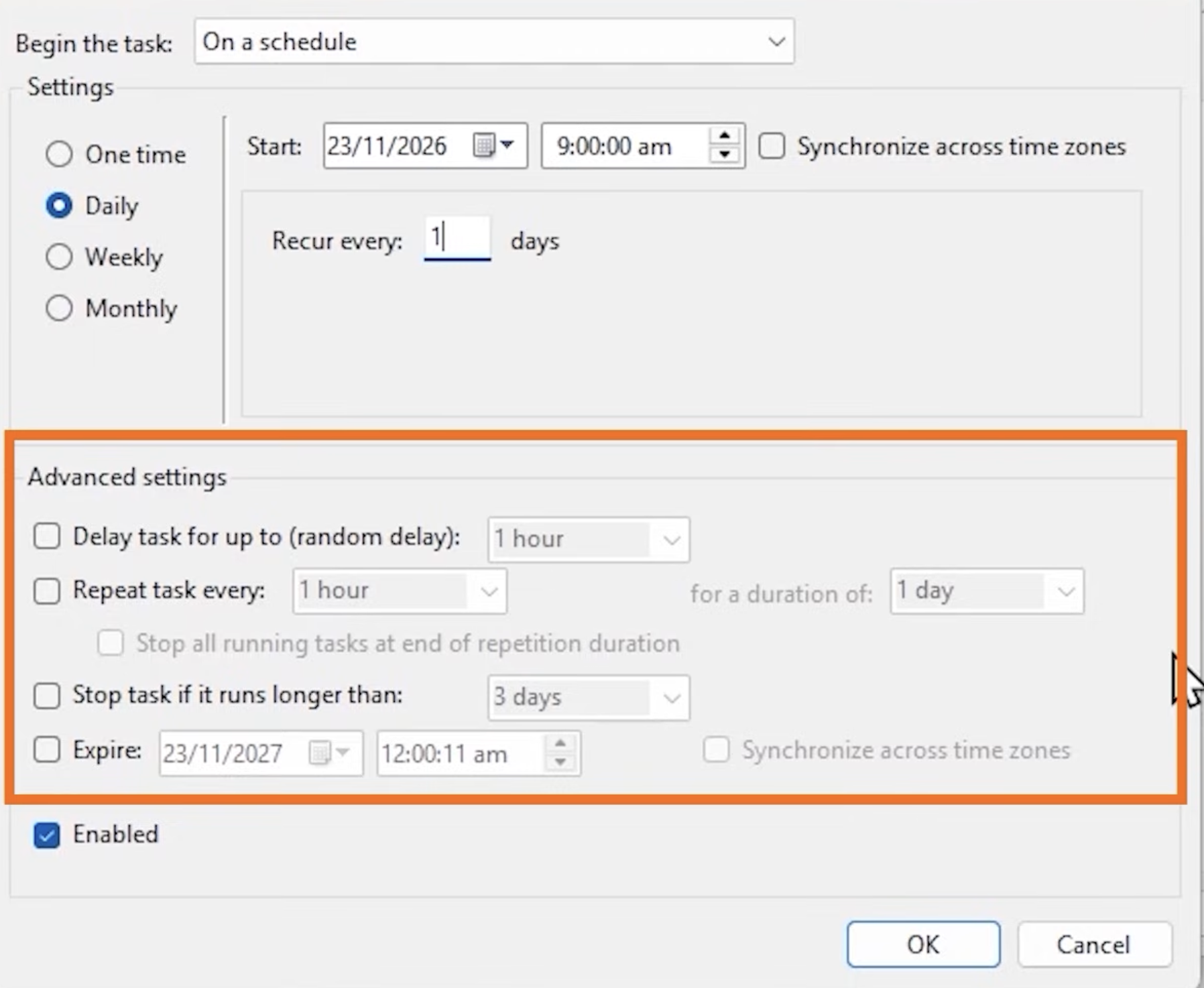
Save the changes once done.
Method 3: Check the User Account and Password Settings
Task Scheduler may reject a task if its user account or password settings are incorrect. This is particularly important when the task runs under the SYSTEM account.
1. Follow the steps up to Step 3 in Method 1.
2. Open the General tab.
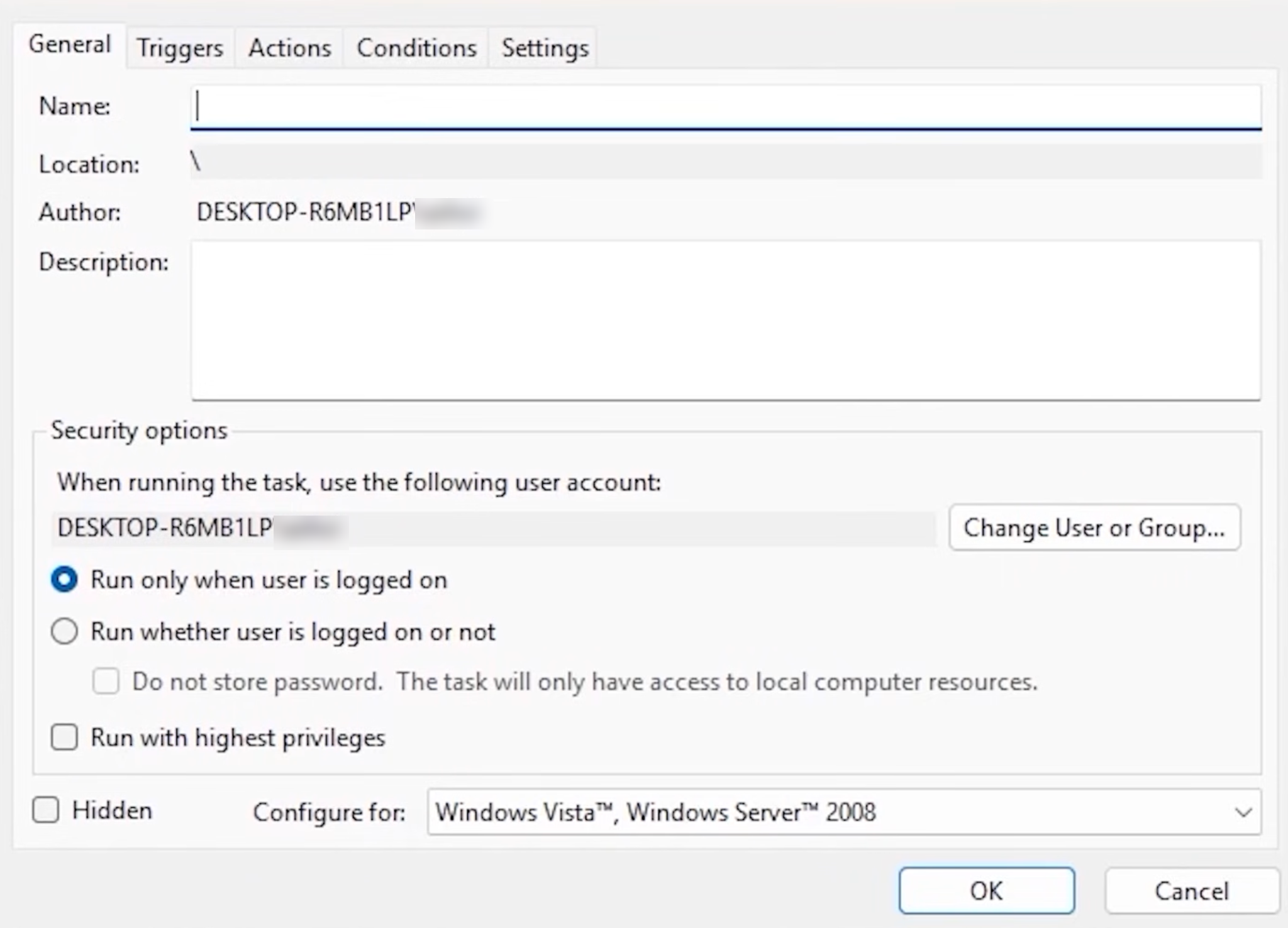
3. Under Security options, click Change User or Group.
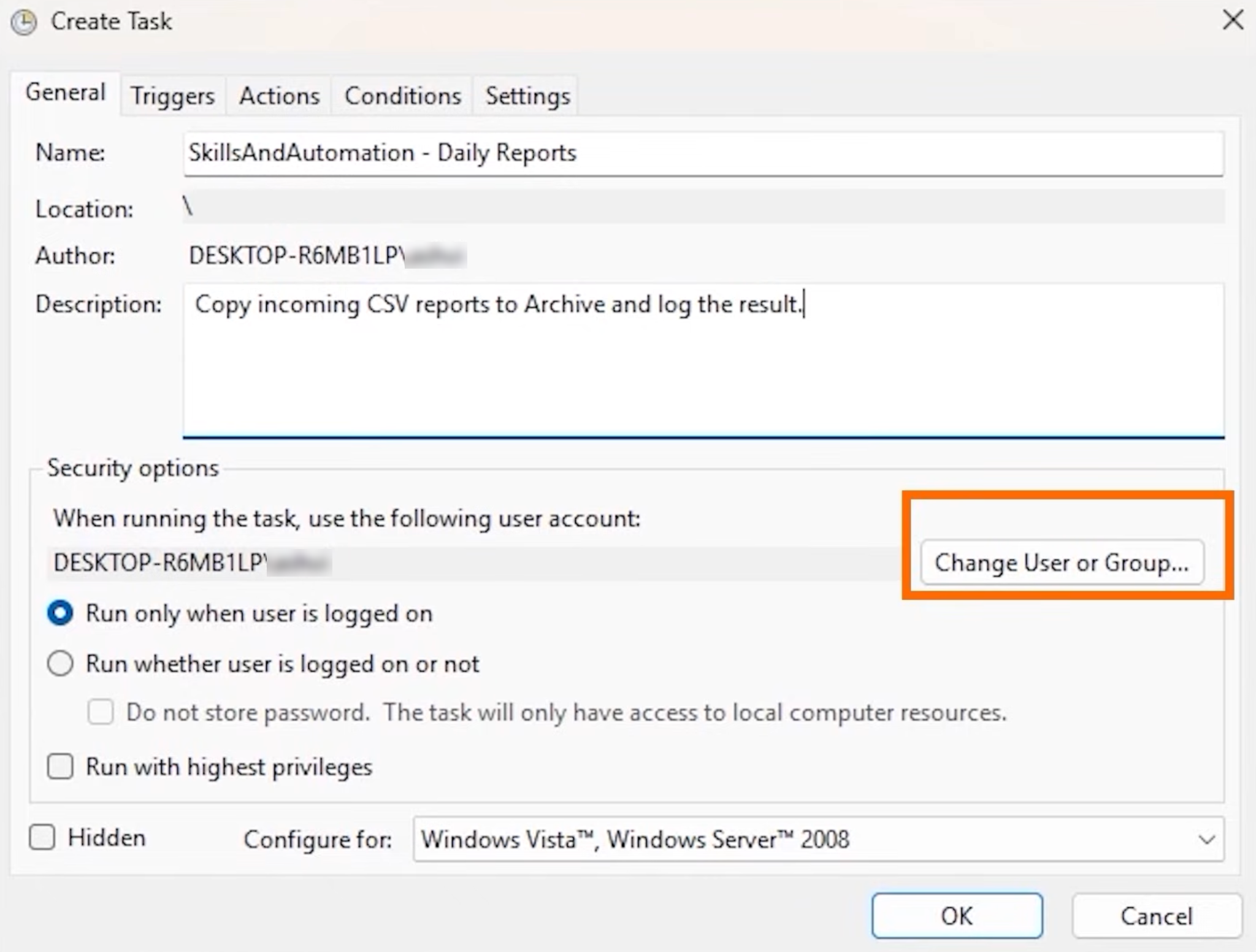
4. Enter the correct account name and click Check Names.
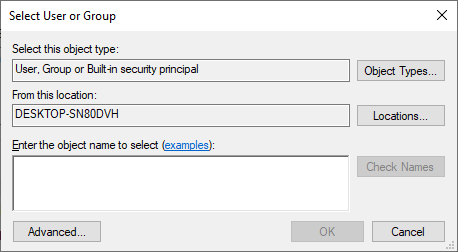
Once done, click on OK.
Method 4: Find the Incorrect Task Setting
Check each setting one at a time to identify the problem.
1. Follow the steps up to Step 2 in Method 1.
2. Right-click the task and select Export.

3. Save the task as an XML file so you have a backup.
4. Right-click the task again and select Properties.
5. Select OK without making any changes to check whether the error appears.
6. If you are creating a new task, start with a simple task containing only a name and an action, such as ‘notepad.exe‘. Save the task and add the remaining settings one at a time, including the actual program path, trigger, and user account.
7. Click OK after adding each setting.
If the error appears after changing a particular tab, check the settings in that tab. For example, an error after editing Actions points to the program path or arguments.
Method 5: Recreate the Task Created by an Application
If an application has saved an incorrect value in its task, recreating the task through the application may resolve the error.
1. Follow the steps up to Step 2 in Method 4.
2. Right-click the task again and select Delete.
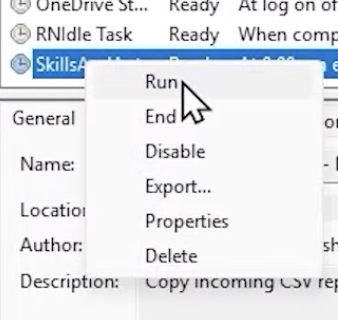
3. Open the application that created the task. Go to its backup, update, or scheduling settings.
4. Save the settings again or restart the application.
5. If the application has an Update or Repair option, run it.
Once done, check if the error is rectified.
Method 6: Recreate the Task Using the Schtasks Command
You can use the ‘schtasks’ command with valid parameters to recreate the task.
1. Open Terminal in admin mode.
2. To delete the old task, run the following command:
schtasks /delete /tn "TaskName" /f
Here, replace TaskName with its actual name:

3. Create the task using the following command as an example:
schtasks /create /tn "My Backup" /tr "C:\Tools\backup.exe" /sc daily /st 08:00 /ru SYSTEM
Replace the task name, program path, and scheduled time with your actual values.
Once done, restart your PC.
Method 7: Restart Your PC to Reload Task Scheduler
If your task scheduler is not responding properly, restarting your PC can reload it and resolve temporary issues.
1. Press Alt + F4 on the Desktop.
2. Select Restart from the drop-down menu.
3. Click OK to restart your PC.
4. Once Windows starts, open Task Scheduler. Try creating or editing a simple task to check whether the error persists.
Method 8: Repair Windows System Files Using DISM and SFC
Run DISM and System File Checker to scan and repair the Windows installation.
1. Open command prompt in admin mode.
2. Enter the following command:
DISM.exe /Online /Cleanup-Image /RestoreHealth

3. Wait for the scan to complete. Once DISM finishes, enter the following command:
sfc /scannow
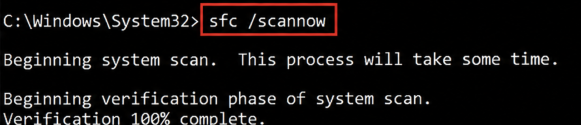
4. Press Enter and wait until the verification reaches 100%.
Restart your PC once done.
That’s it!