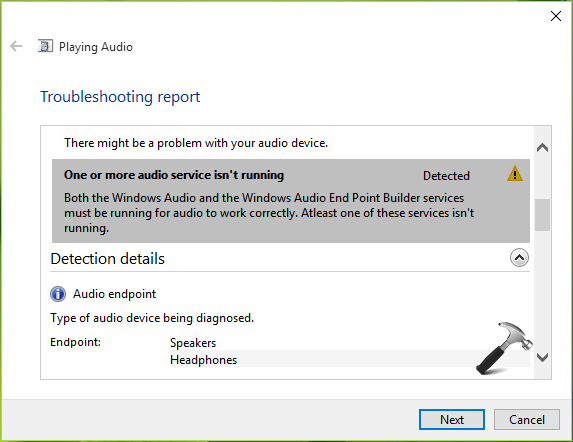
Having the Windows Audio service stuck on stopping may cause the system to not be able to play audio. You may even find that the volume icon doesn’t react or that Windows 11 says the Windows Audio service isn’t running. Attempting to restart the service could do no good, as it may still be persistently set to “Stopping”.
There are several possibilities for this to happen, such as slow services, not compatible audio drivers, connected audio devices and audio enhancement software. There are a number of solutions to resolve the Windows Audio Service Stuck on Windows 11.
Page Contents
Fix Windows Audio Service Stuck on stopping in Windows 11
Way 1: Do Not Select Delayed Start for Windows Audio
Applications must be able to access sound; Windows Audio must be available. If it is configured to Automatic (Delayed Start), then it will be beneficial to change the startup type to Automatic. Follow these steps:-
1. Type in Services into the Windows key. Open Services.
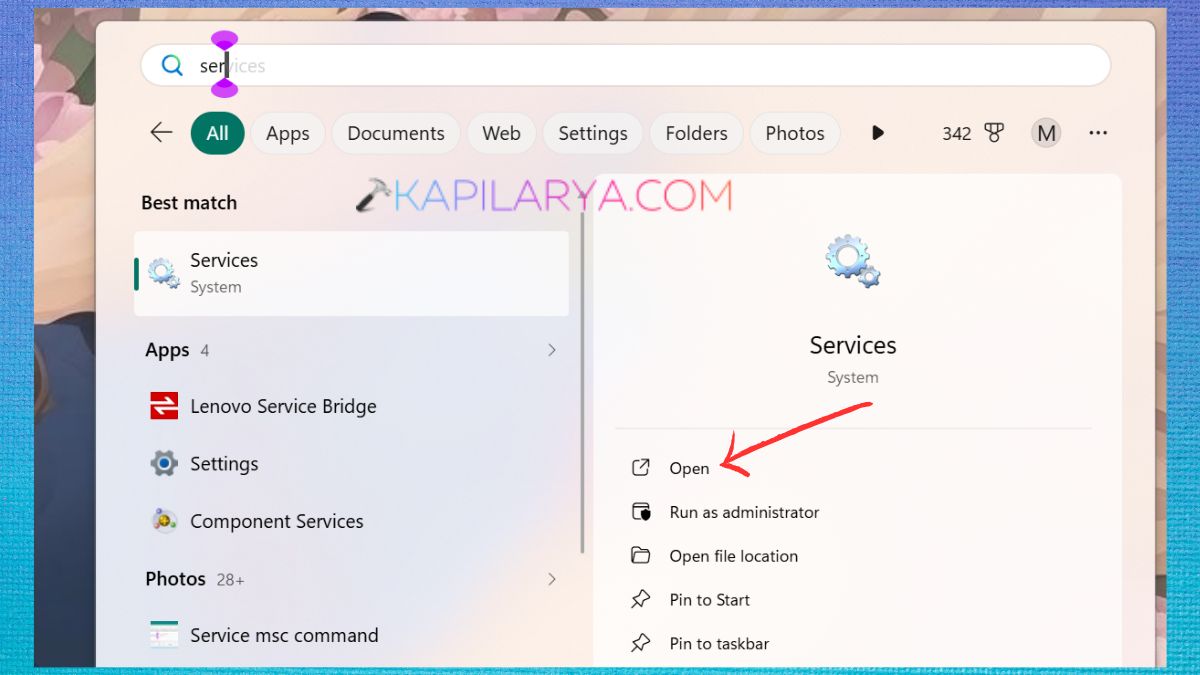
2. Find Windows Audio in the Services window. Right-click on it, and click on Properties.
3. Click on the General tab. Set Startup to Automatic (not Auto or Delayed Start). Click Apply and OK.

Restart the computer to see if the service restarts correctly. If your computer is in the care of an organization, don’t change the settings of services without consulting with the administrator.
Way 2: Verify Windows Audio Service Dependencies
Other Windows services are required for Windows Audio to work. When a dependency that is required for the audio service to start is not responding, the audio service might not start or may continue to stop.
1. Once again run the Services app. Double-click Windows Audio.
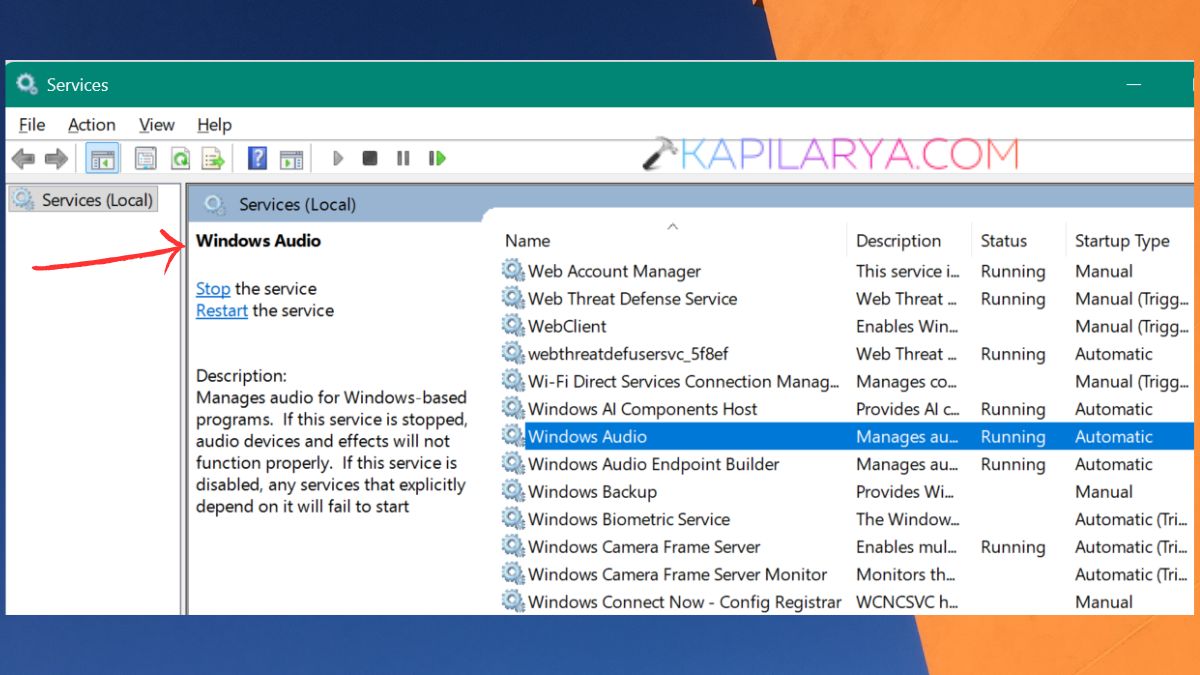
2. Click on the Dependencies tab. View the services listed under the Services section, indicating what services this service depends on.
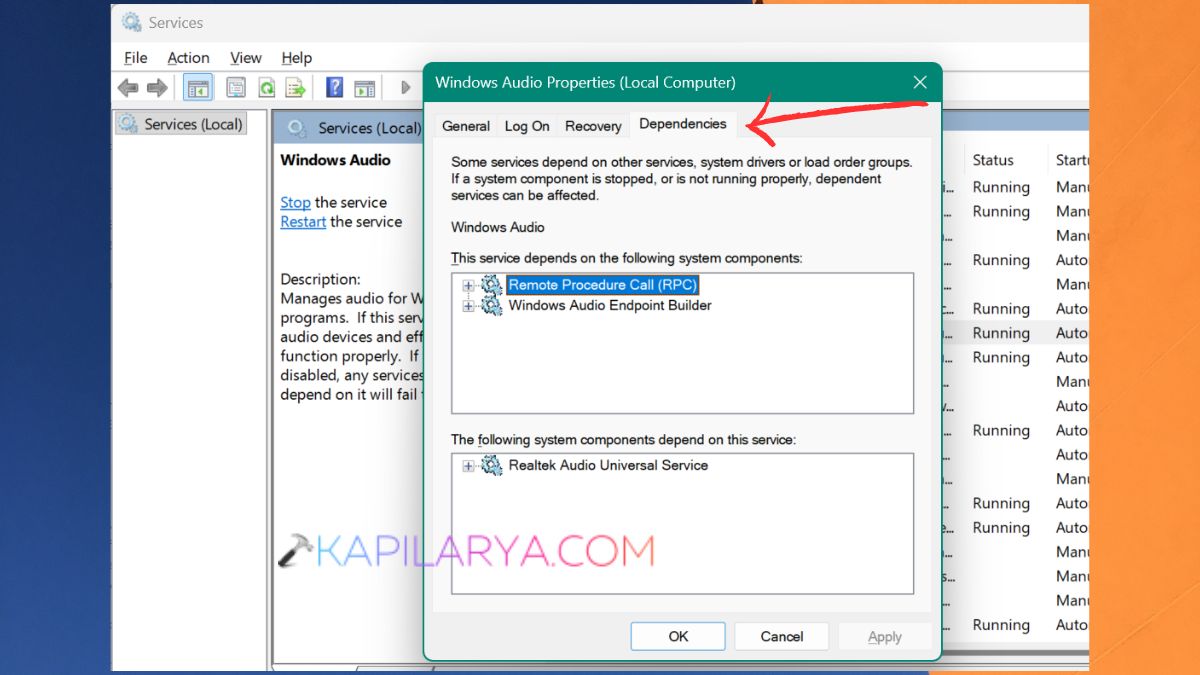
3. Go back to the Services window and see how they’re doing. Take special note of the following two services:
- Remote Procedure Call (RPC)
- Windows Audio Endpoint Builder
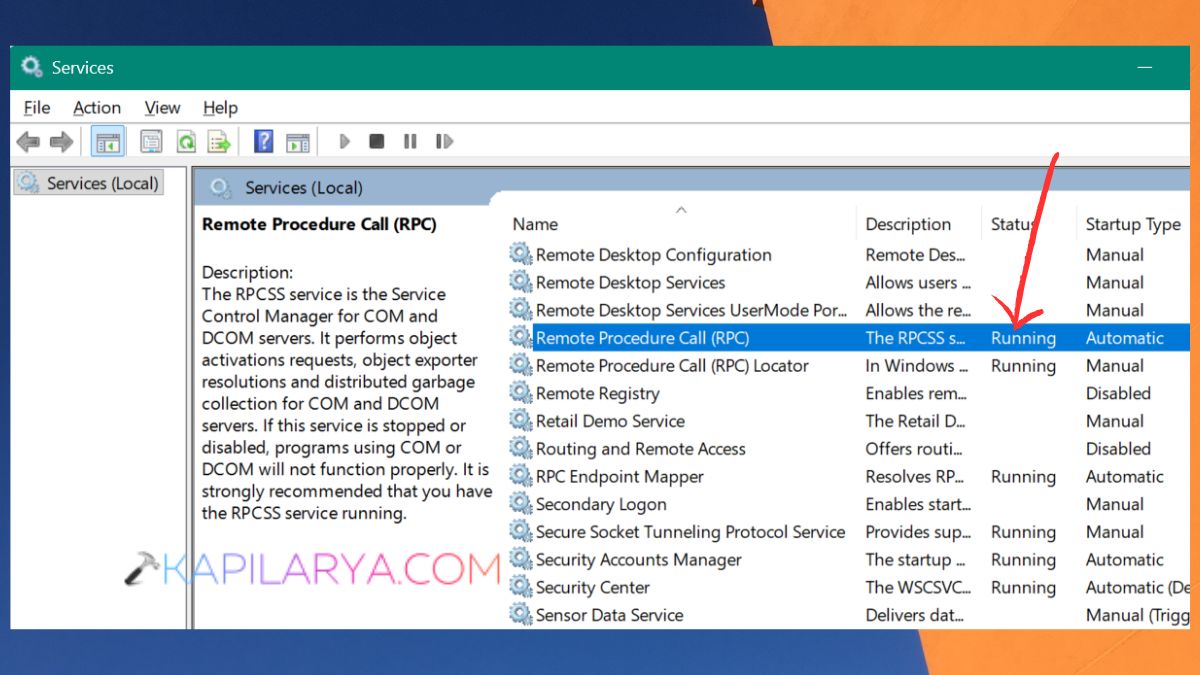
Ensure that they are in a working condition. If Windows Audio Endpoint Builder is not running, attempt to run it first. RPC is a protected Windows service – avoid trying to force-stop or modify. If the required dependencies are up, then restart Windows Audio.
Way 3: Check Audio Driver Compatibility
If you’ve an incompatible or outdated audio driver, this can be a possible cause. Follow these steps for resolution:
1. Right-click the Start button and select Device Manager.
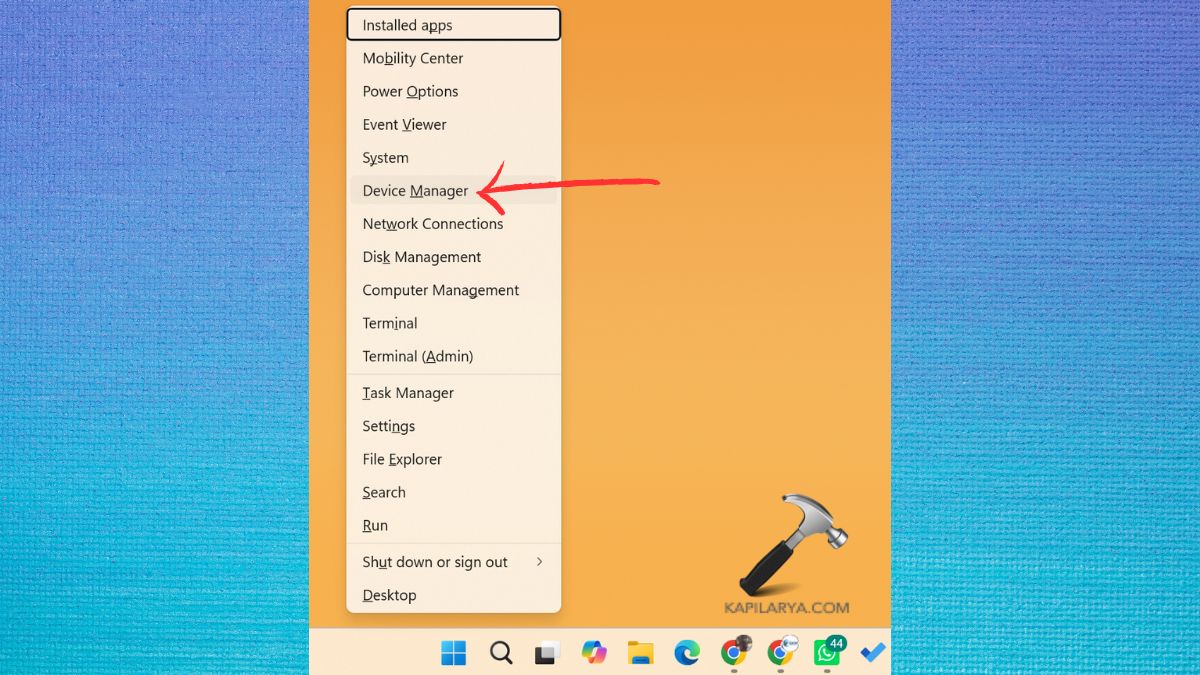
2. Expand Sound, video and game controllers. Right-click on your audio device. Click on Properties and then on the Driver tab.

3. See the driver version and driver date. If the driver is outdated, then right-click the device, then select Update driver > Search automatically for drivers.
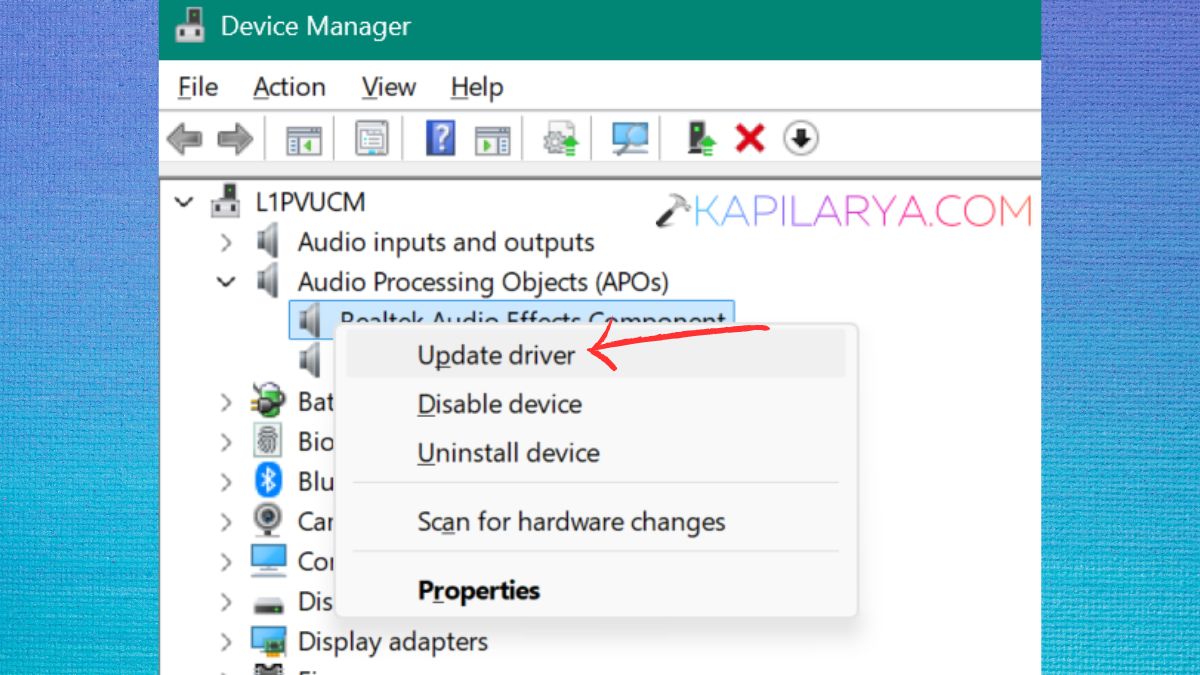
You can also go to your computer’s manufacturer’s website and download the latest audio driver for your computer’s model number.
4. If the issue occurred after a driver update, go to the Driver tab and choose Roll Back Driver (if available).
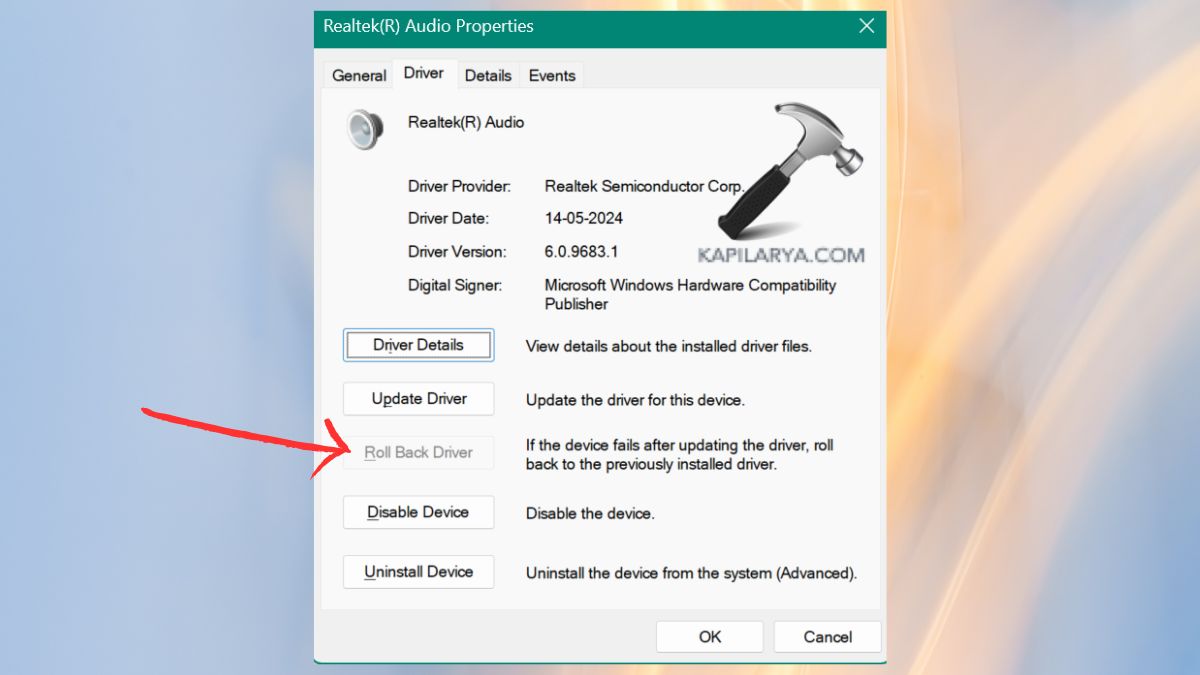
Restart the computer, and see if the Windows Audio service is running properly. If you’re here because you upgraded to Windows 11 and sound did not work post-upgrade, check out how to troubleshoot audio issues after Windows 11 version 26H2.
Way 4: Reinstall Your Audio Device
If the audio driver/device is not installed correctly, the Windows Audio service might hang. If the device is reinstalled, it will get a new driver, as Windows will install a new driver.
Here is how:
1. Again, open Device Manager.
2. Expand Sound, video & game controllers. Right-click on your audio device. Select Uninstall device.
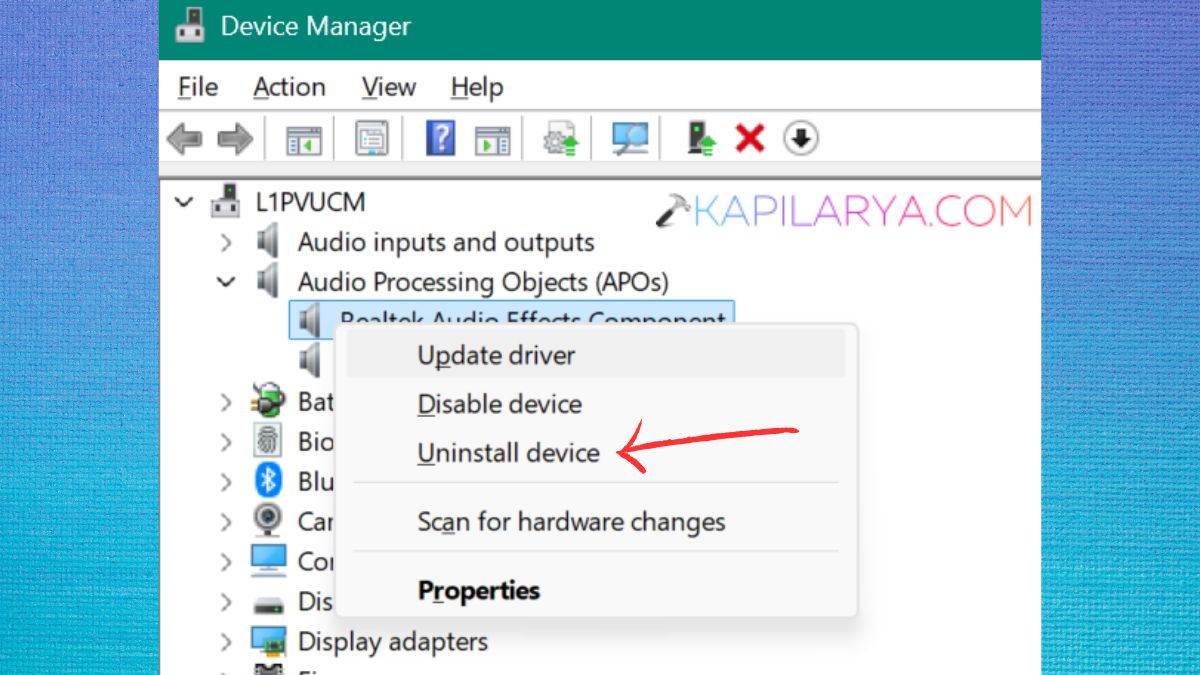
3. Then click Action > Scan for hardware changes.
If Windows doesn’t install the right device driver automatically, you can get it from the PC manufacturer’s website.
Way 5: Unplug External Audio Enhancement Devices
Are you using an external Sound Card, USB Headset, DAC or other sound enhancement equipment? Try to disconnect it temporarily.
There are some external audio devices that will run their own drivers and background software. Any failure of one of these components can affect the normal functioning of the sound.
1. Unplug external audio devices from the computer. Disconnect USB headsets, external audio cards and audio adapters.
2. Restart your computer or laptop.
3. Open the Services window and view Windows Audio. Reconnect sound units, one by one.
If the service works normally after disconnecting a particular device, check its driver and manufacturer’s software for updates.
Way 6: Disable Audio Enhancements
Windows audio enhancements are intended to enhance the audio quality. Some of the audio enhancements or manufacturer-provided audio effects, however, may result in compatibility issues. They can be temporarily switched off to determine if they are responsible.
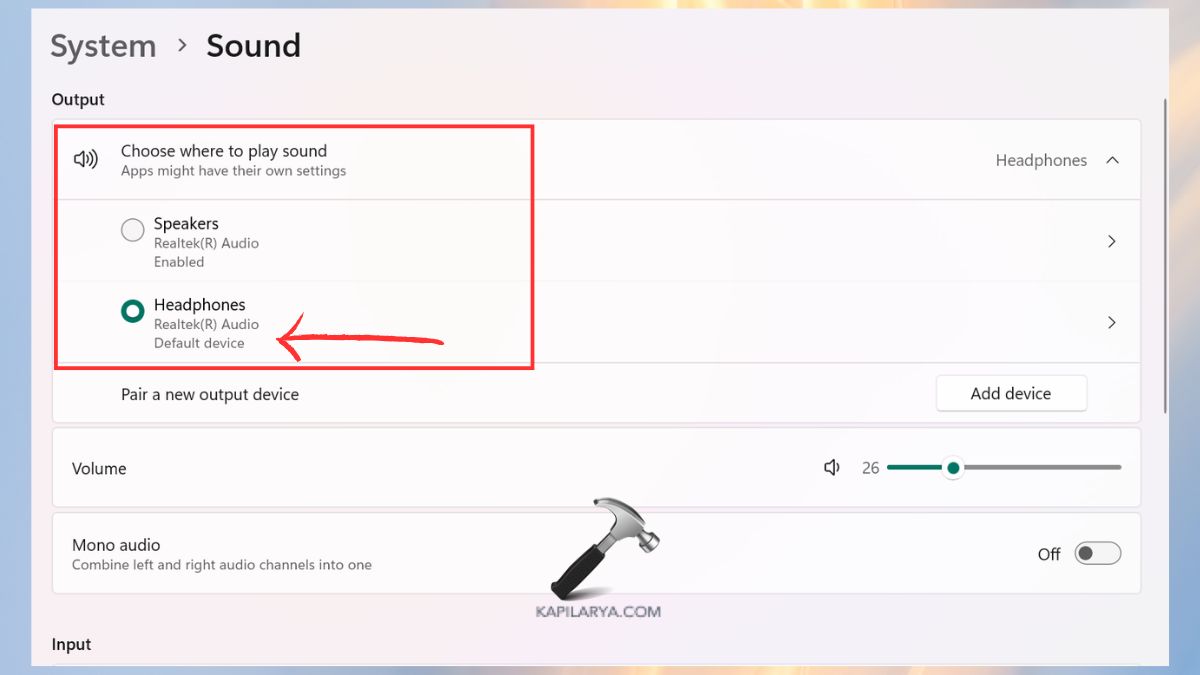
1. To open Settings, press Win + I. Select System > Sound.

2. In Output, choose the audio source that you are using. Look for the Audio enhancements link. Set it to Off.
Way 7: Verify Your Bluetooth Speakers
When the Bluetooth speaker or headphones stop responding or disconnect, it can result in issues with audio. To fix it, follow these steps:
1. Unplug the Bluetooth audio device and see if the Windows Audio service restarts normally.
2. Click Settings > Bluetooth & devices in Windows 11.

3. Locate a Bluetooth speaker or headphones. Disconnect or ‘Remove’ the device.
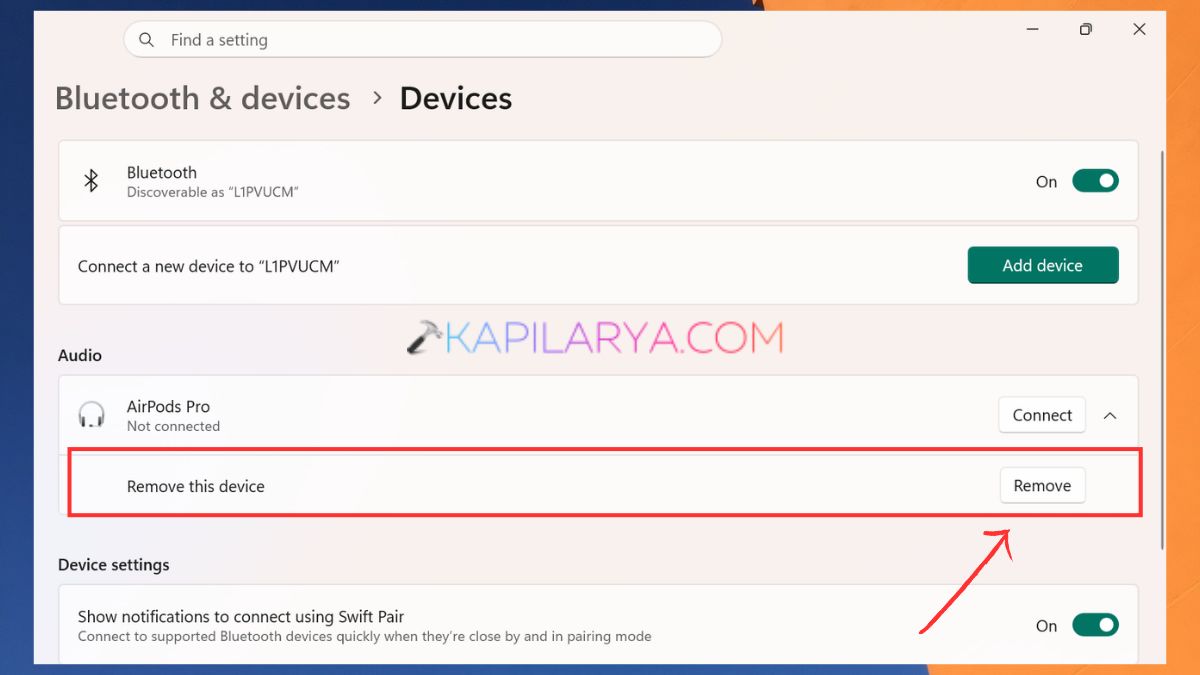
4. Restart your computer. Also, restart the Windows Audio service. If turning off the Bluetooth device fixes the problem, remove it from the Bluetooth paired devices list and reconnect it.
Way 8: Use Get Help to Troubleshoot Audio Problems
You can also use the Microsoft’s Get Help app to get this issue resolved. It offers built-in help in resolving common Windows problems, such as audio-related issues.
1. Click the Start button. Look for “Get Help” and open the app.
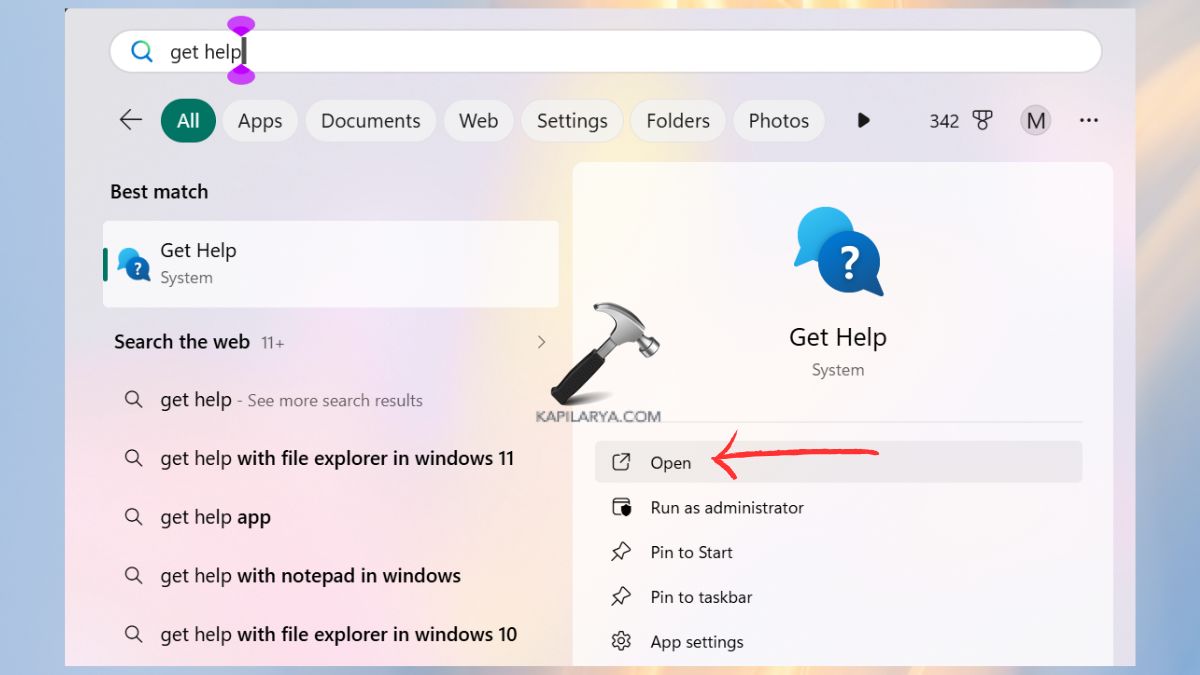
2. Enter Audio troubleshooter in the box. Use the recommended trouble shooting procedures.
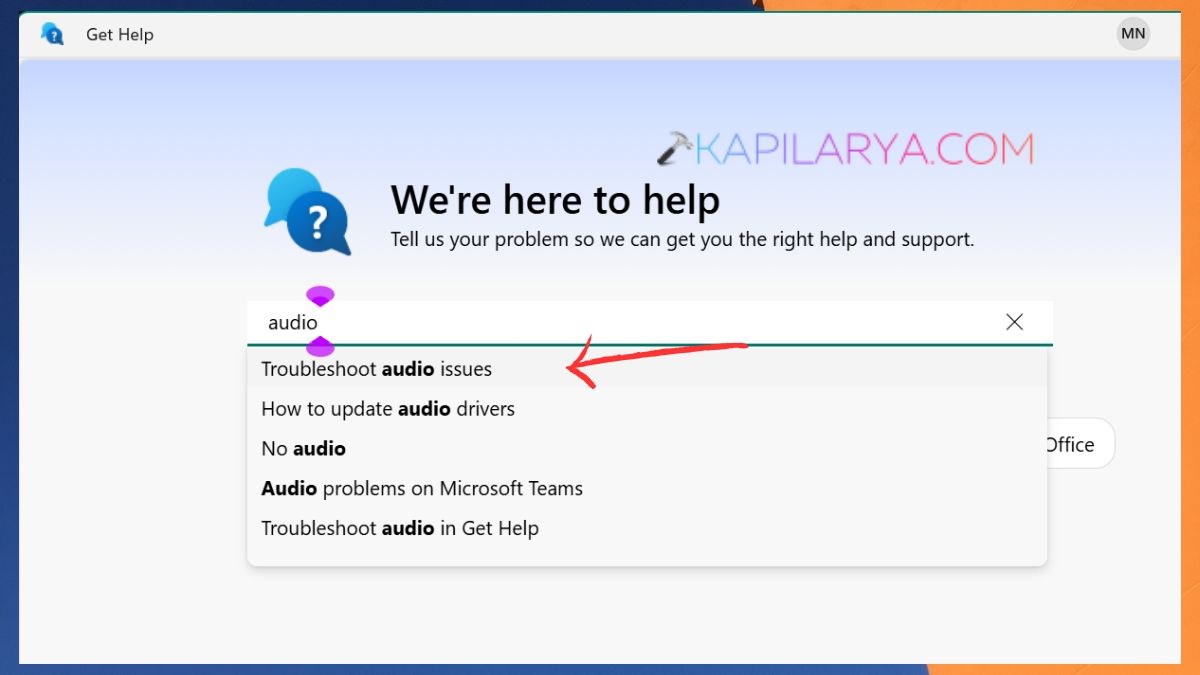
Give the application the chance to assess your audio setup and potentially find issues. The trouble shooter might need to allow it to perform diagnostics and/or speaker tests. Please follow the instructions provided on the screen. Once it’s done, reboot the computer and see if the Windows Audio service is working.
Frequently Asked Questions (FAQs)
Why is my Windows Audio service stuck on stopping?
The issue of Windows Audio Service Stuck on stopping in Windows 11 may occur due to an unresponsive audio driver, conflicting audio software, a plugged-in audio device and issues with dependent Windows services.
How do I fix Windows Audio service access denied?
Log in with an administrator ID to modify service settings. If access is still prohibited, verify the permissions of your Windows account and don’t change service security settings without understanding their implications.
How to enable the Windows Audio service in Safe Mode?
Safe Mode loads only limited services and drivers. This may not be an environment in which Windows Audio runs in normally. Use a normal Windows to troubleshoot the driver or service.
That’s it!