If your Windows 11 Desktop is frozen or not responding, you may be unable to open apps, use the taskbar, or interact with the screen. This issue can occur due to a frozen Windows Explorer process, graphics driver problems, or conflicting startup applications.
I’ve seen in the forums, many users have this issue and it appears all of sudden. Users may be looking into different places for a solution. Here are some methods to fix this issue based upon proven solutions.
Page Contents
Solved: Windows 11 Desktop is Frozen or Not Responding
Method 1: Troubleshoot Windows 11 in Clean Boot
A clean boot starts Windows with essential drivers and services so you can identify the conflicting program.
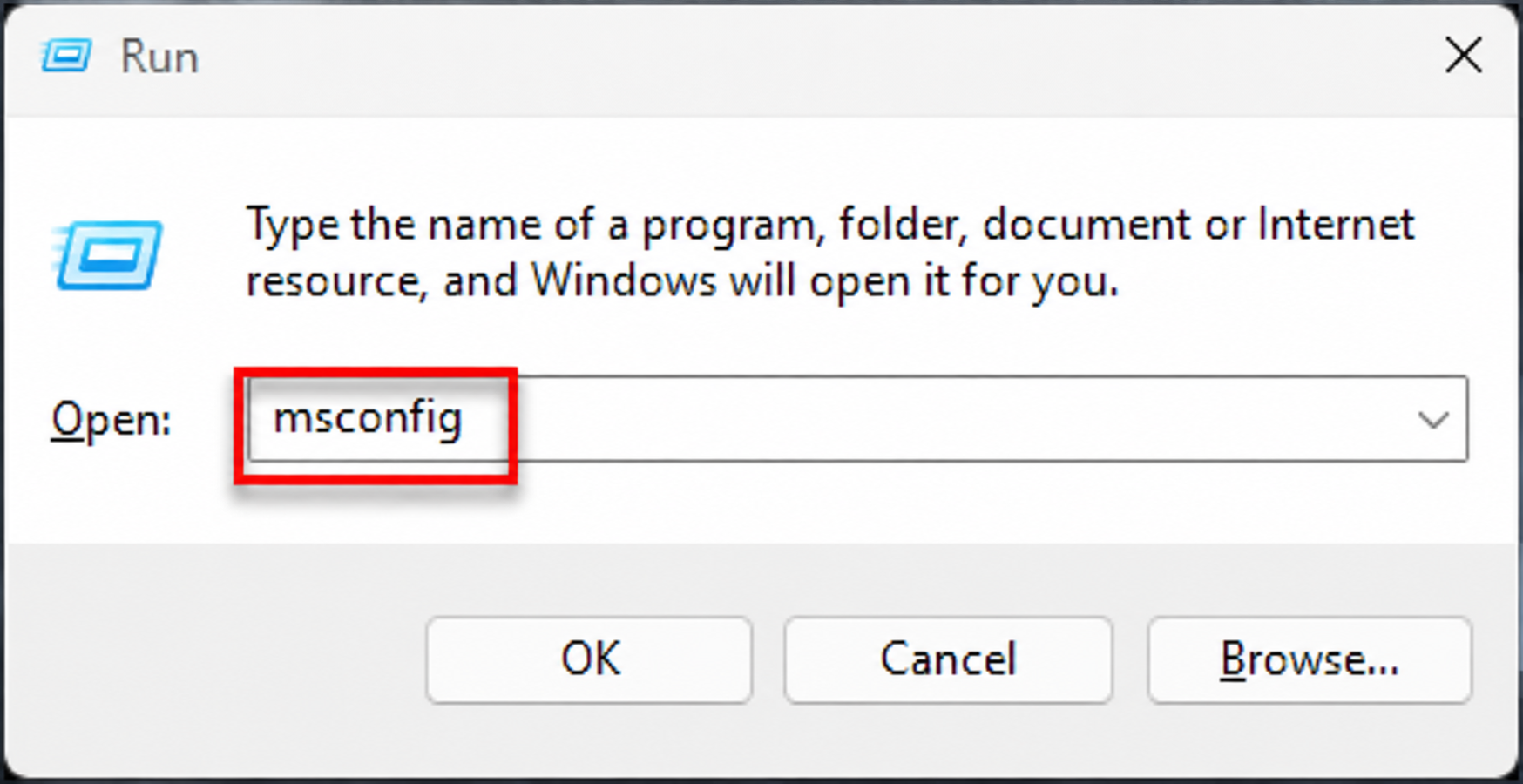
1. Press Windows + R, type msconfig, and click OK.
2. Open the Services tab and click on Hide all Microsoft services..
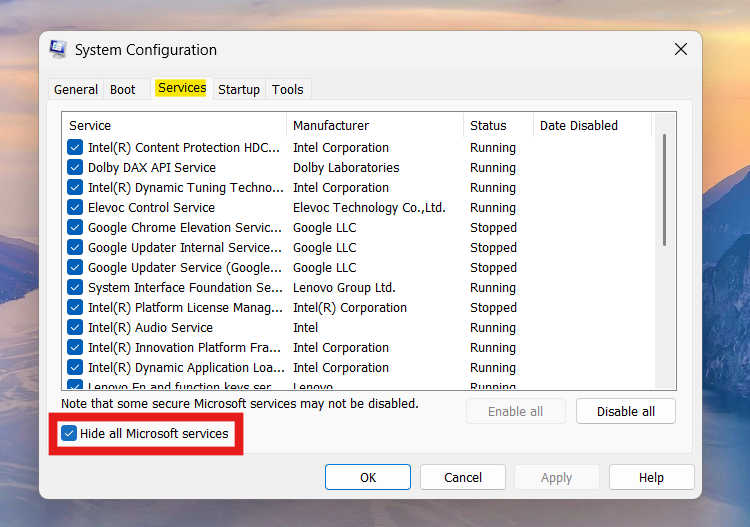
3. Click Disable all.
4. Then, open the Startup tab and click Open Task Manager.
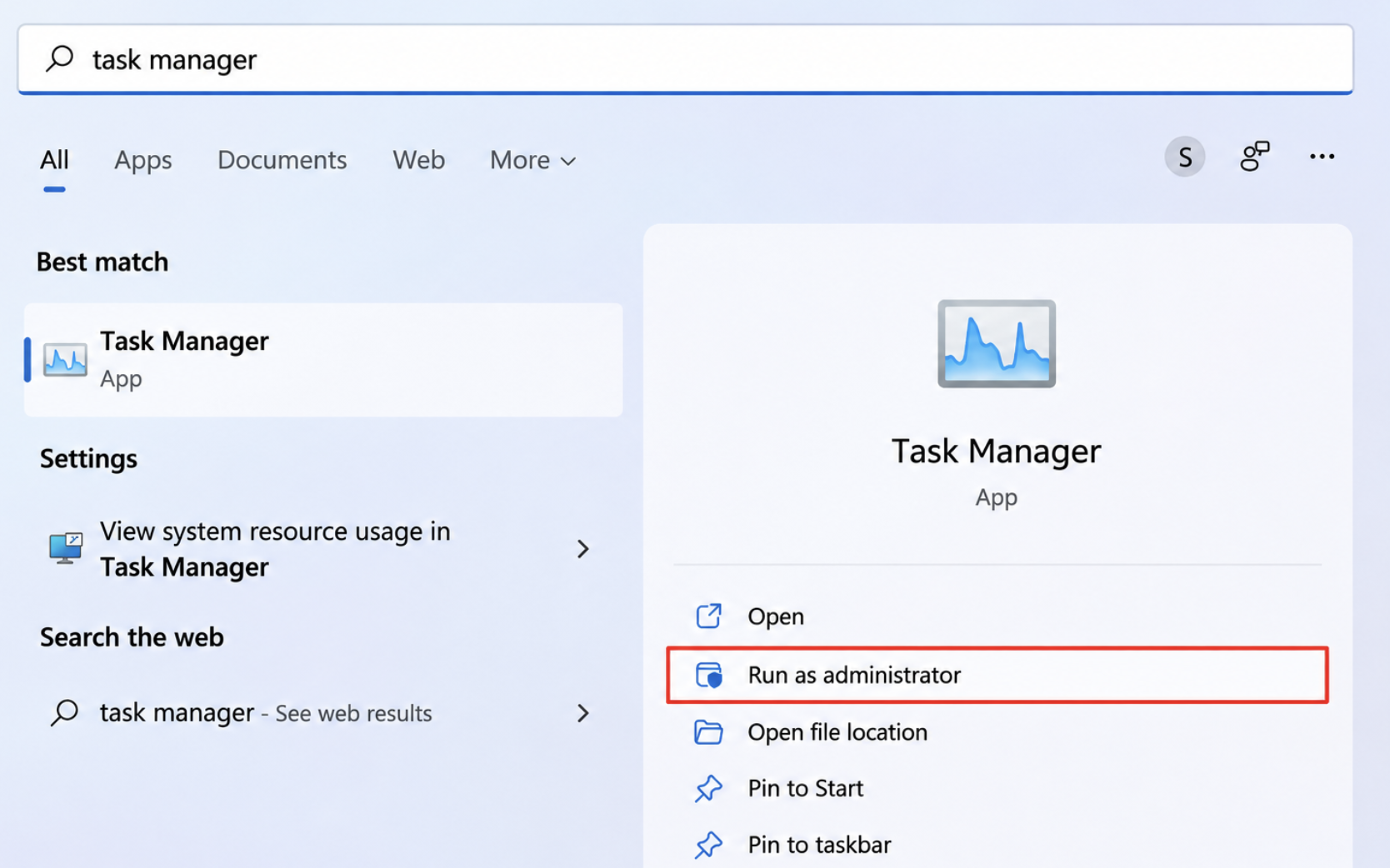
5. Under Startup apps, select each enabled application and click Disable.
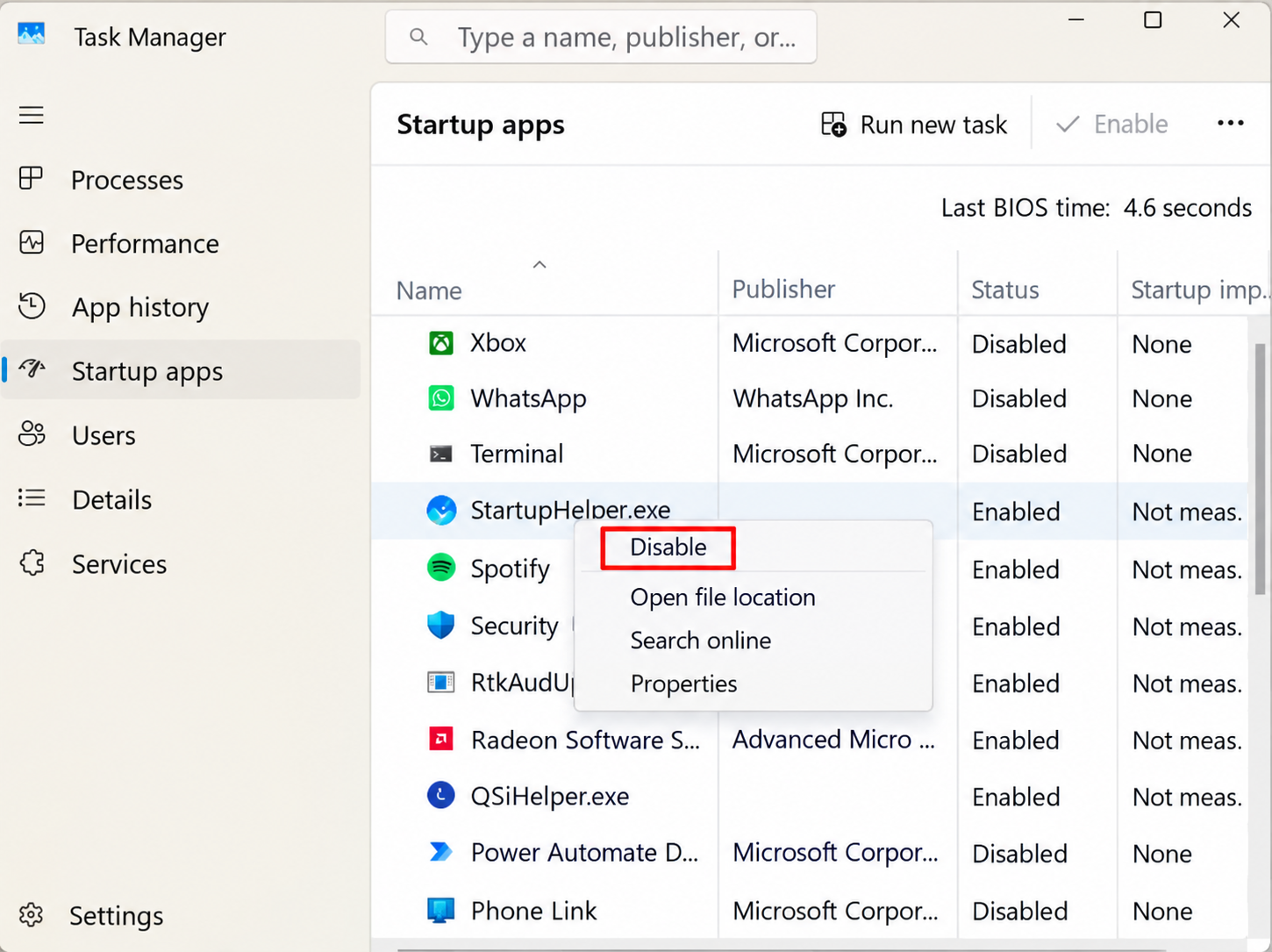
6. Close Task Manager once this is done.
Restart your PC.
Method 2: Restart the Display Driver
Restarting the display driver may help restore the display. Try these steps:
1. Press Windows + Ctrl + Shift + B keys on your keyboard.
2. Your screen may flicker or briefly go black. Wait a few seconds and check whether the Desktop responds after this.
Method 3: Restart Windows Explorer
Windows Explorer manages the desktop, taskbar, and File Explorer. Restarting it can help if the desktop has stopped responding.
1. Press Ctrl + Shift + Esc to open Task Manager.
2. Find Windows Explorer under the Processes tab. Right-click it and select Restart.
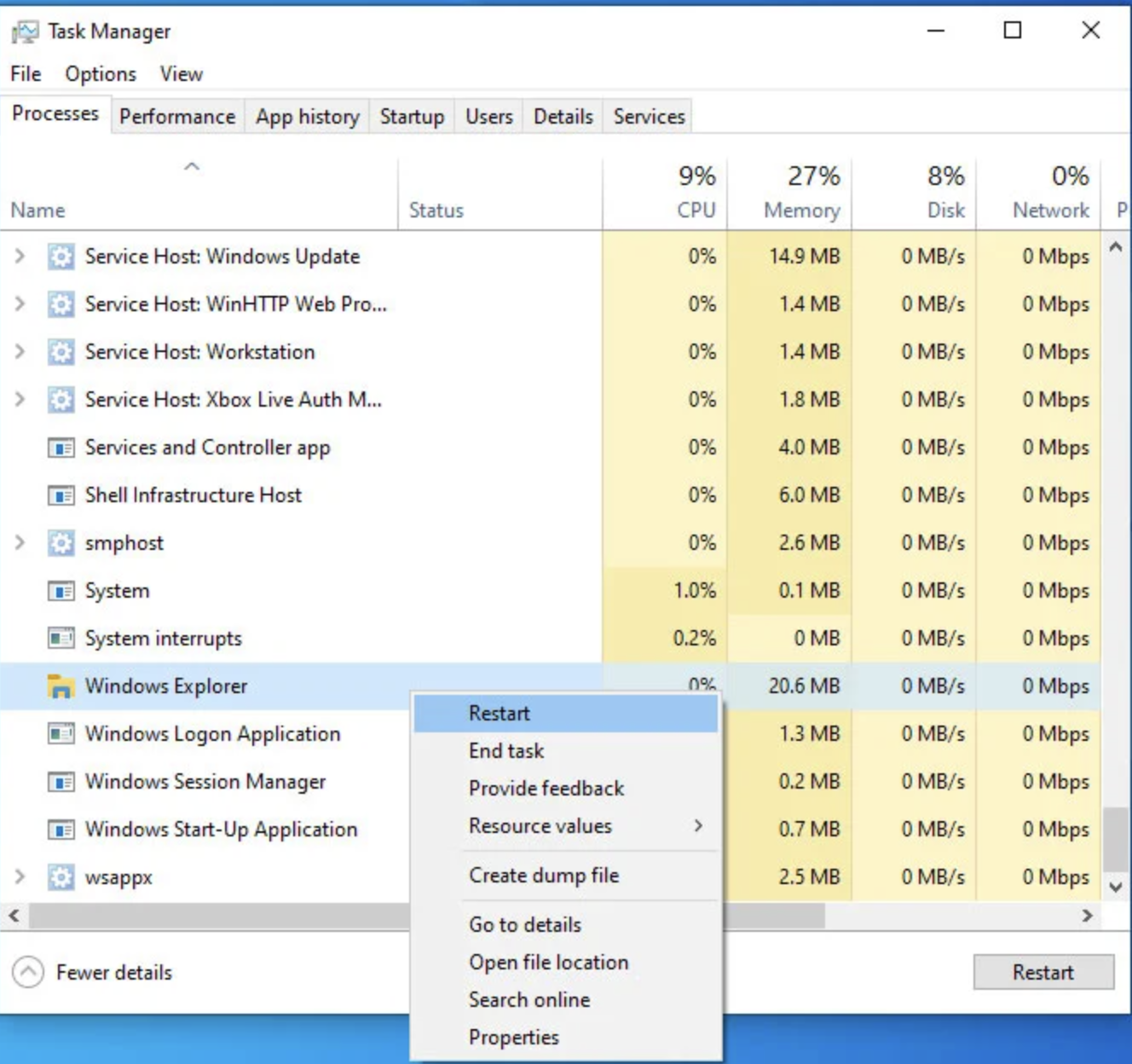
Your desktop should respond again. If not, try the below mentioned fix.
Method 4: Roll Back the Graphics Driver
If the Desktop started freezing after a graphics driver update, rolling back to the previous version may fix the problem.
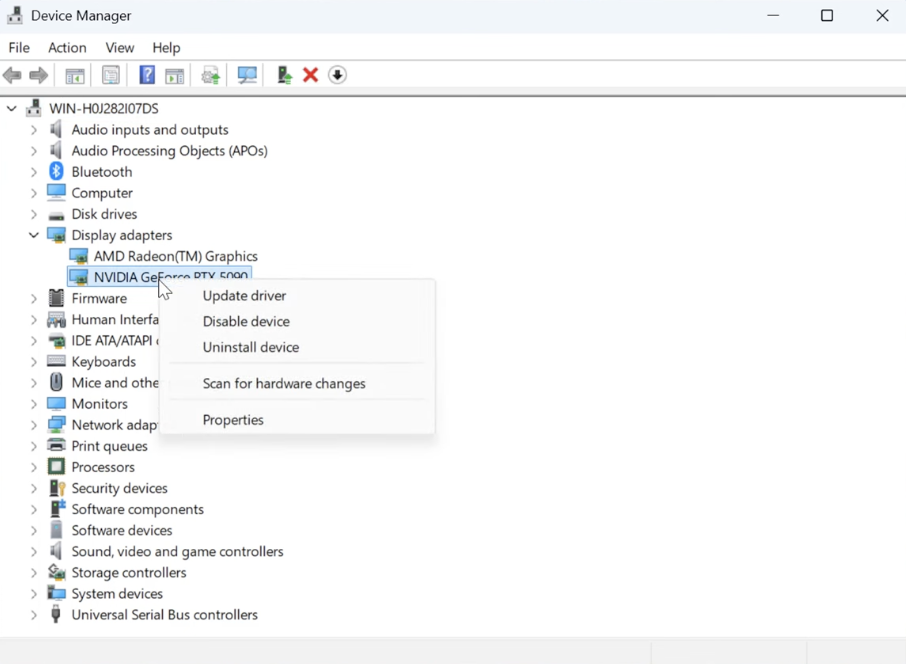
1. Press Windows + X and select Device Manager.
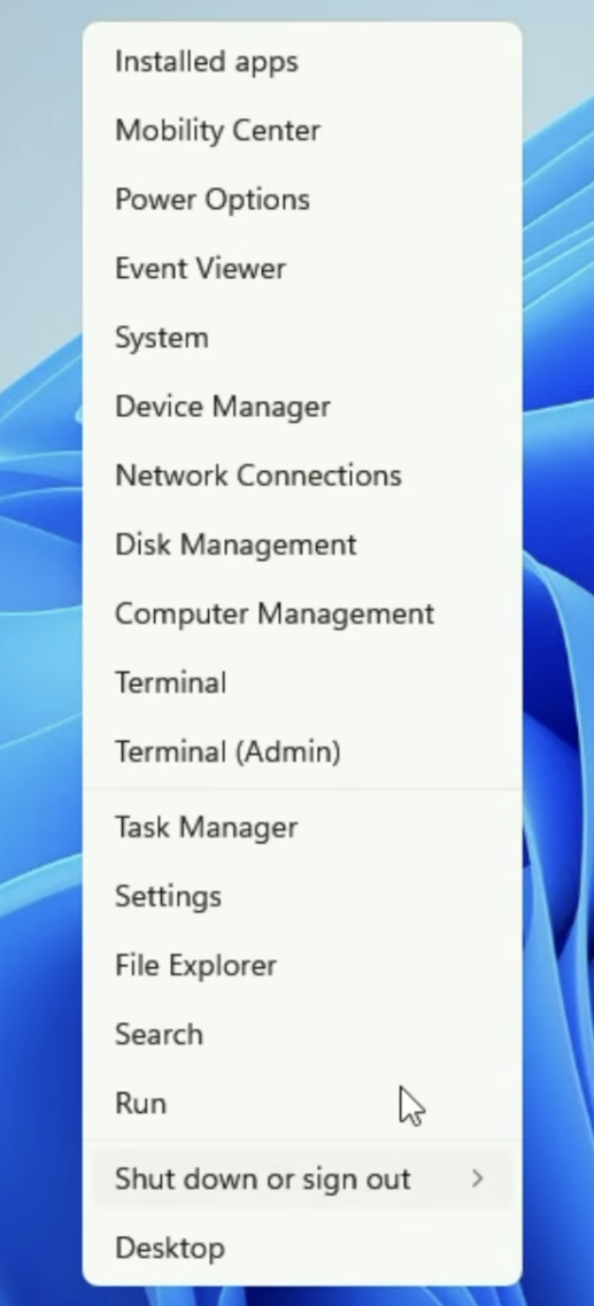
2. Expand Display adapters.
3. Right-click your graphics adapter and select Properties.
4. Open the Driver tab and click Roll Back Driver, if available.
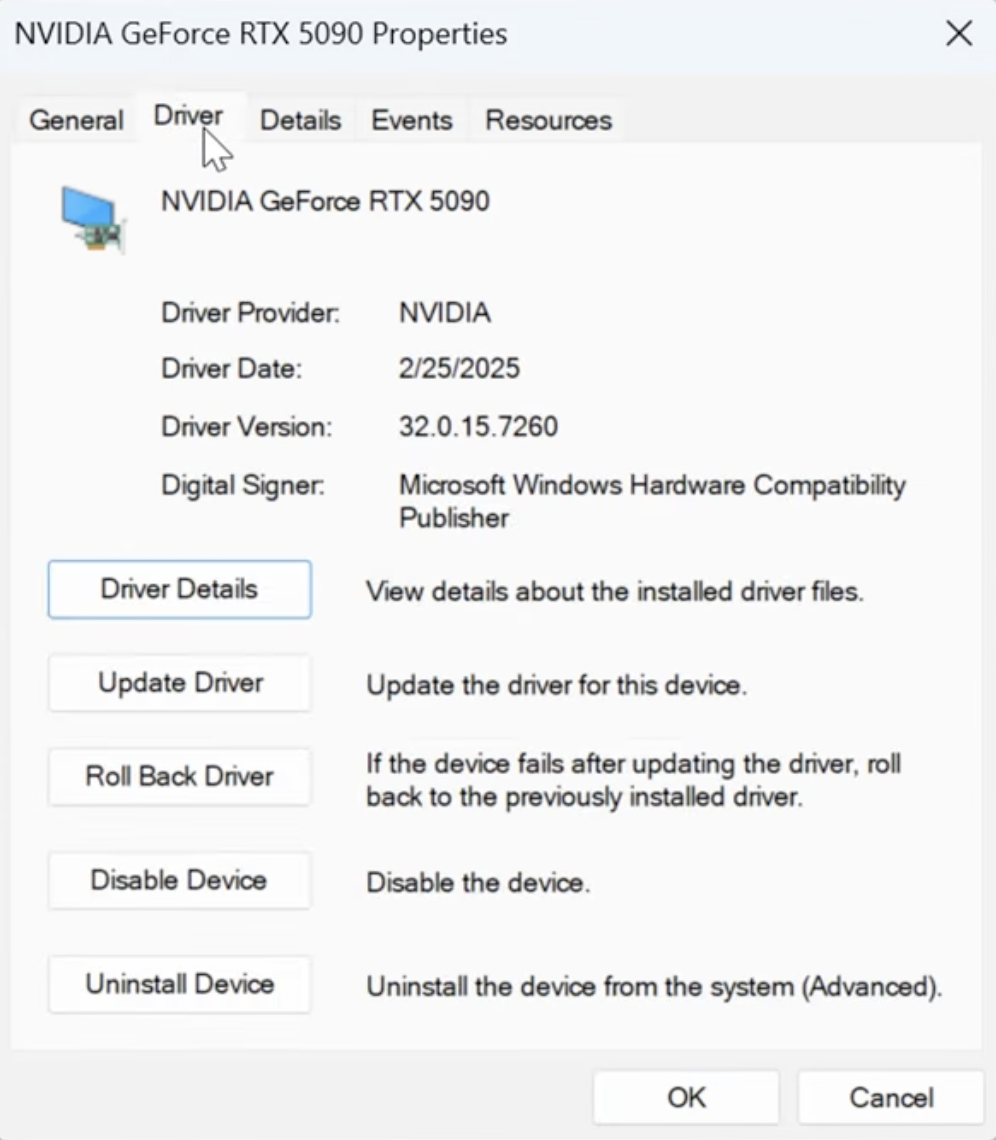
Follow the on-screen instructions and restart your PC.
Method 5: Update the Graphics Driver
An outdated or incompatible graphics driver can cause desktop freezing. Updating it may help resolve the issue.
1. Follow the steps in Method 4 up to Step 2.
2. Right click on your graphics adapter and select Update driver.
3. Then choose Search automatically for drivers.
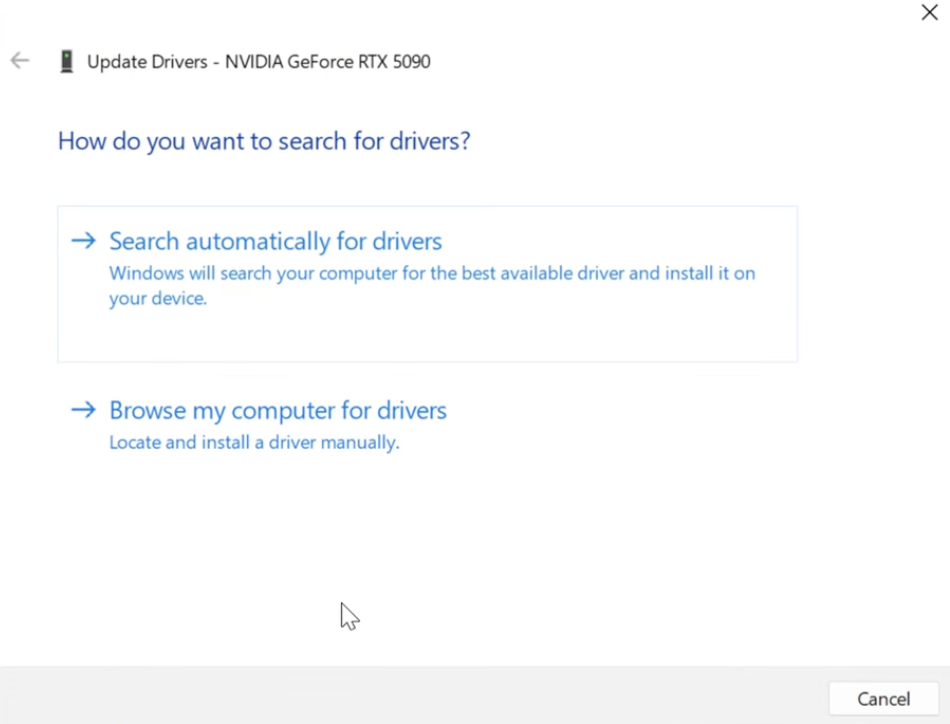
4. Follow the on-screen instructions if Windows finds an update.
Restart your PC after installing the driver.
That’s it!