

Forgetting Windows password will be the most horrible experience for computer users like me. When you have this condition, you may be advised for formatting the Windows (if you consult some tech guys).
But here comes the way to solve this problem very conveniently. As we all know prevention is better than cure, so creating a password reset disk in advance helps us to handle the password forgetting situations. In this article, I’m gonna tell you the way to create password reset disk for Windows 8. So here we go…
How To : Create Password Reset Disk For Windows 8
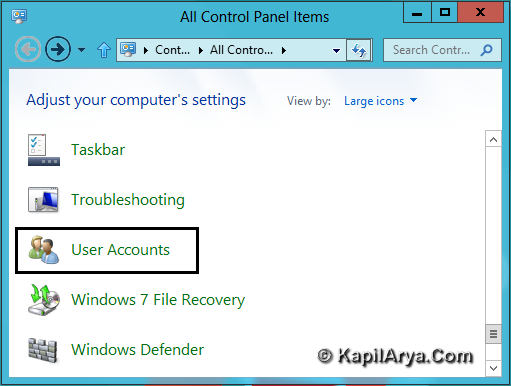
1. Open Control Panel. Find User Accounts and click on it.
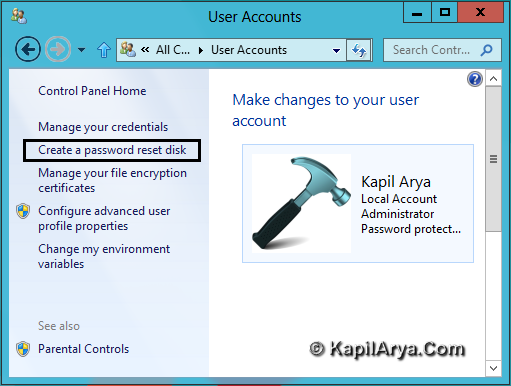
2. Now in the User Accounts window, click on Create a password reset disk option in left pane.
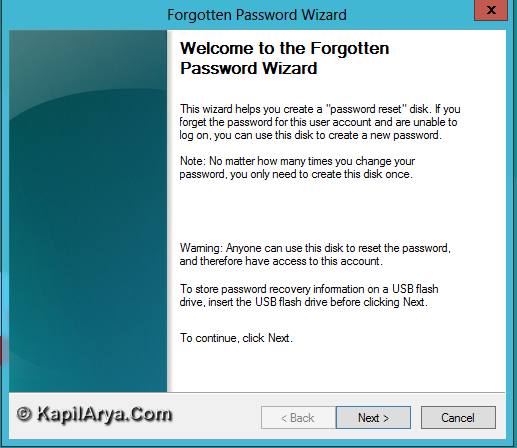
3. Recent step launches Forgotten Password Wizard which is shown below. Click Next after reading the information.
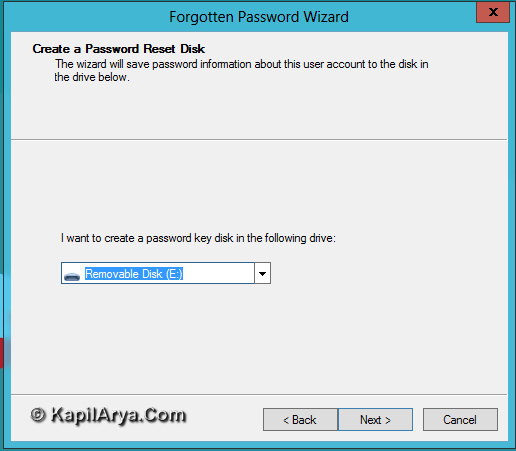
4. Plug-in the USB Drive to the computer / laptop so that it is visible in following window :
5. If your USB drive was used previously to create password reset disk on any other OS or on same OS before, Windows will automatically erase previous reset data(s). For this following prompt is shown (Pick Yes option) :
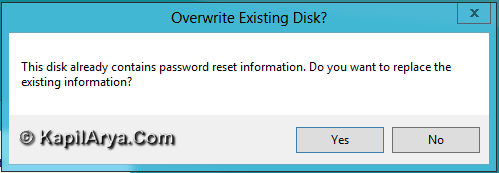
Then this one :
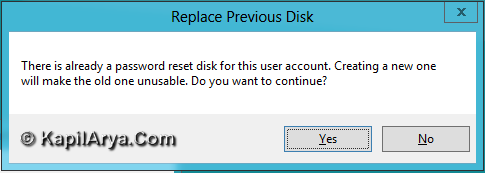
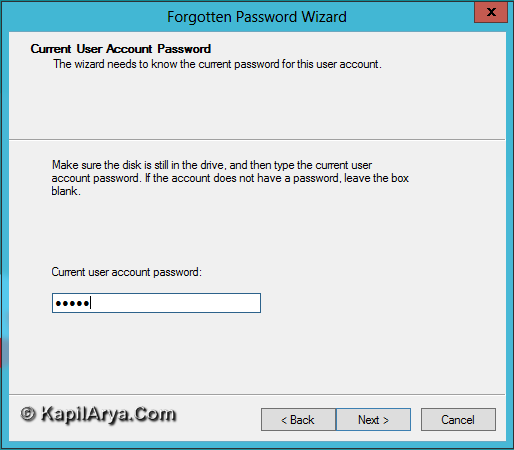
6. If you are using USB Drive for the first time for creating password reset disk, you’ll automatically reach this step after step 4 i.e. step 5 is skipped. Now provide the user account password followed by Next in following window :
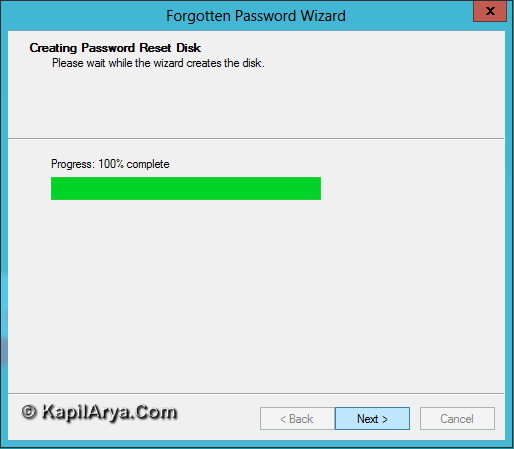
7. As soon as you provide the password, the wizard creates the password reset disk. Click on Next for final.
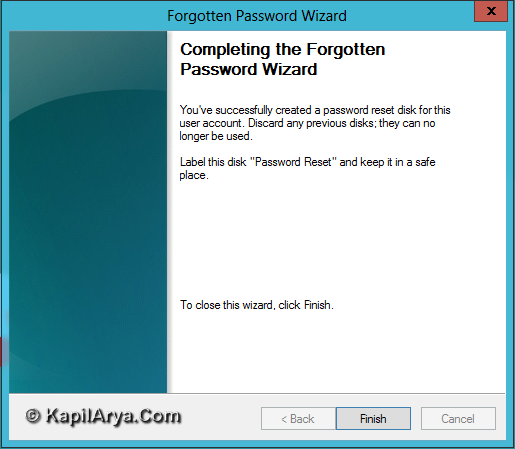
8. Finally you will get following confirmation window when the wizard completes the operation. Click Finish.
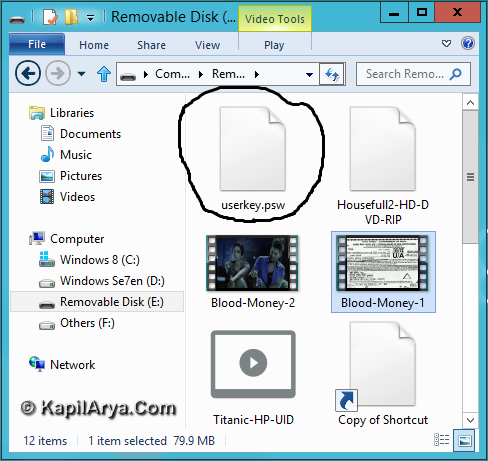
When all done, you can check the USB Drive, where you’ll find userkey.psw.
Now in case you forgot local account password, you can reset the password using above created reset password disk. Same procedure works on Windows 7 as well.Steps mentioned here will create a password reset disk for the account which is logged in at the time of creation.
That’s it!






AwEsOmE ^_^
i want to create paswd reset for two accounts on same USB… plz. help!!!
well this is no way different than other editions :D
thanks for share
gud article, thanks!
@ packard, thats not possible
@ kapil, nice