

In Windows Explorer, you might have noticed that whenever you search anything within Explorer, it automatically records the search string. Despite of the location you’re searching for, Explorer records the queries for every location independently.
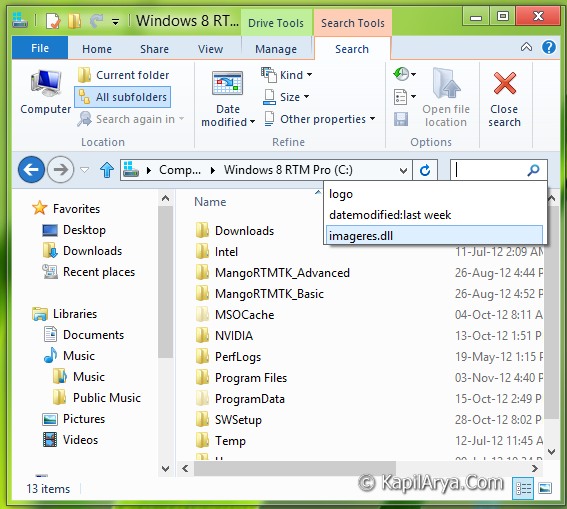
As shown in above image, whenever I try to search anything, I’m already welcomed with search suggestions. These suggestions are those one, which I’ve searched already sometime back in past.
Now consider the scenario, if it is irritating to you to get search suggestions or if search suggestions don’t help you often, then the case arises to remove them. But how? Well, pressing Delete key over each suggestion may be the way, but not fully! So here is the complete removal of search suggestions…
Page Contents
How To : Automatically Erase All Search Suggestions In Windows 8
1. Press  + R and put regedit in Run dialog box to open Registry Editor (if you’re not familiar with Registry Editor, then click here). Click OK.

2. Navigate to the following location:
HKEY_CURRENT_USER\Software\Microsoft\Windows\CurrentVersion\Explorer\WordWheelQuery
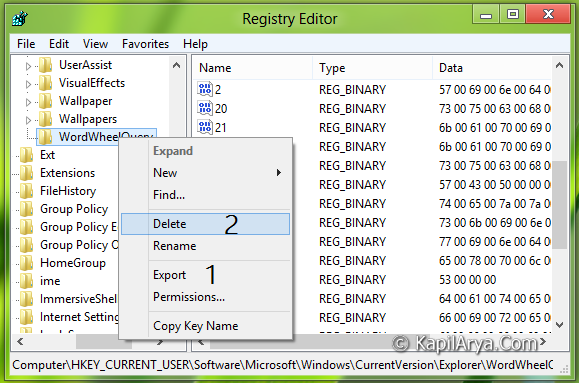
3. In the left pane of this location, delete the key WordWheelQuery after exporting it (as shown in above image).
4. Close the Registry Editor and reboot to get the results.
Download Direct Registries
To made the work easy, we’ve created direct registries. All you need to do is to open these files with Registry Editor. Click Yes for prompts.
Reboot and get results.
Here is the demonstration video:
Hope you enjoy the trick!







Very good Kapil Arya , thanx.. :)
nice one bro…
Suggestion : Try to include gpo for this?
Very goood job Kapil, keep it up :) )