Expand to current folder is one of the sorting option in Windows Explorer. If you have too many folders in your Windows OS, then this option may help you to locate the required folder.

You can easily configure this option using above shown way. However if you are facing the issue to configure it via Explorer, then you can opt the way of Registry Editor. So here is the trick…
Page Contents
How To : Automatically Enable Or Disable Expand To Current Folder Settings
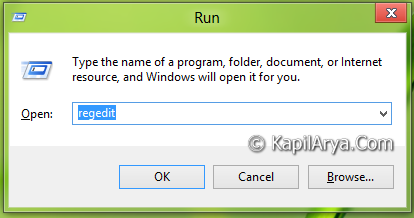
1. Press  + R and put regedit in Run dialog box to open Registry Editor (if you’re not familiar with Registry Editor, then click here). Click OK.
2. Navigate here:
HKEY_CURRENT_USER\Software\Microsoft\Windows\CurrentVersion\Explorer\Advanced

3. In the right pane, find or create a DWORD and name it NavPaneExpandToCurrentFolder.

4. Right click on above mentioned DWORD, select Modify. Use following values in Value data section:
To Turn On, Automatically “Expand To Current Folder”, Put 1 (Default)
To Turn Off, Automatically “Expand To Current Folder”, Put 0
5. Close Registry Editor and reboot to get results.
Download Direct Registries
To made the work easy, we’ve created direct registries. All you need to do is to open these files with Registry Editor. Click Yes for prompts.
Registry To Turn On, Automatically “Expand To Current Folder”
Registry To Turn Off, Automatically “Expand To Current Folder”
Reboot and get results.
That’s it!