

If you open the Microsoft Store in Windows 11 and get a vague message like “There has been an error” or “Something happened on our end”, this can block opening the Store, downloading apps, or updating games.
Page Contents
Fix ‘There has been an error’ for Microsoft Store in Windows 11
This message doesn’t always point to one cause; it might be a network hiccup, corrupted app data, cache issues, or underlying Store app corruption. Below are seven methods to help fix it step by step.
Fix 1: Sign Out and Sign Back In
Account authentication problems can cause the Store to error:
1. Open Microsoft Store.
2. Click your profile icon in the top-right corner.
3. Select Sign out.
4. Close the Store, reopen it, and sign in again with your Microsoft account.
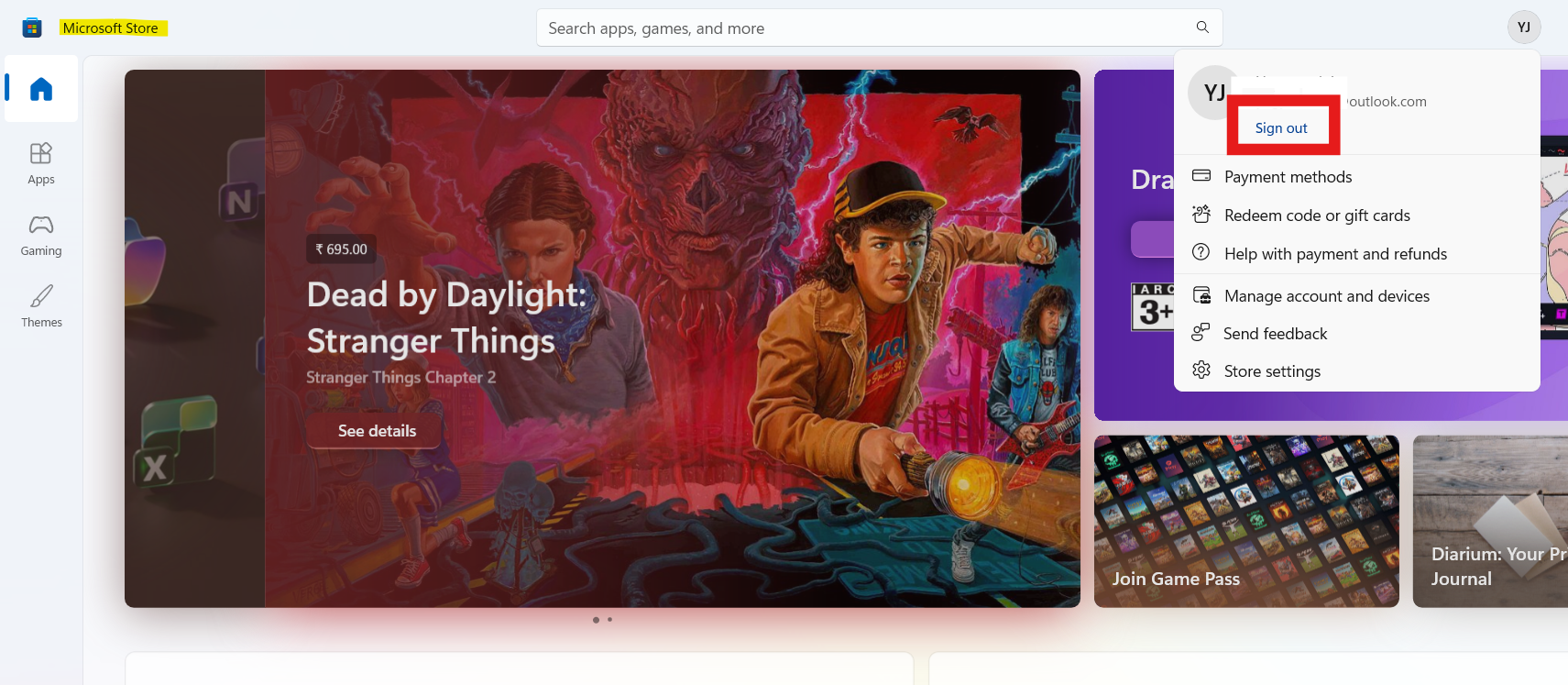
Re-authenticating refreshes your session and often clears this error.
Fix 2: Clear the Store Cache
A corrupted cache is a common reason the Store fails:
1. Press Win + R.
2. Type wsreset.exe and press Enter.
3. A blank Command Prompt window will open and automatically reset the cache.
4. When it finishes, the Store should open normally.
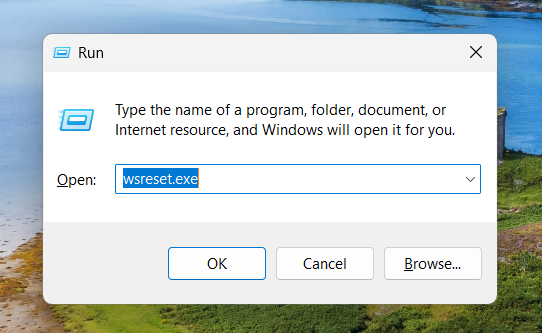
This removes old temporary data that can prevent the Store from loading.
Fix 3: Repair or Reset the Microsoft Store App
If the app files are damaged, repairing or resetting can fix them:
1. Open Settings and go to System. Click on System Components.
2. Find Microsoft Store in the list.
3. Click the three dots (…) and then Advanced options.
4. First Repair the app; if that doesn’t help, choose Reset.
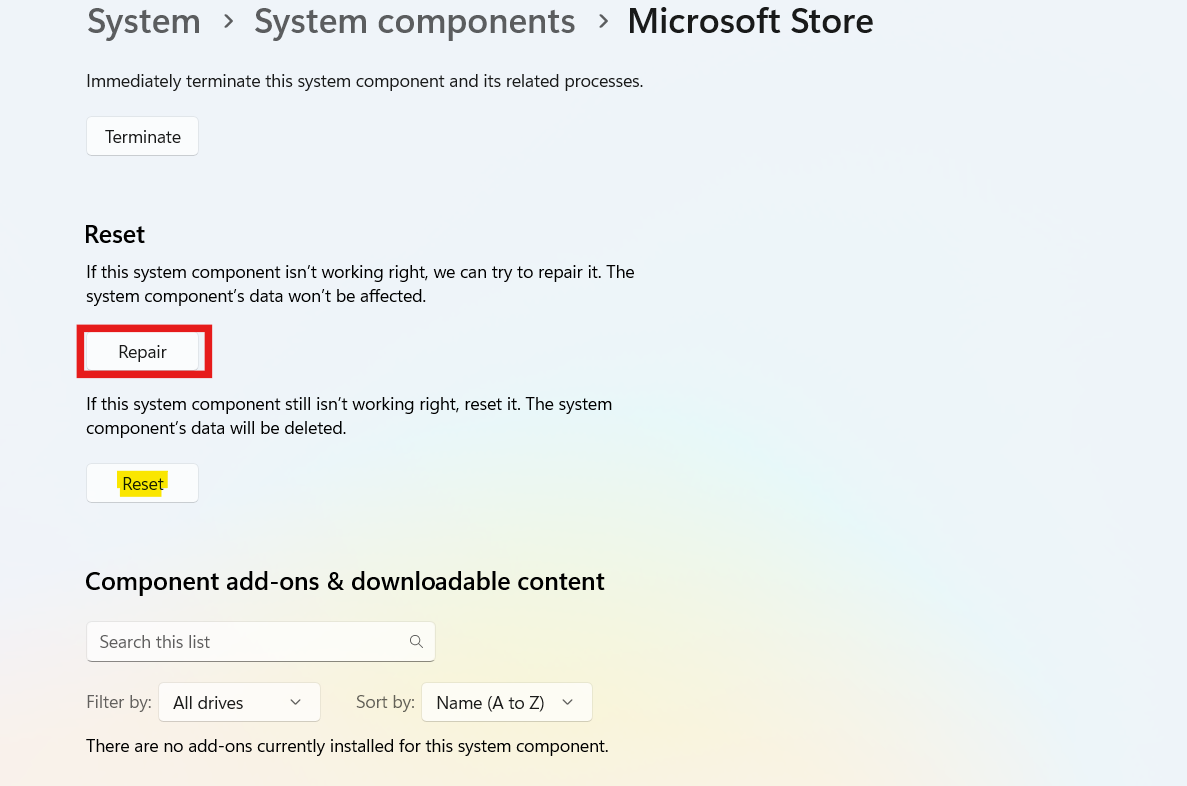
Reset restores the Store to default without removing Windows.
Fix 4: Update the Microsoft Store
An outdated Store build can trigger errors:
1. Open Microsoft Store.
2. Select Downloads in the sidebar.
3. Click Check for updates to install the latest Store version.
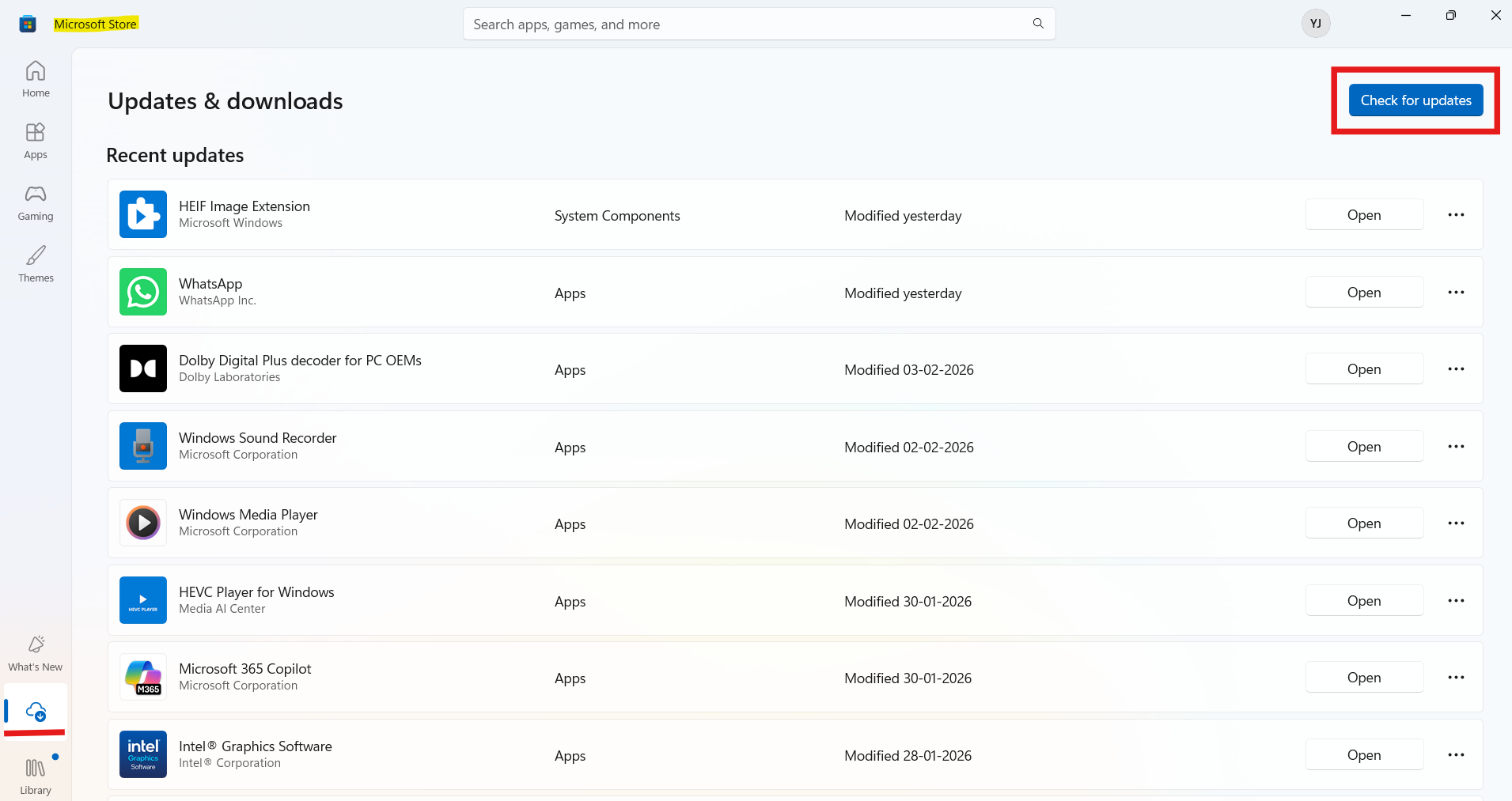
Updating ensures the Store has the newest bug fixes and improvements.
Note: This fix only applies if the Store opens but fails to download other apps.
Fix 5: Check Internet, Date, & Time
Network or region mismatches often stop the Store from reaching Microsoft servers:
1. Confirm your Internet connection is stable and not blocked by a firewall or proxy.
2. Go to Settings and click on Time & language. Then Date & time, and enable Set time automatically and Set time zone automatically.
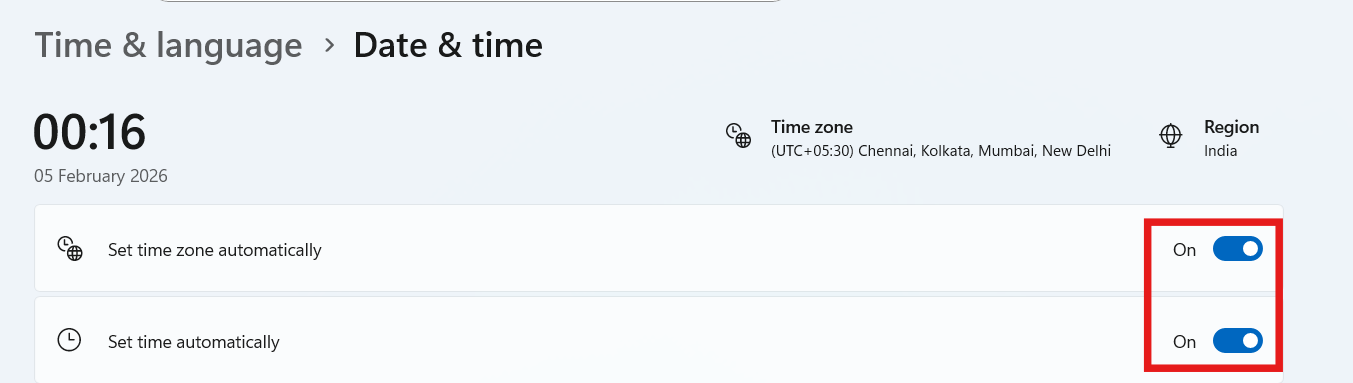
Incorrect time or proxies can break Store communication.
Fix 6: Run the Windows Store Apps Troubleshooter
Windows includes a tool to auto-detect Store issues:
1. Go to Settings and click on System. Then go to Troubleshoot and then Other troubleshooters.
2. Find Windows Store Apps and click Run.
3. Follow on-screen prompts to let Windows apply recommended fixes.
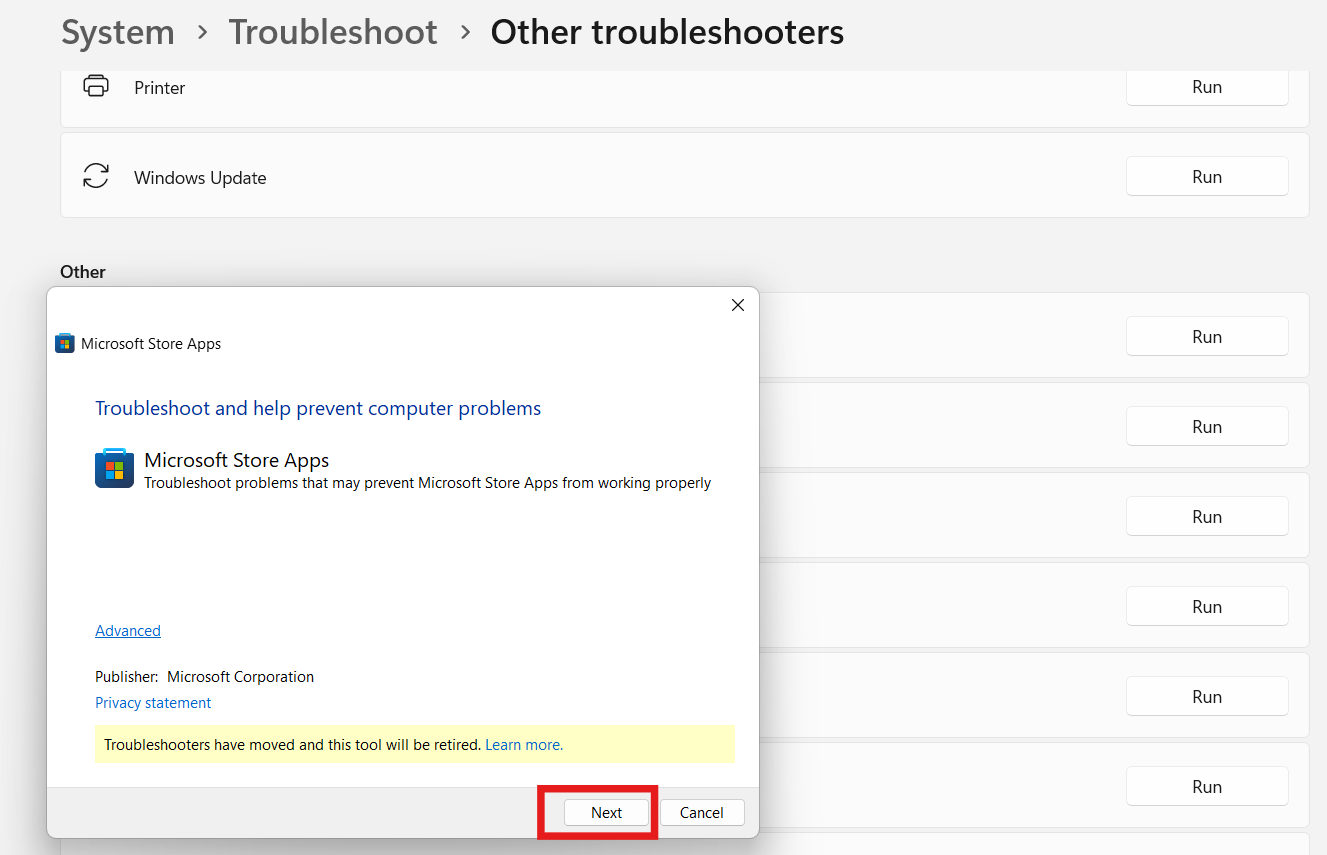
This can identify configuration problems or missing dependencies.
Fix 7: Re-register or Reinstall the Microsoft Store
If Store registration is corrupt, re-registering or reinstalling can help:
1. Open Windows Terminal (Admin).
2. Enter this command:
Get-AppxPackage *WindowsStore* -AllUsers | Foreach {Add-AppxPackage -DisableDevelopmentMode -Register "$($_.InstallLocation)\AppXManifest.xml"}
3. If errors persist, you can uninstall and reinstall with PowerShell commands (remove then register the package again).
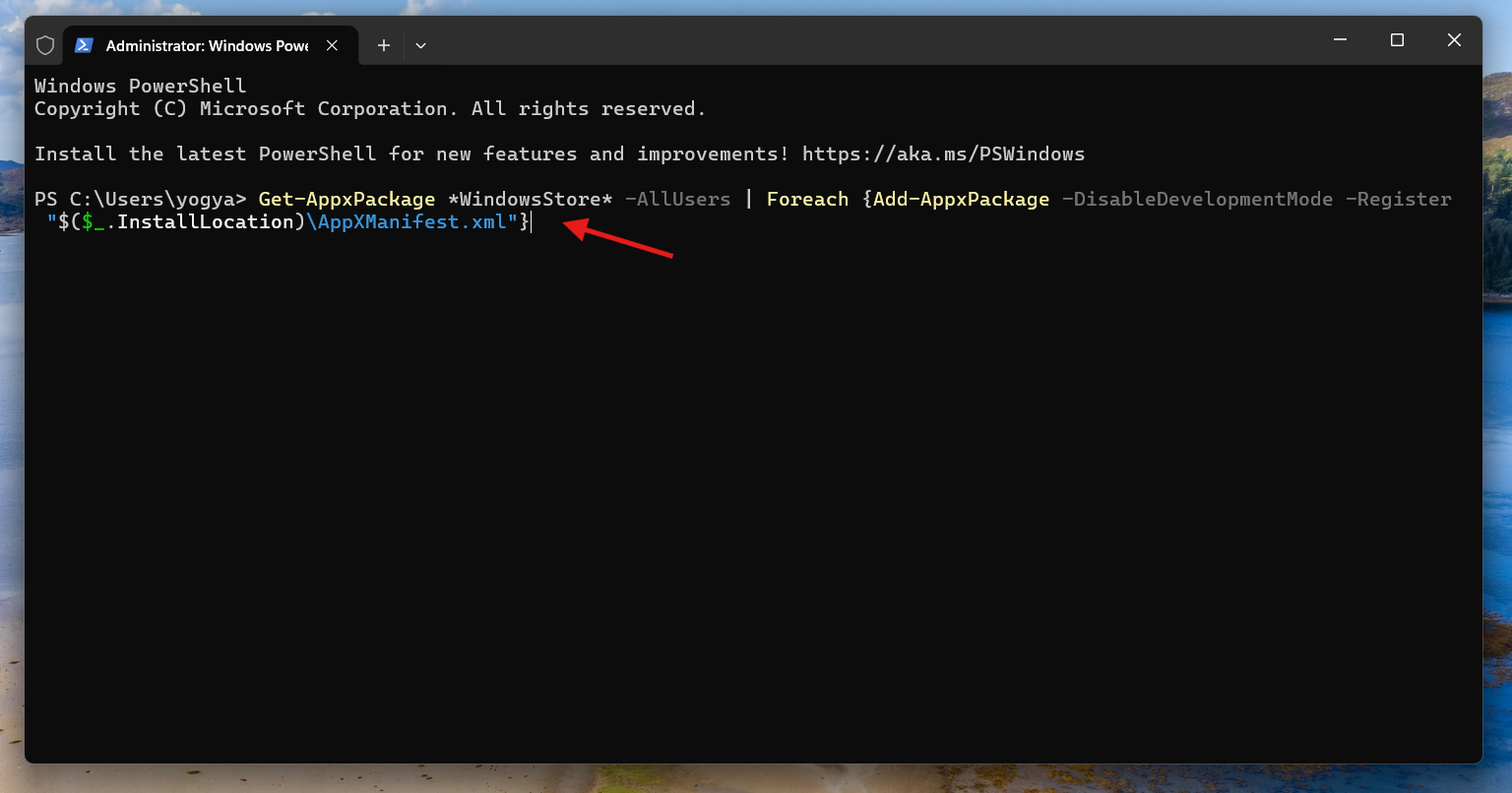
This restores the Store app from scratch.
Extra Tips
1. Restart your PC: A simple restart clears temporary glitches.
2. Disable third-party antivirus temporarily to rule out interference.
3. Ensure Windows is up to date: System updates often include Store bug fixes.
This generic message means the Store can’t complete a requested action due to communication, cache, account, or internal app file issues. The steps above tackle the most common root causes of connection issues, corrupted files, outdated builds, or Store configuration problems.


