

This would be quite annoying for anyone whose PC stuck at login or ‘Welcome‘ screen. As you’re only one step behind the login process, it would quite frustrating if you can’t get inside the OS due to some issue. But unfortunately, some users may face this kind of problem. This article covers one such scenario in which Windows 10 stuck at ‘Welcome‘ screen, just after entering password/PIN/picture password.
In this case, after entering the credentials you’re supposed to get inside the OS. However, you see the ‘Welcome‘ screen and nothing happens then. This leads to infinite waiting situation and you may need to reboot machine, to see if it makes any changes in the condition.
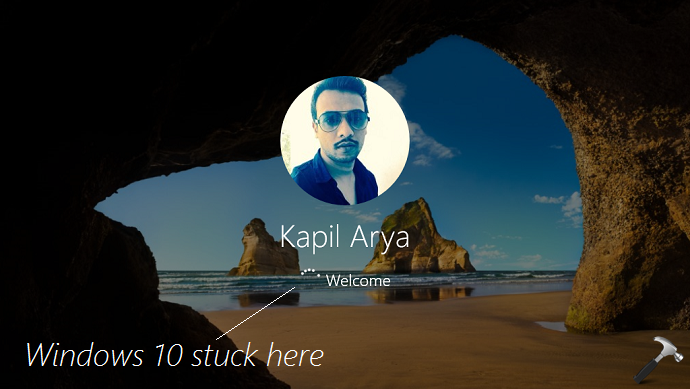
However, in some cases, even after rebooting, you still face the problem. So how to get inside the OS? How to bypass this ‘Welcome‘ screen infinite waiting loop? Well, here are few suggestions worth to try to fix this issue.
FIX: Windows 10 Stuck At Welcome Screen
1. As a first troubleshooting step, try to boot into Safe Mode. If you can boot into Safe Mode, you’ll be able to carry on further troubleshooting steps mentioned below.
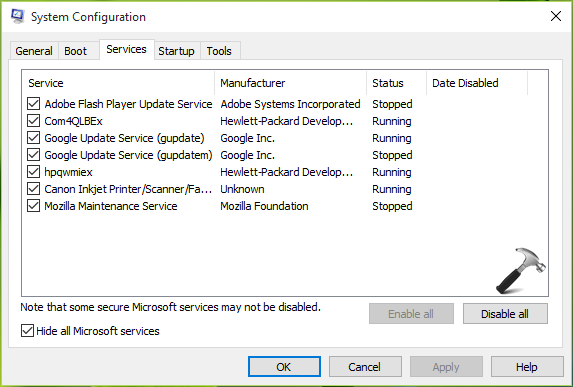
2. After booting into Safe Mode, perform the clean boot. Some third-party software you use on Windows may cause this issue error. So if you use some many third-party tools, you must try clean boot. Just run msconfig command in Run (press  + R to get this), then go to Services tab and check Hide all Microsoft services and click Disable all button. Reboot and check the status of issue. You can also do this step-wise, for each programs, one-by-one disable the corresponding services and keep checking, if the issue resolves.
3. If you can’t even boot into Safe Mode, perform the Automatic Repair.
4. Try to restore your system to some earlier date when you don’t have this issue. You can use either System Restore wizard or System Image backup for this.
5. In some case, you may stuck into ‘Welcome‘ screen if your user account is corrupted. So try logging into another user account on the machine. By this, you’ll be at-least able to get inside the OS to manage problematic user account.
6. Following point 5, if you don’t have any other user account, simply follow this guide to enable hidden administrator account.
7. If the problem still persists, try Refreshing your Windows 10 or perform in-place upgrade.
8. Still have the problem? You need to make clean install, as this is the last option we’ve left with.
Hope something helps you!
![Windows needs your current credentials [Fix]](https://www.kapilarya.com/assets/password_icon_1783831080.jpg)






Hello, from the image above (with the welcome below your photo), where can I change that to a generic icon for all users.
^^ You may configure following policy: Computer Configuration\Administrative Templates\Control Panel\User Accounts\Apply the default user logon picture to all users.