To convert a Basic disk to a Dynamic disk in Windows 11, you can use Disk Management, DiskPart, or PowerShell. Windows uses two types of disks: Basic and Dynamic. Basic disks use partitions, such as primary partitions and logical drives, to store data. Dynamic disks support advanced volumes, including spanned, striped, and mirrored volumes, which can span multiple disks.
Page Contents
Convert Basic Disk to Dynamic Disk in Windows 11
Method 1: Using PowerShell
1. Open the WinX menu and select Disk Management.
2. Right-click the disk and select Convert to Dynamic Disk.
3. Confirm the disk selection and click Convert.
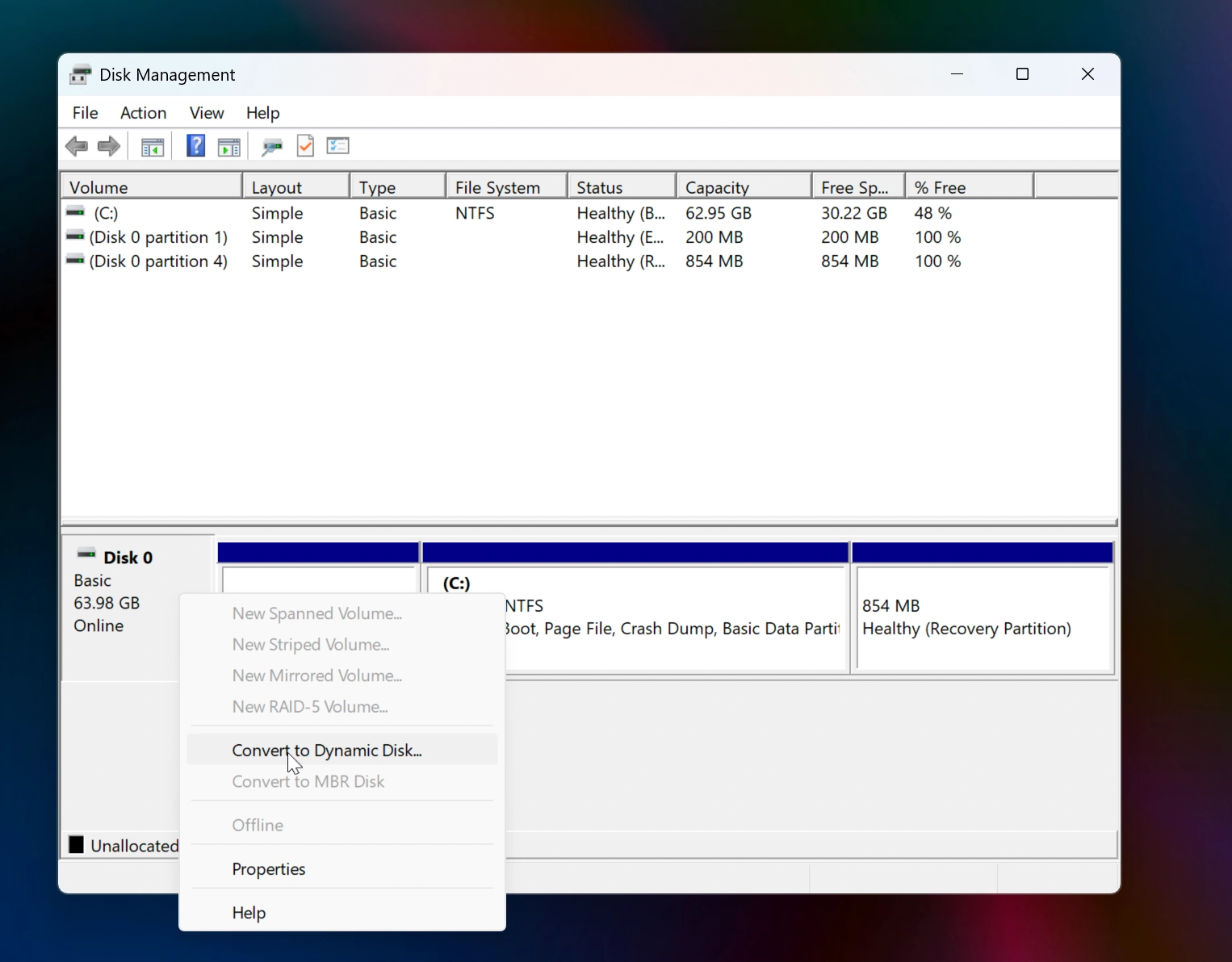
This initiates the conversion process and the Disk will be converted to a Dynamic disk.
Method 2: Convert Basic Disk to Dynamic Disk Using Diskpart
1. Open Command Prompt as administrator and type diskpart. Press Enter.
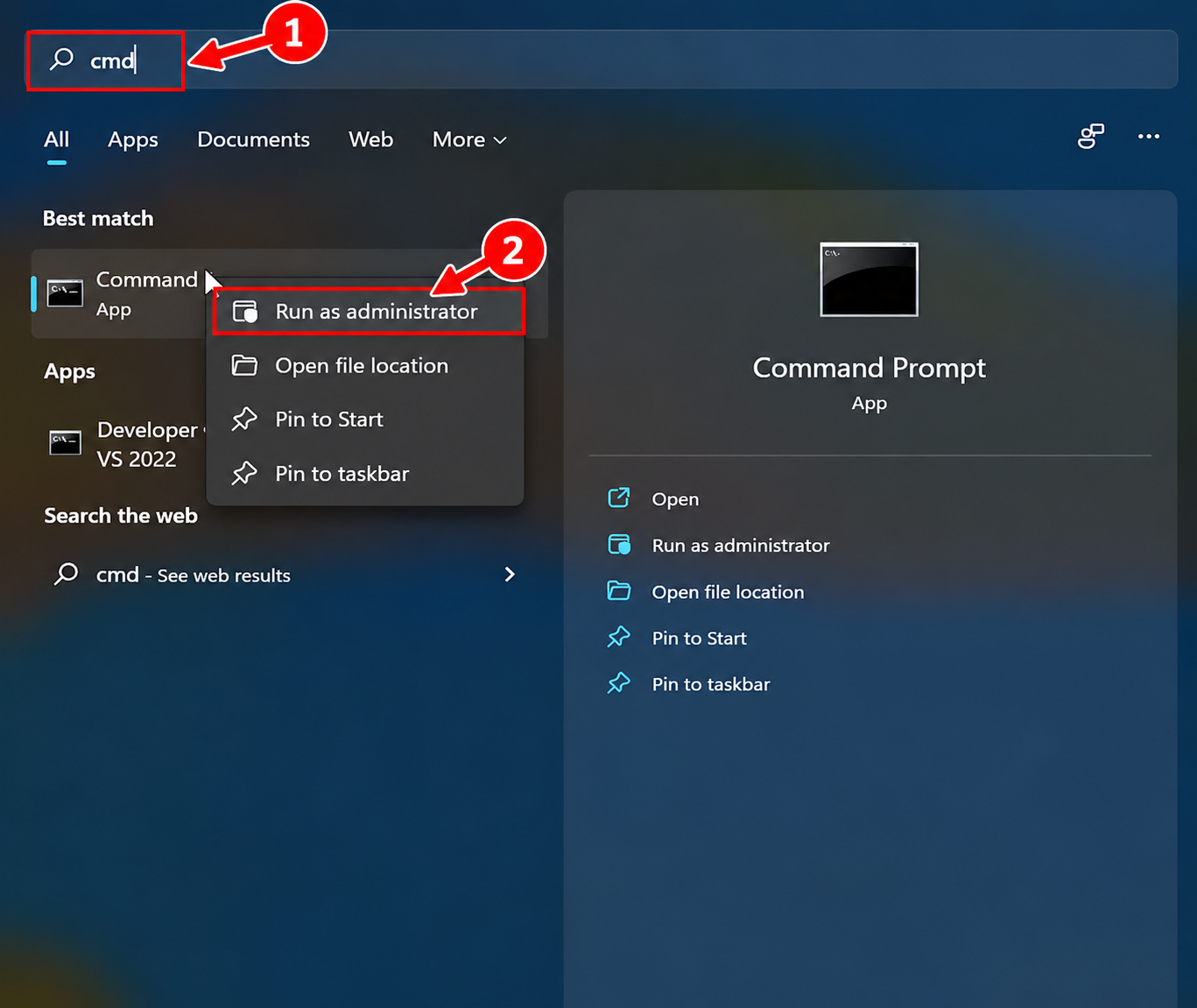
2. Type list disk and press Enter.
3. Note the disk number and type select disk <disk number> replacing <disk number> with the actual disk number. Press Enter.
4. Type convert dynamic and press Enter.
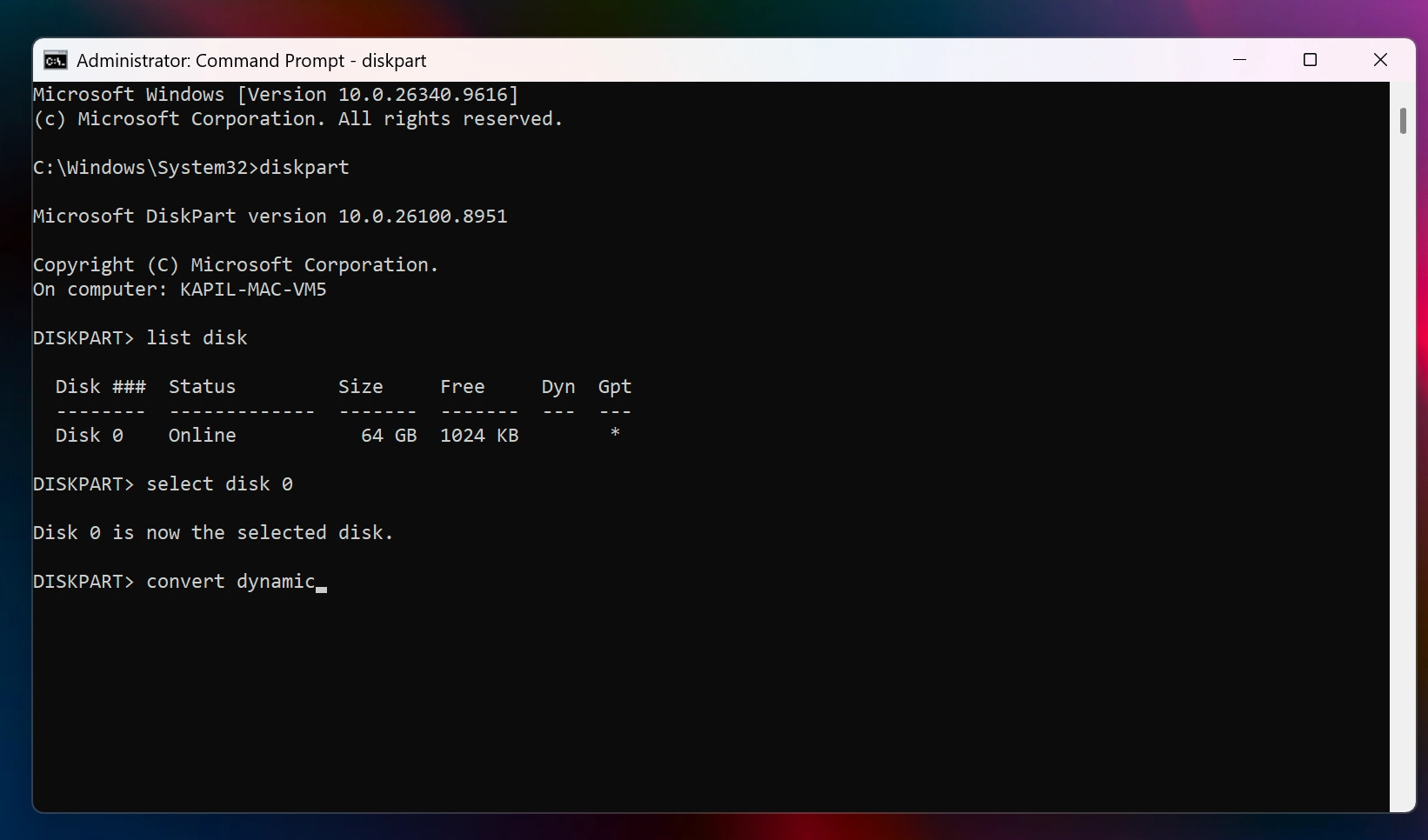
5. Type exit to close Diskpart.
Now, your basic disk is converted into a dynamic disk using the Diskpart method.
Method 3: Using PowerShell
1. Open PowerShell as administrator.
2. Type Get-Disk and press enter to list all disks.
3. Note the disk number you want to convert.
4. If the disk contains partitions or volumes, type the following command, replacing DiskNumber with the actual disk number:
Clear-Disk -Number DiskNumber -RemoveData -Confirm:$false
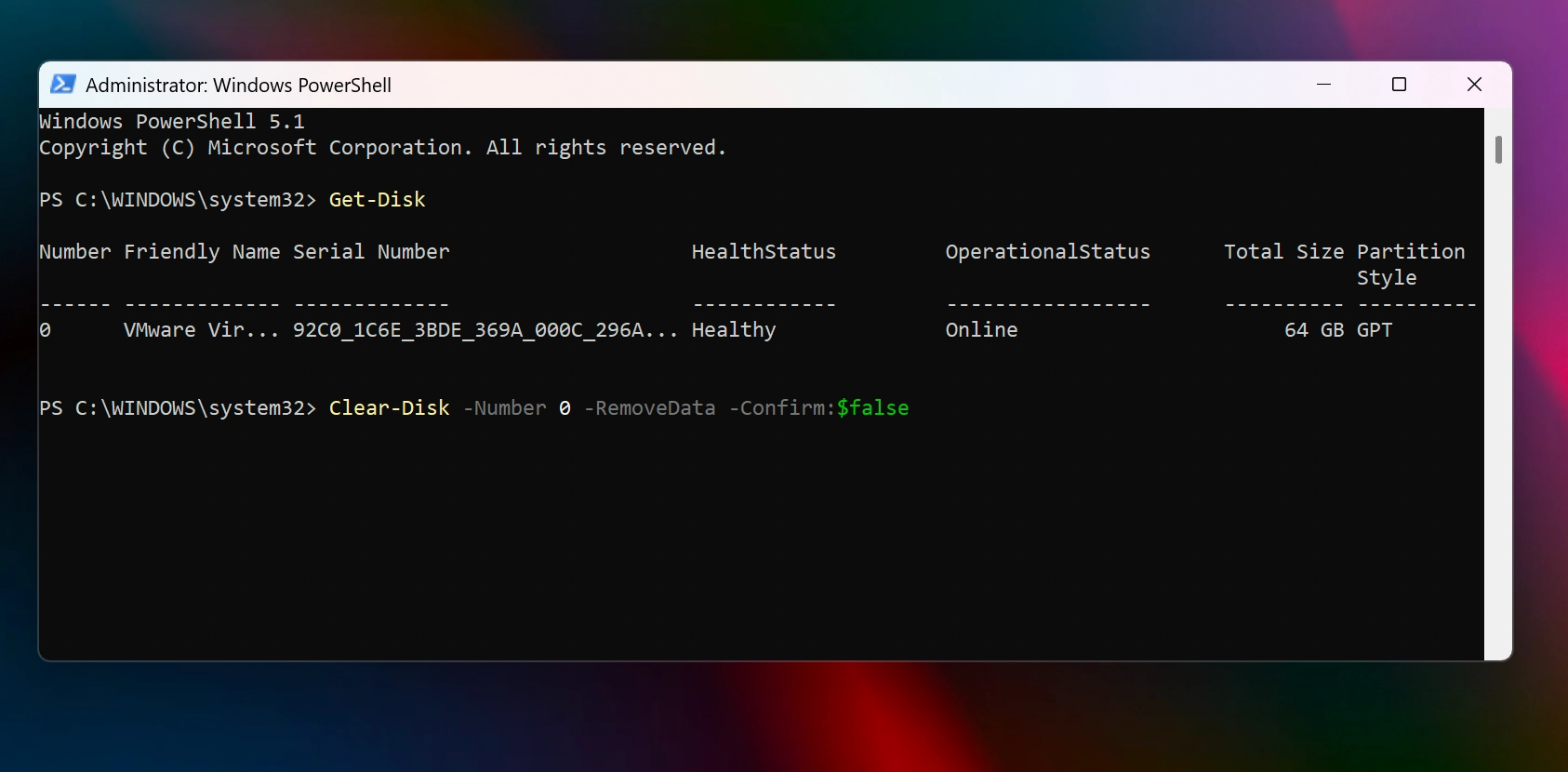
If the disk has no partitions or volumes, skip Step 4 and proceed to step 5.
5. To convert the disk to Dynamic, type the following commands, replacing DiskNumber with the actual disk number:
$diskNumber = DiskNumber
$convert = @(
"select disk $diskNumber",
"convert dynamic"
)
$convert | ForEach-Object { $_ } | diskpart\
6. Wait for the conversion to complete. The Basic disk is now converted to a Dynamic disk.
That’s it!