Problem Steps Recorder : Amazing Windows 7 Feature, Learn How To Use

One interesting feature of Windows 7 is the Problem Steps Recorder which function is to capture every step you take, even including the text description when yo

Kapil Arya
11x Microsoft MVP · Admin
1 min read
Add as a preferred
source on Google

One interesting feature of Windows 7 is the Problem Steps Recorder which function is to capture every step you take, even including the text description when you click and screenshots, including every click.
How To Use Problem Steps Recorder In Windows 7

To study its use, follow these steps:

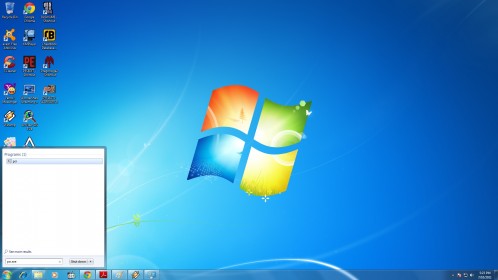
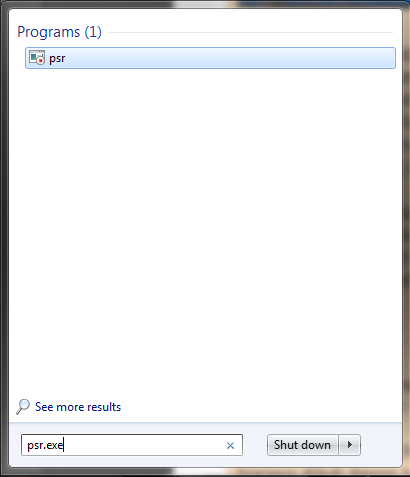
1. Open the Start Menu, and type psr.exe. Press Enter.
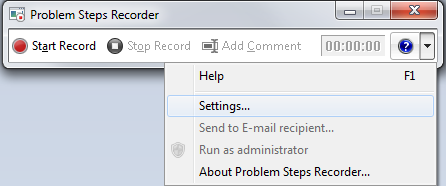
2. An application will appear in front of you.Click the arrows that show Help, and press the Settings option.
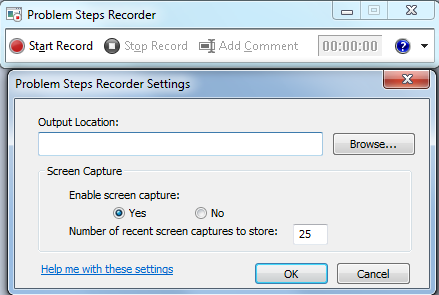
3. Here, you can make changes such as setting a Output Location, and the number screen capture to be stored. When finished, click OK.
5. To start a record, click the Start Record.

6. You can add comments by clicking the Add Comment button, and fill in the comment fields.

7. Press the Stop Record button when finished.

8. Fill in the name of file, and place the file is in your desired location, file will be shaped as .zip. Click Save.

9. Extract the zip folder, and open file MHTML in it using a browser to see every move recorded by the psr.

That’s it!

Share this article
https://www.kapilarya.com/problem-steps-recorder-amazing-windows-7-feature-learn-how-to-use

Shareable URL

Article by

Kapil Arya
11x Microsoft MVP · Admin

Kapil holds Microsoft MVP title in Windows IT Pro expertise, 11-times in a row (2014-2025). He is 8-times Windows Insider MVP as well, and author of 'Windows Group Policy Troubleshooting' book. In 2015, Microsoft India accomplished him as 'Windows 10 Champion'. Being passionate Windows blogger, he loves to help others on fixing their system issues. Kapil has worked with official Microsoft Community Engagement Team (CET) on several community projects. You can subscribe him for news/updates and fixes for Windows.

Leave a Comment

Your email address will not be published. Required fields are marked *