

We all know there are two type of accounts in Windows 8 or later running operating systems. One is local account, which we’ve used for years and another is Microsoft account, which is new one. You can easily switch to Microsoft account from local account and revert back. Switching to Microsoft account gives you following benefits:
- You will be able to sign in into various apps plus your Windows computer using Microsoft account
- You can download apps from Store without the requirement of sign-in before each download
- You can sync your Microsoft devices with same Microsoft account
- You can sync your files to OneDrive very easily
Thus we can see that switching to Microsoft account brings us additional facilities on our Windows machine.
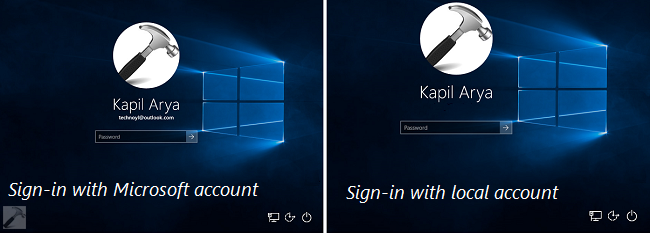
If you’re newbie to Windows OS, you may need proper guidance on this switching operation. So here in this beginner’s guide, we’re going to share you the step-by-step procedure to switch from local account to Microsoft account and vice versa.
Page Contents
How To Switch To Microsoft Account From Local Account And Revert Back
Part 1 : Switching to Microsoft account from Local account
1. Open Settings app and navigate to Accounts > Your account. Click on the Sign in with a Microsoft account instead link.

2. Then enter your Microsoft account to which you want to switch, and its password into following form so appeared now. Then click Sign in.

3. Moving on, now enter your local account password for the verification. Click Next.

In few moments, you’ll be switched to Microsoft account.
4. You’ll now need to verify your identity for switched Microsoft account. If you like, you can use an identity verification app for this purpose:
How to use Identity Verification App to protect your Microsoft account
Else to verify manually, click Verify link beneath your user account name:
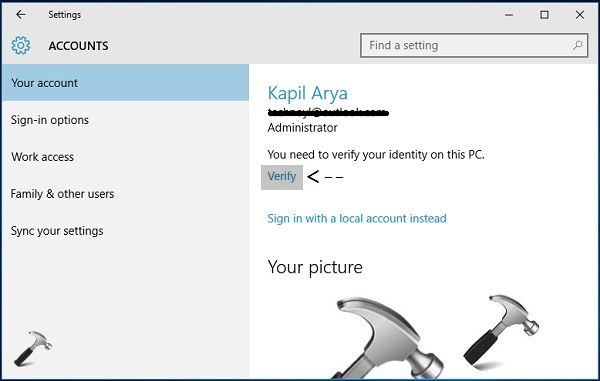
5. Then enter your verification information in following window. Click Next.
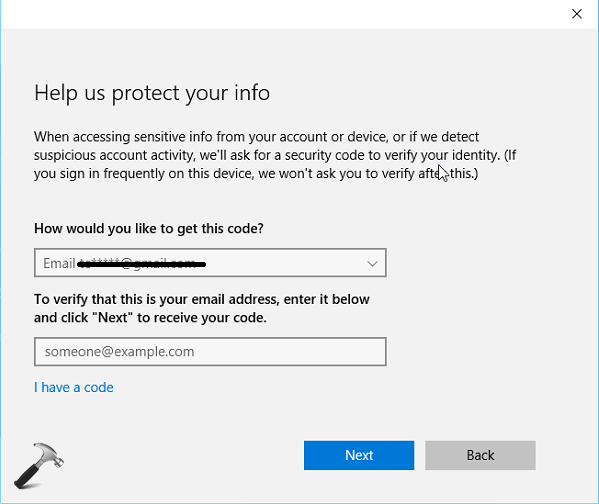
6. Then you’ll be asked to enter the security code that Microsoft account would have sent to you, if you’ve provided correct information in previous step.
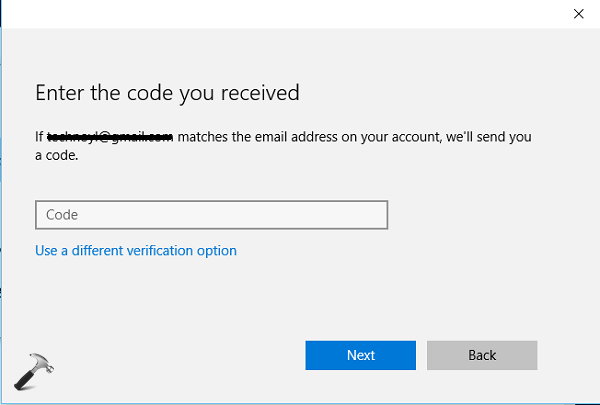
Upon checking the inbox for same Microsoft account to which you’ve switched, you’ll be able to locate the security code in a new mail just received. Enter this security code in above shown window and click Next.

Once you entered correct security code, you’ll get verified. In this way, switching from local account to Microsoft account has completed successfully.
See this video to illustrate this:
Part 2 : Switching to local account from Microsoft account
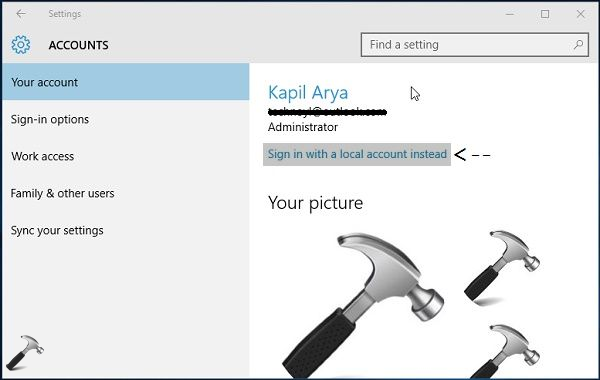
1. Open Settings app and navigate to Accounts > Your account. Click on the Sign in with a local account instead link.
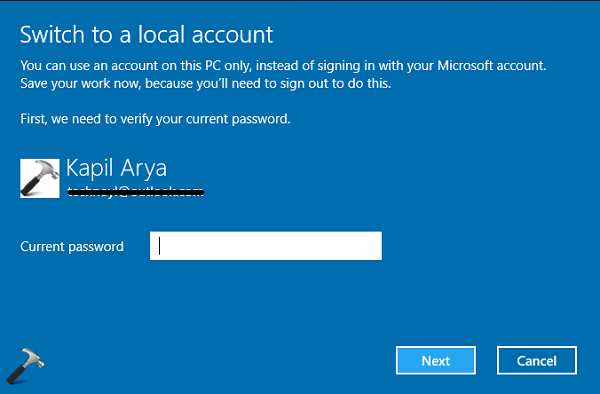
2. Then enter your Microsoft account credentials in the following screen and click Next.
3. Finally, you’ll have to setup a local account by providing required information on next screen. If you’ve used local account earlier, you can enter its details. Click Next.
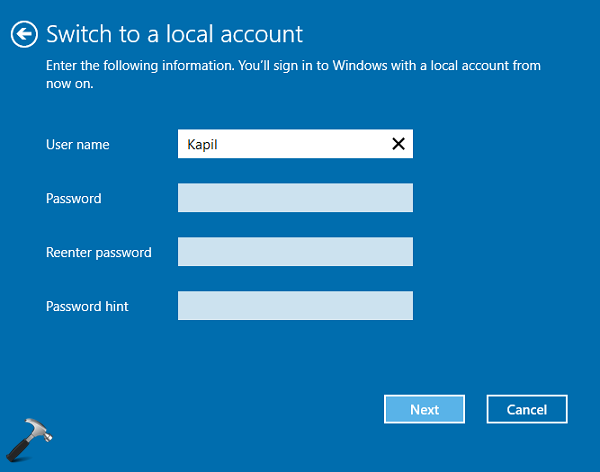
You’ll be now signed out automatically so that switching to local account completes. So for logon from now onwards, use your local account details.
This video will illustrate this part:
Checkout following article, in case you can’t switch to Microsoft account from local account:
Fix: Can’t switch to Microsoft Account in Windows 8 or later
That’s it! If you need any help regarding this, feel free to comment and we’ll be happy to help you.







Installed the Window 10 upgrade yesterday. Everything seemed fine until I tried to log in this morning. Computer is locked up at password screen. Cursor does not work nor does keyboard. What do I do now?
^^ Wondering what happens when you enter correct credentials? Since you’ve upgraded, you need to enter login details of older Windows edition.
I’m trying to switch from a Microsoft Account in Windows 10 to a local account – however, it keeps giving me an error code 0x8007002, Can anyone give me a solution to this problem … thank you!
^^ What error message do you get with this code? Meanwhile, refer this:
https://www.kapilarya.com/cant-switch-to-microsoft-account-in-windows
In the accounts page, “sign in with Microsoft accountinstead” does nothing….. so I can’t progress any further!
^^ Try creating another account and check if the same link works on that account.
hello iam trying to switch to microsoft account from local account but whenever i click on “sign in to microsoft account instead” nothing happens nothing it is not showing any error code nothing , nothing happens
^^ Refer my previous comment here :)
I have the same problem, empty ‘choose account’ box.
I have a microsoft account and have signed in to it but that makes no difference. I don’t have a local account so far as I am aware, unless that is something automatic.
In the settings screen the purchase sign-in option is grayed out.
Same as above. Whenever I try and click the “Sign in with Microsoft account instead” nothing happens, please help.
^^ Run Microsoft Accounts troubleshooter: download.microsoft.com/download/F/2/4/F24D0C03-4181-4E5B-A23B-5C3A6B5974E3/microsoftaccounts.diagcab
I don’t even have an option to switch my MS account to local. My daughter’s account was attached when I signed her in to MS To Do and now I have to “ask permission” every time I want to do anything.
I’ve run the account troubleshooter and it says “Can’t connect to the sync service.” I’ve also run:
SFC /SCANNOW
Repair-WindowsImage -Online -ScanHealth
^^ How your account is listed on this system? If it is standard account, you might try changing it to administrator and see if it helps.