

In our previous guide, we have shown you how to enable or disable clipboard history in Windows 10. Now in this article, we’re going to share how to clear the clipboard history when you have it enabled. FYI, clipboard history feature is only available on Windows 10 build 17666 or later. To check the build you’re on, run winver command.
If your clipboard history data contains some sensitive information, which can be misused, you must clear this data regularly. Because due to cloud synchronization, the clipboard history data may be accessible from another device using same Microsoft account but by different person. Also the clipboard data should get cleared, otherwise older data may keep appearing while you paste it somewhere.
At the moment, Microsoft has limited clipboard history data to less than 1MB. The data may be plain text, HTML code or image of most usable formats.
Here’s how you can clear clipboard history data:
Page Contents
How To Clear Clipboard History In Windows 10
PART 1 – Clear Clipboard & Its History Data
1. Right click Start Button or press  + X keys and select Settings.
2. In the Settings app, navigate to System > Clipboard.
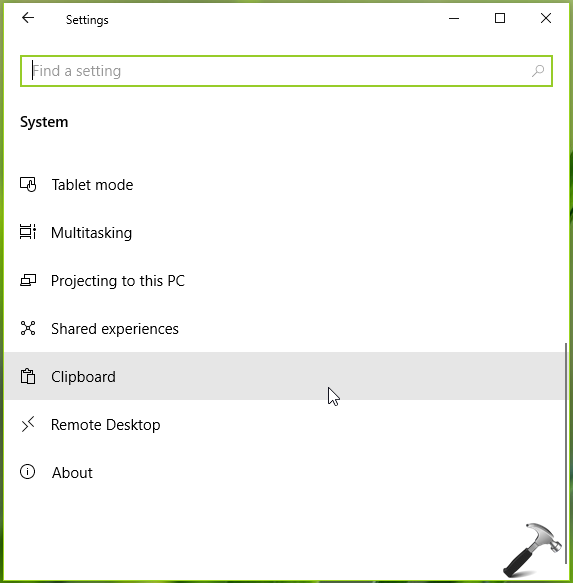
3. Under Clipboard, look for Clear clipboard data heading. Click on Clear button under this should clear your clipboard history.
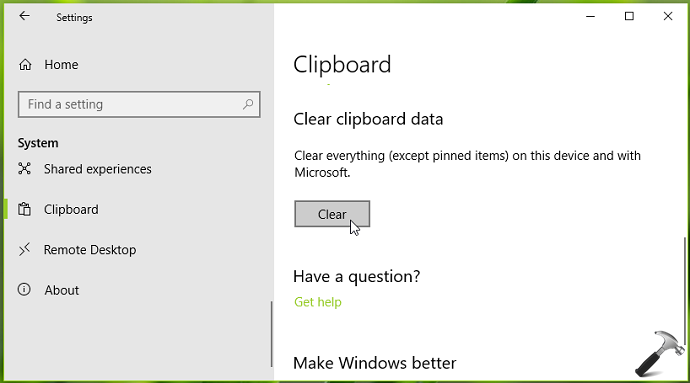
Note that this clears clipboard history data excluding pinned items. To erase pinned items as well, you need to turn off or disable the clipboard history completely.
Close Settings app and return to Desktop, if you like.
PART 2 – Clear Clipboard Without Affecting Its History Data
In case if you just want to clear out what’s in the clipboard (the last item you copied), you can try below mentioned steps. This works in all Windows OSes.
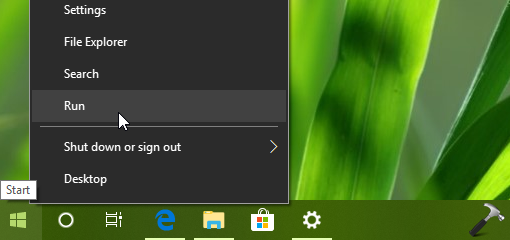
1. Right click Start Button or press + X keys and select Run.
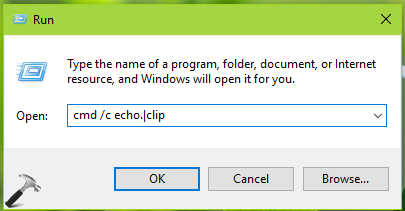
2. In Run, type/paste cmd /c echo.|clip and press Enter key or click OK. A Command Prompt window should flashed for few seconds and this should clear the clipboard.
So this is how you can clear clipboard and its history data in Windows 10.
That’s it!

![[How To] Clear Address Bar History For File Explorer In Windows 10](https://www.kapilarya.com/assets/File-Explorer-6-768x512.png)
