

Microsoft has rolled out Windows 10 V1809 or October 2018 Update few hours ago. You can read more about it in following article:
What’s New In Windows 10 V1809 (October 2018 Update)?
After upgrading to Windows 10 V1809, some users reported the all the built-in UWP apps are no longer working. Especially the apps which require Internet connection to work, such as Store, Microsoft Edge etc. are not working and following screen comes up, when you open them (example shown with Store app):
Page Contents
Check your connection
Microsoft Store needs to be online. It looks like you’re not.
Code: 0x80072EFD
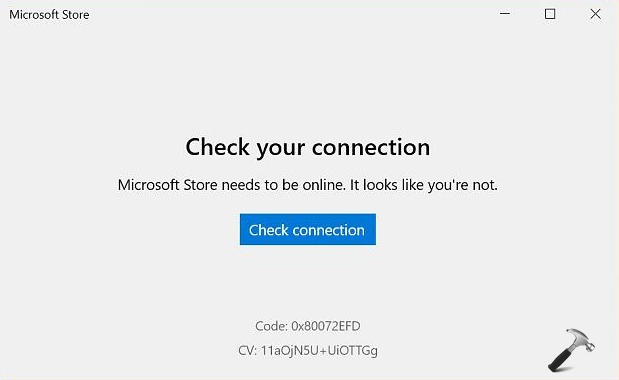
If you’re also facing this problem, this article will help you to resolve it. Well, with Windows 10 V1809 or later, it seems Microsoft has made IPv6 protocol mandatory for fine working of UWP apps. Enabling IPv6 has solved this issue for some users as of now. So at the moment, you can try this workaround to fix the issue.
FIX: ‘Check Your Connection’ Error With Apps On Windows 10 V1809
FIX 1 – Enable IPv6 For Your Network Adapter
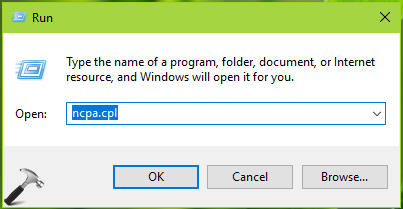
1. Press  + R to open Run, type ncpa.cpl and click OK.
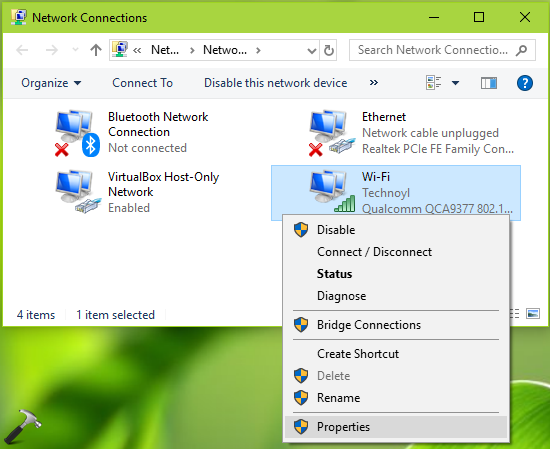
2. In the Network Connections window, select your primary or active network adapter and right click on it, choose Properties.
3. Next, on the property sheet, check Internet Protocol Version 6 (TCP/IPv6) option and click OK.
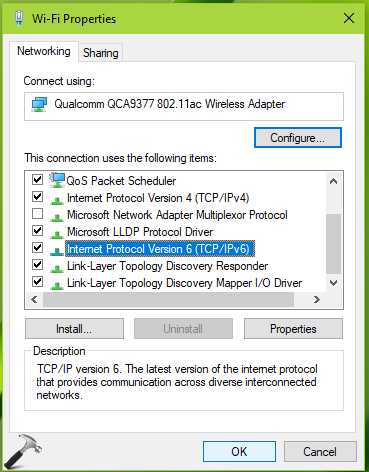
Now check the apps and they should work fine now. If you’ve multiple network adapters, you can try FIX 2 below to enable IPv6 protocol on all of them.
FIX 2 – Enable IPv6 For All Network Adapters
1. Right click Start Button or press + X keys and select Windows PowerShell (Admin).
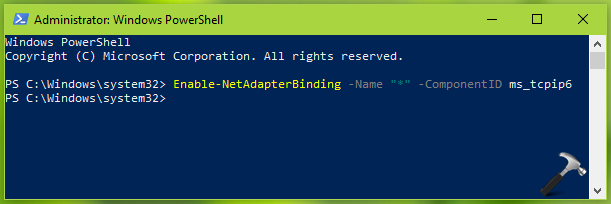
2. In administrative Windows PowerShell window, type/paste following and press Enter key:
Enable-NetAdapterBinding -Name "*" -ComponentID ms_tcpip6
3. Close Windows PowerShell.
This should enable IPv6 protocol on all the network adapters. You can check the apps, they should work fine now.
Hope this helps!
Thanks to Sumit Dhiman (Windows Insider MVP) for this information.






Thanks for replying. Unfortunately, it didn’t work for me, IPv6 was already enabled.
^^ You can now install KB4476976 to resolve this issue.
Microsoft store & application installed from the the store are not able to connect through internet.
Already check from firewall & network setting reset also done.
antivirus disable but there is some blocking through windows firewall, but i am not able to find that.
please help.
^^ Please check firewall configuration: https://www.kapilarya.com/how-to-configure-windows-defender-firewall-in-windows-10.