If you want to use multiple languages in Windows, you can add them using this guide we’ve shared previously. When you’ve only one language installed, either the Input Indicator or language bar is not shown.
While if you add more than one language, Windows will automatically show you Input Indicator which allows you to quickly switch in between installed languages. The major benefit of this Input Indicator is that you don’t need to go to Settings app and change to different language, if you want to use it. Remember, you can use  + Space shortcut to switch between installed languages.
Now in this article, we’ll show you how to turn off language bar. As the Input Indicator is automatically appearing while you add additional languages, some users may not like this. They want to clean up their taskbar and hence look forward to remove the Input Indicator or classical language bar. Note that the older language bar can be floating on Desktop or docked in the taskbar.
So if you want to turn all of these things off, you can try below mentioned steps.
Turn Off Language Bar In Windows 10
1. Right click Start Button or press + X keys and select Settings.
2. In the Settings app, navigate to Personalization > Taskbar.
3. In right pane, click Turn system icons on or off link.
4. Under Turn system icons on or off, switch the Input Indicator to Off.

5. Back in Settings app, go to Devices > Typing. Click Advanced keyboard settings link in right pane.

6. Under Advanced keyboard settings window, uncheck the Use the desktop language bar when it’s available option.
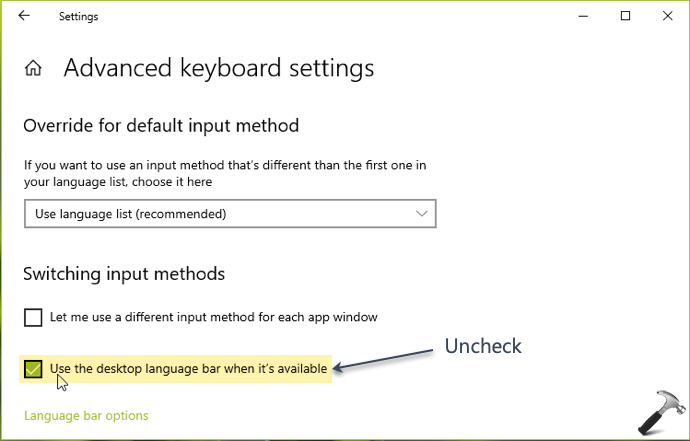
7. Then click on Language bar options link in same window. On Language Bar tab, select Hidden. Click Apply, followed by OK.

So the language bar should be hidden now.
That’s it!
Related: Prevent Windows 10 From Deleting Unused Language Packs