

It is often recommended that you install latest available updates in your Windows 11. However, sometimes you may not be able to finish installing updates due to an error code. 0x800f0922 is one of such error code which you may receive with Windows Updates. In this article, we will see why this error code appears and how you can fix Windows Update error code 0x800f0922.
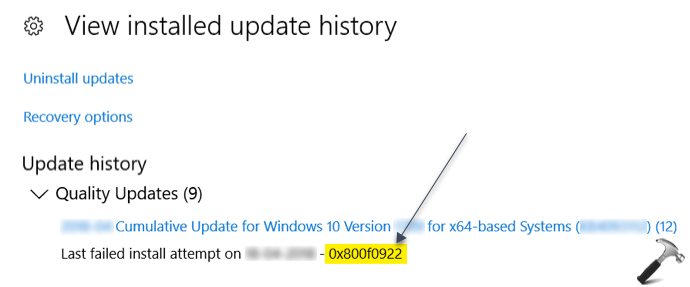
You can see in the above screenshot, the error code 0x800f0922 appeared while installation of a cumulative update is failed. You can receive this error code on any of the Windows edition. In Windows, technically the error code 0x800f0922 interpreted as CBS_E_INSTALLERS_FAILED. When you’re getting this, it means processing advanced installers and generic commands failed. This error code is not specific to Windows Update, as it a general error code. It can be often spotted while installing .NET Framework.
The error code 0x800f0922 can appear due to following reason. PerfCounterInstaller, the installer Windows Update is using, may have its counter database corrupted. You can easily fix it using Command Prompt.
Here’s how to fix Windows Update error code 0x800f0922.
Page Contents
Fix: Windows Update Error Code 0x800f0922
Fix 1: Using Command Prompt
1. Right click Start Button or press  + X keys and select Command Prompt (Admin) to open Command Prompt as administrator.
2. In the Command Prompt window, type following command and press Enter key. It will simply fix the counter database.
lodctr /R
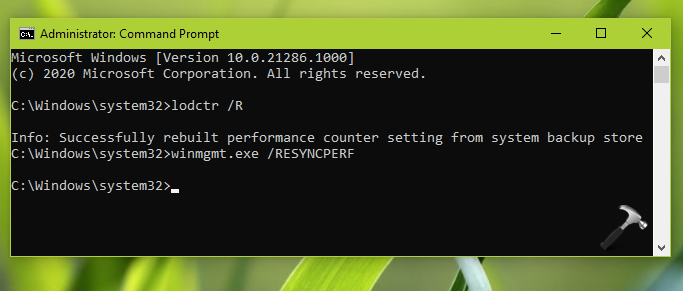
If the command execution is successful, you would receive ‘Info: Successfully rebuilt performance counter setting from system backup store’ message.
3. Next, execute the following command to make the counter consistent and resync them with Windows Management Instrumentation (WMI).
winmgmt.exe /RESYNCPERF
Once these command executed successfully, you can try installing the updates again. You’ll no longer receive the error code 0x800f0922 now.
Fix 2: Using DISM Restore Command
If Fix 1 doesn’t solve this issue for you, try running DISM restore command.
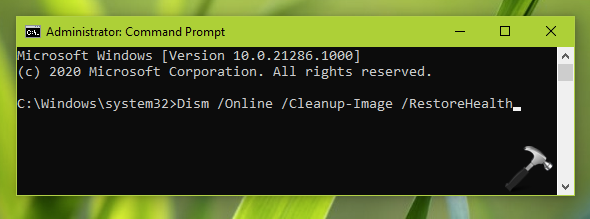
In the Command Prompt window, you can execute following command:
Dism /Online /Cleanup-Image /RestoreHealth
Hope this helps!
*Originally written for Windows 10. Last updated for Windows 11.






None of this has helped me with the erroe
Perfect. Worked for me.
^^ Glad to help!
Sadly it did not worked for me with the KB4535680 – It was worth a try..
All I am trying to do is activate .NET 3.5 in “Turn on or off Windows Features” and I have tried everything under the sun – still getting this 0x800f0922 error.
Fix 1 has not succeeded. Fix 2 given the exact result. Thanks a lot, dear friend.
Its recommended to just do both anyway, as the second one could fix errors you didnt know you had
I had already done the DISM but tried both of the others and none helped.
None of this has helped me