

Windows Updates are automatic in Windows 11. Updates are downloaded and installed automatically. If you get error code 0x800f0993 with Windows Update, this article is for you. This error might appear on any system after download of updates and installation of updates.
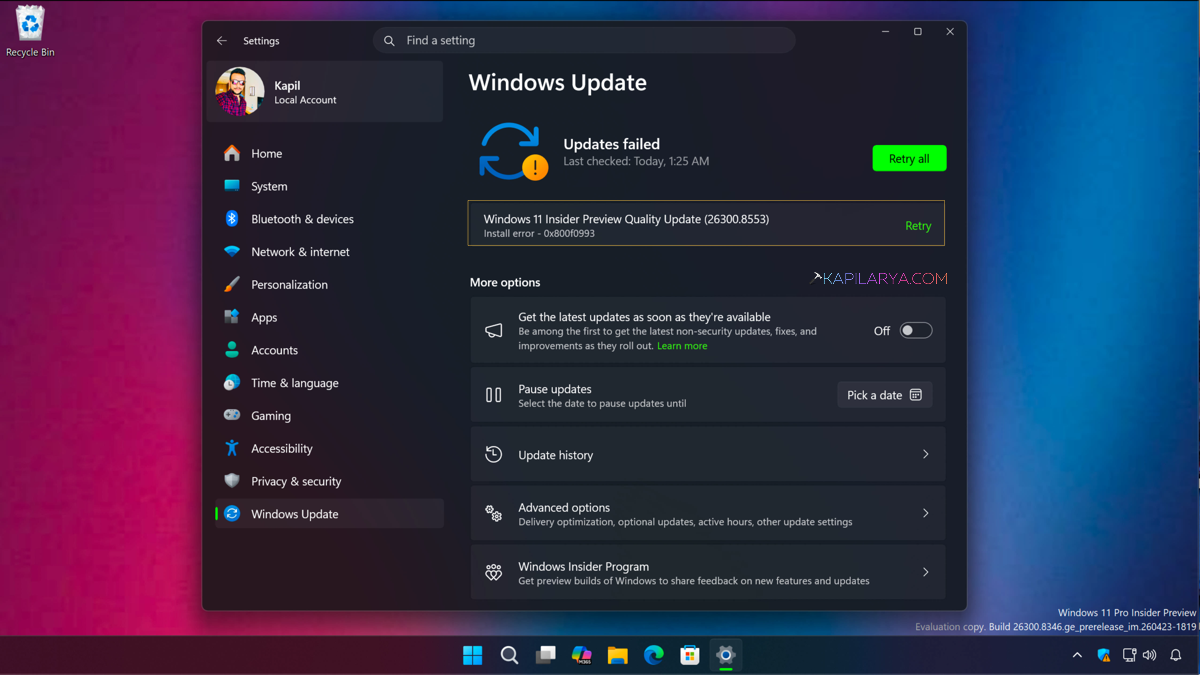
It might be caused by damaged system files, broken update components, or problems with Windows Update related background services.
Page Contents
Fix: Windows Update Error Code 0x800f0993
Below are the fixes for the Windows update error code 0x800f0993:
Fix 1: Run The Windows Update Troubleshooter
Windows 11 includes a built-in tool that can automatically detect and repair update-related issues. Here are the steps that you have to follow:
1. Press Windows + I to open Settings.
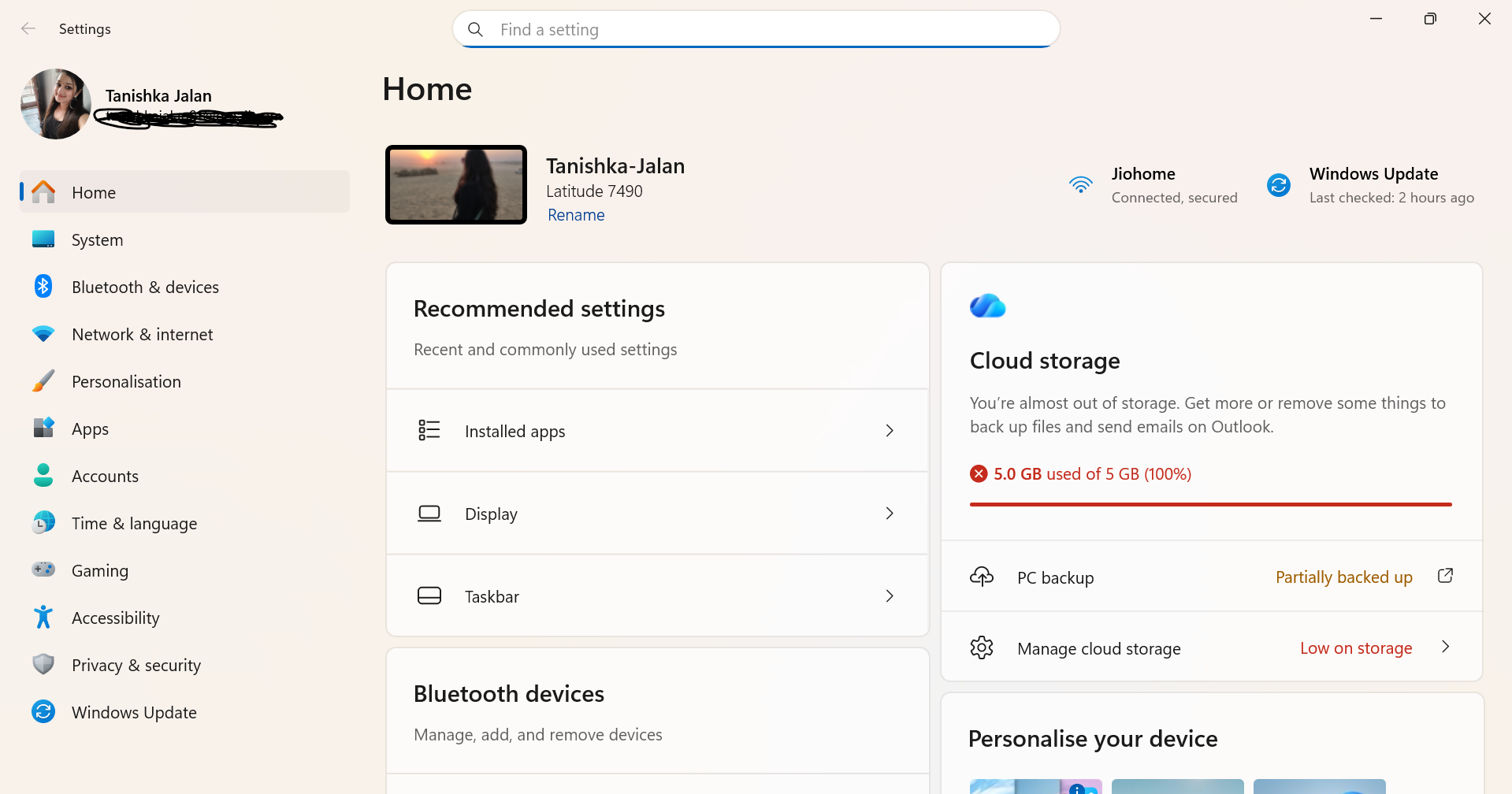
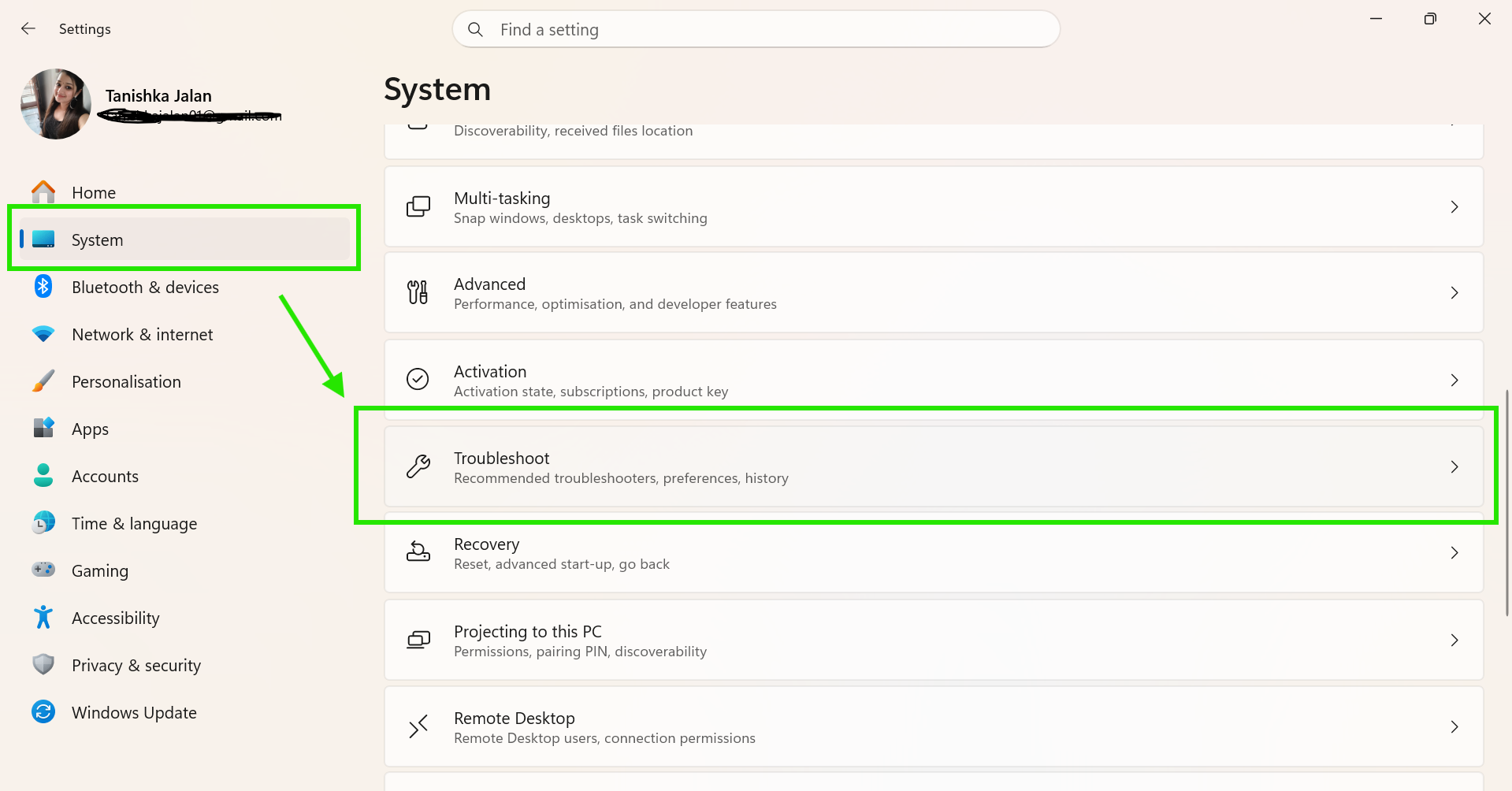
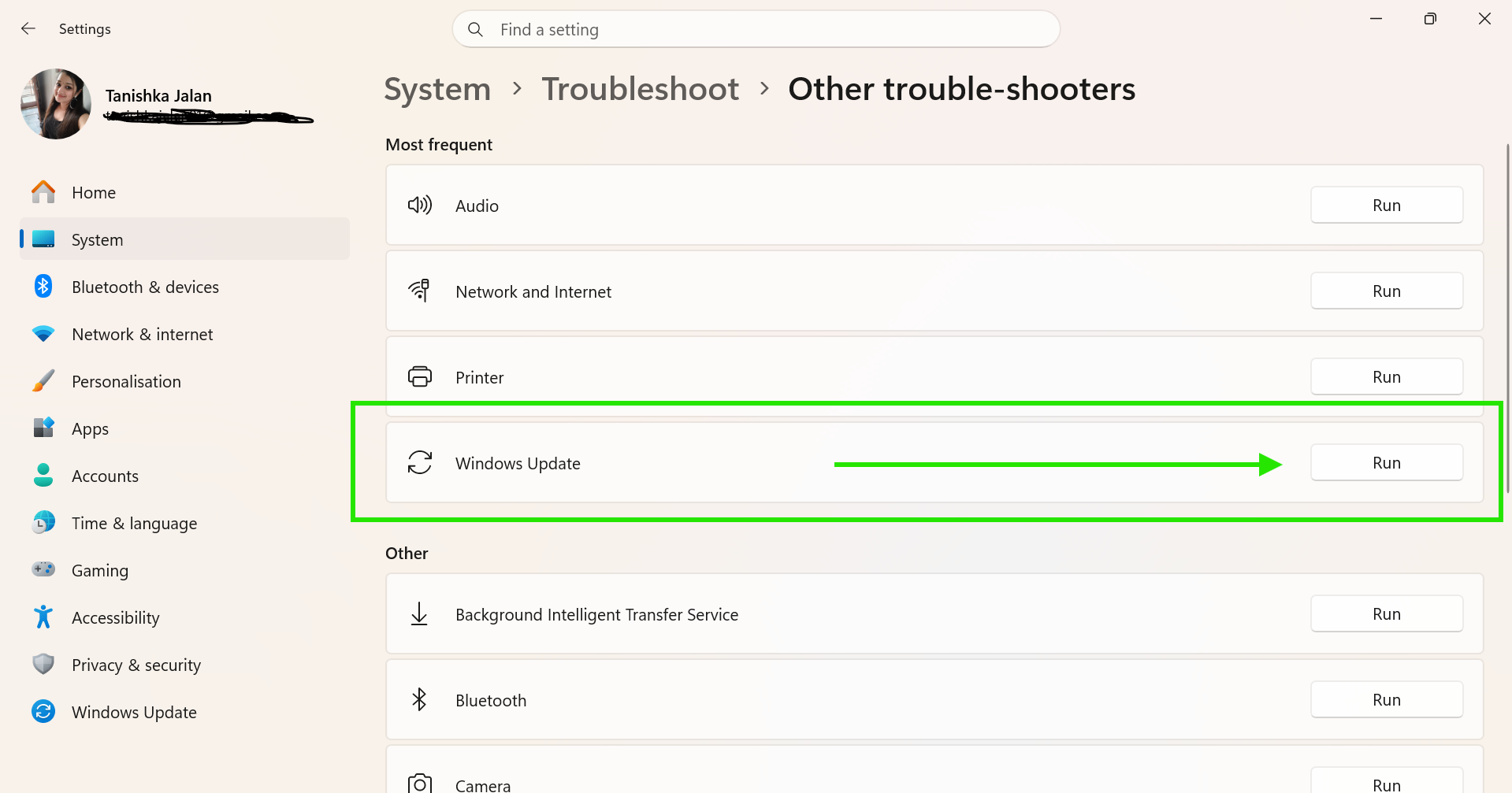
2. Go to System > Troubleshoot > Other troubleshooters.
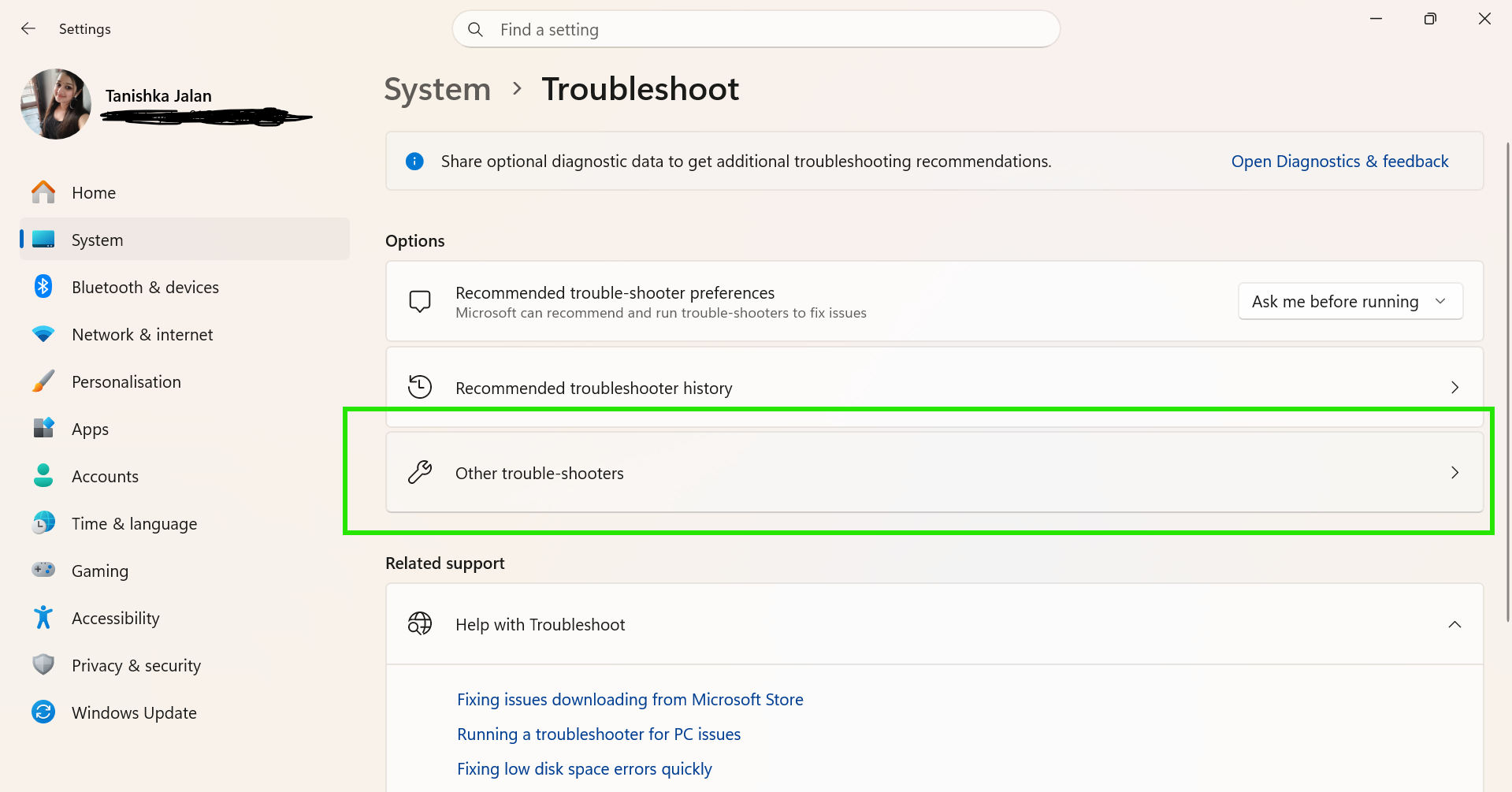
3. Find Windows Update and click Run.
4. Follow the on-screen instructions.
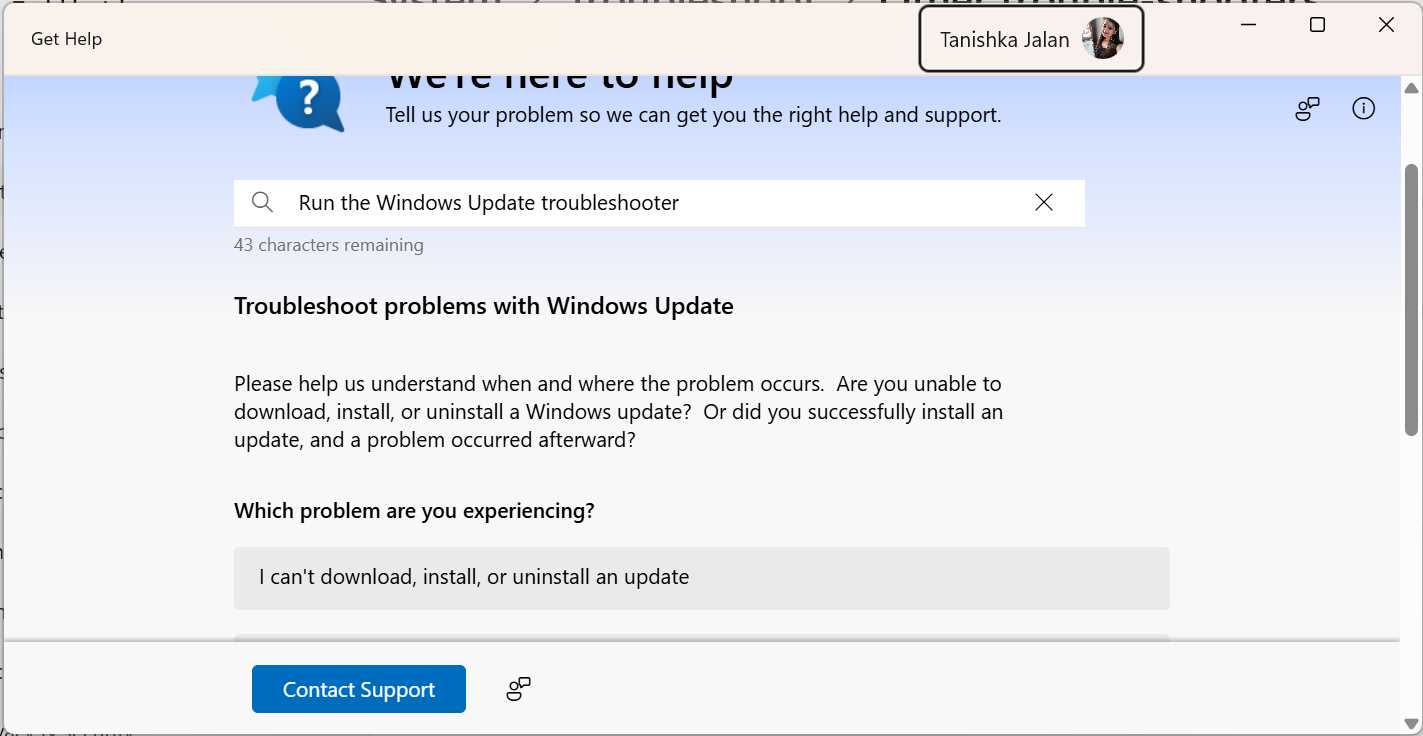
5. Restart your PC and check for updates again.
Fix 2: Reset Windows Update Components
Resetting Windows Update components can help you resolve this problem. Try these steps:
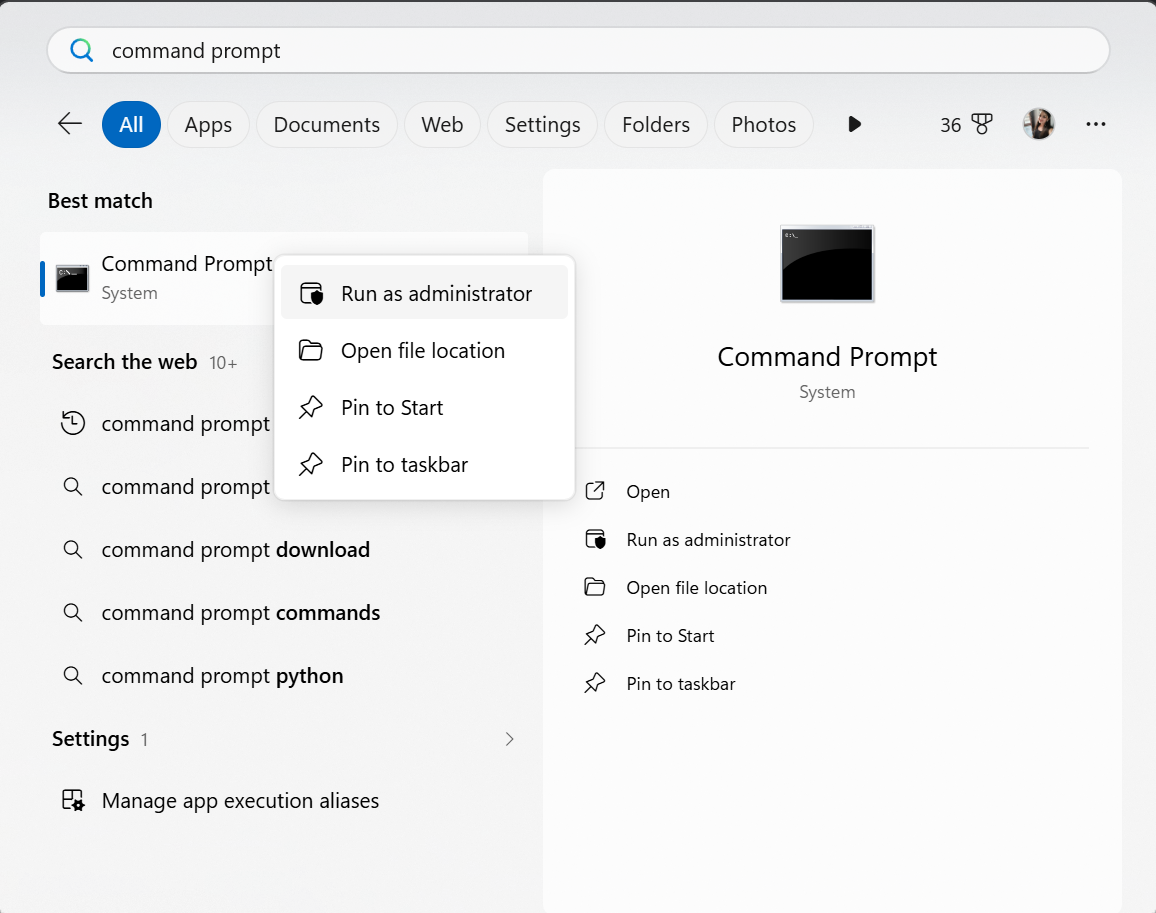
1. Open Command Prompt as Administrator.
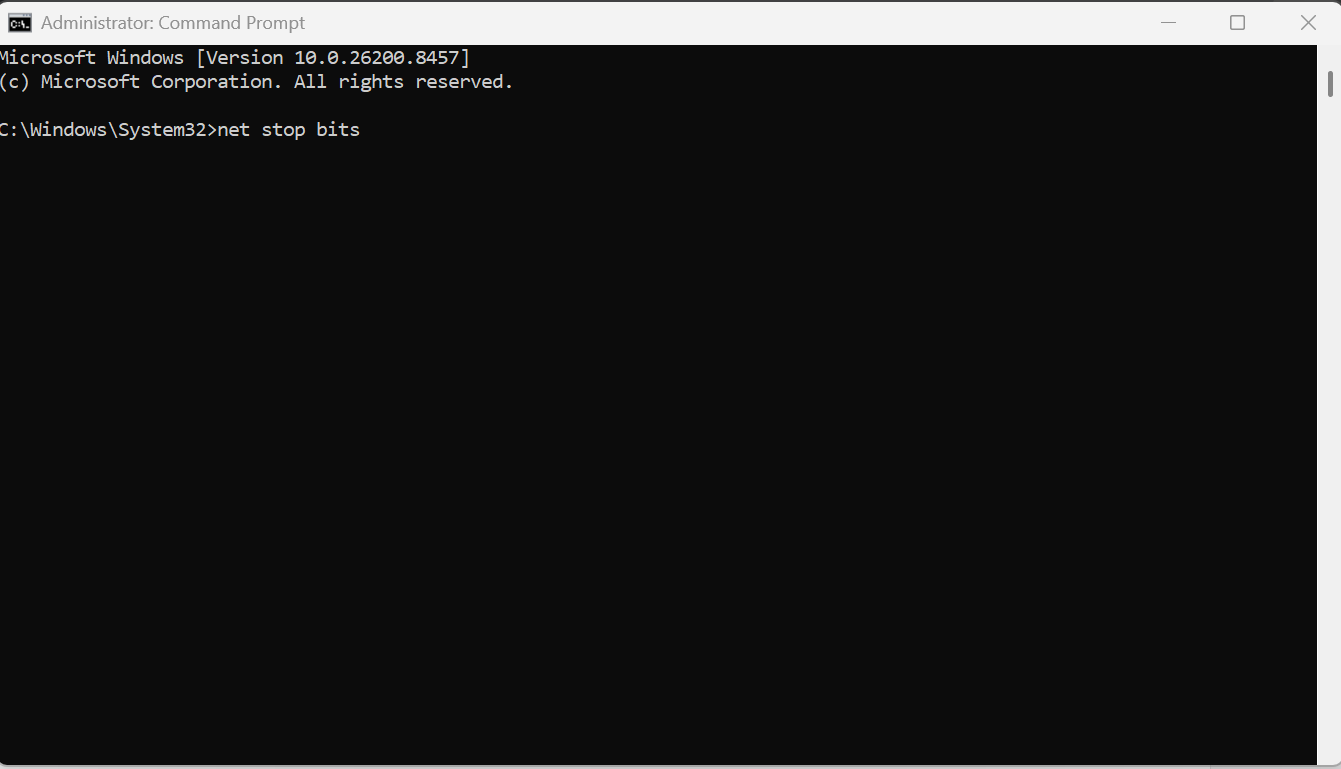
2. Run the following commands one-by-one and press Enter after each:
net stop bits
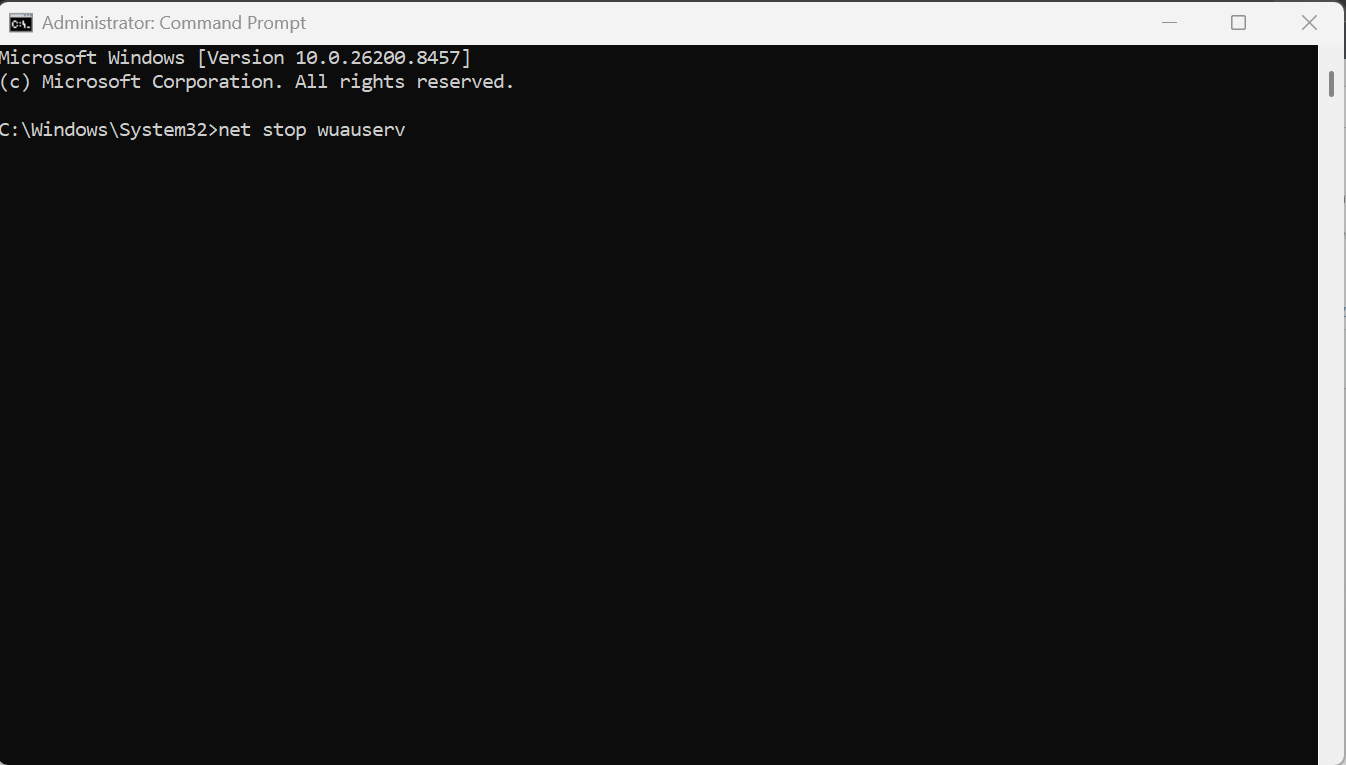
net stop wuauserv
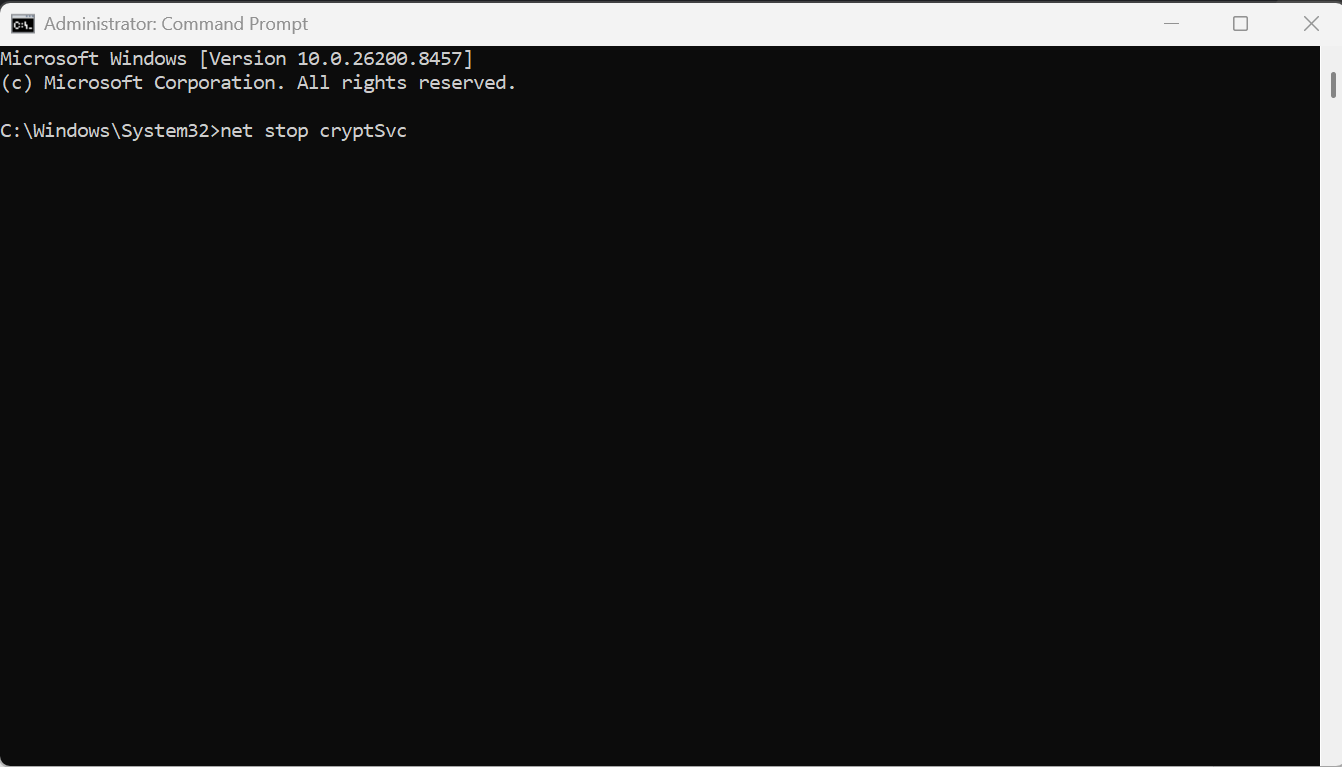
net stop cryptSvc
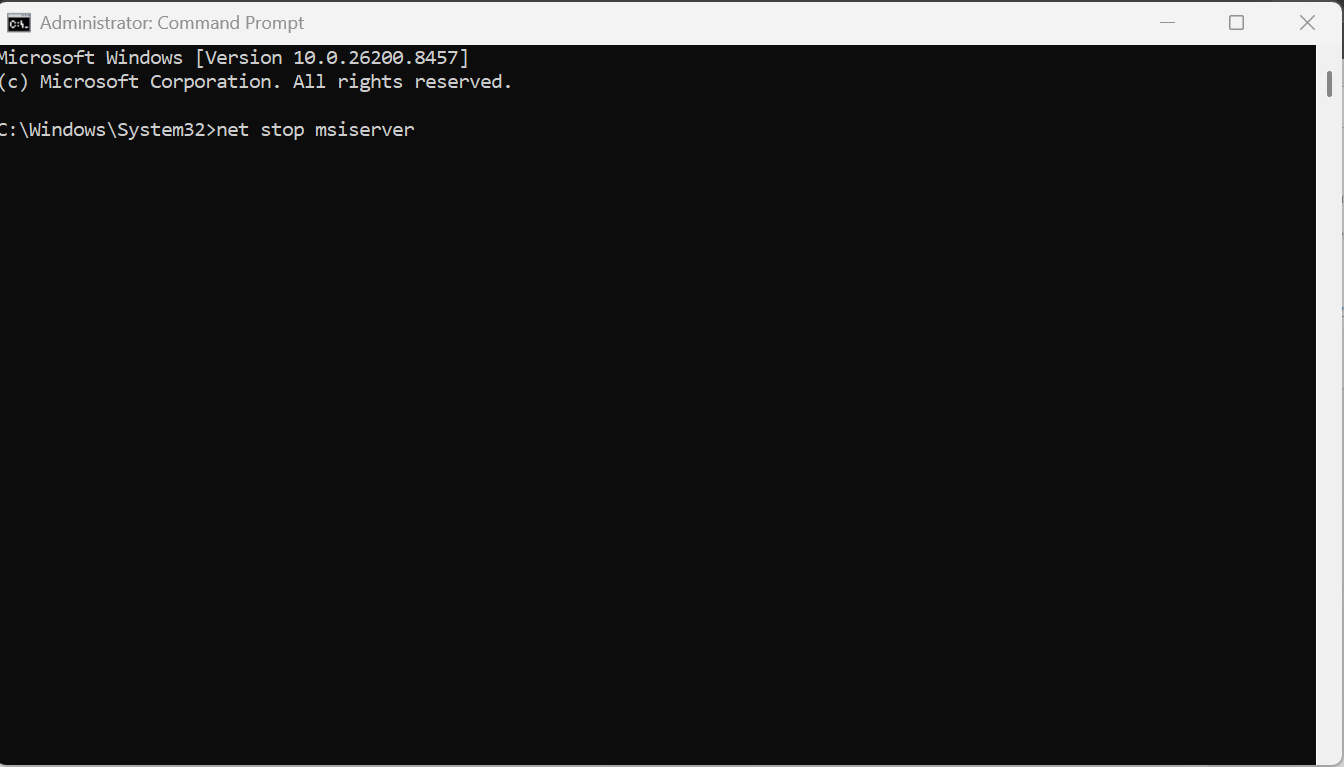
net stop msiserver
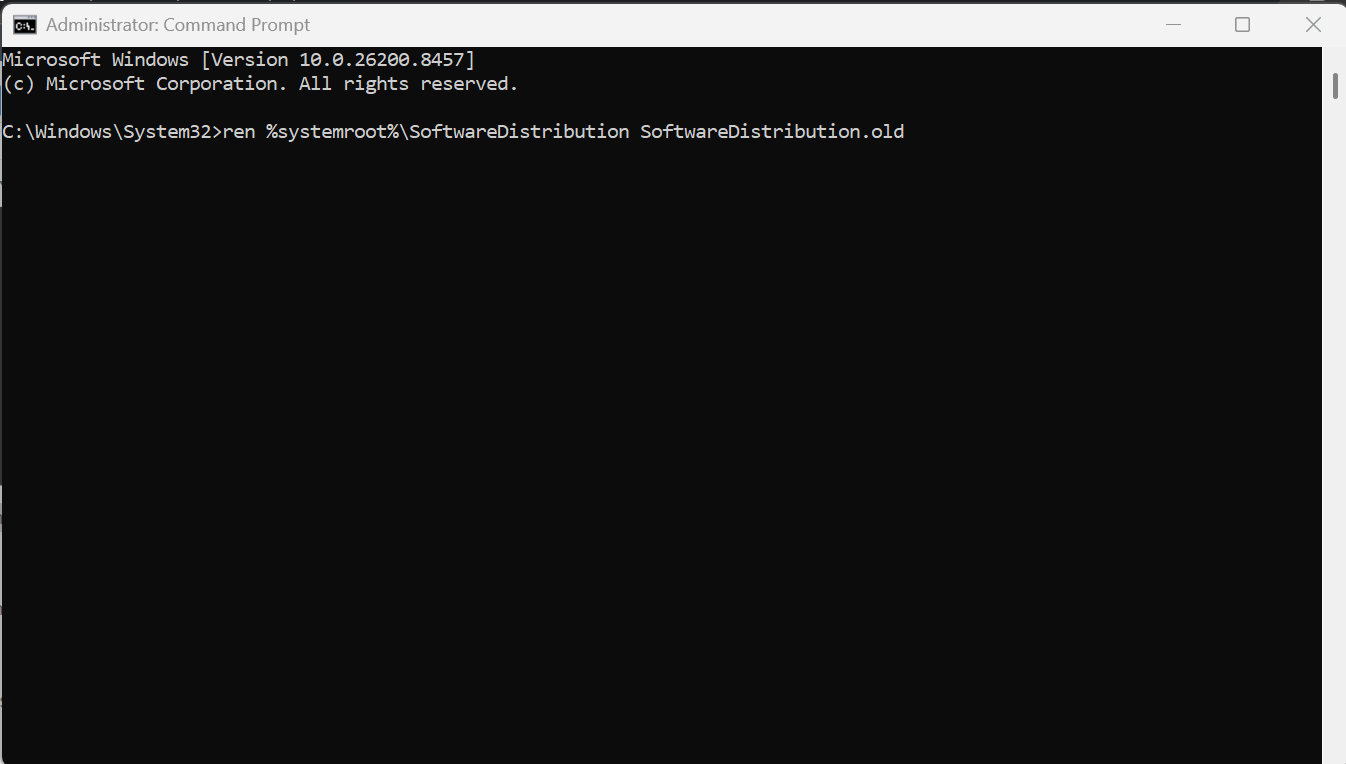
ren %systemroot%\SoftwareDistribution SoftwareDistribution.old
ren %systemroot%\System32\catroot2 catroot2.old
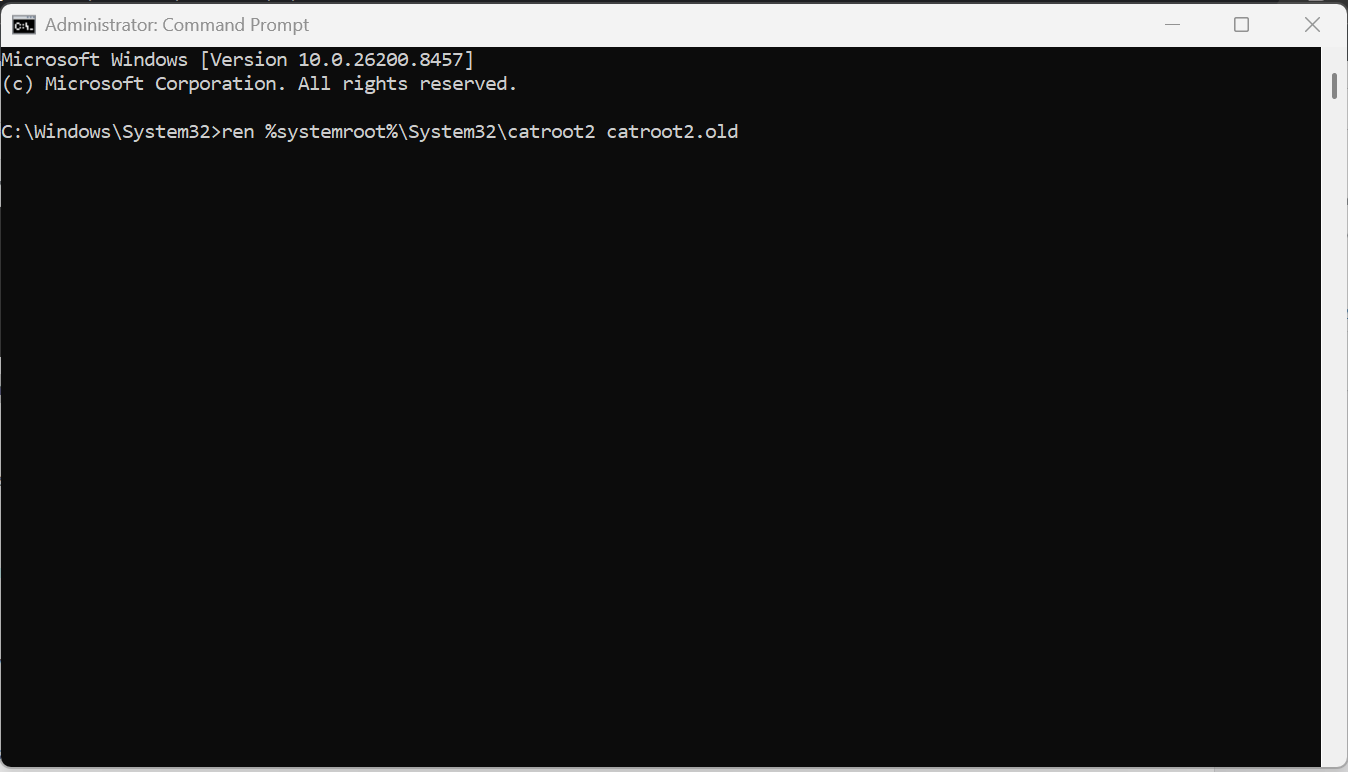
net start bits
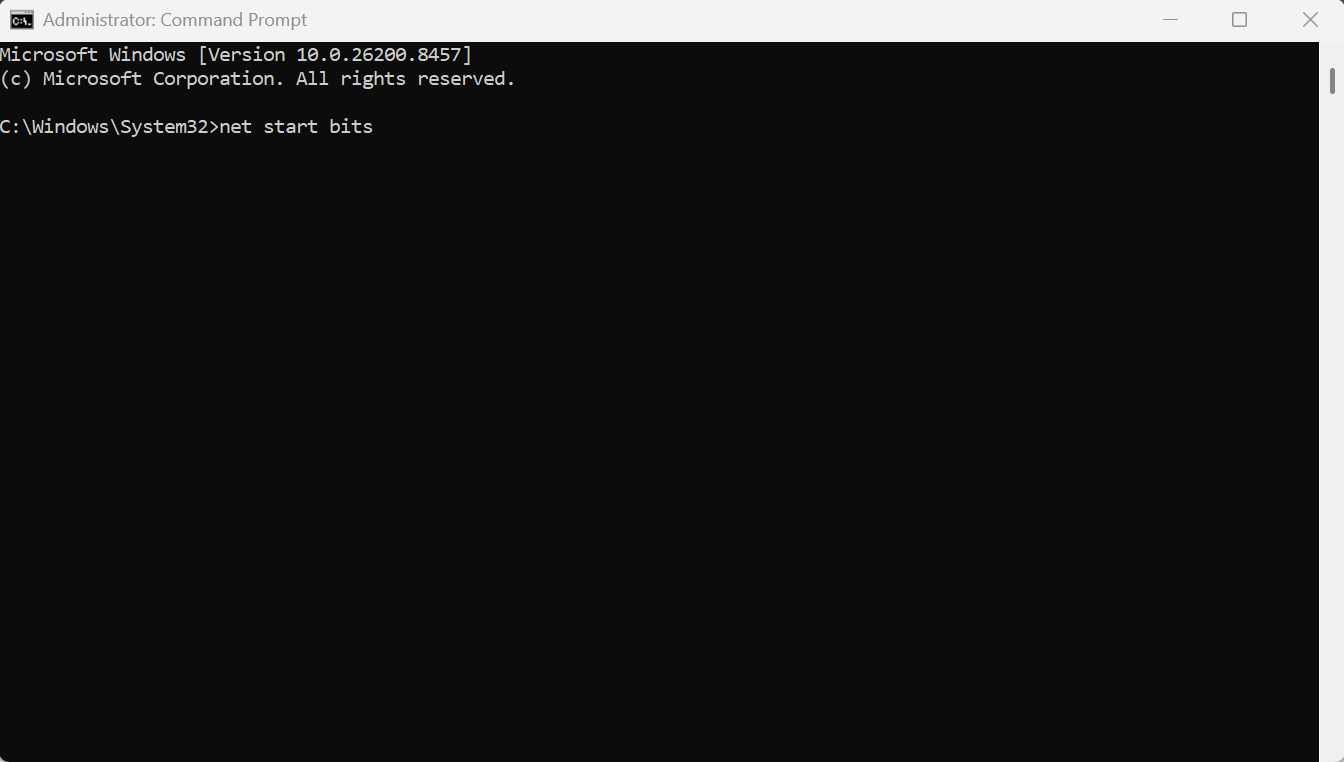
net start wuauserv
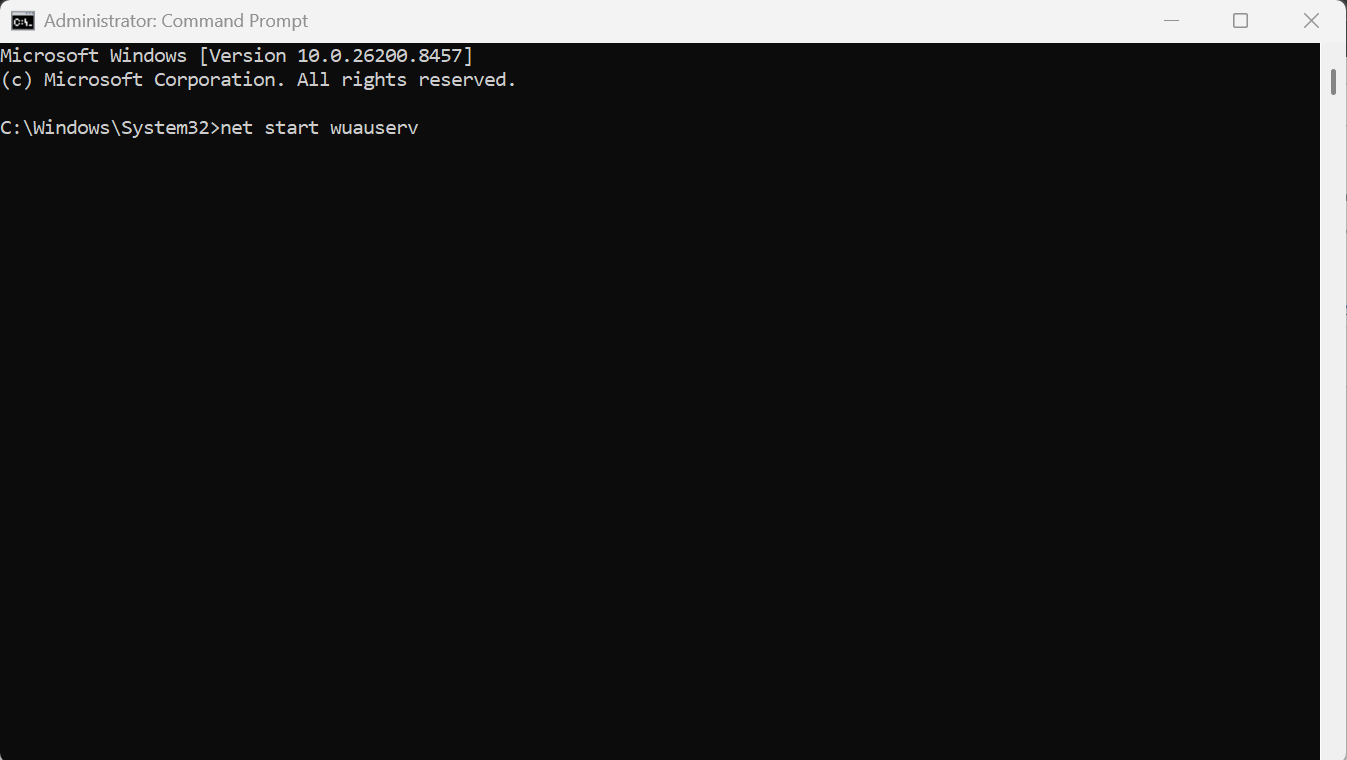
net start cryptSvc
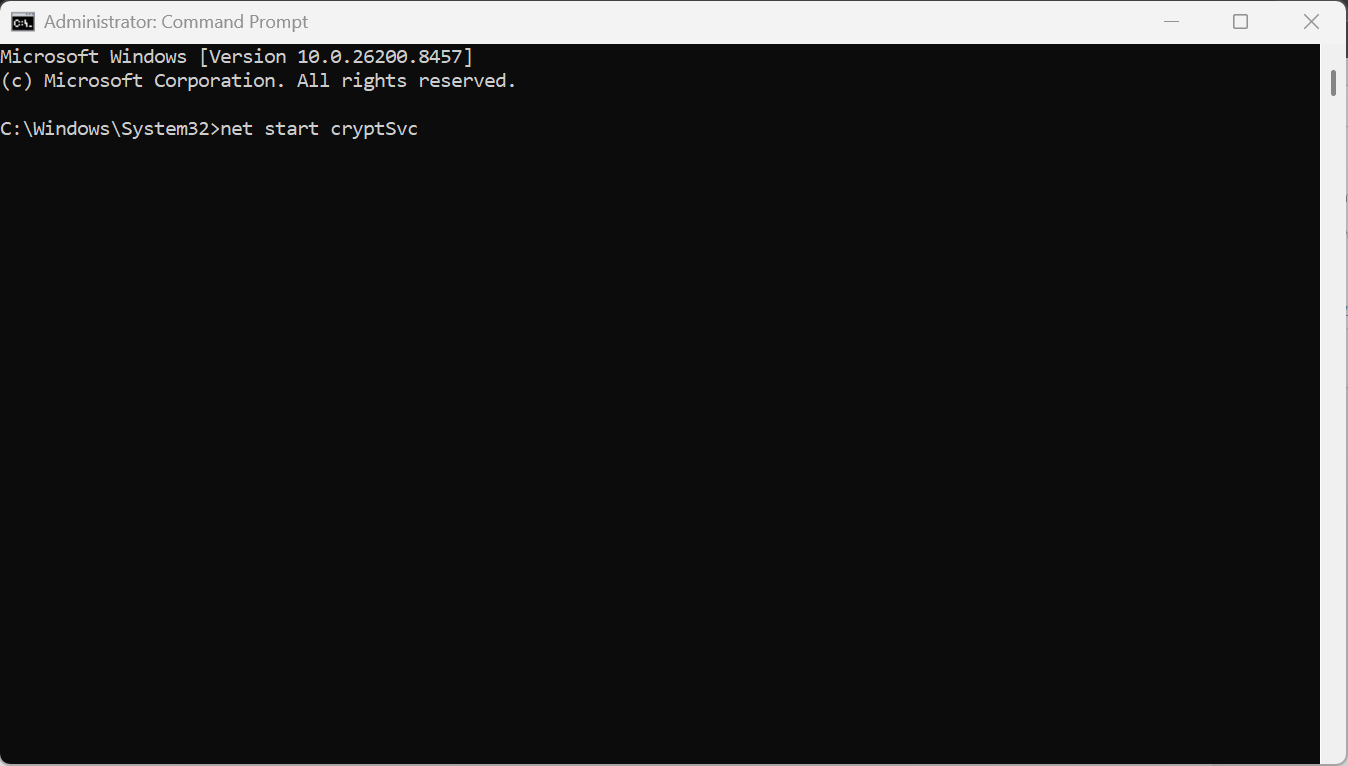
net start msiserver
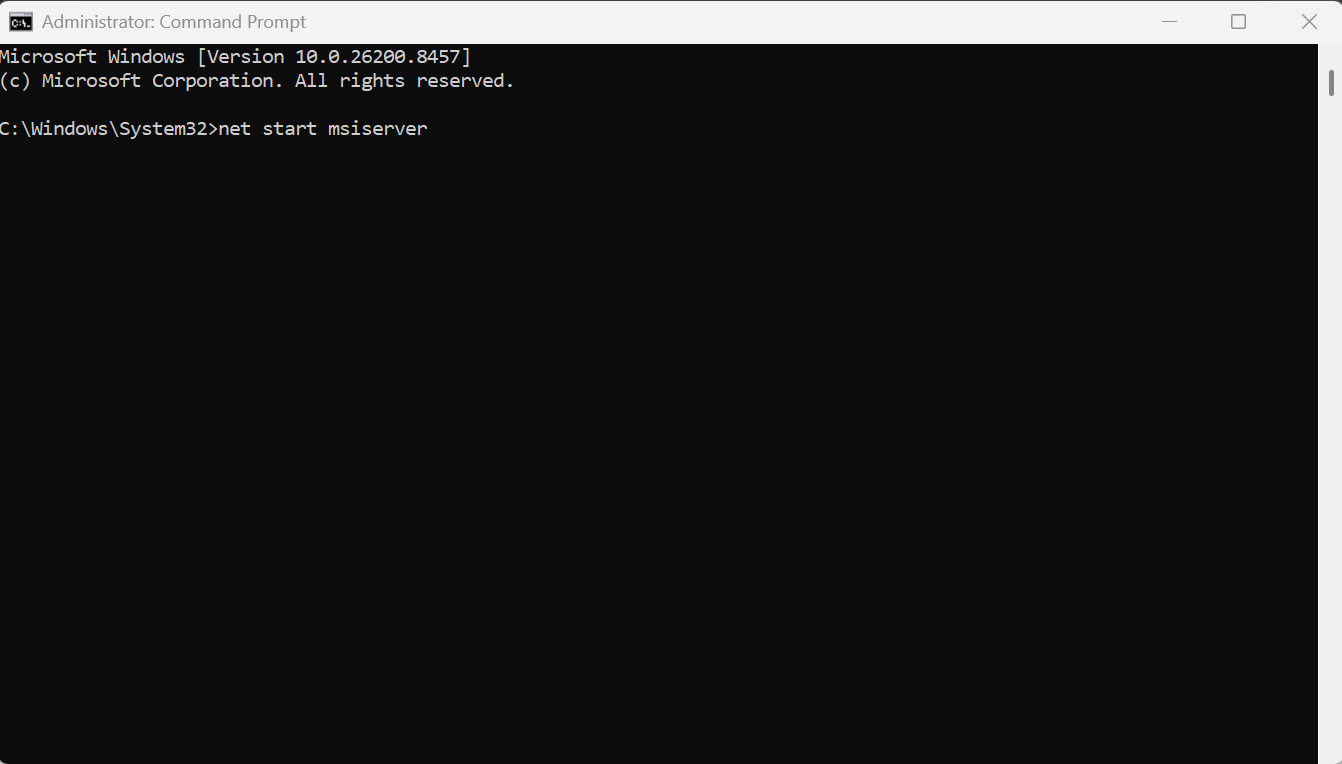
3. Restart your computer.
4. Try installing the update again.
Fix 3: Repair Corrupted System Files
Damaged system files can also cause this issue. We recommend you to repair corrupted system files using below steps:
1. Launch Command Prompt as Administrator.
2. Type the command below and press Enter:
sfc /scannow
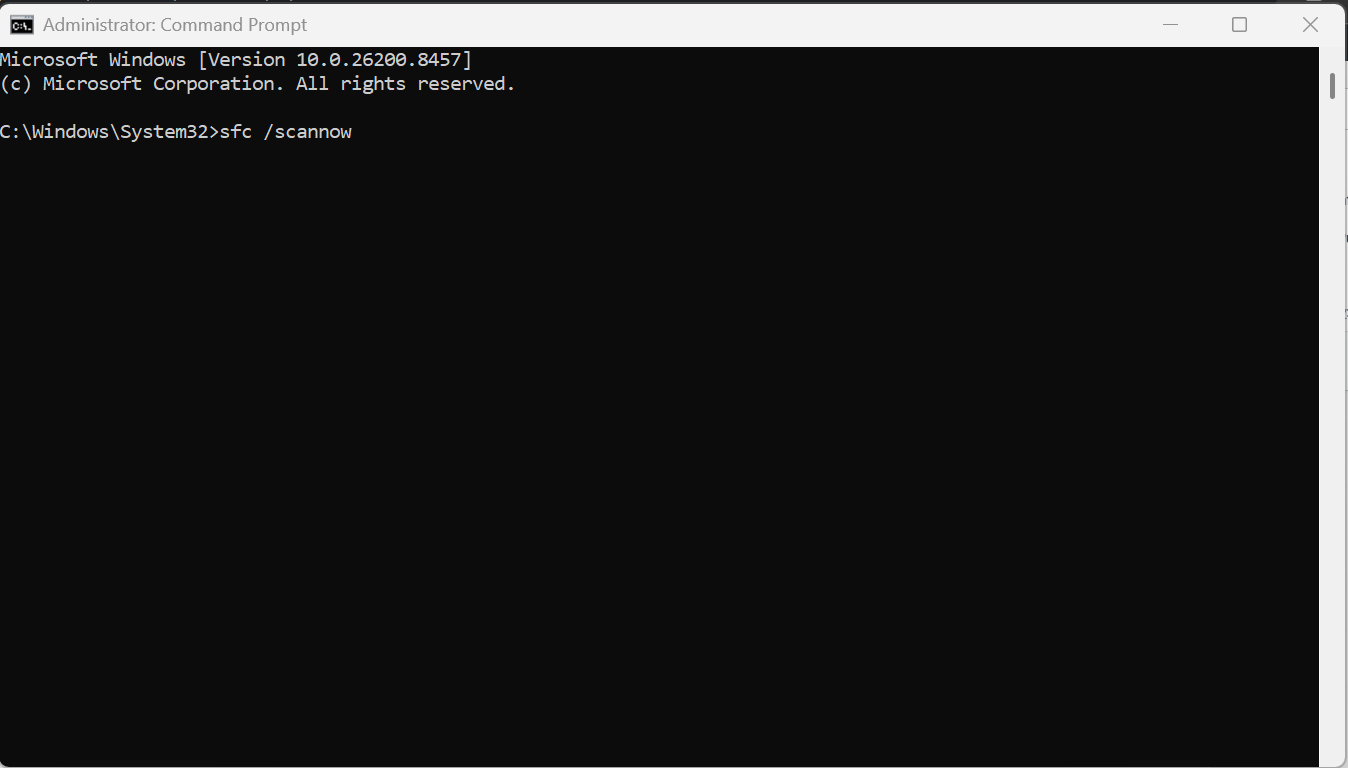
3. Wait for the scan to complete.
4. Next, run:
DISM /Online /Cleanup-Image /RestoreHealth
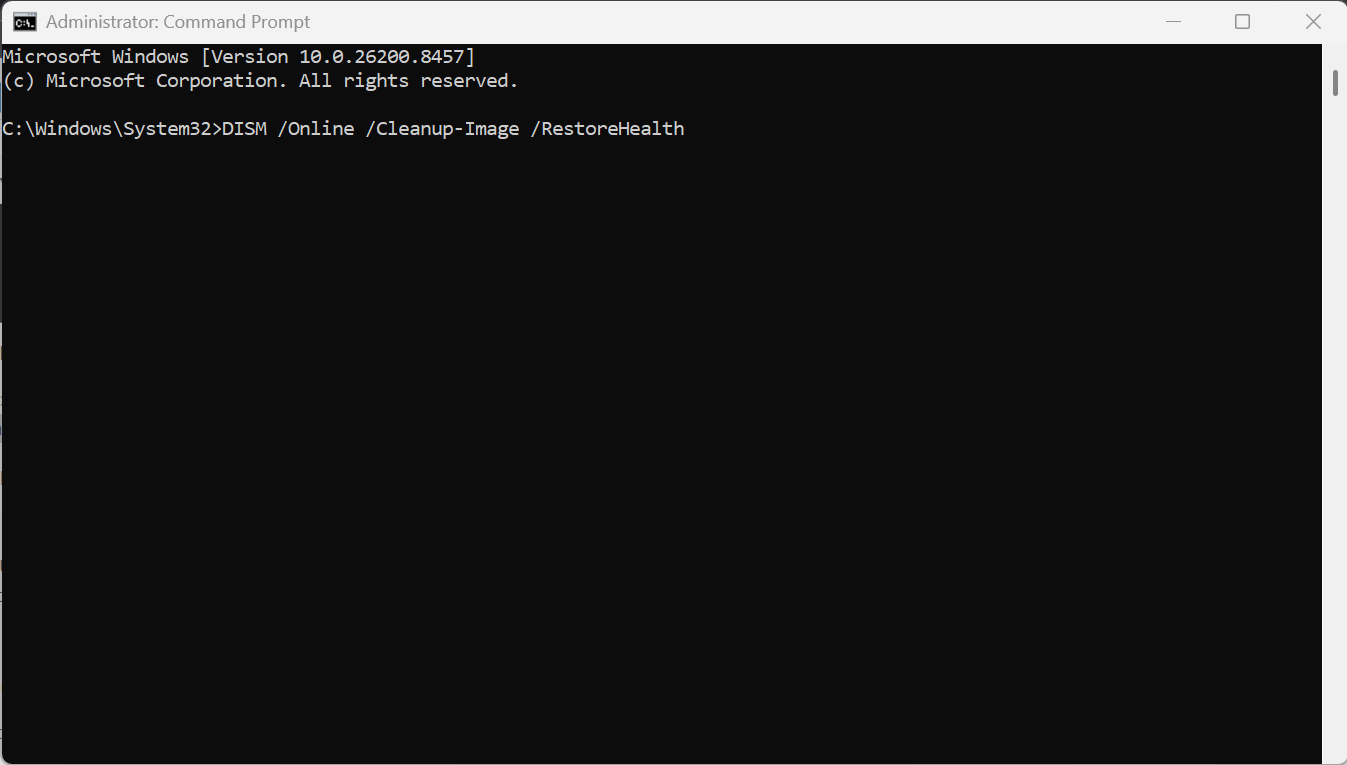
5. After the process finishes, restart your PC.
Fix 4: Install The Update Manually
If Windows Update keeps failing, download the update directly. What you need to do is listed below:
1. Open the Microsoft Update Catalog website.
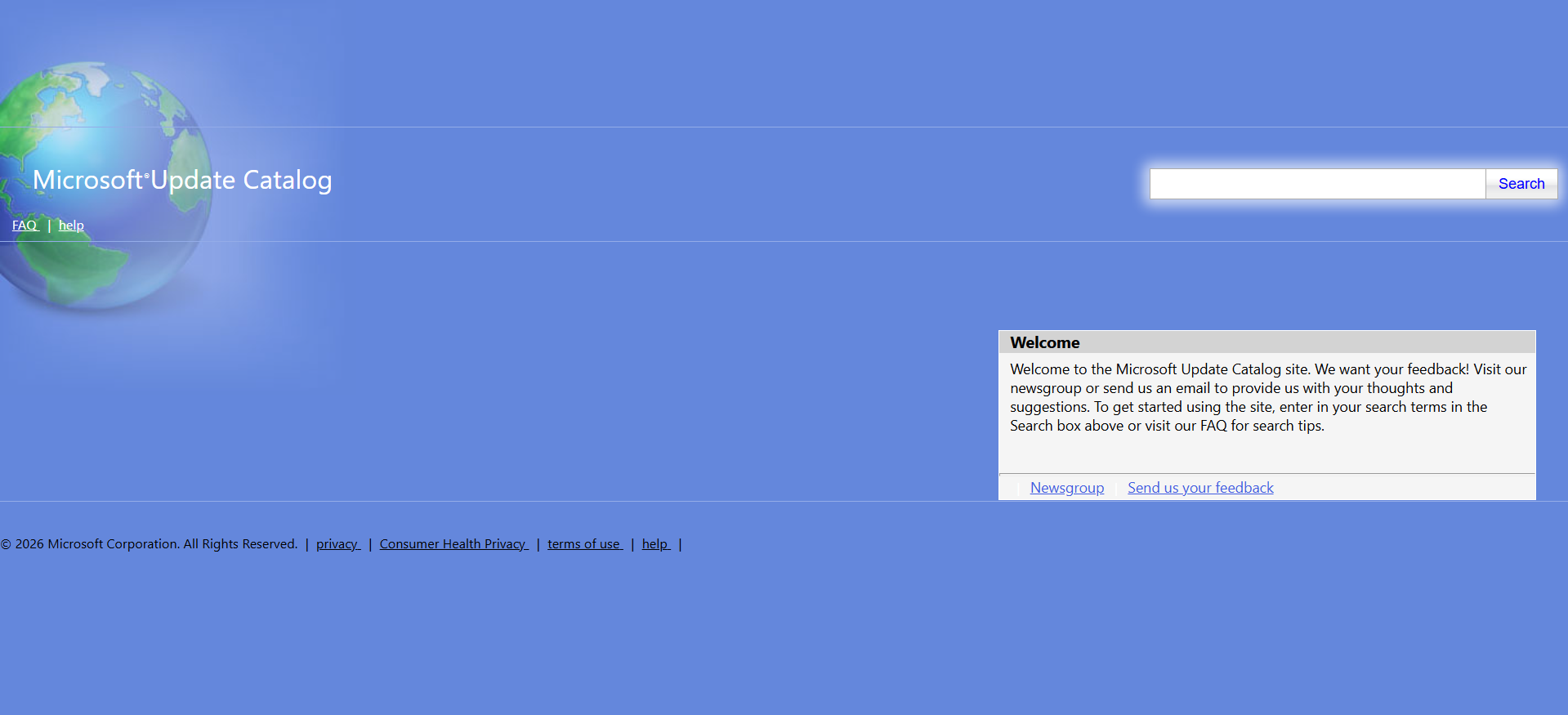
2. Look up the KB number of the update that failed to install and triggered error 0x800f0993.
3. Download the version that matches your system architecture.
4. Run the downloaded .MSU file and complete the installation. You can also refer detailed guide to install updates manually.
5. Restart your computer.
Fix 5: Perform An In-Place Upgrade
If none of the above methods works, repair Windows using an in-place upgrade.
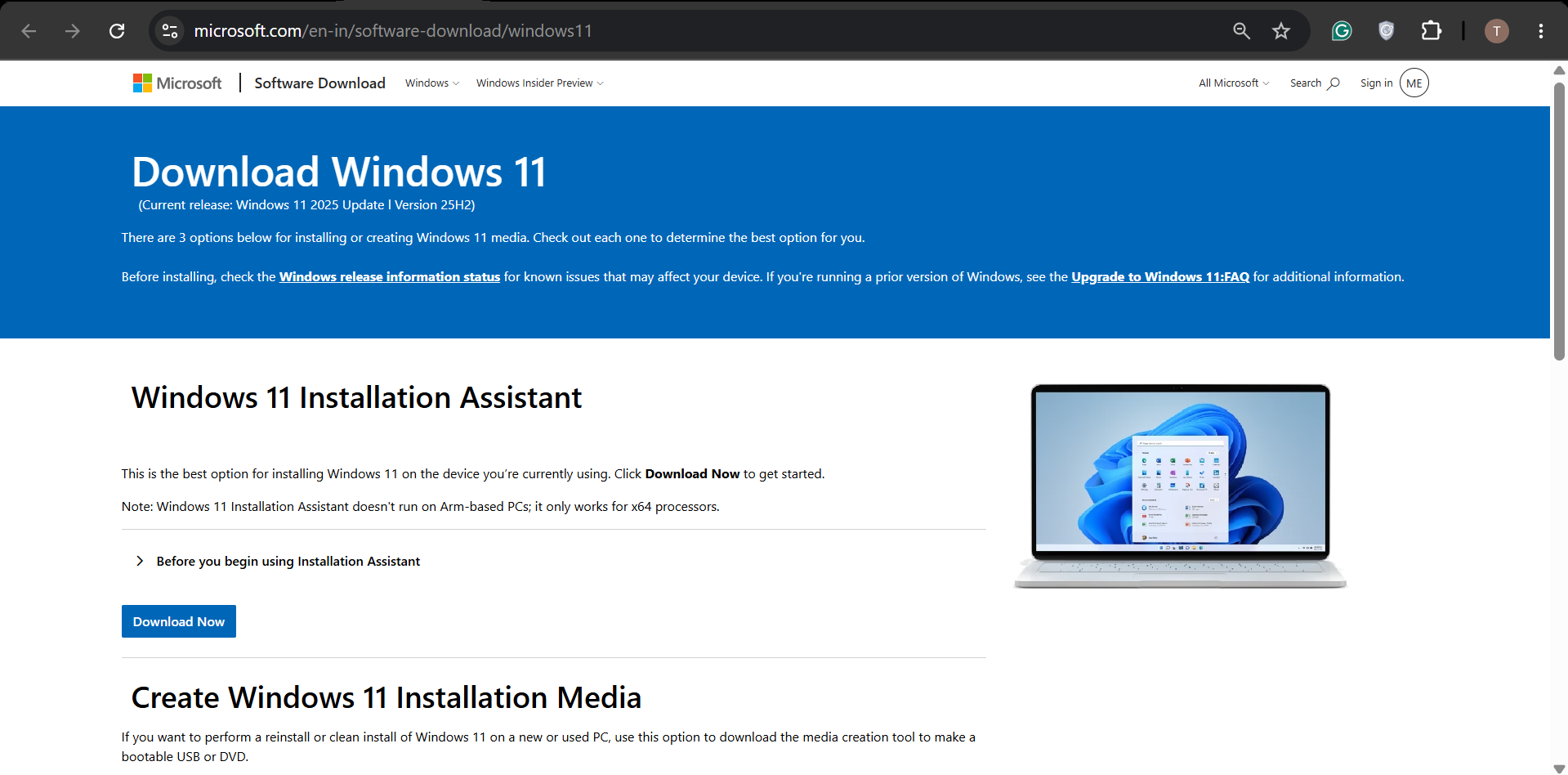
1. Download the latest Windows 11 ISO file.
2. Right click on downloaded Windows 11 ISO file and select Mount.

3. Open the mounted DVD drive in This PC and run setup.exe file.
4. Follow the on-screen setup wizard.
5. Select Keep my files when prompted.

6. Complete the installation and restart your PC.
Video fix
Here’s a video fix to help you more on this:
That’s it!




