If you’re seeing high CPU usage for Microsoft Cross Device Service in Windows 11, this article is for you. This issue may occur when the service consumes more processor resources than usual, even when you are not actively using Phone Link or connecting your phone to your PC. This can affect and slow down your system. It may also affect other apps and system resources.
Follow the methods below to reduce its resource usage.
Page Contents
Fix: Microsoft Cross Device Service High CPU Usage in Windows 11
Fix 1: Turn Off Show Mobile Device in File Explorer
This feature keeps your connected phone visible in File Explorer and may increase background activity. To disable it, follow the below steps:
1. Start by opening your Settings. Then navigate to Bluetooth & devices > Mobile devices.
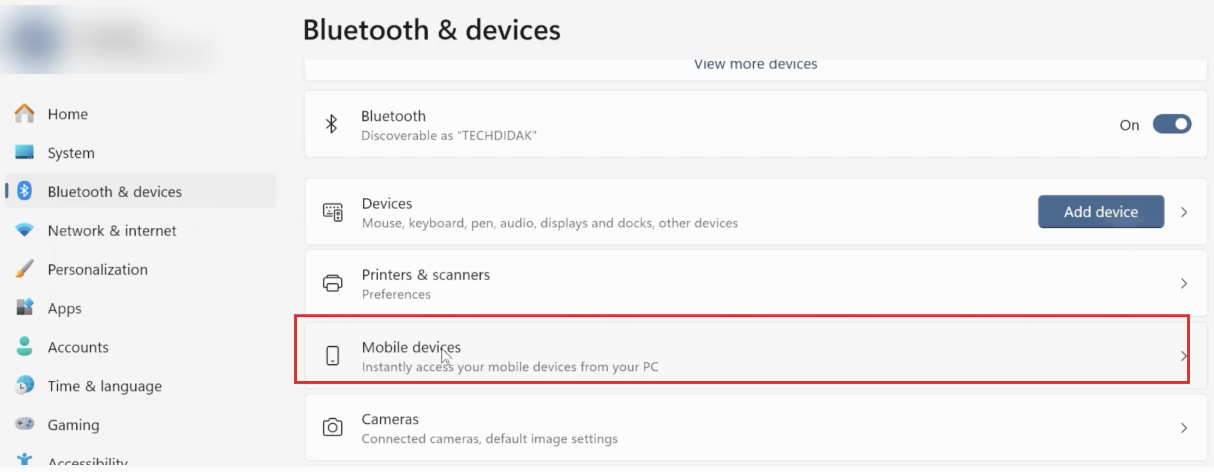
2. Select Manage devices or your connected phone.
3. Under Features, turn off Show mobile device in File Explorer.
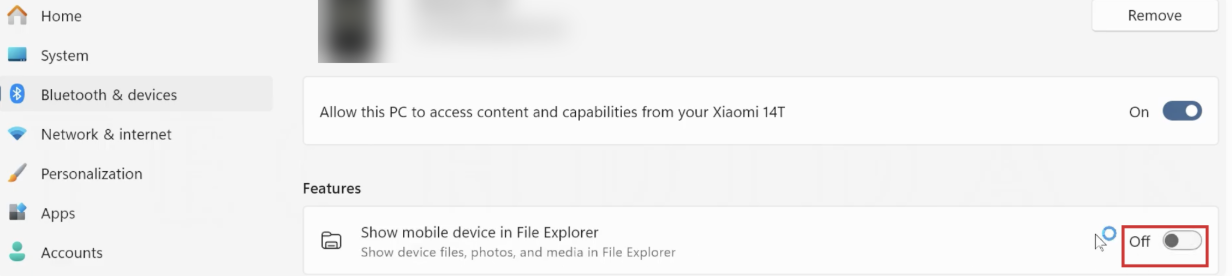
This stops your phone from appearing in File Explorer and may reduce background activity.
Fix 2:Disable Phone Link and Mobile Devices at Startup
If you prevent related apps from starting automatically, you can significantly reduce background resource usage with this service.
1. Press Ctrl + Shift + Esc to open Task Manager.
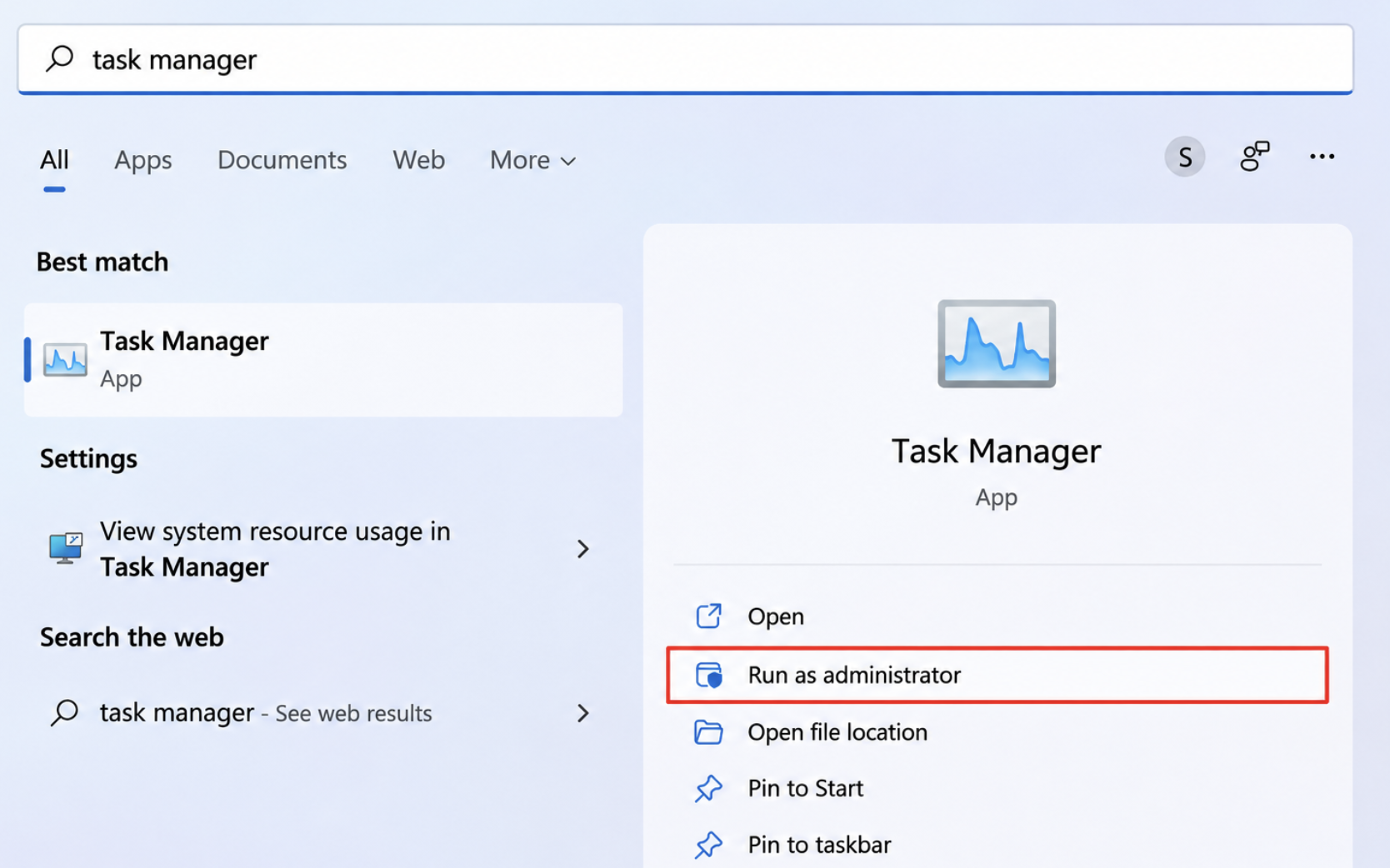
2. Select Startup apps.
3. Find Phone Link and Mobile devices.
4. Now, right-click each app and select Disable.
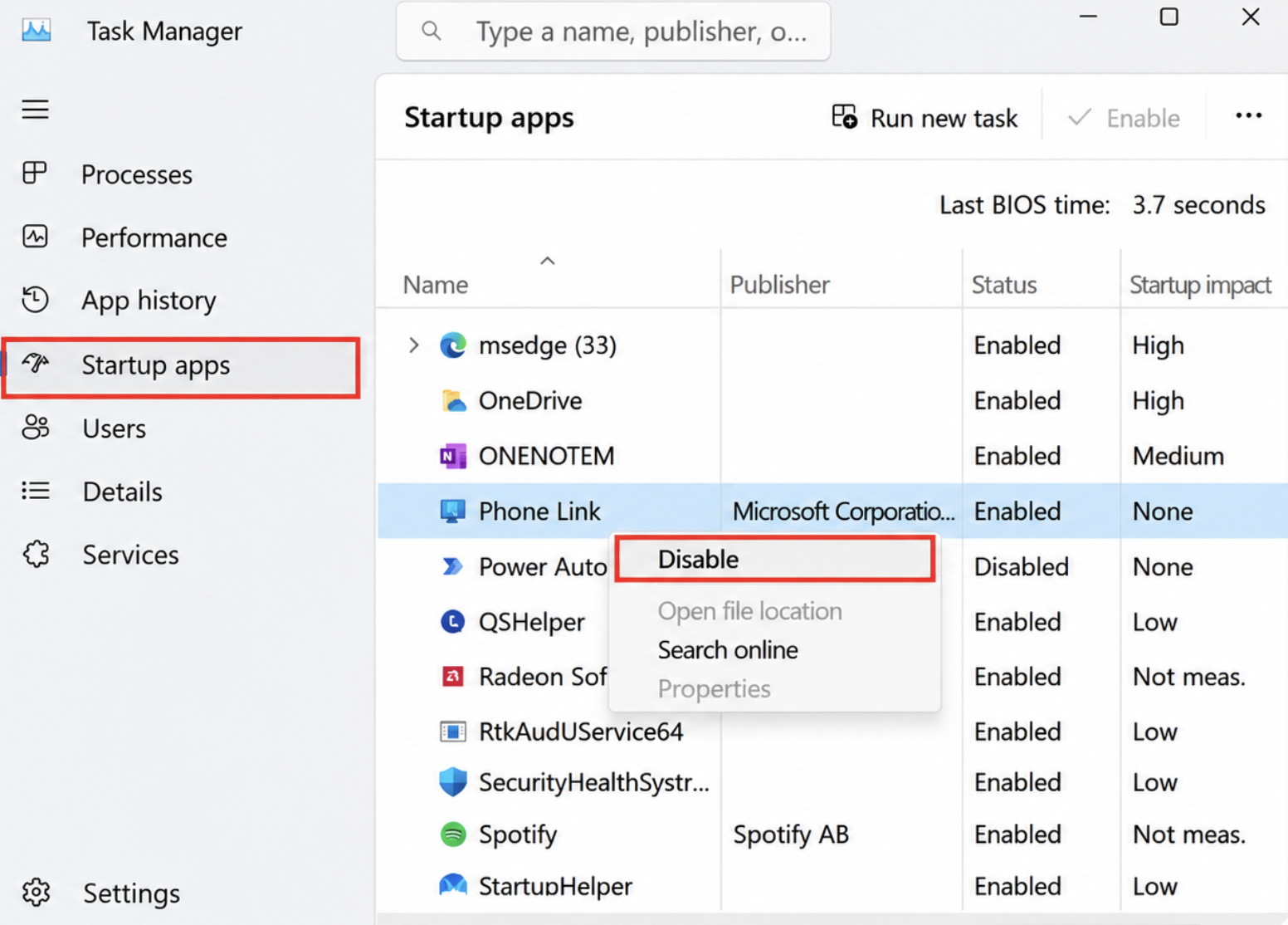
Once you complete this, restart your PC.
Fix 3: Turn Off Share Across Devices
By turning off sharing across devices, you can reduce the activity handled by Microsoft Cross Device Service. To do so,
1. Open Settings > Apps > Advanced app settings.
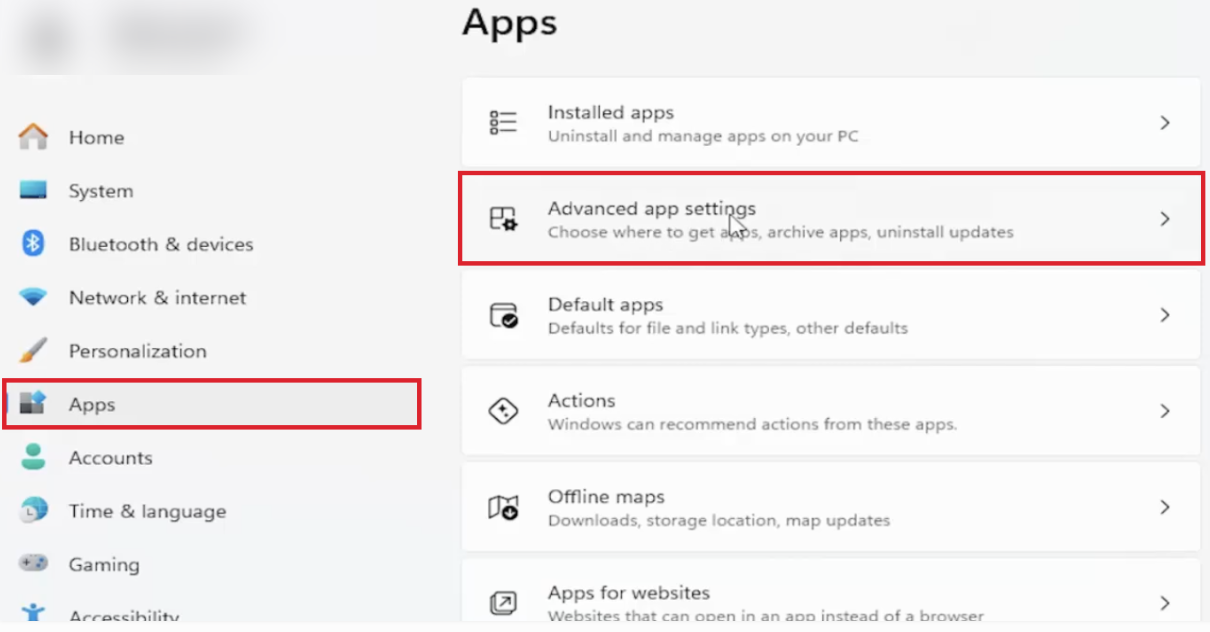
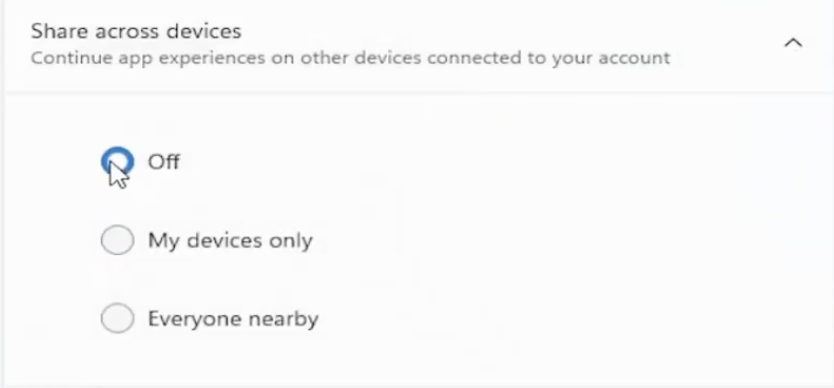
2. Expand Share across devices. Here, you must select “Off.”
Fix 4: Reinstall Cross Device Experience Host
You can also try reinstalling the Cross Device Experience Host and see if it helps.
1. Open Command Prompt in admin mode.
2. Run the following command:
Get-AppxPackage *CrossDevice* -AllUsers | Remove-AppxPackage -AllUsers

3. Restart your PC.
4. Now, open the command prompt in Admin mode and run this: winget install 9NTXGKQ8P7N0
Once the installation is finished, restart your PC.
Fix 5: Uninstall Phone Link
If you do not use Phone Link, try uninstalling it to stop its related background activity.
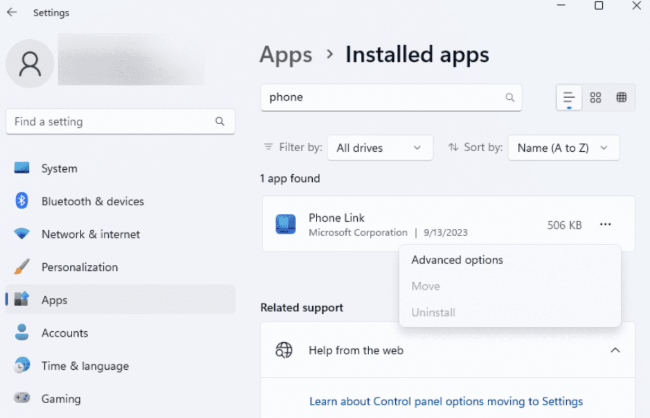
1. Open Settings > Apps > Installed apps.
2. Find Phone Link.
3. Select the three-dot menu and choose Uninstall.
Once this is done, restart your PC.

That’s it!