If you often need to play videos via certain apps on your Windows 11, this article may interest you. When you play videos on apps, if there is a good network connectivity, apps may play videos at higher resolution. This will put an extra usage of your network bandwidth and it may result in costing higher network usage on bills. If you are on a limited bandwidth connection, you can save network bandwidth by playing video at lower resolution in Windows 11.
In the initial preview builds of Windows 11, Microsoft has provided this cost-saving setting. By enabling the setting, you should be able to save network bandwidth while playing videos. This applies to apps as well as browsers. Here is how you can configure the setting.
Page Contents
Save network bandwidth by playing video at lower resolution in Windows 11
 Note: Below steps are illustrated on Windows 11 build 22000.100. Options or labels may change in upcoming builds.
Method 1 – Via Settings app
1. Press  + I keys to open Settings app.
2. In the Settings app, go to Apps > Video playback.
3. Under Video playback, you will find the option Save network bandwidth by playing video at a lower resolution. This option is turned Off by default. You can turn it On to save network bandwidth on your system with video playback.

4. Your changes should be saved and applied immediately. Close Settings app then.
If this method doesn’t work for you, try the alternative registry method mentioned below.
Method 2 – Via Registry
Registry Disclaimer: It is recommended to create a System Restore point first, if you’re not familiar with registry manipulation.1. Run regedit command to open Registry Editor.
2. In left pane of Registry Editor window, navigate to:
HKEY_CURRENT_USER\Software\Microsoft\Windows\CurrentVersion\VideoSettings
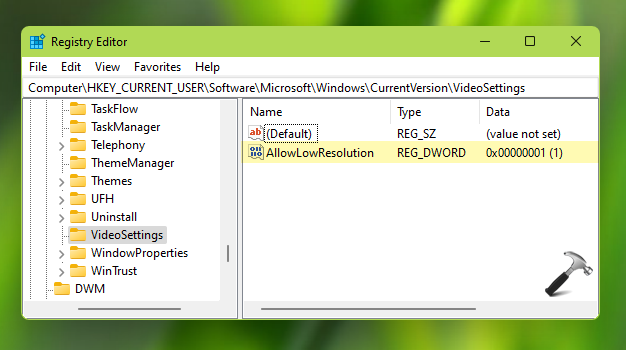
3. In the right pane of VideoSettings registry key, create or edit the registry DWORD named as AllowLowResolution. To save network bandwidth by playing video at a lower resolution, you’ve to set this DWORD Value to 1.
4. Close Registry Editor and sign-out and sign-in back to make changes effective.
That’s it!
Read next: Configure Windows 11 to share content across your devices.