

Windows Security comes pre-installed with Windows 11 operating system. It helps you to protect your system from security threats – free of cost. Just because of Windows Security, you do not need to buy any other 3rd party antivirus separately for your Windows 11. While in case if you want to use 3rd party antivirus, when you install it, Windows Security will automatically disable itself to avoid conflict. Now in case if Windows Security blank in Windows 11, this article is for you. This is shown in the below mentioned screenshot.
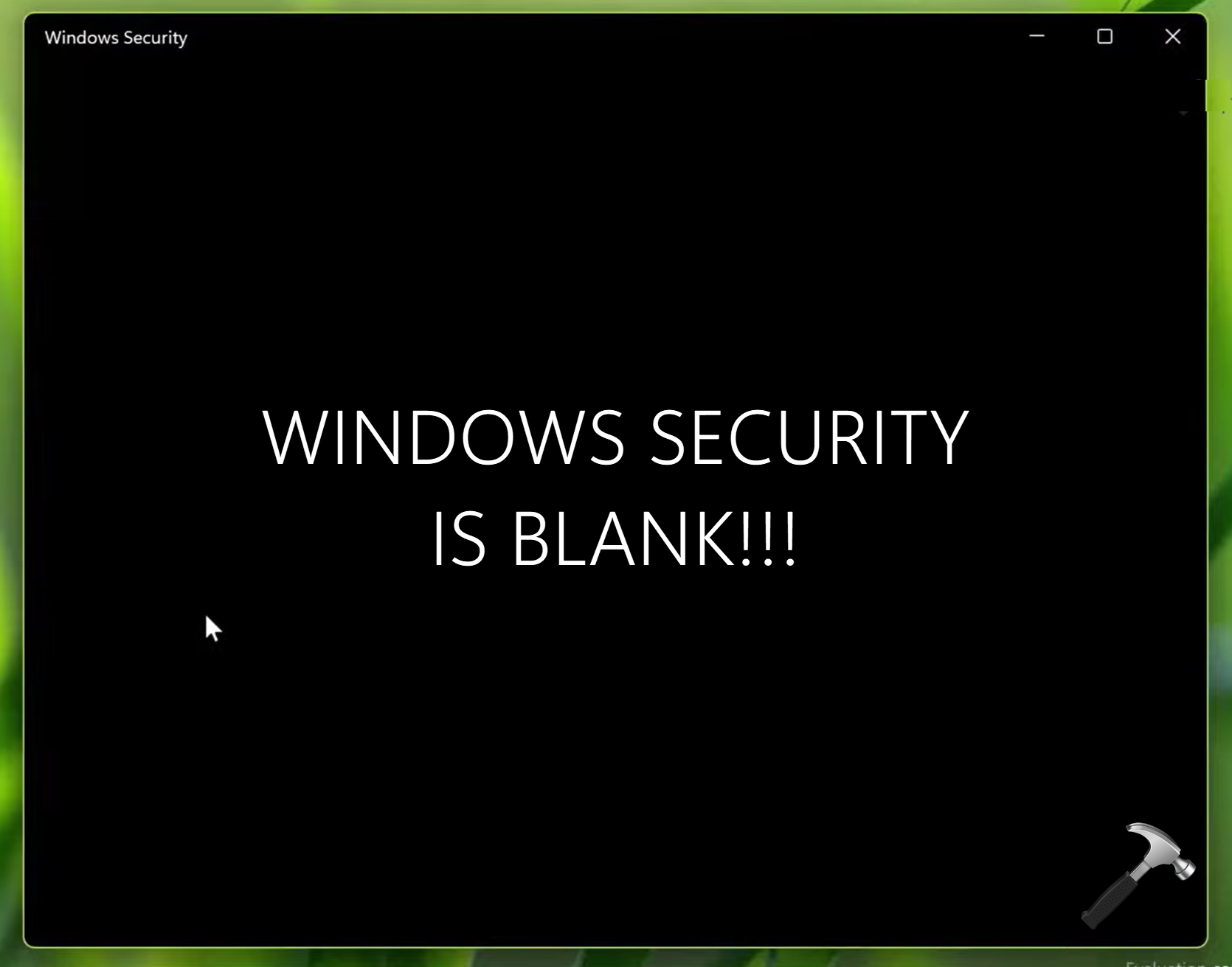
As you can see in the screenshot, when we open Windows Defender or Windows Security, nothing is shown and only the blank window which there. We can’t see any dashboard or any tiles here. In this way, the Windows Security is completely unmanageable.
In this guide, we will see different solution you can try to fix this issue.
Page Contents
Fix: Windows Security blank in Windows 11
Fix 1: Using Registry
1. Press  + R and type
 regedit in Run dialog box. Click OK or press Enter key.
2. In left pane of Registry Editor window, navigate to following registry key:
HKEY_LOCAL_MACHINE\SYSTEM\CurrentControlSet\Services\SecurityHealthService
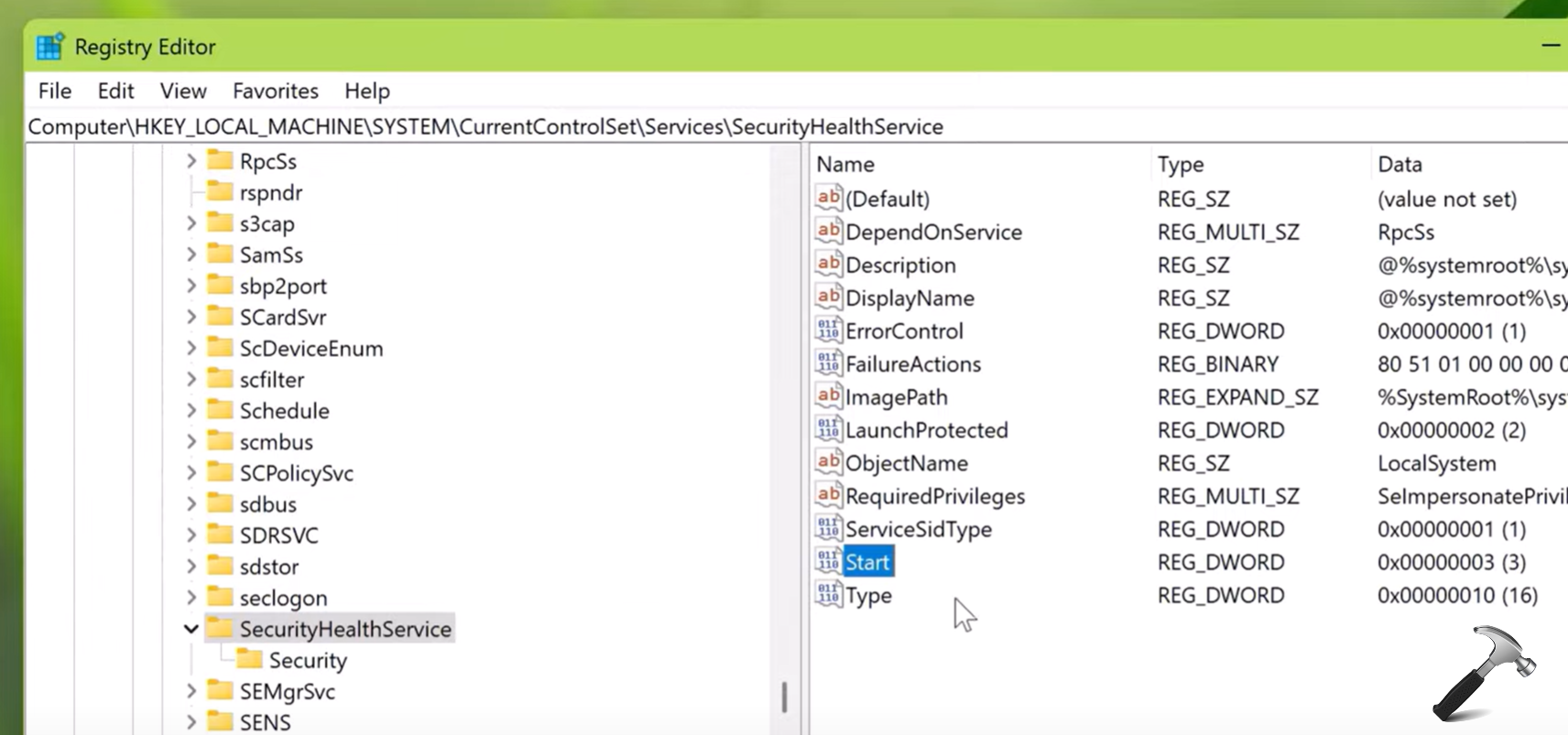
3. In the right pane of SecurityHealthService, locate the Start named registry DWORD. Double click on it and change its Value data to 3.
4. Close Registry Editor and restart.
Fix 2: Repair or reset Windows Security
1. Press + S and search for Windows Security.
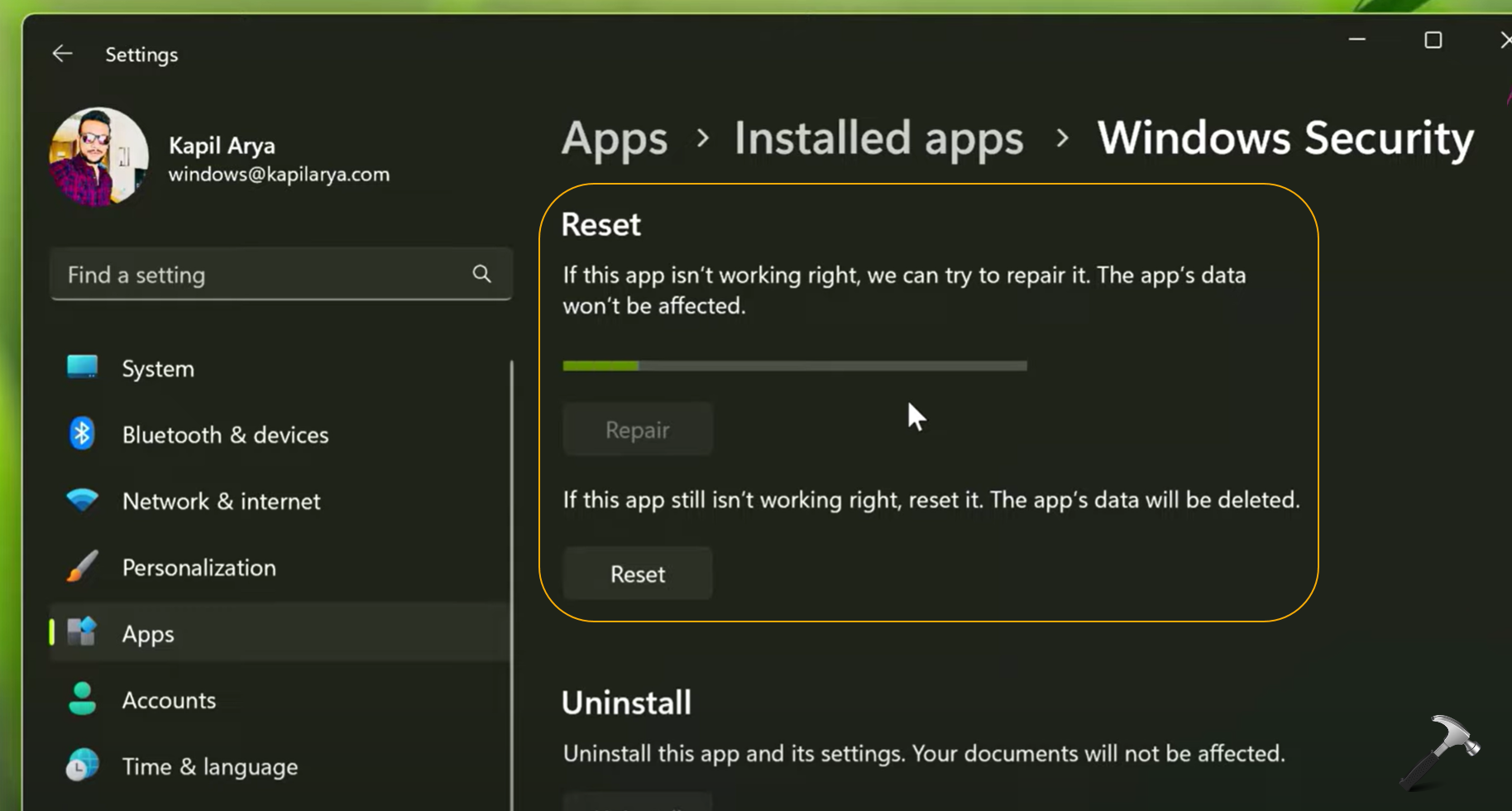
2. From search results, pick Windows Security and click App settings. In the next window, locate Reset heading.
– Here you can first try repairing Windows Security app by clicking on Repair, which doesn’t affect your data.
– If repairing the Windows Security app doesn’t help, then you can next try resetting the Windows Security app. Just click on Reset button.
3. Once done, close Settings.
Fix 3: Re-register Windows Security
1. Press + X and select Terminal (Admin).
2. Paste following command in Windows PowerShell tab and press Enter.
Get-AppxPackage Microsoft.SecHealthUI -AllUsers | Reset-AppxPackage
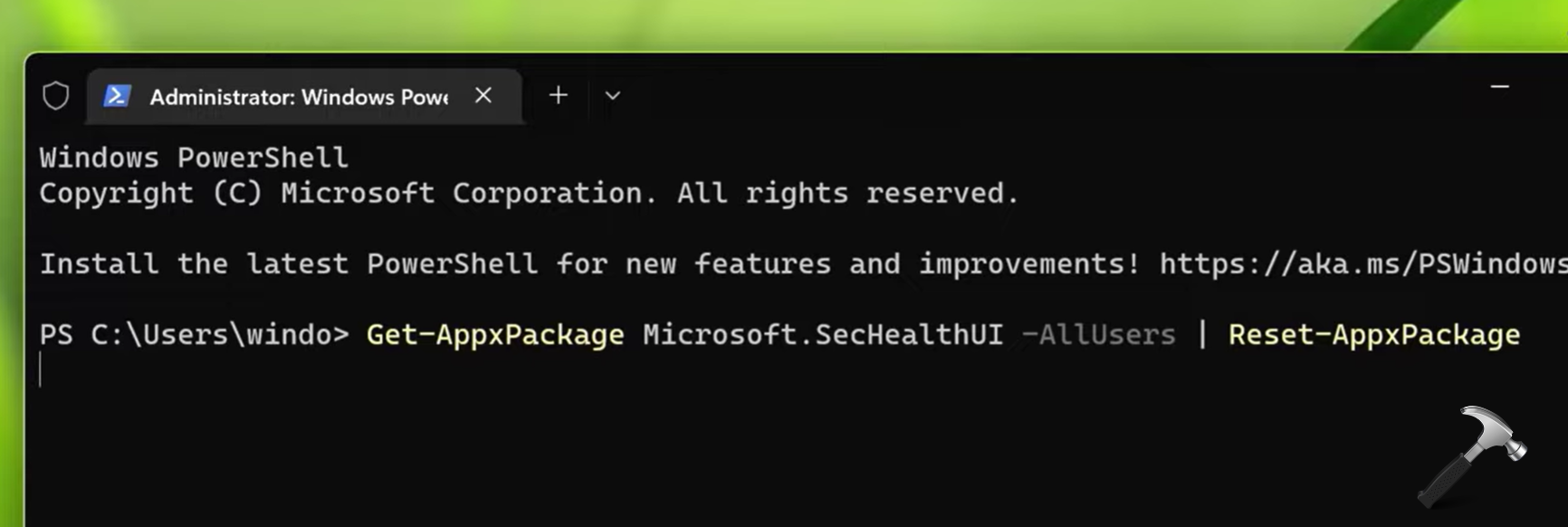
3. Let the command be completed.
We hope after trying above mentioned solutions, the Windows Security app should start working as expected.
Video fix
You can also check out a live demonstration of above solutions using this video fix:
That’s it!
Originally written on Jan 19, 2023. Updated for better instructions.




Hello Kapil Arya, My issue is still not solved even after doing all three steps you told in video. The second step you told was about registry but there was no security health services registry there. Please help me as soon as possible.
^^ Looks like your system is infected thoroughly. Suggest you to perform a malware scan.
It didn’t work for me…I don’t know what to do now..please help me
Didn’t help me yet either. The Windows Security screen is always blank. Blank and white.
^^ if you’re on Windows 11 23H2, and issue appeared after reset/clean install, refer this fix: https://www.kapilarya.com/fix-cant-access-virus-and-threat-protection-on-windows-security
Sadly doesn’t work. We build devices in a corporate environment, fails evetime that the devices are domain joined.
Happens with W11 22H2 and W11 23H2. Windows 10 is not affected
Its a Microsoft issue and not a system infection, the above steps won’t work if you have domain joined devices and are seeing this issue.
Log with Microsoft