

Previously, we have shared you how to map network drive in Windows 11 operating system. Mapped drives helps you to access all the devices on the same network that have network discovery enabled. Now, in this article, we will see, how to deal if you are not able to map network drive on Windows 11.

Recently, someone reached to me in forums with this problem:
We recently got a new computer with Windows 11. We were able to connect to a network drive located on the Windows 2012 server for a few weeks. The roles allow Admins and everyone to connect to it. We have 4 other computers running Windows 7, Windows XP to connect to the network drive on the server without any issues but the new computer with Windows 11 can’t even find the drive. I was able to connect to the drive for a few weeks but it loses it for inactivity and now I can’t connect or find it.
The user already tried these suggestions without any success:
- Disabling Firewall on both computers.
- Added Registry “1” in Windows\Current Version and restarted
If you are also facing the same problem, here is how you can fix it.
Page Contents
Fix: Can’t map network drive on Windows 11
 Registry Disclaimer: It is recommended to create a System Restore point first, if you’re not familiar with registry manipulation.
Solution 1
You can try these registry manipulation:
- Open Registry Editor with regedit command.
- In the left pane, go to this registry key or location:
HKEY_CURRENT_USER\Network\<Mapped drive>
*Substitute <Mapped drive> with actual mapped drive in your case.
- In right pane, set ProviderFlags to 1.
- Exit Registry Editor, restart your system.
Solution 2
- Open Registry Editor using regedit command.
- Go to following registry key:
HKEY_LOCAL_MACHINE\SOFTWARE\Microsoft\Windows\CurrentVersion\Policies\System
- Under System, select new and click DWORD (32-bit) Value.
- Name the new value to EnableLinkedConnections and press Enter.
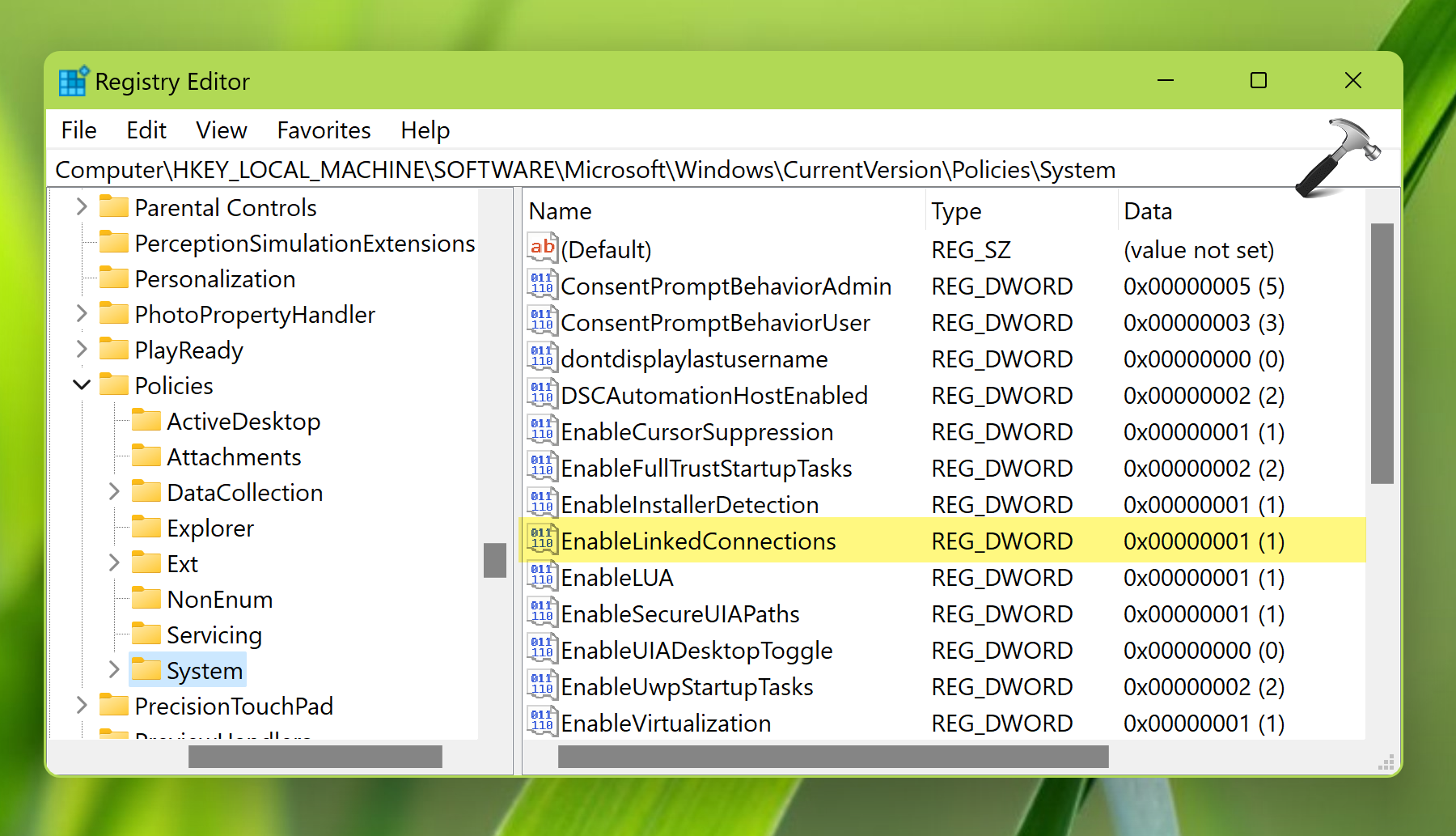
- Under the Value Data field, put 1, then press OK.
- Close Registry Editor and reboot.
Hope something helps!






Thanks for putting this up.
Recent problem, one machine (win11) out of four can’t connect to or from the other machines (Win11 and win10). Just started out of the blue.
After a LOT of fiddling with settings, changing credentials, etc ad nauseum, I ended up here.
Solution 1: There is no ProviderFlags keyword under the mapped drives.
^^ Jeff, have you tried Solution 2?
Thanks but please update to include whether or not it is a hexadecimal value or a decimal value that is being set there in the registry, as the OS has an option for either. Thanks.
^^ For Value data 1, Decimal and Hexadecimal values are same in registry.