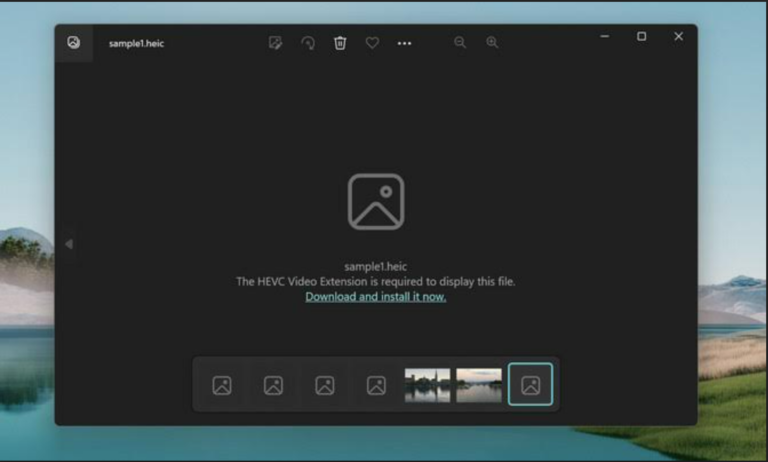
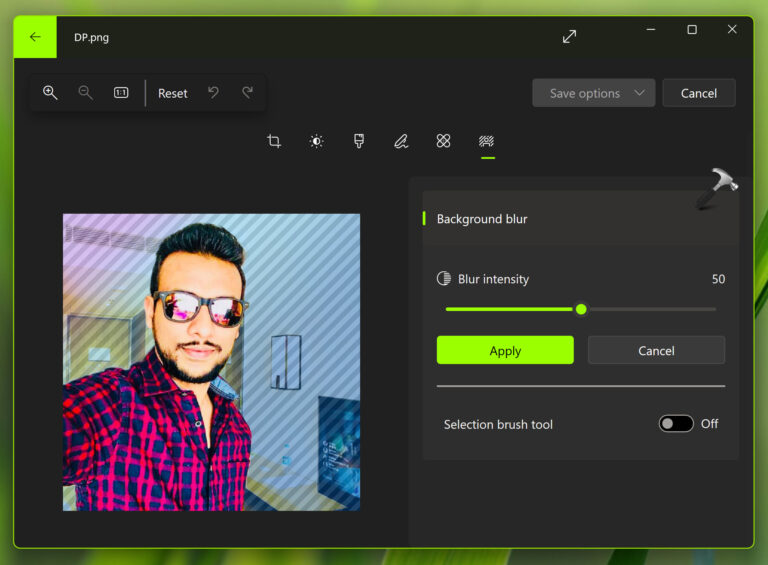
Microsoft.Photos.exe is the framework that manages running the default Microsoft Photos App on Windows 11. The application is functional and convenient for displaying and editing images; however, it uses surplus memory when running in the background. Additionally, it slows down the device, especially on substandard machines.
However, let us see some probable and prominent solutions for the issue of Microsoft Photos.exe memory usage:
Page Contents
Fix: Microsoft Photos.exe high memory usage
Fix 1: Disable Microsoft Photos from functioning in the background
The app continues to process images, scan metadata, and sync with OneDrive when it is not in use.
1. Press Windows + I to open Settings.
2. Proceed to ‘Apps‘ then to ‘Installed Apps‘.
3. Scroll down to search for Microsoft Photos and click the three-dot menu beside it.
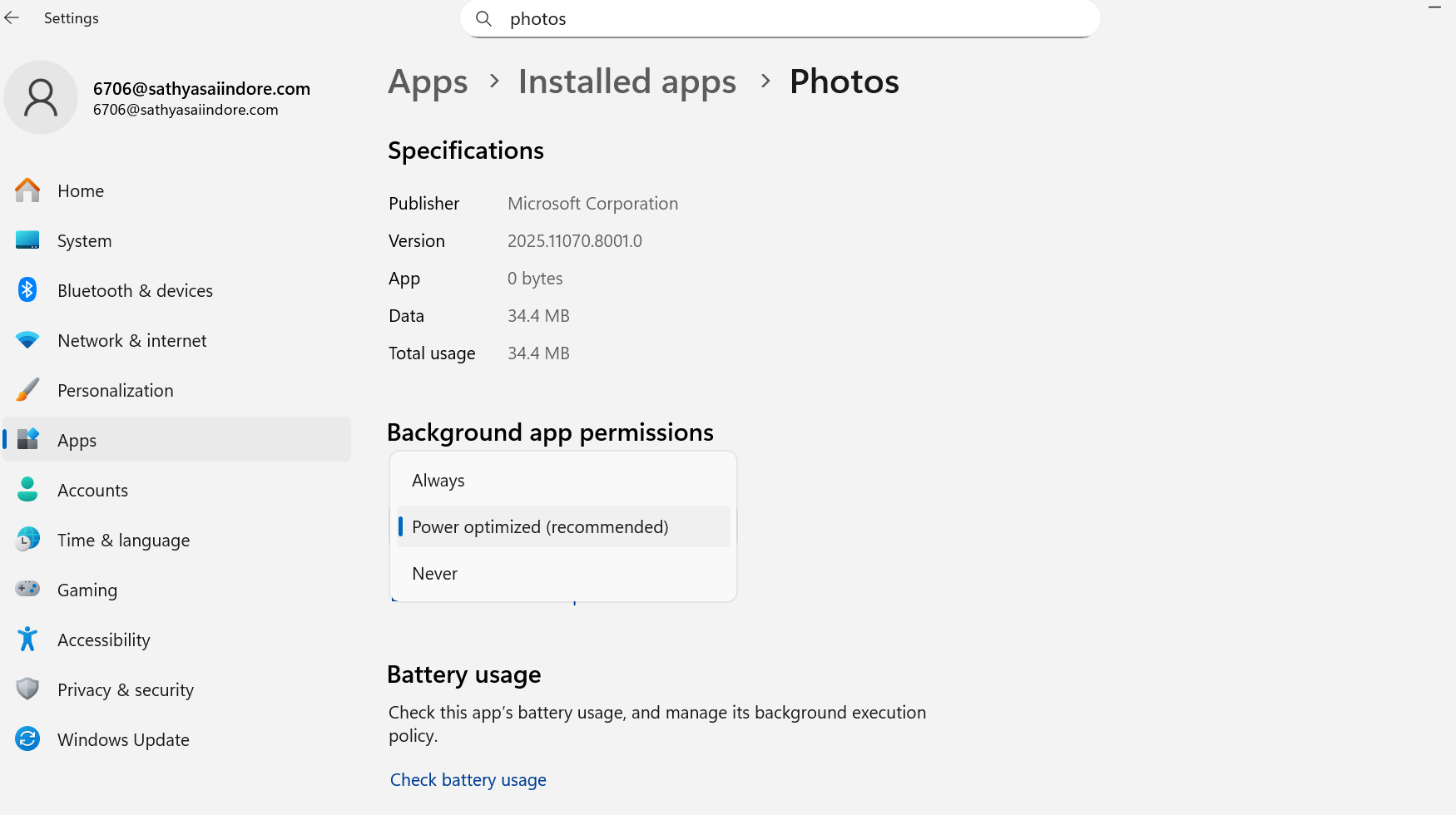
4. Click on Advanced options.
5. Under the Background Apps Permission section, set it to Never.
Fix 2: By Repairing or Resetting the App
Experiencing similar issues in Microsoft.Photos.exe, here is another simple way to solve your issue:
- Go to Settings > Apps, and then Installed Apps.
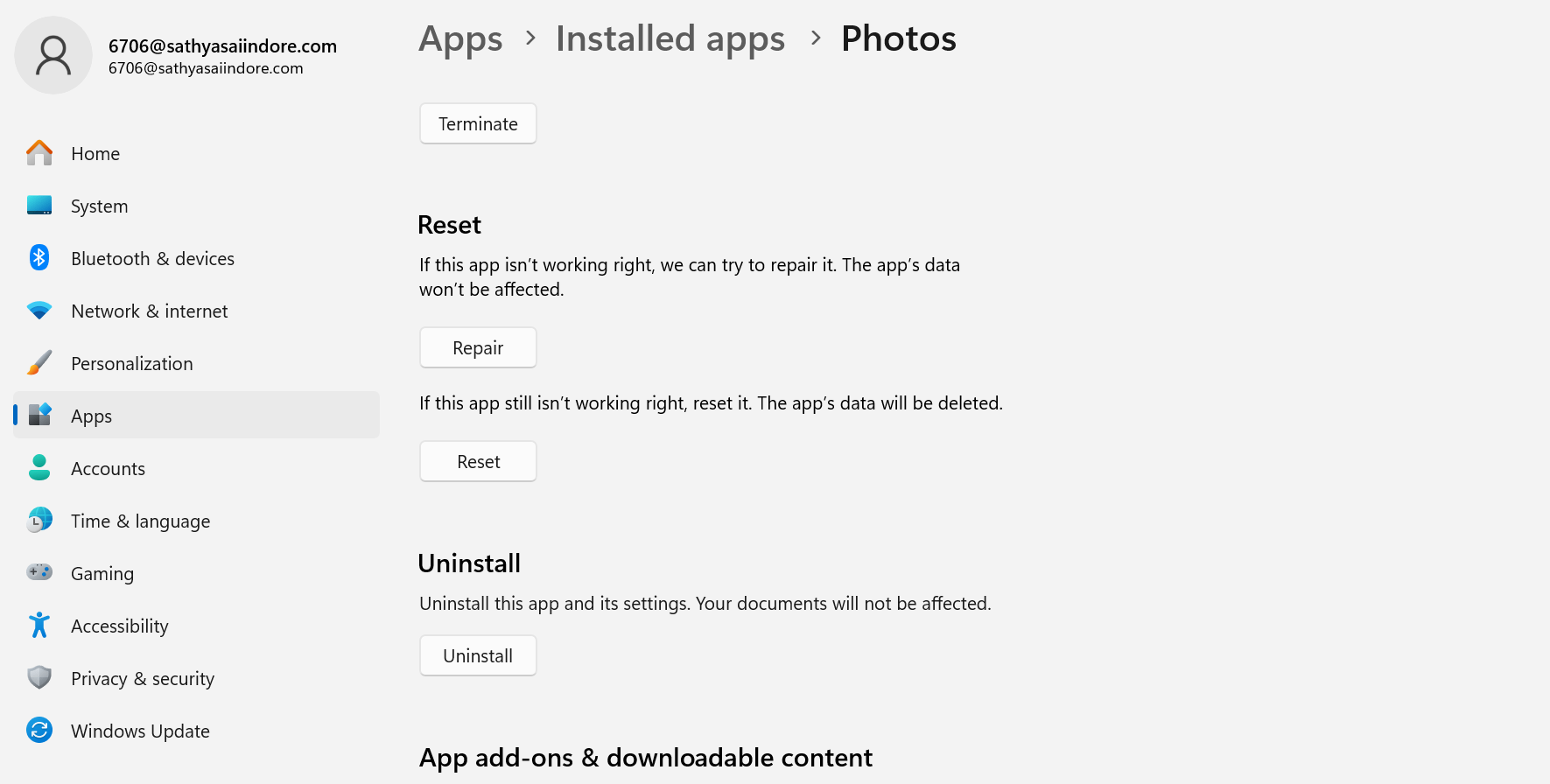
- Find Microsoft Photos, click on the three-dot menu, and select Advanced options.
- It consists of two options:
a. Repair– Fix the app without erasing the data.
b. Reset– Delete all app data and restore to default settings.
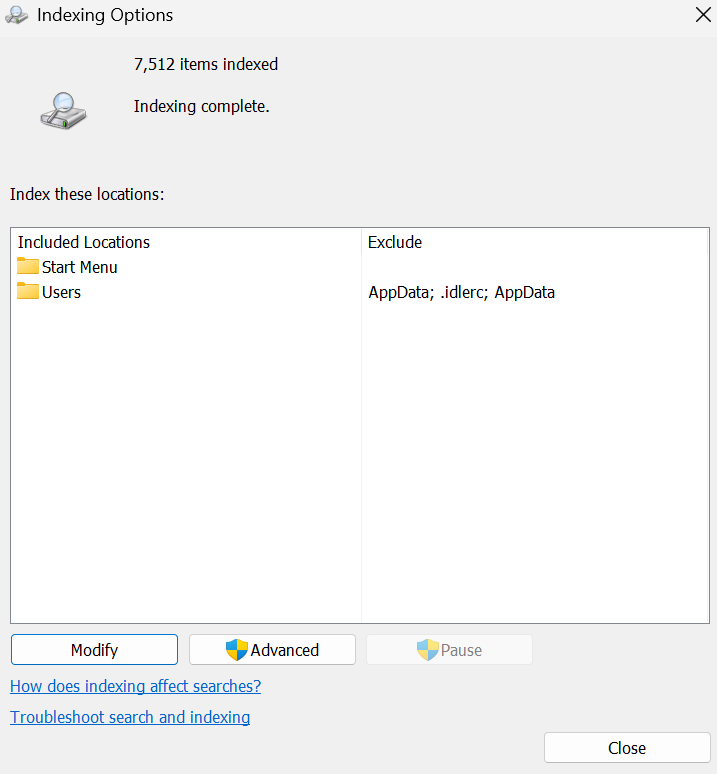
Fix 3: Turn Off Windows Search Indexing for Photos App
Windows Search consistently lists the content of your Pictures folder when there are multiple images or files, leading to app activity.
- Press Windows + S, search for Indexing options, and open it.
- In the Indexing option window, click on Modify.
- Deselect Pictures or any other folder that contains vast media.
- Click on OK to save changes.
Fix 4: Switch to a Lightweight Alternative Viewer for Microsoft Photos App
If one does not use the advanced features of the Photos app, switching to another Image Viewer seems rational.
Alternative recommendations:
- IrfanView- https://www.irfanview.com
- ImageGlass- https://imageglass.org
- FastStone Image Viewer- https://www.faststone.org

Fix 5: Turn off Live Tile for Microsoft Photos.exe high memory usage.
The Photos App authorizes a live tile that consumes a large amount of memory. It works on app indexing photos and creating thumbnails as it finds new pictures.
- Open the Start menu.
- Right-click on the Photos App and click on More and turn the live tile off.
- Restart the system once for confirmation.
Hope this helps!