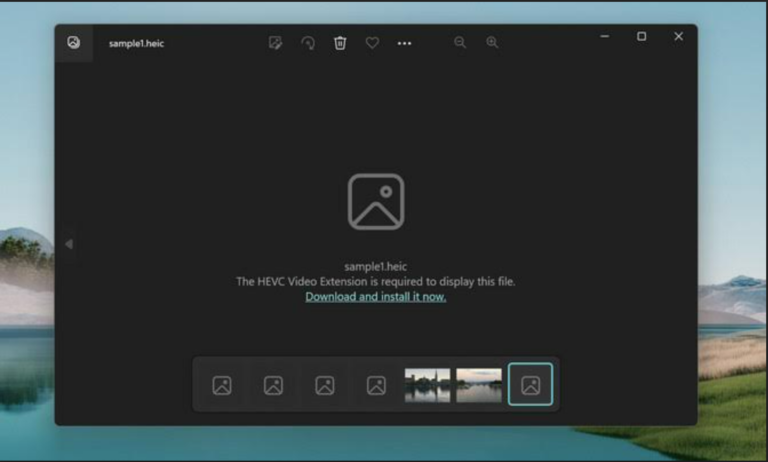
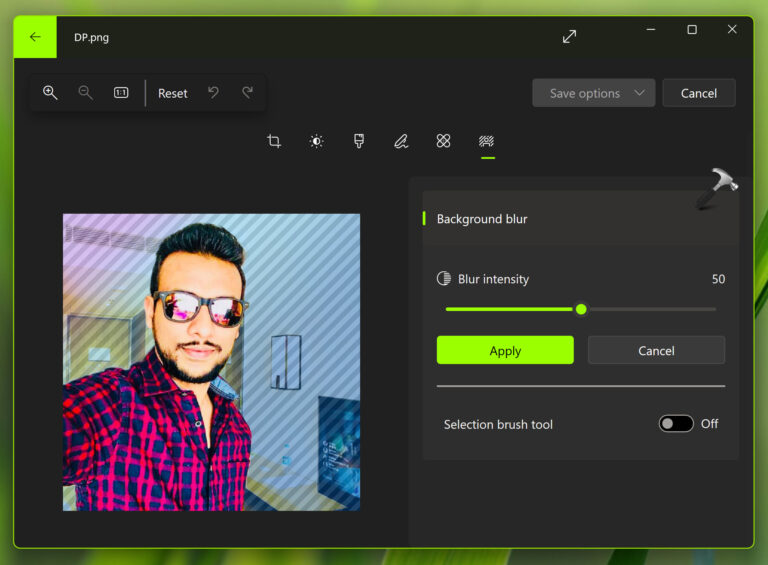
Does the Photos app won’t open in Windows 11? The Photos app comes preloaded on Windows 11 and is the default image viewer for Windows 11, which is why it’s very useful for opening photos, editing photos, managing your albums, and viewing videos. A sudden lack of functionality can make even simple tasks a chore.
You’re not the only one who may find that the Microsoft Photos app will not open or crashes as soon as you open it, or you may see a blank window. Fortunately, most of the times this problem occurs due to corrupted app data, outdated Windows components, damaged system files or a temporary software bug, all of which can be fixed through appropriate troubleshooting measures.

In this guide, you’ll learn 7 effective methods to fix the Photos app won’t open in Windows 11 issue.
Page Contents
Why Is the Photos App Not Opening in Windows 11?
It’s important to know what is causing the problem before attempting the fixes. Some common reasons include:
- Corrupted Photos app files
- Damaged app cache
- Outdated Windows 11 version
- Until Microsoft Store updates, there is no installation available.
- Corrupted system files
- User profile corruption
- After a Windows update: Software conflicts
Let’s now work through the answers.
Fix: Photos app won’t open in Windows 11
By following the tips in this guide, you will also make it easier to avoid any future issues, allowing you to watch, organize, and edit your photos without interruptions.
Fix 1: Repair Corrupted Windows System Files
Built-in applications such as Microsoft Photos may not start properly if Windows system files are damaged.
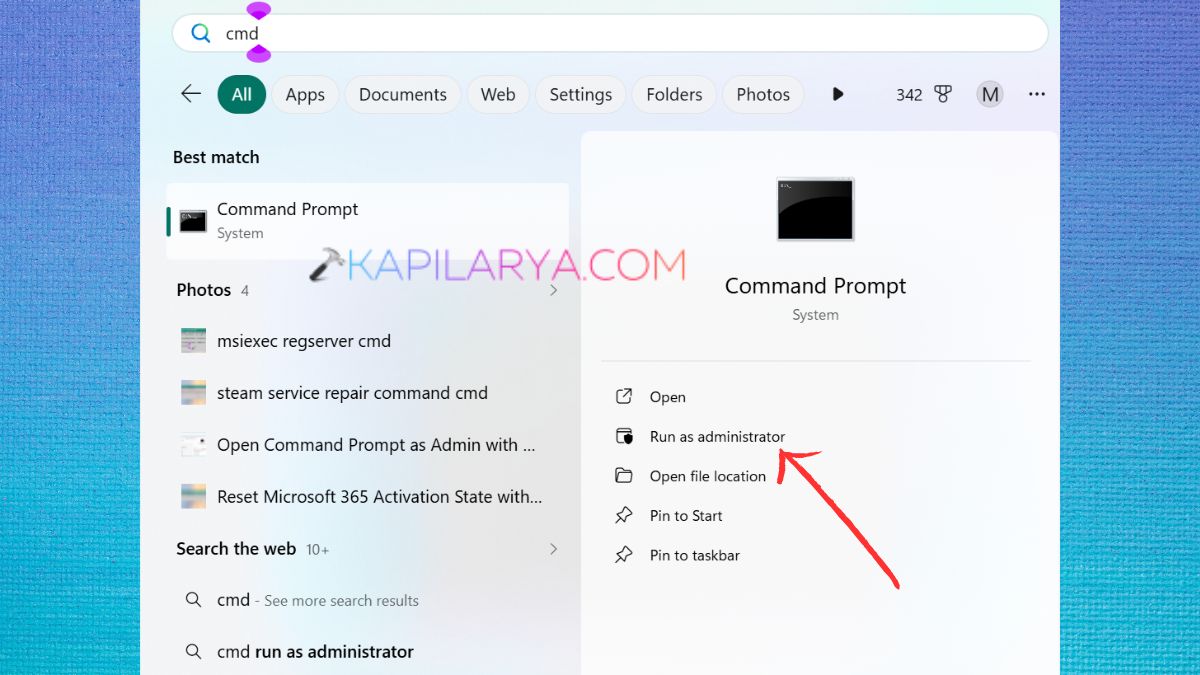
1. Type in Command Prompt. Press Windows + S, and type Command Prompt. Choose Run as administrator.
2. Click on the following command to execute the SFC Scan. Until the scan is at 100%, do not do anything.
sfc /scannow
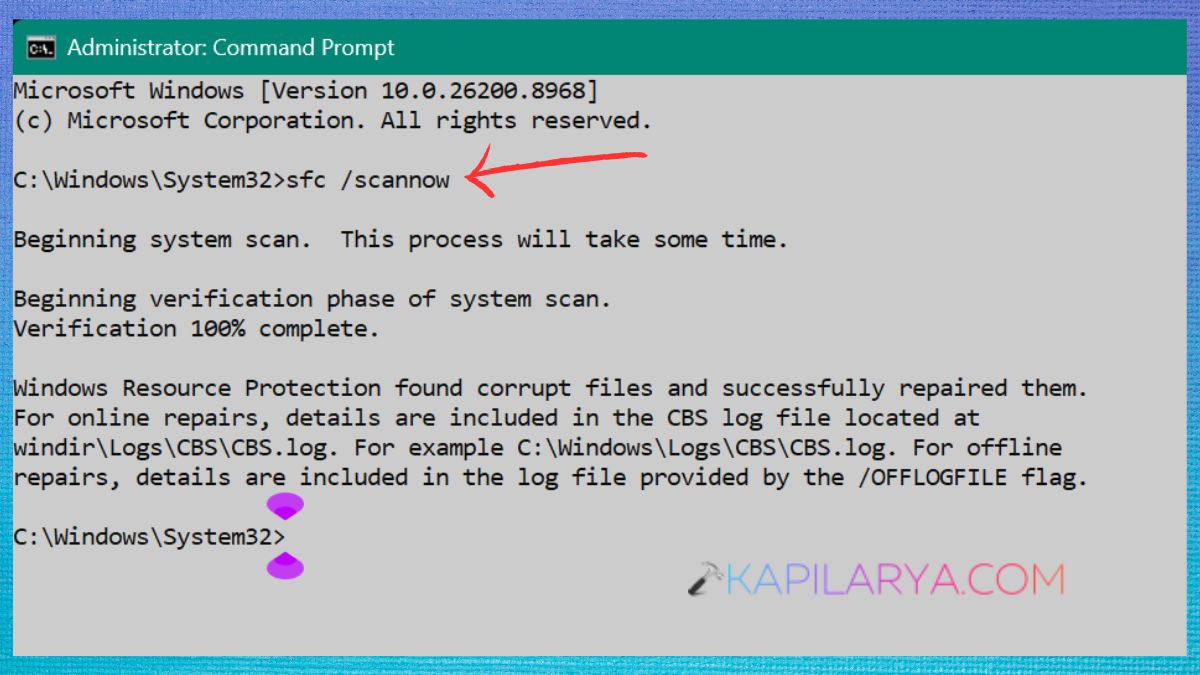
3. Once SFC finishes, run each of these commands in turn.
DISM /Online /Cleanup-Image /CheckHealth
DISM /Online /Cleanup-Image /ScanHealth
DISM /Online /Cleanup-Image /RestoreHealth
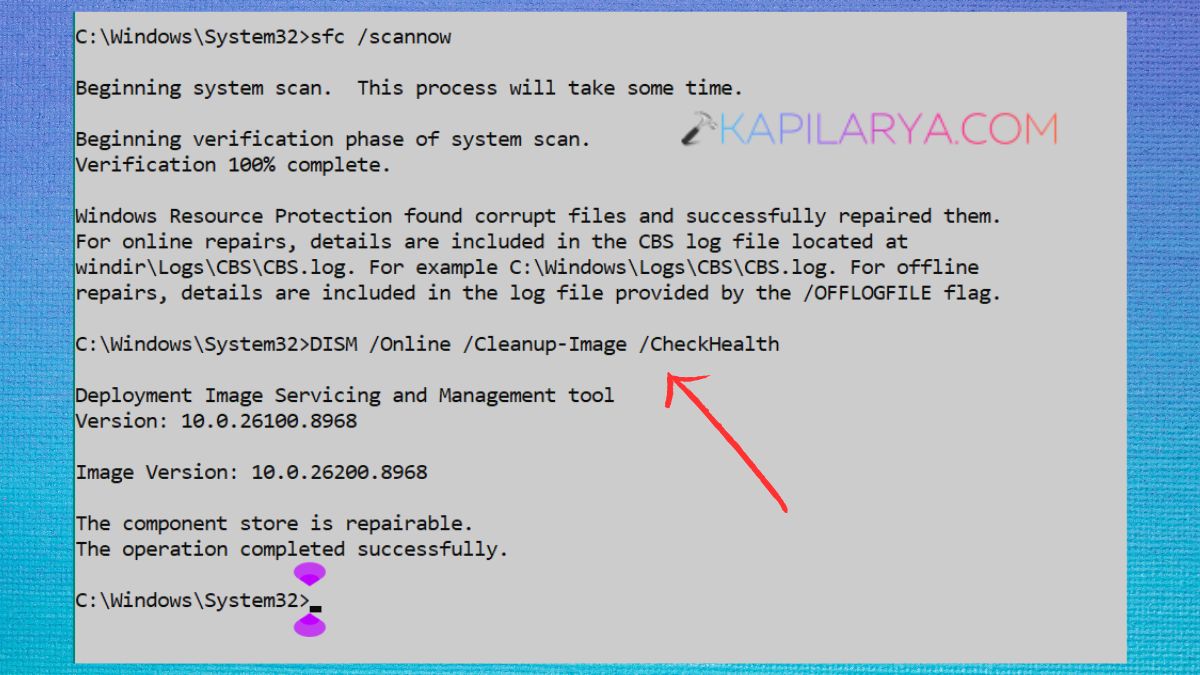
Once the process is completed, restart the computer and see if the Photos app launches correctly.
Fix 2: Repair or Reset the Microsoft Photos App
When the application file becomes corrupted, Windows can repair or reset the application.
1. Press Windows + I to open Settings. Navigate to Apps > Installed apps.
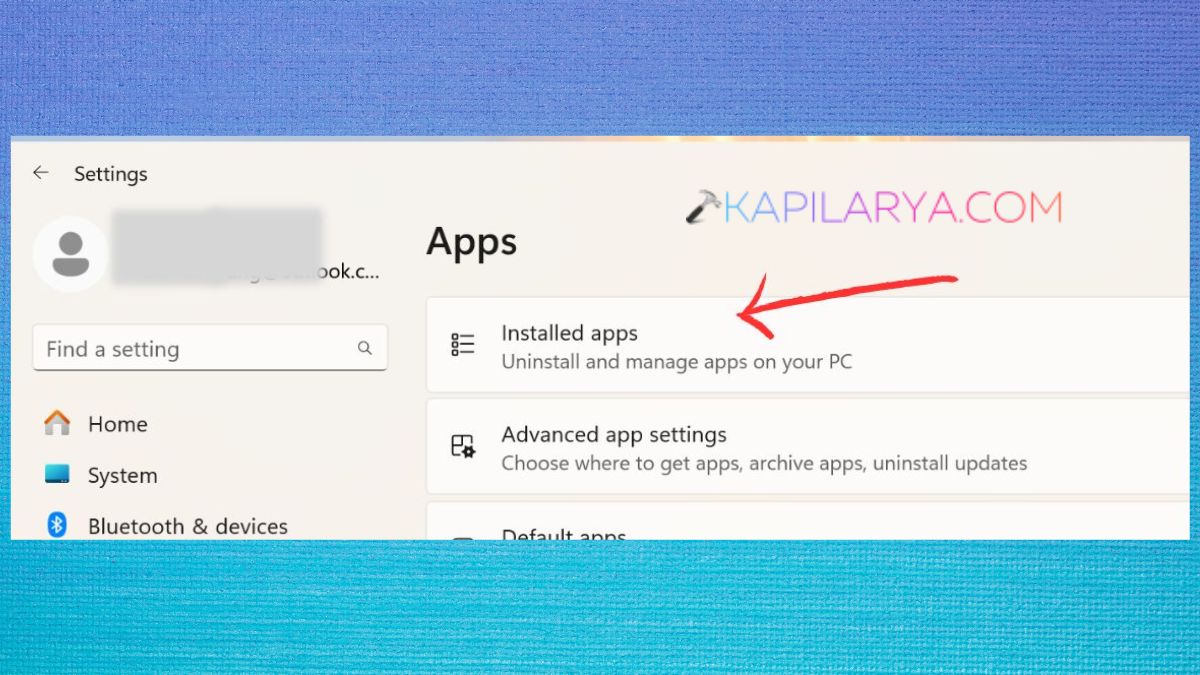
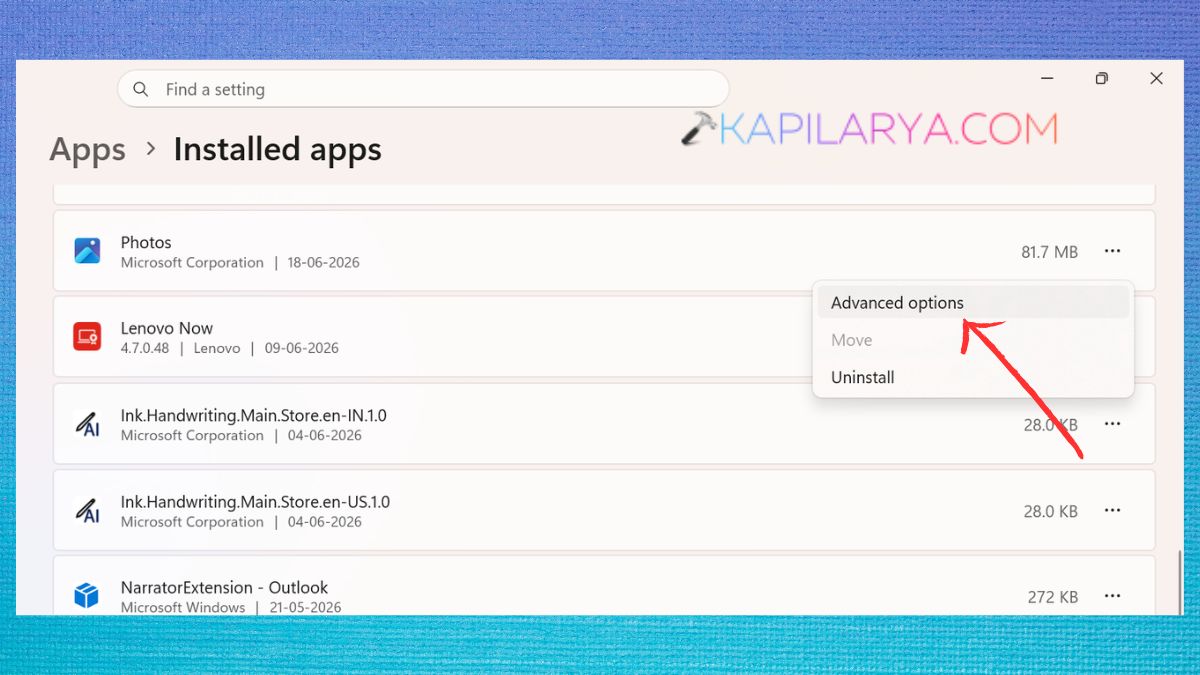
2. Find the Microsoft Photos app from the list. To the left of it, click the ••• and select Advanced options.
3. Click on Repair at the bottom of the page. Do not interrupt the repair process; wait for it to finish.
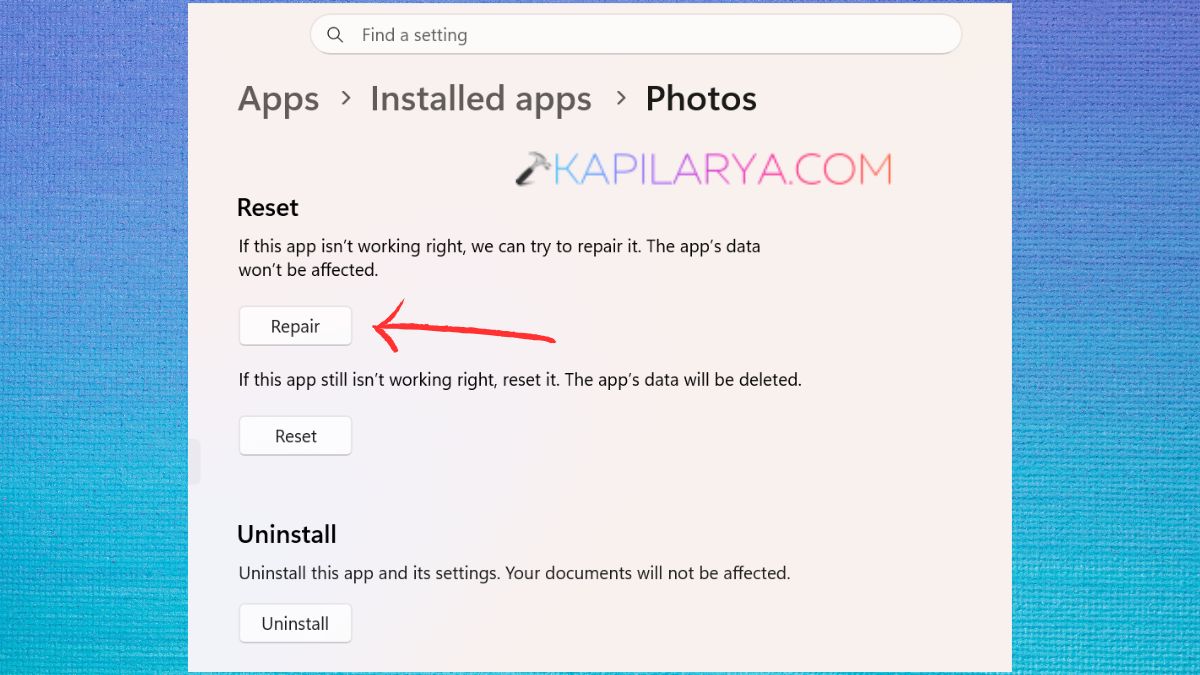
4. If repairing doesn’t work, click Reset. Confirm the action.
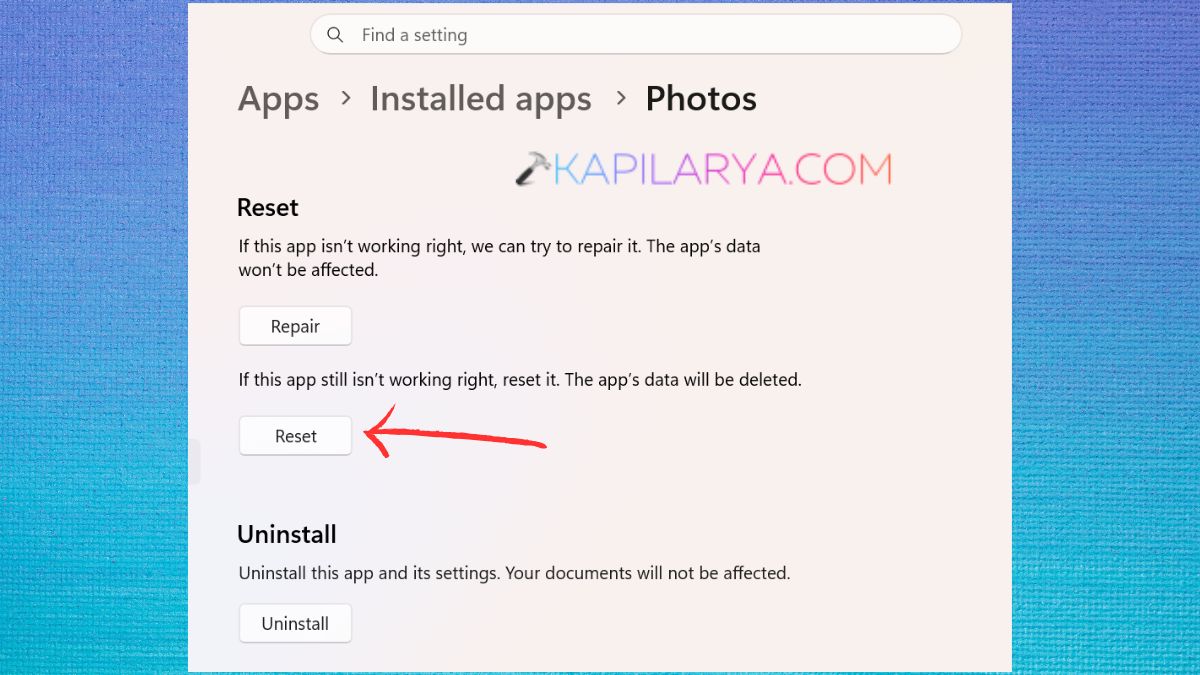
This clears some app data that is stored in the cache and reinstalls critical components. Launch the Photos app again.
Fix 3: Force Close and Restart the Photos App
The application may be running, but processes are frozen at times.
1. Press the keys Ctrl + Shift + Esc. Choose Task Manager.
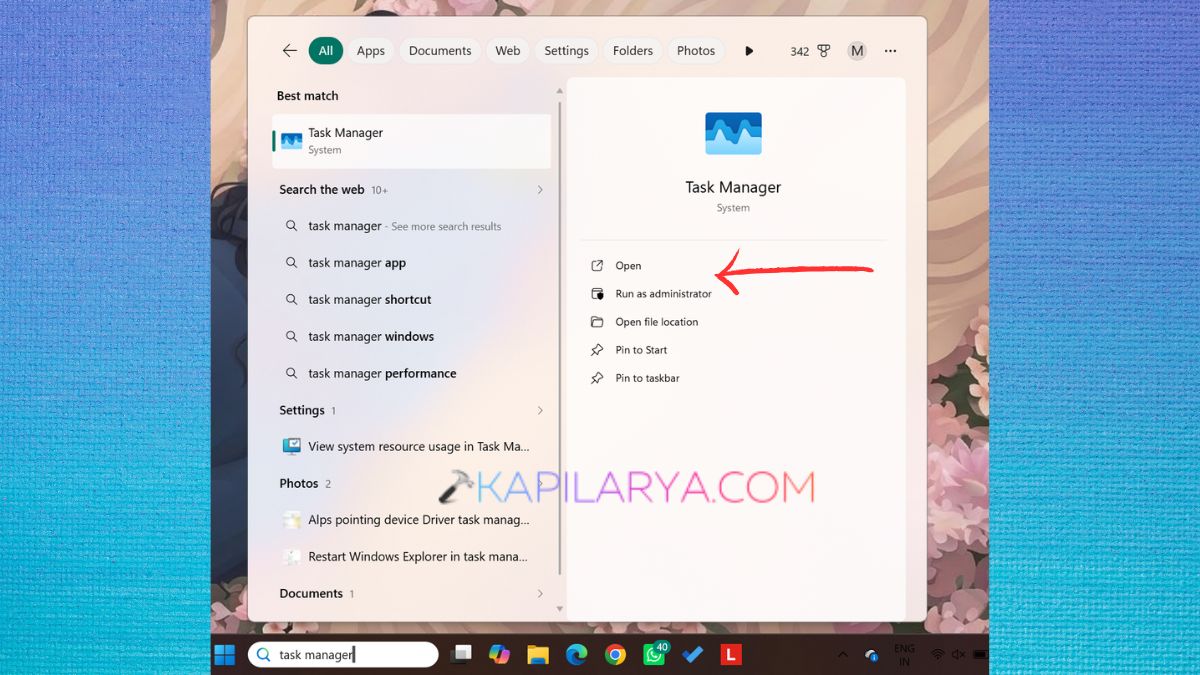
2. Find Microsoft Photos (Photos in running processes). Right-click on it and select End task.
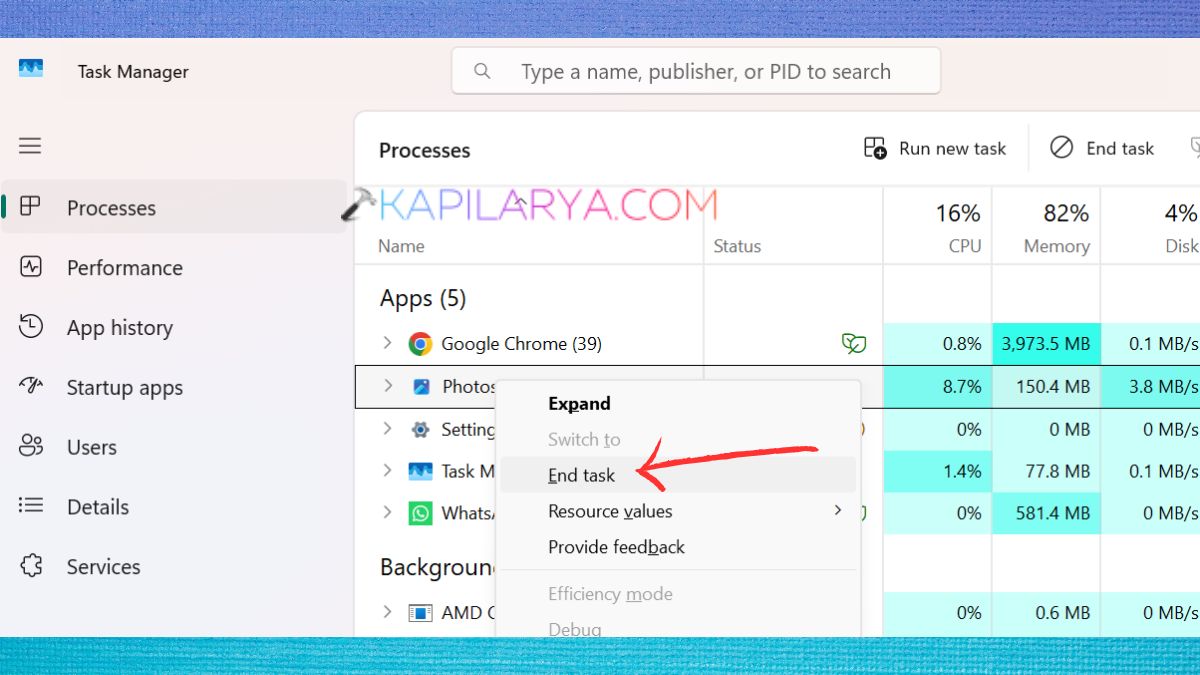
3. Close Task Manager. Re-open Microsoft Photos from the Start menu. This is a quick fix that fixes a temporary glitch.
Fix 4: Update Windows 11 and the Microsoft Photos App
Using older software might lead to compatibility problems.
1. Go to the Settings. Access the Windows Update settings.
2. Click on the option Check for updates. Apply all the updates.
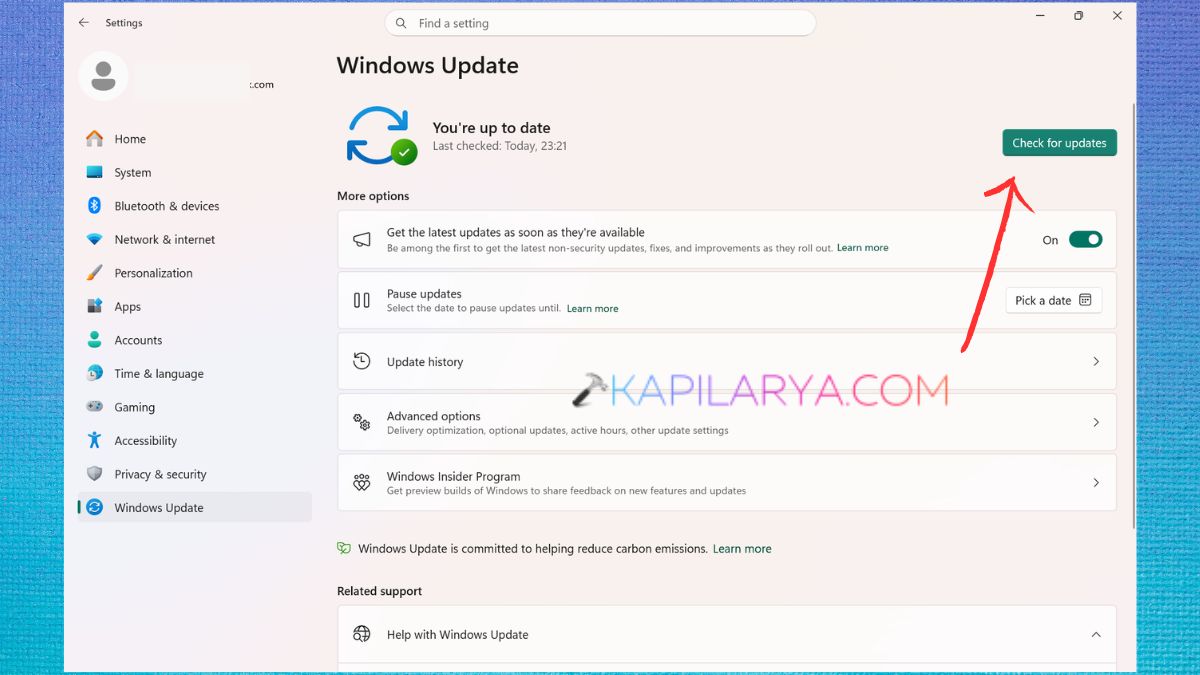
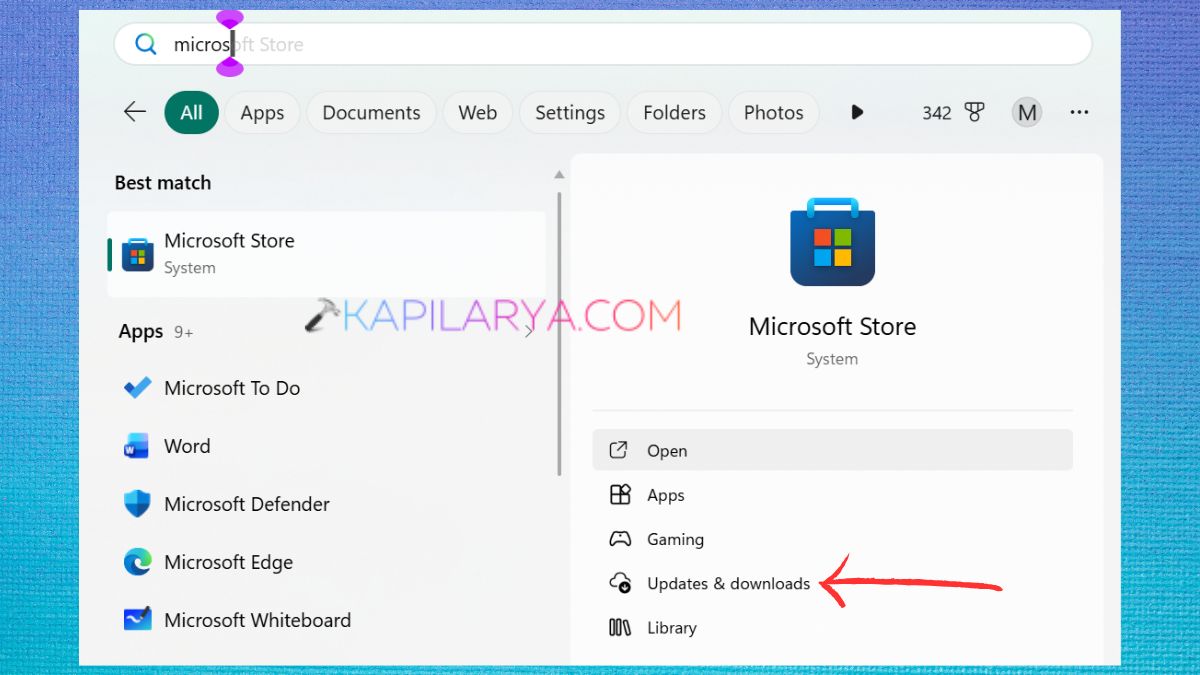
3. Restart the PC afterwards. Then, open Microsoft Store. Click Updates & downloads option.
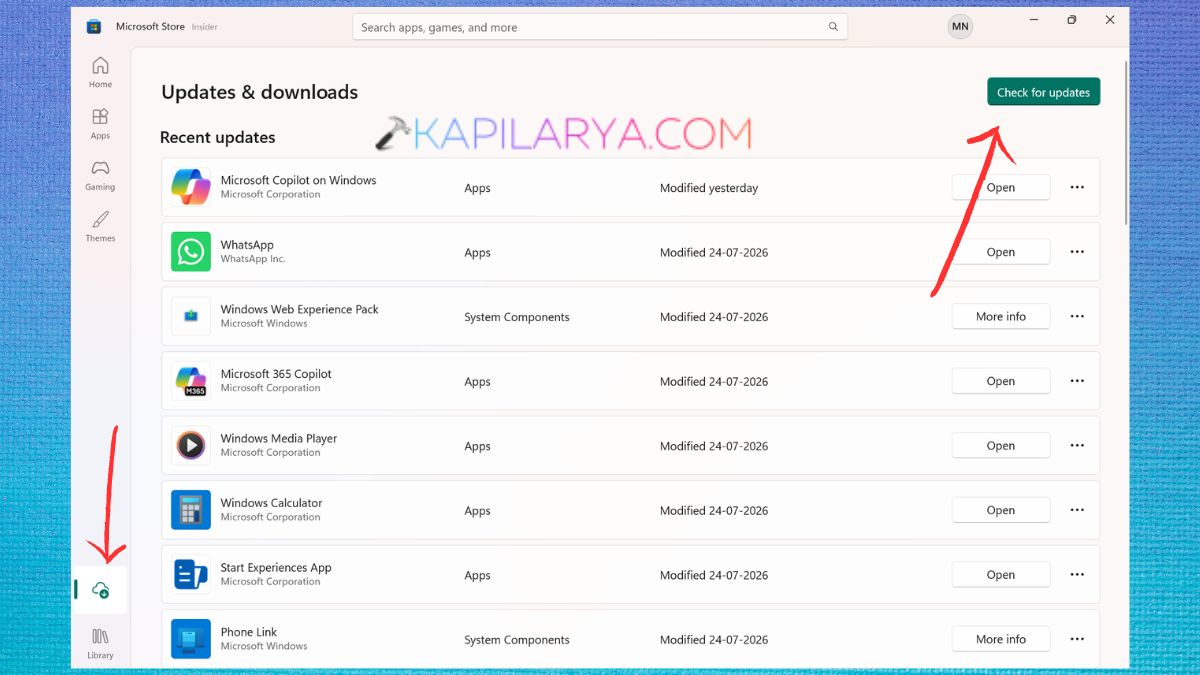
4. Next, click on Get updates/Check for updates. Apply all the latest updates to Microsoft Photos.
5. After the update, open the app for a try.
Fix 5: Reinstall Microsoft Photos Using PowerShell
If the application installation itself is corrupt, it is generally easy to re-install it to correct the problem.
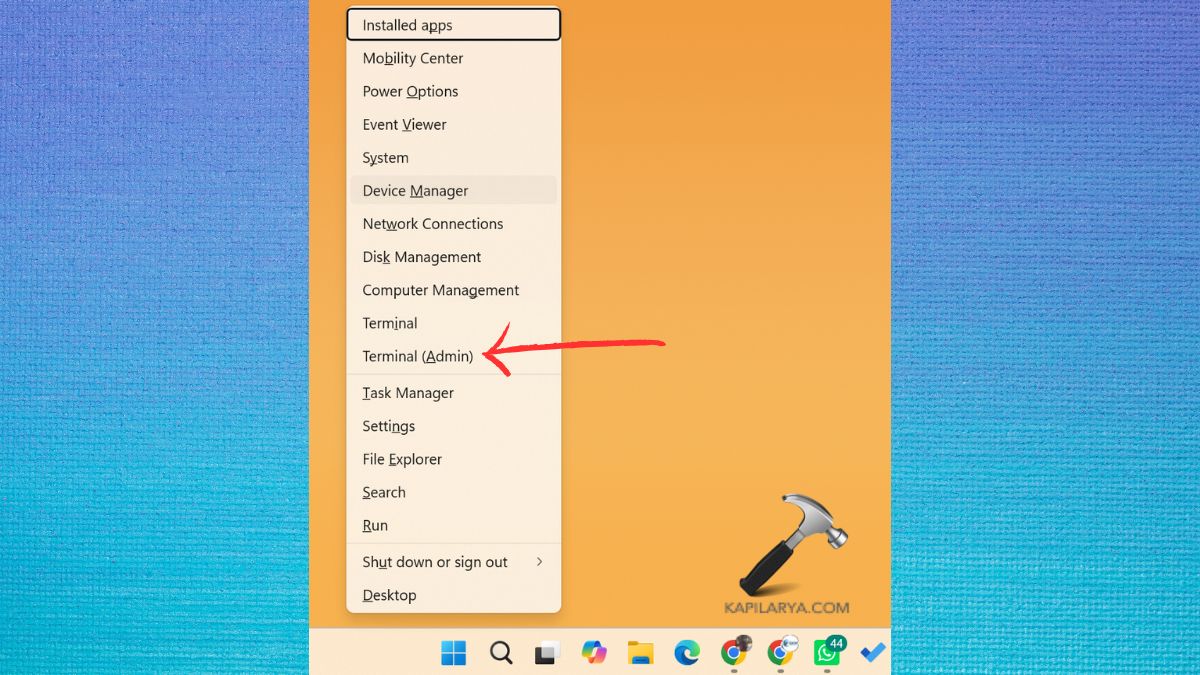
1. Click on Windows + X, then Terminal (Admin) or Windows PowerShell (Admin).
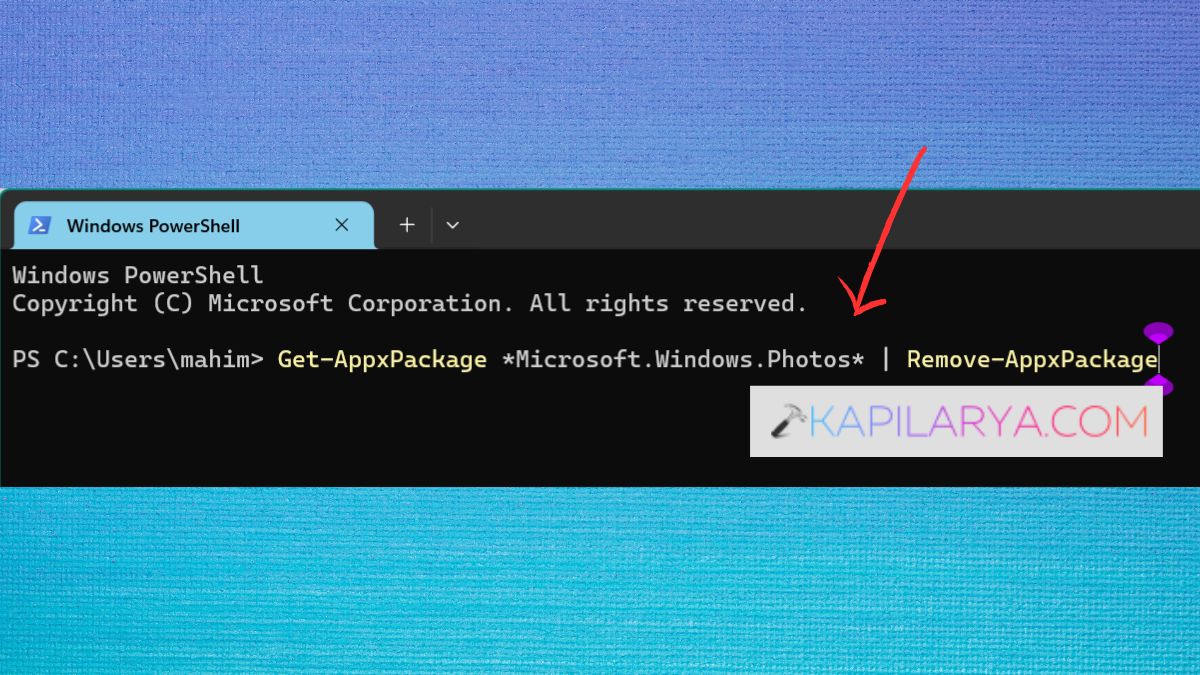
2. Run this command.
Get-AppxPackage *Microsoft.Windows.Photos* | Remove-AppxPackage
3. Once restarted, open Microsoft Store. Look for Microsoft Photos. Update to the latest version by clicking on “Check for updates” option.
Run the app to make sure it is functional.
Fix 6: Run the Windows Store Apps Troubleshooter
Windows has a troubleshooter that is dedicated to the Microsoft Store apps.
1. Press Windows + I. Go to System > Troubleshoot > Other troubleshooters.
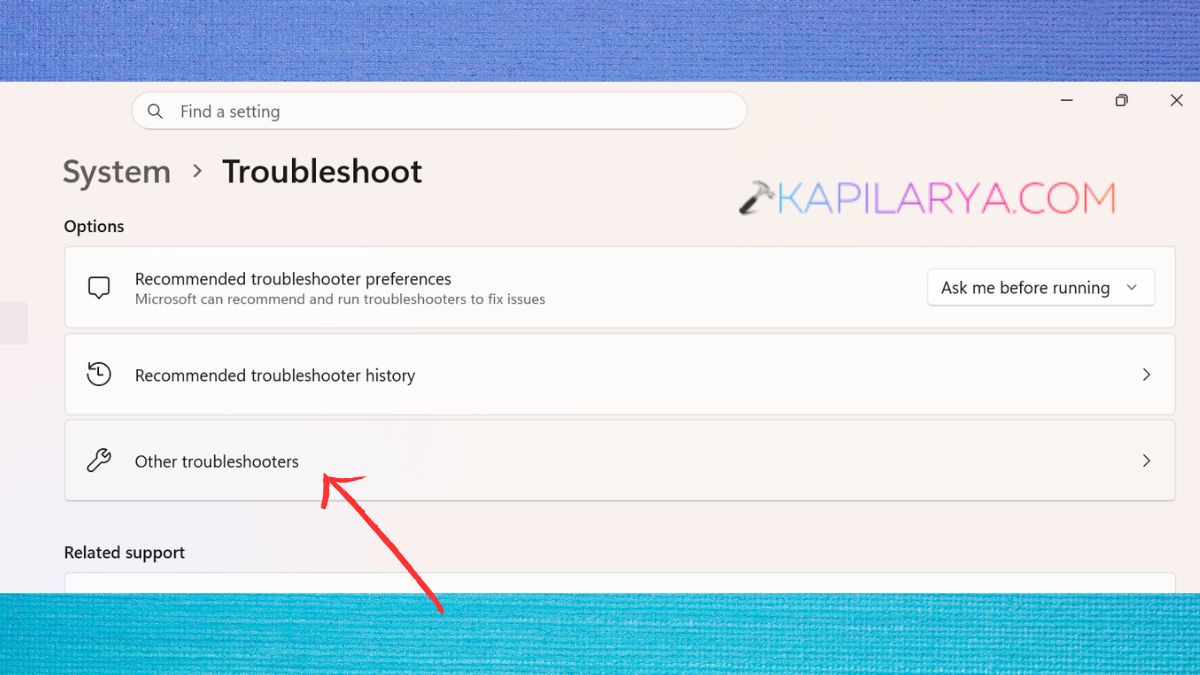
2. Access the Windows Store Apps. Click Run. Allow Windows to detect and automatically fix any issues.
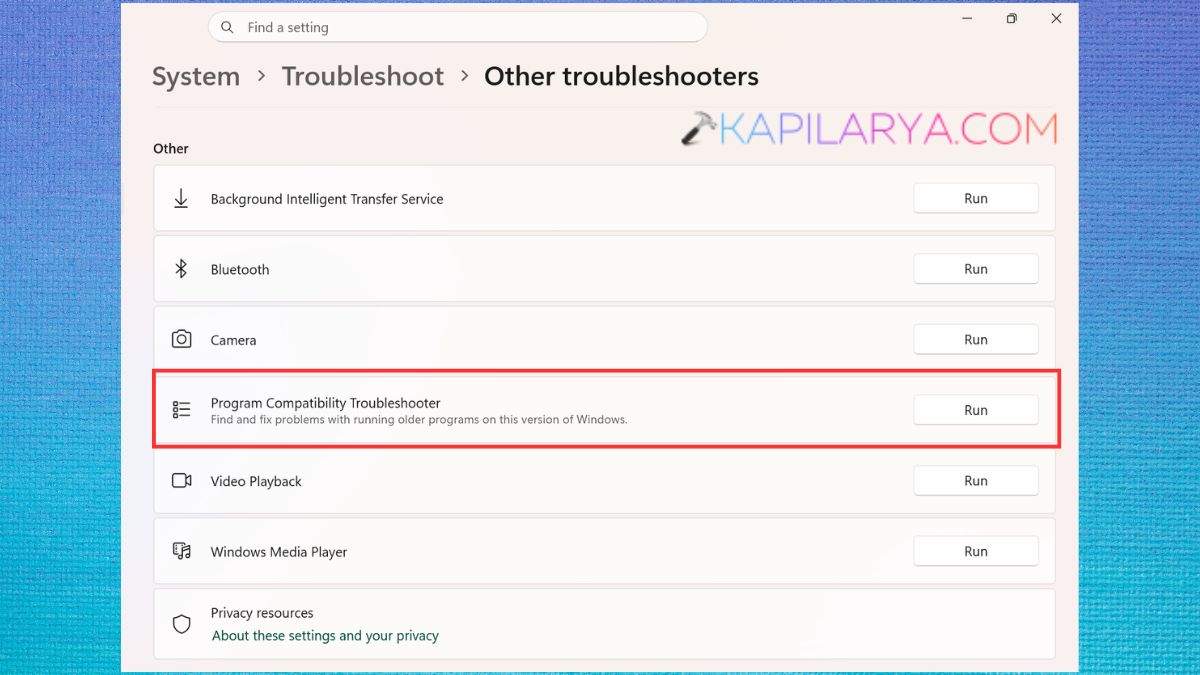
Once the troubleshooting process has ended, restart your computer.
Fix 7: Create a New Windows User Profile
If you don’t have the Photos app, but other users do, your Windows profile might be corrupted.
1. Press Windows + I; then select Accounts > Other users.
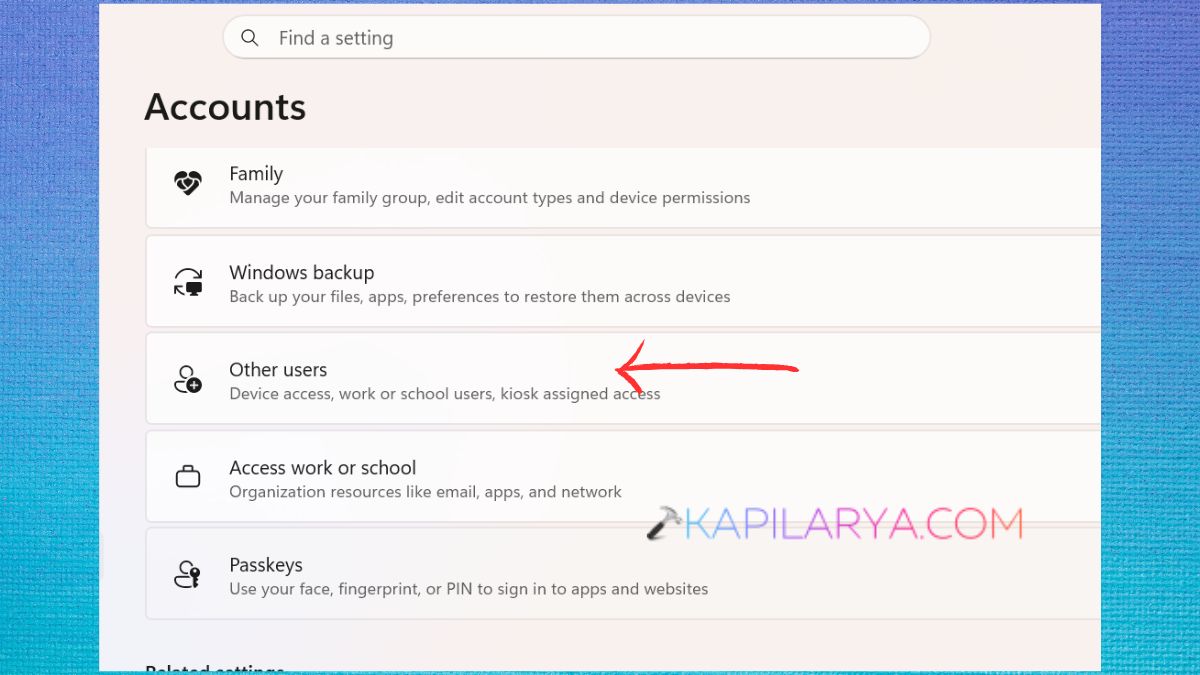
2. Click on “Add account”.

3. Select either one of these, and create an account:
- Microsoft account
- Local account(Add a user without microsoft account)
Complete the setup process.
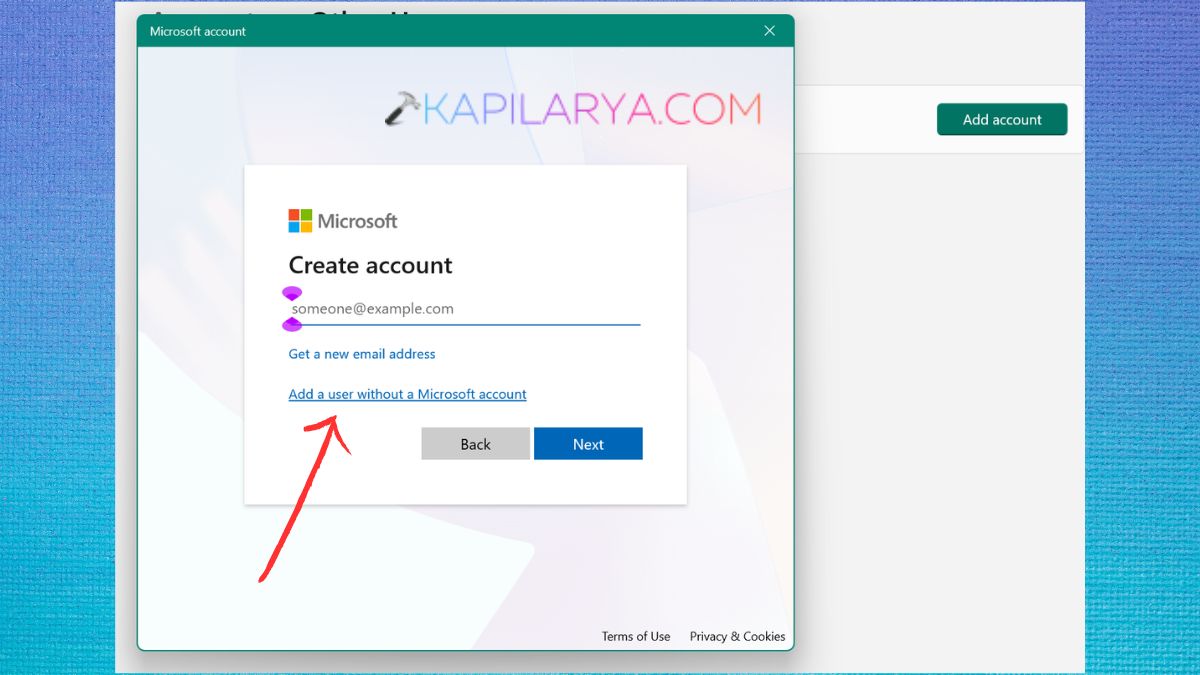
4. Now, log in to the new account that you’ve created. And, try to open Microsoft Photos.
If it’s operating properly, the original user profile is probably ruined. There is a possibility to transfer the content to the new account or fix the existing one.
Video fix
Here’s a video fix to help you more on this: