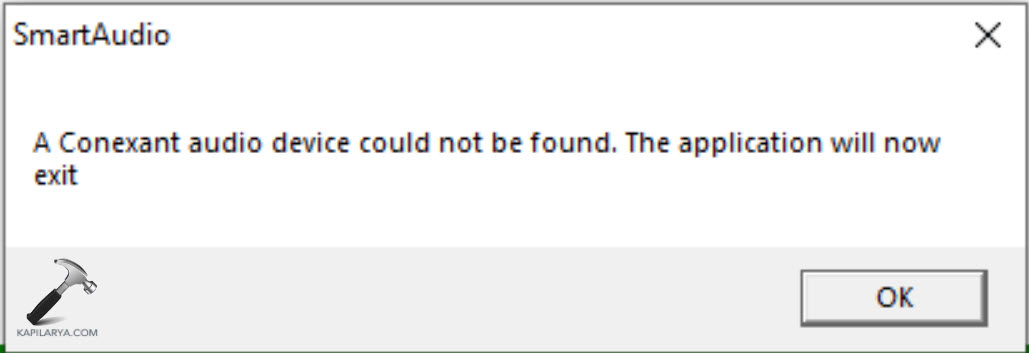
Did you come across the error message – “A Conexant audio device could not be found”? Well, it’s an audio-related issue, particularly when you depend on the sound of the Windows 11 PC in order to work, play games, or enjoy entertainment. Even when you are doing this on any Windows 11/10 devices, the error normally pops up because of expired drivers, inactive settings, or incompatibility.
Here, we are going to take you through 7 ways that will help you resolve this error and start working with the audio again. We are going to discuss not only driver updates but BIOS settings too- all the way in simple steps.
Page Contents
Why Does “A Conexant Audio Device Could Not Be Found” Happen?
Not getting too deep into fixes, here are the reasons that it could happen.
- Obsolete or in-existent Conexant audio drivers
- BIOS disabled the sound card
- Malicious system files
- Improper audio enhancement settings
- Connectivity problems with hardware
Fix: A Conexant audio device could not be found
The following are the proven solutions in a jumbled-up order, so that you may work with the ones that fit you best first.
Fix 1: Enable Audio Device in BIOS
Conexant audio devices cannot work in-case they are disabled in the BIOS, and Windows will not recognize them.
1. Turn your PC back on and press the appropriate key (F2, F10, ESC, or DEL), depending on your manufacturer, to get into BIOS.
2. Search for Integrated Peripherals or Advanced Settings. Find Onboard Audio Controller or Audio Controller. Ensure that it is enabled.

3. Save and reboot the BIOS.
Fix 2: Switch to the Generic High Definition Audio Driver
The problem, however, can be fixed by swapping out the Conexant driver in favor of a generic Windows driver in some cases.
1. Hit Windows + X and select Device Manager.

2. You have to find and expand Sound, video, and game controllers. Locate your Conexant audio device using the right-click and choose Update Driver.

3. Select Browse my computer for drivers => “Let me pick from a list..”.
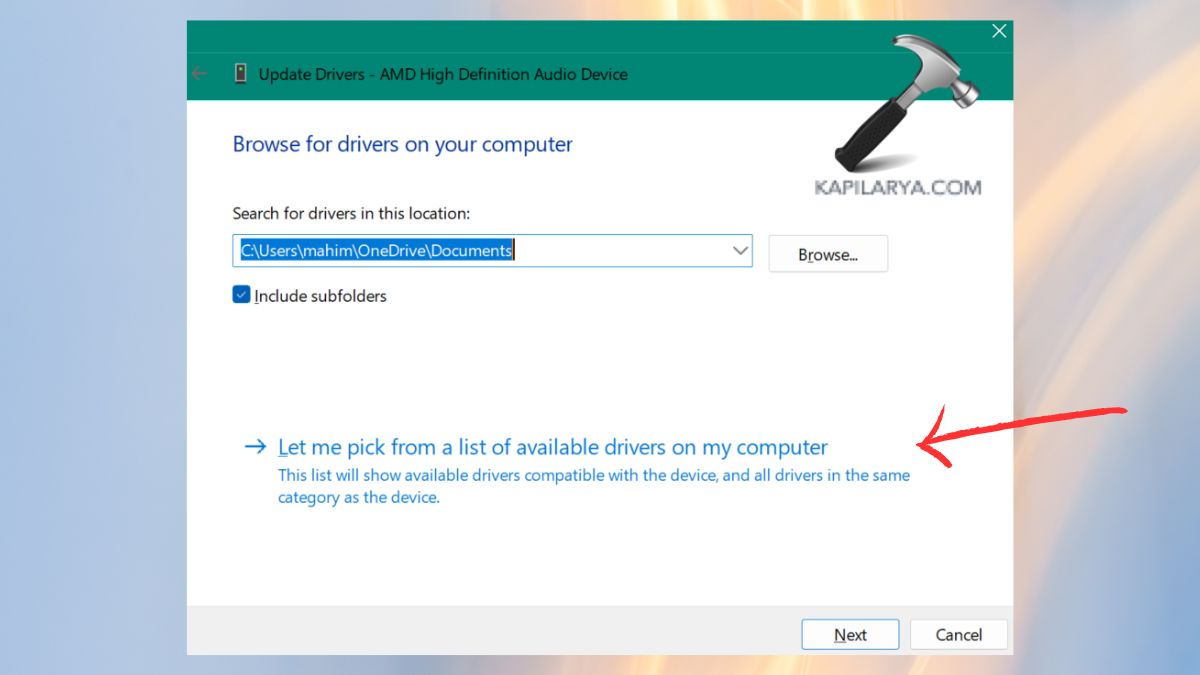
4. Now select the driver file and follow the on-screen instructions.
Fix 3: Make Sure the ‘CxUtilSvc’ Service is Running
The CxUtilSvc (Conexant Utility Service) is key to normal operation.
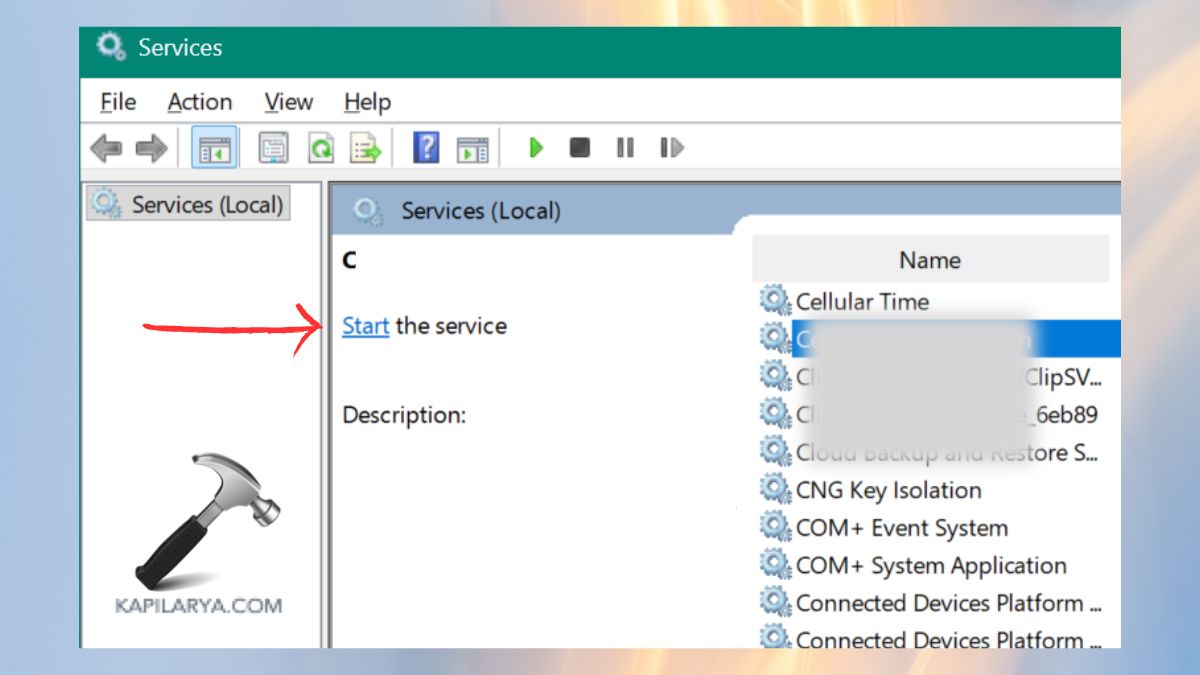
1. Click on the Start Button and then proceed to locate the Services application on Windows.
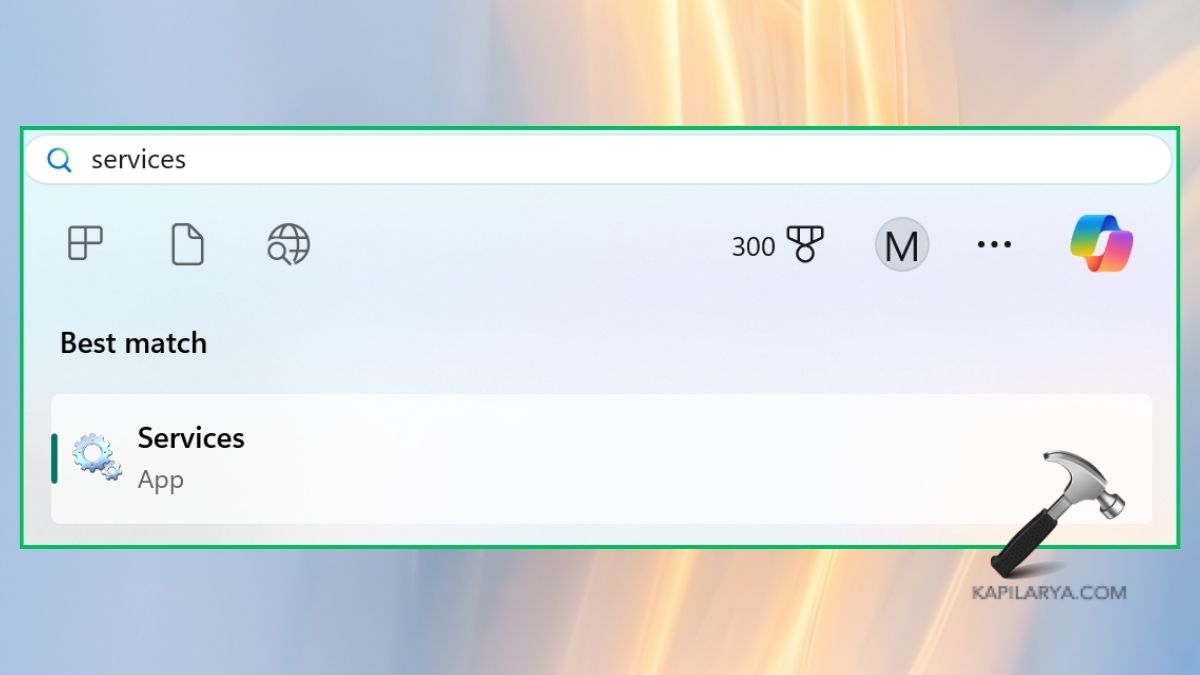
2. Search in the list and find “CxUtilSvc”. Once you make a double-click, open Startup type and select Automatic.
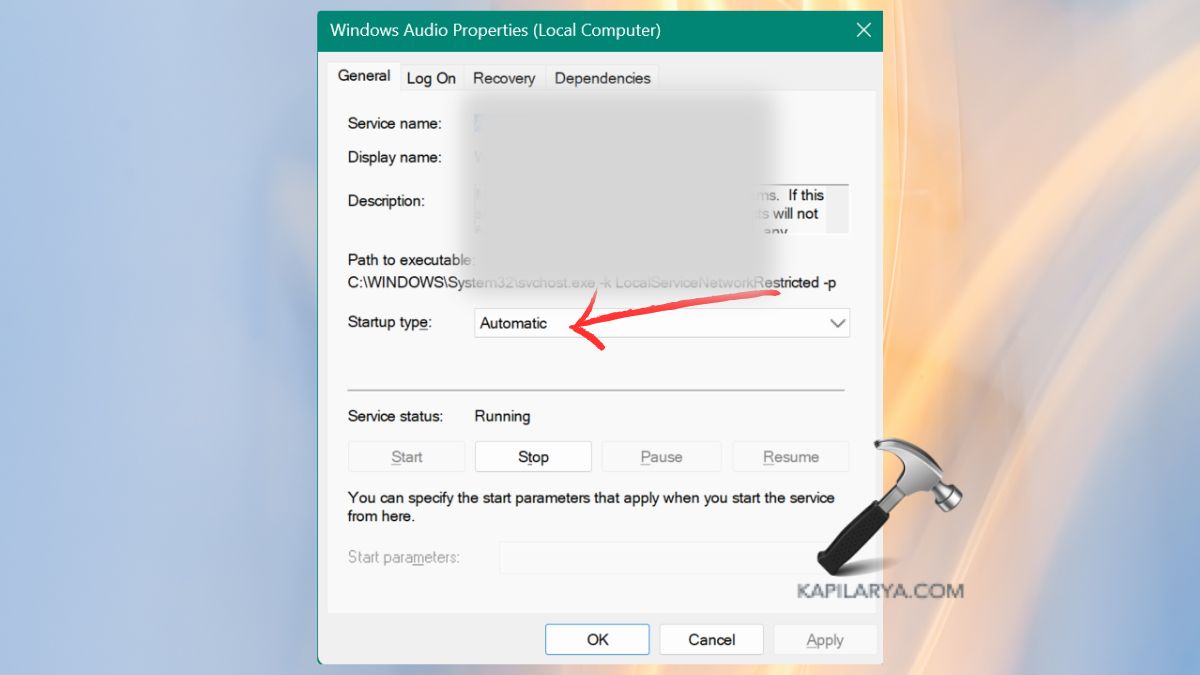
3. If not in use, click Start and press OK.
Fix 4: Roll Back the Driver
In case the error started occurring after an update of Windows or a driver, restoring an old driver may assist.
1. Access Device Manager.

2. Click on the Properties option having right-clicking the Conexant audio device. Enter the Driver tab, and then click Roll Back driver.

Observe instructions on the screen.
Fix 5: Disable Audio Enhancements
There may be a conflict between Conexant audio drivers and audio enhancements.
1. Click the speaker icon in the taskbar with the right button and click on Sounds.

2. Select the Speakers tab and properties will open. Find Audio Enhancements option and select “OFF” or “Disable”. Restart and apply it to the PC.

Fix 6: Update the Conexant Audio Driver
One of the most effective solutions is updating the driver.
1. Run Device Manager again in the system.
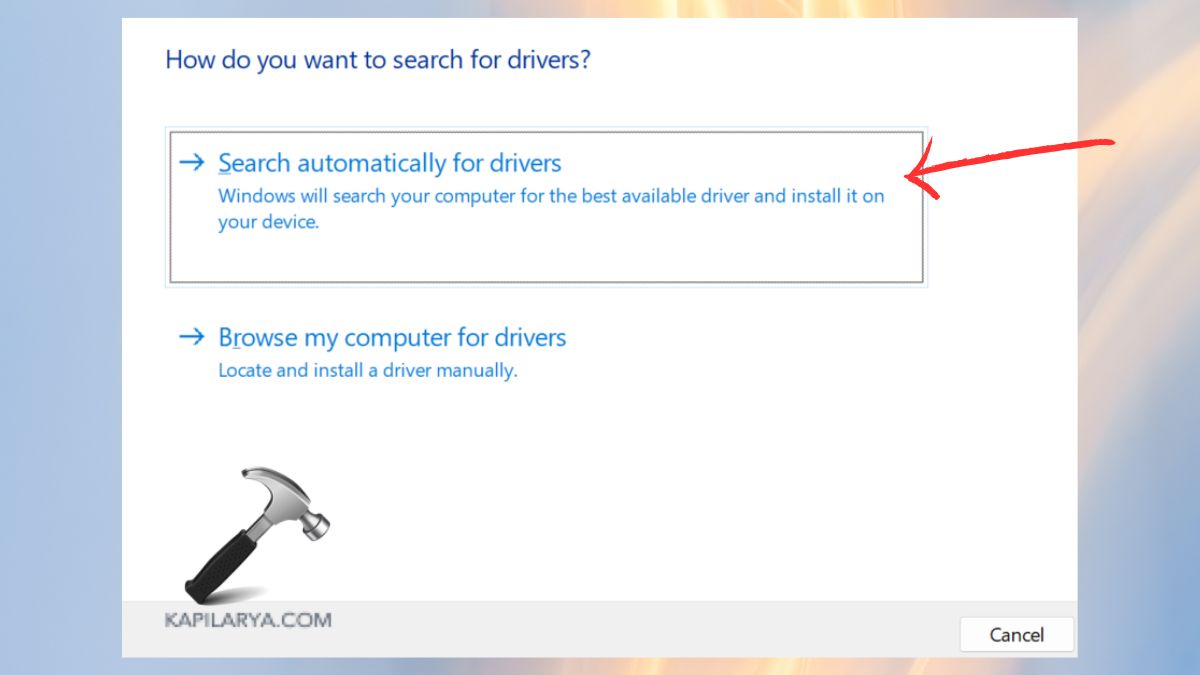
2. Find the Conexant audio device under Sound, video and game controllers. Then, right Click-> Update Driver.
3. Select the Search automatically option for drivers. Windows will detect a newer version, install it, and restart.
Fix 7: Connect via HDMI (Temporary Workaround)
In case of an emergency, you may want to get sound right away. Plugging into an external display or television over HDMI can get around the Conexant driver problem.
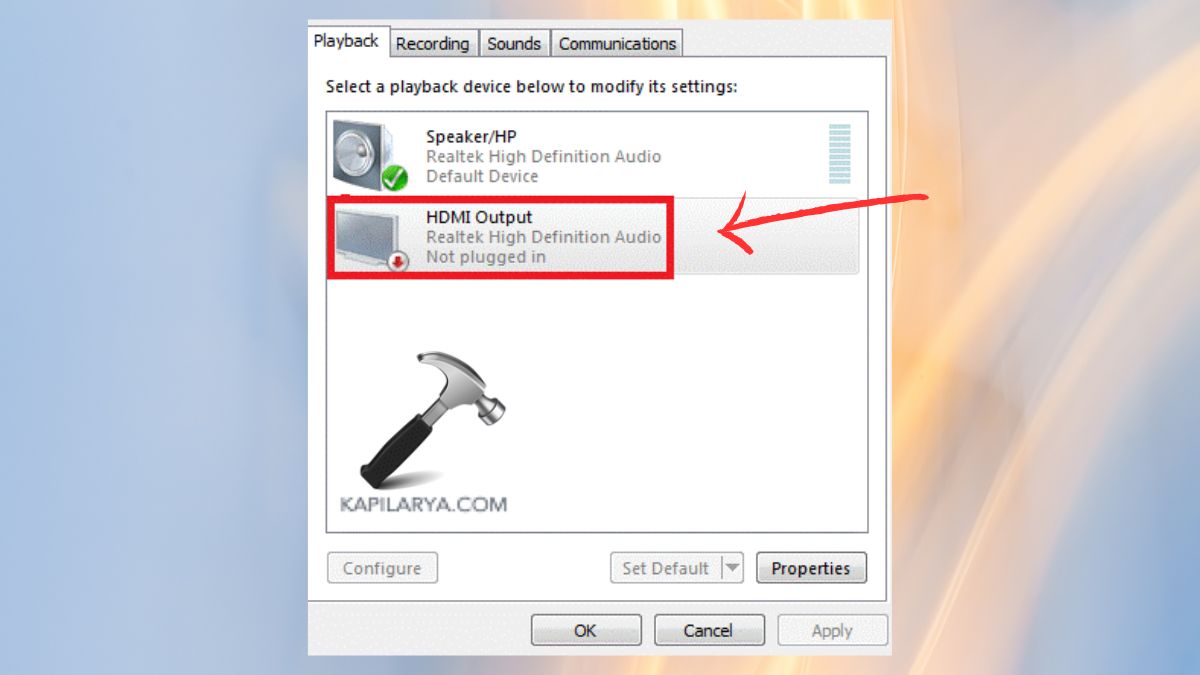
1. First, use your PC together with a monitor or TV using an HDMI connection.
2. Click your speaker icon, right-click –> playback devices. Choose HDMI output by default.
Frequently Asked Questions (FAQs)
#1 What is a Conexant audio device?
A Conexant audio device is a sound driver that is installed in Windows-based laptops to enable controlling of the audio hardware and enhancing sound in the system.
#2 Can I use Windows without the Conexant audio driver?
Yes, but you may lose audio features or diminish sound quality. The workaround is to use the generic High Definition Audio driver.
#3 Why does my PC say no audio device is installed?
This may be as a result of a disabled BIOS, a lack of drivers, or corrupted audio settings.
#4 Is Conexant compatible with Windows 11?
Older Conexant card drivers could be out of compatibility with Windows 11 and must update or swap to generic drivers.
That’s it!