“An Ethernet cable is not properly plugged in or might be broken” – All of a sudden, you may get this error when using an Ethernet cable, and it may seem that your productivity is at a dead end. In case you are fed up with bad Wi-Fi and want to enjoy a stable wired connection again in Windows 11, this guide will help you resume your Internet access in a few minutes. Here are a few of the no-frills and user-friendly steps that we deconstruct in this guide to help you recognize the reason and get your connection back.
Page Contents
Fix: An Ethernet cable is not properly plugged in or might be broken
The error about “An Ethernet cable is not properly plugged in or might be broken” can be irritating, yet with the correct approach to troubleshooting, you can solve it in a very short time. These are the steps to follow in order to proceed.
Fix 1: Check the Cable and Port Connection (Most Common Fix)
The most common cause of this error is that there is a loose, broken, or incorrectly fitted Ethernet cable.
1. Make sure that both ends of the Ethernet cable are firmly connected to your computer and the router/modem.
2. Check the cable to see whether it is cut, bent, or has loose connectors.
3. Attempt to use a different LAN connection on your router. Also, it is important to check a cable on another device to determine a faulty cable.
Tip: In case the LAN port LED does not flash, the connection is not identified.
Fix 2: Update or Reinstall Your Network Adapter Driver
The Ethernet connection error may be a result of outdated or corrupted drivers.
A. Update the driver
1. Press on Win + X > Click on the Device Manager.

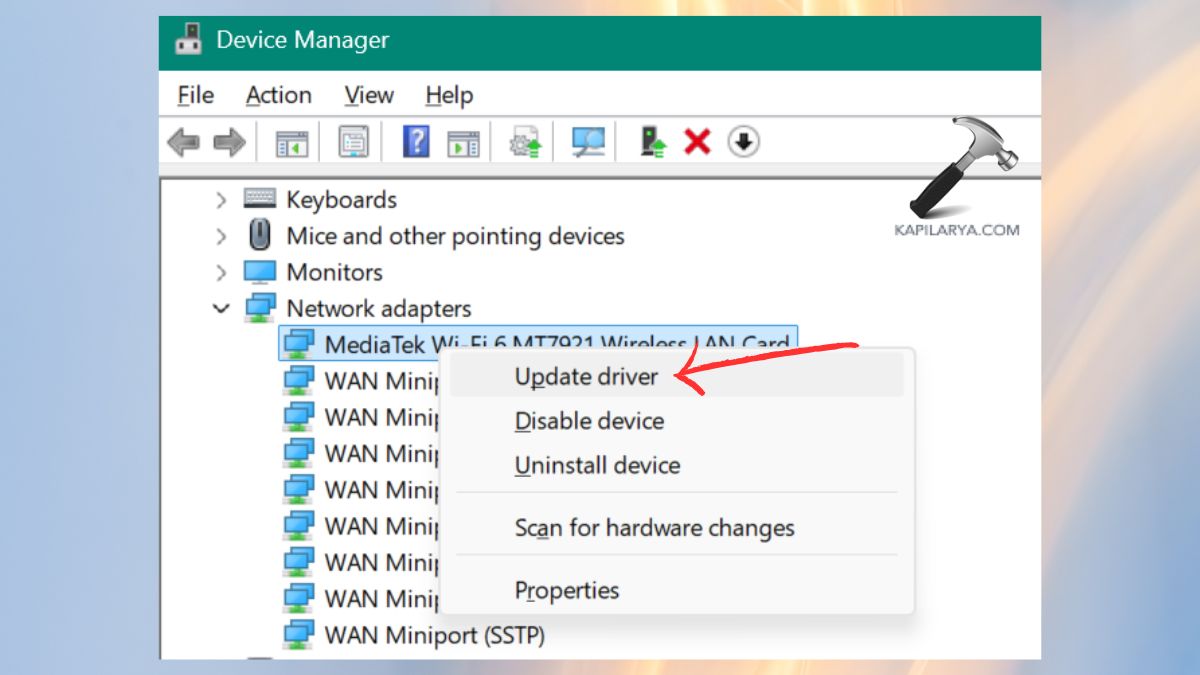
2. Expand Network Adapters. Click on your Ethernet, known as right-click, then select Update driver. Automatically select drivers on Search.
B. Reinstall the driver
1. Click on the Ethernet device (right-clicked) > Uninstall.
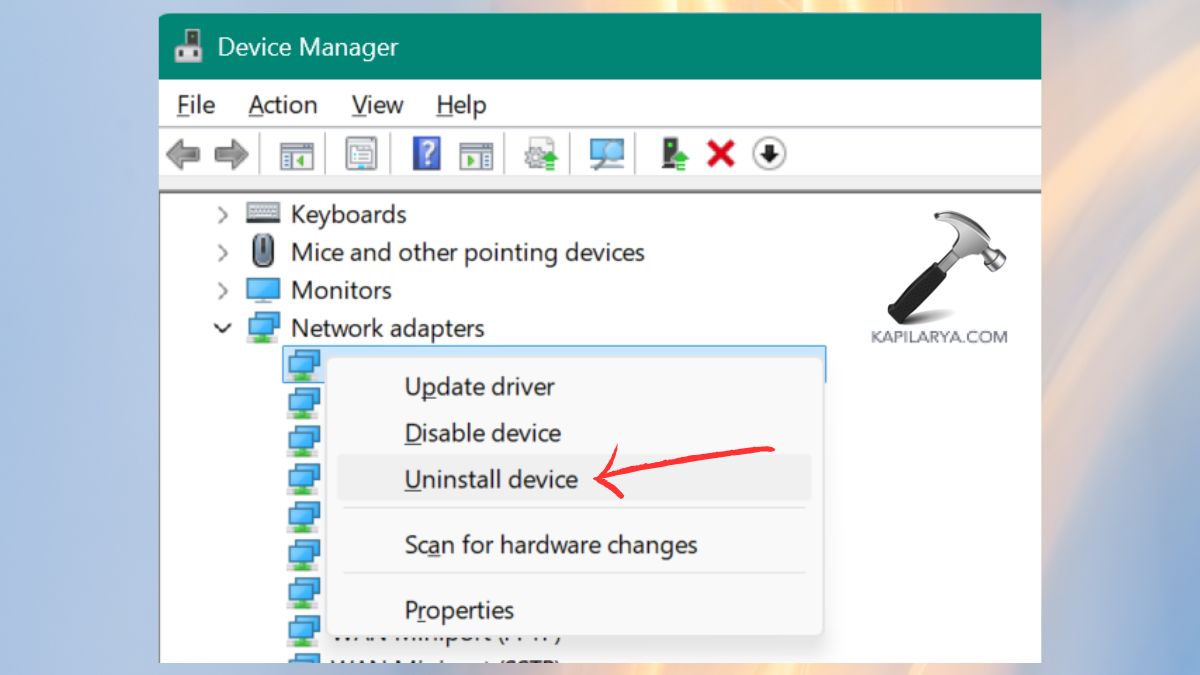
2. Restart your PC. Windows automatically installs the most recent driver.
Fix 3: Power Cycle Your Computer and Network Devices
Changing your network connections with your PC and router can be resolved by a basic power cycle to resolve problems in communication.
1. Switch off your computer.
2. Dislodge the power cable of your router/modem.
3. Then, wait for 30–60 seconds.
4. Reinsert the router. Start the computer and check the Ethernet. This eliminates momentary glitches, and reinstates the network communication.
Fix 4: Adjust Duplex Settings for Better Connectivity
The wrong duplex configurations may result in speed problems and cable detection. Restarting duplex is usually better and eliminates Ethernet cable detection failures.
1. Press “Win + R” > Type this command and press Enter key.
ncpa.cpl

2. Select Network and Sharing Center. Click on Change Adapter Settings.
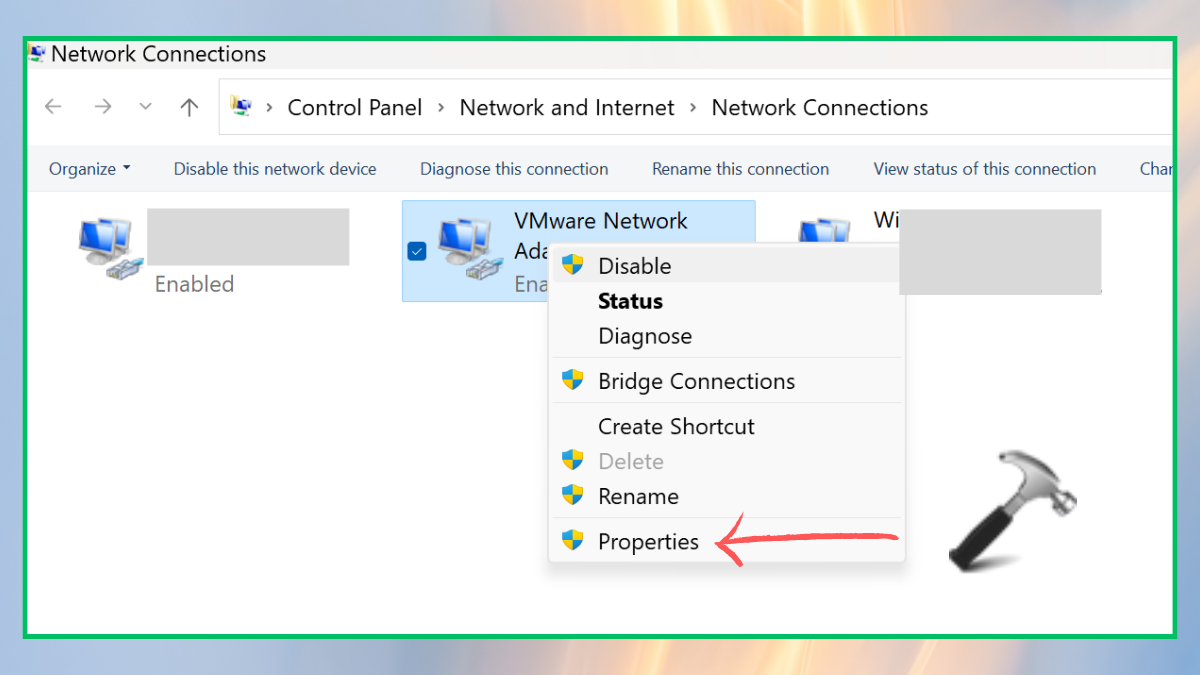
3. Click on Advanced > click on Speed and Duplex.
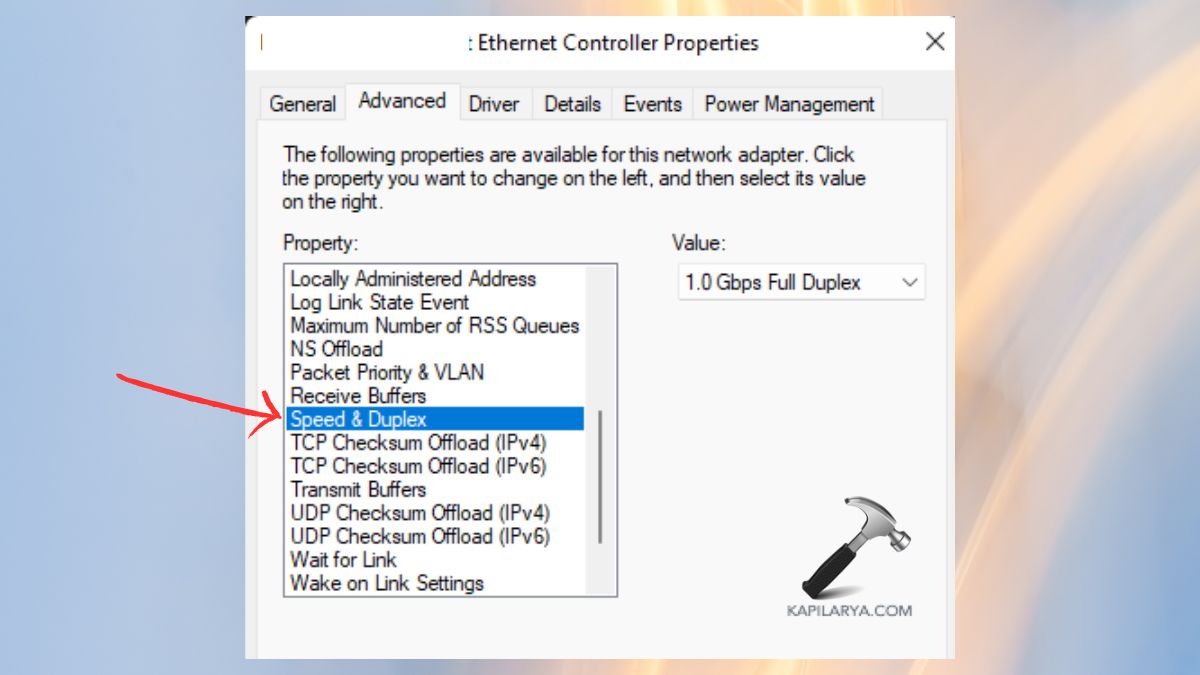
Alternate it with Auto-Negotiation or experiment with 100 Mbps Full Duplex.
Fix 5: Disable Energy-Saving Options for Network Adapters
The power-saving mechanisms of windows can switch off your Ethernet driver, which results in this error.
1. Open Device Manager. Either search it on Start menu or hit the keys Win+X.
2. Find the Ethernet adapter in your computer by right-clicking > Properties.

3. Select the tab labeled as Power Management. Uncheck the option: Allow the computer to switch this device off to save power.
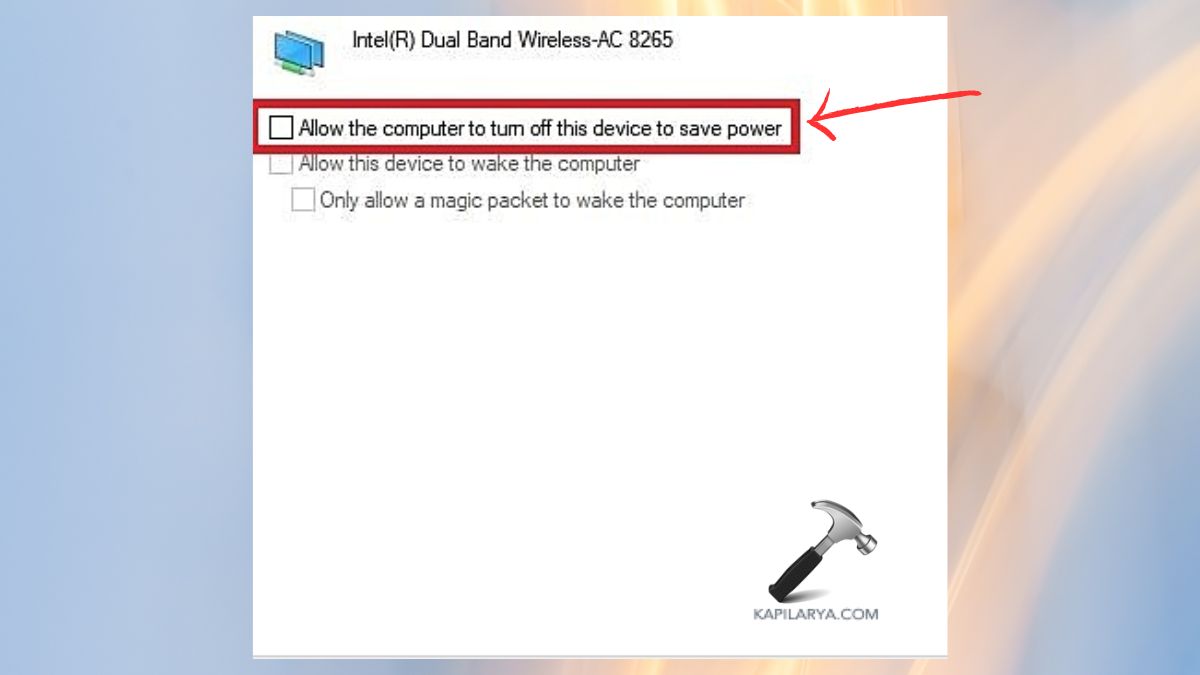
This will make your network active and eliminate unexpected or random disconnections.
Fix 6: Disable Network & Wireless Conflicts (If Applicable)
In certain devices, it is possible to turn on Ethernet and WiFi, which may lead to conflicts.
1. Again, open Control Panel > Network & Sharing Center.

2. Select “Change adapter settings” option.

3. Switch off Wi-Fi clicking on “Disable this network device” and use Ethernet.
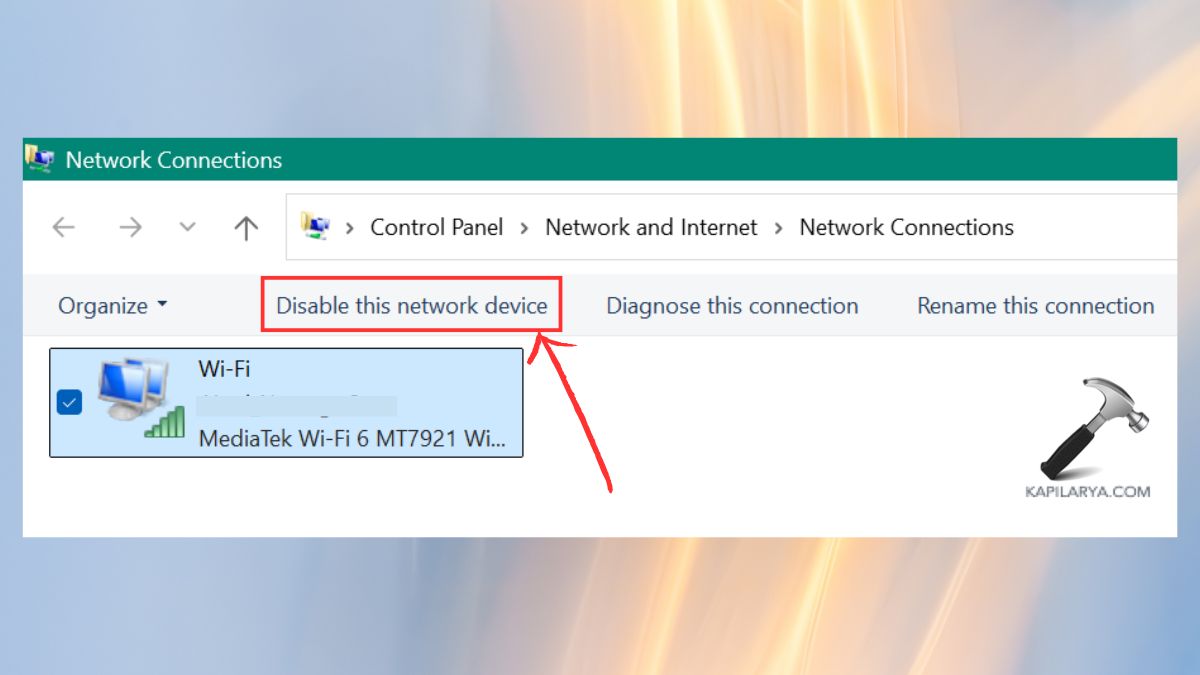
Make sure to install the Ethernet as the main one. You can also install or reinstall the wireless network card in the device manager in case your PC has a wireless card problem.
Frequently Asked Questions (FAQs)
Why does my PC say the Ethernet cable is not plugged in?
This error is evident when the cable is loose, damaged, the network driver is faulty or the settings are not correct.
How do I know if my Ethernet cable is broken?
When the LAN port light fails to blink, and the cable fails to work on another device, then it is probably faulty.
Can outdated network drivers cause this error?
Yes. Bad or aged drivers are also one of the causes of connection breakdowns and cable detection.
What if none of the methods work?
Attempt to change the Ethernet cable or change to another network adapter. In case the problem continues to happen, it might be a problem with your motherboard or router.
That’s it!