

CxUIUSvc shows high CPU in Windows 11 is a performance issue that numerous users find very difficult to manage, particularly on machines that have the Conexant audio drivers. When this background service gets out of control, it may lead to excessive CPU consumption, lag, overheating, and observable slowdown of the system.
Here in this complete guide, we will discuss the best possible ways on how to resolve CxUIUSvc high CPU consumption through easy, step-by-step troubleshooting solutions. It doesn’t matter whether the problem was introduced with a Windows update, installing drivers, or without any notice; the following methods will assist you in diagnosing and fixing the problem very fast.
Page Contents
Causes of CxUIUSvc high CPU usage in Windows 11
CxUIUSvc is another background service related to Conexant Audio Drivers, which are present in most Windows 11 laptops. As soon as the service gets corrupt, or old, or gets misconfigured, it will begin to use an exceedingly large amount of CPU resources, which will impact the performance of your system. The most common causes are:-
- Older or older incompatible Conexant audio drivers.
- Recent Windows 11 update.
- Corrupted audio service.
- Wrongful service startup setups.
- Driver conflicts.
Note: Follow this link for our article if you are facing “A Conexant audio device could not be found” error.
Fix CxUIUSvc high CPU usage in Windows 11
Having understood the cause of the error, the impact it causes to your PC, and why it occurs, it is time to get down to the step-by-step procedures of correcting CxUIUSvc high CPU usage in Windows 11 permanently.
Fix 1: Update Your Conexant Audio Drivers
One of the leading causes of the CxUIUSvc high CPU-usage problem is the outdated audio drivers. The problem is normally resolved by updating them. In case Windows is unable to locate new drivers, then go to the official support page of your laptop manufacturer and get the latest Conexant driver manually.
1. Click “Win + X” and choose the option of Device Manager.

2. Elaborate “Sound, video and game controllers. Locate Conexant SmartAudio / Conexant Audio. Right-click and select Update driver.

3. Auto-select search by drivers. Restart your PC.
Fix 2: Set CxUIUSvc Service to Manual
CxUIUSvc runs unnecessarily at times and results in scheduler spikes on Init. Making the service Manual does not allow running the service indefinitely. This makes sure that the service does not run all the time in the background rather when needed.
1. Go to the Run box by pressing the keys “Win + R”, and enter this.
services.msc
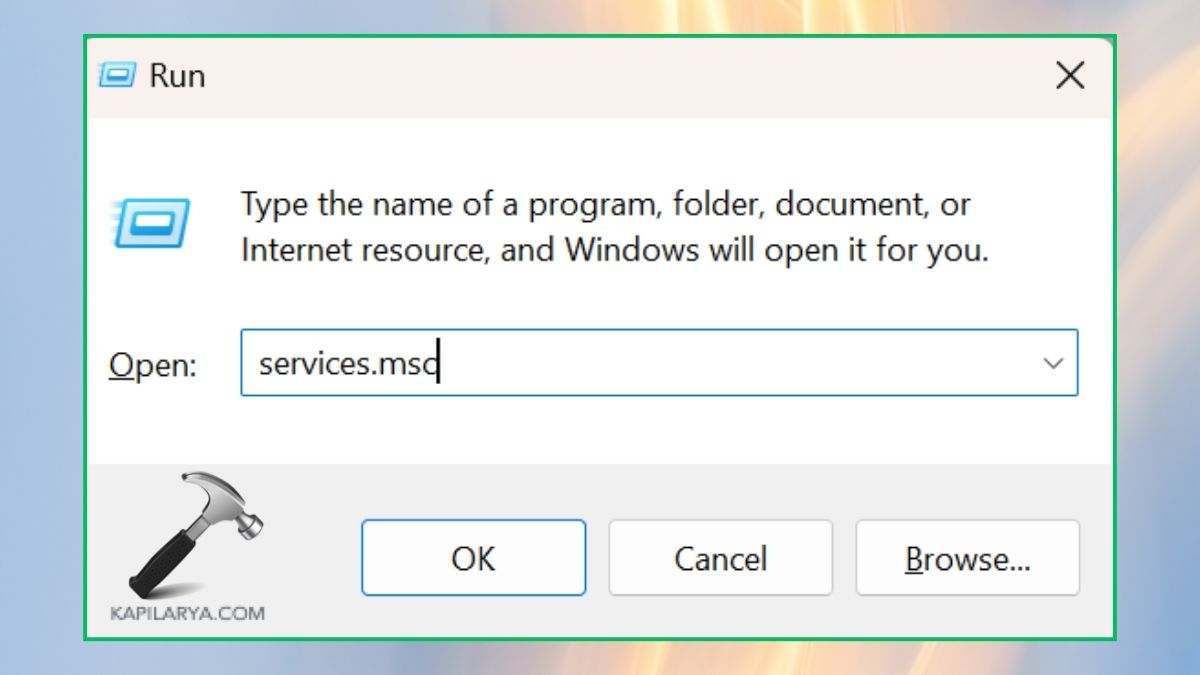
2. Scroll and locate “CxUIUSvc”. Double-click the service. “Manual” is the type of change to Start up.
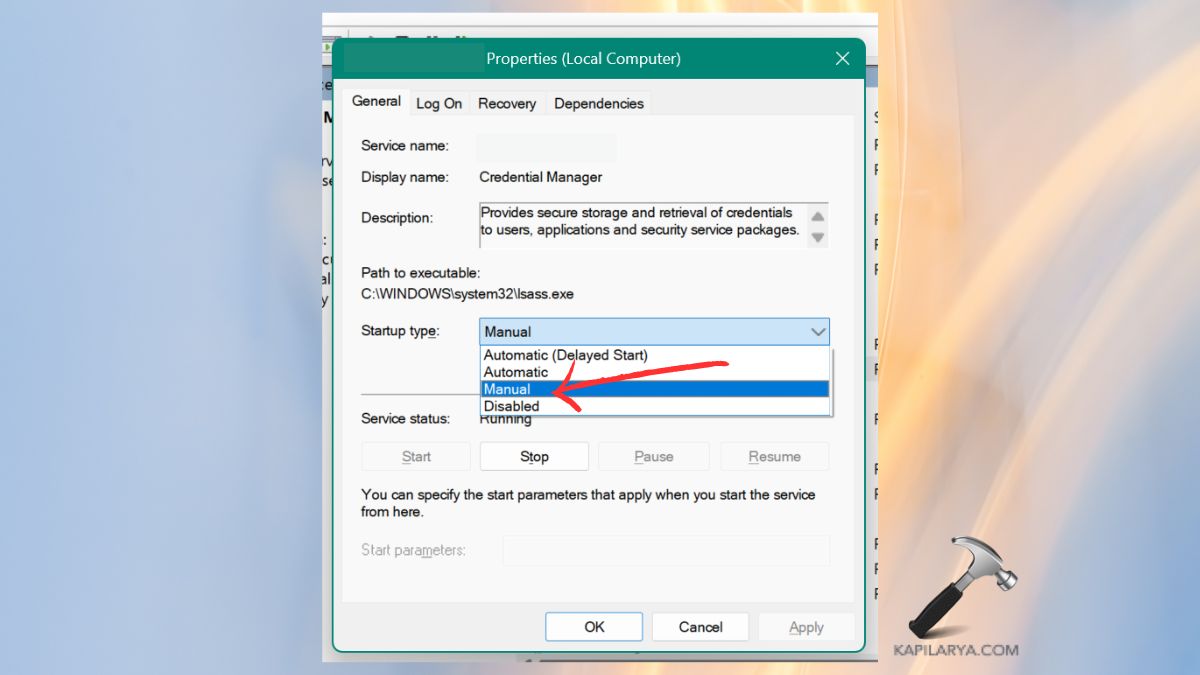
3. Click Apply > OK. Restart Windows.
Fix 3: Roll Back Conexant Audio Drivers
In case the problem has started after a Windows 11 25H2 update or driver update, the most appropriate solution would be to roll back the driver. The rolling back automatically halts the CPU spikes and restores a stable version of the driver.
1. Open the Device Manager with the same method.
2. Elaborate on “Sound, video and game controllers”. Click the Conexant Audio device with the right-click. Select Properties.

3. Go to the Driver tab. Click Roll Back Driver (where possible).

Restart your PC.
Fix 4: Reinstall Audio Drivers
When your audio driver is infected, a complete reinstallation will eliminate the file faults.
1. Open Device Manager. Expand Sound, game controllers, and video.
2. Locate the Conexant Audio and right-click, and then click on Uninstall device.

3. Uncheck the Delete the driver software of this device. Click Uninstall.
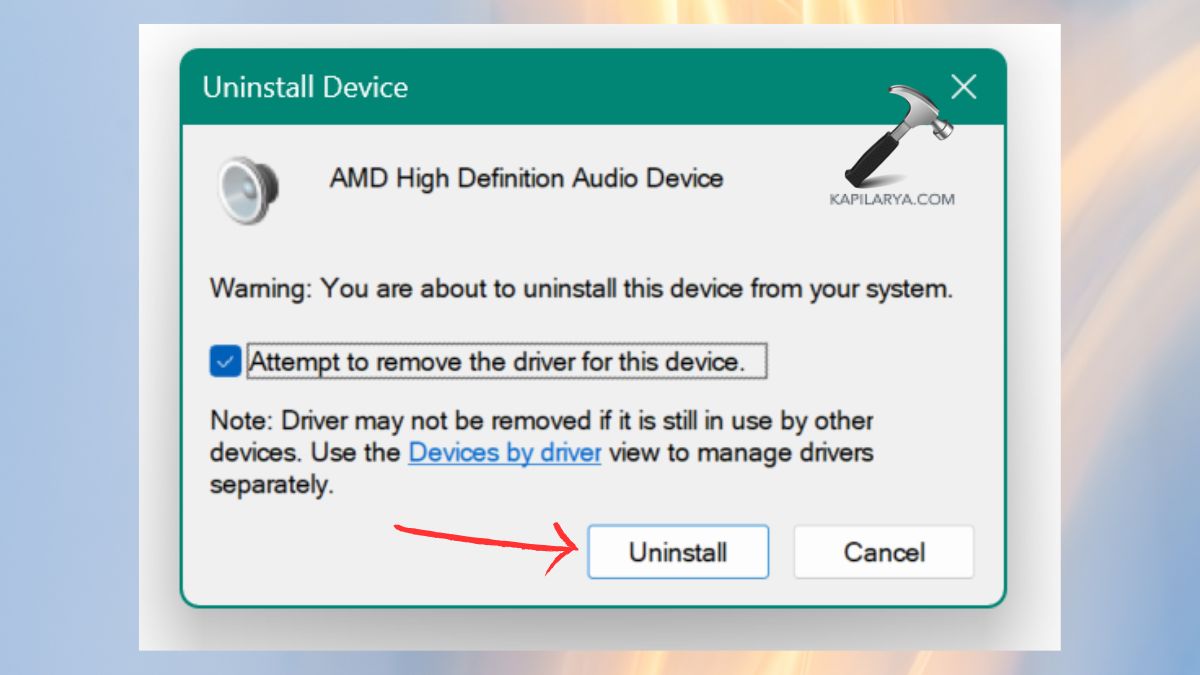
Restart your PC. The default driver will be installed automatically in Windows.
Fix 5: Restart Your PC for CxUIUSvc high CPU usage
If audio does not work after rebooting, install the latest Conexant driver on the website of your laptop maker. Indeed, the easiest resolution to the CxUIUC high CPU usage in Windows 11 error, particularly when it involves a temporary glitch, is indeed simple.
1. Click Start Menu.
2. Select Power > Restart.
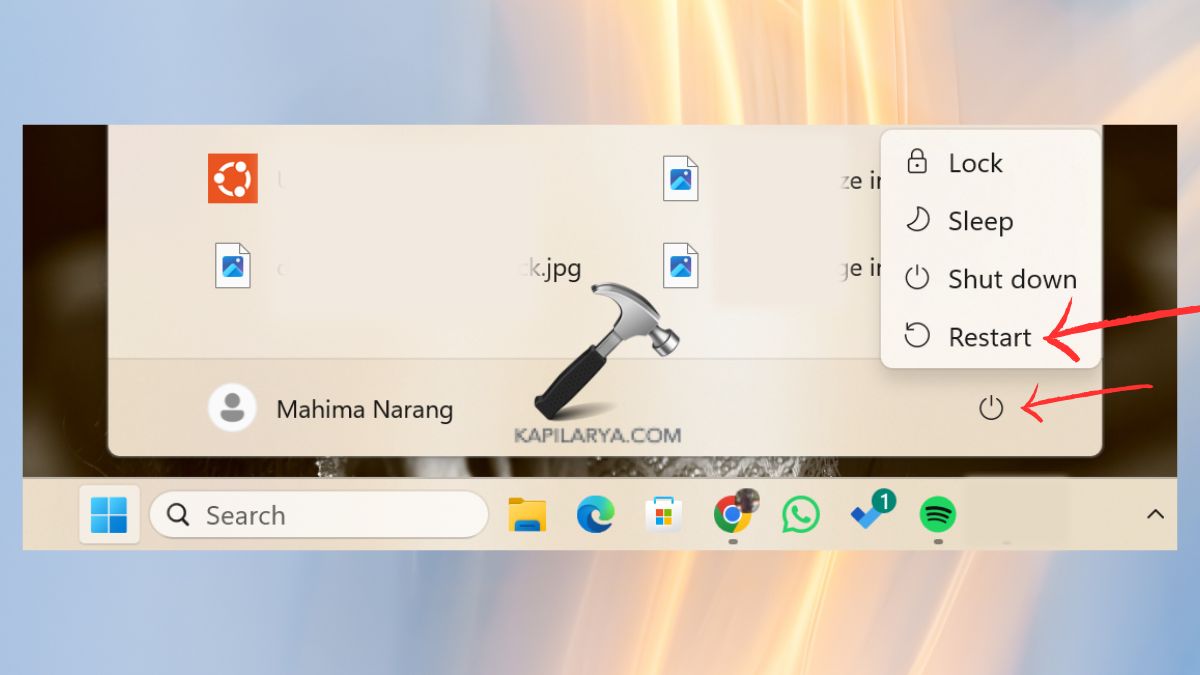
This is sometimes enough to restart the CxUIUSvc process and get CPU usage returned to normal.
Frequently Asked Questions (FAQs)
What is CxUIUSvc in Windows 11?
CxUIUSvc is a background audio driver system audio driver. It assists in controlling your microphone, speakers, as well as sound enhancements.
Is CxUIUSvc high CPU usage harmful?
Yes. Laptops take up a substantial amount of CPU, resulting in overheating, delays, slowness of systems, and battery depletion.
Can I disable CxUIUSvc completely?
You can, but it will possibly have a deleterious effect on audio features. It is preferable to leave it to man rather than turn it off.
Why does this problem happen after Windows updates?
Certain updates will install incompatible audio drivers, which will make the Conexant service malfunction and consume more CPU.
That’s it!
![Solved: 100% CPU usage in Windows 11 [2026 Fix]](https://www.kapilarya.com/assets/Drivers-768x413.png)



![SecurityHealthSystray.exe High CPU / Disk / Memory Usage [Fixes]](https://www.kapilarya.com/assets/Windows-Defender-768x669.png)
