In case you have installed the latest Windows 11 25H2 update and suddenly realized that you cannot hear any sound in your PC, then do not worry. The fact that audio does not work after the Windows 11 25H2 update is indeed irritating. This problem is normally occasioned by driver conflicts, a disabled audio service, or unsuitable updates. With this guide, we are going to show you 10 effective solutions to solve no sound after upgrading to Windows version 11 25H2 step by step.
Page Contents
Fix: No sound after Windows 11 25H2 update
The Windows 11 no sound problem, version 25H2 version is annoying and tends to be resolved quite easily upon knowing where to look. Using these solutions, you can successfully put your system back on its feet in the most safe and cost-effective way.
Fix 1: Check and Set the Correct Audio Output Device
In some cases, the default audio device is auto-changed after you upgrade to a significant update, such as Windows 11 25H2.
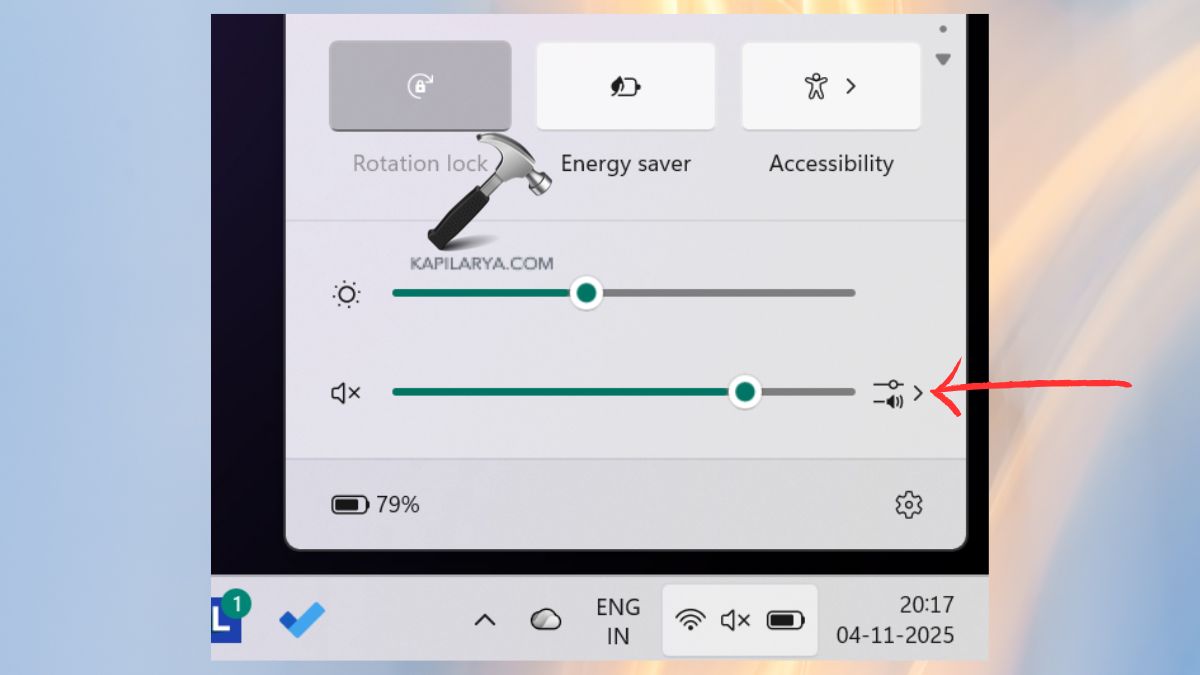
1. Press Win + A to access the quick settings panel. And then just click on the arrow (>) next to the volume bar.
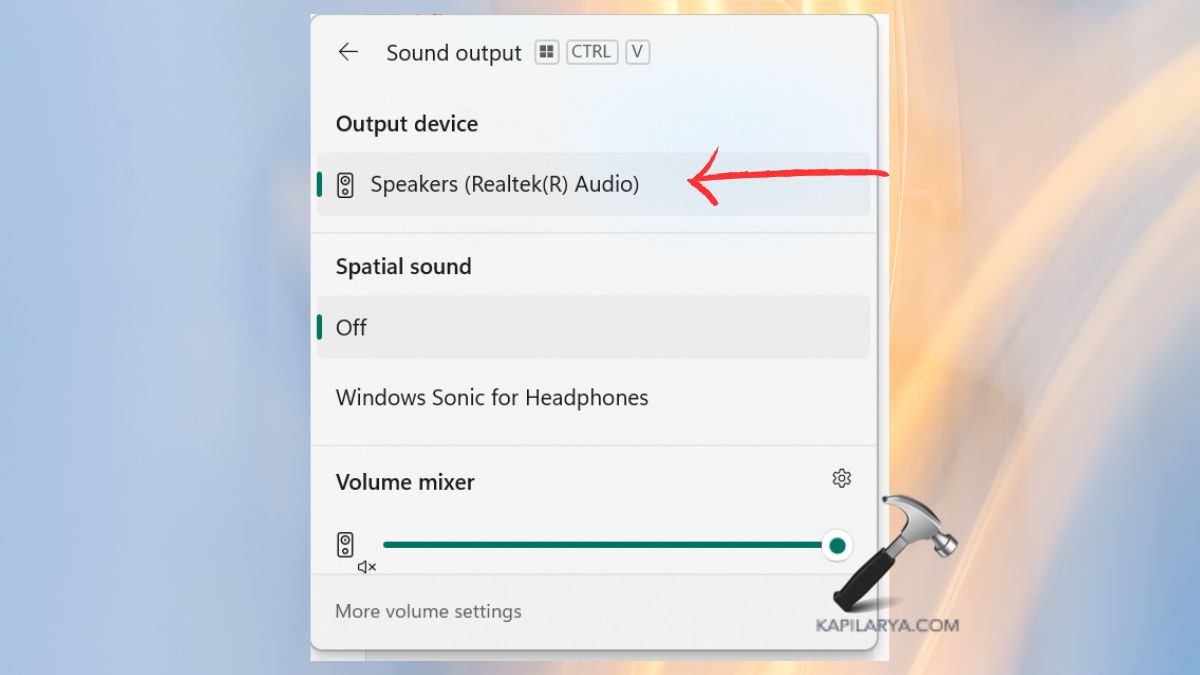
2. Select an appropriate sound output device (e.g., Speakers, Headphones, Bluetooth). Attempt to replay any sound or video.
Tip: When wearing Bluetooth headphones then you must make sure that they are properly connected and paired.
Fix 2: Run the Built-in Audio Troubleshooter
Windows contains a troubleshooter, which is handy and automatically detects and fixes problems concerning sounds.
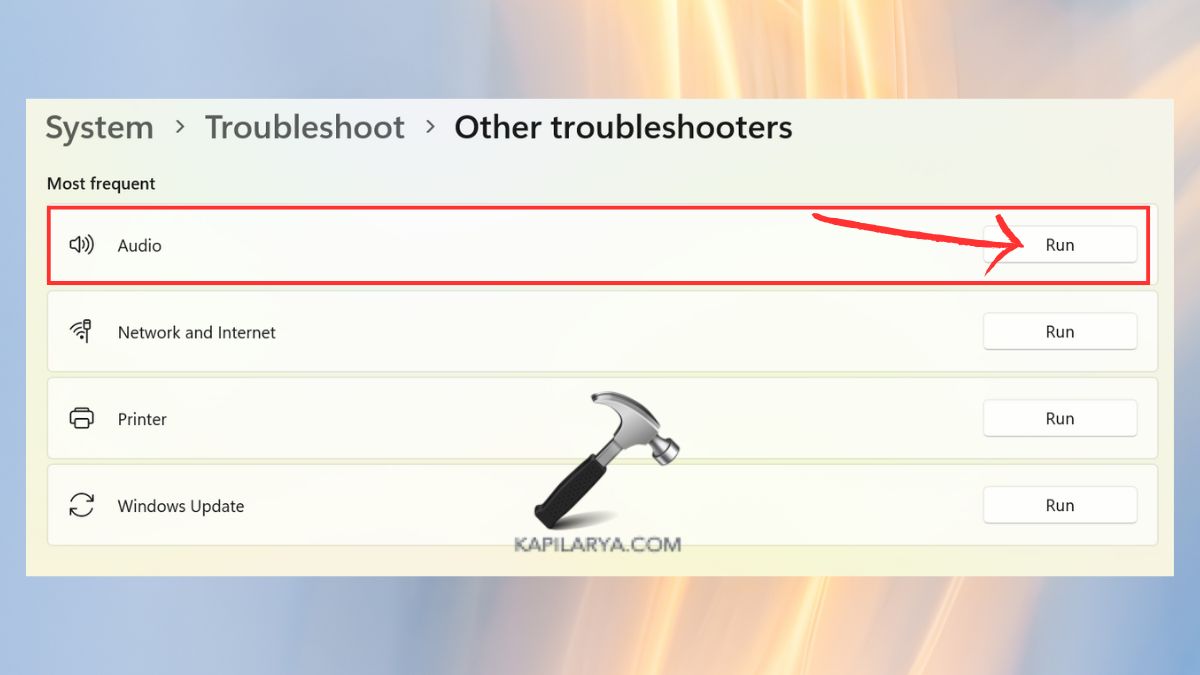
1. Click on “Win + I” to access Settings. Select System > Troubleshoot > Other troubleshooters.
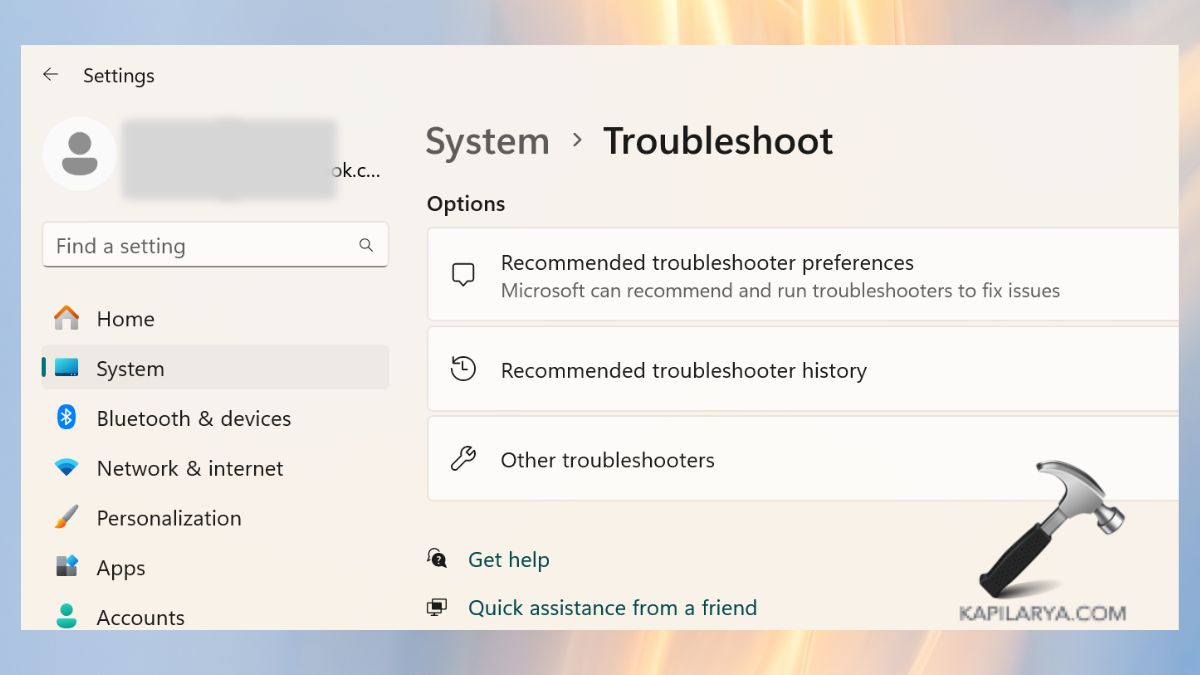
2. Find and get “Audio” and click Run. Instructions are provided on the screen, and solutions are recommended.
Fix 3: Roll Back the Sound Driver
It may also happen that your sound ceased functioning immediately after updating; thus, the new audio driver may not work. Attempt to roll back driver these steps.
1. Click on “Windows + X” and select the option of Device Manager.

2. Enlarge “Sound, videogame and video controllers”. Click on your audio device, right-click, and set the properties.

3. Select Roll back driver under the driver tab. Restart your PC.

Fix 4: Restart Windows Audio Services
Windows also has a number of background services that control your system sound. Provided that none of them fail to work, you will not have a sound problem with Windows 11.
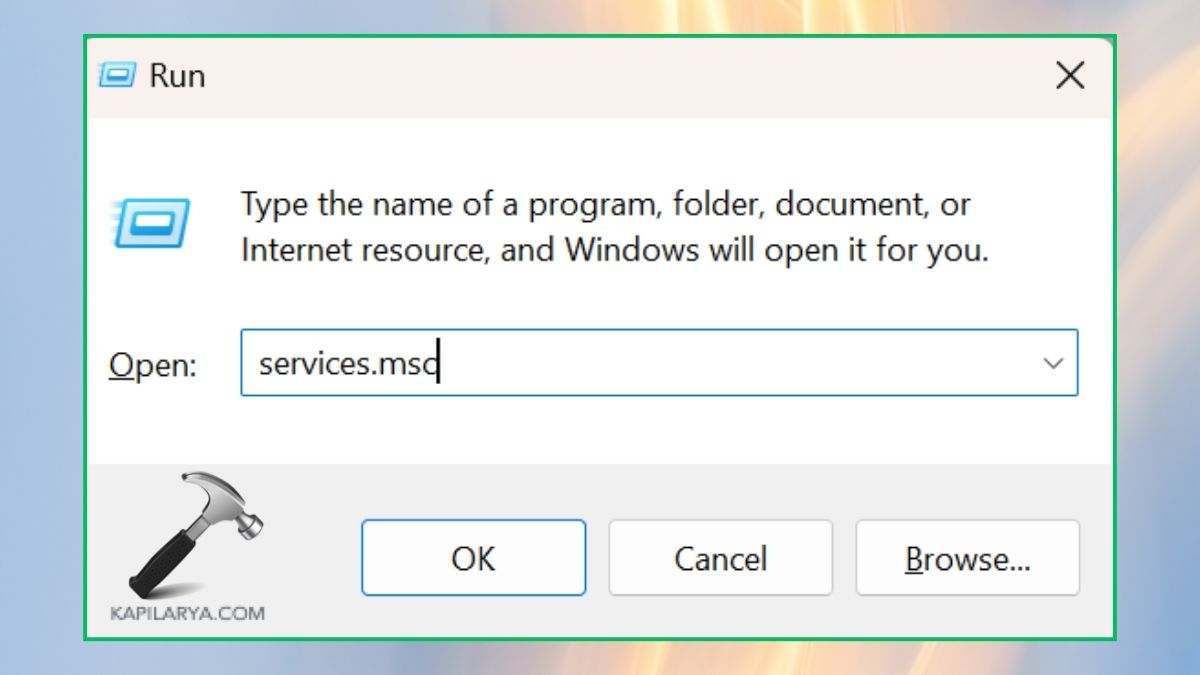
1. Click on “Win + R”, enter services.msc command, and press Enter.
2. Find these services in the displayed list.
- Windows Audio
- Windows Audio Endpoint Builder
3. Right-click each one > Restart.

4. Right-click on the service and select their type of Startup as Automatic.

Next, see whether your sound is working again.
Fix 5: Check Audio Hardware Connections
Maybe it is not a complicated point, yet loose or inaccurate connections can make sound as well.
1. Make sure that your sound wire or Bluetooth device is in place.
2. Test using a different device or using a different port.
3. In case of external sound cards, disconnect and reconnect them after the update.
Fix 6: Install All Pending Windows & Optional Updates
Microsoft releases frequent patches to eliminate bugs associated with updates, such as audio issues following the 25H2 release.
1. Click Windows + I > Windows Update.
2. Click Check for updates. When done, restart your system.

Fix 7: Uninstall and Reinstall the Sound Driver
Any issue that may lead to no sound issue post the Windows 11 25H2 update can occur due to a corrupted or mismatched driver.
1. Once again, press Windows +X keys and select Device Manager.
2. Broaden “Sound, video and game controllers”. Click on the audio driver on the right click and select Uninstall device.

3. Reboot your computer, and Windows will automatically install the driver.
Fix 8: Install the “High Definition Audio Controller” Driver
The issue can be successfully solved by using the High Definition Audio Controller driver.
1. Again, go to Device Manager > expand Sound, video and game controllers.
2. Click on the audio device that is presently in use on the right-hand side > Update driver.

3. Select Browse my computer drivers > Select Drivers Choose a list.

4. Select the Audio Controller and click Next. Restart your PC.
Fix 9: Disable Audio Enhancements
Sound additions are known to be incompatible with drivers in some cases, following a large update. Try this fix with these steps.
1. Click on the Windows Settings > System > Sound.

2. Choose your playback device and click on the properties. Click on “Audio Enhancements” option and choose “Enable audio enhancements” or “Device Default Effects”. Click Apply and OK.
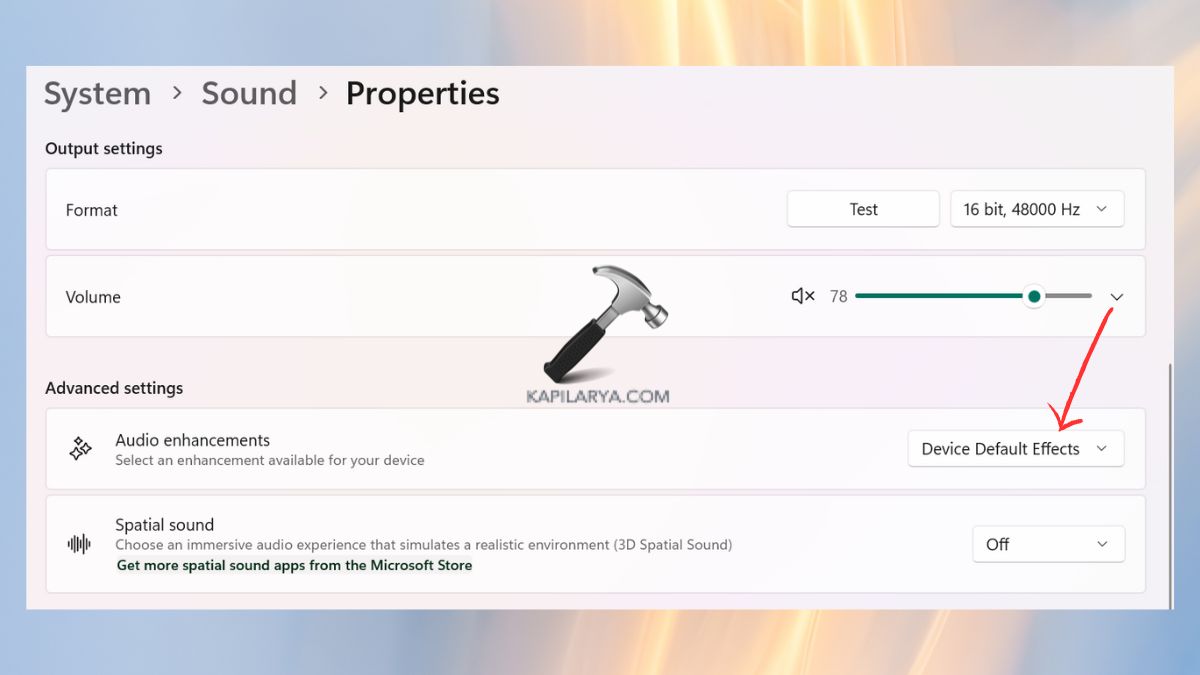
3. Then again, test your audio, and you may get your immediate results.
Fix 10: Go Back to the Previous Version of Windows 11
To solve No sound after Windows 11 25H2 update, a temporary rollback is possible in case nothing has improved.
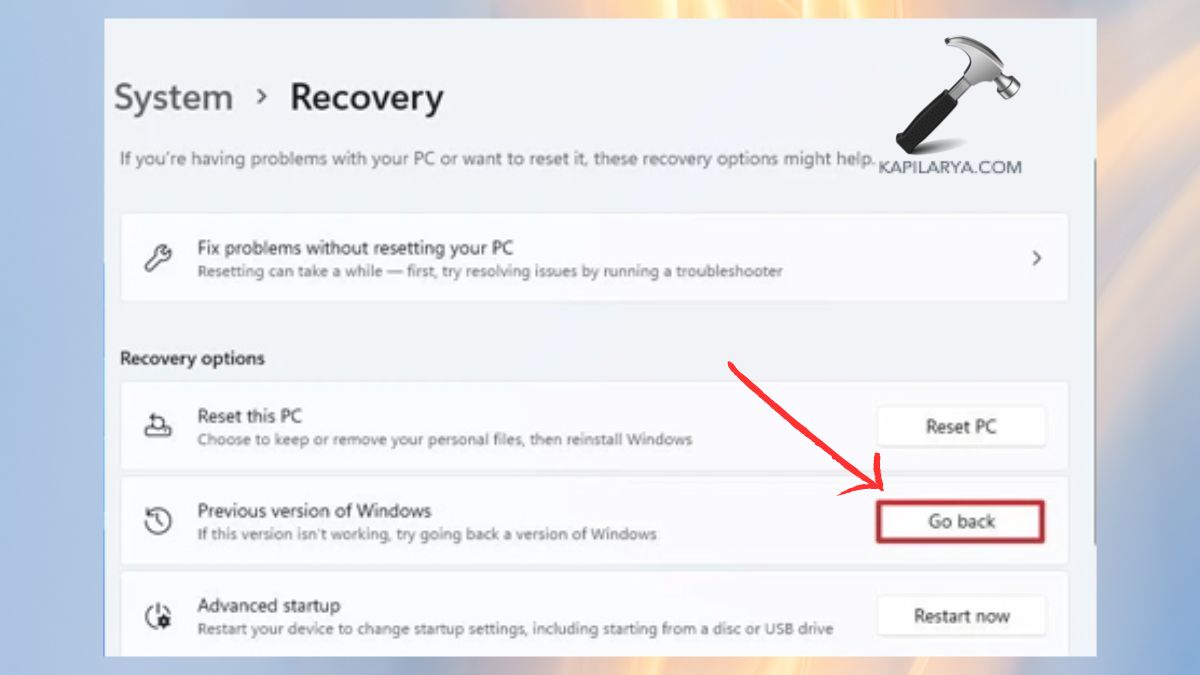
1. Open Windows 11 Settings > System > Recovery.

2. In the Recovery options, choose Go back. Go ahead with the instructions and revert to your previous build.
Video fix
Checkout following video fix to illustrate above mentioned solutions:
Frequently Asked Questions (FAQs)
That’s it!