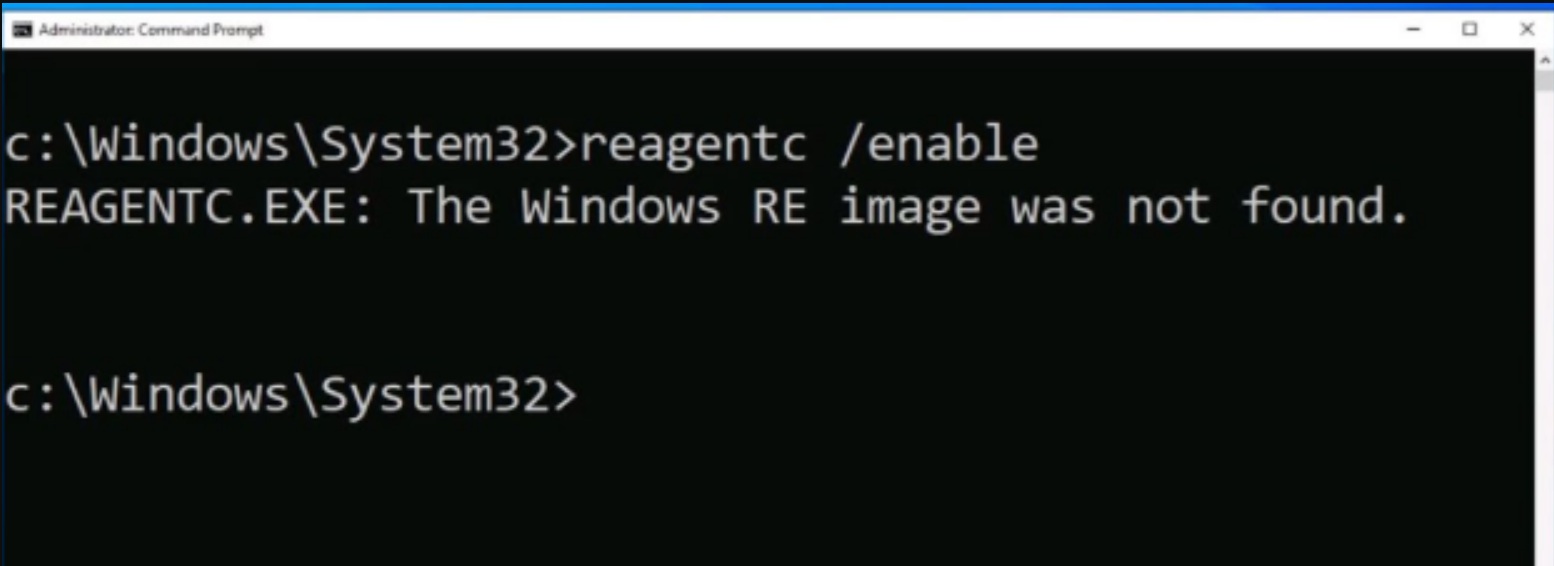
Are you getting the error message, The Windows RE Image was not found on Windows 11/10? You have found yourself at the right location. This Recovery Environment problem occurs on thousands of Windows users on a daily basis, particularly following a major update, corrupted files, or due to accidental changes in system directories. It is easy to repair it even without being a technical genius. This guide also has straightforward steps and methods that are known to be fully working and can be followed by anyone.
Page Contents
Why Does “The Windows RE Image Was Not Found” Error Occur?
WinRE is the emergency toolkit of your PC. This error normally occurs because of these reasons:-
- Missing/broken Winre.wim file.
- Bad winre path configuration.
- Crippled Windows Recovery Environment.
- System file corruption.
- Windows updates had to be stopped.
- Removed or changed the recovery partition.
When Windows tells us it can not find the RE image, it simply says: “Your PC does not want to assist you during the emergency situation at all”. This is why correcting this mistake is not an option, but a necessity.
Fix The Windows RE Image was not found on Windows 11/10
The Windows RE Image Was Not Found on Windows 11/10 is fixable & more easier than it appears. You will be able to restore the Windows Recovery Environment by adhering to the following step-by-step solutions. Any of the methods works with both Windows 10 and Windows 11.
Fix 1: Re-Enable Windows Recovery Environment (WinRE)
WinRE can also be just disabled in the system settings.
The solution to the problem can be solved immediately by re-enabling it.
1. Start the Command Prompt as Administrator.

2. Type this command to get the Windows RE details.
reagentc /info
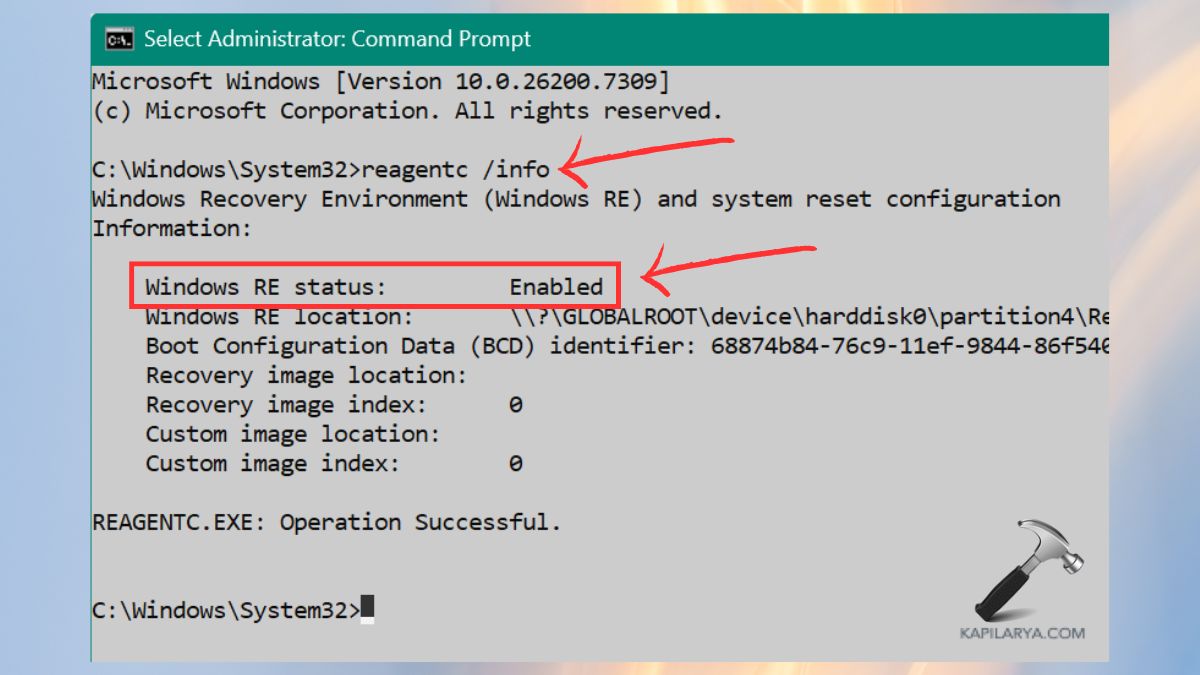
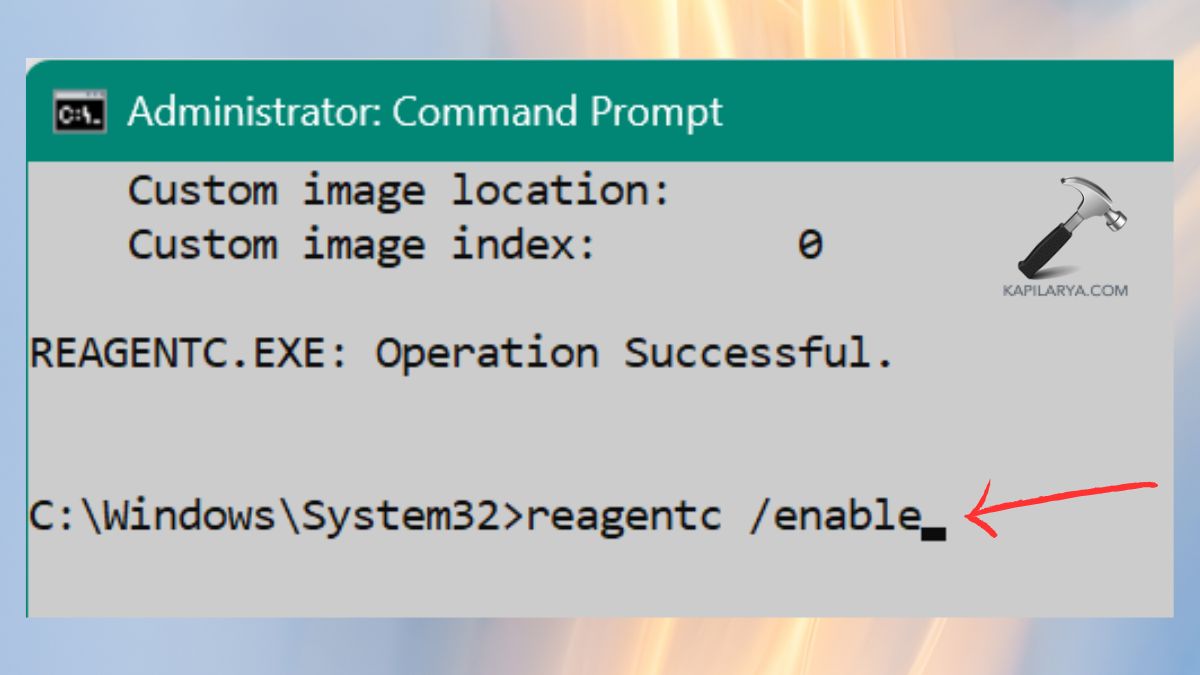
3. In case it is Disabled, then enter the following command to enable it.
reagentc /enable
Fix 2: Run SFC and DISM to Repair Corrupted System Files
The missing WinRE is usually the result of corrupt system files. It can be automatically repaired by running SFC and DISM.
1. Again, open the CMD as Administrator. Run System File Checker with this command.
sfc /scannow

2. When the scan is done, then use DISM commands.
DISM /Online /Cleanup-Image /CheckHealth
DISM /Online /Cleanup-Image /ScanHealth
DISM /Online /Cleanup-Image /RestoreHealth

3. Restart your system. Attempt to activate WinRE once again using this command.
reagentc /enable
Fix 3: Restore or Copy Winre.wim Manually
In case of a missing file “Winre.wim”, you can copy it manually with one that is working in Windows.
1. Open the File Explorer with a path as this –
C:\Windows\System32\Recovery
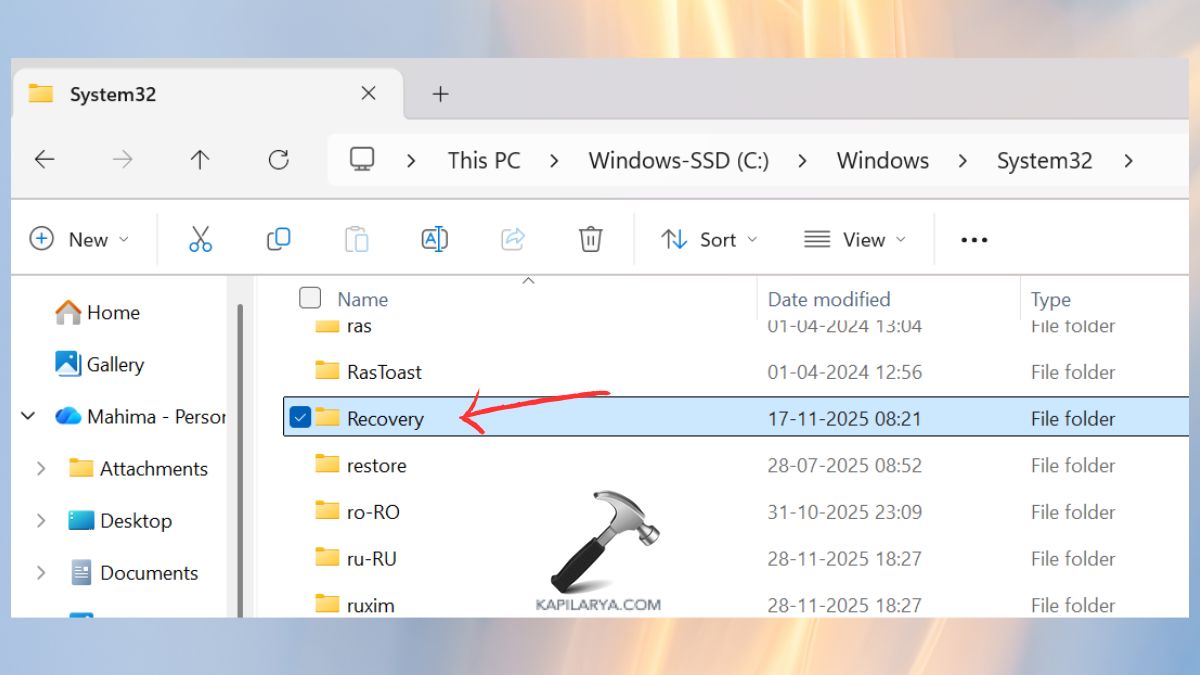
2. Should “Winre.wim” not be available in this folder, get a copy in the following path.
C:\Windows\WinSxS\
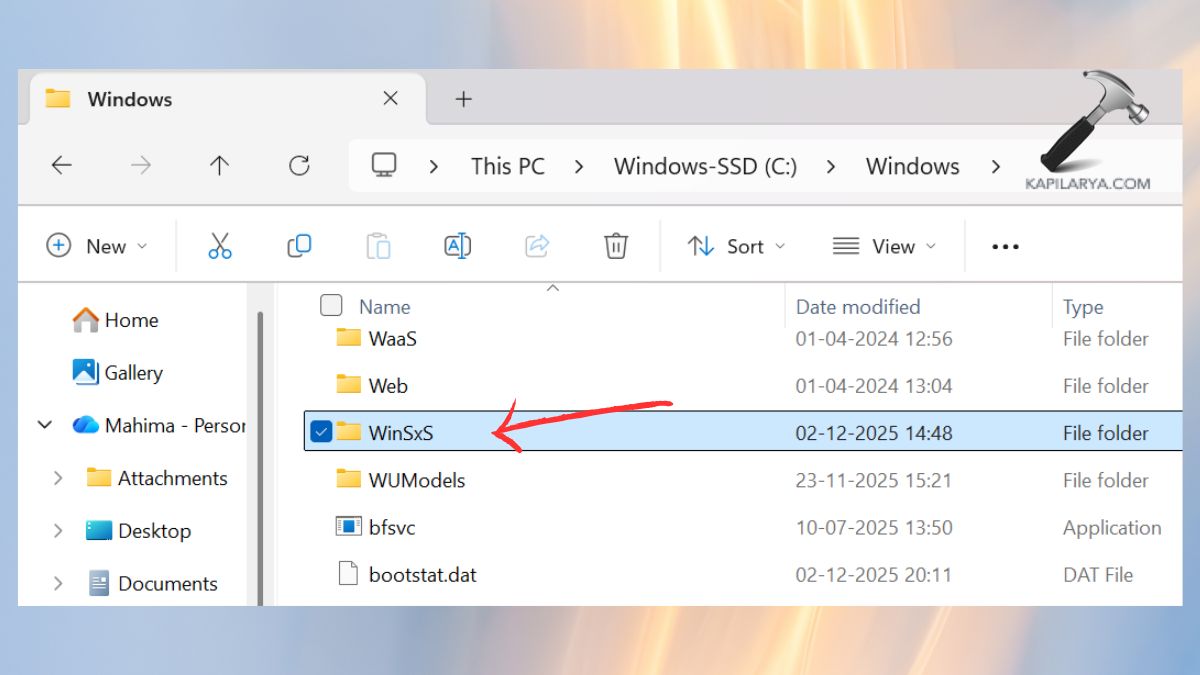
3. Find files bearing the name – “Winre.wim”. Copy the file to the Recovery folder with this path.
C:\Windows\System32\Recovery
Fix 4: Define the Correct WinRE Path Using CMD
The error of incorrect WinRE paths usually leads to Windows giving the error of the non-existence of the image of RE image.
1. To restore the path in Command Prompt, use the following commands.
reagentc /setreimage /path C:\Windows\System32\Recovery
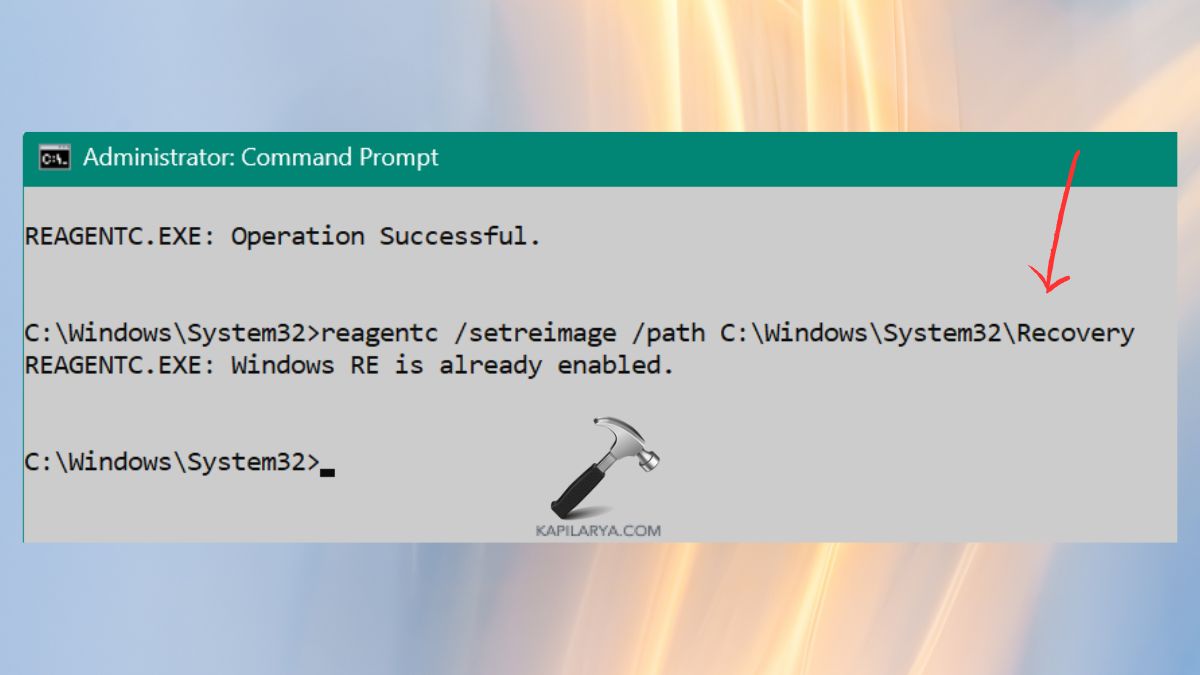
2. Now, enable WinRE.
reagentc /enable
In case the Recovery Partition has a different drive letter, change the command.
Fix 5: Extract the WinRE File from Windows 10/11 ISO
In case the WinRE file is lost or corrupt, the easiest course of action would be to extract a new one from a Windows ISO.
1. Obtain the latest Windows 10/11 ISO file from the official site of Microsoft – (https://www.microsoft.com/en-us/software-download/windows11).

2. Right-click the ISO > Mount.
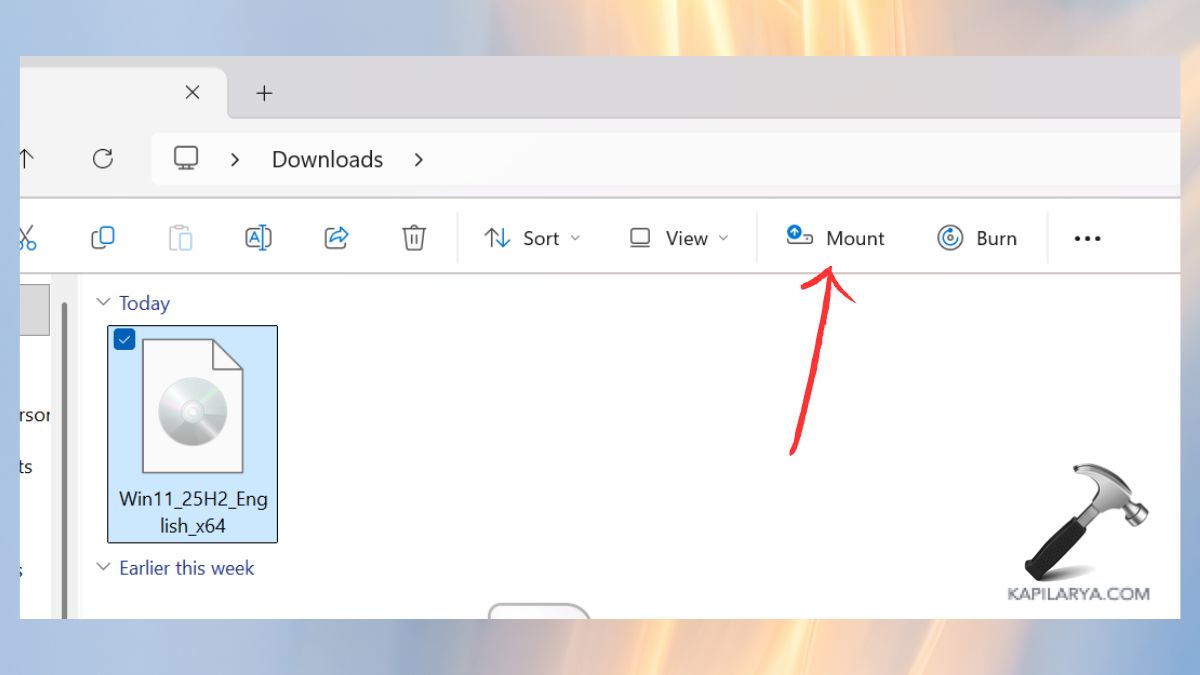
3. Navigate to this path.
sources\install.wim
4. Extract “Winre.wim” and paste the extracted file to the same Recovery folder.
C:\Windows\System32\Recovery
5. Once again, reconfigure the path using the following commands one-by-one.
reagentc /setreimage /path C:\Windows\System32\Recovery
reagentc /enable
Fix 6: Recreate Windows RE Completely (Ultimate Fix)
In case of failure to do anything, the most potent solution is to recreate WinRE using CMD.
1. Open CMD (Admin). Disable WinRE.
reagentc /disable
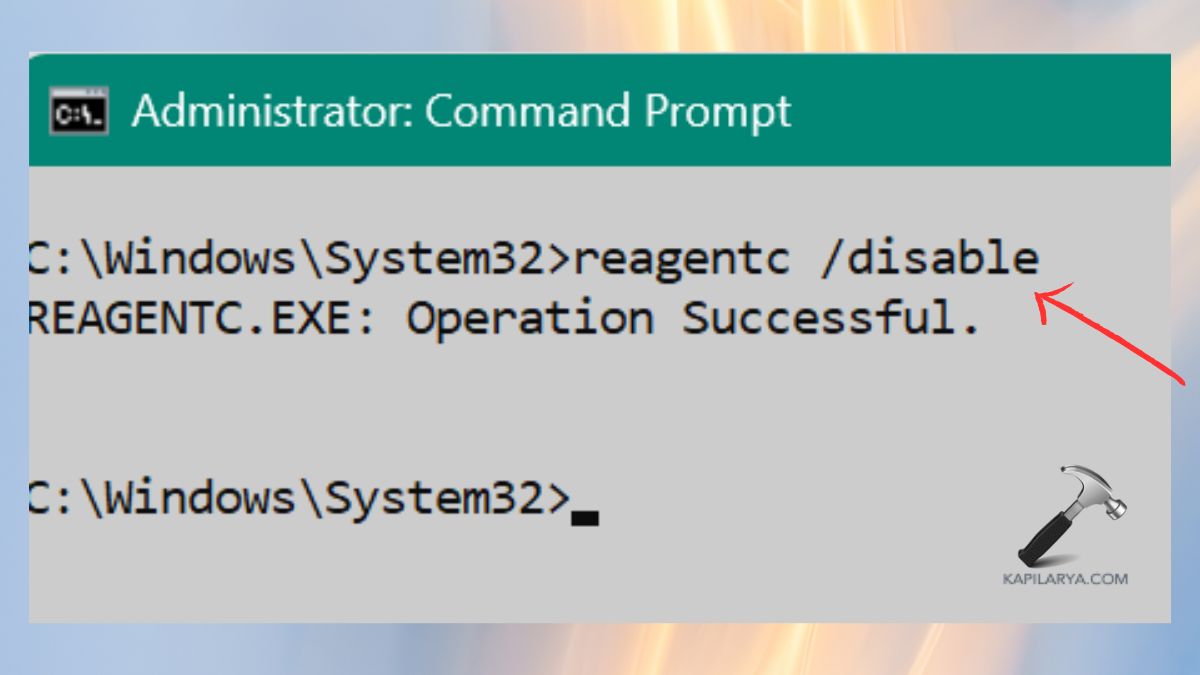
2. The corrupted Recovery folder should be deleted. Then, recreate the folder.
rmdir /s /q C:\Windows\System32\Recovery
mkdir C:\Windows\System32\Recovery
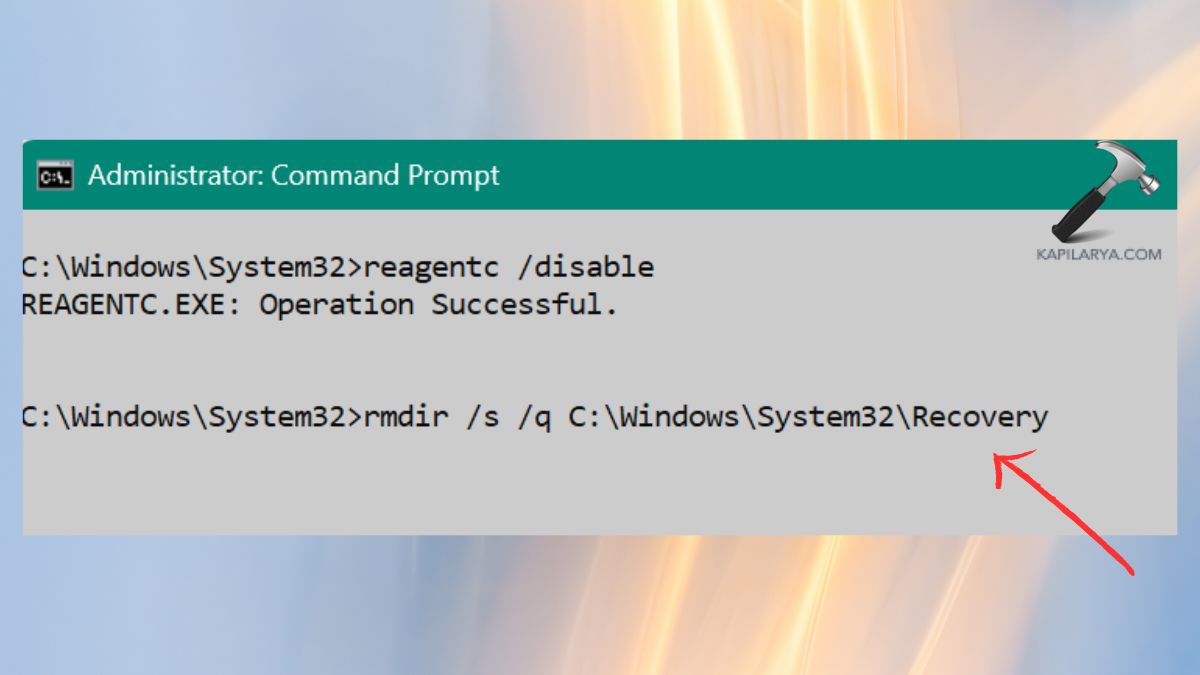
3. Duplicate a new Winre.wim file (of ISO or other PC). Set WinRE path.
reagentc /setreimage /path C:\Windows\System32\Recovery
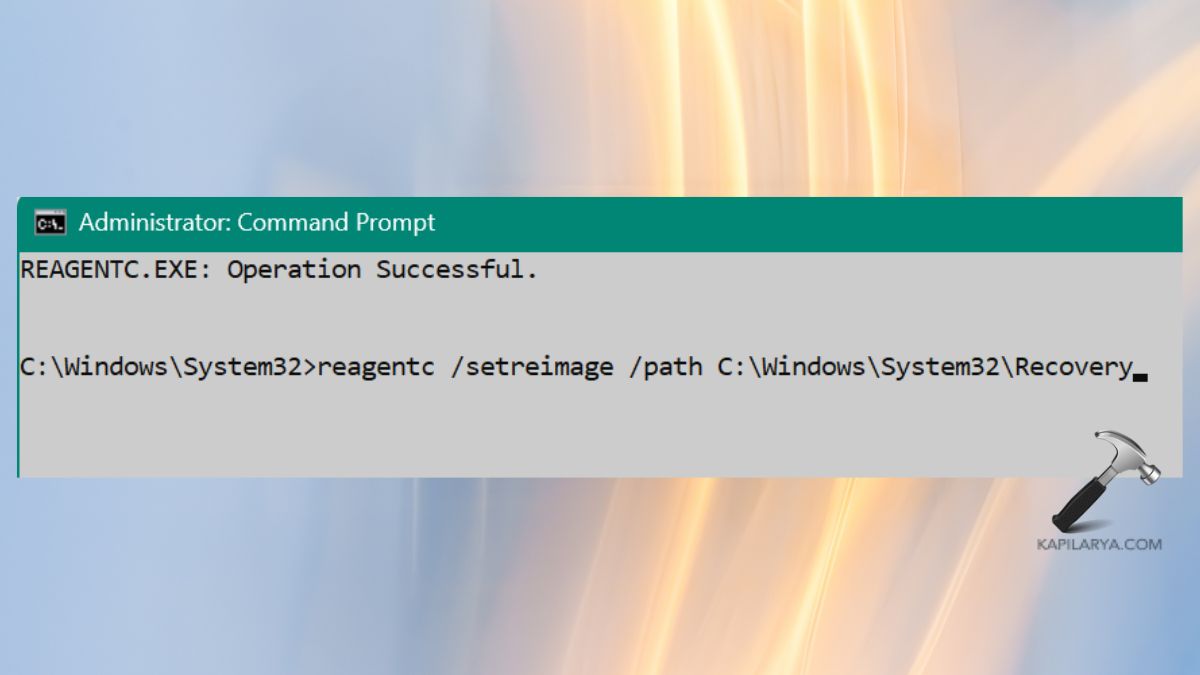
4. Enable it again. This restores the Windows Recovery Environment fully.
reagentc /enable
Tips to Help in the Prevention of WinRE Errors
- Recovery partitions should not be deleted.
- Always keep Windows updated.
- There are third-party programs called optimizers that should be avoided; they may wipe out WinRE files.
- Prepare a System Image backup by doing so prior to large updates.
- Test Systems Run SFC/DISM to keep systems healthy.
Frequently Asked Questions (FAQs)
What is WinRE in Windows?
Windows Recovery Environment (WinRE) is a diagnostic tool that allows troubleshooting, resetting your computer, fixing startup problems, and so forth.
Why does WinRE show “image not found”?
This can occur due to the fact that the Winre.wim file is missing, damaged, or at the wrong path during its recovery.
Can I fix WinRE without reinstalling Windows?
Yes! The above methods can help most users restore WinRE without revisiting Windows.
Is it safe to copy Winre.wim from another PC?
Yes, provided that both PCs are the same version and edition of Windows. Nonetheless, it is safer to extract a Windows ISO.
That’s it!