

KB5074109 update failed to install on Windows 11 for you? This guide has the very reasons why the update does not work, and it offers easy and effective step-by-step solutions that will see you through to installing the update successfully. Be it because it is stalled on a download, it continuously tries to download it, or it presents an unidentified error, the solutions below will definitely sort out the problem in under a few minutes.
Page Contents
Causes of KB5074109 Failed to Install on Windows 11
Some system, service, and software-related failures can cause this update to fail. The most popular reasons are listed below:-
- Corrupted system files.
- Components of Broken Windows Update.
- Broken Windows Update services.
- The update is being blocked by third party antivirus.
- The processes that are interfering are network or background processes.
- Damaged update cache.
- Partial updates made in the past.
Fix KB5074109 Failed to Install on Windows 11
The Windows 11 updates do not only have the new features, but they also form part of maintaining the security of your personal computer, its stability, and optimal performance. One of such updates is KB5074109, which makes the system more reliable, fixes those bugs that would otherwise remain undetected, and makes the user experience more enjoyable.
Loss of this update may subject your device to vital performance enhancements and valuable security updates. This is why the problem with installing the KB5074109 is significant to fix. The following are 5 effective solutions to the problem.
Fix 1: Reset Windows Update Components Manually
In case the update still fails even after re-booting, then your Windows update parts may become corrupt. One of the best ways out is to reset it manually.
1. Open Command Prompt (Run as Administrator).

2. It allows one to stop update-related services by typing the following commands sequentially.
net stop bits
net stop wuauserv
net stop cryptsvc

3. Rename update cache folders.
ren C:\Windows\SoftwareDistribution SoftwareDistribution.old
ren C:\Windows\System32\catroot2 catroot2.old

4. Start the necessary services.
net start bits
net start wuauserv
net start cryptsvc

Restart your PC. Reboot, and reinstall KB5074109.
You can refer this video guide to reset Windows Update:
Fix 2: Run the Windows Update Troubleshooter
This is an in-built Windows 11 utility that automatically identifies and solves problems related to updates.
1. Open Settings. Go to the System, then click on Troubleshoot and Other troubleshooters.
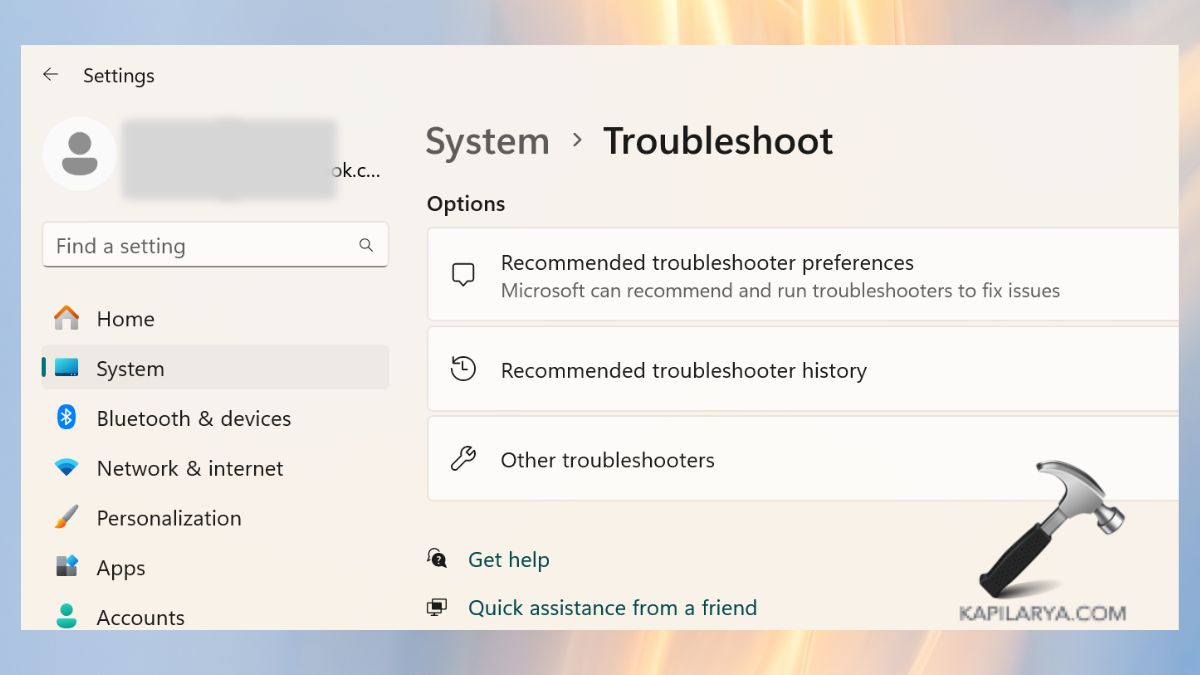
2. Find Windows Update. Click Run. Adhere to online instructions.

After making that, reboot your device and itself, and again try to install the update.
Fix 3: Check & Restart Windows Update and BITS Services
Windows update relies on some background services. Updates will not complete in case they are stopped.
1. Press the Windows key combination, + R and enter this command.
services.msc
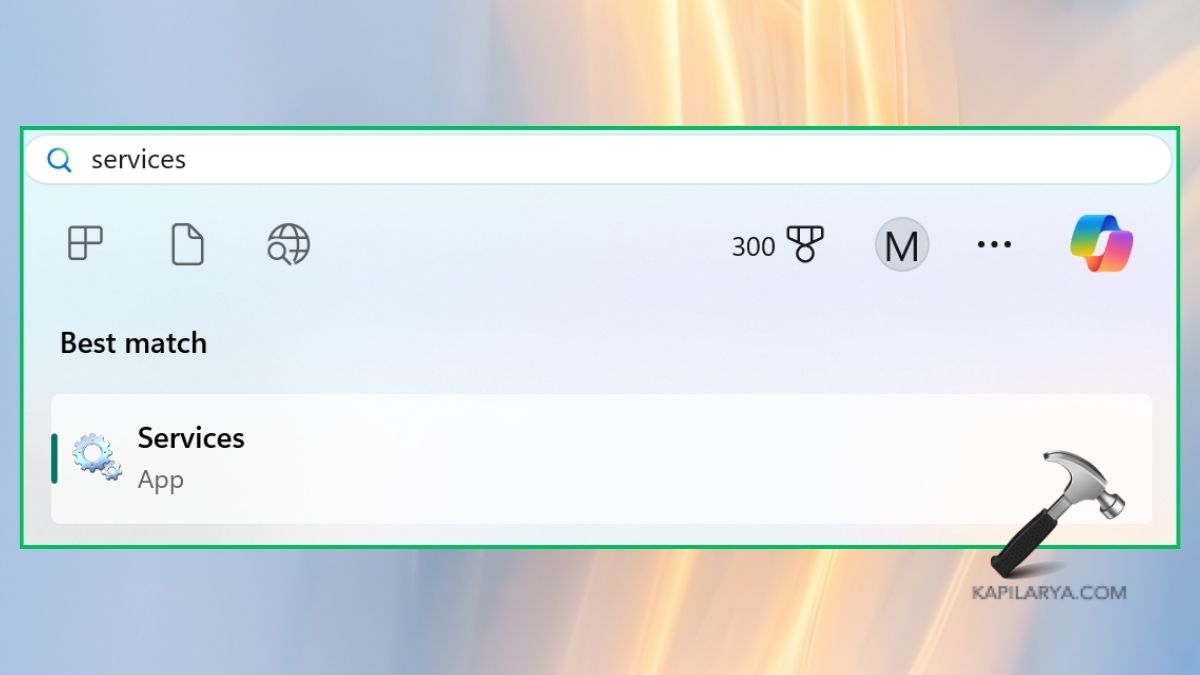
2. Locate the “Background Intelligent Transfer Service (BITS)” and “Windows Update” Services. Double-click it and do this:-
- If stopped, click Start.
- In case of Running, right- click: Restart.

Click OK on all windows. Restart your PC and try again. This is a quick fix that will solve most update-installation failures.
Fix 4: Run SFC and DISM
Windows KB5074109 cannot install with corrupted or missing files. Conducting SFC and DISM scans can be used to fix internal elements of the system.
1. Open Command Prompt (As Administrator).
2. Run the SFC scan.
sfc /scannow

3. Once it is done, execute DISM commands.
DISM /Online /Cleanup-Image /CheckHealth
DISM /Online /Cleanup-Image /ScanHealth
DISM /Online /Cleanup-Image /RestoreHealth

Restart your computer. The next step is to install Windows 11 KB5074109 once again.
Fix 5: Download and Install KB5074109 Manually
When automatic updates fail to work, do a manual update.
1. Go to the Microsoft update catalog (http://catalog.update.microsoft.com).

2. Get the appropriate KB5074109 MSU update file that should match the system to download.
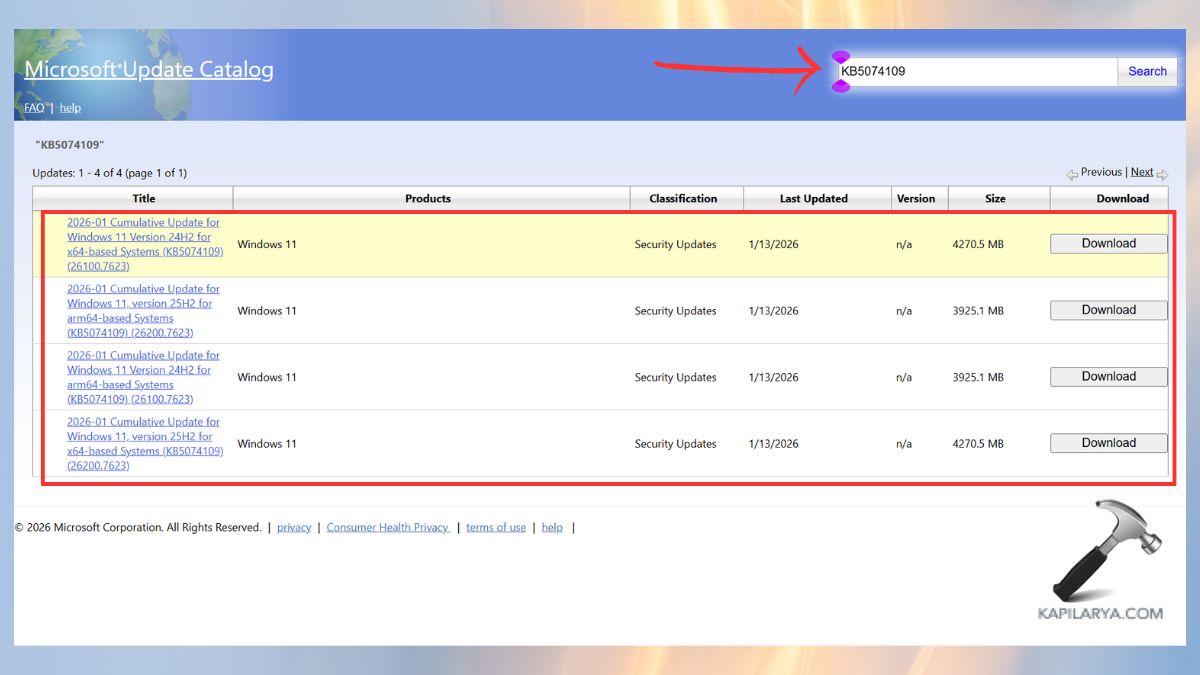
Install the file by clicking twice. Restart your device. The manual method is instantaneous and helpful to many users.
Frequently Asked Questions(FAQs)
Why does KB5074109 keep failing?
The majority of failures occur when the update files are corrupted, there are broken components of the system, there is some antivirus impact or when Windows Update services are stopped.
Is it safe to install KB5074109 manually?
Yes! Direct installation in the Microsoft Update Catalog is utterly safe and can, in many cases, help update-loop problems.
Will resetting Windows Update components delete my files?
No, it simply restarts update-related folders. Personal information remains secure.
Can antivirus software block Windows 11 updates?
Yes, third-party antivirus systems tend to meddle. Turn them off or delete them during updates installation.
That’s it!





