

Windows Updates are normal and they are often delivered to get your device secured. Microsoft regularly provides you the latest updates but sometimes a new issue might be introduced after installing the update. Obviously, this doesn’t happen every time. But in rare cases, it is seen, sometimes new issue(s) introduced after an update. Now in case if Microsoft is aware of the known issue with the update, a Known Issue Rollback (KIR) is generated. Applying the Known Issue Rollback returns the device to the previous productive stage when the issue was not present. In this guide we will see how you can download and apply Known Issue Rollback in Windows 11.
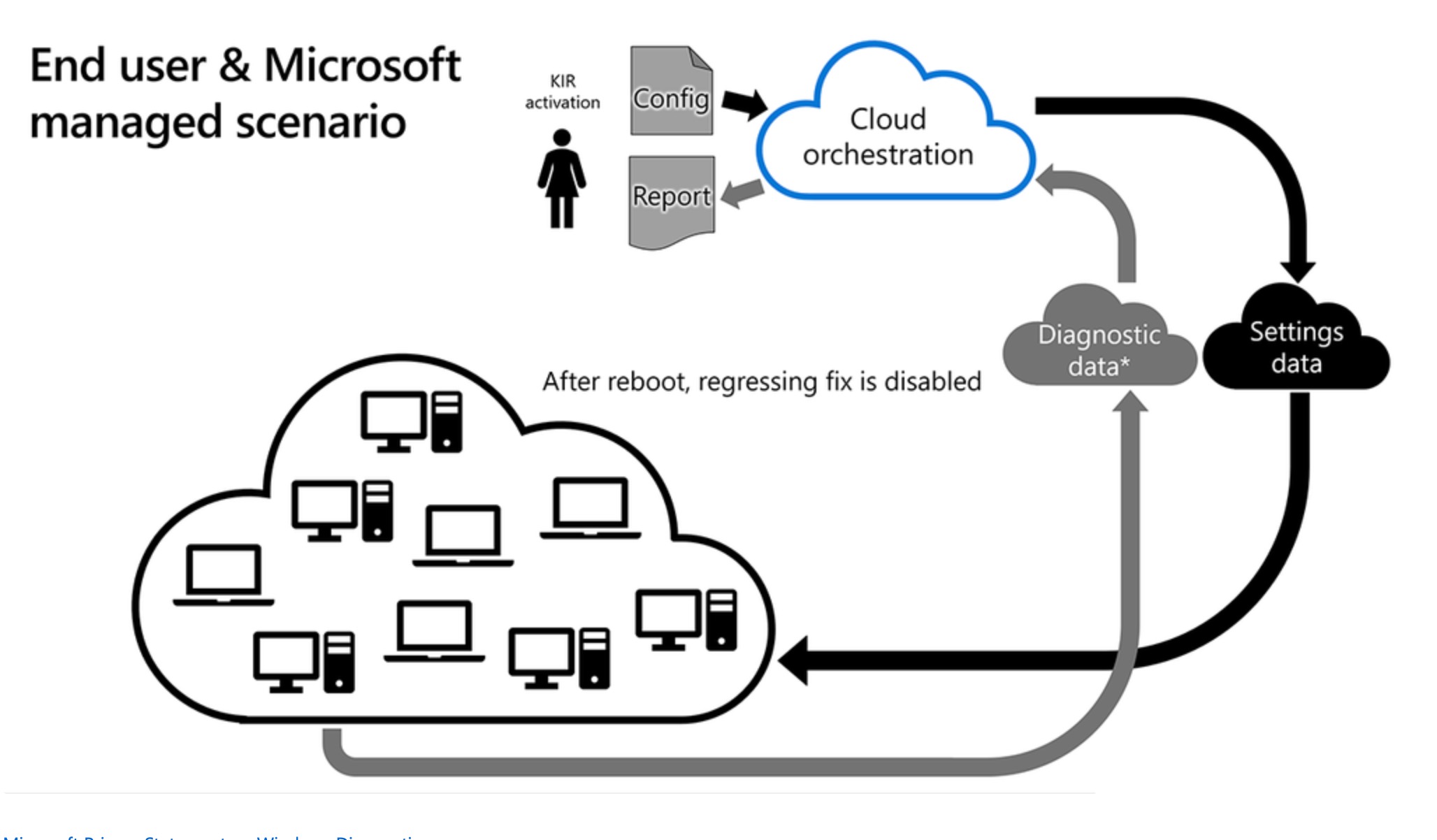
The Known Issue Rollback is usually introduced for the latest updates. Once it is released, Microsoft mentions it in the original KB article for the update. Often you would find it in the known issues section for update announcement. Additionally, you will also be able to locate the Known Issue Rollback addition in Windows Health Release Dashboard (WHRD).
Page Contents
Download and apply Known Issue Rollback (KIR) in Windows 11
Manual steps
1. Identify the update after which you got the issue. Go to Windows Health Release Dashboard (https://learn.microsoft.com/en-us/windows/release-health)and locate the known issues for your version.

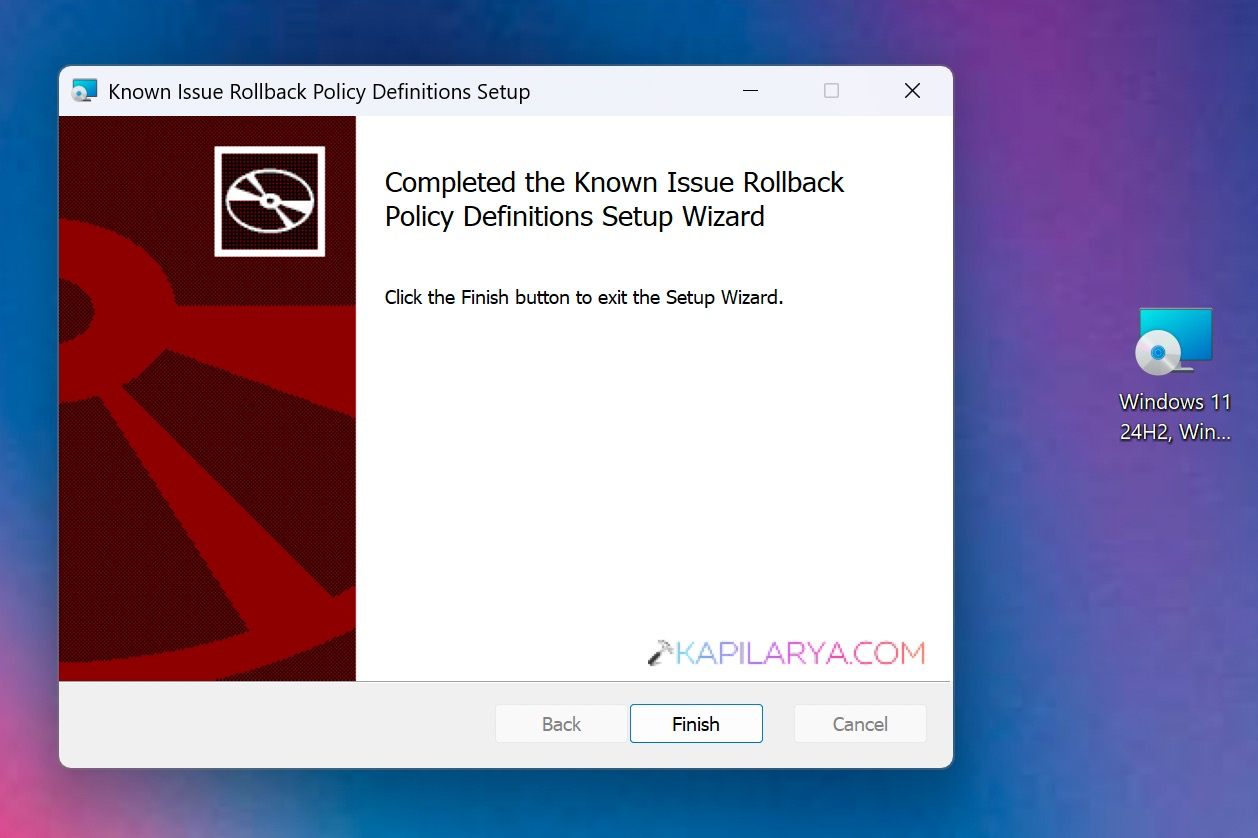
2. Locate the known issue with update information. It must have a download link with known issue rollback. Once you click on that download link you should be able to download a Windows Installer Package (.MSI) file.
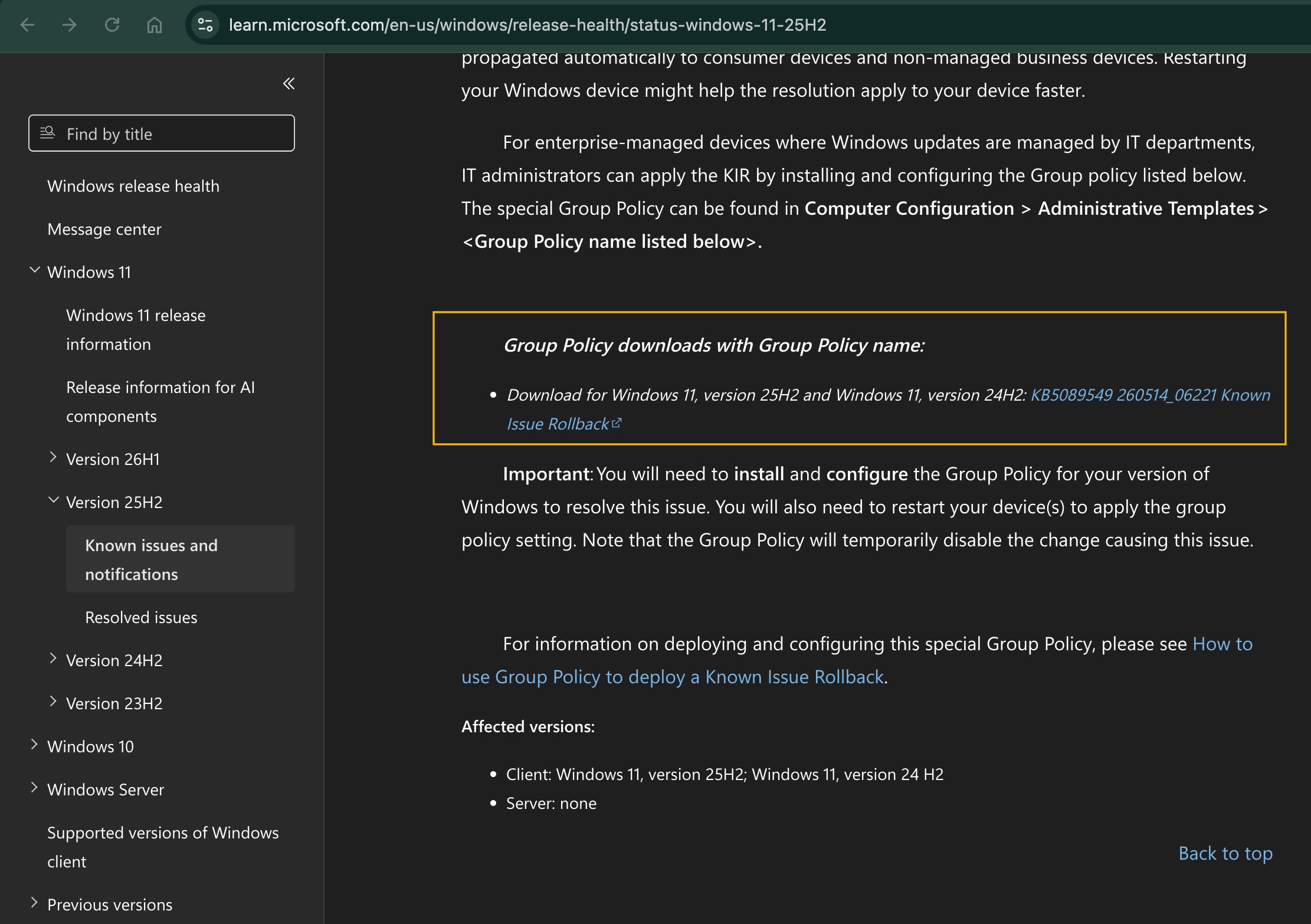
3. Now double click on the .MSI file and in the setup welcome window, click on the Next button.
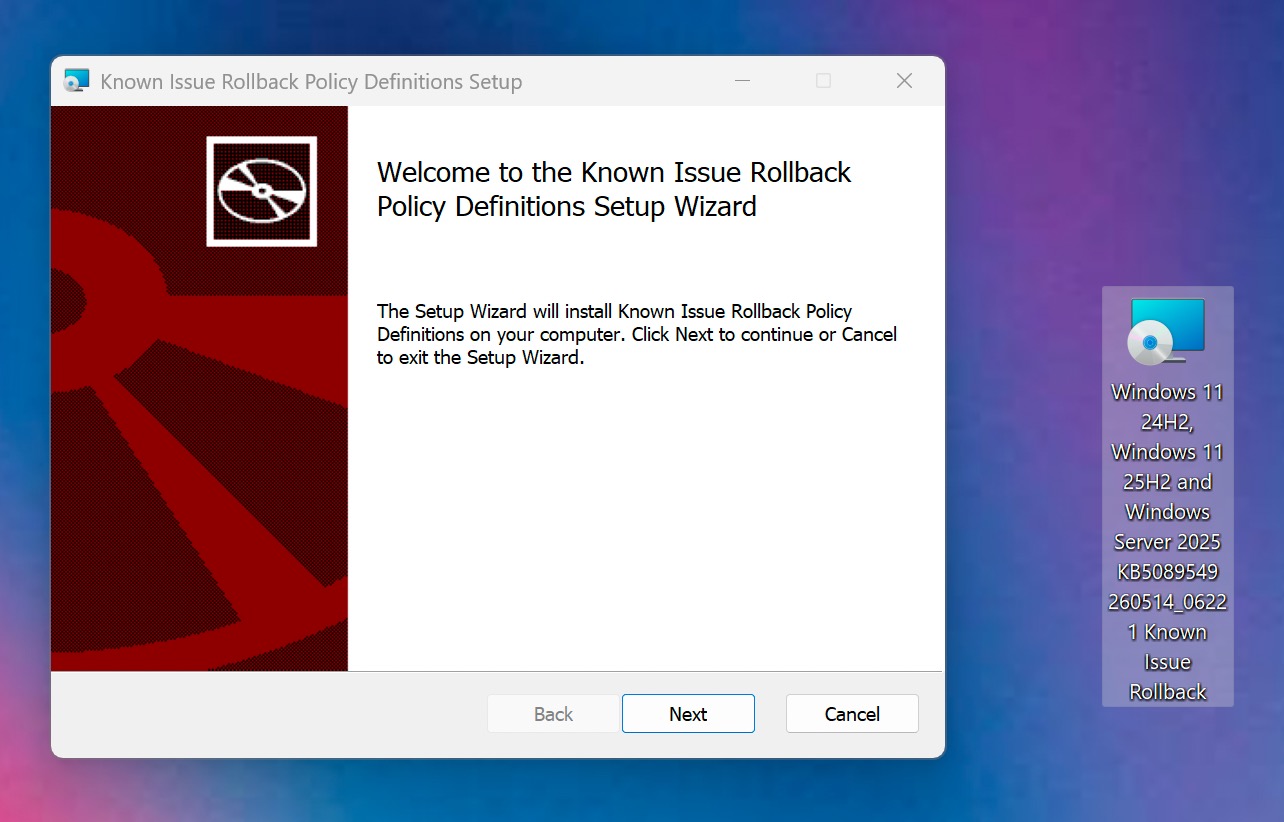
4. In few moments, you will be able to install the Known Issue Rollback policy definition setup. Click on the Finish button.
5. Now open the Group Policy Editor by running gpedit.msc command.
6. In the Group Policy Editor window, go to Computer Configuration > Administrative templates. Under Administrative templates, you should be able to locate the Known Issue Rollback folder. Inside that folder, you should be able to locate the known issue rollback policy setting. Just double click on it and you will get the policy configuration window.
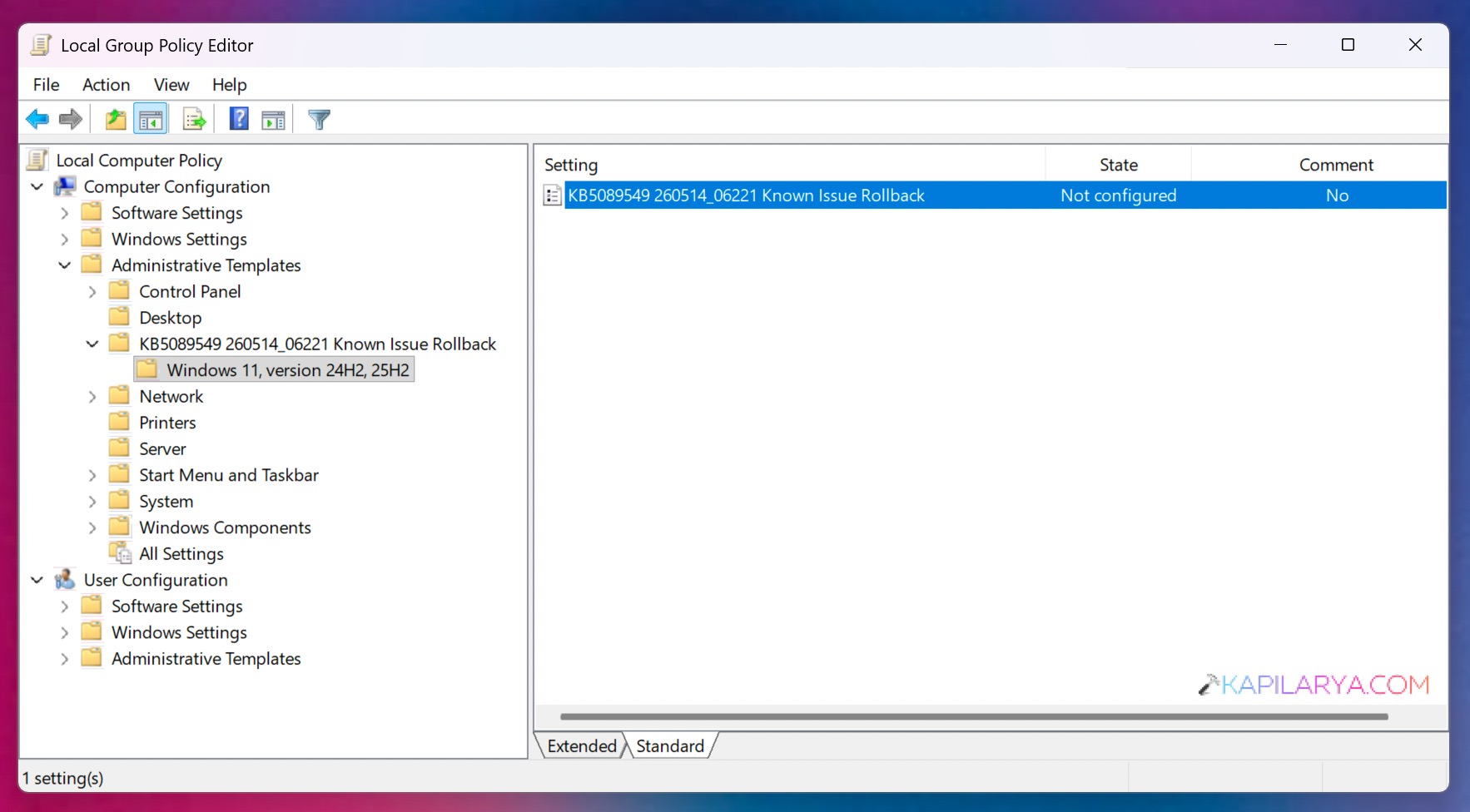
7. Now set the policy setting to Disabled and click OK. Finally, click Apply followed by OK.
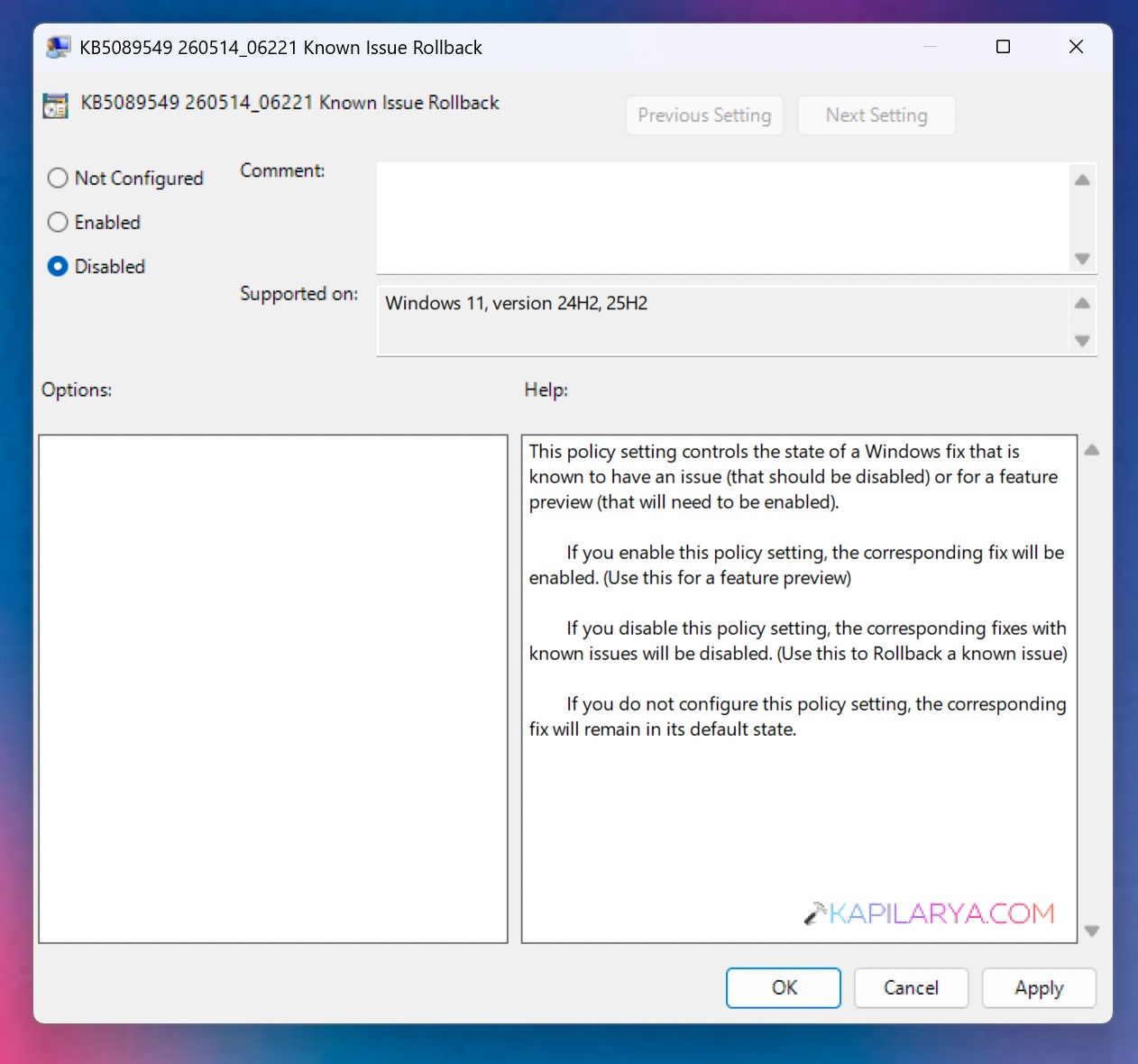
8. You can now close the Group Policy Editor window.
9. Run the gpupdate /force command or restart your system to apply the patch.
Video guide
Here’s a video guide to learn more:
That’s it!





