Do you see the issue headphones not working in Windows 11, if yes, this article is for you. The majority of such issues are software-related and can be resolved within a few minutes of the solutions provided. With the solutions listed below, you will be in a position to resume sound immediately, and then experience smooth audio on Windows 11.
Possibly, it is a connectivity problem or a conflict between drivers, or maybe you have misunderstood a security setting. This article has all the possible resolutions, which immediately fix the issue of headphones not working on Windows 11.
Page Contents
Fix Headphones not working on Windows 11
Fix 1: Check Your Volume and Sound Output Settings
It can be as easy as faulty audio output or muted sound sometimes.
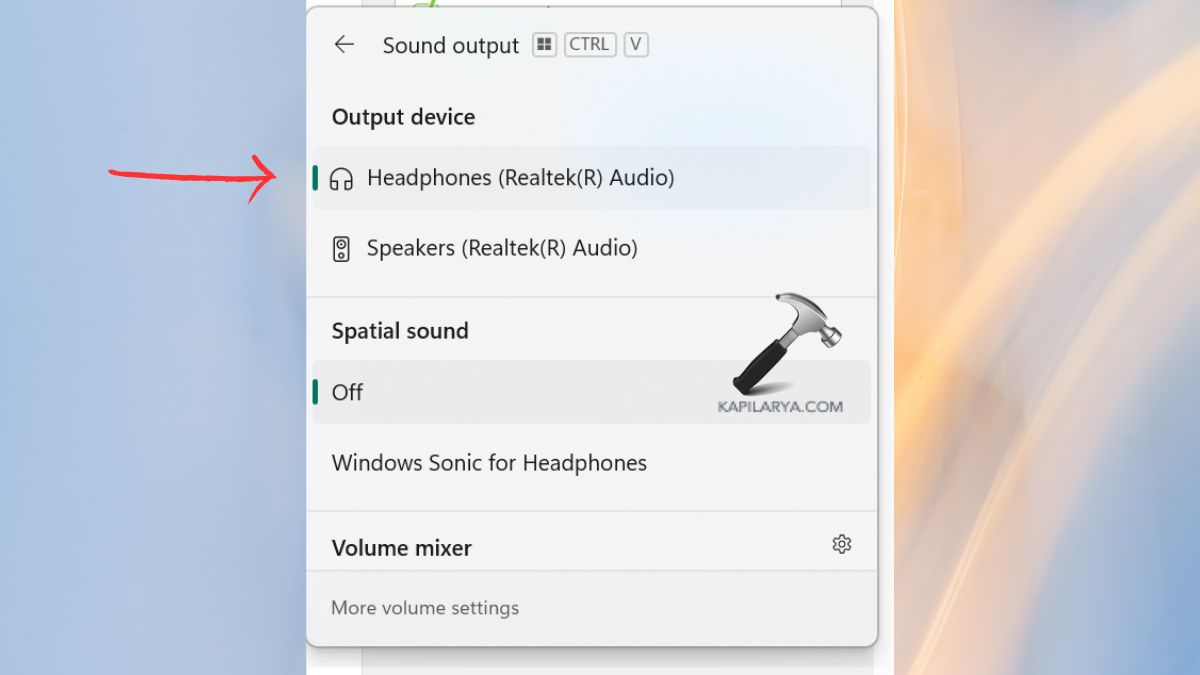
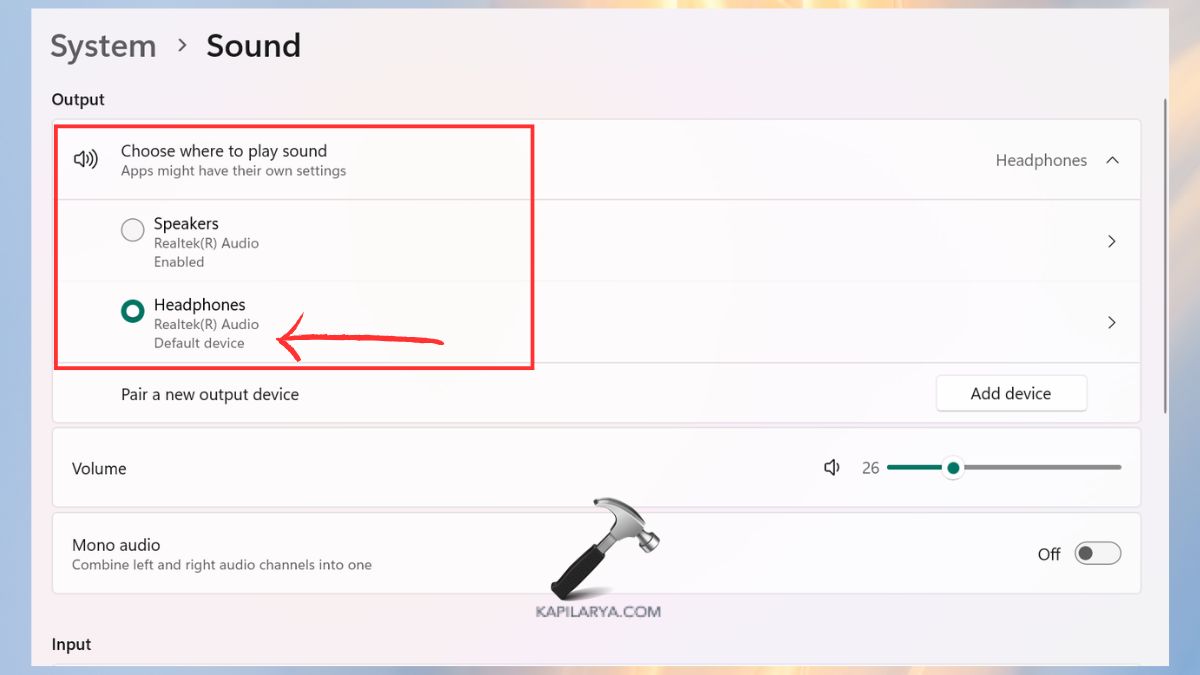
1. Click on Start, then Settings > System > Sound.

2. In the Output category, select your Headphones in the device list. Move the Volume slider to ensure that it is not off.
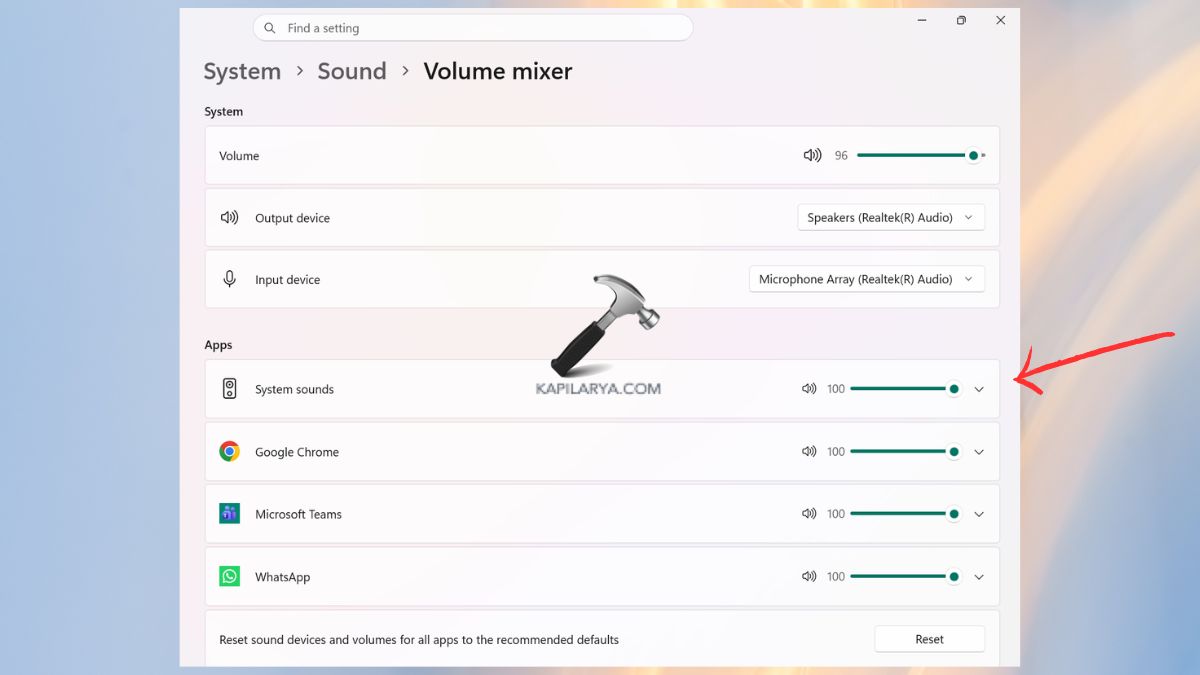
3. In addition, check App Volume & Device Preferences to make sure that no individual app is muted.
Fix 2: Use the Windows Troubleshooter
Windows 11 has built-in troubleshooters, which automatically identify and resolve sound issues.
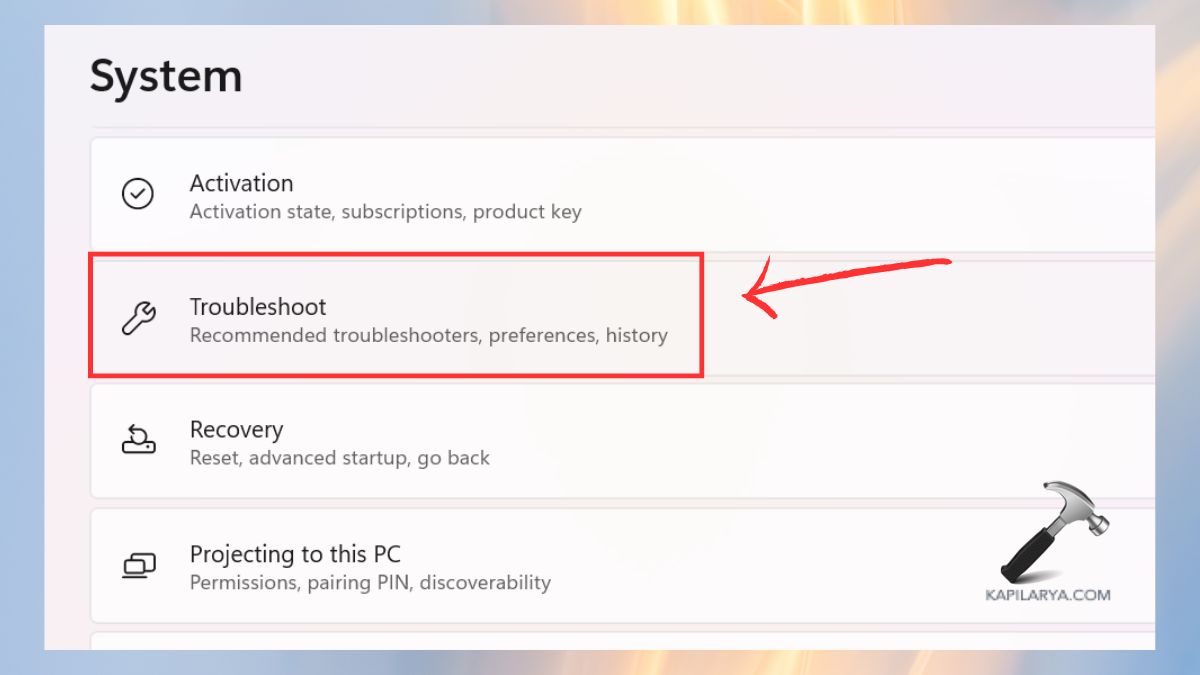
1. Go to Open > Settings > System > Troubleshoot.
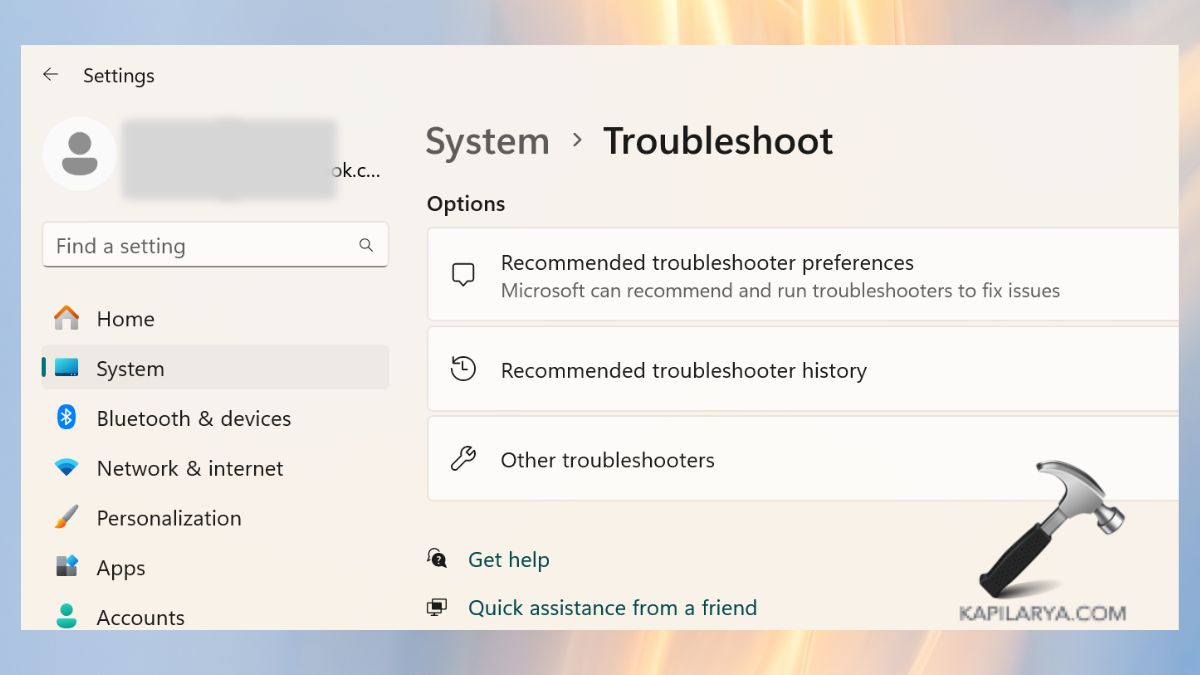
2. Click Other troubleshooters.
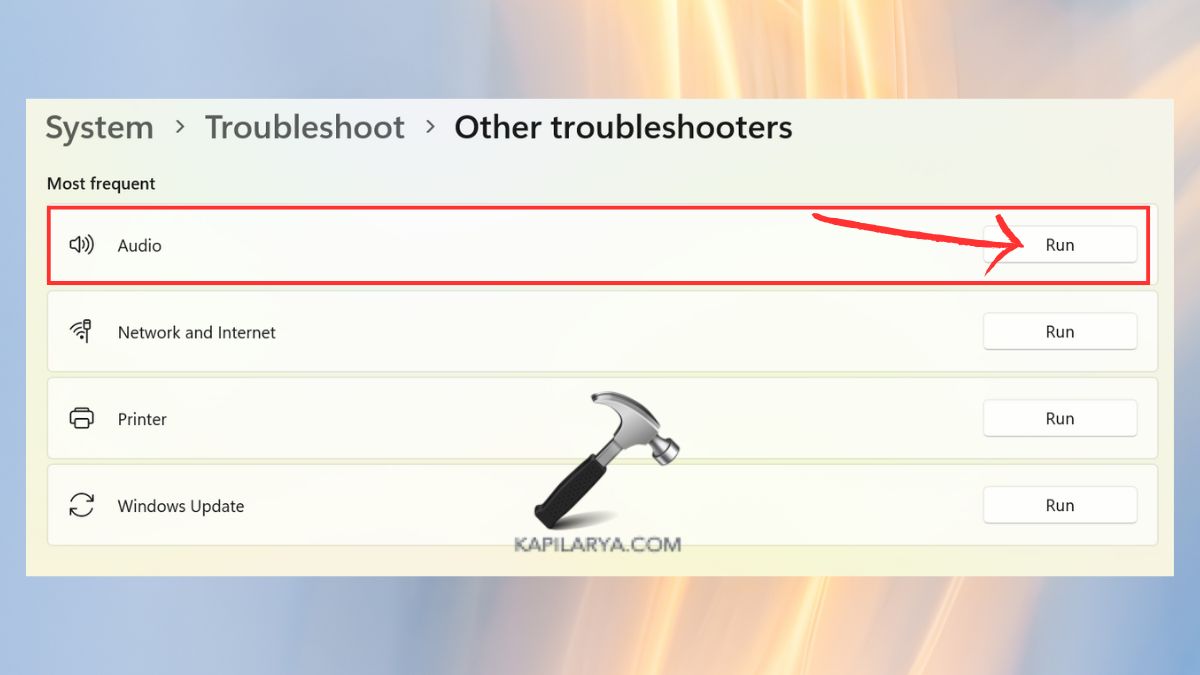
3. Find the option Audio > Click Run. Install fixes as advised by the instructions on the screen.
Fix 3: Set Your Headphones as the Default Audio Device
In case Windows is sending audio to speakers or Bluetooth devices, the headphones will not play.
1. Right-click on the Sound icon on the taskbar > Sound settings.

2. Click on More sound settings. Choose your Headphones in the Playback tab. Click Set Default > OK.
Fix 4: Check the Physical Connection
Improper installation or loose cables may cause the audio to come to a halt.
1. Make sure that your headphone jack is fully inserted in the right port.
2. When it involves USB headphones, disconnect and reconnect the headphones.
3. Clean dust from the ports.
4. Test another USB Port (preferably USB 3.0).
5. Disconnect any additional USB devices that can cause power or driver conflicts.
Fix 5: Test Your Headphones on Another Device
Check that your headphones are functioning before thinking that Windows 11 is the cause.
1. Connect the headphones to a smartphone or to another laptop.
2. Check if they produce sound.
3. Unless they are working on any device, then your headphones might be defective. This is a measure of eradicating hardware failure.
Fix 6: Update or Roll Back Your Audio Drivers
One of the most frequent reasons why headphones do not work on Windows 11 is the drivers. It could be that an update is the answer in some cases, whilst in other cases, a rollback is the answer.
1. Click Windows + X > select Device Manager.

2. Go to “Sound, video and game controllers”. Right-click on your audio driver > Update driver.

3. Choose “Search automatically for drivers”.
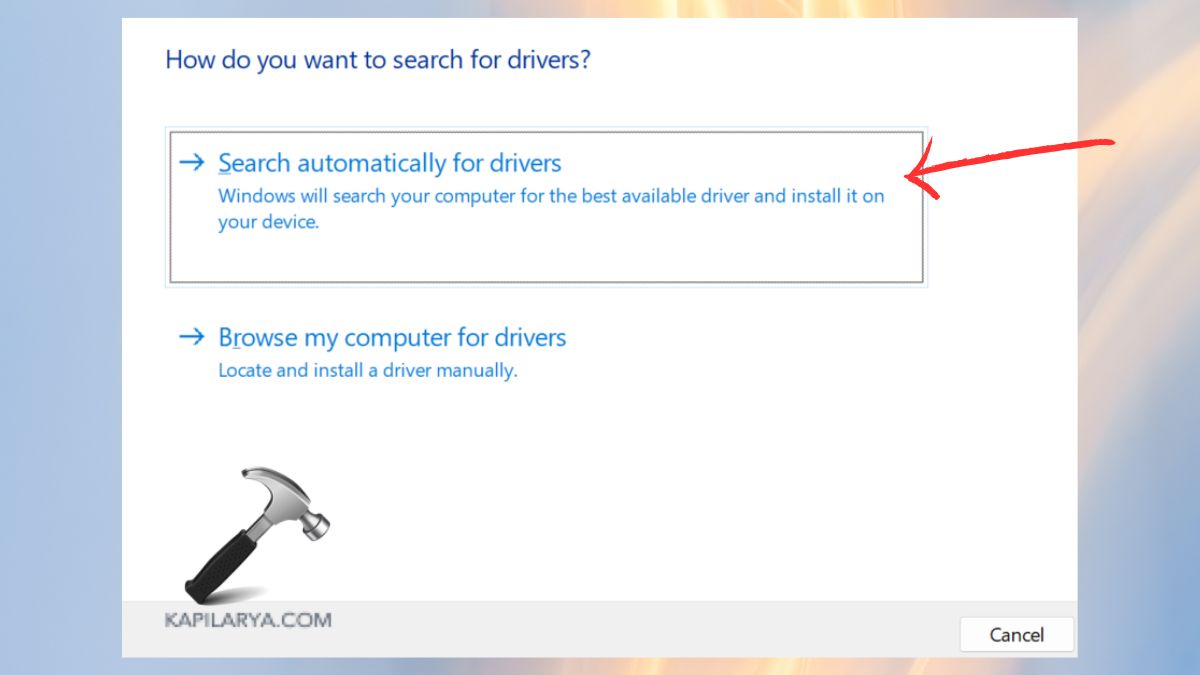
4. Unless this issue does get solved roll back the driver. Click on the sound driver by right clicking it. Click on the Driver tab > Roll Back Driver (if present).

Fix 7: Update Windows 11 to Fix Headphone Compatibility Issues
Windows updates usually include either audio fixes, stability fixes, or new drivers.
1. Access Settings > Windows Update. Click Check for updates.

2. Install all the updates available. Restart the PC.
Fix 8: Disconnect Other USB Devices or Bluetooth Devices
Your sound output is subject to interference by other devices.
1. Disconnect additional USB audio, microphones or adapters.
2. When in the off-the-record mode, switch off Bluetooth.
3. Just take off your headphones.
Frequently Asked Questions (FAQs)
Why are my headphones not showing up in Windows 11?
This is because of faulty audio drivers or inoperative playback devices. It is a problem that can be solved by heeding the solutions in this article.
Why is there no sound even though Windows 11 detects my headphones?
This is normally because of improper choice of output or a silence volume slider. Make sure that you use your headphones as the Default Device.
How do I fix my headphone jack not working on Windows 11?
Use another port, reformat the jack, reformat the audio driver and make sure that the appropriate output device is selected.
Do I need to reinstall Windows to fix headphone issues?
No, the challenge is resolved in most instances by verifying the volume settings, repairing drivers and using the troubleshooters.
That’s it!